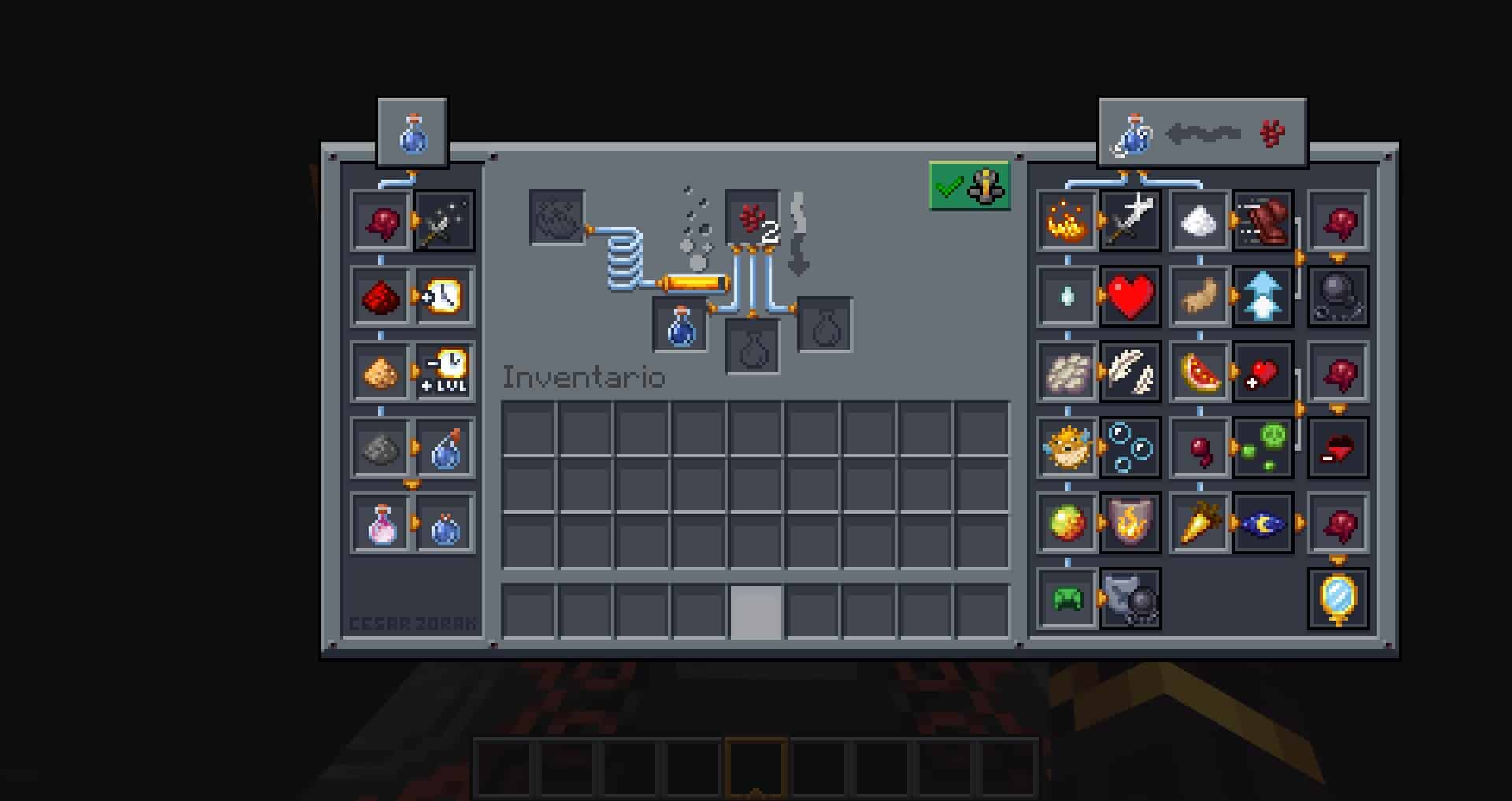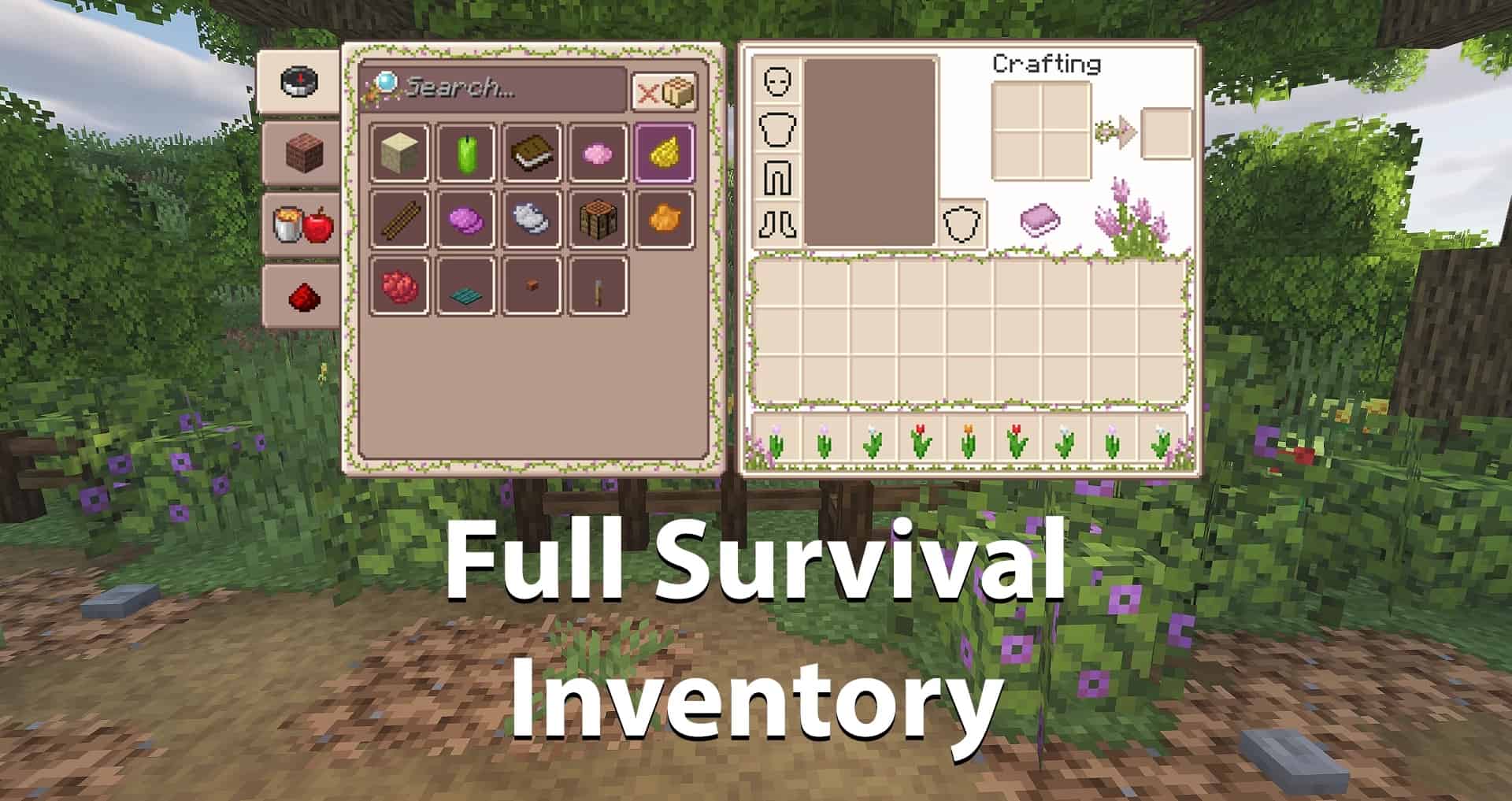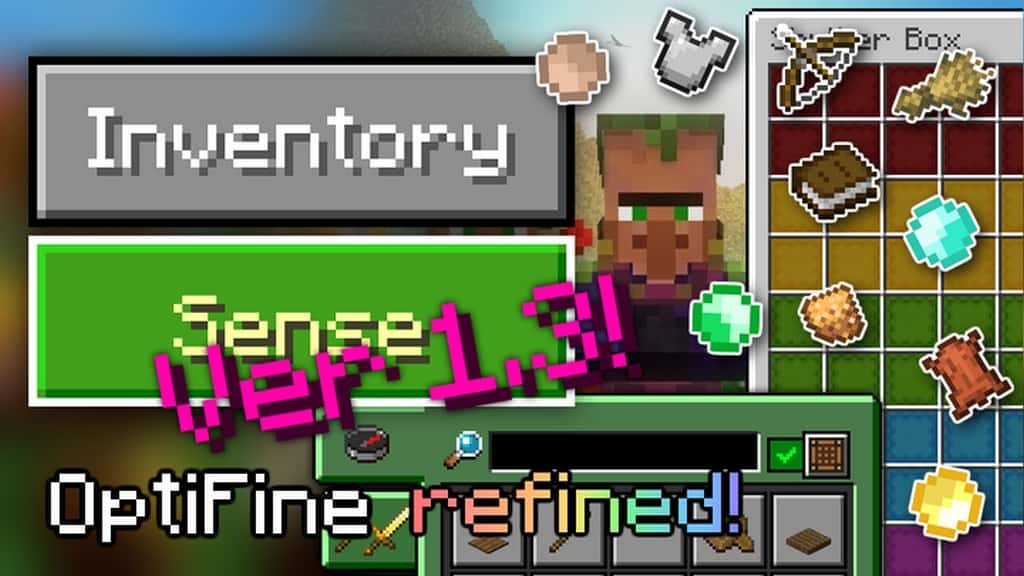
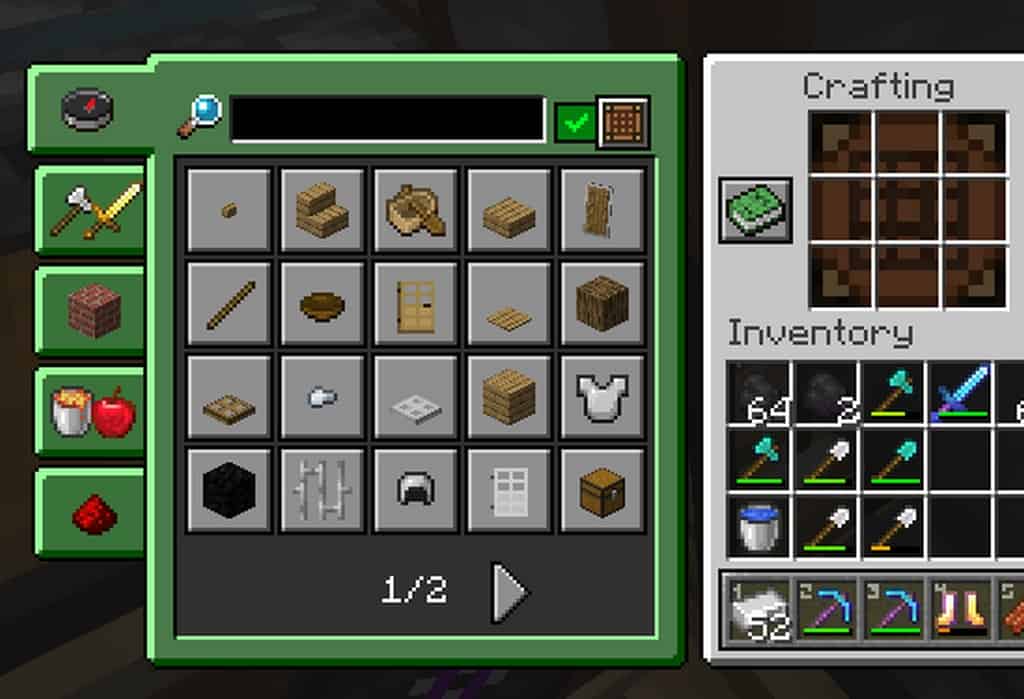
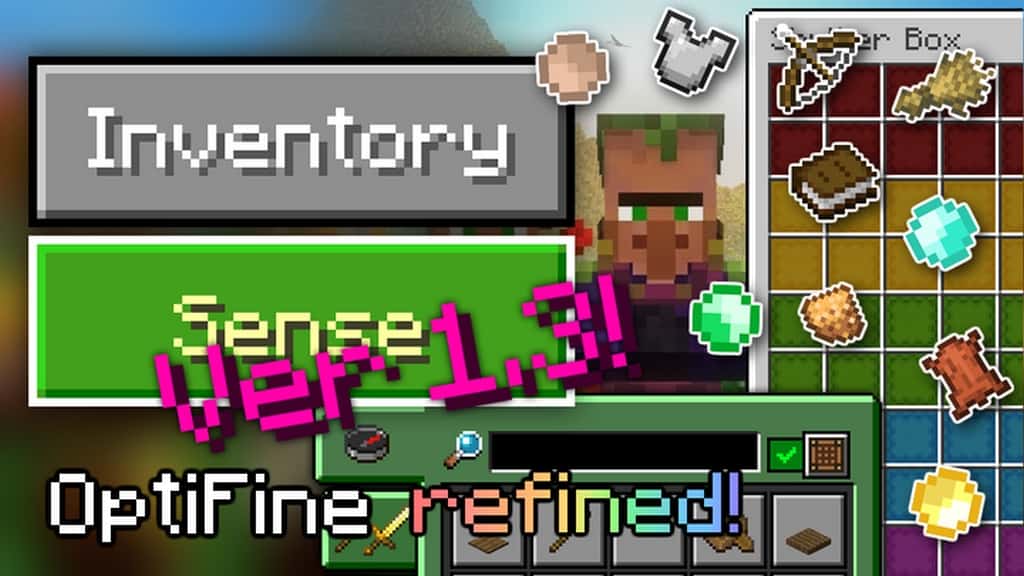
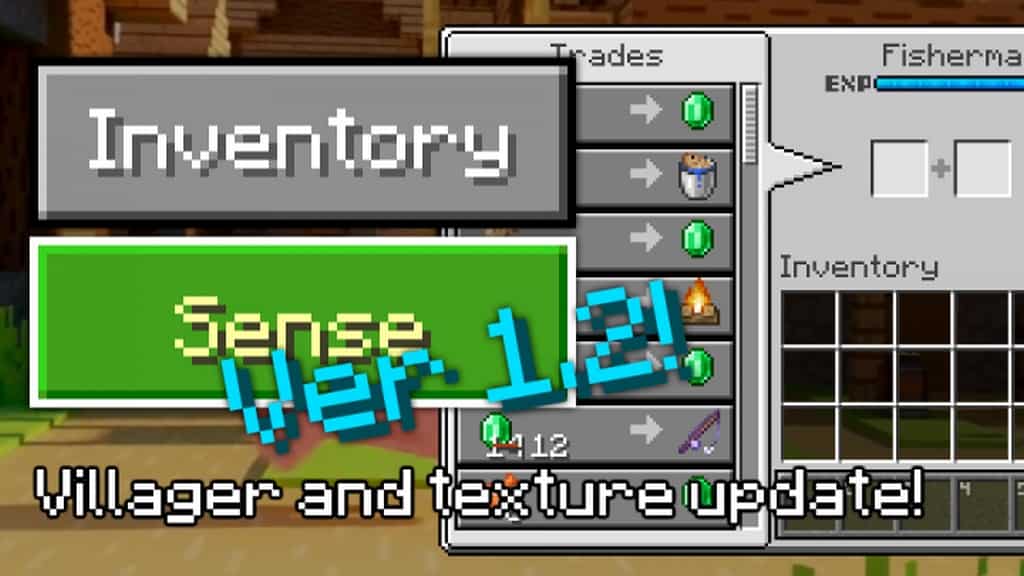
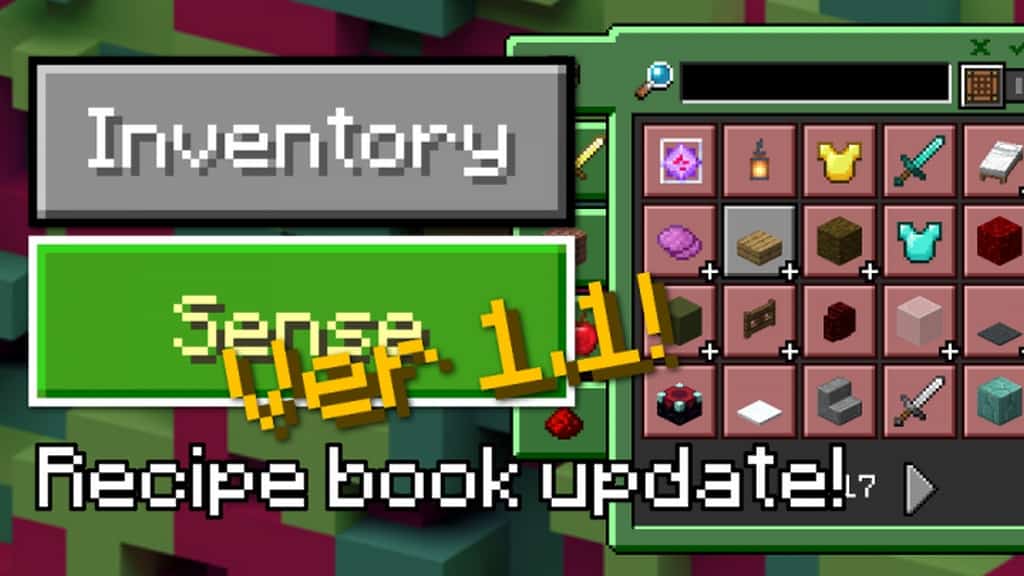
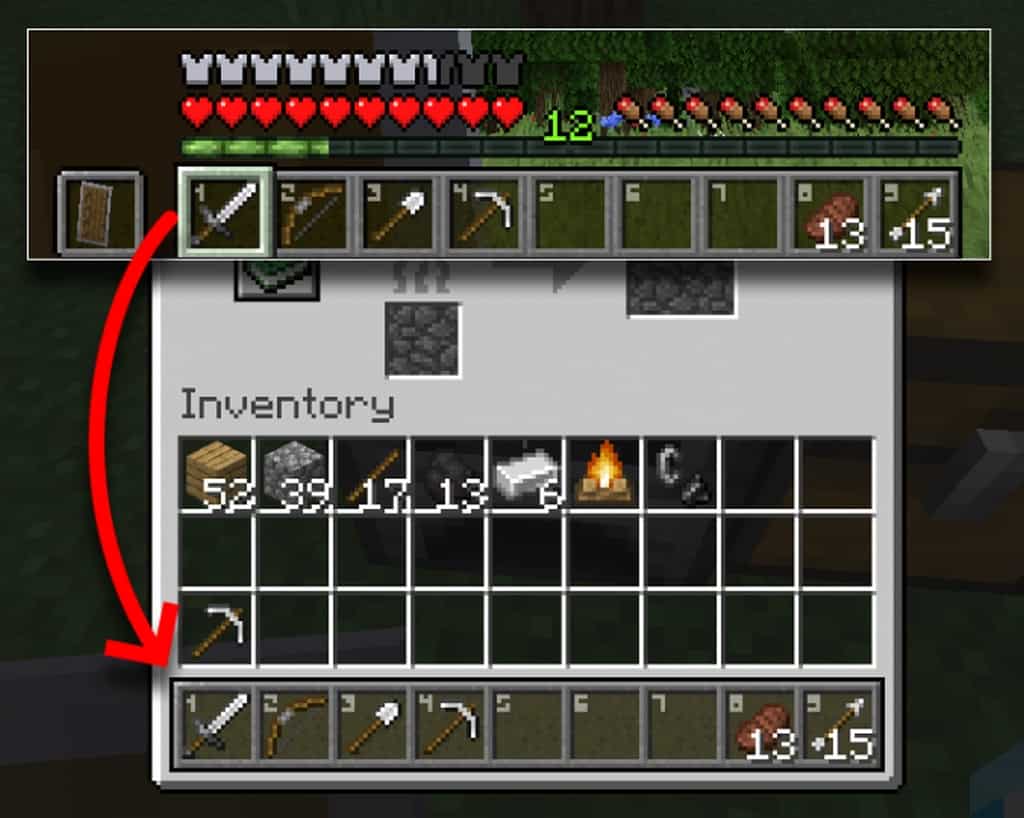
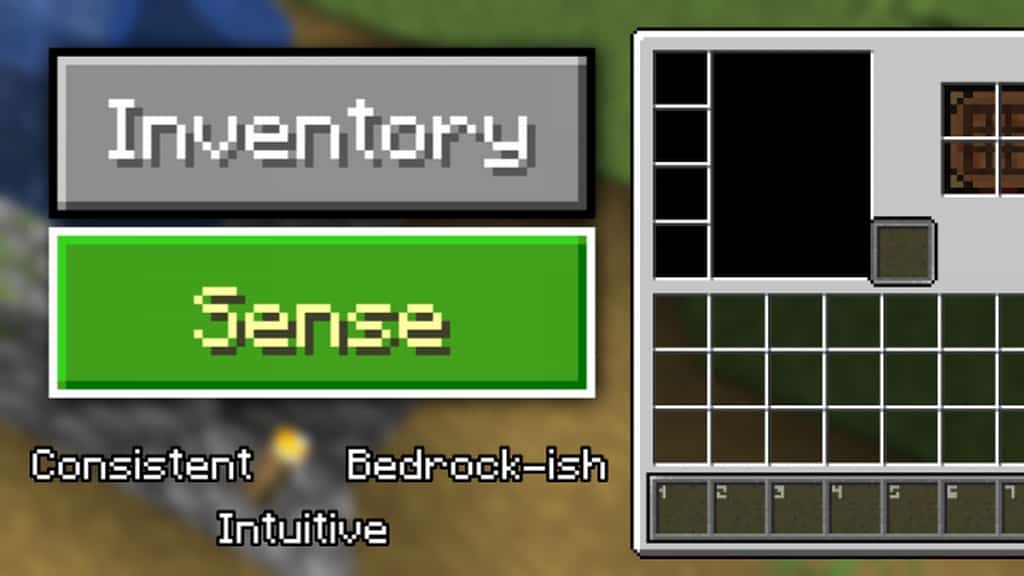
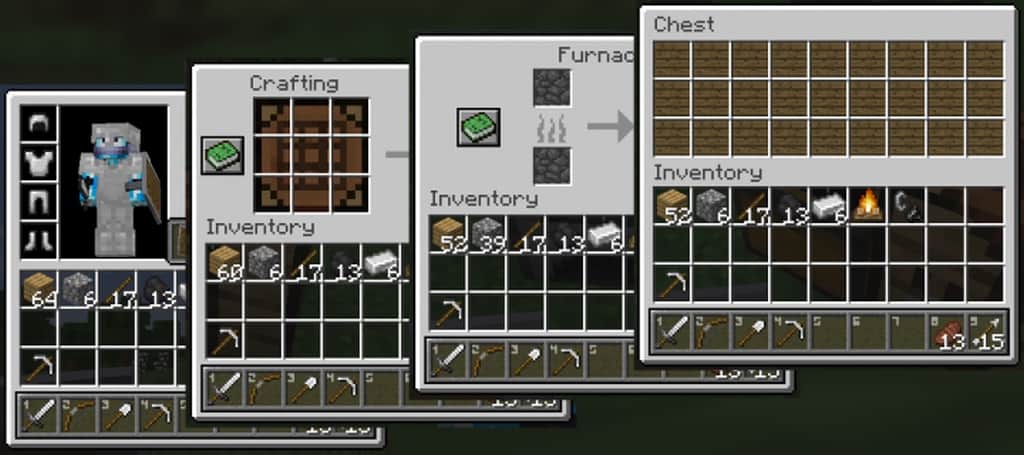
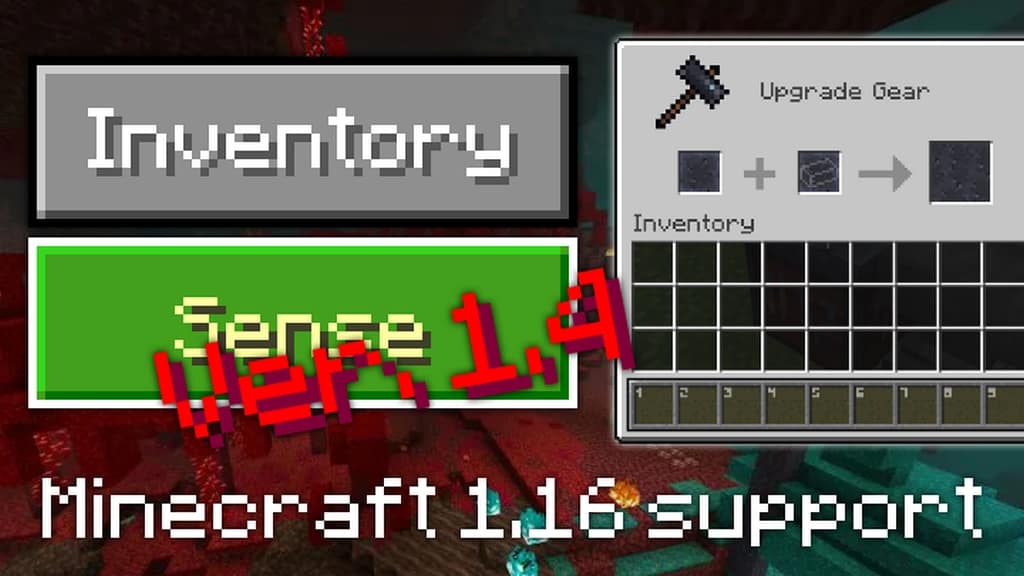
InventorySense UI is a fantastic resource pack that launched recently and has already caught the attention of so many players just days after its initial release! It vastly improves upon what we are given by default in Minecraft, pushing the boundaries of what a GUI-oriented resource pack can achieve with an amazing result. You honestly have to give it a try because you will surely love how it enhances the game, making the user interface feel truly perceptive and easy to use while sporting a gorgeous visual design. The InventorySense UI resource pack does not implement any massive modifications that radically overhaul the core Minecraft experience or its possibilities, but it definitely introduces sophisticated, ingenious changes that make the visual interface look remarkably better and noticeably polished.
Once you dive into using this incredible GUI resource pack, you will quickly notice that a consistent design is maintained across the entire interface, giving it a wonderfully solid and organized look. Alongside these changes, you will find several thoughtful adjustments that make playing Minecraft significantly smoother, such as the handy addition of slot numbers displayed inside every single hotbar space. But there is even more to appreciate in this wonderful texture pack, like the color correction on text input spaces to black, which makes typing and interacting with the interface feel so much better than before. When looking at the available resolutions for this resource pack, you will find only the classic 16×16 resolution, but this is never an issue because InventorySense UI exclusively modifies the visual menu interface rather than general world textures. Because it is a low-resolution resource pack, you will not experience any drops in your Minecraft frame rate or performance, provided you are running hardware that is even slightly better than an average baseline setup.
InventorySense UI should be compatible with all of these Minecraft versions: 1.21.3 – 1.21.2 – 1.21.1 – 1.21 – 1.20.6 – 1.20.5 – 1.20.4 – 1.20.3 – 1.20.2 – 1.20.1 – 1.20 – 1.19.4 – 1.19.3 – 1.19.2 – 1.19.1 – 1.19 – 1.18.2 – 1.18.1 – 1.18 – 1.17.1 – 1.17 – 1.16.5 – 1.16.4 – 1.16.3 – 1.16.2 – 1.16.1 – 1.16 – 1.15.2 – 1.15.1 – 1.15 – 1.14.4 – 1.14.3 – 1.14.2 – 1.14 – 1.13.2 – 1.13.1 – 1.13 – 1.12.2 – 1.12 – 1.11.2 – 1.11 – 1.10.2 – 1.10 – 1.9.4 – 1.9 – 1.8.9 – 1.8.8 – 1.8.1 – 1.8.6 – 1.8
Screenshots
How to Install Texture Pack (Simple 10 Steps)
- Download OptiFine: Most of the texture packs and shaders need OptiFine. That’s why, first download and install OptiFine for the version of Minecraft you want to play.
- Download the Texture Pack: Get the texture pack you want from the download section. Choose the version that works with your Minecraft and your PC’s performance.
- Open Minecraft Launcher: Start Minecraft using the official game launcher — or even TLauncher, if you use that.
- Go to Options: From the main menu, click on the “Options” button.
- Open Resource Packs: Inside Options, click on “Resource Packs…”.
- Open the Resource Pack Folder: Click on “Open Resource Pack Folder” — this will open a folder named “resourcepacks”.
- Move the Pack File: Copy or move the .zip file you downloaded into that “resourcepacks” folder. (Don’t unzip the file — Minecraft uses it as-is!)
- Go Back and Refresh: Close the folder and click “Done”, then go back into “Resource Packs…” again.
- Activate the Pack: You’ll see the pack on the left side. Hover over it and click the arrow to move it to the right (active side).
Tip: If you get a message that the pack is for a different version, just click “Yes” — it usually works fine. - Click Done and Enjoy: Click “Done” again. Now your pack is ready to use in-game. It’s that easy!
Credits
This project was originally created by moxwel. We do not claim ownership of this content and provide these download links as a convenience to the community. We strongly encourage you to support the original creator by visiting their official release pages.
Download Instructions
Curseforge: download starts automatically after a few seconds;
Mediafire: click the big blue button with the text “DOWNLOAD”;
Google Drive: in the top right corner you will see a small download icon (down arrow), click it and the download should start;