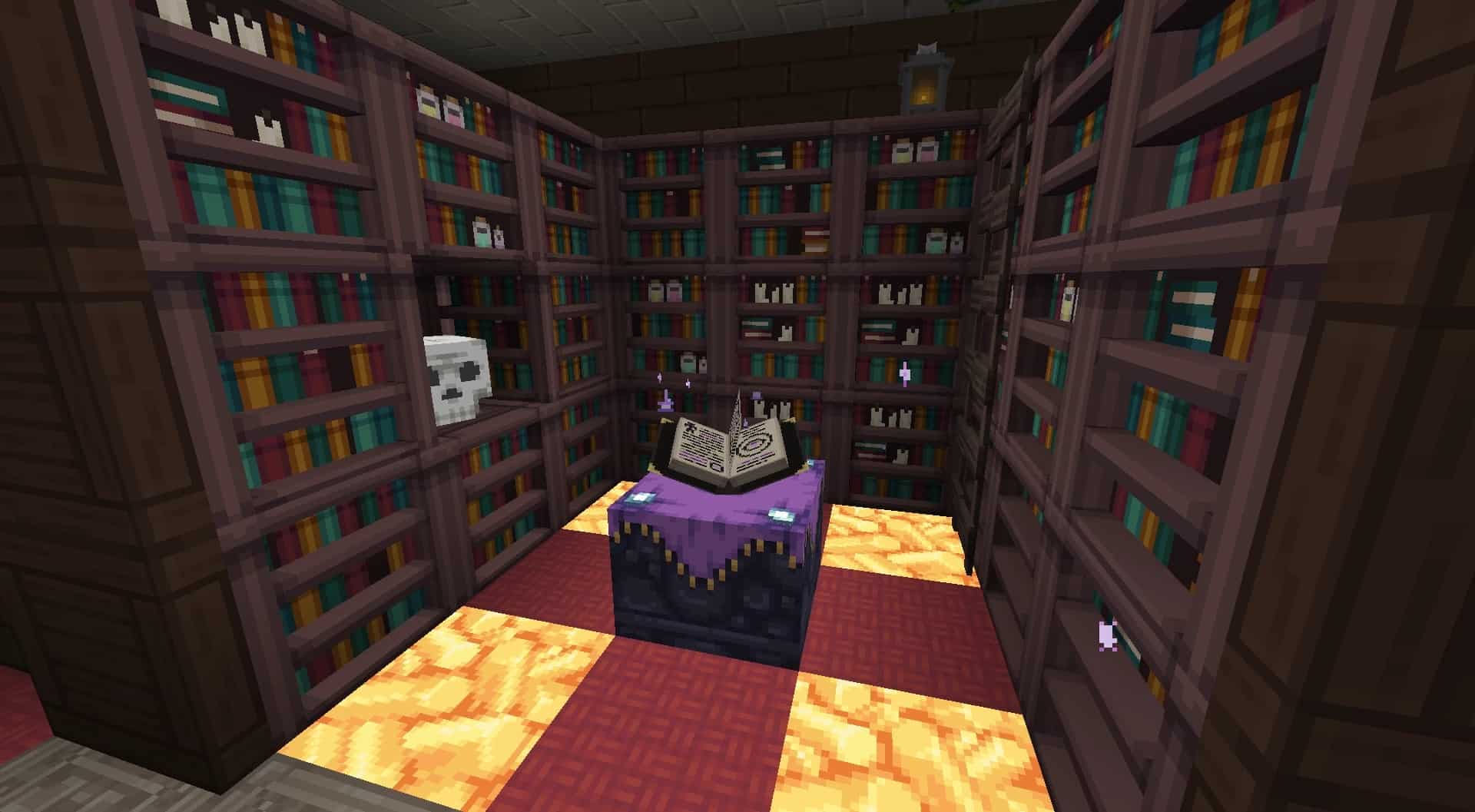
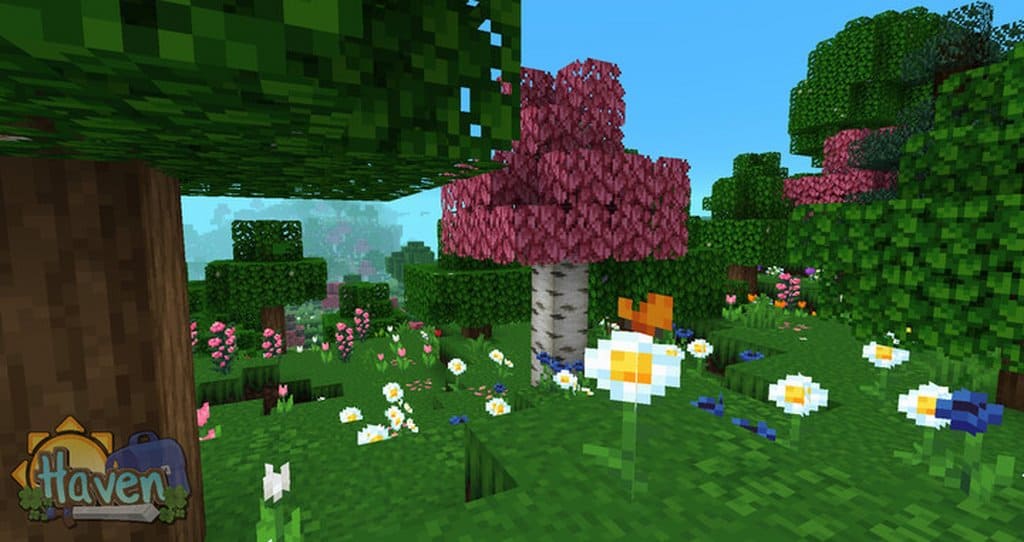
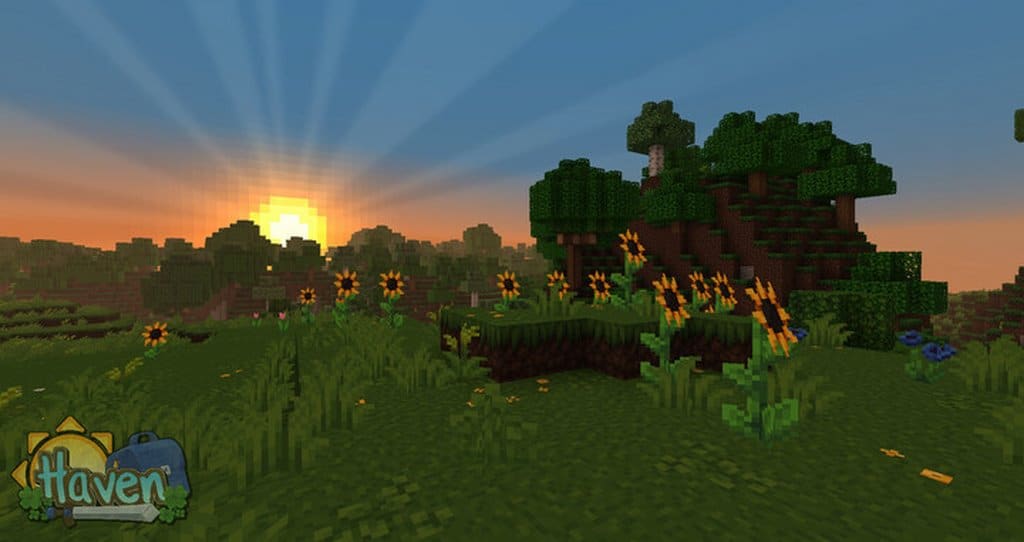
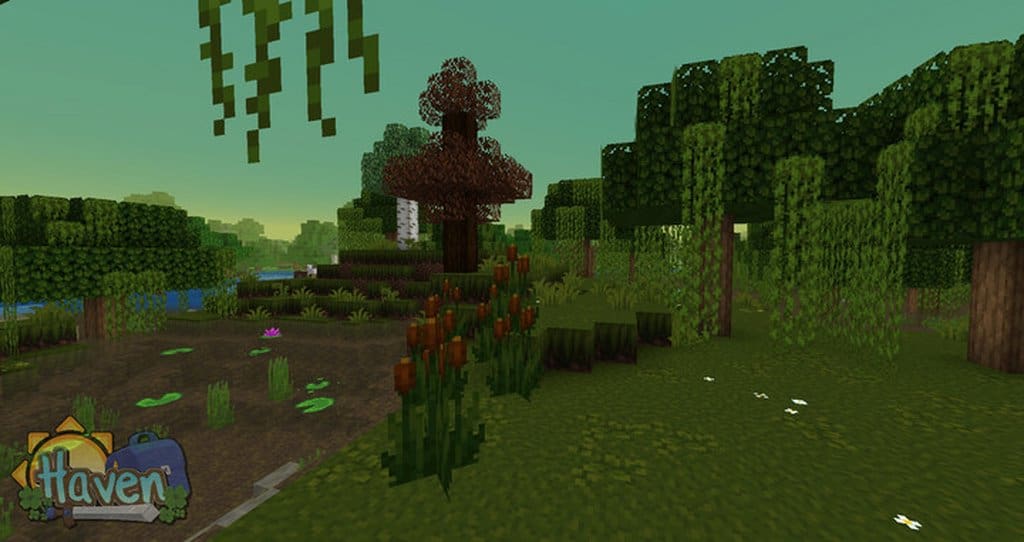
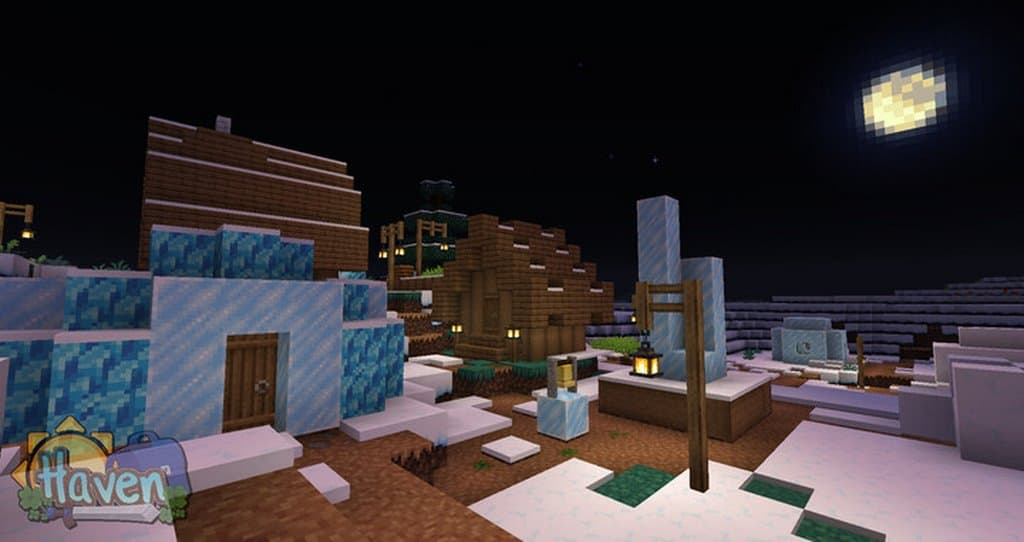
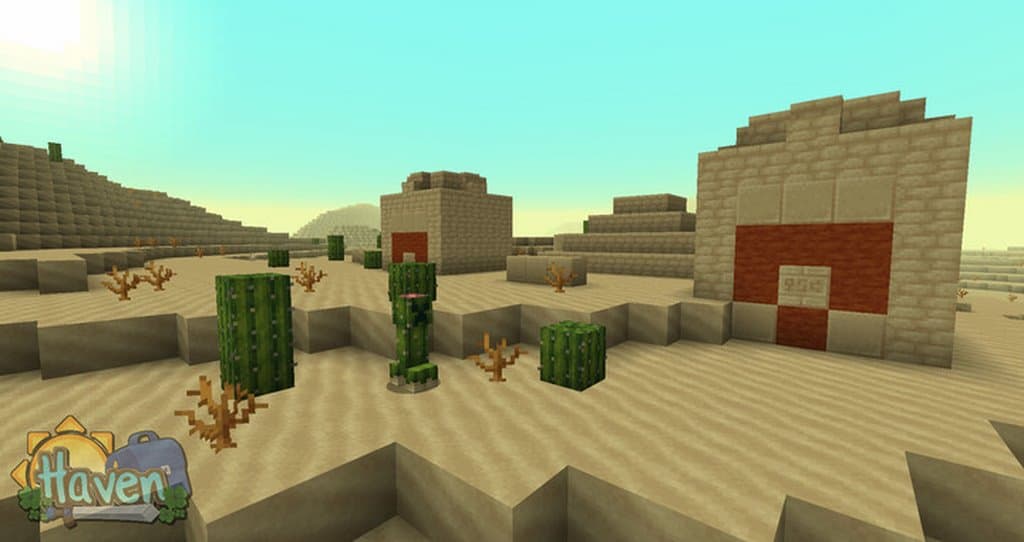
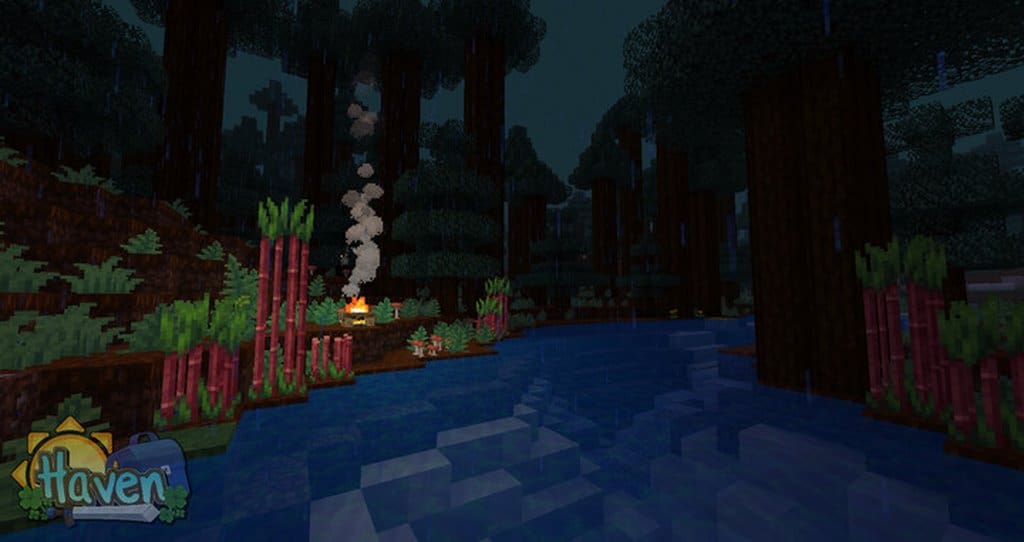
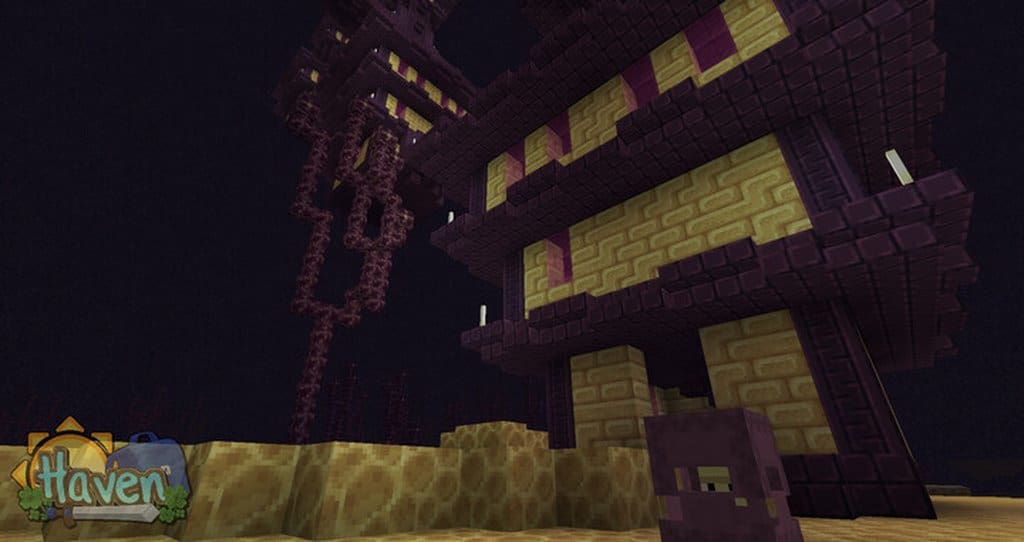
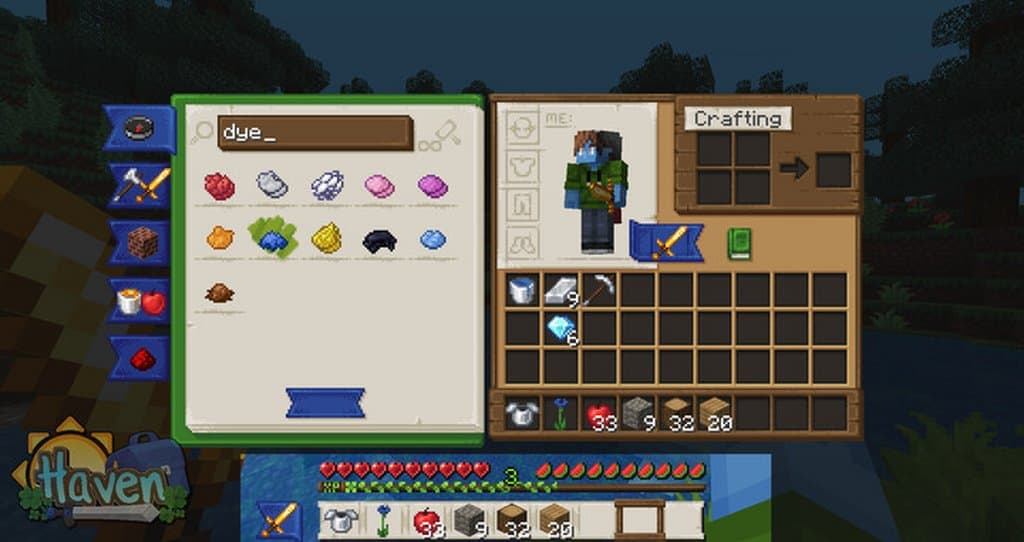
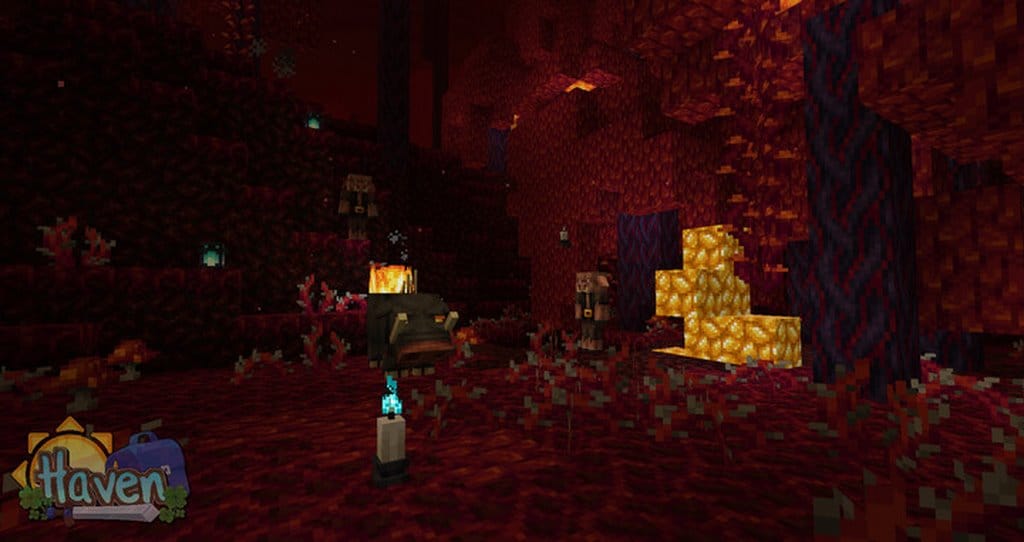
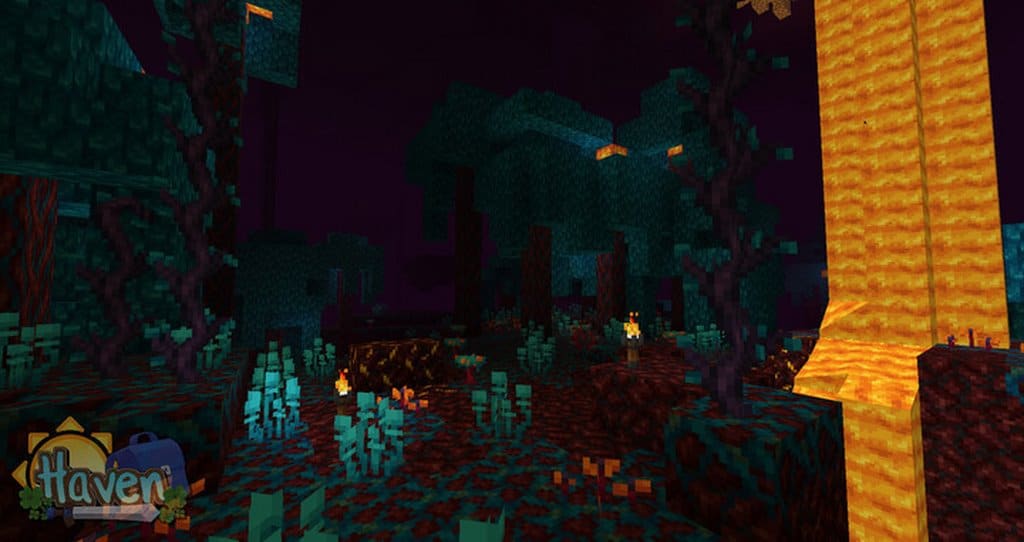
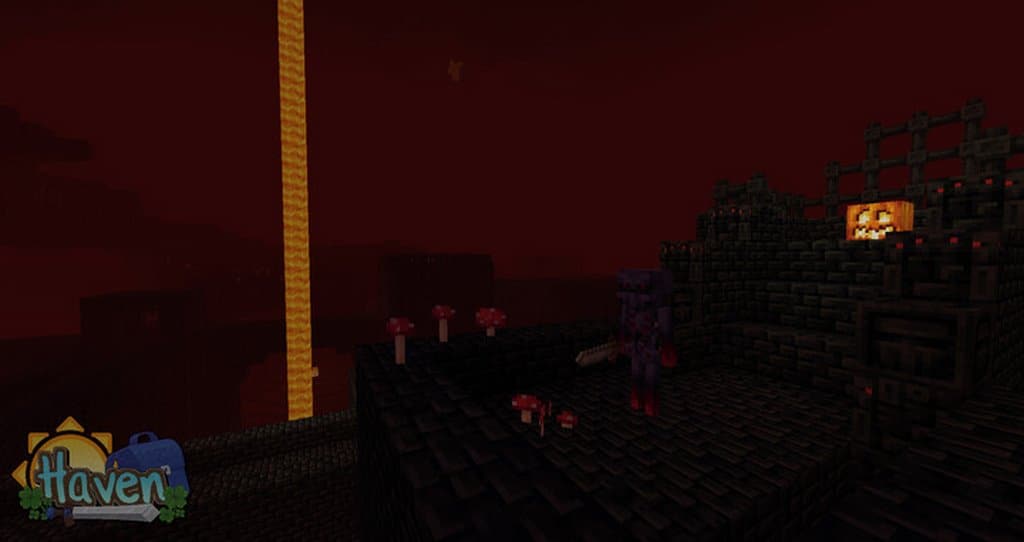
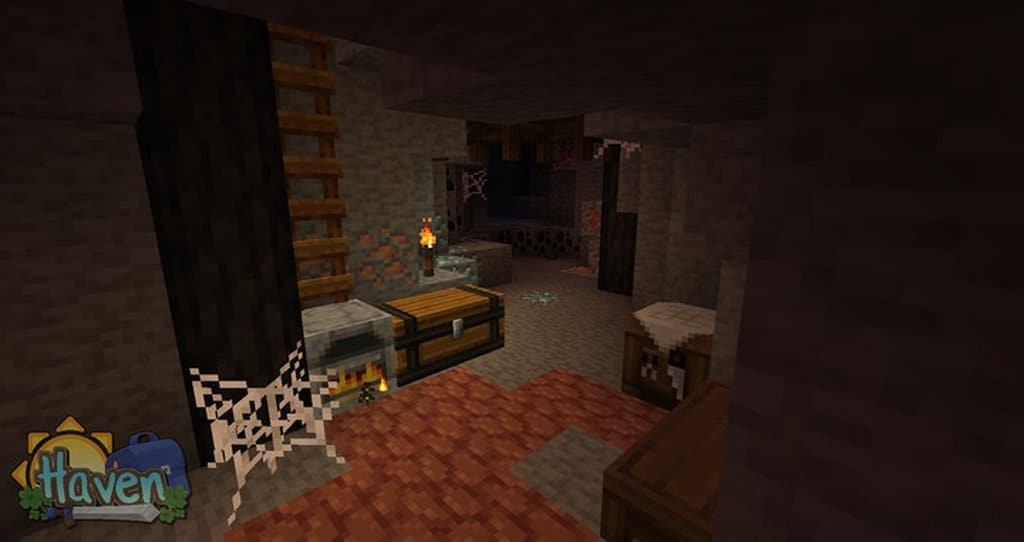
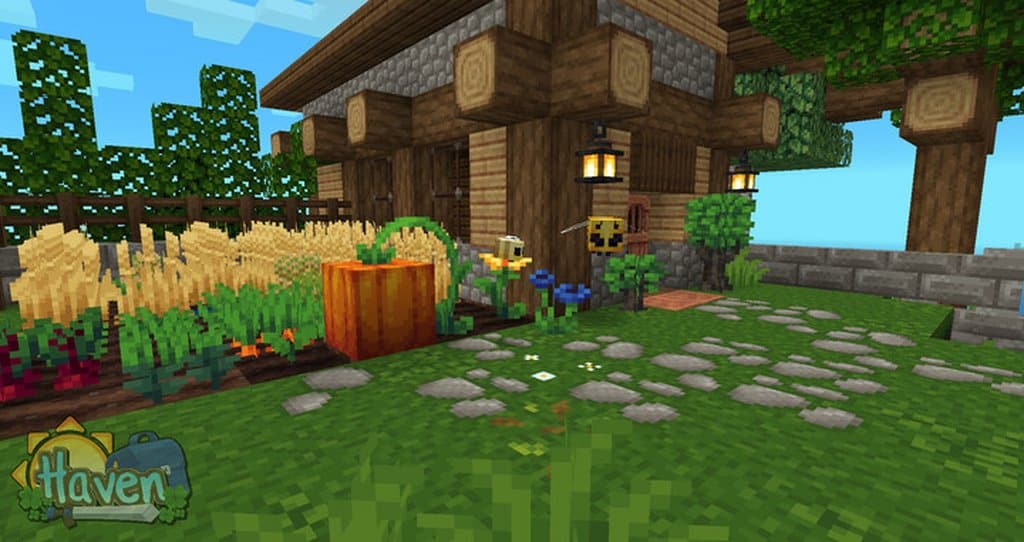
The wonderful pixel-art look of the Haven resource pack will instantly give your game a distinct and charming style. While there are many other pixel-art resource packs available for Minecraft players, the Haven pack truly stands out by offering a lively and energetic look to your game. You can easily download this pack if you are looking for a more attractive and stylish look for your gameplay. The Haven texture pack beautifully focuses on a vibrant color scheme. It brilliantly creates a bright look similar to what you might find in Stardew Valley or other similar games. It is wonderfully simple to look at the designs, not to mention the colors and patterns are remarkably easy to distinguish. There is a delightful slight bit of extra saturation throughout the set for an extra touch of beauty. The textures in the resource pack comprehensively cover everything in Minecraft from the glowing lava and crackling fire to gorgeous biomes and sparkling water.
There are also fantastic textures for many of the creatures you will find throughout the world, from puffer fish to spooky skeletons. The pixel-art inspired look creates a much better appearance when compared with what you might find elsewhere. The level of detail is slightly lower than what you would find in other resource packs, but that is expertly a part of its clean design. The Haven pack focuses on a brighter color layout that brings a wonderful new sense of life to your game environment. You can even smoothly use this resource pack if you have an older computer. This pack uses a delightful 16×16 resolution, thus making it much easier for people to run without any frame rate concerns. The ideal part of the Haven pack is that it provides a unique and refreshing approach to playing the game. While many pixel-art layouts can sometimes feel drab and unappealing, the Haven pack establishes a refreshing and gorgeous style. You will truly appreciate how special your visuals will look when you get the Haven resource pack up and running.
Haven should be compatible with all of these Minecraft versions: 1.18.2 – 1.18.1 – 1.18 – 1.17.1 – 1.17 – 1.16.5 – 1.16.4 – 1.16.3 – 1.16.2 – 1.16.1 – 1.16 – 1.15.2 – 1.15.1 – 1.15 – 1.12.2 – 1.12 – Bedrock Edition – PE
Screenshots
How to Install Texture Pack (Simple 10 Steps)
- Download OptiFine: Most of the texture packs and shaders need OptiFine. That’s why, first download and install OptiFine for the version of Minecraft you want to play.
- Download the Texture Pack: Get the texture pack you want from the download section. Choose the version that works with your Minecraft and your PC’s performance.
- Open Minecraft Launcher: Start Minecraft using the official game launcher — or even TLauncher, if you use that.
- Go to Options: From the main menu, click on the “Options” button.
- Open Resource Packs: Inside Options, click on “Resource Packs…”.
- Open the Resource Pack Folder: Click on “Open Resource Pack Folder” — this will open a folder named “resourcepacks”.
- Move the Pack File: Copy or move the .zip file you downloaded into that “resourcepacks” folder. (Don’t unzip the file — Minecraft uses it as-is!)
- Go Back and Refresh: Close the folder and click “Done”, then go back into “Resource Packs…” again.
- Activate the Pack: You’ll see the pack on the left side. Hover over it and click the arrow to move it to the right (active side).
Tip: If you get a message that the pack is for a different version, just click “Yes” — it usually works fine. - Click Done and Enjoy: Click “Done” again. Now your pack is ready to use in-game. It’s that easy!
Credits
This resource pack was originally created by sixfootblue. We do not own, host, or modify this content and share it strictly as fans of the project. Please consider supporting the original creator by visiting their official download and project pages.
Download Links
Java Edition
- [16x] Minecraft 1.18.x
- [16x] Minecraft 1.17.x – 1.16.x
- [16x] Minecraft 1.15.x
- [16x] Minecraft 1.12.x
Bedrock Edition
Download Instructions
Curseforge: download starts automatically after a few seconds;
Mediafire: click the big blue button with the text “DOWNLOAD”;
Google Drive: in the top right corner you will see a small download icon (down arrow), click it and the download should start;