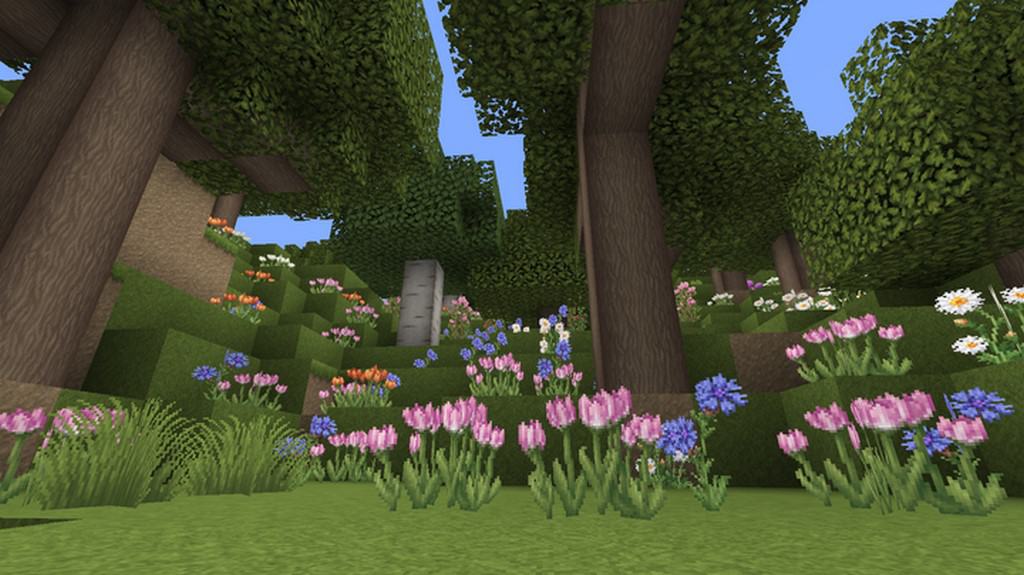
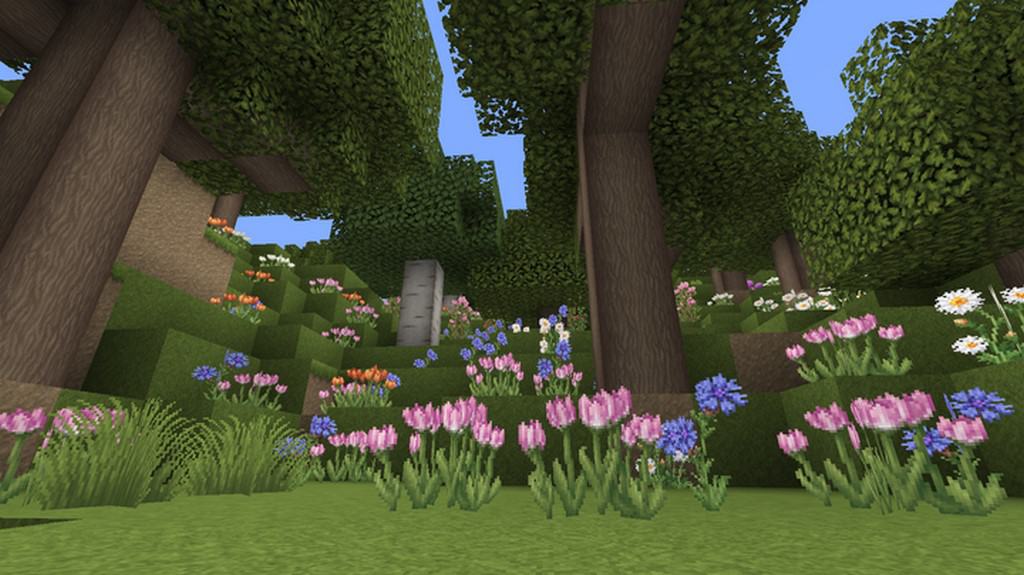
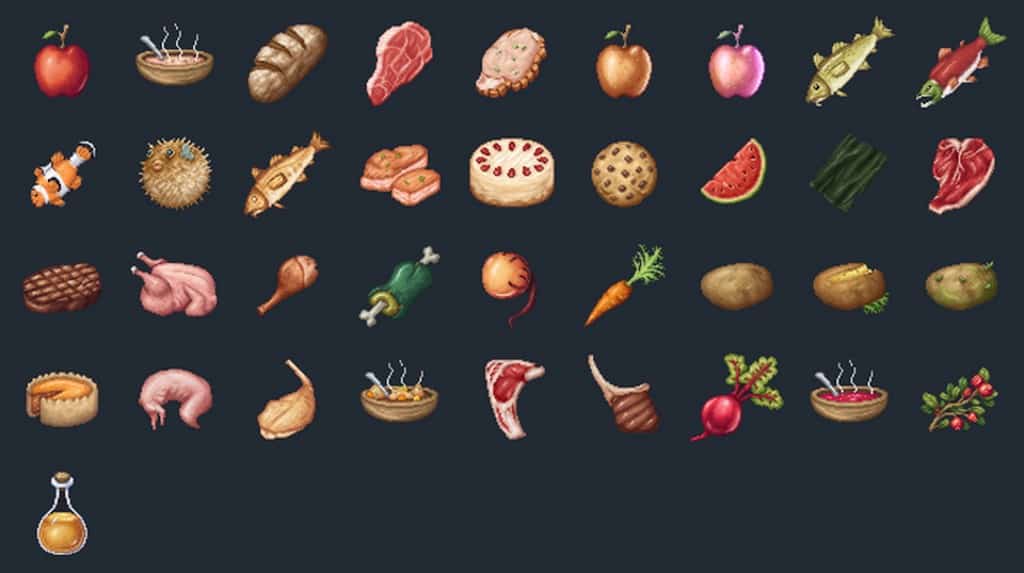
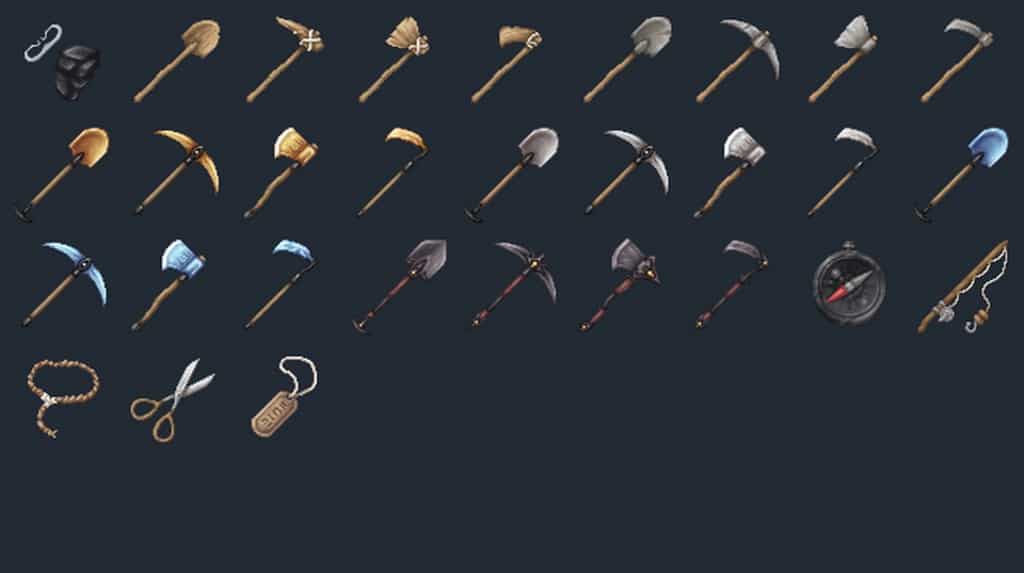
I was honestly blown away when I tested Grace and Fortune, a top-of-the-line Minecraft resource pack that somehow remains actively in development despite having been around for many years! You really do not need to worry about that status, though, because it is already in an amazingly polished and enjoyable state. If you are hunting for a classy resource pack with a genuinely unique and delightful theme, Grace and Fortune might just be the exact choice you are looking for. It comes packed with a bunch of fun features, but what truly stands out for me is the one-of-a-kind art style. That unique and interesting element alone is reason enough to try it out and experience something truly extraordinary. What makes Grace and Fortune such an absolute joy to look at is, without a doubt, the wonderfully lively color palette it brings to the world.
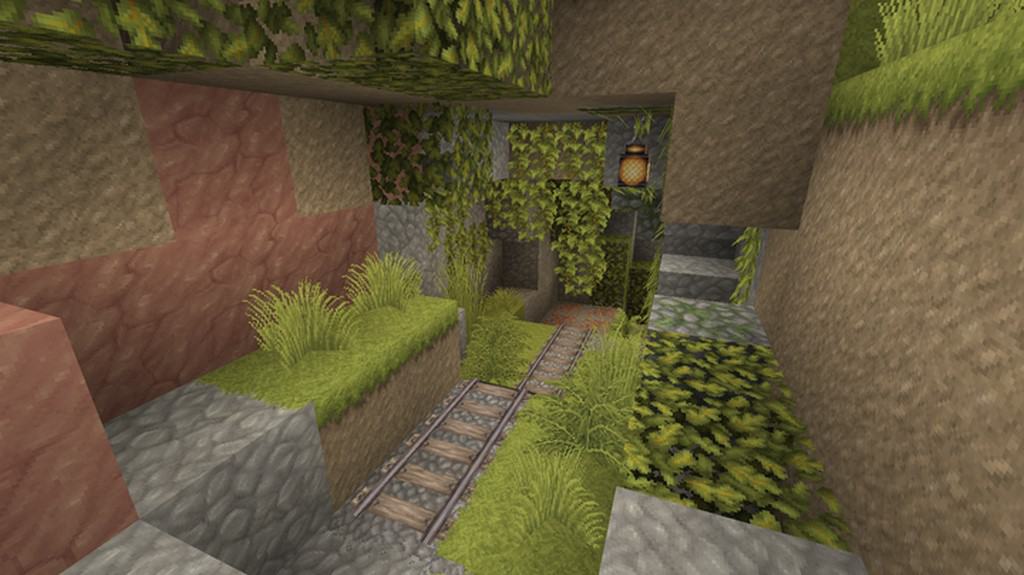
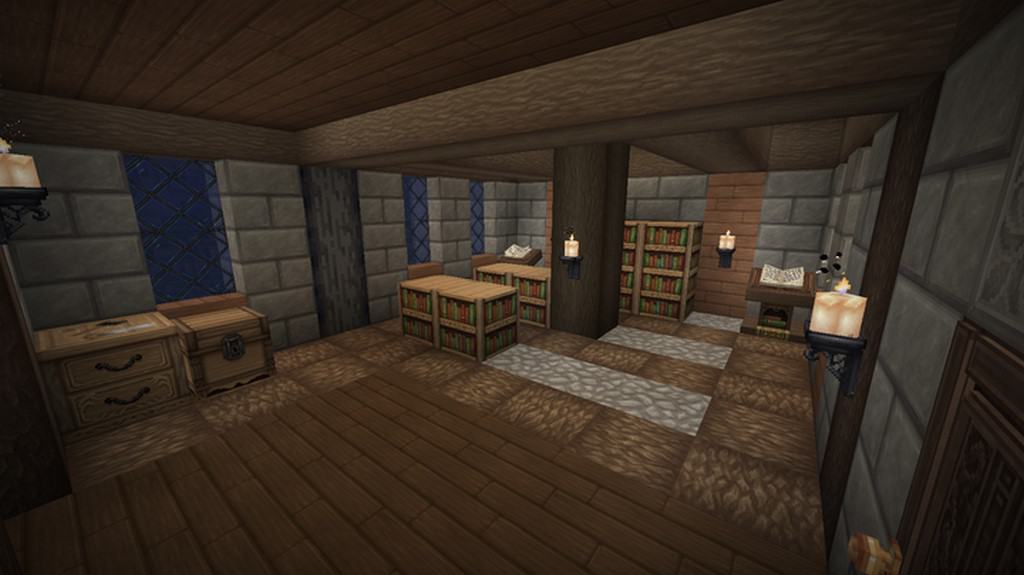
While it is true that these lively colors have become pretty common among many Minecraft resource packs lately, the overall experience is just so much better with Grace and Fortune. This pack takes things a notch higher with a noticeably brighter color scheme compared to the other packs we have been used to using over the years. Beyond the stunning colors, this resource pack further boasts incredibly detailed textures, and what really impressed me is how clean and non-noisy they managed to keep everything. This means your eyes get an easier, much more visually appealing experience while playing. Grace and Fortune features an impressive 64x resolution, which is the main reason why the textures look so remarkably detailed, placing it in a league of its own. Because of this high resolution, I definitely recommend having a decent PC to run it smoothly, as that will ensure you can operate this pack at steady frame-rates without ever having to stress about recurrent frame-rate drops.
Grace & Fortune should be compatible with all of these Minecraft versions: 26.2 – 26.1.2 – 26.1.1 – 26.1 – 1.21.11 – 1.21.10 – 1.21.9 – 1.21.8 – 1.21.7 – 1.21.6 – 1.21.5 – 1.21.4 – 1.21.3 – 1.21.2 – 1.21.1 – 1.21 – 1.20.6 – 1.20.5 – 1.20.4 – 1.20.3 – 1.20.2 – 1.20.1 – 1.20 – 1.16.5 – 1.16.4 – 1.16.3 – 1.16.2 – 1.16.1 – 1.16 – 1.15.2 – 1.15.1 – 1.15 – 1.14.4 – 1.14.3 – 1.14.2 – 1.14 – 1.13.2 – 1.13.1 – 1.13 – 1.12.2 – 1.12
Screenshots


How to Install Texture Pack (Simple 10 Steps)
- Download OptiFine: Most of the texture packs and shaders need OptiFine. That’s why, first download and install OptiFine for the version of Minecraft you want to play.
- Download the Texture Pack: Get the texture pack you want from the download section. Choose the version that works with your Minecraft and your PC’s performance.
- Open Minecraft Launcher: Start Minecraft using the official game launcher — or even TLauncher, if you use that.
- Go to Options: From the main menu, click on the “Options” button.
- Open Resource Packs: Inside Options, click on “Resource Packs…”.
- Open the Resource Pack Folder: Click on “Open Resource Pack Folder” — this will open a folder named “resourcepacks”.
- Move the Pack File: Copy or move the .zip file you downloaded into that “resourcepacks” folder. (Don’t unzip the file — Minecraft uses it as-is!)
- Go Back and Refresh: Close the folder and click “Done”, then go back into “Resource Packs…” again.
- Activate the Pack: You’ll see the pack on the left side. Hover over it and click the arrow to move it to the right (active side).
Tip: If you get a message that the pack is for a different version, just click “Yes” — it usually works fine. - Click Done and Enjoy: Click “Done” again. Now your pack is ready to use in-game. It’s that easy!
Credits
The Grace and Fortune resource pack was created by The Celestial Forge. We do not claim ownership of this content, nor have we modified the original files. All rights remain with the original creator. We strongly encourage you to support the author by downloading the pack from their official links and checking out their other projects.
Download Links
Java Edition
Download Instructions
Curseforge: download starts automatically after a few seconds;
Mediafire: click the big blue button with the text “DOWNLOAD”;
Google Drive: in the top right corner you will see a small download icon (down arrow), click it and the download should start;


