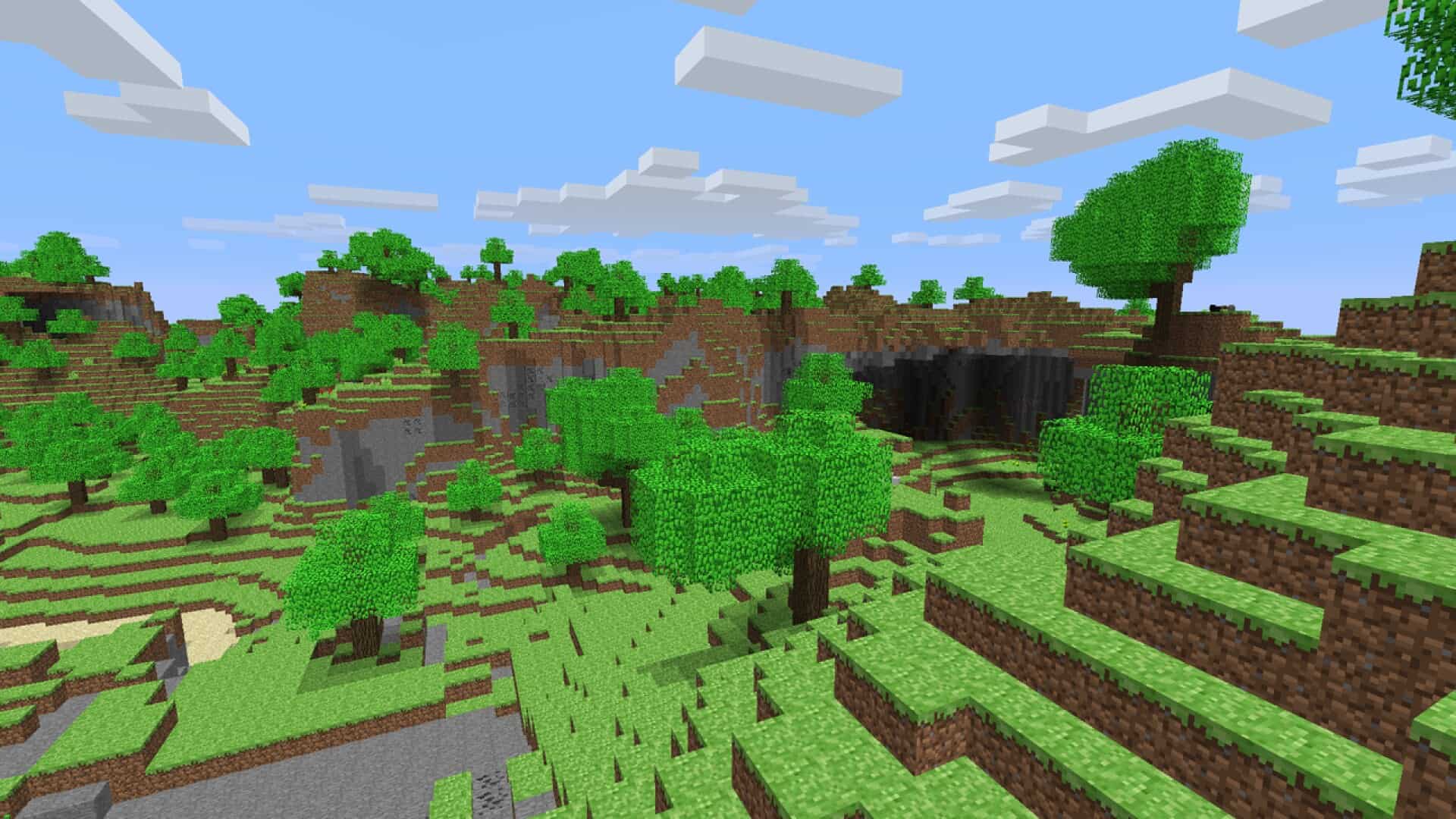
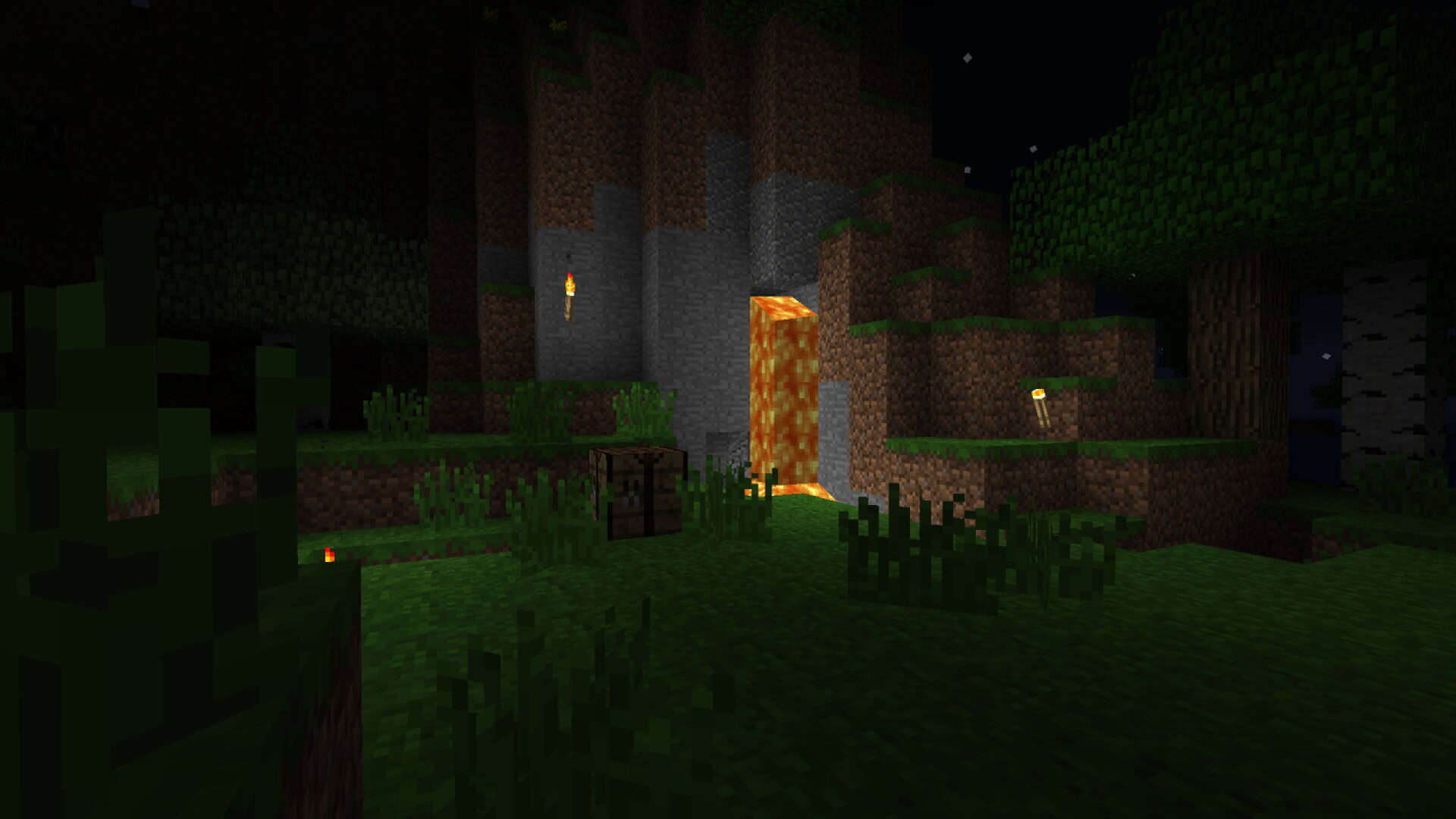
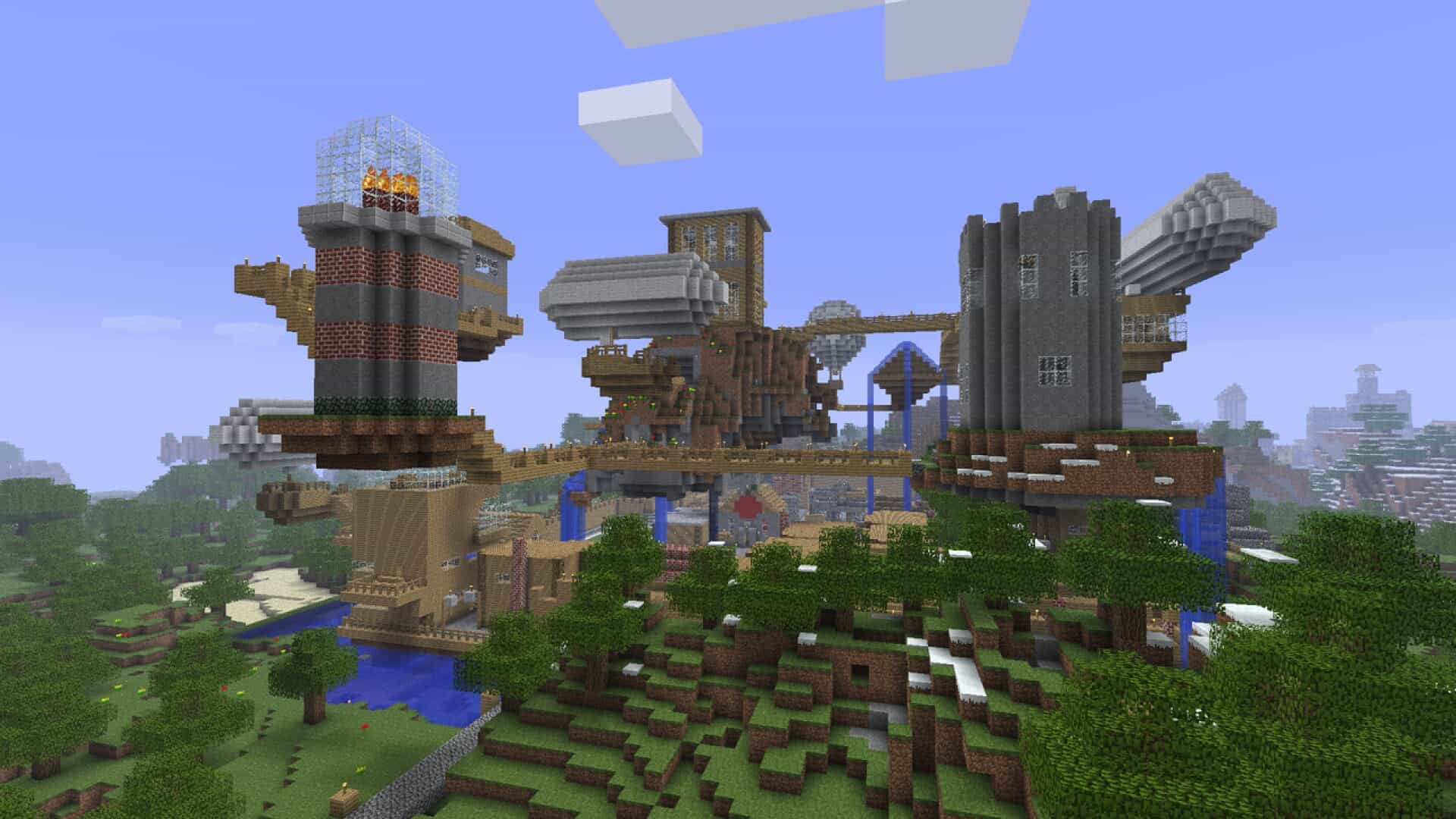
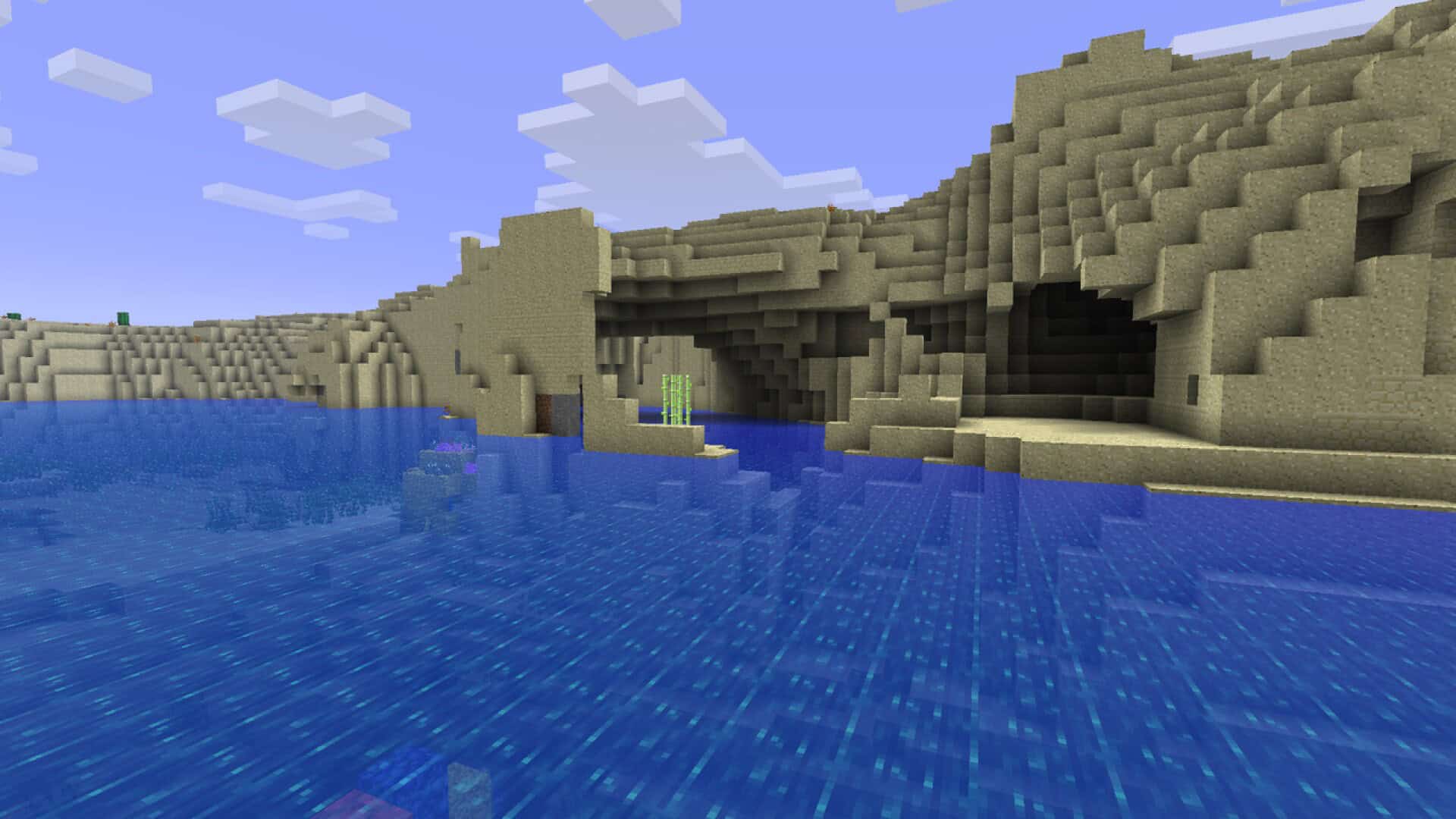
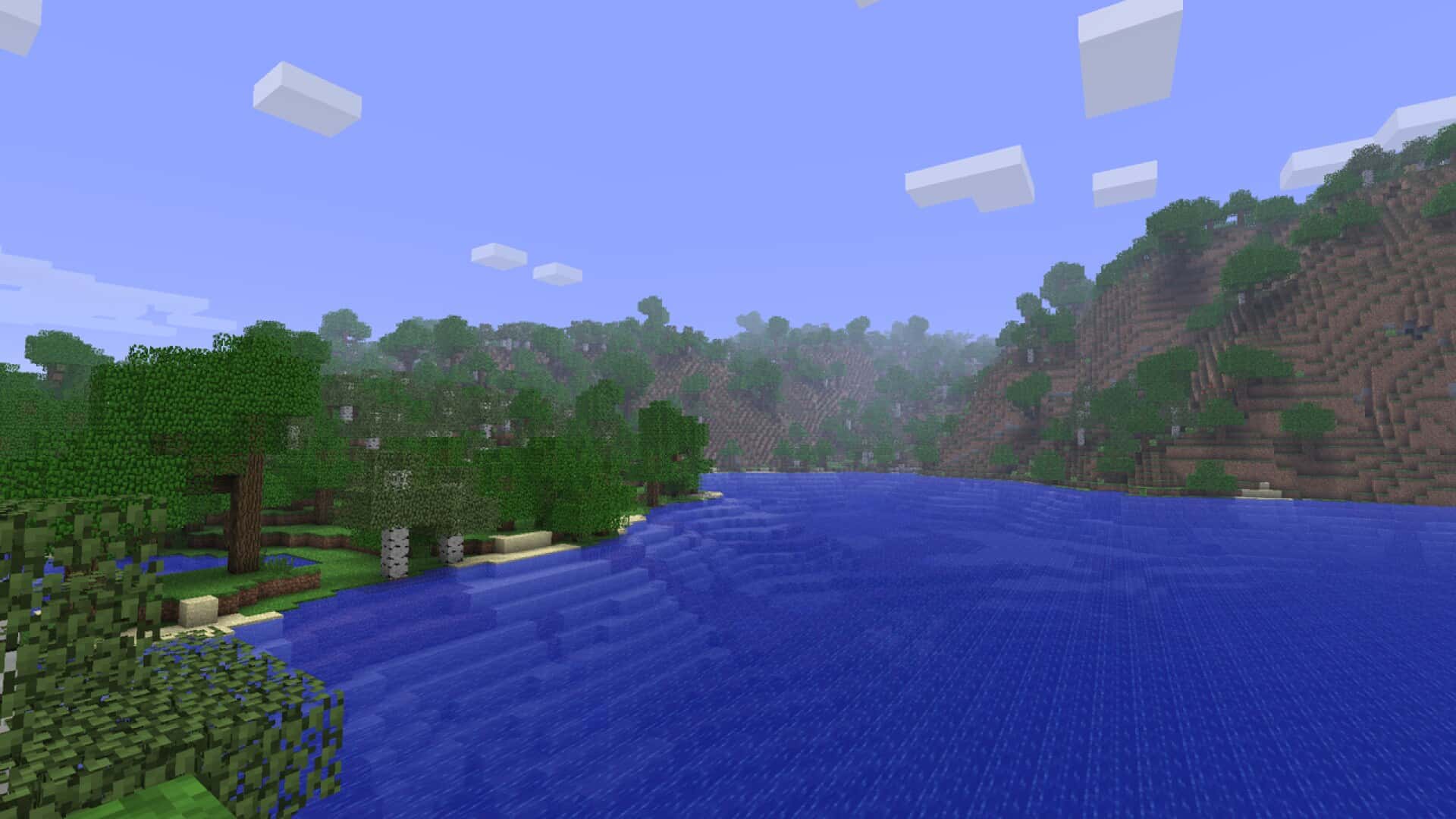
The Golden Days texture pack is an absolute must-try for any Minecraft fan craving a serious dose of nostalgia wrapped in stunning visual appeal. This carefully crafted pack completely transports you back to the earlier days of the game, effortlessly evoking warmth and familiarity while keeping everything looking surprisingly fresh and polished. At its core, the Golden Days resource pack captures the true essence of classic Minecraft, reimagining textures and visuals with a brilliant modern twist. The creator has poured countless hours into refining every block, item, and entity to strike the ultimate balance between old-school charm and contemporary design sensibilities. One of the standout features I love about the Golden Days pack is its vibrant color palette, which employs a rich array of warm, saturated hues harkening straight back to the golden age of gaming. From the lush green of the grass blocks to the deep blue of the water, every single texture is carefully put together to create a cohesive and inviting world that whisks you straight back to alpha, but right here in modern Minecraft. This resource pack is definitely not built for players seeking a complete overhaul, realistic textures, or horror-themed aesthetics; instead, it purely restores the original look and feel of the alpha stage. It reintroduces most of those iconic classic textures from early Minecraft and updates them to fit seamlessly with newer game editions, while the author has even creatively reimagined textures for newer blocks so they perfectly match the nostalgic style. Golden Days primarily brings back simpler, iconic textures and lighting effects from the alpha and beta days, featuring that distinctive grass, dirt, and stone alongside a muted color palette that veteran players will fondly remember. Even with its heavy focus on nostalgia, Golden Days is wonderfully maintained and completely up-to-date for newer Minecraft versions, proving just how dedicated its user base and creator truly are.
Golden Days comes highly recommended if you appreciate the default Minecraft aesthetic and want to revisit those early visuals without any fuss. It is not meant for anyone hunting for ultra-unique, heavily themed, or hyper-realistic looks, but rather serves as a fantastic tribute to Minecraft’s origins, offering an immersive experience highlighting the game’s development history. If you are playing on lower-end hardware, you will be thrilled to know the Golden Days resource pack is an exceptional choice since it sticks to the original 16×16 resolution, ensuring zero negative impact on your frame rates or the need for an expensive graphics card. If your system runs vanilla Minecraft smoothly, it will handle this pack with ease. Another thoughtful perk of the Golden Days Resource Pack is its incredible compatibility with various play styles, integrating nicely into different environments whether you love PvP or building beautiful villages. When friends join your server, they do not even need the pack installed to appreciate your structures because alpha and modern Minecraft textures complement each other so well. The creator consistently updates the pack for new features and blocks, showing a true commitment to maintaining this cohesive visual style as the base game evolves. Best of all, active community feedback drives the development, making this a collaborative project that truly resonates with all of us.
Golden Days should be compatible with all of these Minecraft versions: 26.2 – 26.1.2 – 26.1.1 – 26.1 – 1.21.11 – 1.21.10 – 1.21.9 – 1.21.8 – 1.21.7 – 1.21.6 – 1.21.5 – 1.21.4 – 1.21.3 – 1.21.2 – 1.21.1 – 1.21 – 1.20.6 – 1.20.5 – 1.20.4 – 1.20.3 – 1.20.2 – 1.20.1 – 1.20 – 1.19.4 – 1.19.3 – 1.19.2 – 1.19.1 – 1.19 – 1.18.2 – 1.18.1 – 1.18 – 1.17.1 – 1.17 – 1.16.5 – 1.16.4 – 1.16.3 – 1.16.2 – 1.16.1 – 1.16 – 1.15.2 – 1.15.1 – 1.15 – 1.14.4 – 1.14.3 – 1.14.2 – 1.14 – 1.13.2 – 1.13.1 – 1.13 – 1.12.2 – 1.12
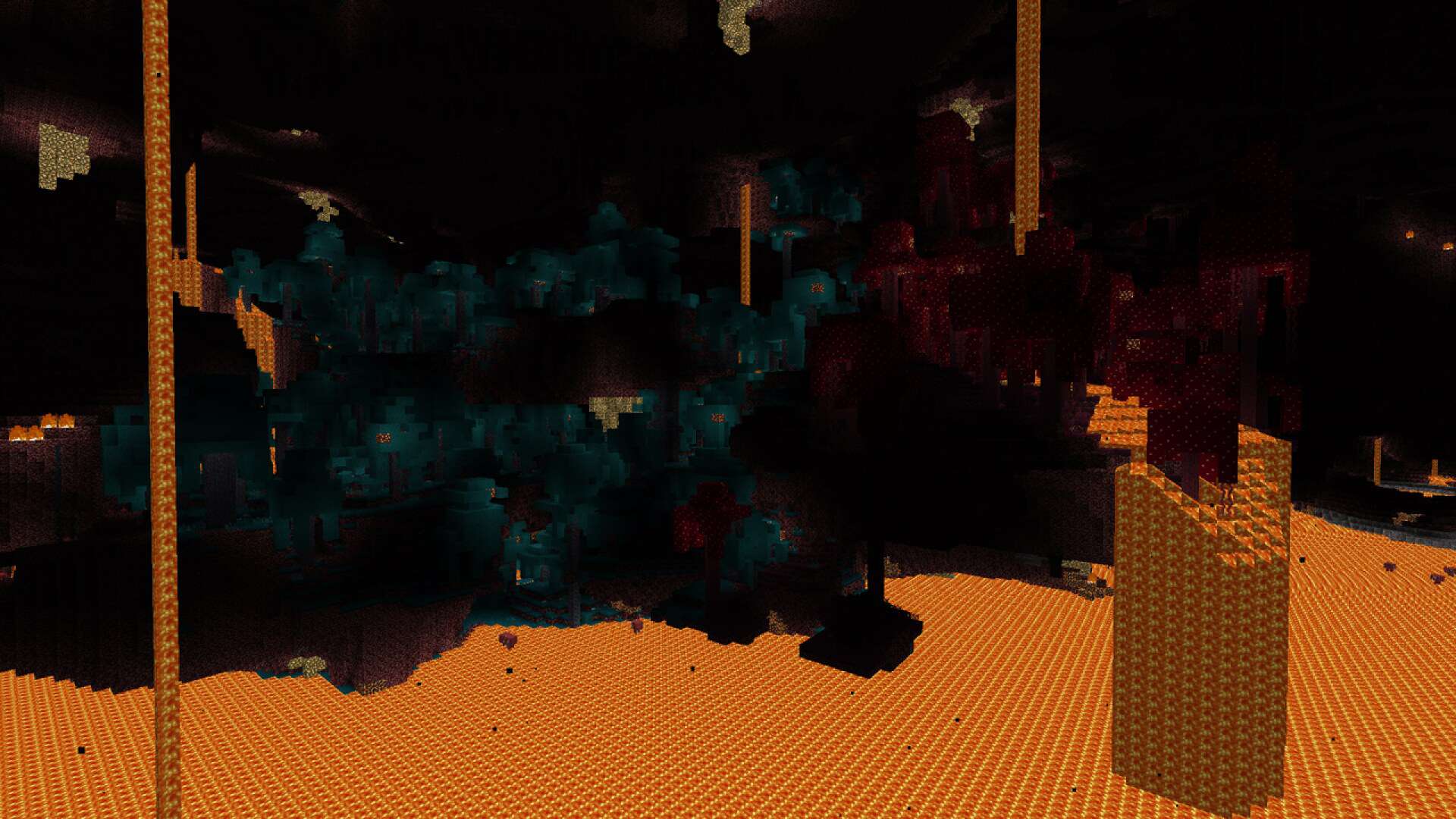
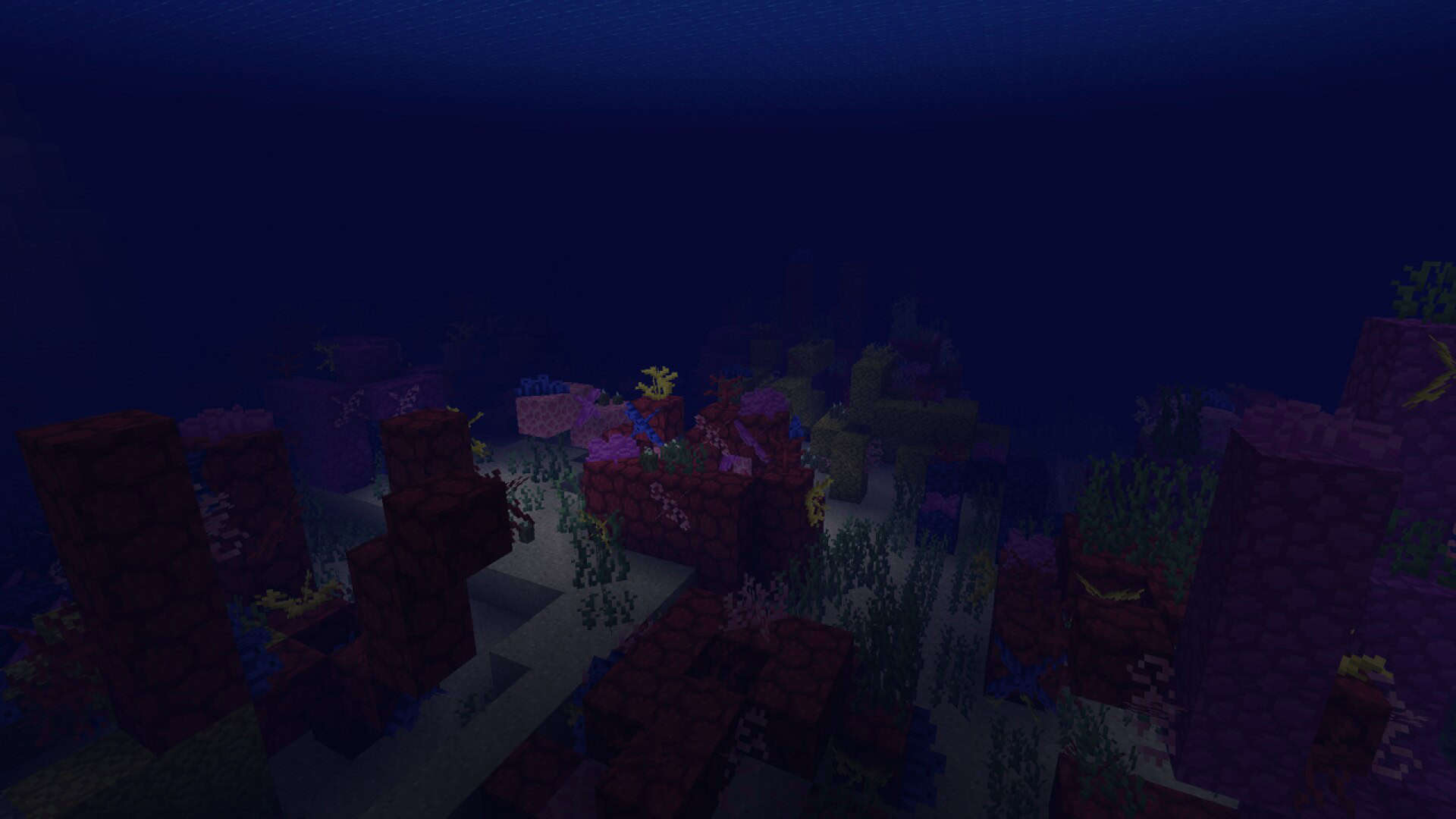
Screenshots
How to Install Texture Pack (Simple 10 Steps)
- Download OptiFine: Most of the texture packs and shaders need OptiFine. That’s why, first download and install OptiFine for the version of Minecraft you want to play.
- Download the Texture Pack: Get the texture pack you want from the download section. Choose the version that works with your Minecraft and your PC’s performance.
- Open Minecraft Launcher: Start Minecraft using the official game launcher — or even TLauncher, if you use that.
- Go to Options: From the main menu, click on the “Options” button.
- Open Resource Packs: Inside Options, click on “Resource Packs…”.
- Open the Resource Pack Folder: Click on “Open Resource Pack Folder” — this will open a folder named “resourcepacks”.
- Move the Pack File: Copy or move the .zip file you downloaded into that “resourcepacks” folder. (Don’t unzip the file — Minecraft uses it as-is!)
- Go Back and Refresh: Close the folder and click “Done”, then go back into “Resource Packs…” again.
- Activate the Pack: You’ll see the pack on the left side. Hover over it and click the arrow to move it to the right (active side).
Tip: If you get a message that the pack is for a different version, just click “Yes” — it usually works fine. - Click Done and Enjoy: Click “Done” again. Now your pack is ready to use in-game. It’s that easy!
Credits
This resource pack was originally created by PoeticRainbow. We do not own or claim ownership of this content, and no modifications have been made to the original files. All rights belong to the original author. We highly recommend supporting PoeticRainbow by downloading the pack from their official channels and following their future projects.
Download Links
Java Edition
Download Instructions
Curseforge: download starts automatically after a few seconds;
Mediafire: click the big blue button with the text “DOWNLOAD”;
Google Drive: in the top right corner you will see a small download icon (down arrow), click it and the download should start;


