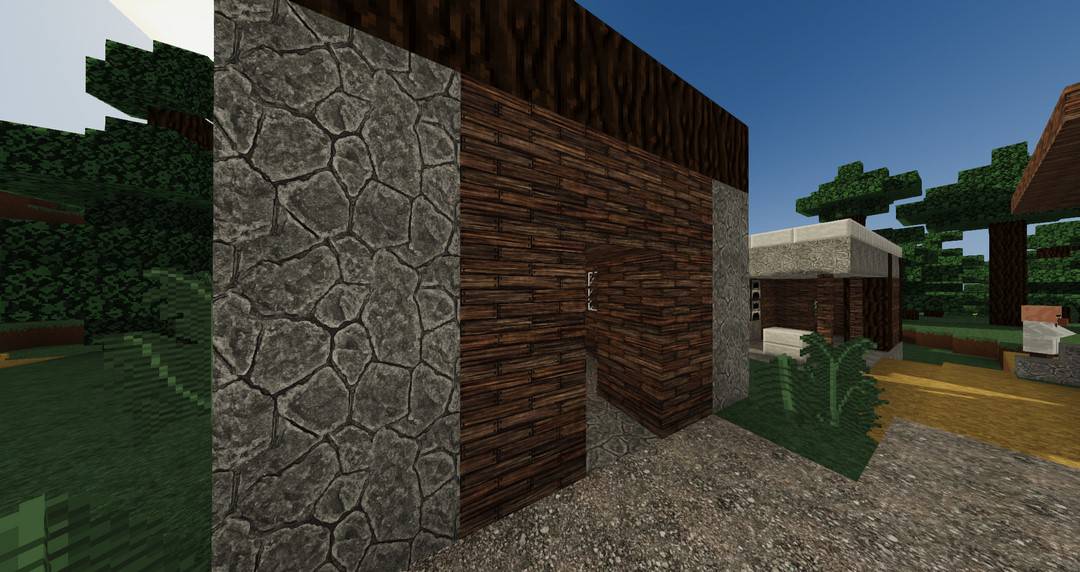
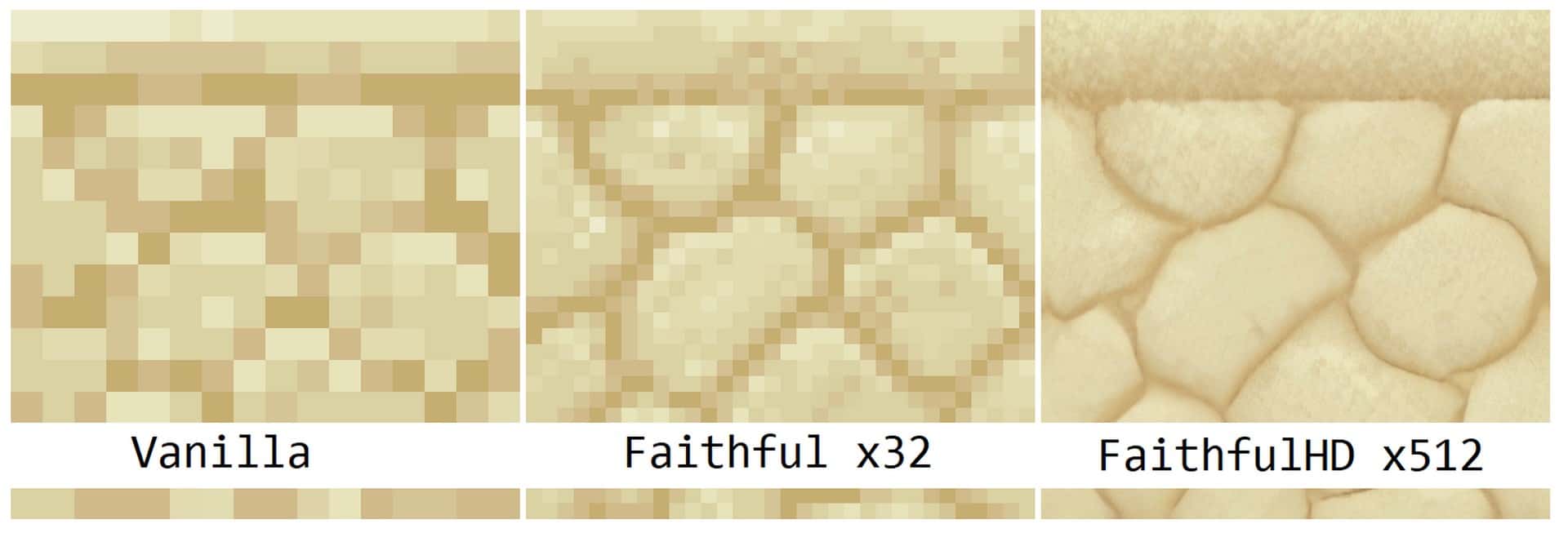
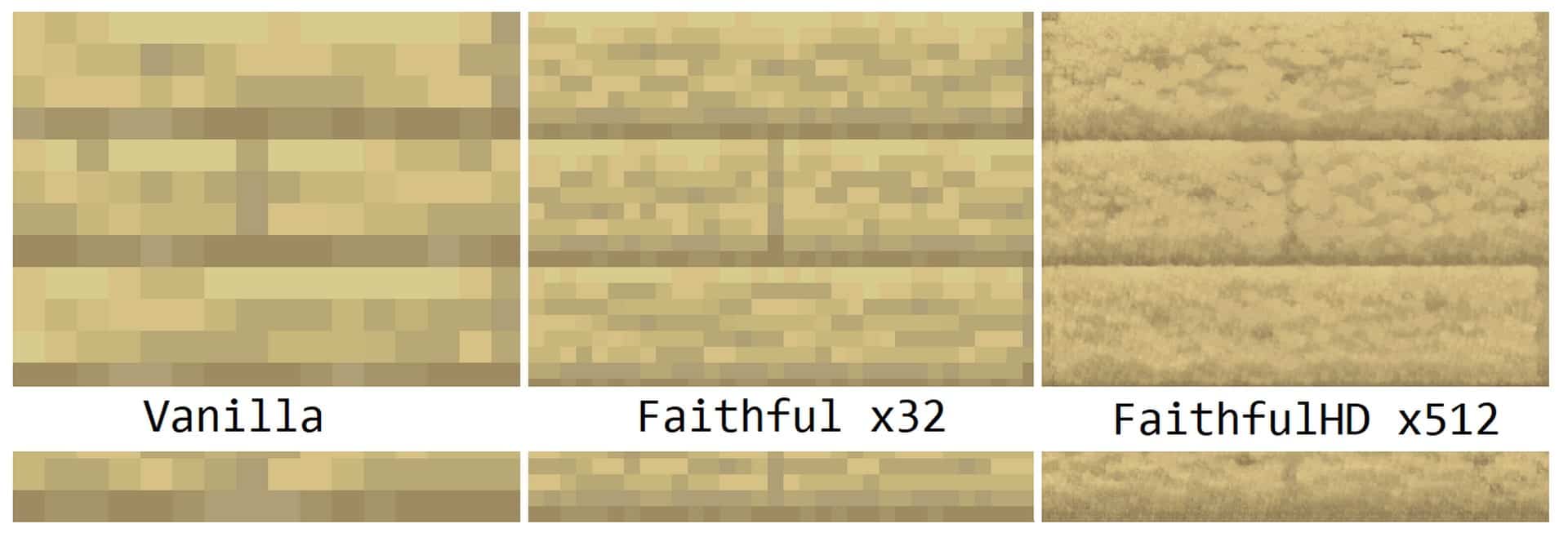
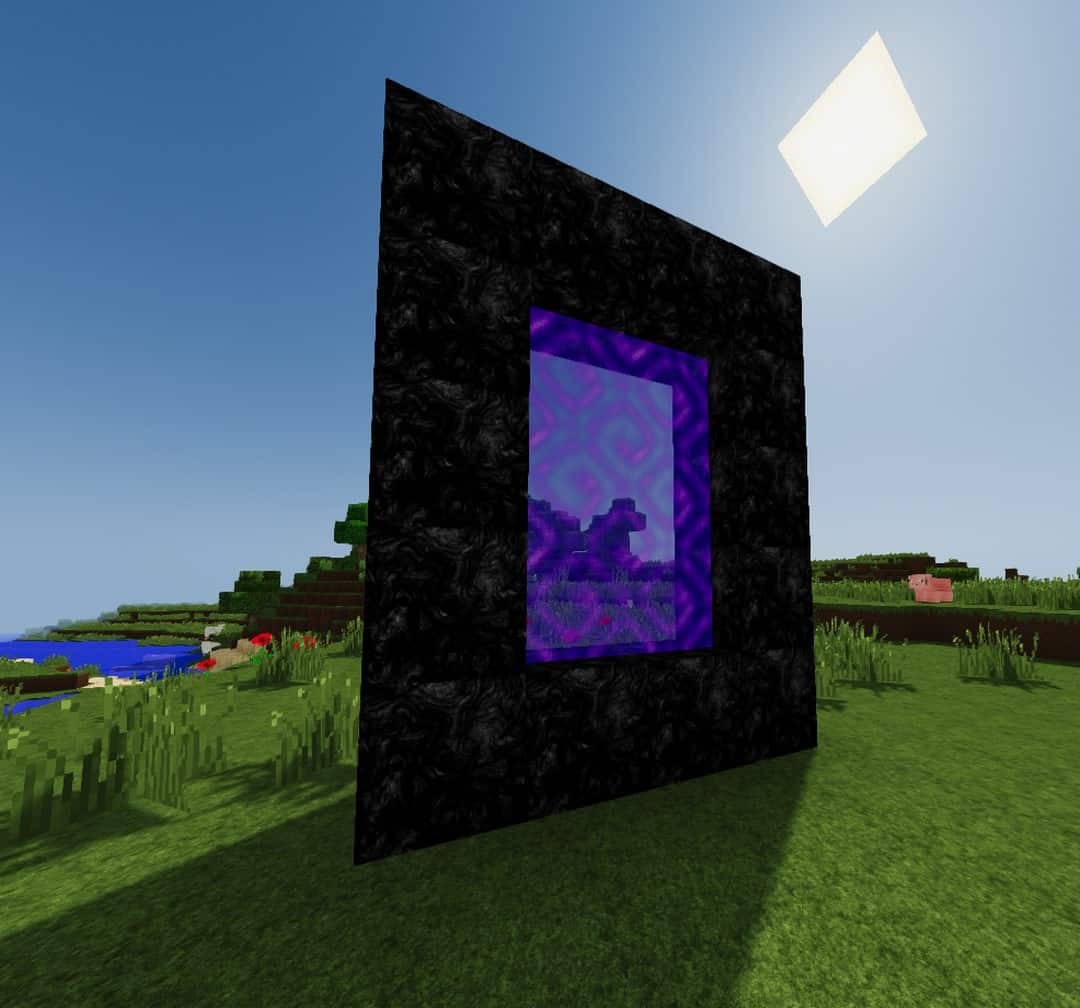
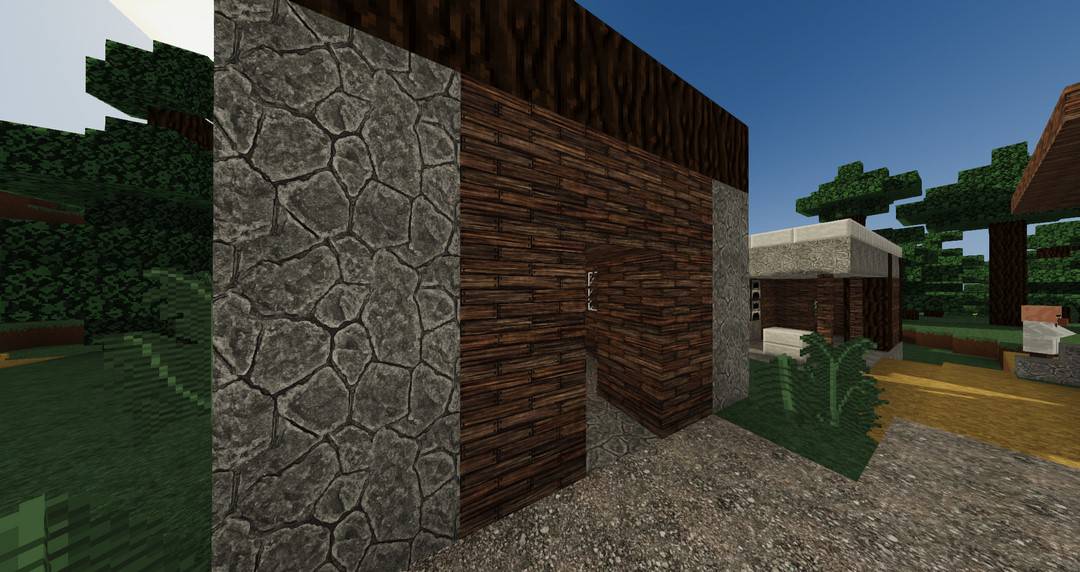
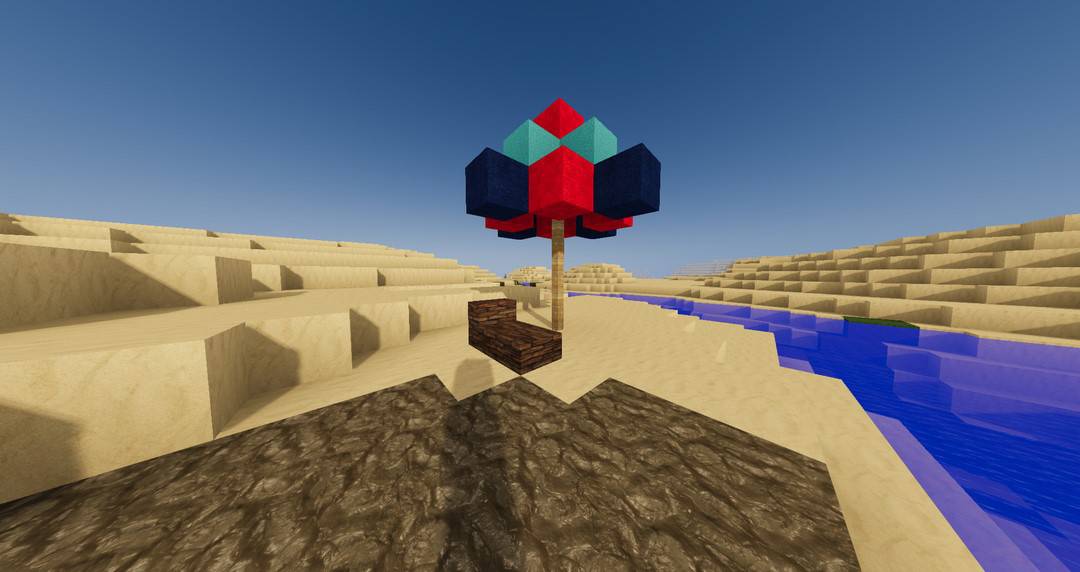
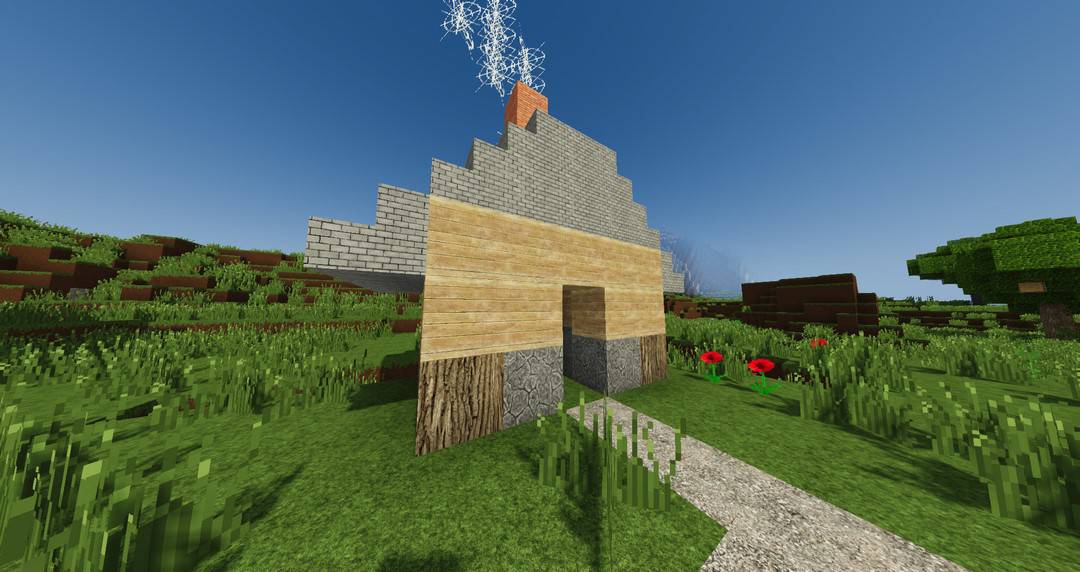
Faithful HD 512x resource pack was released in mid-2020 and since then it has been downloaded hundreds of thousands of times. I found that the sheer number of downloads is a genuine testimony of how well made and appreciated the texture pack is amongst Minecraft players. Without completely overhauling the design and feel of vanilla Minecraft, Faithful HD improves visuals in many different ways. It preserves the spirit of Minecraft but simply makes it better. I really think Faithful HD will appeal to players that like the visuals in vanilla Minecraft but wish the game looked a bit better, with less pixelation and smoother-looking textures. It is not a completely photorealistic resource pack but instead, as the name states, it is a faithful upscaling of the game to make it look more modern. Due to many attempts by different authors to create their own “faithful” texture pack, there are currently several different texture resolutions. The default Faithful 32x version offers a minor but noticeable visual upgrade compared to the default 16x resolution used in vanilla. Textures look better and there are more details while pixelation is reduced to a certain degree. The Compliance 64x version makes the visual improvements even more noticeable. This is Faithful HD, a 512x version of Faithful.
As the resolution of the textures increase the hardware requirements increase as well. The 512x version requires modern video cards and CPUs to run smoothly. Out of all of them, the 512x is the one that will require a monster computer to run smoothly. Overall, all the blocks and objects in the game use the same textures and implicitly have the same colors. There are no new weird colors for common blocks such as gravel, rock, or sand. Instead, the details on each texture have been improved. From afar, everything looks less pixelated. There are more details on each block. There are also more details on small objects such as leaves, grass, flowers, paintings, weapons, armor, etc. This causes simple things such as flowers and leaves to have fewer edges and a better-defined shape. The icons in the game have also been subject to improvement. Faithful HD introduces the same icons but with more pixels, thus more details. The icons are much smoother and easier to tell apart. This is reflected on blocks, the user interface, and the inventory. Since there are many versions of the Faithful resource pack, one would expect the default 32x pack to be great for PvP. Versions with resolutions of 64x and above may not be as PVP friendly since they can cause framerate drops on lower-end systems.
Faithful HD 512x should be compatible with all of these Minecraft versions: 1.20.6 – 1.20.5 – 1.20.4 – 1.20.3 – 1.20.2 – 1.20.1 – 1.20 – 1.19.4 – 1.19.3 – 1.19.2 – 1.19.1 – 1.19 – 1.18.2 – 1.18.1 – 1.18 – 1.17.1 – 1.17 – 1.16.5 – 1.16.4 – 1.16.3 – 1.16.2 – 1.16.1 – 1.16 – 1.15.2 – 1.15.1 – 1.15 – 1.12.2 – 1.12 – 1.11.2 – 1.11 – 1.10.2 – 1.10 – 1.9.4 – 1.9 – 1.8.9 – 1.8.8 – 1.8.1 – 1.8.6 – 1.8 – Bedrock Edition – PE
Screenshots
How to Install Texture Pack (Simple 10 Steps)
- Download OptiFine: Most of the texture packs and shaders need OptiFine. That’s why, first download and install OptiFine for the version of Minecraft you want to play.
- Download the Texture Pack: Get the texture pack you want from the download section. Choose the version that works with your Minecraft and your PC’s performance.
- Open Minecraft Launcher: Start Minecraft using the official game launcher — or even TLauncher, if you use that.
- Go to Options: From the main menu, click on the “Options” button.
- Open Resource Packs: Inside Options, click on “Resource Packs…”.
- Open the Resource Pack Folder: Click on “Open Resource Pack Folder” — this will open a folder named “resourcepacks”.
- Move the Pack File: Copy or move the .zip file you downloaded into that “resourcepacks” folder. (Don’t unzip the file — Minecraft uses it as-is!)
- Go Back and Refresh: Close the folder and click “Done”, then go back into “Resource Packs…” again.
- Activate the Pack: You’ll see the pack on the left side. Hover over it and click the arrow to move it to the right (active side).
Tip: If you get a message that the pack is for a different version, just click “Yes” — it usually works fine. - Click Done and Enjoy: Click “Done” again. Now your pack is ready to use in-game. It’s that easy!
Credits
This resource pack was originally created by theisaiahp. We do not claim ownership of this content and do not modify the original files. All rights belong to the original author. We strongly encourage you to support the creator by downloading from their official links.
Download Links
Java Edition
- [512x] Minecraft 1.20.x
- [512x] Minecraft 1.19.x
- [512x] Minecraft 1.18.x
- [512x] Minecraft 1.17.x
- [512x] Minecraft 1.16.x – 1.15.x
- [512x] Minecraft 1.12.x – 1.8.x
Bedrock Edition
Download Instructions
Curseforge: download starts automatically after a few seconds;
Mediafire: click the big blue button with the text “DOWNLOAD”;
Google Drive: in the top right corner you will see a small download icon (down arrow), click it and the download should start;


