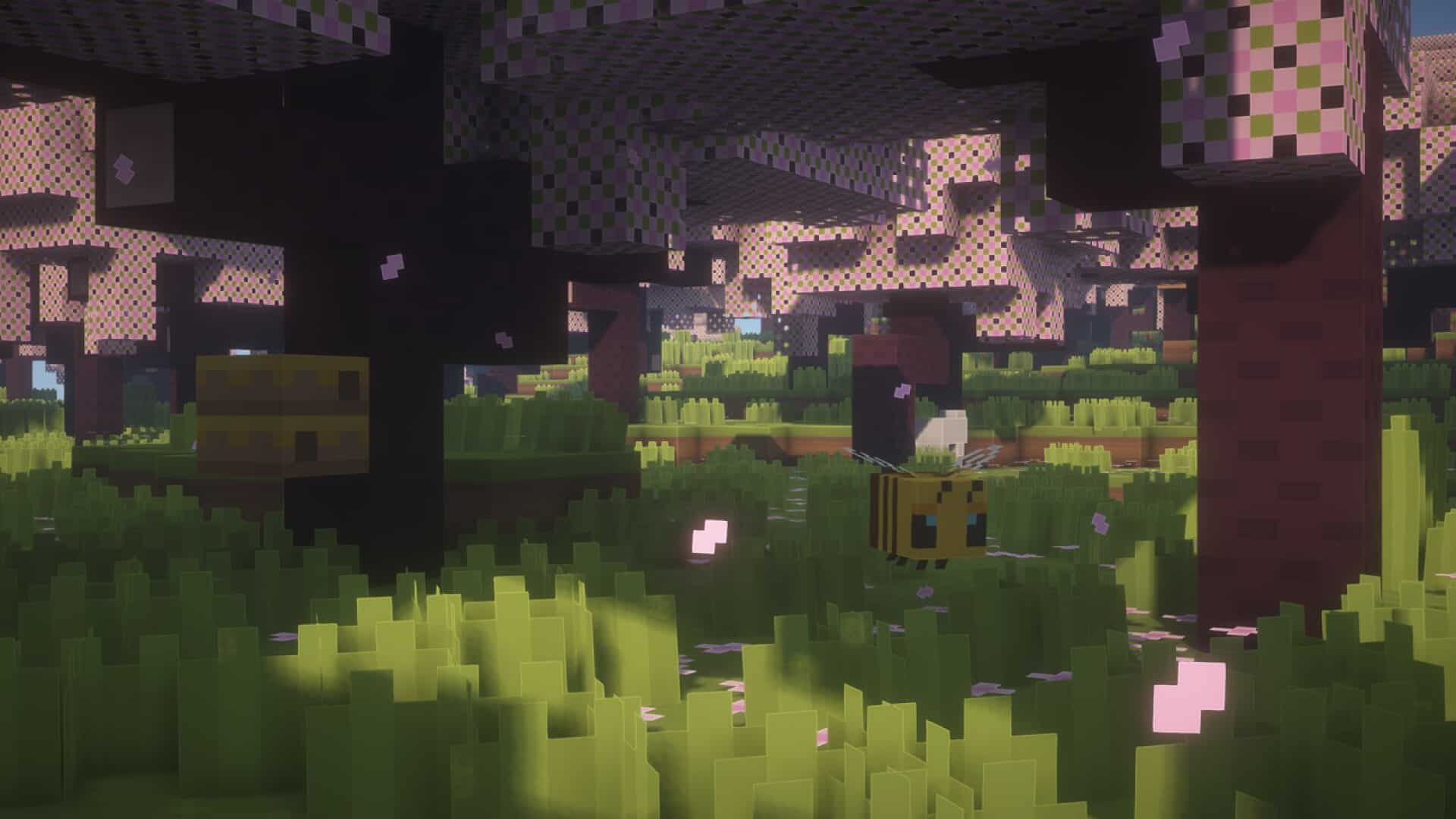
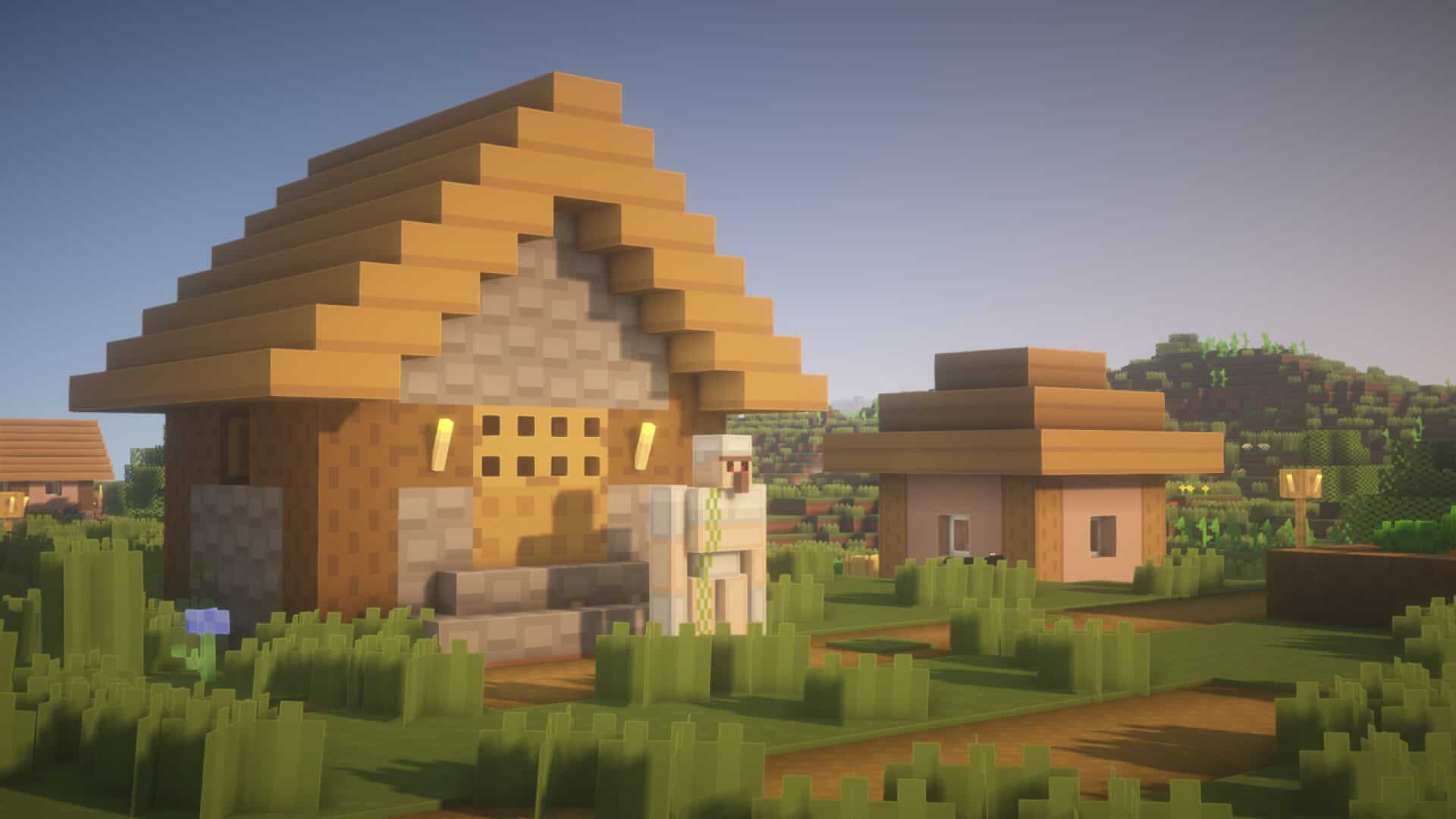
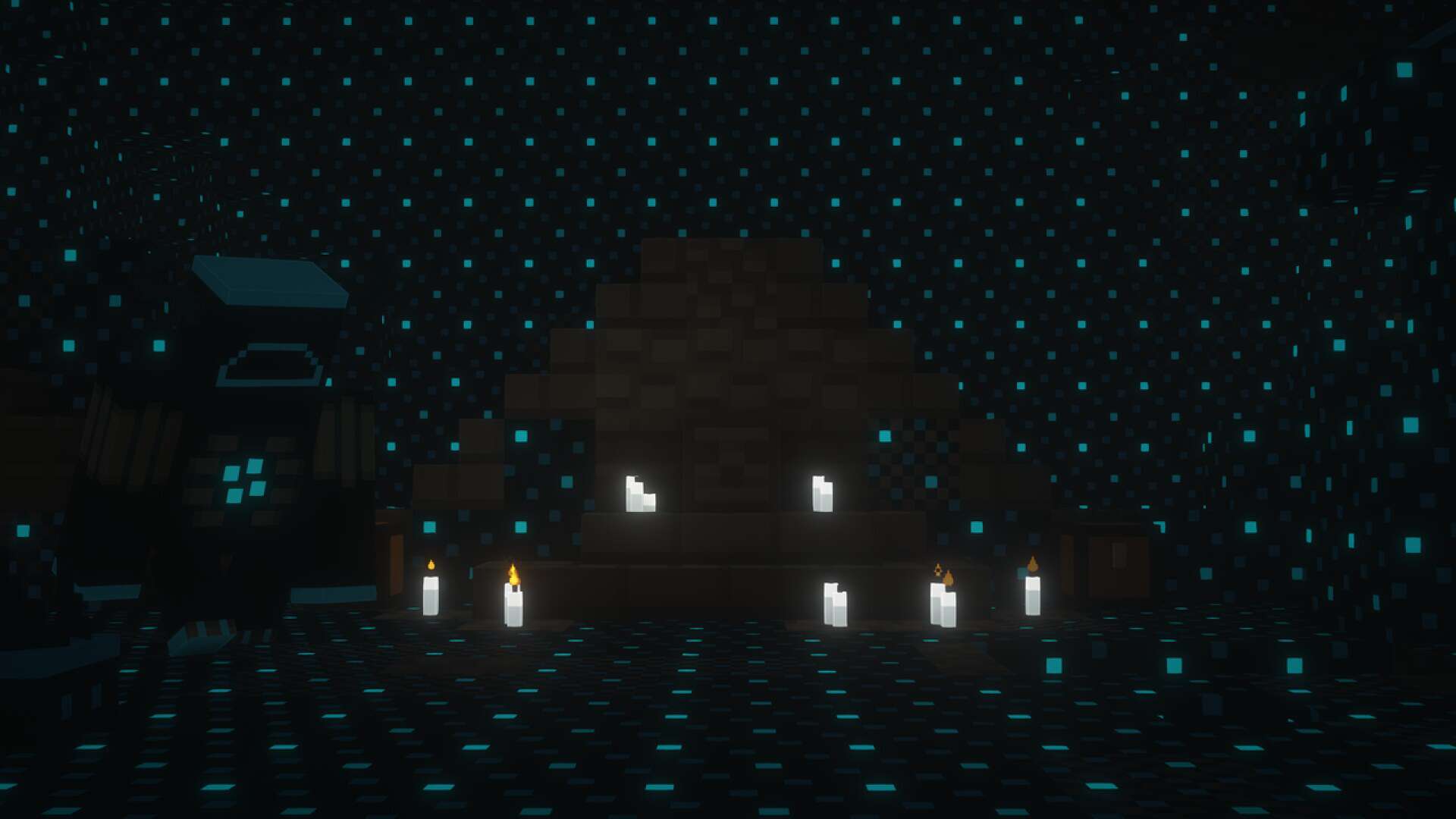
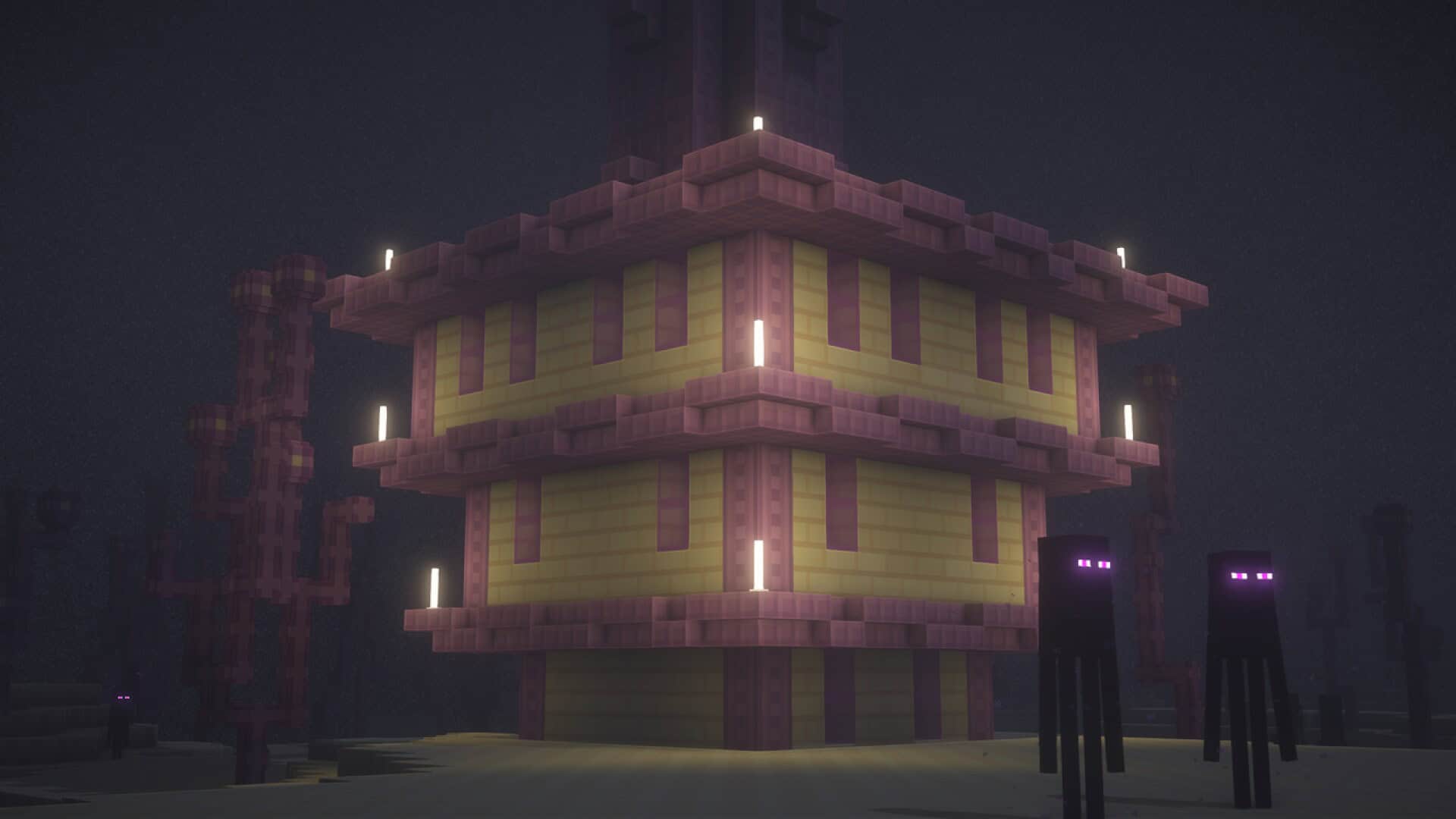
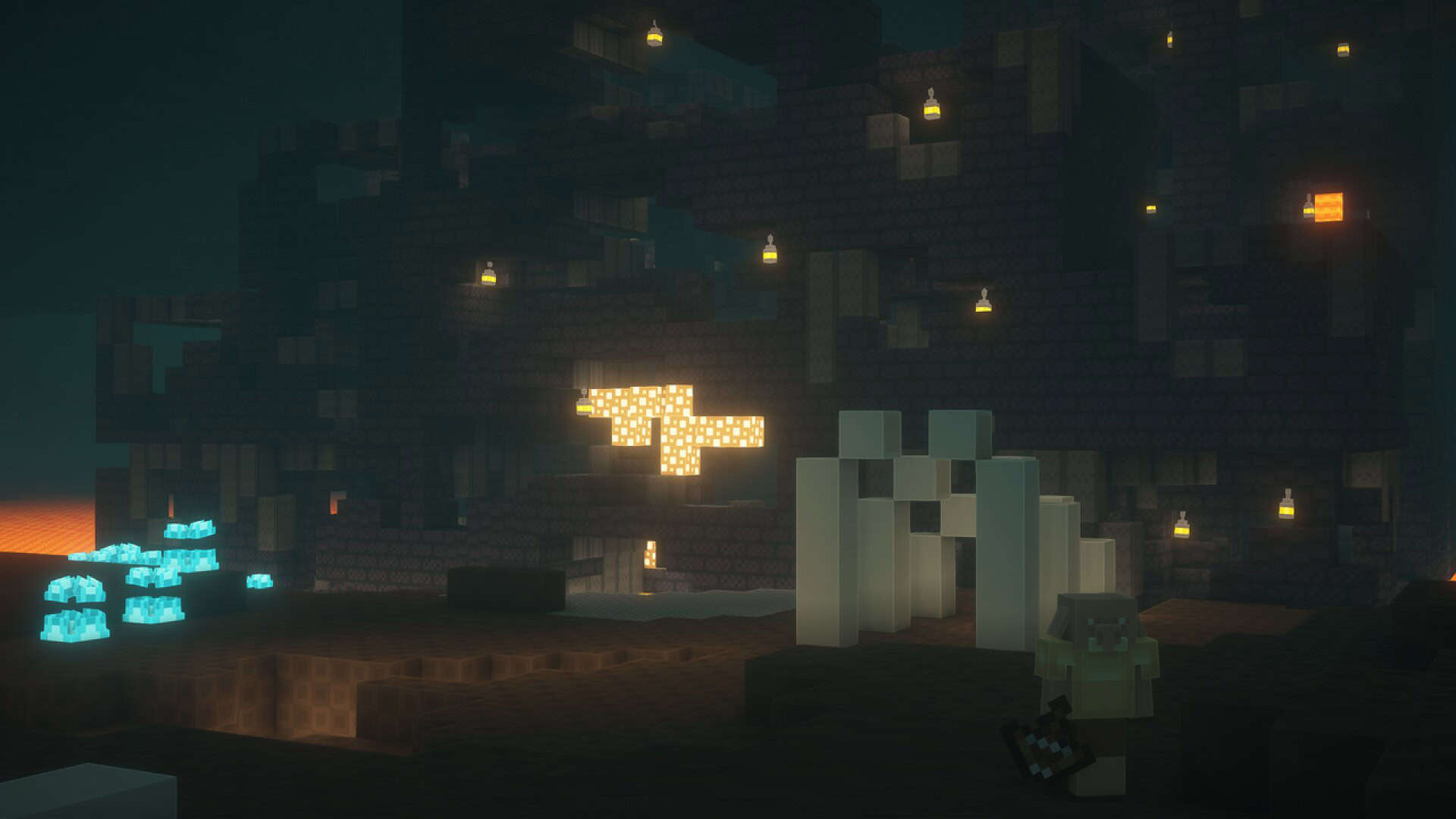
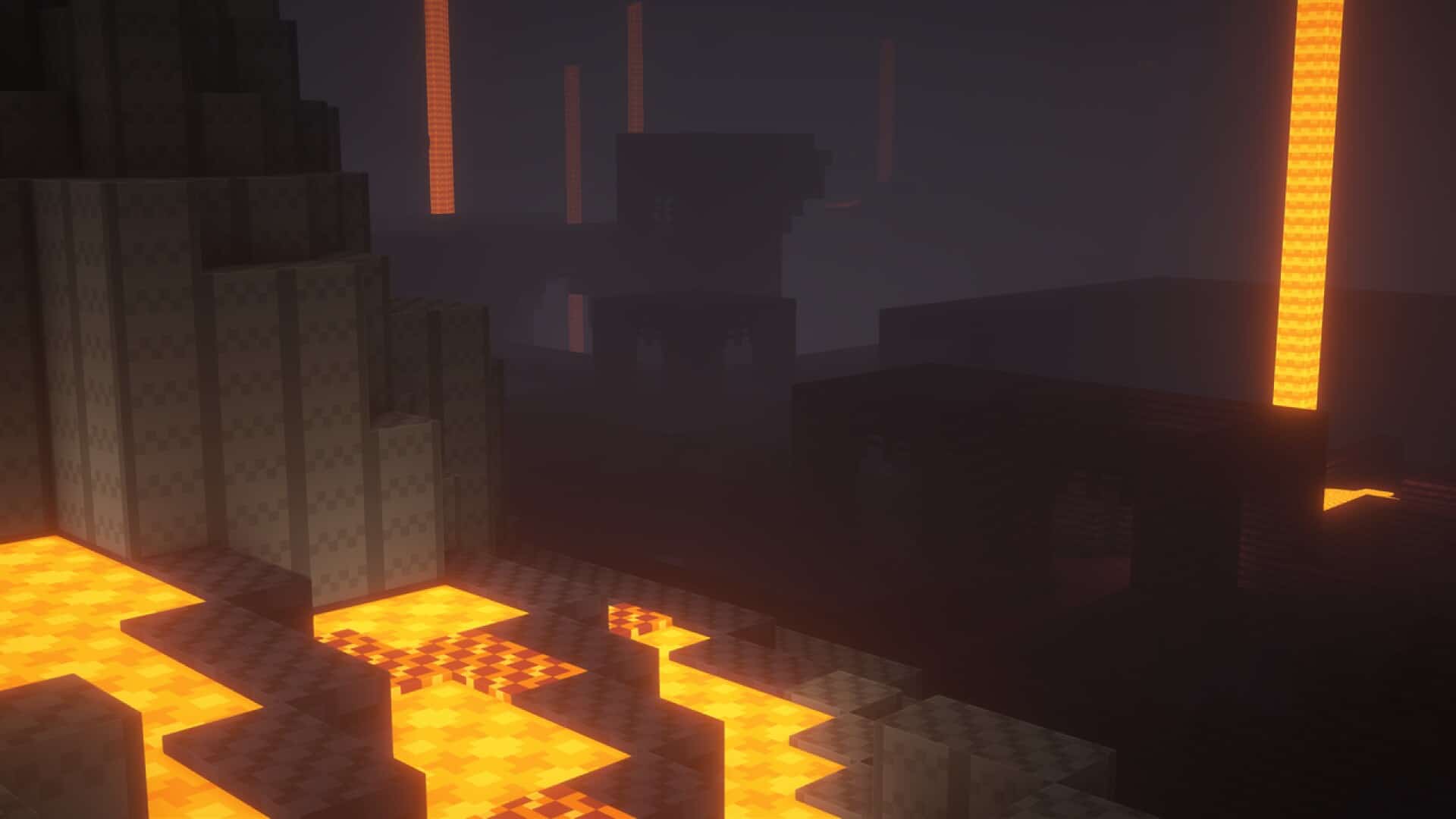
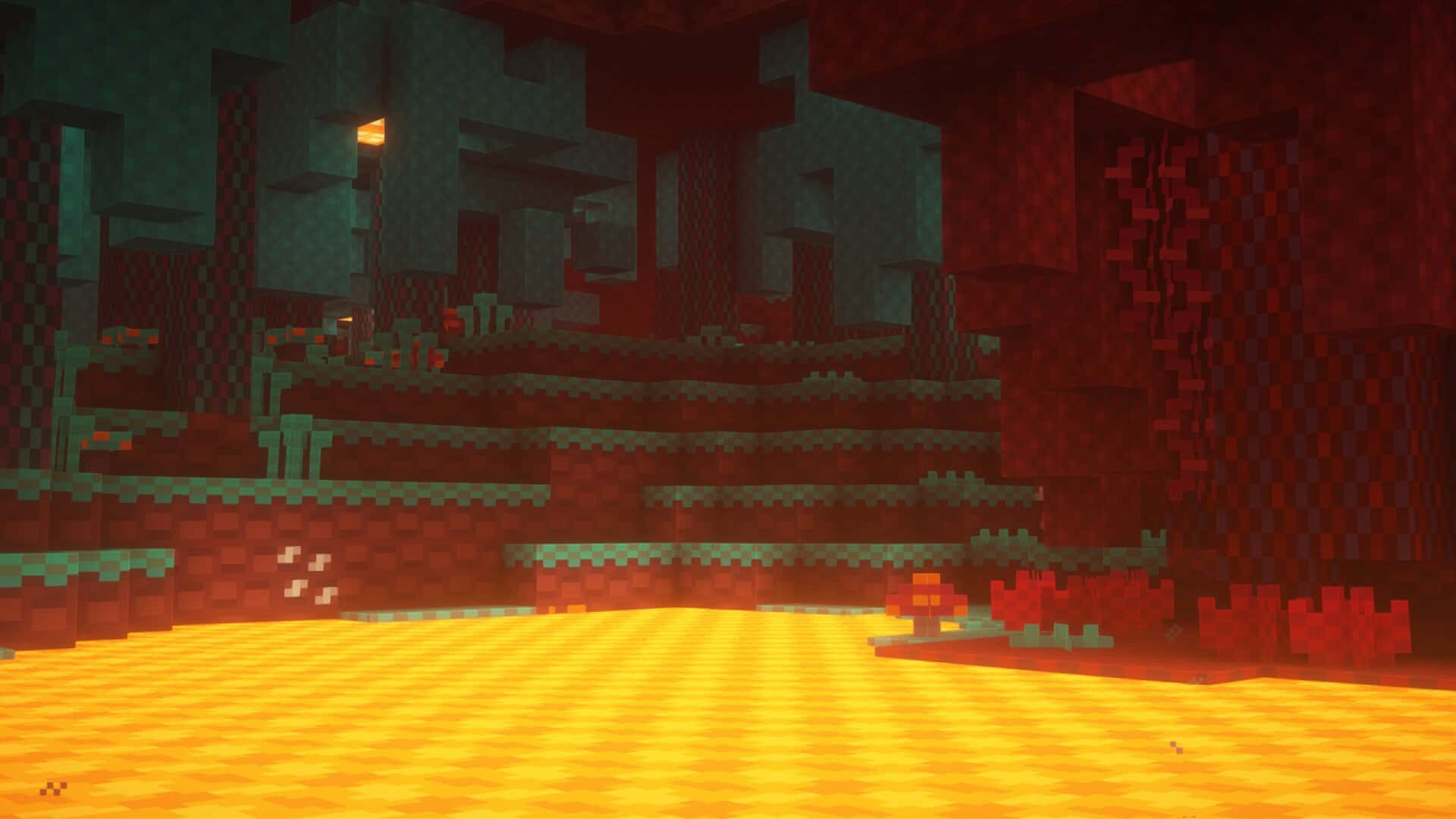
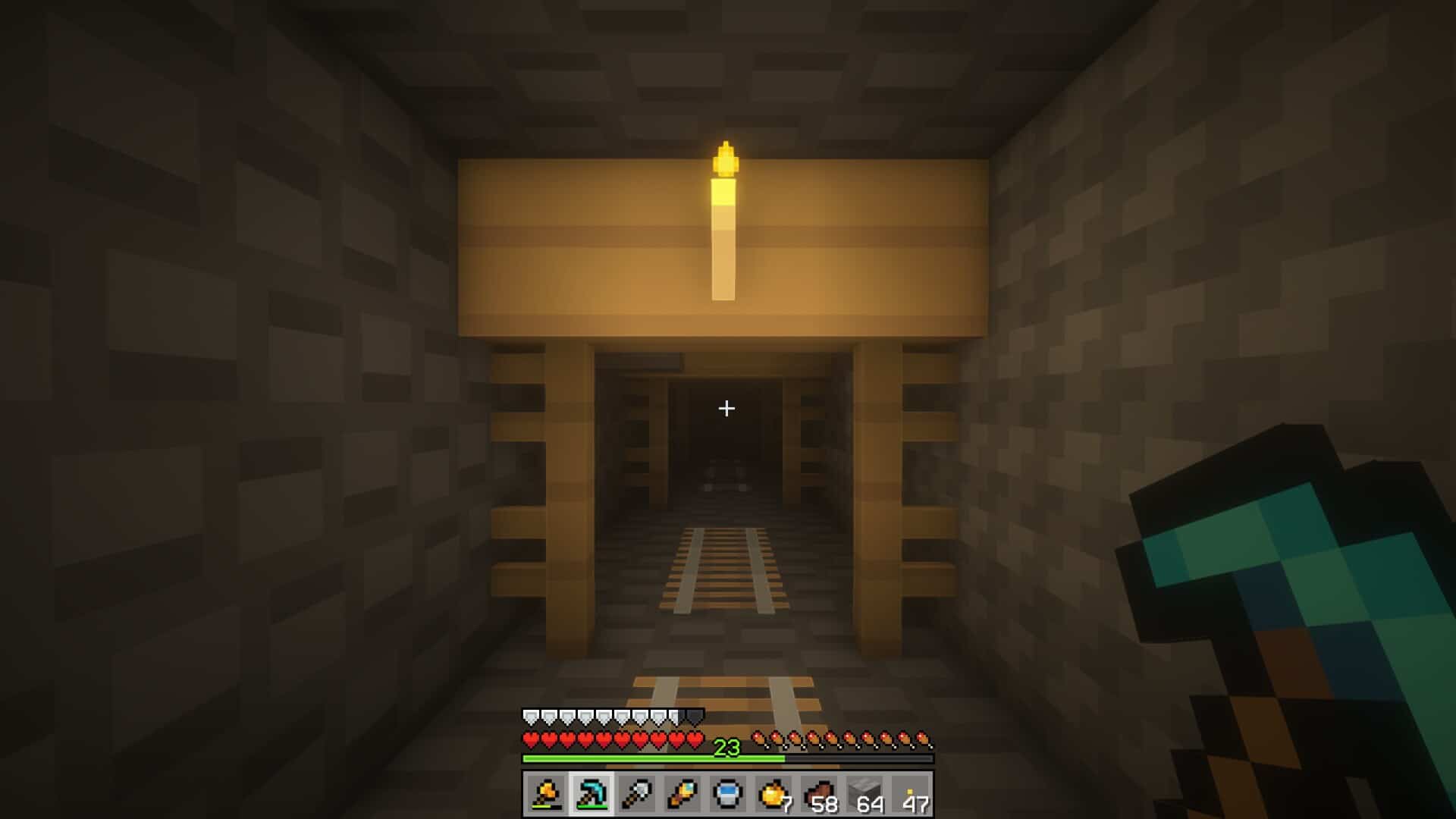
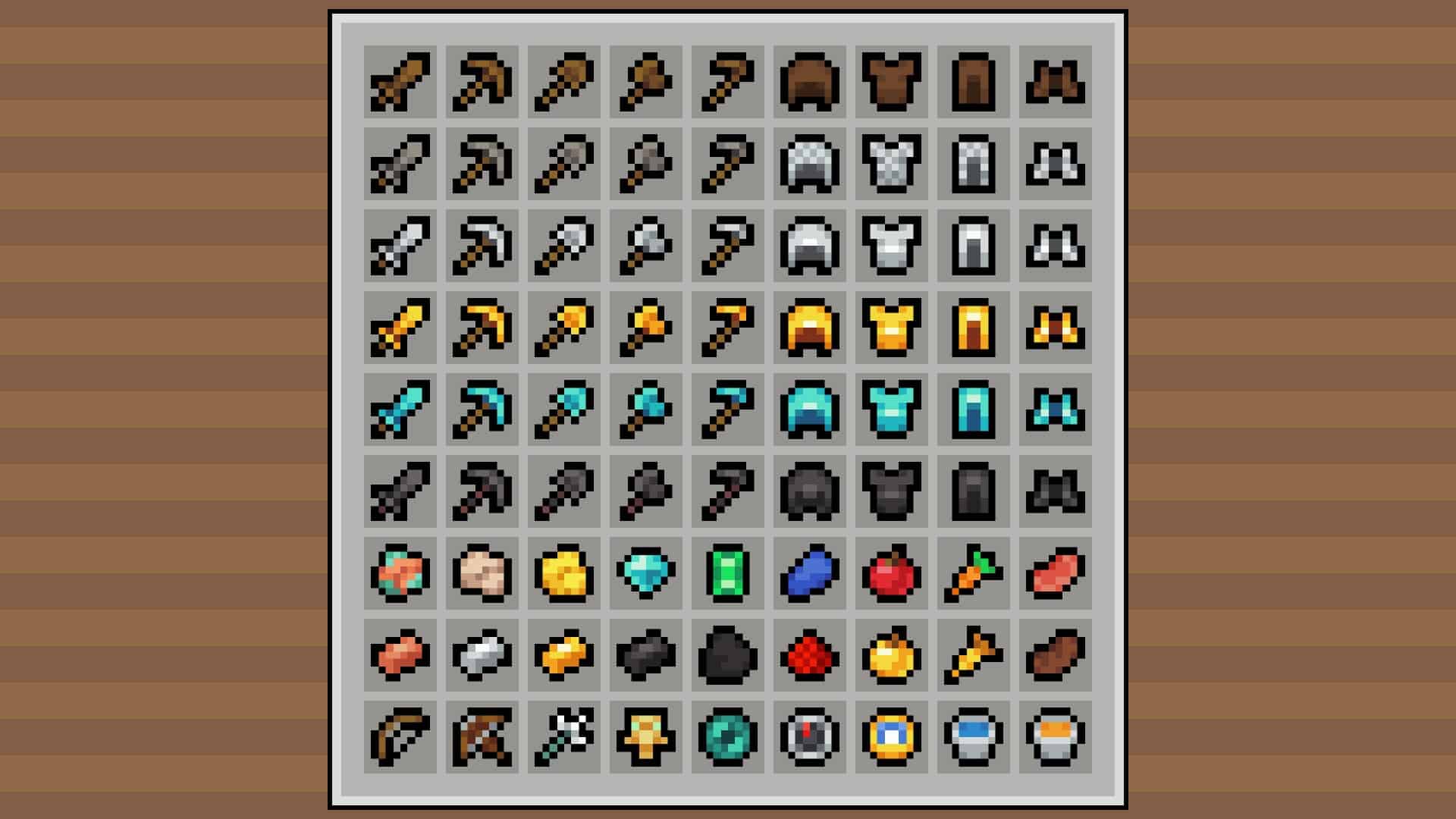
If you want a resource pack that doesn’t change much but simplifies and smoothens how Minecraft looks – then I have great news for you, it’s right here. Digs’ Simple Pack is genuinely the best resource pack there is that can turn your Minecraft experience into a clean and easy-to-digest visual experience. Yes, there are millions of packs who do the same, but I noticed they all tend to fall flat and end up oversimplifying the game, taking away most of Minecraft’s appeal instead of fulfilling the desired objective. Digs’ Simple Pack, on the other hand, as the name suggests, keeps things simple – without killing the game’s allure. I love how this texture pack is designed specifically for players who want Minecraft to look simple without having to face any extra bangs, bells, or any other unnecessary business attached to its graphics.
And even if its goal is to simplify things, it is by no means a small resource pack: I found out it has been downloaded over 15 thousand times already. The community response has been fantastic – and I feel like they haven’t seen it all yet. There are promises of more things coming – more features for this incredible resource pack. The developer, Digs, will continue to work on this pack to make Minecraft a simpler yet beautiful place to have adventures. This is my absolute go-to resource pack if you want to prioritize a smooth, simple color palette and style for your game. It’s also a brilliant option for people who own a low-end PC and need Minecraft to run on a low resolution but want to play a great-looking game. Fortunately for lovers of all things simple, I experienced that this resource pack has no significant bugs reported. There will be no surprises here, making your gaming experience a smooth, simple one – a great one without any glitches.
Digs’ Simple should be compatible with all of these Minecraft versions: 1.21.11 – 1.21.10 – 1.21.9 – 1.21.8 – 1.21.7 – 1.21.6 – 1.21.5 – 1.21.4 – 1.21.3 – 1.21.2 – 1.21.1 – 1.21 – 1.20.6 – 1.20.5 – 1.20.4 – 1.20.3 – 1.20.2 – 1.20.1 – 1.20 – 1.19.4 – 1.19.3 – 1.19.2 – 1.19.1 – 1.19 – 1.18.2 – 1.18.1 – 1.18 – 1.17.1 – 1.17 – 1.16.5 – 1.16.4 – 1.16.3 – 1.16.2 – 1.16.1 – 1.16 – 1.15.2 – 1.15.1 – 1.15 – Bedrock Edition – PE
Screenshots

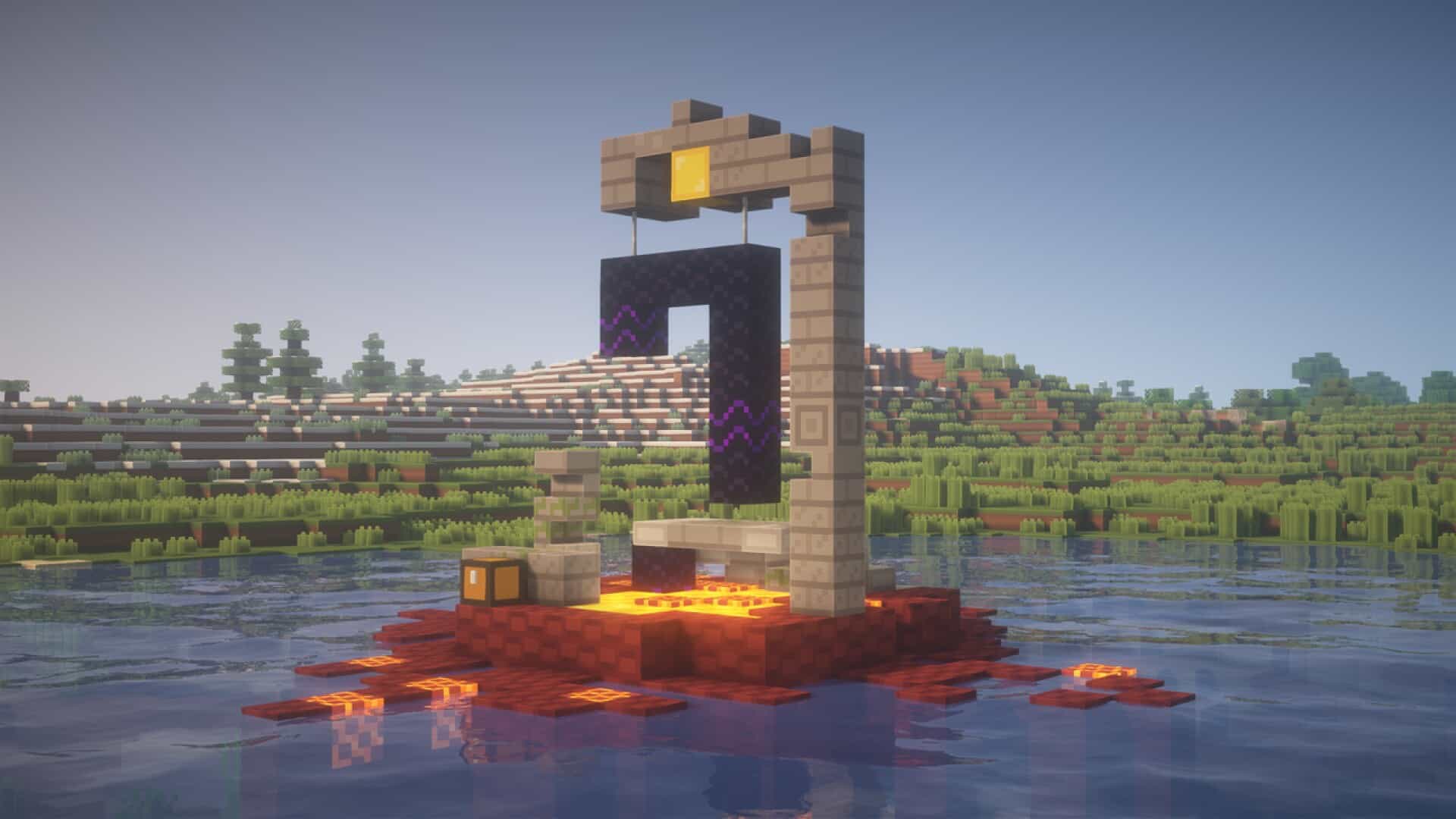
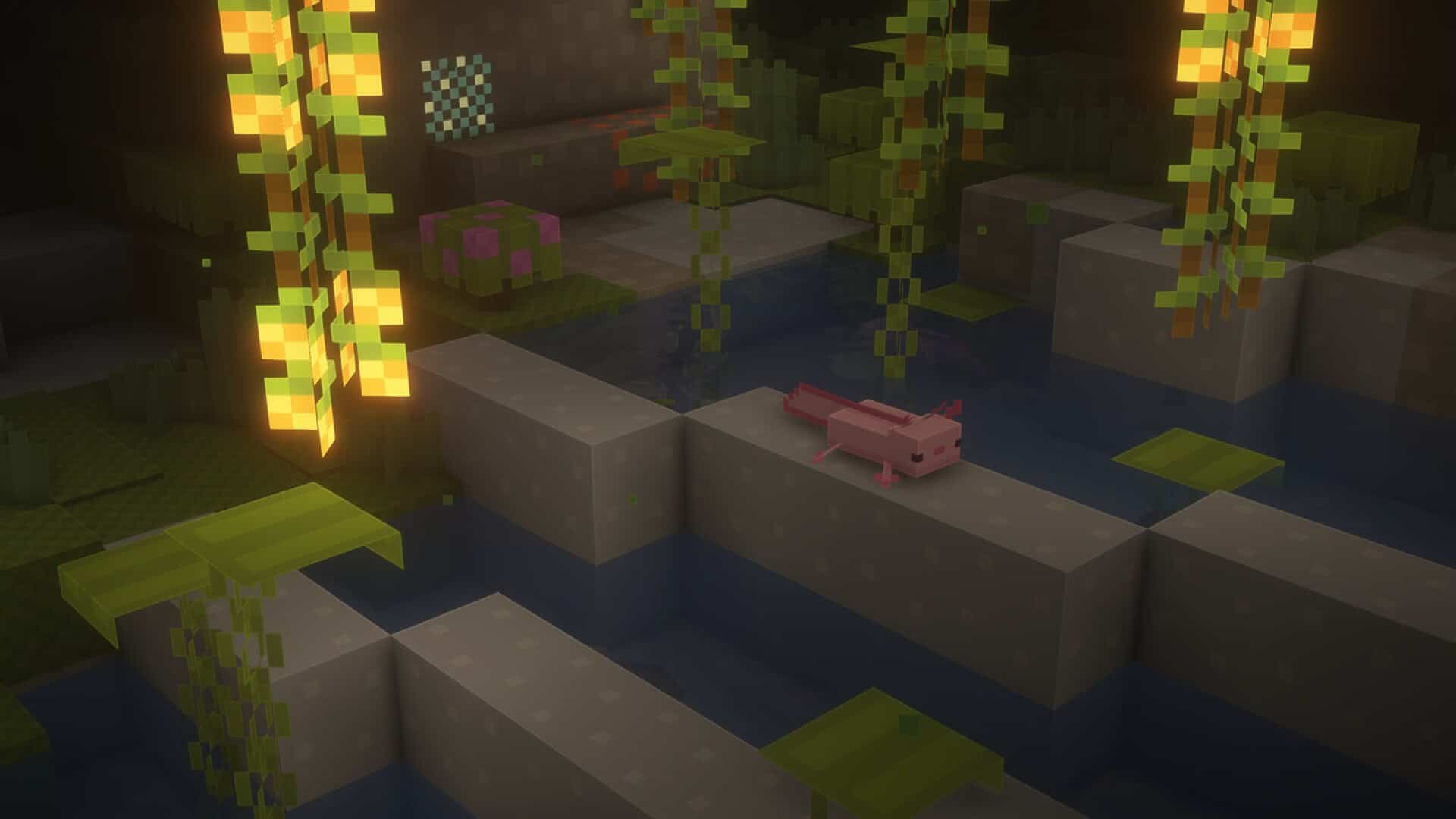
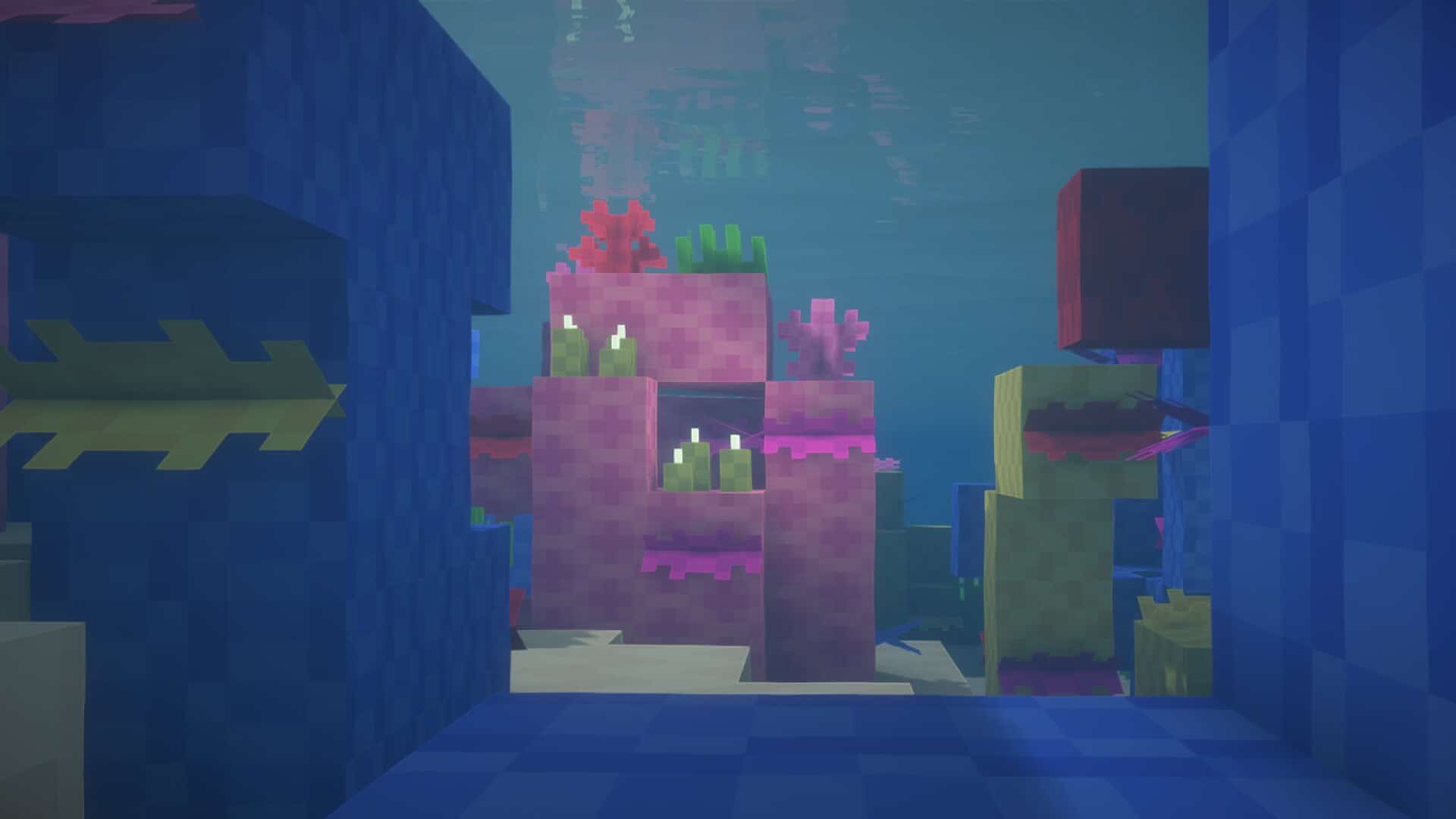
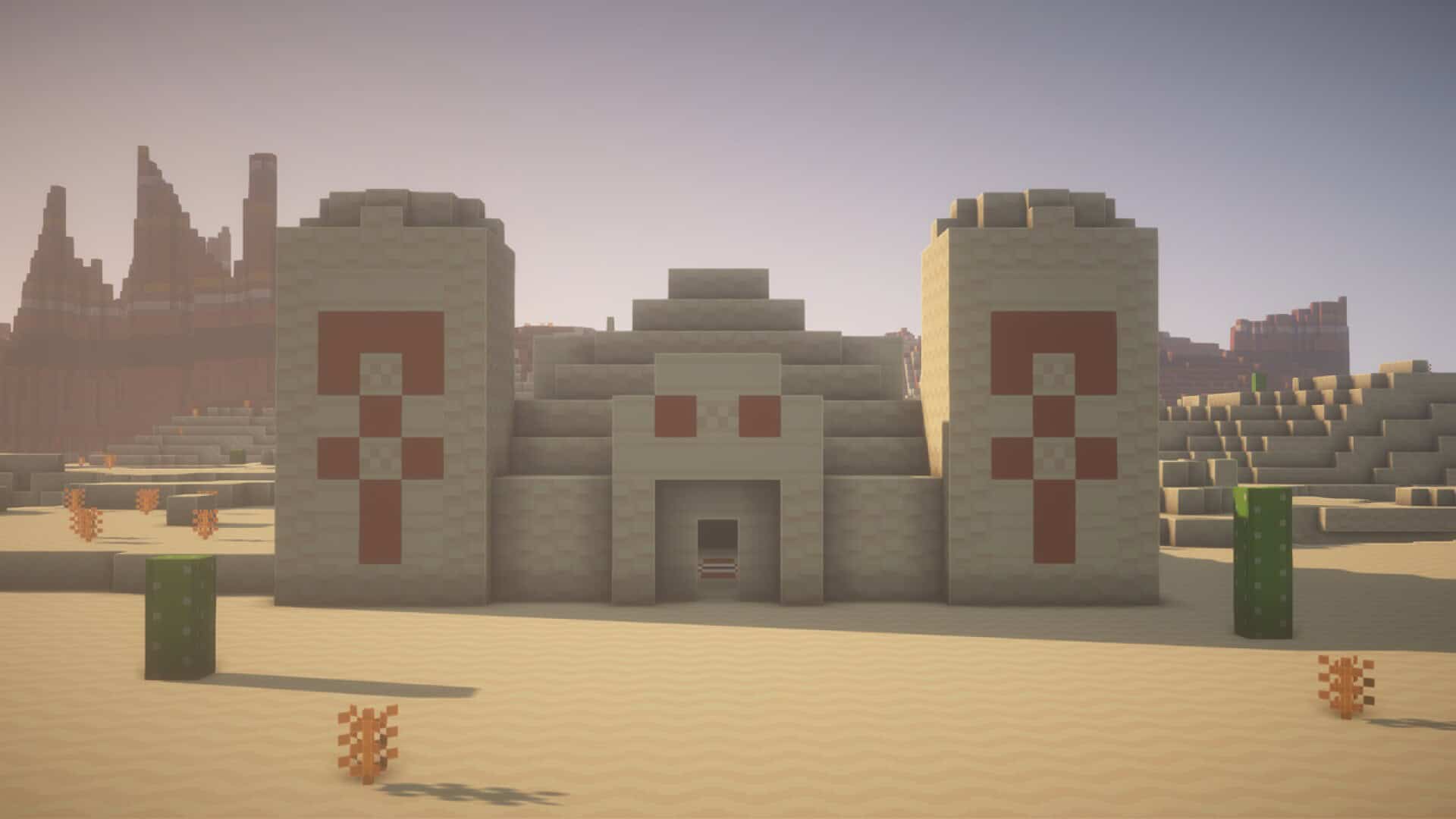
How to Install Texture Pack (Simple 10 Steps)
- Download OptiFine: Most of the texture packs and shaders need OptiFine. That’s why, first download and install OptiFine for the version of Minecraft you want to play.
- Download the Texture Pack: Get the texture pack you want from the download section. Choose the version that works with your Minecraft and your PC’s performance.
- Open Minecraft Launcher: Start Minecraft using the official game launcher — or even TLauncher, if you use that.
- Go to Options: From the main menu, click on the “Options” button.
- Open Resource Packs: Inside Options, click on “Resource Packs…”.
- Open the Resource Pack Folder: Click on “Open Resource Pack Folder” — this will open a folder named “resourcepacks”.
- Move the Pack File: Copy or move the .zip file you downloaded into that “resourcepacks” folder. (Don’t unzip the file — Minecraft uses it as-is!)
- Go Back and Refresh: Close the folder and click “Done”, then go back into “Resource Packs…” again.
- Activate the Pack: You’ll see the pack on the left side. Hover over it and click the arrow to move it to the right (active side).
Tip: If you get a message that the pack is for a different version, just click “Yes” — it usually works fine. - Click Done and Enjoy: Click “Done” again. Now your pack is ready to use in-game. It’s that easy!
Credits
This resource pack was created by Digs. We do not claim ownership of this content, nor have we modified the original files. All rights belong to the original author. We highly recommend supporting Digs by downloading the pack through the official links provided.
Download Links
Java Edition
Bedrock Edition
Download Instructions
Curseforge: download starts automatically after a few seconds;
Mediafire: click the big blue button with the text “DOWNLOAD”;
Google Drive: in the top right corner you will see a small download icon (down arrow), click it and the download should start;


