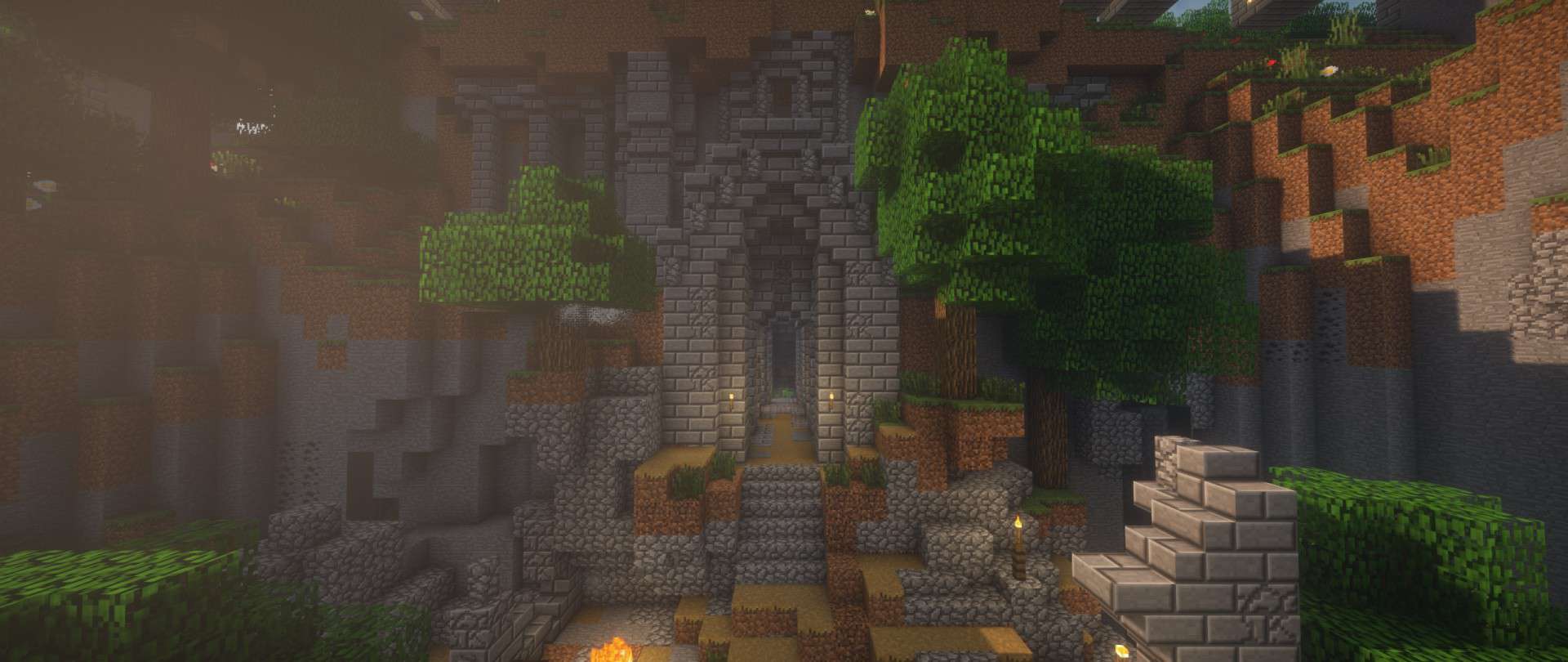
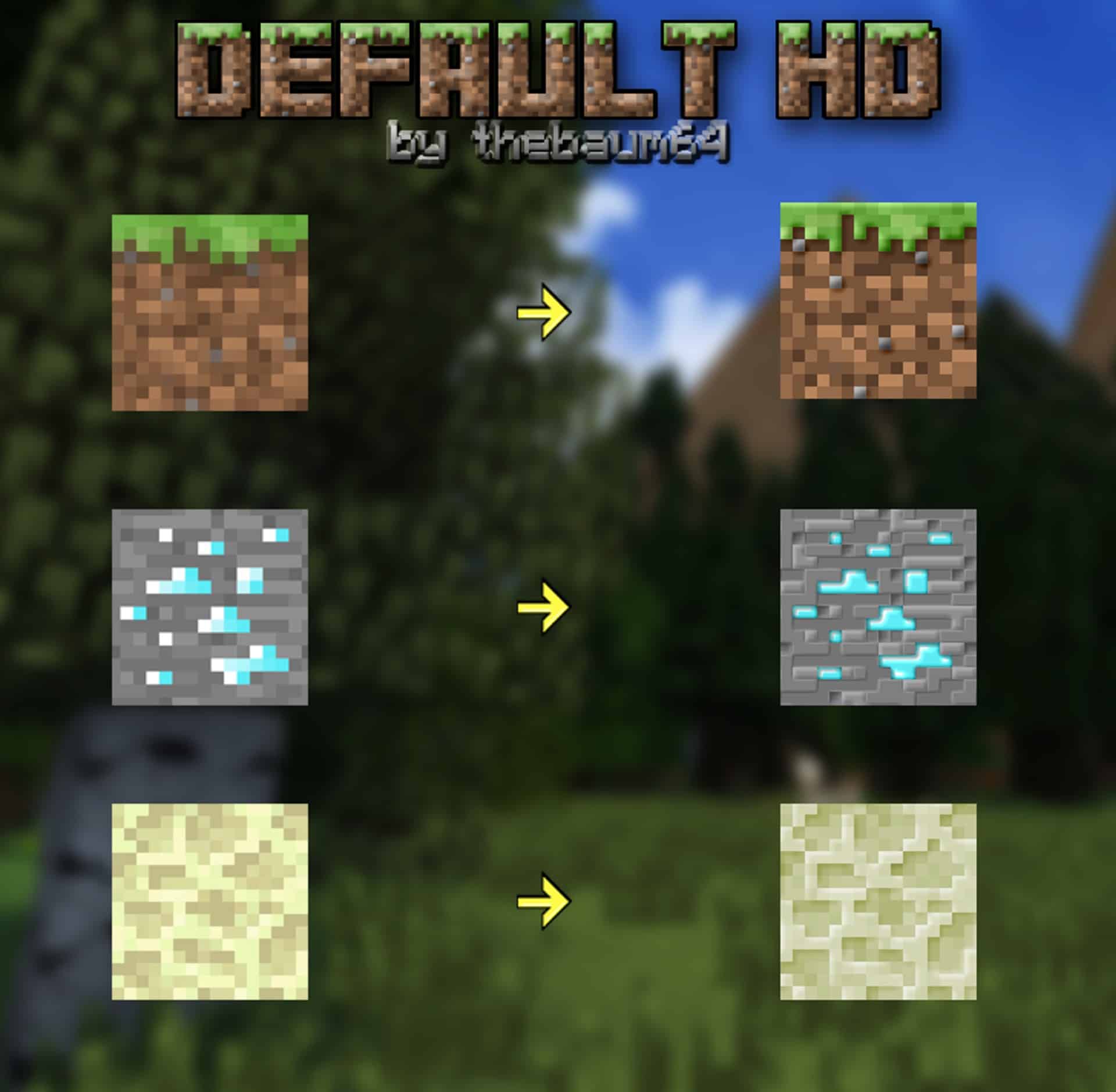
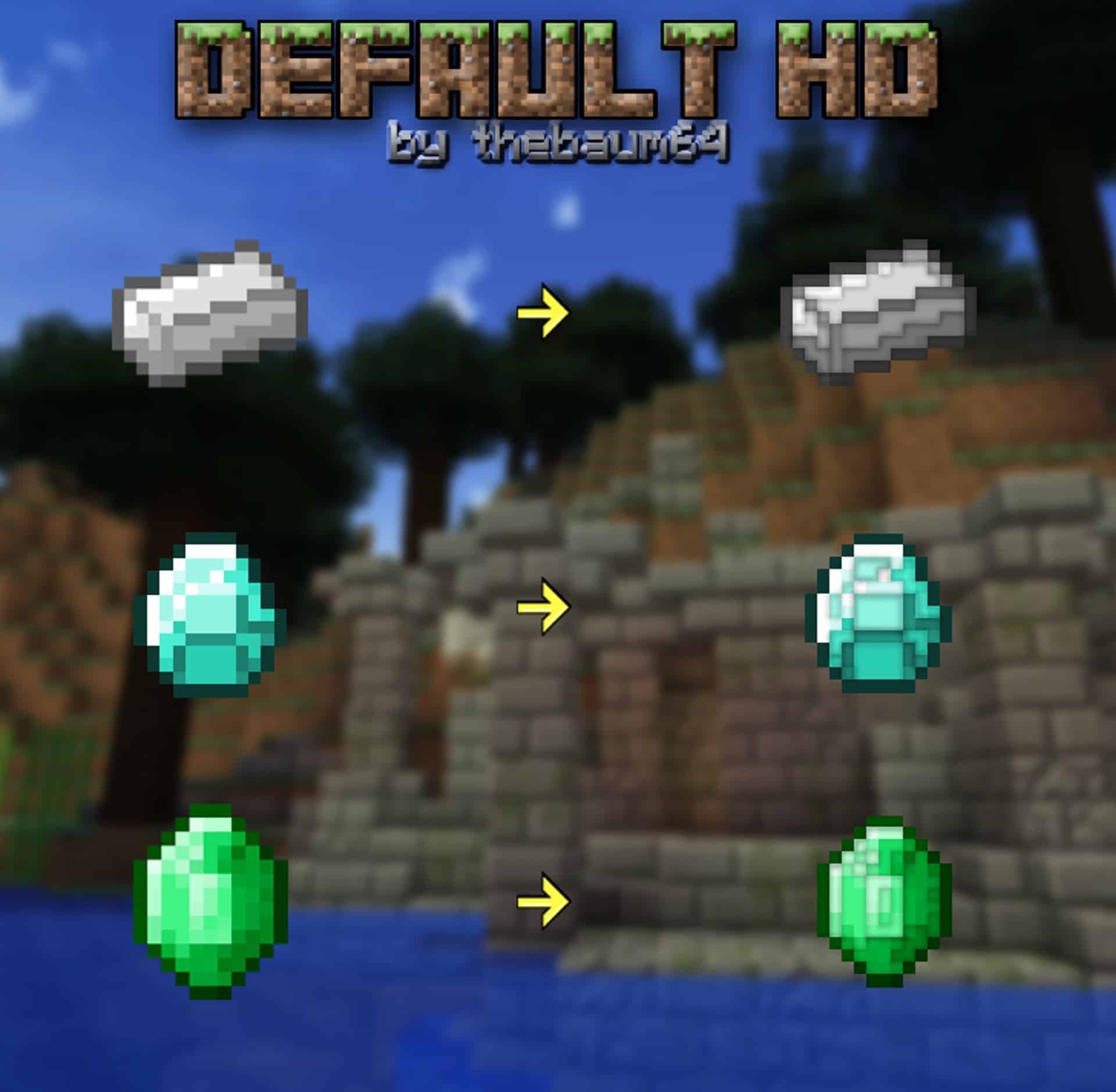
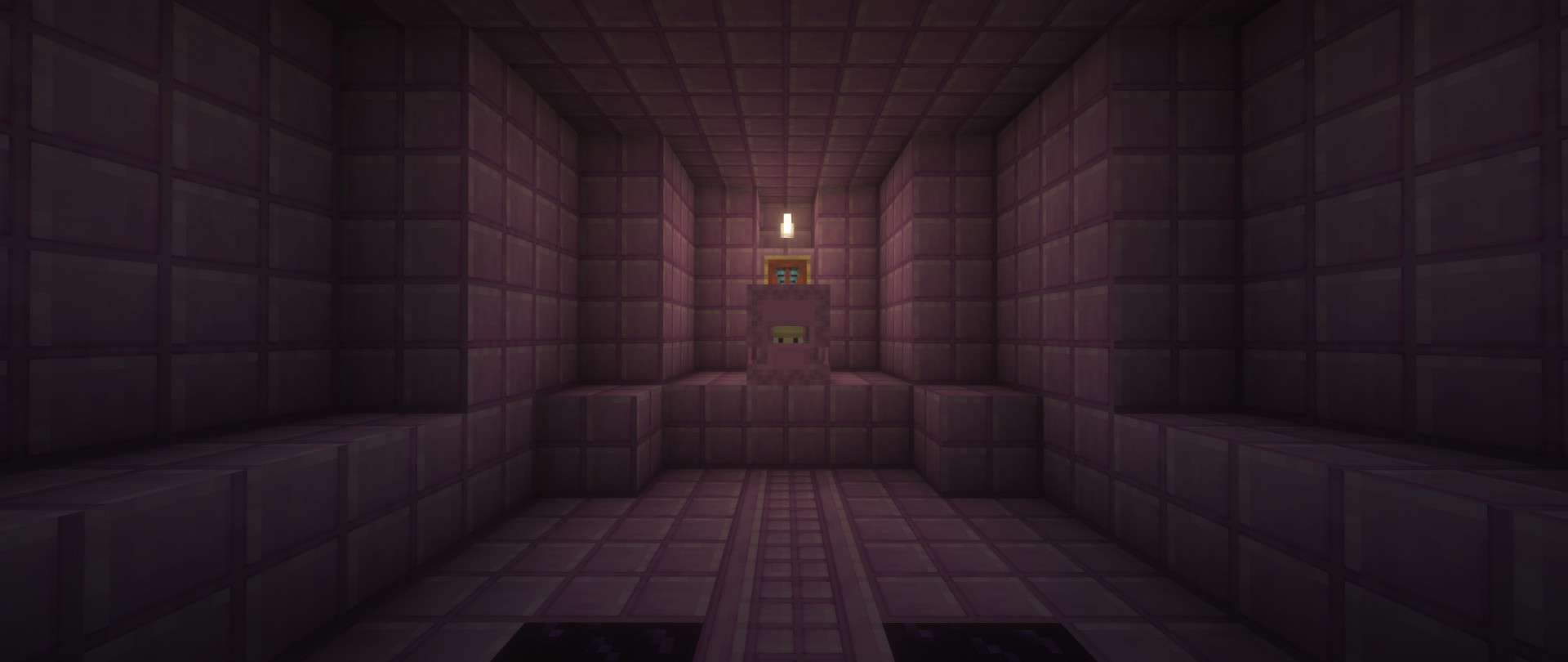
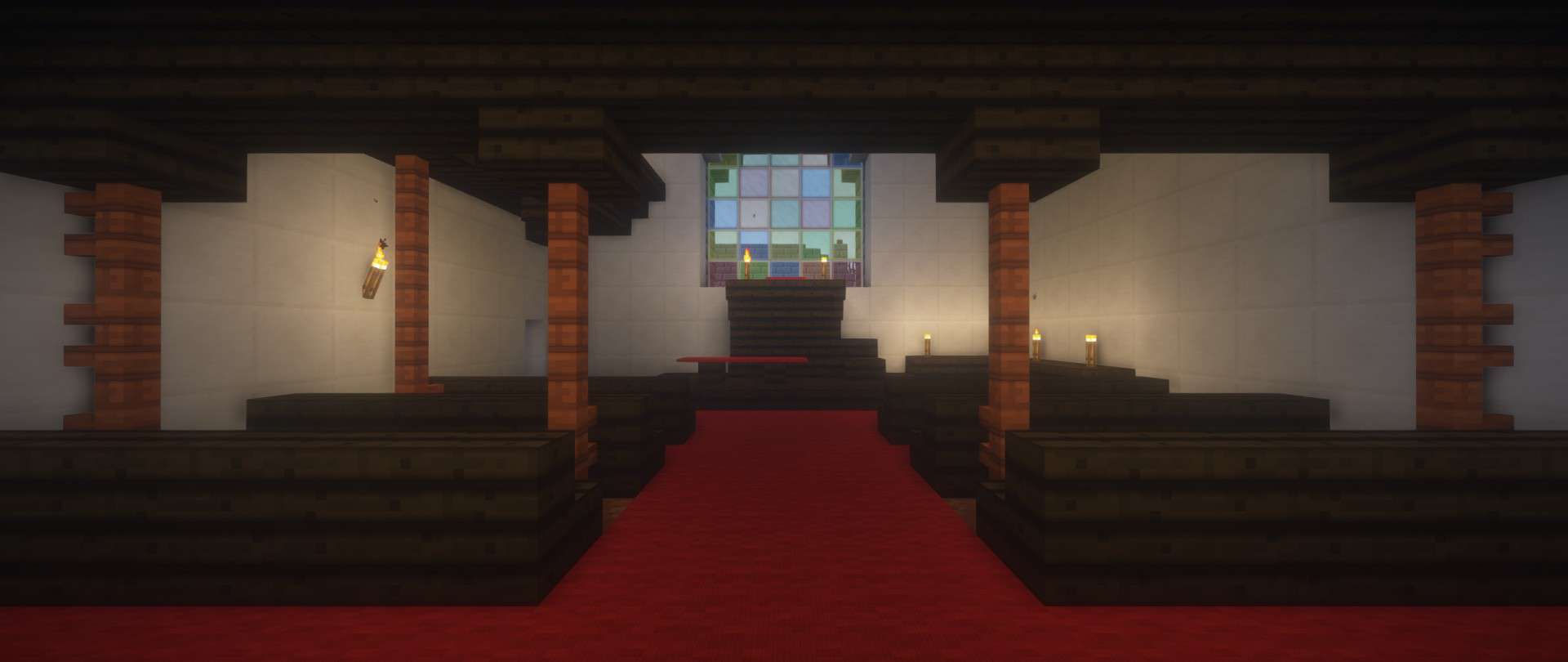
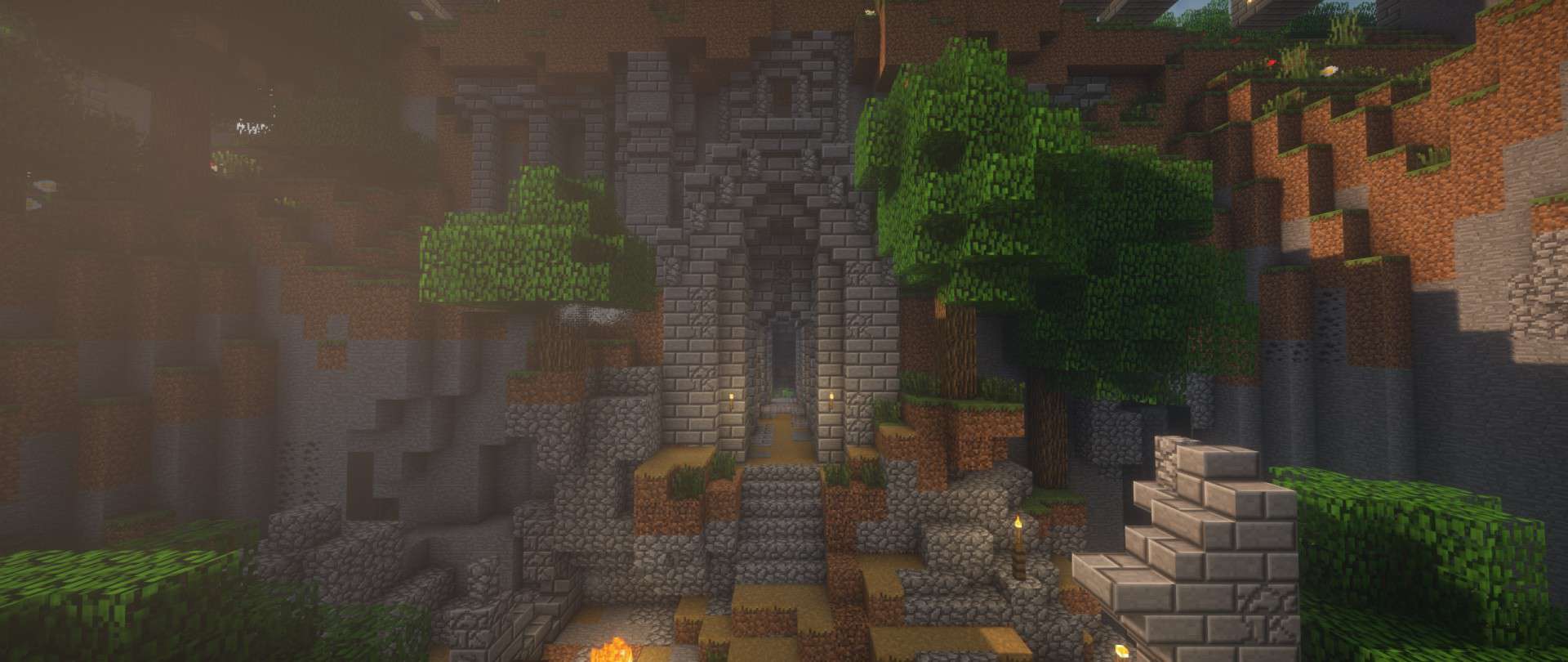
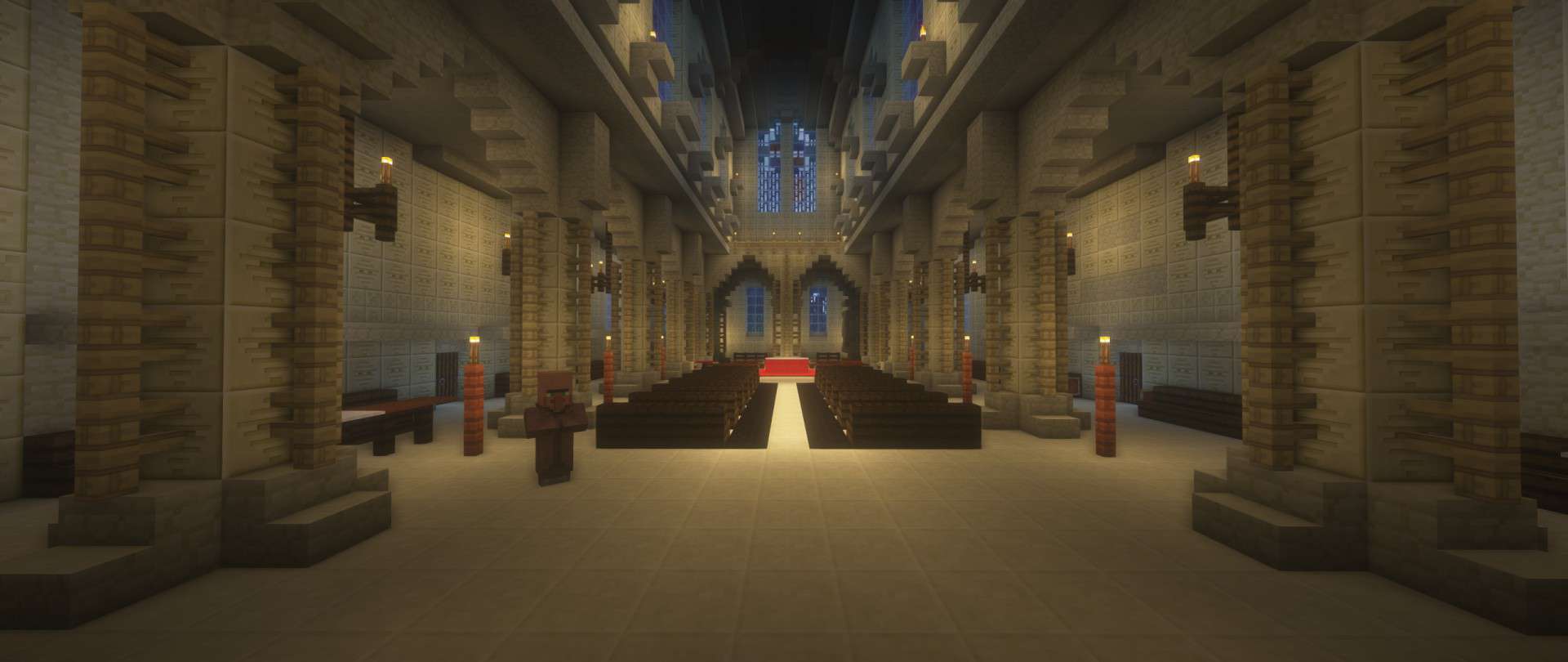
The Default HD resource pack aims to make Minecraft appear a lot better without altering anything that gives it the definitions that made it famous. Resource packs are there to enhance the overall appearance of the game and make it more enticing. However, no one can deny that the game already looks good even without using any resource packs. Unfortunately, the vanilla textures of Minecraft have certain flaws that hold back the game a bit. First, it has a low resolution that makes it impossible for the textures to have that much detail to carry. Also, the textures have a bit of noise. It creates a distraction that prevents you from enjoying the game to the fullest. Luckily, I found that the Default HD texture pack can improve the game’s look tremendously. It makes the resource pack worth trying out if you are okay with the core art style of Minecraft, and you want to take it to another level. The Default HD pack brings a more enjoyable gaming experience for players who want to try or enjoy playing vanilla Minecraft.
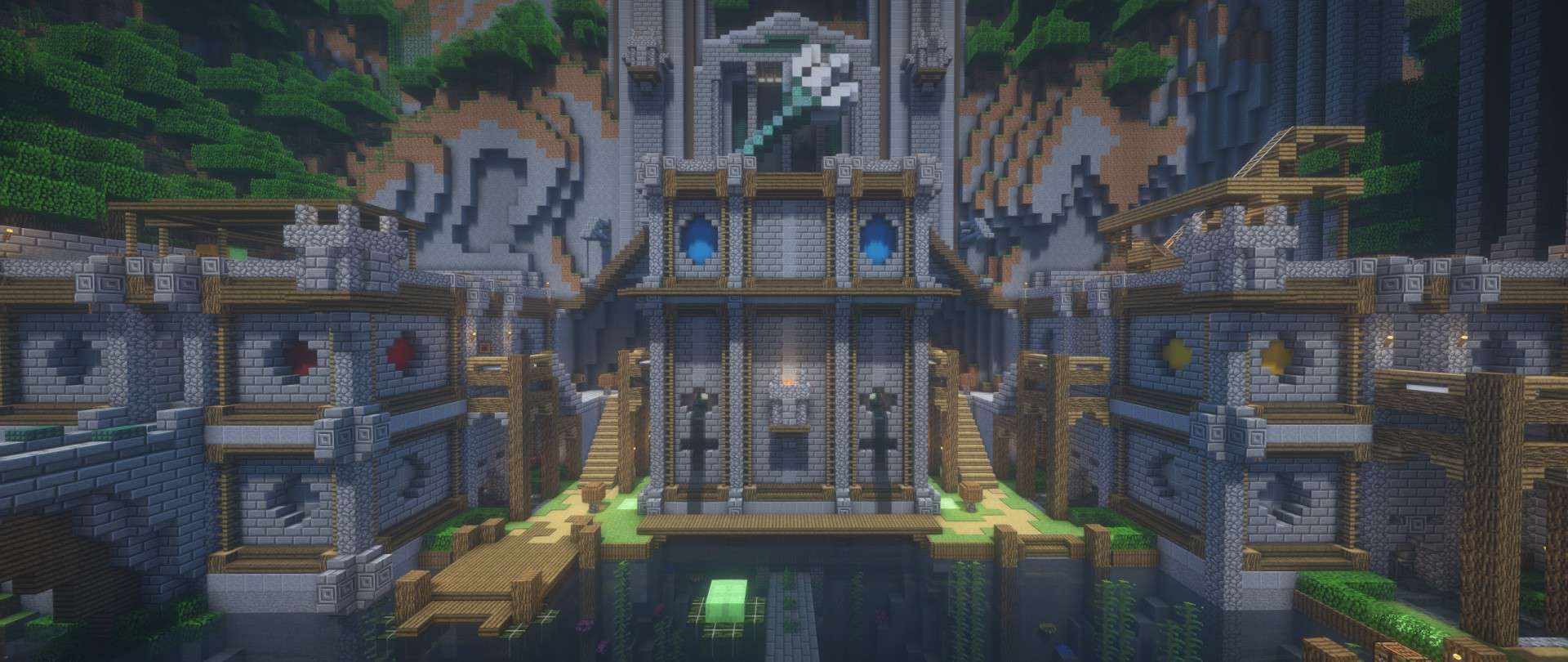
The Default HD resource pack adds more detail, which the vanilla resource pack failed to give. The unique art style of Minecraft has always been one of the major attractions that piqued the curiosity of most players of the game to try it. Its uniqueness is quite refreshing. However, the lack of detail in the textures of vanilla Minecraft is the one holding it back from being considered a high-quality game – the Default HD aims to change that. If the style of vanilla Minecraft is to your liking but you wish you could play it with more detail, I highly recommend trying the Default HD resource pack. The primary selling point of this resource pack is its exceptionally well-detailed textures. It is safe to say that the textures of this pack are some of the best that you’ve ever seen when vanilla-themed textures are involved. The level of detail is truly mind-boggling. Add to that the fact that the textures do not make any noise. The absence of noise in the textures makes them more appealing and amazingly smooth. With a high resolution of x128, only a computer with above-average hardware can run the Default HD resource pack without issues involving frame rate. The Default HD also has some 3D models that make it more in-demand on system resources.
Default HD should be compatible with all of these Minecraft versions: 26.2 – 26.1.2 – 26.1.1 – 26.1 – 1.21.11 – 1.21.10 – 1.21.9 – 1.21.8 – 1.21.7 – 1.21.6 – 1.21.5 – 1.21.4 – 1.21.3 – 1.21.2 – 1.21.1 – 1.21 – 1.20.6 – 1.20.5 – 1.20.4 – 1.20.3 – 1.20.2 – 1.20.1 – 1.20 – 1.19.4 – 1.19.3 – 1.19.2 – 1.19.1 – 1.19 – 1.18.2 – 1.18.1 – 1.18 – 1.17.1 – 1.17 – 1.16.5 – 1.16.4 – 1.16.3 – 1.16.2 – 1.16.1 – 1.16 – 1.15.2 – 1.15.1 – 1.15 – 1.14.4 – 1.14.3 – 1.14.2 – 1.14 – 1.13.2 – 1.13.1 – 1.13 – 1.12.2 – 1.12 – 1.11.2 – 1.11 – 1.10.2 – 1.10 – 1.9.4 – 1.9 – 1.8.9 – 1.8.8 – 1.8.1 – 1.8.6 – 1.8 – 1.7.10 – 1.7.9 – 1.7.4 – 1.7 – 1.6.4 – 1.6.2
Screenshots
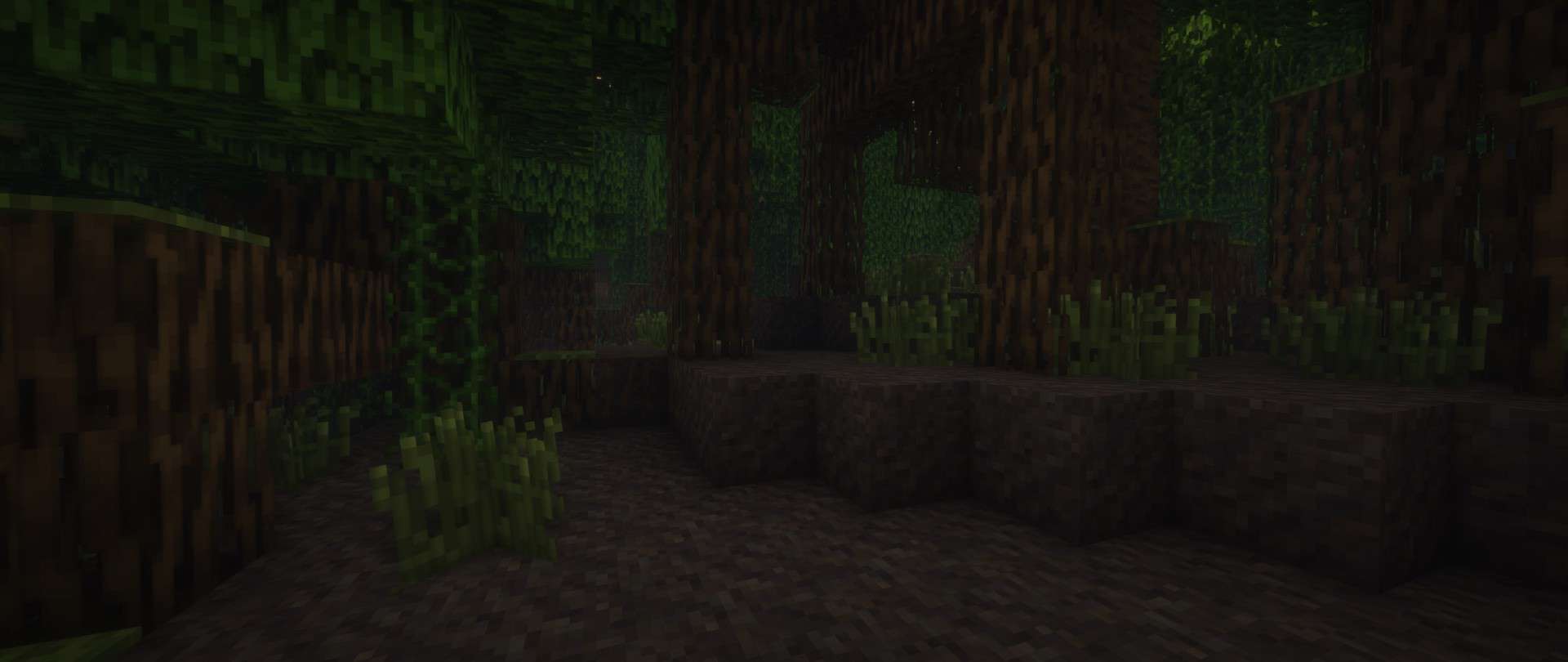
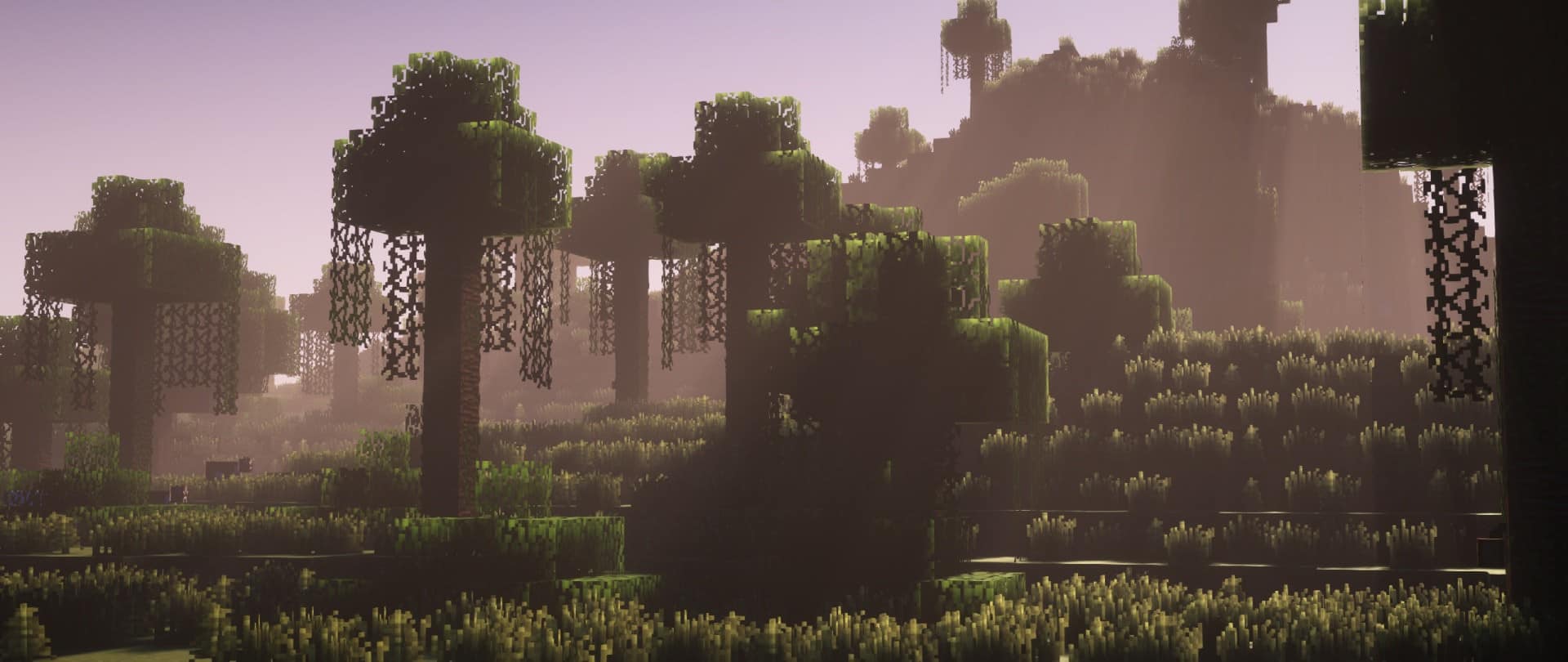
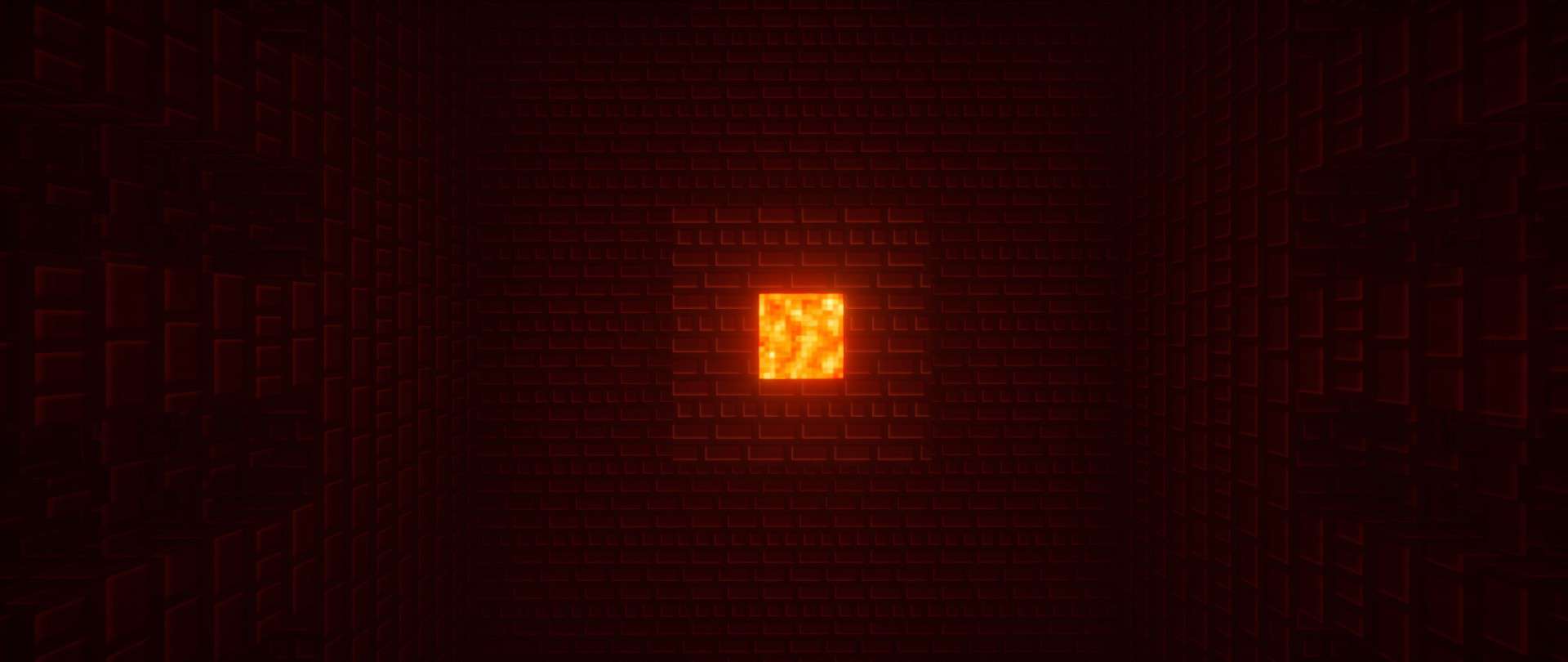
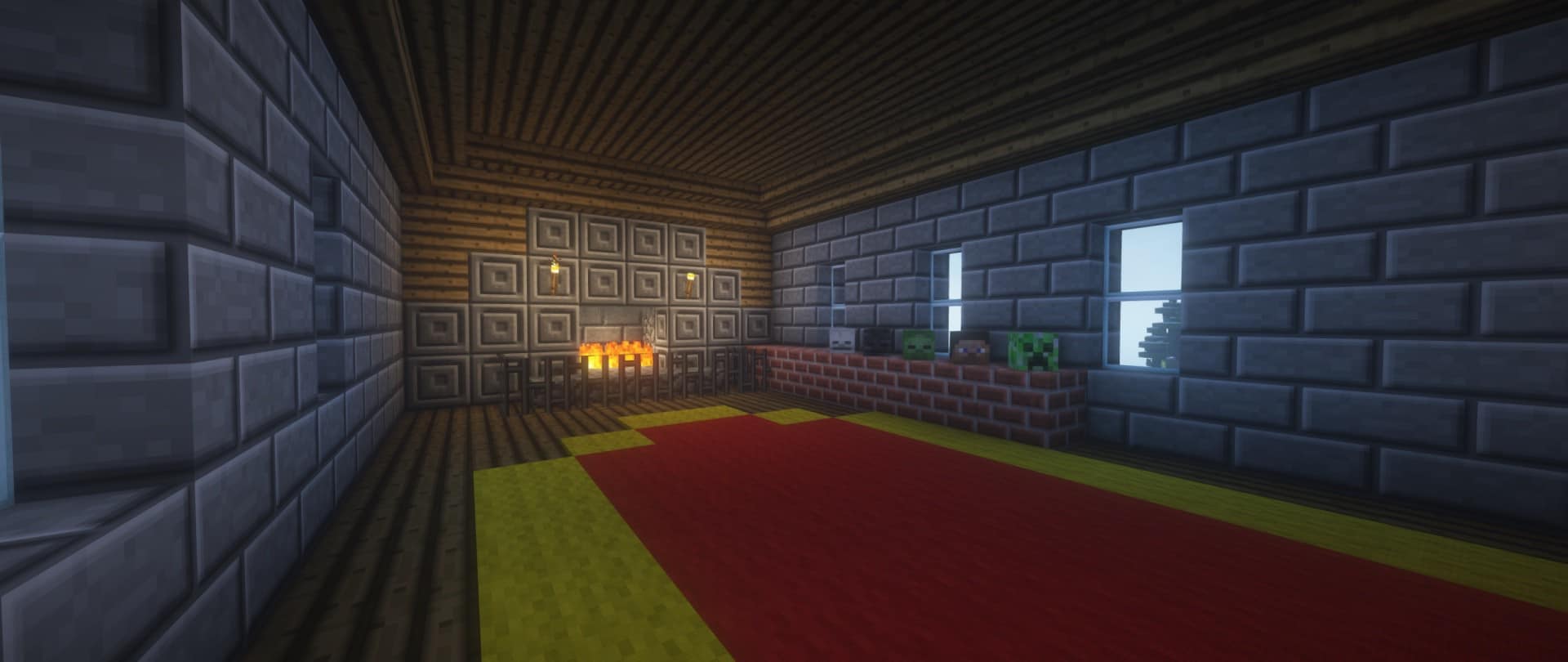
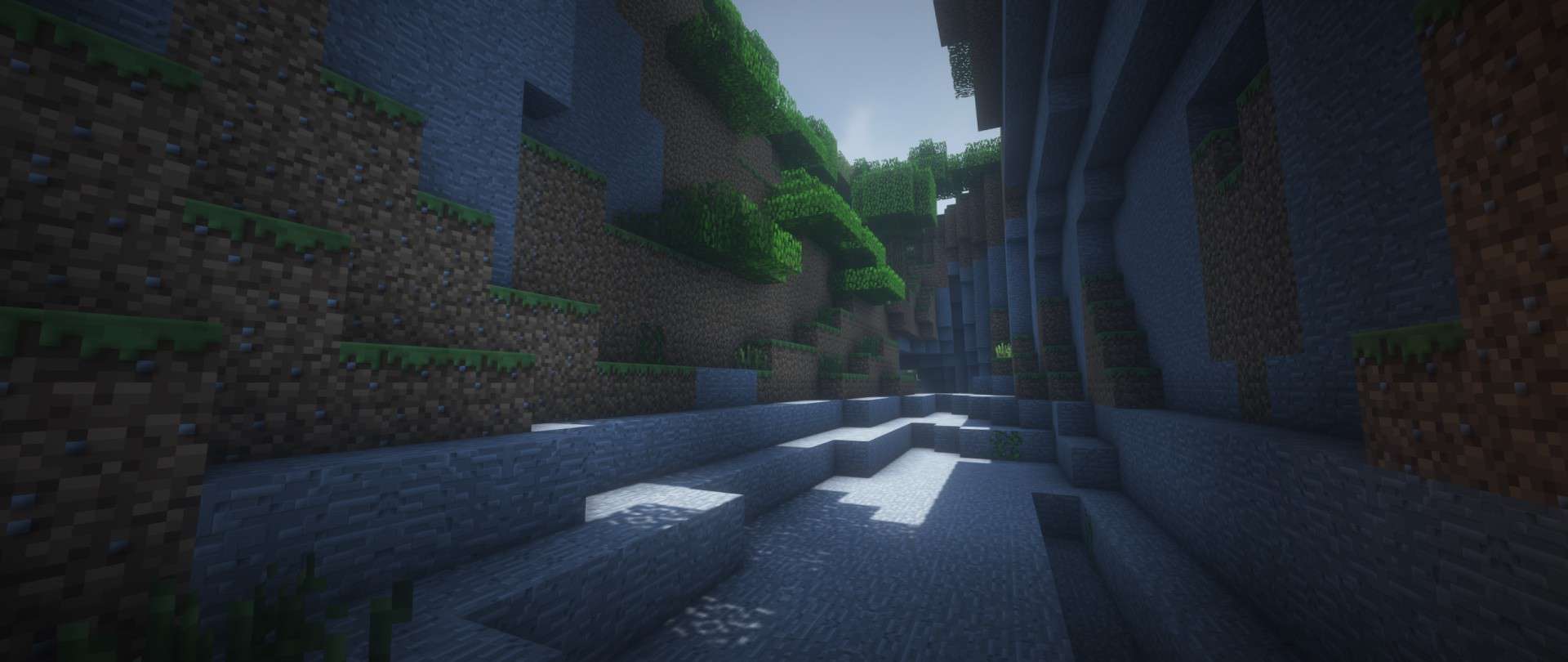
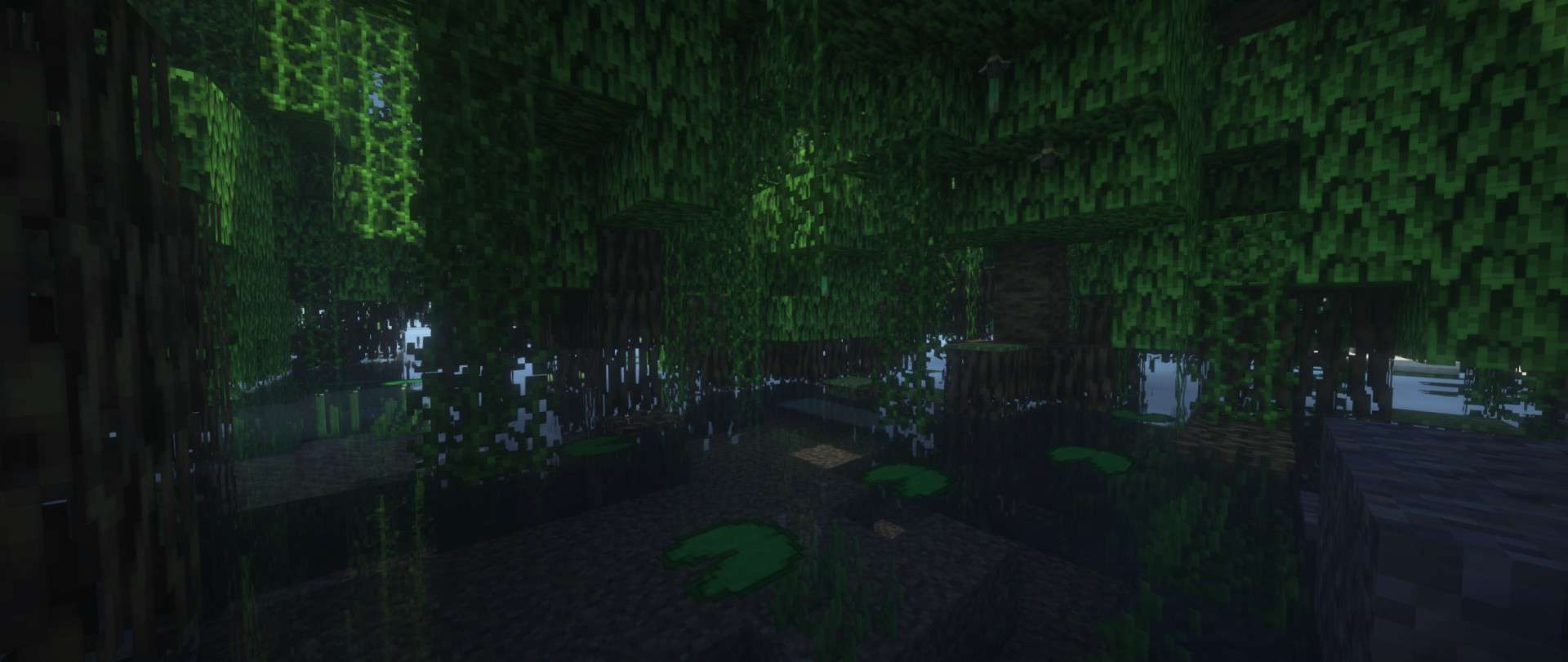
How to Install Texture Pack (Simple 10 Steps)
- Download OptiFine: Most of the texture packs and shaders need OptiFine. That’s why, first download and install OptiFine for the version of Minecraft you want to play.
- Download the Texture Pack: Get the texture pack you want from the download section. Choose the version that works with your Minecraft and your PC’s performance.
- Open Minecraft Launcher: Start Minecraft using the official game launcher — or even TLauncher, if you use that.
- Go to Options: From the main menu, click on the “Options” button.
- Open Resource Packs: Inside Options, click on “Resource Packs…”.
- Open the Resource Pack Folder: Click on “Open Resource Pack Folder” — this will open a folder named “resourcepacks”.
- Move the Pack File: Copy or move the .zip file you downloaded into that “resourcepacks” folder. (Don’t unzip the file — Minecraft uses it as-is!)
- Go Back and Refresh: Close the folder and click “Done”, then go back into “Resource Packs…” again.
- Activate the Pack: You’ll see the pack on the left side. Hover over it and click the arrow to move it to the right (active side).
Tip: If you get a message that the pack is for a different version, just click “Yes” — it usually works fine. - Click Done and Enjoy: Click “Done” again. Now your pack is ready to use in-game. It’s that easy!
Credits
This resource pack was originally created by thebaum64. We do not claim ownership of this content, nor have we modified the original files. All rights remain with the original creator, and we encourage you to support thebaum64 by downloading from their official channels.
Download Links
Java Edition
- [64x] Minecraft 26.2.x – 1.6.x Demo
- [128x] Minecraft 26.2.x – 1.6.x Demo
- [256x] Minecraft 26.2.x – 1.6.x Demo
- [512x] Minecraft 26.2.x – 1.6.x Demo
- [64x] Download Default HD Resource Pack
- [128x] Download Default HD Resource Pack
- [256x] Download Default HD Resource Pack
- [512x] Download Default HD Resource Pack
Download Instructions
Curseforge: download starts automatically after a few seconds;
Mediafire: click the big blue button with the text “DOWNLOAD”;
Google Drive: in the top right corner you will see a small download icon (down arrow), click it and the download should start;


