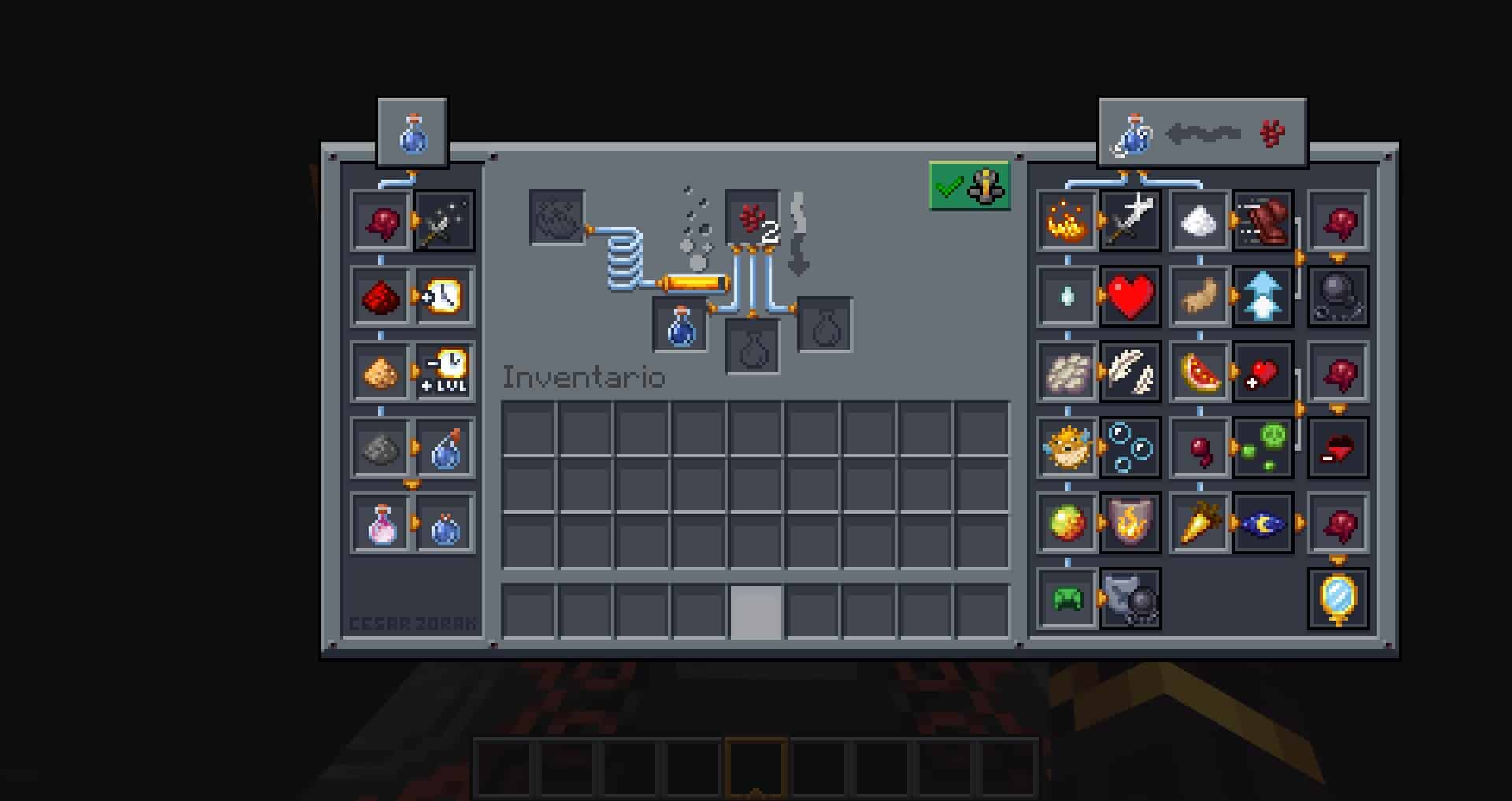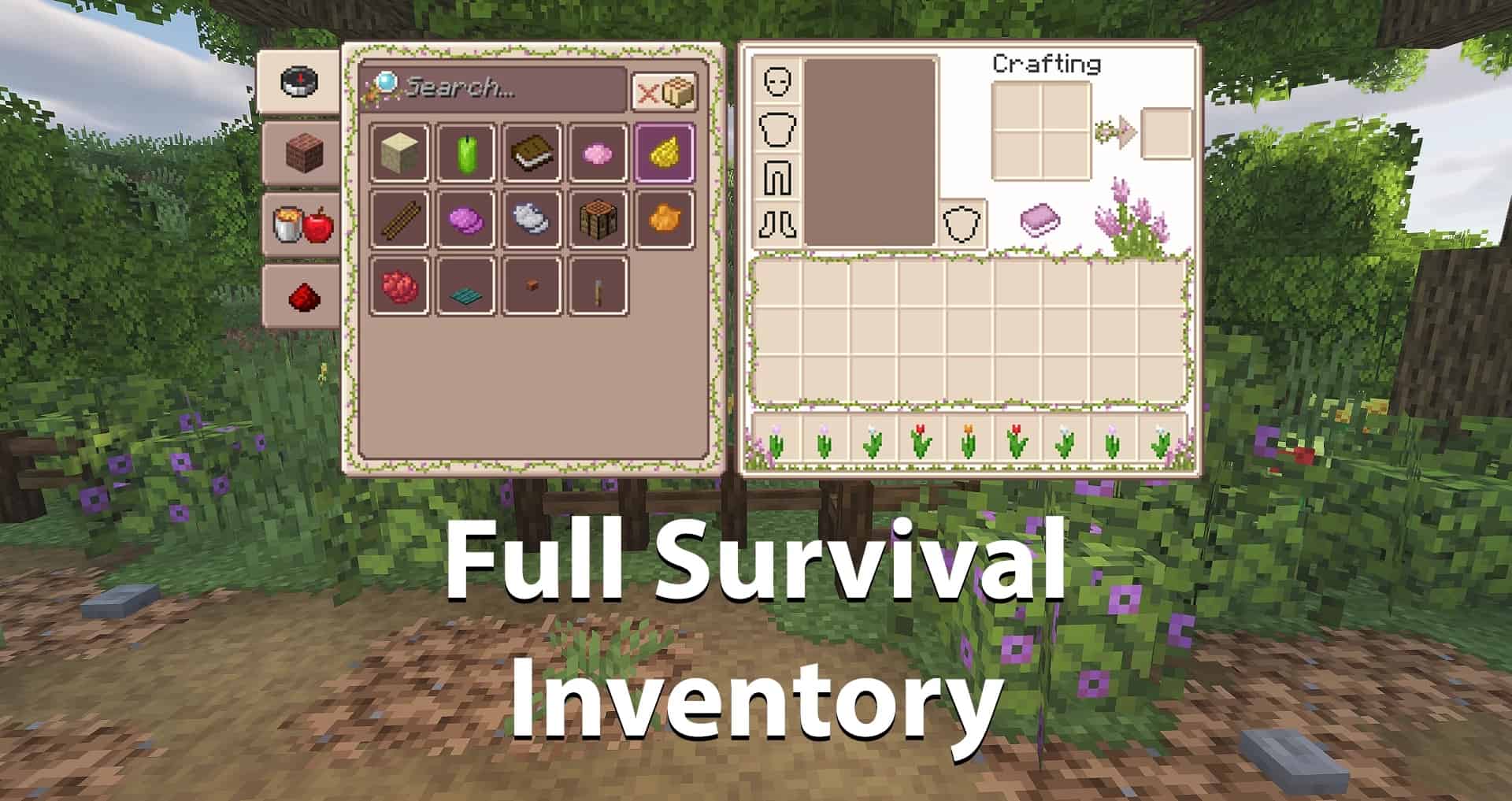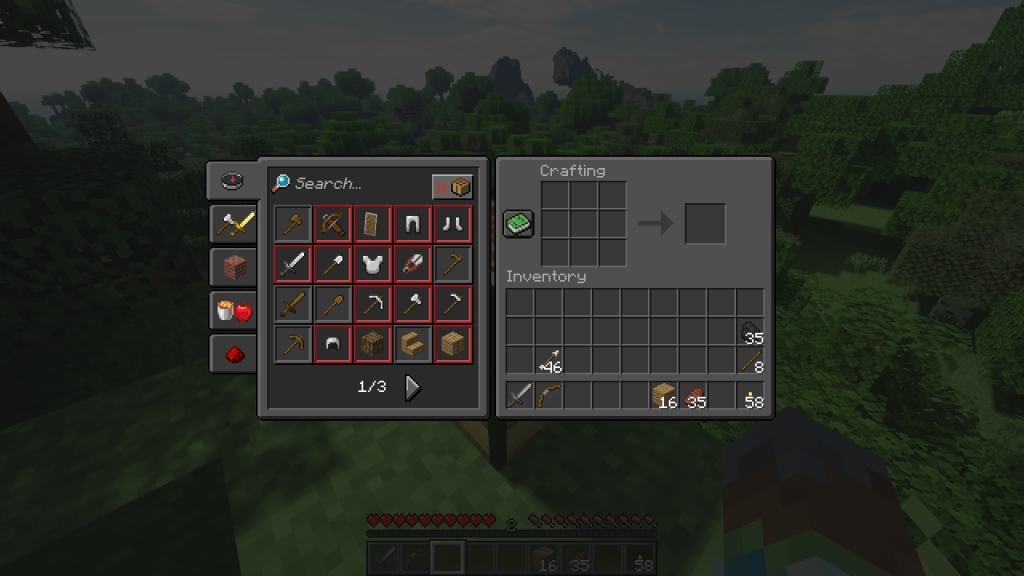
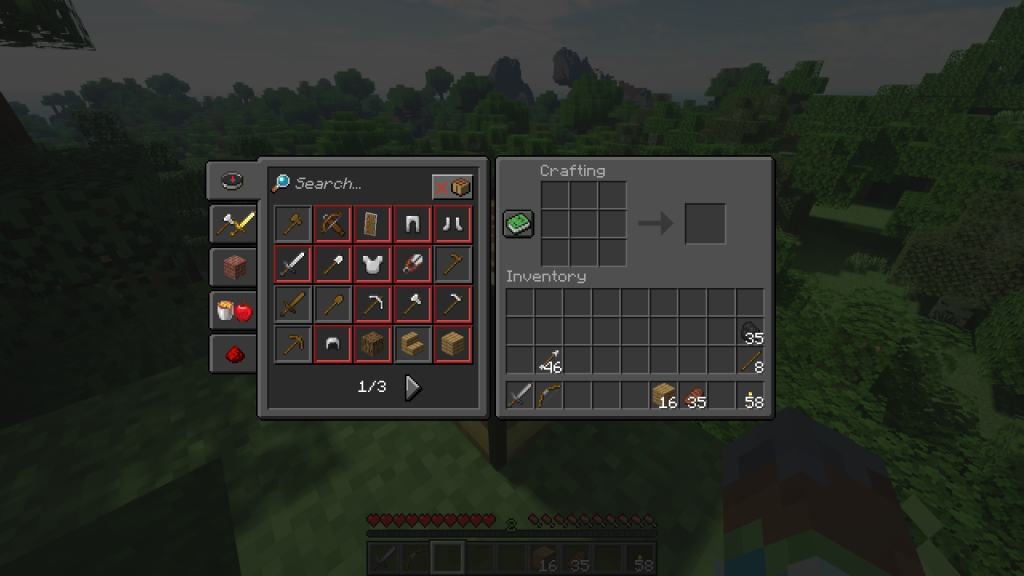
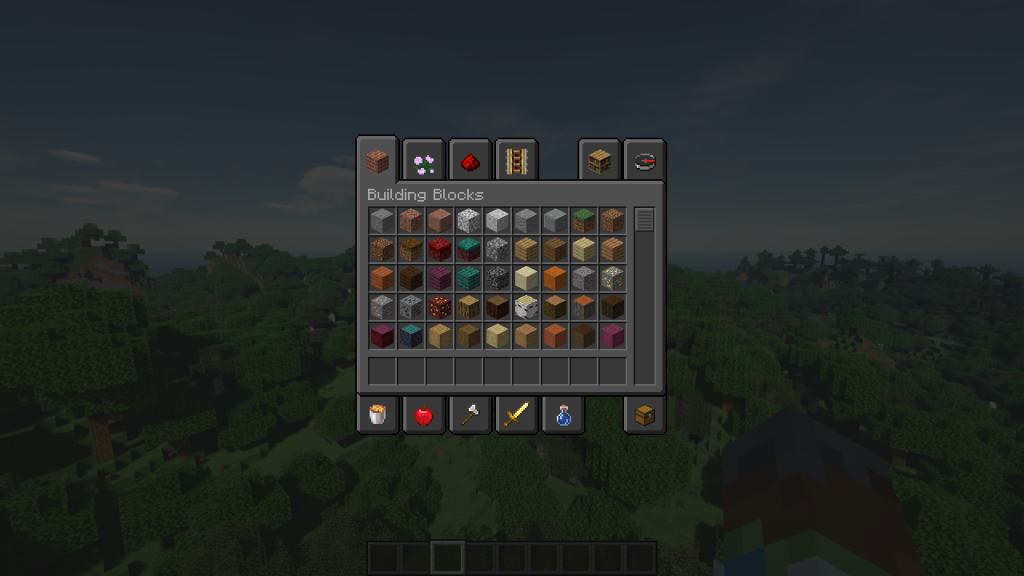
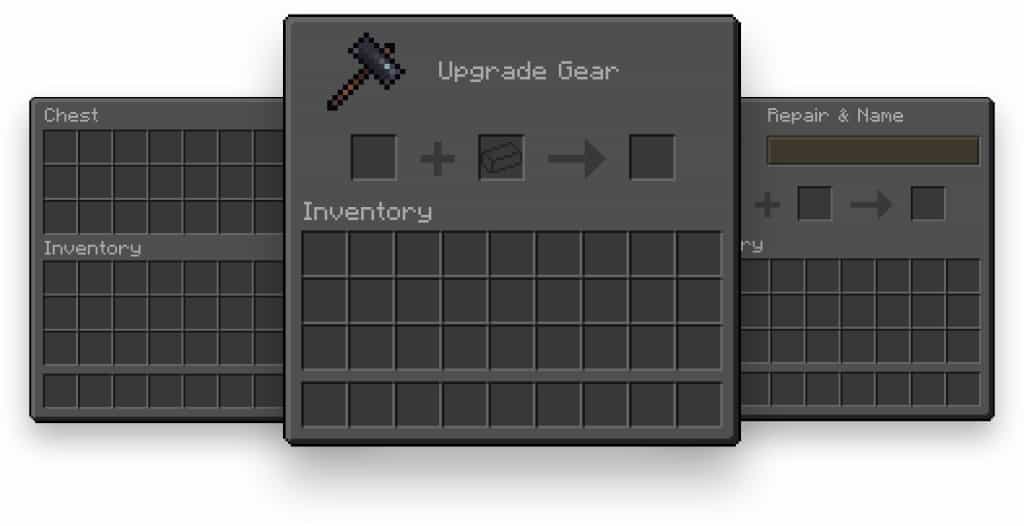
The Default Dark Mode resource pack is truly unlike most of the other resource packs that you’ve stumbled upon. Instead of placing its focus purely on the in-game blocks and items, Default Dark Mode completely overhauls another massive part of Minecraft that is so commonly neglected by texture pack creators – the game’s GUI. Contrary to what you might think, this isn’t the absolute first resource pack of this kind. In fact, many others before it implemented some touchups and modifications to the user interface, but none of them to this extent. Default Dark Mode pays incredible attention to every single nook and cranny that the GUI contains, which means that you won’t notice any unfinished aspects that still resemble the game’s original look. Even though the pixelated, comic-like appearance is one of the biggest differentiating factors of Minecraft, there’s no doubt that its interface is a tad bit outdated. It’s completely grey-scaled and the efforts to make it more interesting through the animated backgrounds don’t really bring out anything exciting to it. You may think that the interface doesn’t really impact the way the game itself plays, and you would be right. However, over time it’s totally normal for the whole presentation to become a bit tedious and grim, which could reduce your enjoyment during gameplay even if you aren’t realizing it. Another negative point is that each menu outline looks exactly the same, almost like it was copy-pasted.
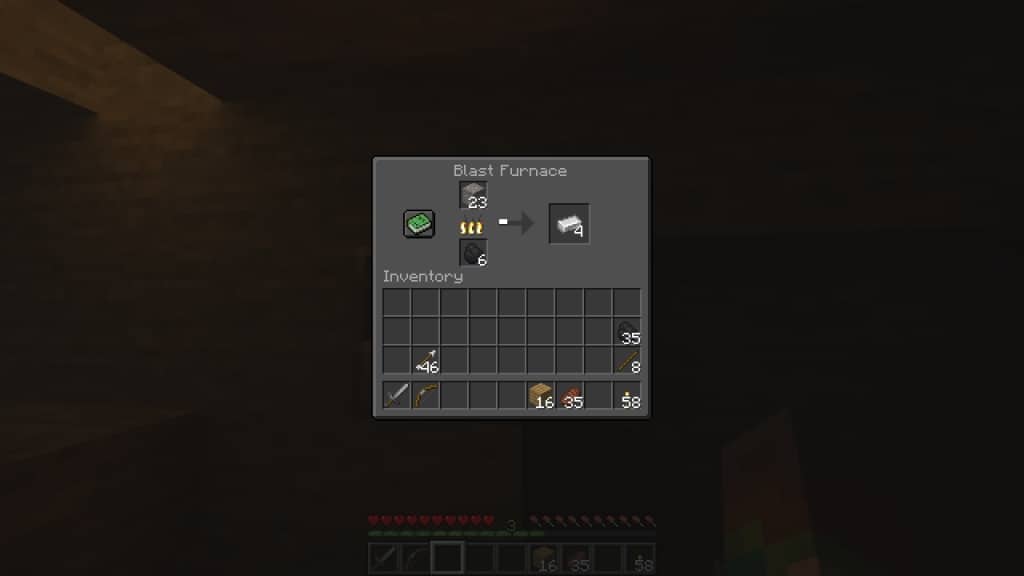
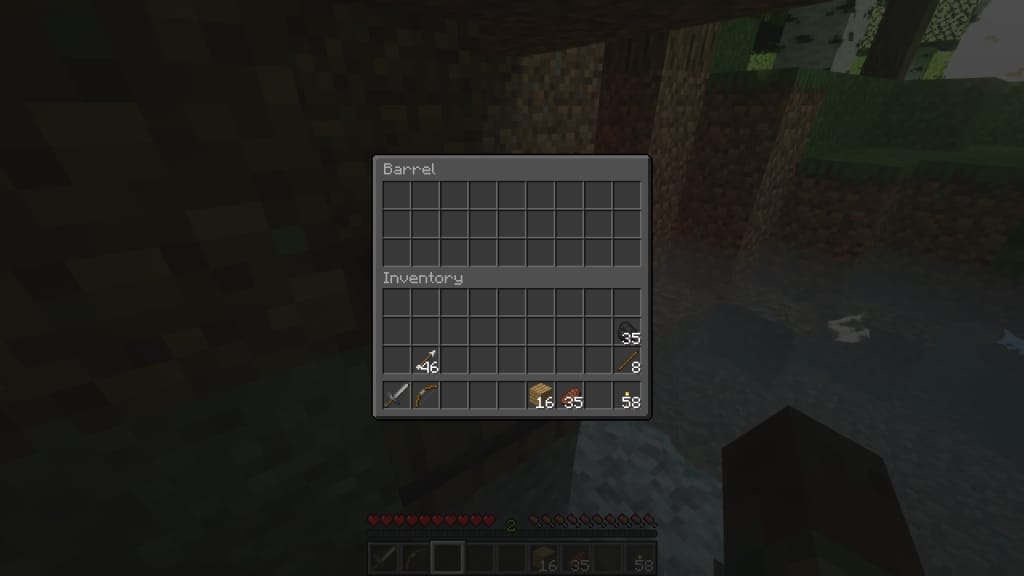
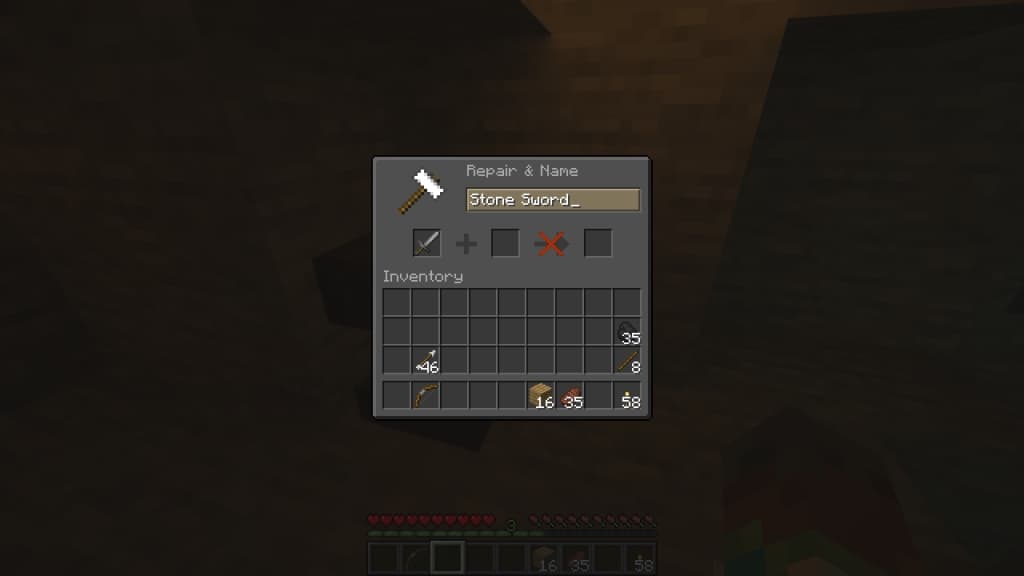
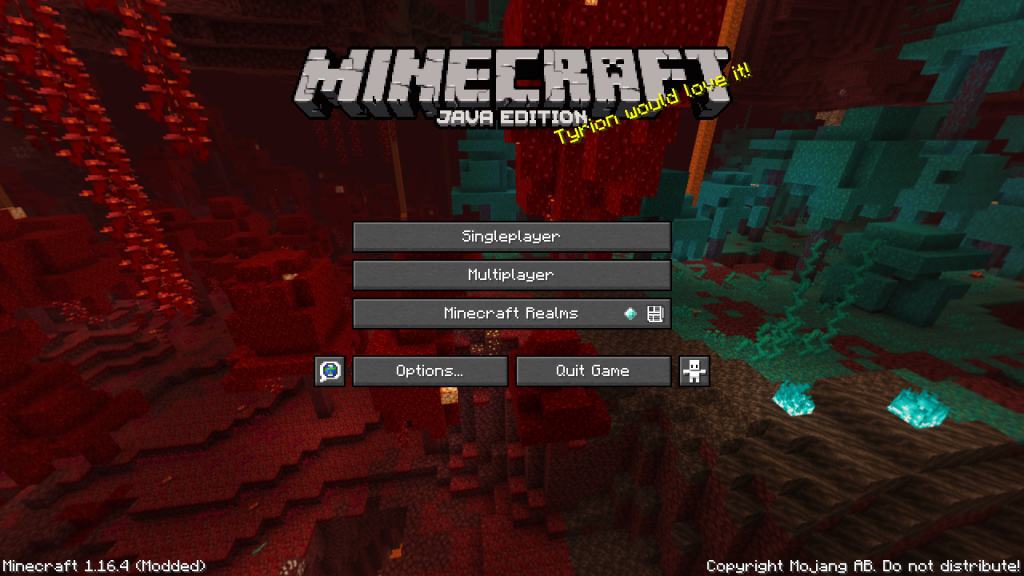
The buttons, colors, and overall interface elements simply don’t change regardless of whether you’re starting a new singleplayer world or visiting the options menu. At first glance, I honestly felt that the Default Dark Mode texture pack didn’t seem to do much. You might notice right away that the starting menu buttons are just a bit darker. However, once you dive into the game, you’ll start to realize that you’re interacting with the overhauled GUI literally every few seconds. The inventory has a gorgeous darker look with nicely contrasted letters that are easily differentiated between. Anvils, crafting tables, furnaces, enchanting tables, and more – everything is completely overhauled. You’ll definitely notice that the GUI’s edges are sharpened a bit to give them that sleek, modern look. You might be worried that you’ll have a hard time seeing your inventory if you’re on a deep mining expedition and located in a dark cave, but I was thrilled to find that’s definitely not the case. The Default Dark Mode resource pack creators have paid attention to everything, and you won’t have to strain your eyes at all in order to distinguish between different items. Another massive advantage to this resource pack is that it won’t have any impact at all on your gameplay performance. Whereas traditional resource packs change the blocks and resolution of in-game textures and therefore require better PC components, this one simply recolors the interface. It also has significant health benefits associated with it, as you’ll probably notice that your eyes won’t be straining as much due to the smart reduction in blue light emission from the screen. Finally, the installation process is straightforward and uses with many different versions available for Java Minecraft releases, suitable for all types of gamers.
Default Dark Mode should be compatible with all of these Minecraft versions: 26.2 – 26.1.2 – 26.1.1 – 26.1 – 1.21.11 – 1.21.10 – 1.21.9 – 1.21.8 – 1.21.7 – 1.21.6 – 1.21.5 – 1.21.4 – 1.21.3 – 1.21.2 – 1.21.1 – 1.21 – 1.20.6 – 1.20.5 – 1.20.4 – 1.20.3 – 1.20.2 – 1.20.1 – 1.20 – 1.19.4 – 1.19.3 – 1.19.2 – 1.19.1 – 1.19 – 1.18.2 – 1.18.1 – 1.18 – 1.17.1 – 1.17 – 1.16.5 – 1.16.4 – 1.16.3 – 1.16.2 – 1.16.1 – 1.16 – 1.15.2 – 1.15.1 – 1.15 – 1.14.4 – 1.14.3 – 1.14.2 – 1.14 – 1.13.2 – 1.13.1 – 1.13 – 1.12.2 – 1.12 – 1.11.2 – 1.11 – 1.10.2 – 1.10 – 1.9.4 – 1.9 – 1.8.9 – 1.8.8 – 1.8.1 – 1.8.6 – 1.8 – 1.7.10 – 1.7.9 – 1.7.4 – 1.7 – 1.6.4 – 1.6.2
Screenshots
How to Install Texture Pack (Simple 10 Steps)
- Download OptiFine: Most of the texture packs and shaders need OptiFine. That’s why, first download and install OptiFine for the version of Minecraft you want to play.
- Download the Texture Pack: Get the texture pack you want from the download section. Choose the version that works with your Minecraft and your PC’s performance.
- Open Minecraft Launcher: Start Minecraft using the official game launcher — or even TLauncher, if you use that.
- Go to Options: From the main menu, click on the “Options” button.
- Open Resource Packs: Inside Options, click on “Resource Packs…”.
- Open the Resource Pack Folder: Click on “Open Resource Pack Folder” — this will open a folder named “resourcepacks”.
- Move the Pack File: Copy or move the .zip file you downloaded into that “resourcepacks” folder. (Don’t unzip the file — Minecraft uses it as-is!)
- Go Back and Refresh: Close the folder and click “Done”, then go back into “Resource Packs…” again.
- Activate the Pack: You’ll see the pack on the left side. Hover over it and click the arrow to move it to the right (active side).
Tip: If you get a message that the pack is for a different version, just click “Yes” — it usually works fine. - Click Done and Enjoy: Click “Done” again. Now your pack is ready to use in-game. It’s that easy!
Credits
This project was created by nebulr. We do not claim ownership of this content, nor do we host modified files on our servers. All rights and intellectual property belong strictly to the original author. We strongly encourage visiting the official creator pages to support their work.
Download Links
Java Edition
- [16x] Minecraft 26.2.x – 26.1.x
- [16x] Minecraft 1.21.x
- [16x] Minecraft 1.20.6 – 1.20.2
- [16x] Minecraft 1.20 – 1.20.1
- [16x] Minecraft 1.19.x
- [16x] Minecraft 1.18.x
- [16x] Minecraft 1.17.x
- [16x] Minecraft 1.16.x
- [16x] Minecraft 1.15.x
- [16x] Minecraft 1.14.x
- [16x] Minecraft 1.13.x
- [16x] Minecraft 1.12.x
- [16x] Minecraft 1.11.x
- [16x] Minecraft 1.10.x
- [16x] Minecraft 1.9.x
- [16x] Minecraft 1.8.x
- [16x] Minecraft 1.7.x
- [16x] Minecraft 1.6.x
Download Instructions
Curseforge: download starts automatically after a few seconds;
Mediafire: click the big blue button with the text “DOWNLOAD”;
Google Drive: in the top right corner you will see a small download icon (down arrow), click it and the download should start;