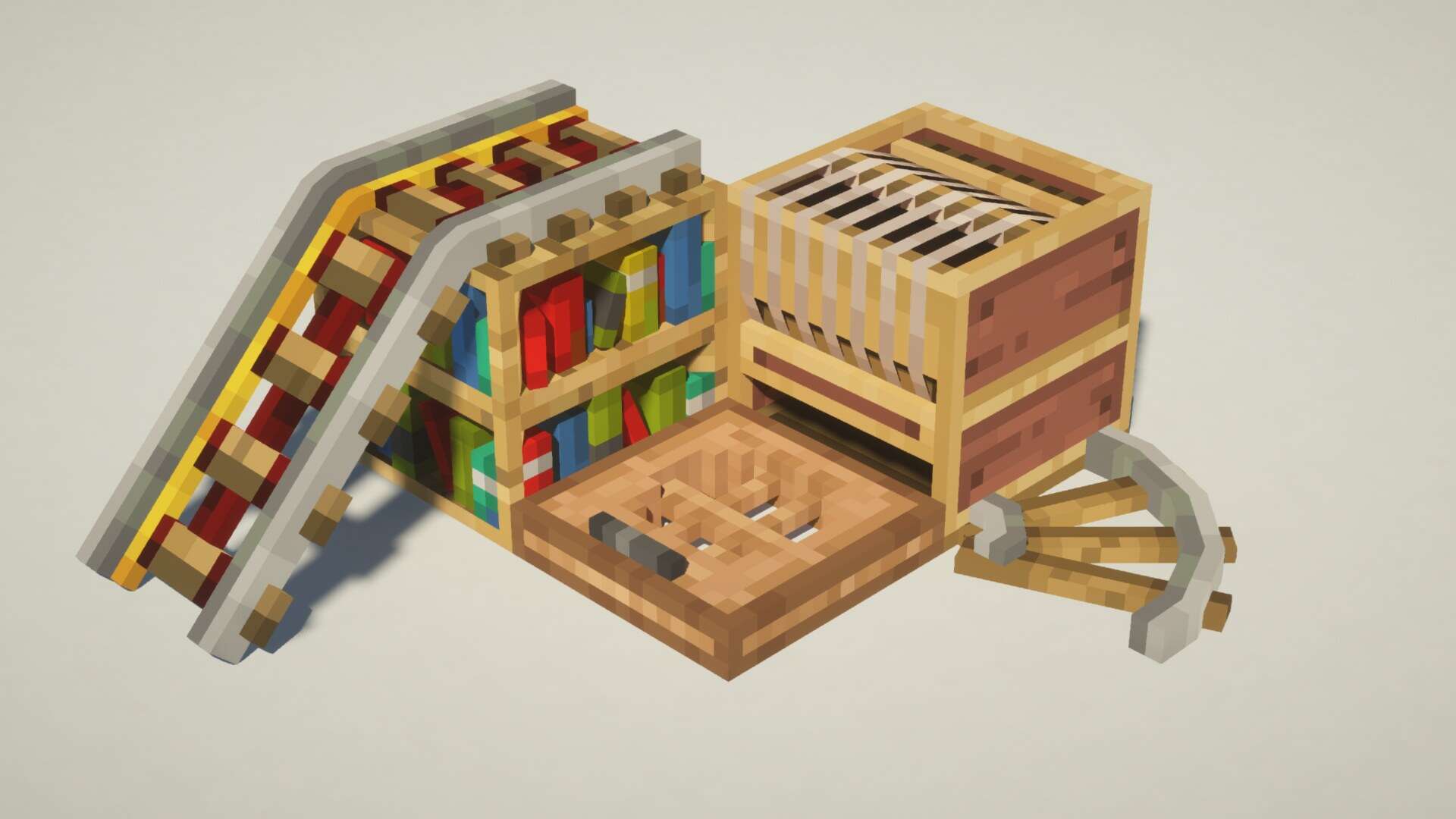
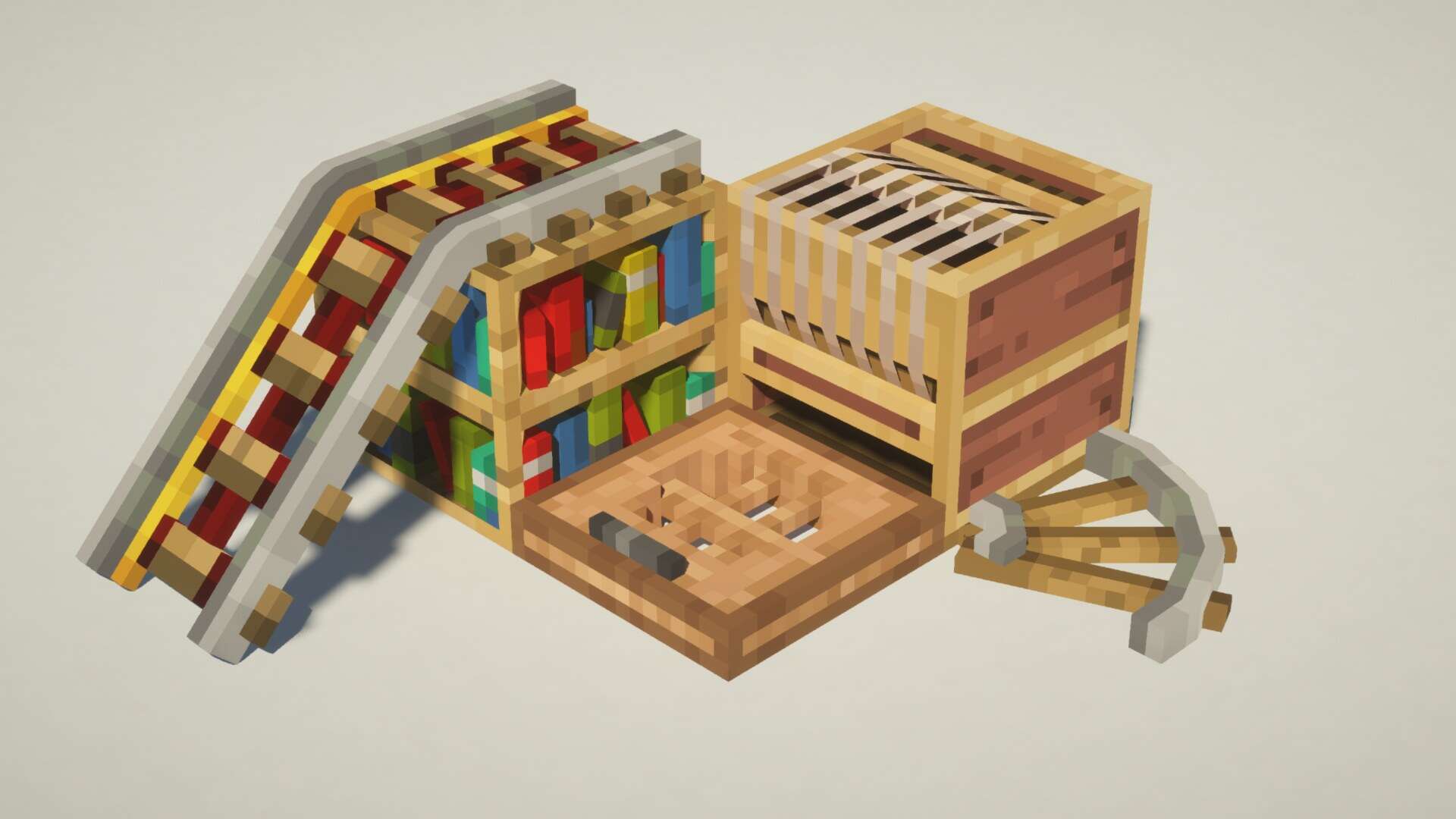
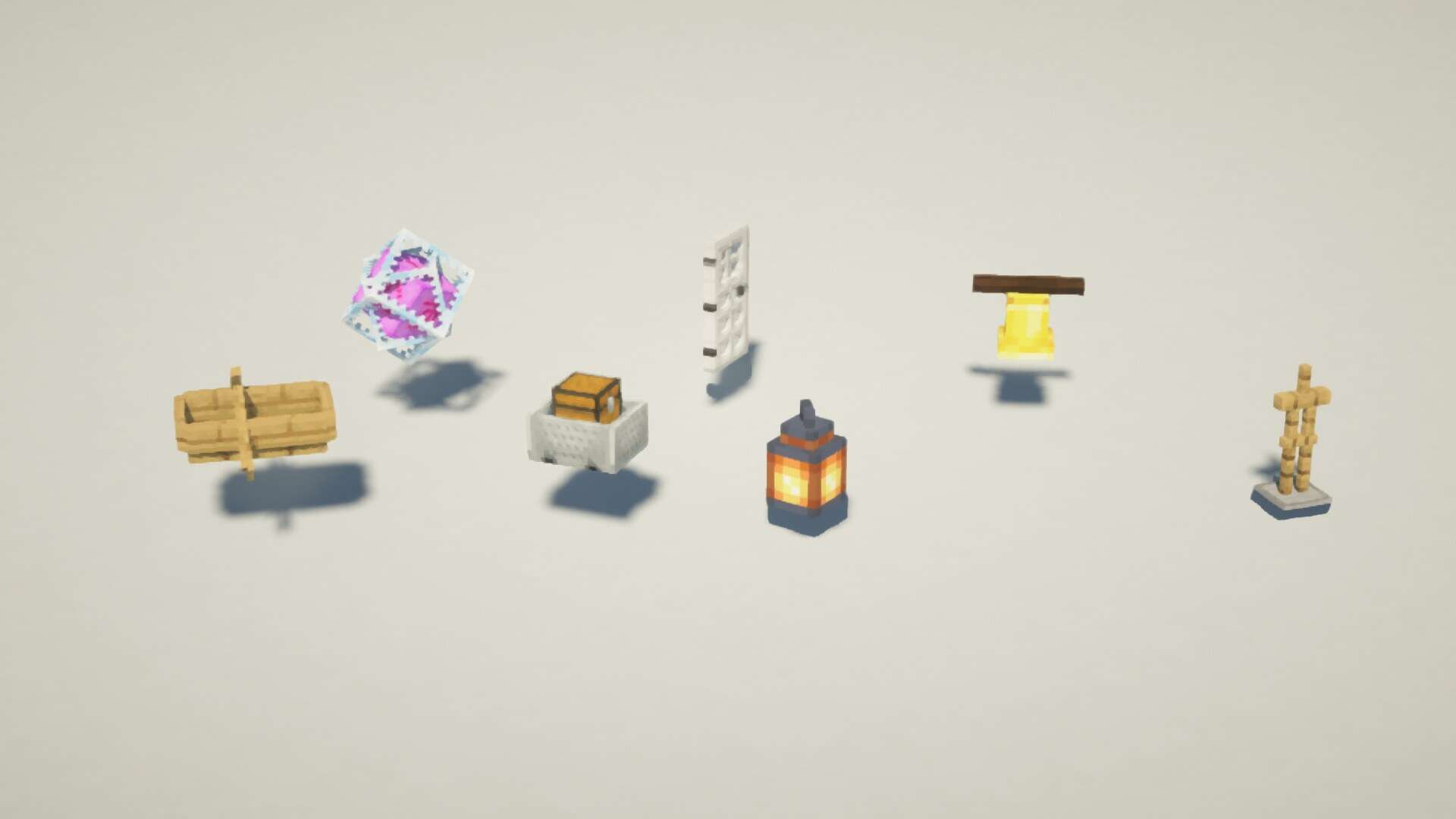
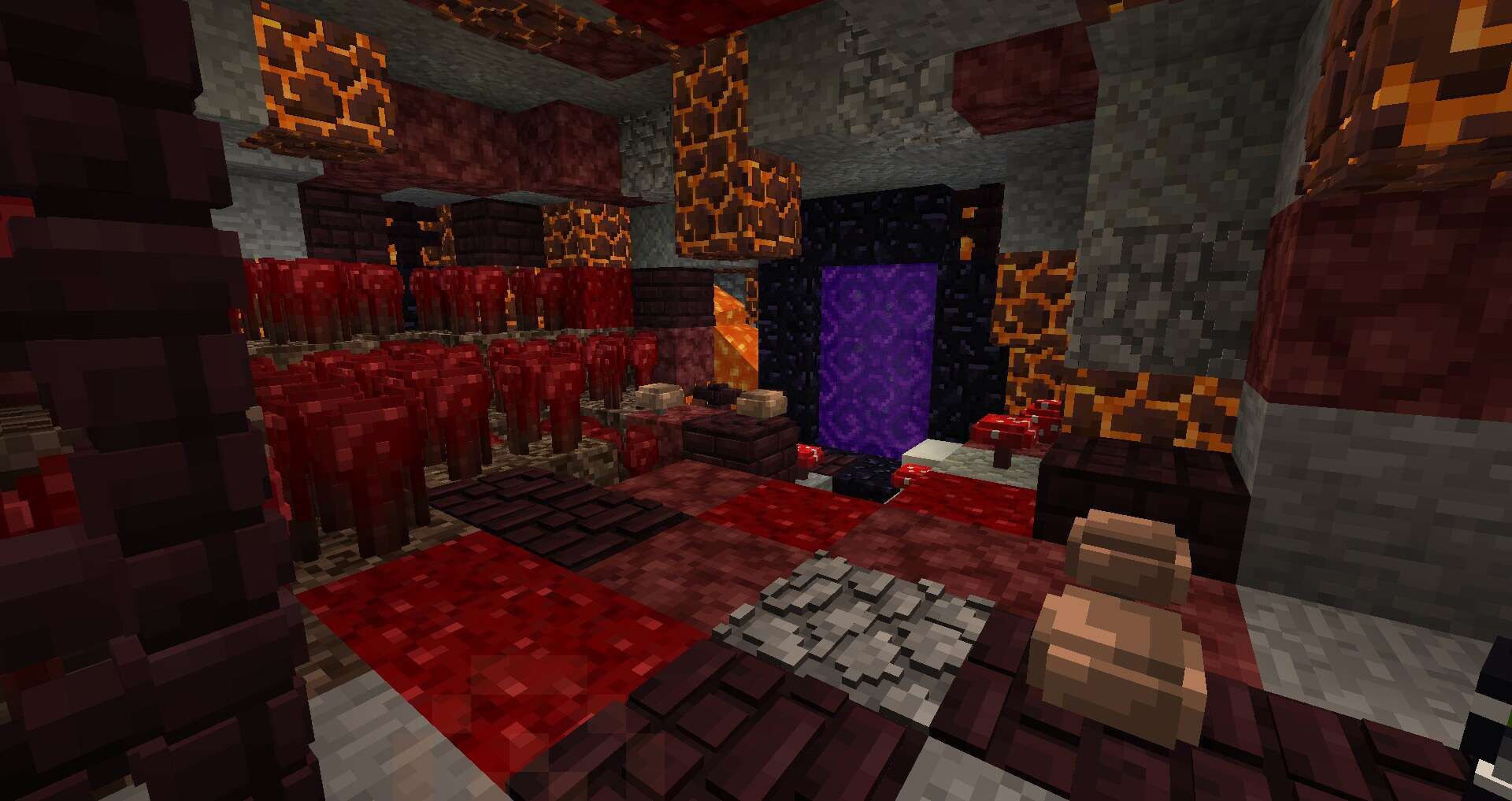
Minecraft has totally captivated millions of players around the world, and part of its massive appeal comes from its intentionally retro, blocky aesthetic. Unlike the ultra-realistic graphics dominating most modern games, Minecraft leans into simplicity, offering a sandbox experience that feels wonderfully creative and nostalgic. However, over time, I definitely began to feel that the visual experience became a bit too familiar. The vanilla textures, while iconic, can start to feel completely flat or uninspired. That is exactly when resource packs swoop in, allowing players to thoroughly personalize and revitalize their in-game visuals. Among the endless available packs, a huge number try to completely overhaul Minecraft’s visual identity, especially those focusing on hard realism or modern design. These hyper-detailed packs often strip away the original game’s charming personality in favor of glossy textures and painfully sharp edges. For a long time, realistic and modern-themed packs dominated the scene, leaving very few options that stayed true to the classic Minecraft style. Fortunately, there are fantastic exceptions—resource packs that aim to enhance the game while fully preserving its unique charm. One absolute standout in this category is the Default 3D resource pack, originally crafted by Know2Good. Rather than completely replacing the entire look and feel of the game, Default 3D genuinely elevates the standard textures by introducing clever 3D models. Every single block and item faithfully retains its vanilla style, but now carries wonderful extra depth. This brilliant approach allows players to enjoy a much more immersive experience without sacrificing Minecraft’s core identity whatsoever. The pack cleverly keeps the resolution at 16x, ensuring it still feels wonderfully familiar, yet distinctly upgraded. Launched way back in 2014, the Default 3D pack was meticulously developed and maintained for several years, quickly becoming an absolute favorite among players wanting to enhance their Minecraft visuals without straying too far from the default look. By adding genuine depth and volume to previously flat textures, this pack makes even the smallest details—like items placed neatly on tables or lovely flowers—look astonishingly more tangible. It creates a much stronger sense of presence in the world without ever making it feel unrecognizable.
Although Know2Good has not updated the pack since the official release of Minecraft 1.16, the amazing spirit of Default 3D truly lives on! Other talented creators have bravely picked up the mantle and produced equally stellar similar packs. One brilliant example is the 3D Default resource pack by GeForceLegend, which lovingly mirrors the approach of Default 3D and continues to be regularly updated for the absolute latest Minecraft versions. For players using newer versions of the game, this is an exceptional alternative that delivers the exact same visual improvements. Installing a 3D resource pack profoundly changes the way the game feels without breaking its core aesthetic. Trees, workbenches, and even delicate flowers appear remarkably more detailed and wonderfully full. The very first time you place a crafting table down after installing the pack, you will immediately notice how its distinct components seem to rise right from the surface, giving it a tangible, handcrafted quality that is hard to beat. These small visual upgrades significantly boost immersion, making Minecraft feel totally fresh again, even for seasoned veteran players. It is definitely worth noting that these gorgeous 3D models require a bit more processing power than standard, flat textures. Acknowledging this clever hardware requirement, Know2Good originally separated the Default 3D pack into three distinct performance tiers: Low, Medium, and High. Each version smartly adjusts the number and complexity of the 3D elements to seamlessly match your computer’s specific capabilities. The Low tier is ideal for older or less powerful systems, the Medium tier expertly balances visuals and performance, and the High tier delivers the complete, uncompromised experience for players with strong hardware. If your rig can comfortably handle it, the High version is certainly highly recommended, as it provides the full set of breathtaking enhancements. For those who want to push their visuals even further into stunning territory, combining a 3D resource pack with incredible shaders can honestly be an absolute game-changer. The added dynamic lighting and soft shading effects work so harmoniously alongside the enhanced models, creating an atmosphere that is both magical and deeply immersive. Together, they breathe vibrant new life into a world many players thought they already knew inside and out. In conclusion, if you have ever felt that something was missing from Minecraft’s default textures but did not want to abandon that classic look, the Default 3D pack or a modern equivalent like 3D Default is an ideal solution. It is a subtle yet remarkably effective way to refresh your gameplay experience, making it perfect for fans who adore the original game but crave a touch of depth and realism. Whether you are building a grand castle, exploring a dense forest, or simply placing a colorful flower in a pot, everything feels just a little bit more alive.
Default 3D should be compatible with all of these Minecraft versions: 26.2 – 26.1.2 – 26.1.1 – 26.1 – 1.21.11 – 1.21.10 – 1.21.9 – 1.21.8 – 1.21.7 – 1.21.6 – 1.21.5 – 1.21.4 – 1.21.3 – 1.21.2 – 1.21.1 – 1.21 – 1.20.6 – 1.20.5 – 1.20.4 – 1.20.3 – 1.20.2 – 1.20.1 – 1.20 – 1.19.4 – 1.19.3 – 1.19.2 – 1.19.1 – 1.19 – 1.18.2 – 1.18.1 – 1.18 – 1.17.1 – 1.17 – 1.16.5 – 1.16.4 – 1.16.3 – 1.16.2 – 1.16.1 – 1.16 – 1.15.2 – 1.15.1 – 1.15 – 1.14.4 – 1.14.3 – 1.14.2 – 1.14 – 1.13.2 – 1.13.1 – 1.13 – 1.12.2 – 1.12 – 1.11.2 – 1.11 – 1.10.2 – 1.10 – 1.9.4 – 1.9 – 1.8.9 – 1.8.8 – 1.8.1 – 1.8.6 – 1.8 – 1.7.10 – 1.7.9 – 1.7.4 – 1.7
Screenshots


How to Install Texture Pack (Simple 10 Steps)
- Download OptiFine: Most of the texture packs and shaders need OptiFine. That’s why, first download and install OptiFine for the version of Minecraft you want to play.
- Download the Texture Pack: Get the texture pack you want from the download section. Choose the version that works with your Minecraft and your PC’s performance.
- Open Minecraft Launcher: Start Minecraft using the official game launcher — or even TLauncher, if you use that.
- Go to Options: From the main menu, click on the “Options” button.
- Open Resource Packs: Inside Options, click on “Resource Packs…”.
- Open the Resource Pack Folder: Click on “Open Resource Pack Folder” — this will open a folder named “resourcepacks”.
- Move the Pack File: Copy or move the .zip file you downloaded into that “resourcepacks” folder. (Don’t unzip the file — Minecraft uses it as-is!)
- Go Back and Refresh: Close the folder and click “Done”, then go back into “Resource Packs…” again.
- Activate the Pack: You’ll see the pack on the left side. Hover over it and click the arrow to move it to the right (active side).
Tip: If you get a message that the pack is for a different version, just click “Yes” — it usually works fine. - Click Done and Enjoy: Click “Done” again. Now your pack is ready to use in-game. It’s that easy!
Credits
Default 3D was originally created by Know2Good, with 3D Default maintained and updated by GeForceLegend. We do not claim ownership of these resource packs and do not modify the original download files. All rights remain with the original creators. We strongly encourage you to support Know2Good and GeForceLegend by downloading the resource pack from their official release pages.
Download Links
Java Edition
- [16x] Minecraft 26.2.x – 26.1.x
- [16x] Minecraft 1.21.11 – 1.21.2
- [16x] Minecraft 1.21.1 – 1.21
- [16x] Minecraft 1.20.x
- [16x] Minecraft 1.19.x
- [16x] Minecraft 1.18.x
- [16x] Minecraft 1.17.x
- [16x] Minecraft 1.16.x
- [16x] Minecraft 1.15.x
- [16x] Minecraft 1.14.x
- [16x] Minecraft 1.14.x (Low)
- [16x] Minecraft 1.14.x (Medium)
- [16x] Minecraft 1.14.x (High)
- [16x] Minecraft 1.13.x (Low)
- [16x] Minecraft 1.13.x (Medium)
- [16x] Minecraft 1.13.x (High)
- [16x] Minecraft 1.12.x – 1.11.x (Low)
- [16x] Minecraft 1.12.x – 1.11.x (Medium)
- [16x] Minecraft 1.12.x – 1.11.x (High)
- [16x] Minecraft 1.10.x – 1.9.x (Low)
- [16x] Minecraft 1.10.x – 1.9.x (Medium)
- [16x] Minecraft 1.10.x – 1.9.x (High)
- [16x] Minecraft 1.8.x (Low)
- [16x] Minecraft 1.8.x (Medium)
- [16x] Minecraft 1.8.x (High)
Download Instructions
Curseforge: download starts automatically after a few seconds;
Mediafire: click the big blue button with the text “DOWNLOAD”;
Google Drive: in the top right corner you will see a small download icon (down arrow), click it and the download should start;


