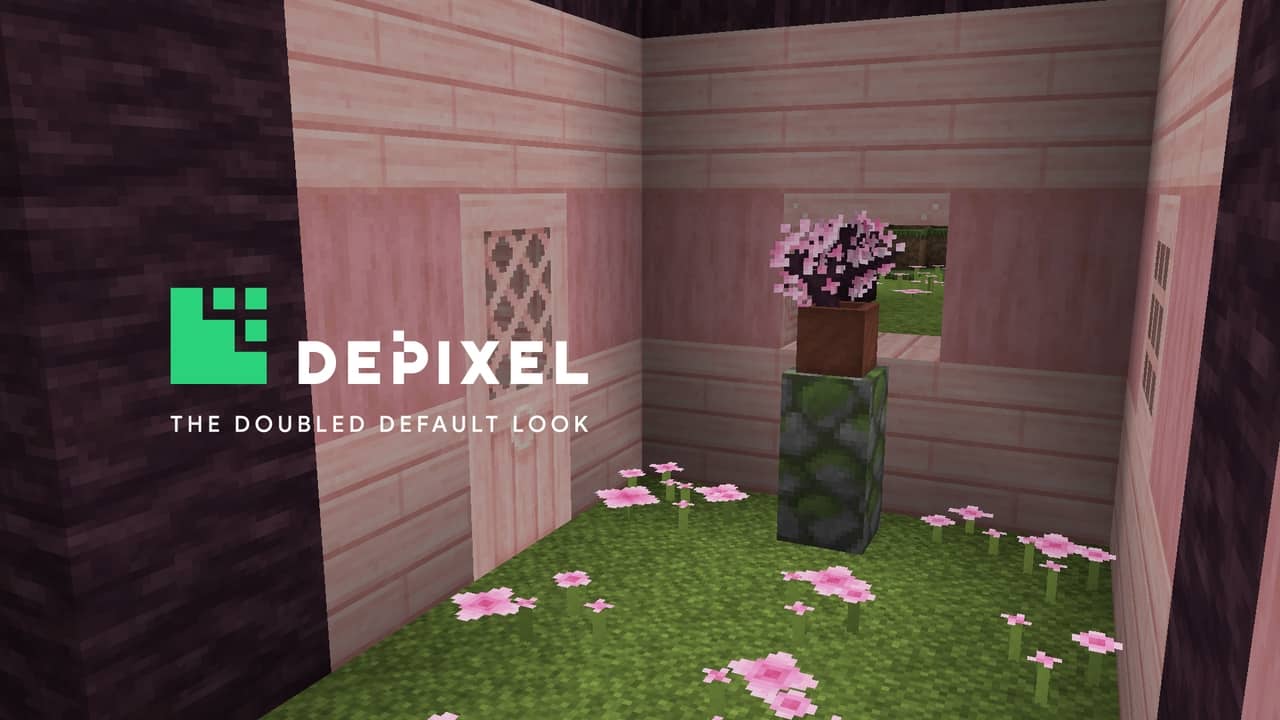
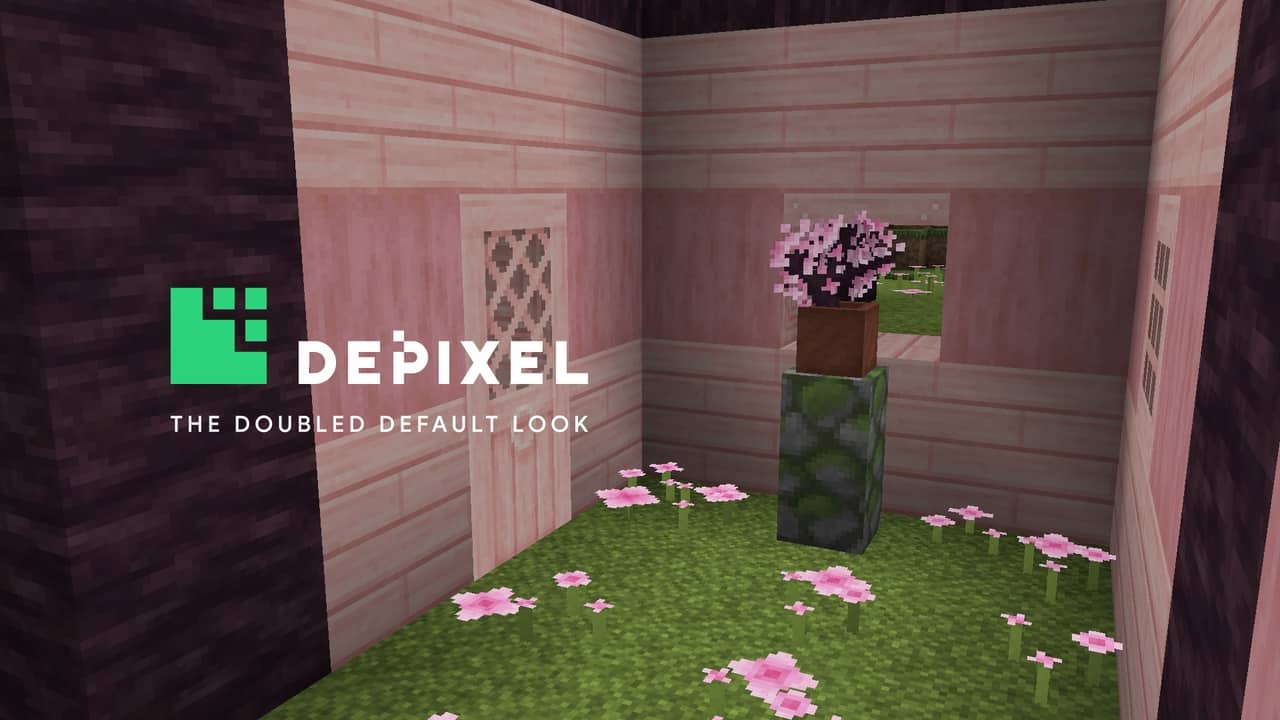
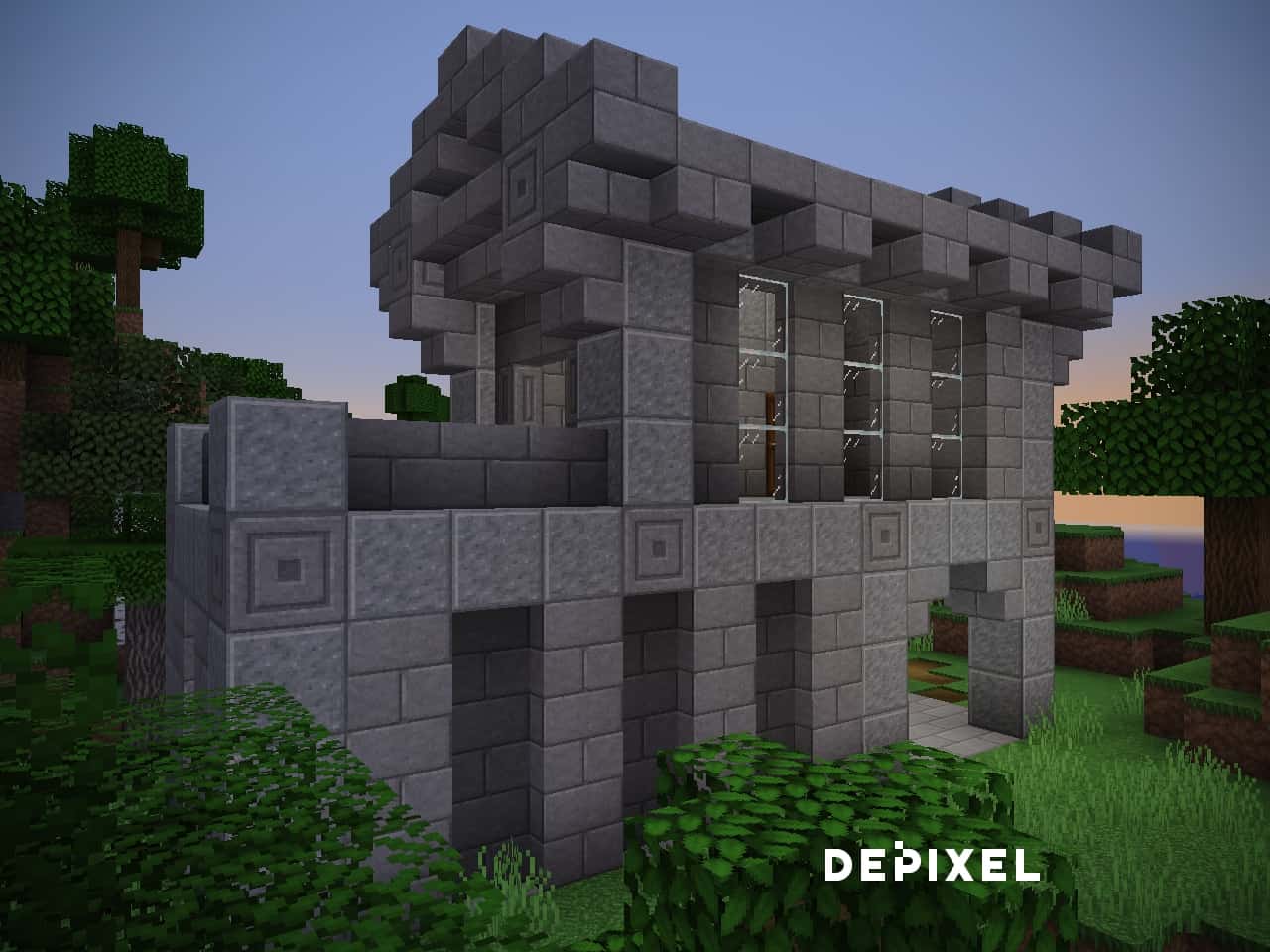
The Depixel resource pack stands out as one of the most impressively comprehensive texture overhauls in the entire Minecraft community. While countless packs kick off with grand ambitions only to fizzle out over time, Depixel consistently goes above and beyond its initial foundation. Formerly known as Default 32×32, this incredible pack drew inspiration from the legendary Faithful resource pack, yet manages to inject a much higher degree of creativity and innovation into the mix. The developer’s core mission with Depixel is to faithfully preserve the classic vanilla vibe while lifting the visual fidelity to a whole new level. It avoids the trap of trying to completely reinvent the wheel or introducing jarringly flashy features, which is precisely why it resonates so deeply with a massive audience. The moment you boot up your world with this pack enabled, you will immediately appreciate how much cleaner and smoother everything looks. You can finally leave behind those noisy, grainy default textures that used to strain your eyes during long sessions. Familiar blocks like grass, stone, and various ores have all been meticulously reworked to look delightfully uniform. If you use OptiFine, the connected textures create an utterly seamless aesthetic that you will quickly fall in love with. Beyond the environment, the armor sets have been completely transformed, featuring shinier individual pieces that make sporting a full suit feel genuinely rewarding and visually striking. Mobs also take on a much more menacing presence—skeletons, in particular, look incredible with their bared teeth and dark eyes. All these thoughtful adjustments mesh together to make every single Minecraft adventure significantly more engaging and entertaining.
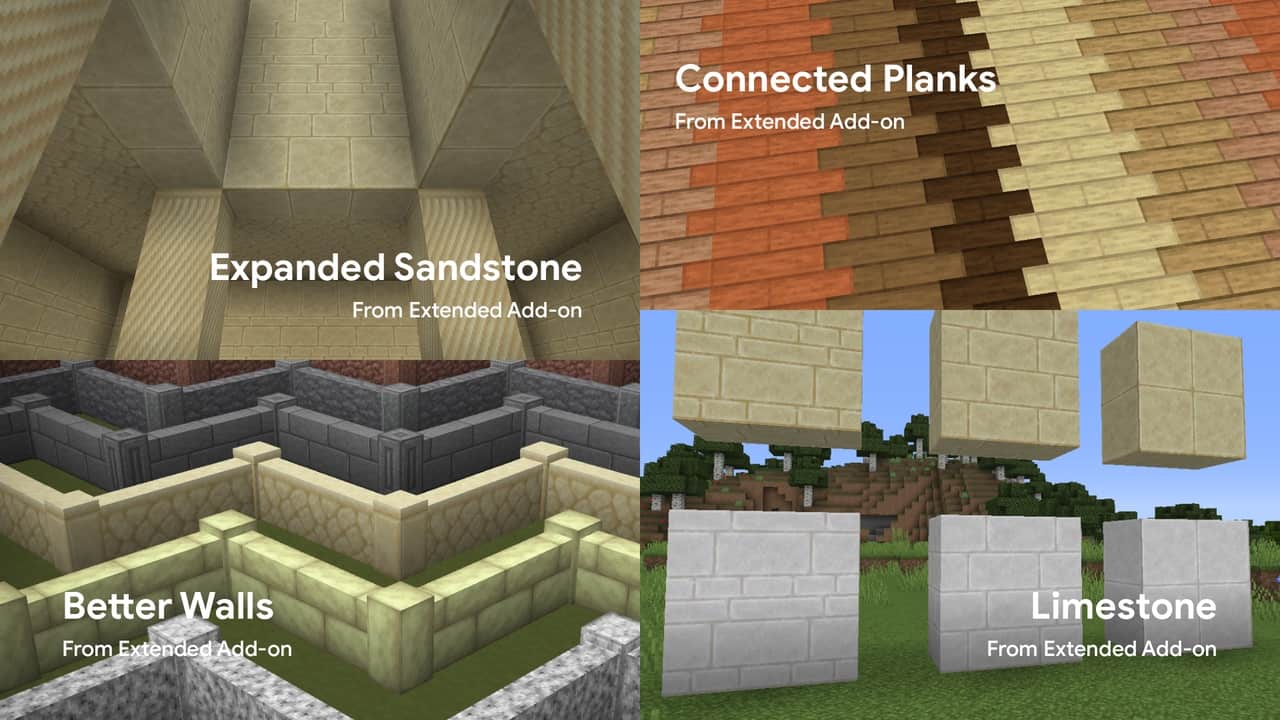
Now we arrive at the absolute crown jewel of the Depixel experience: the incredible add-ons. These fantastic mini-packs tweak various gameplay elements to perfectly complement the core resource pack. Because the creator invested an immense amount of effort into making Depixel as polished as humanly possible, certain advanced features are tied to supporter rewards, which are exceptionally affordable and grant access to exclusive content designed to push your game’s visuals even further. The available add-ons include 3D Models, Extended features, PvP enhancements, Alpha themes, Glass Packs, Bordered Ores, and Better Grass.
Alongside this extensive add-on ecosystem, Depixel is fully accessible for both Minecraft Java Edition and Minecraft Bedrock Edition. The Bedrock version even includes its own selection of handy add-ons such as better glass, better grass, and bordered ores. The foundational versions for both game editions are completely free and readily available on the official website. You can also join the dedicated Discord community to chat about suggestions, share brilliant ideas, or report any bugs you encounter. For players who love living on the bleeding edge, Depixel offers weekly snapshot support so you can test out textures on the absolute newest Minecraft versions the day they drop. In terms of performance, it honestly doesn’t get much better than the crisp 32×32 resolution that Depixel utilizes. It doubles the pixel count of vanilla Minecraft while delivering an overwhelmingly superior visual upgrade that is simply incomparable. While the core standalone pack doesn’t strictly require OptiFine, many of the add-on features heavily rely on it, so having it installed beforehand is always a smart move. Surprisingly, many players even report a noticeable FPS boost compared to default textures. Regardless, you owe it to yourself to experience this absolute masterpiece firsthand!
Depixel should be compatible with all of these Minecraft versions: 1.20.1 – 1.20 – 1.19.4 – 1.19.3 – 1.19.2 – 1.19.1 – 1.19 – 1.18.2 – 1.18.1 – 1.18 – 1.17.1 – 1.17 – 1.16.5 – 1.16.4 – 1.16.3 – 1.16.2 – 1.16.1 – 1.16 – 1.15.2 – 1.15.1 – 1.15 – 1.14.4 – 1.14.3 – 1.14.2 – 1.14 – 1.13.2 – 1.13.1 – 1.13 – 1.12.2 – 1.12 – 1.11.2 – 1.11 – 1.10.2 – 1.10 – 1.9.4 – 1.9 – 1.8.9 – 1.8.8 – 1.8.1 – 1.8.6 – 1.8 – Bedrock Edition – PE
Screenshots


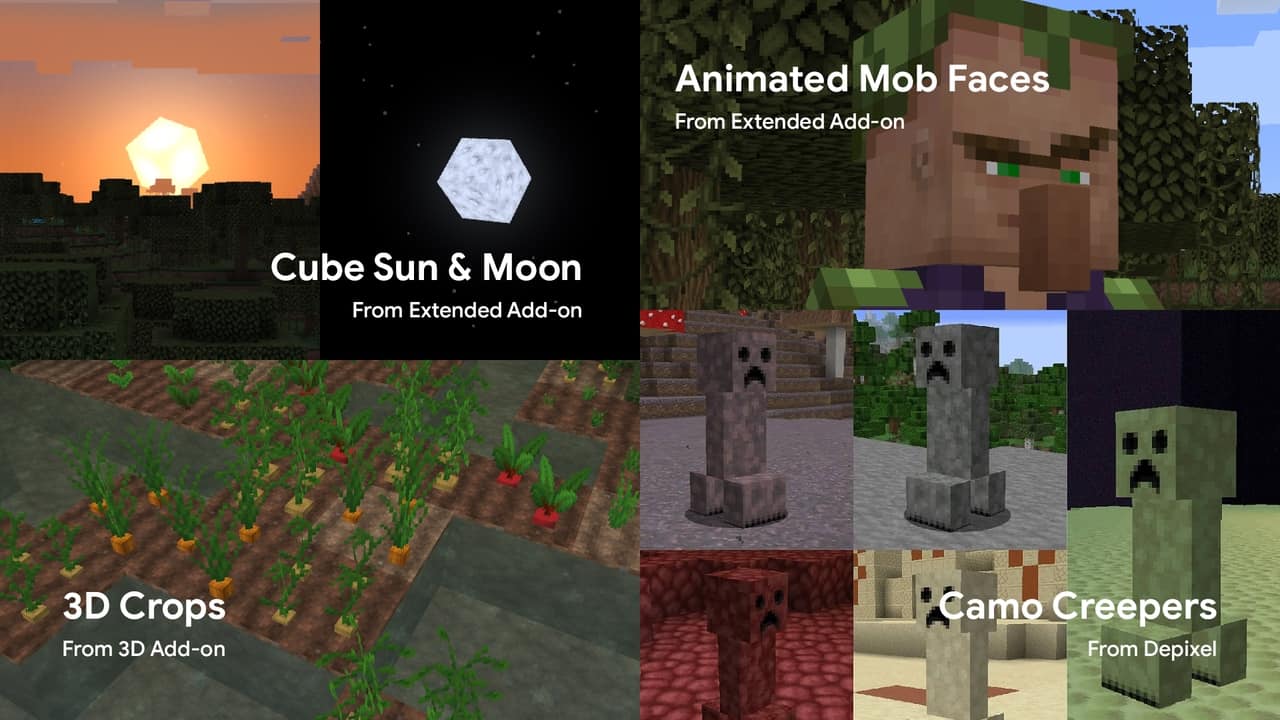
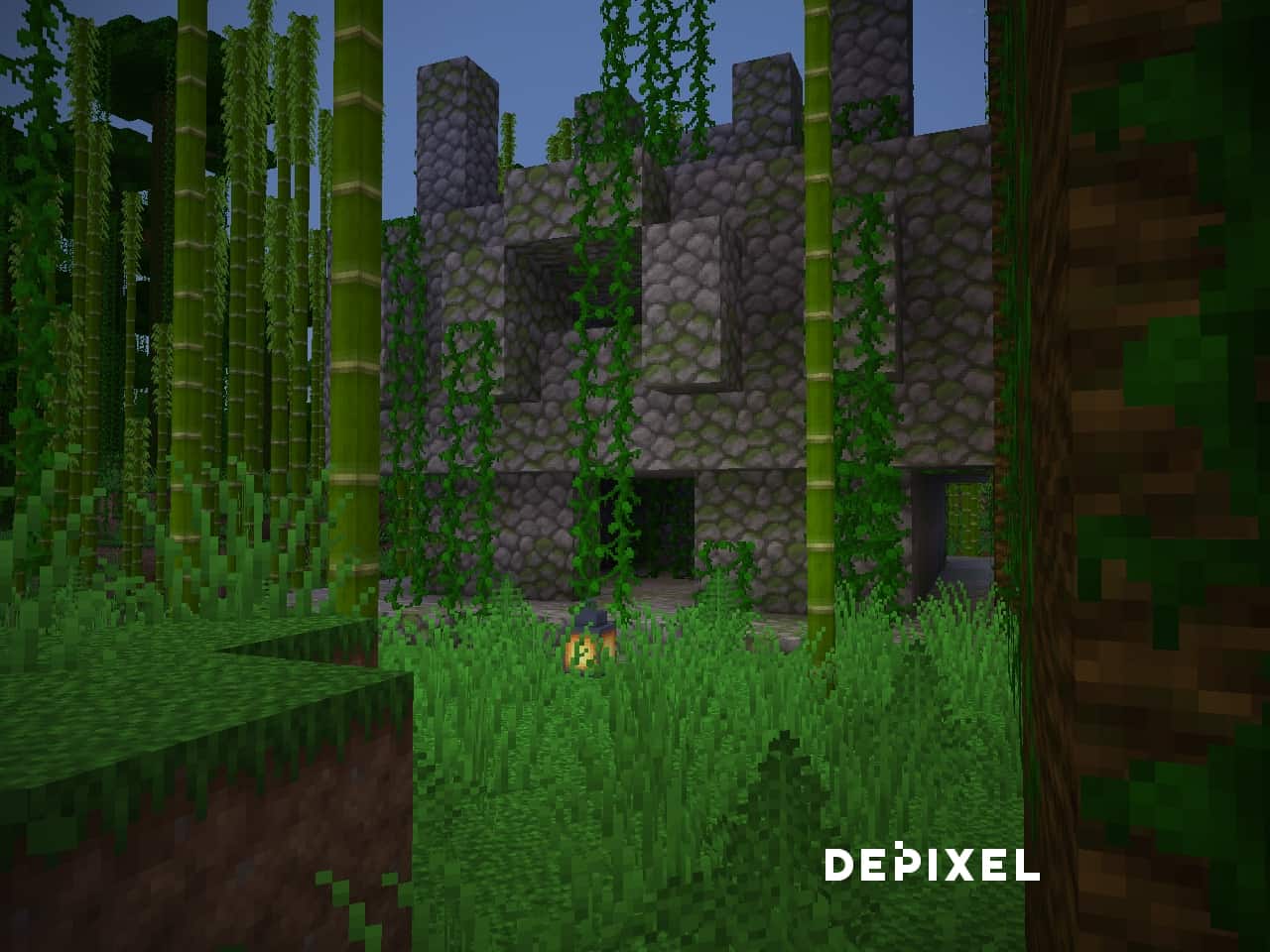
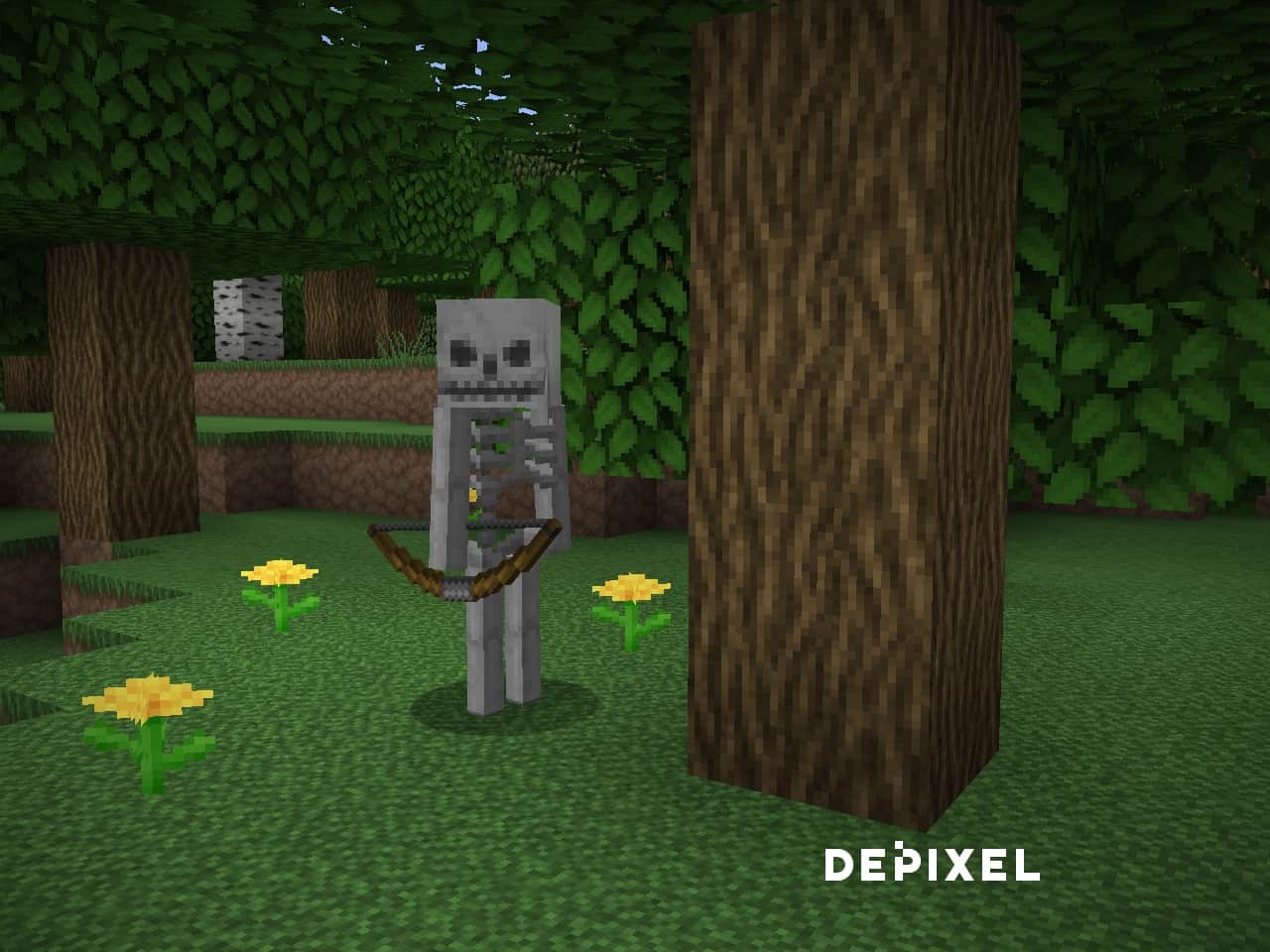
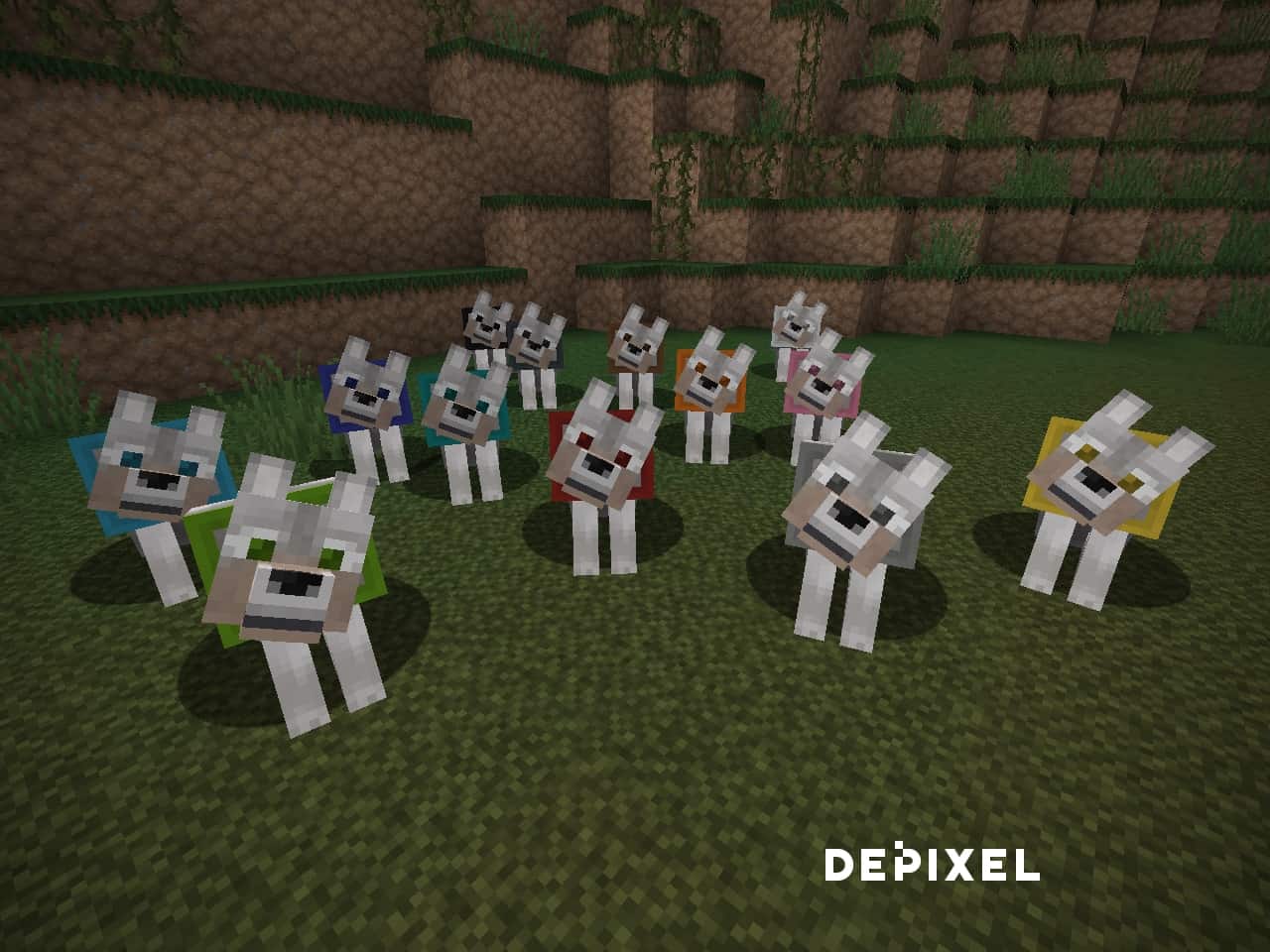
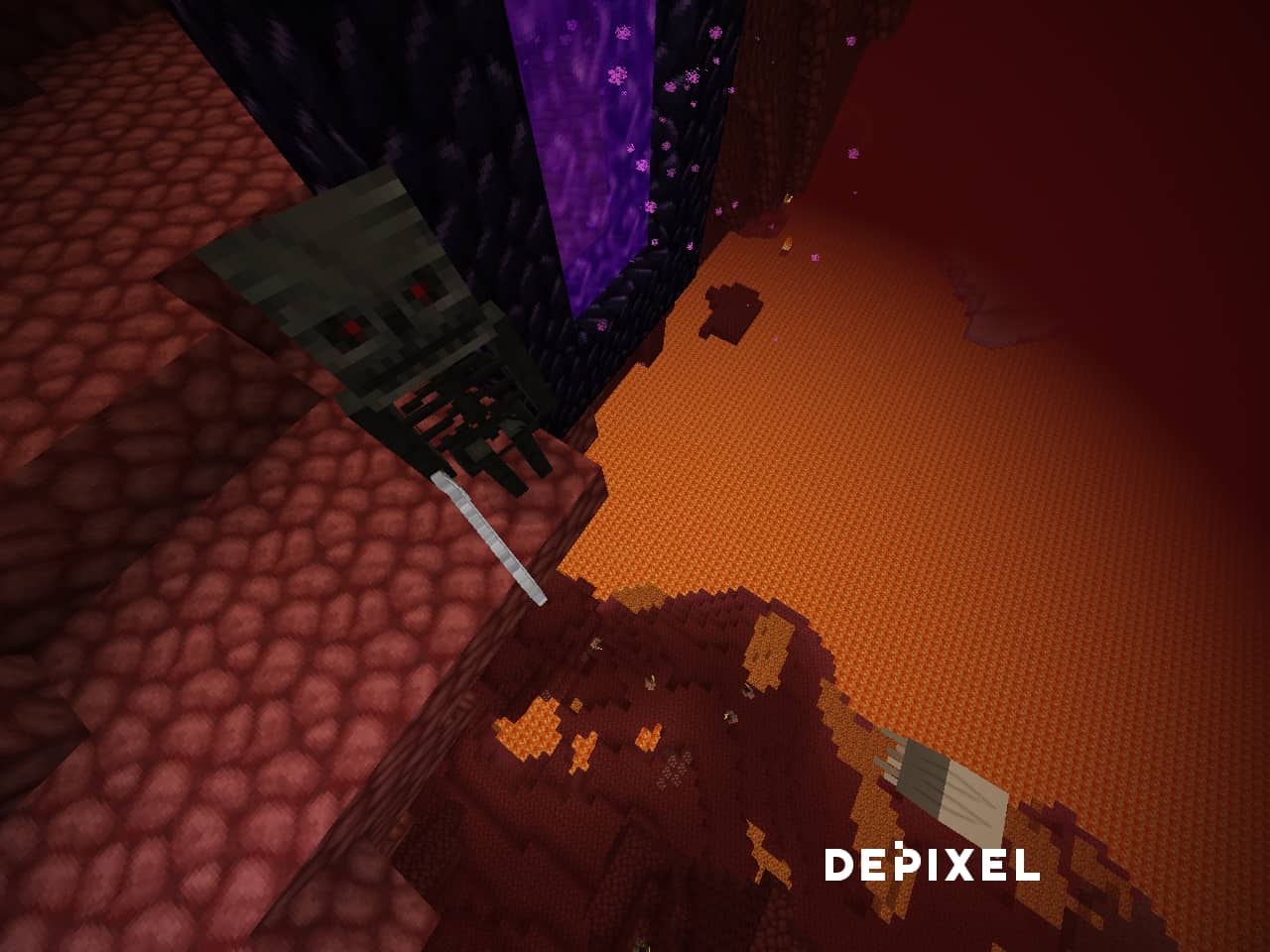
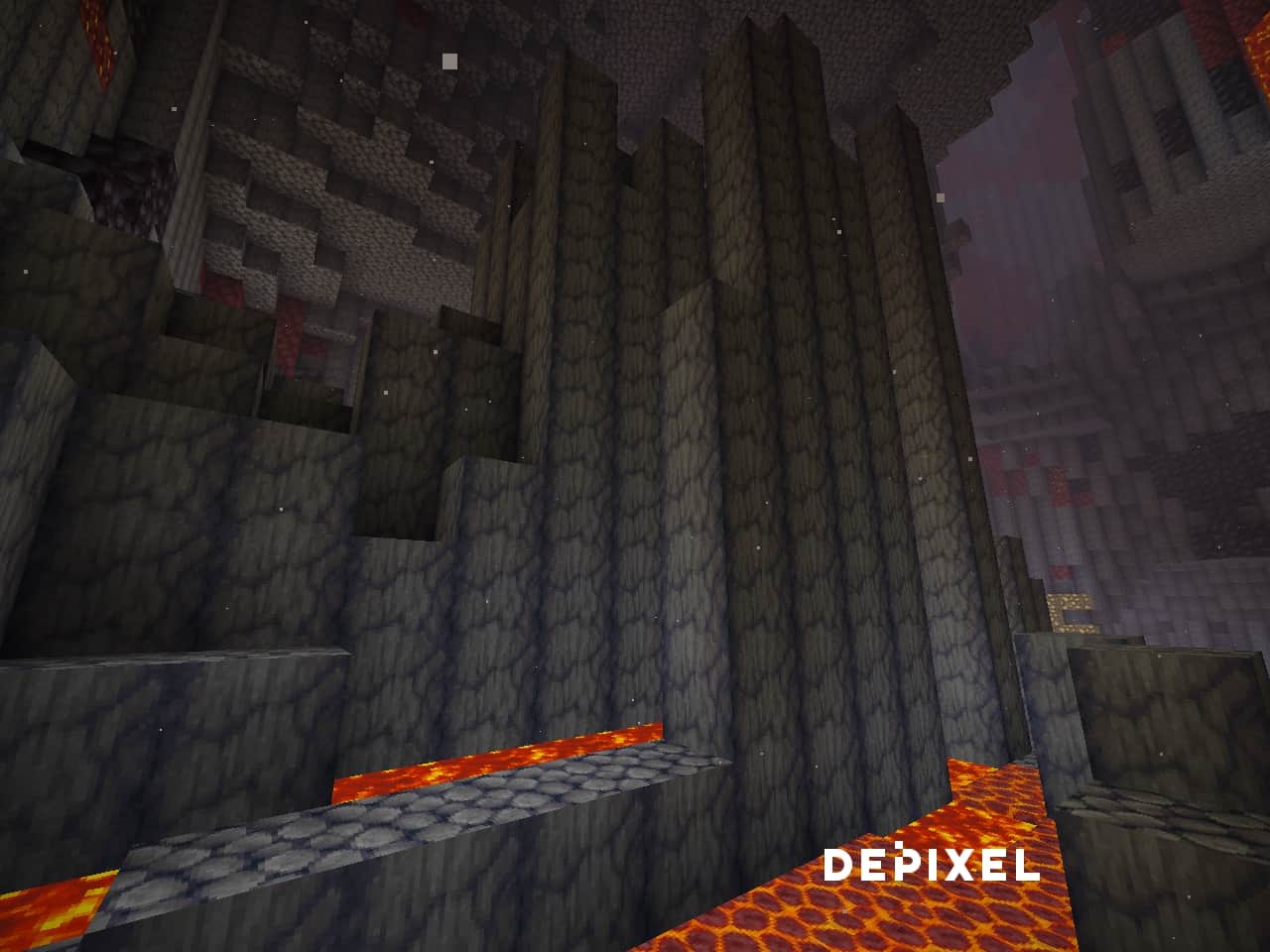
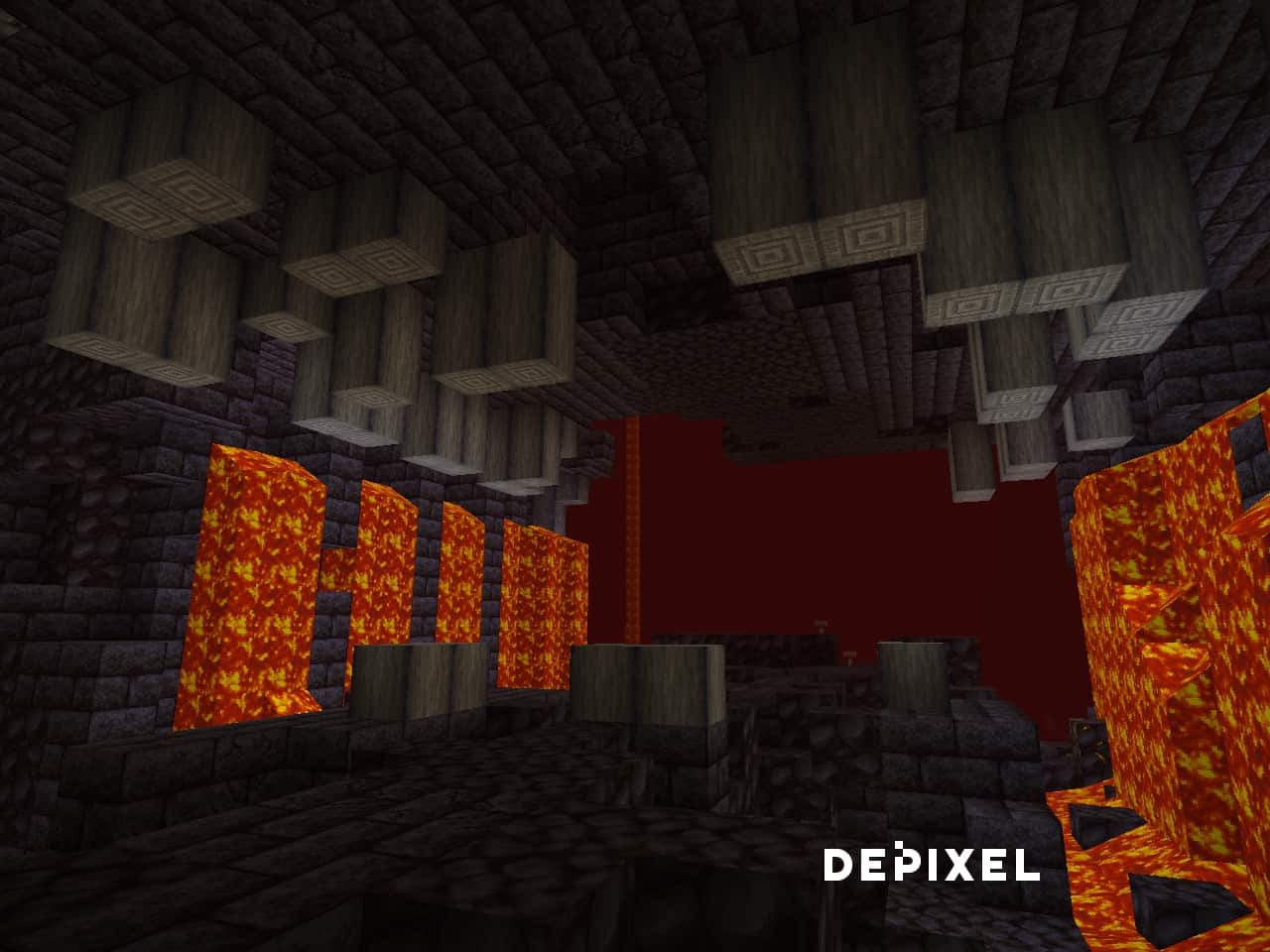
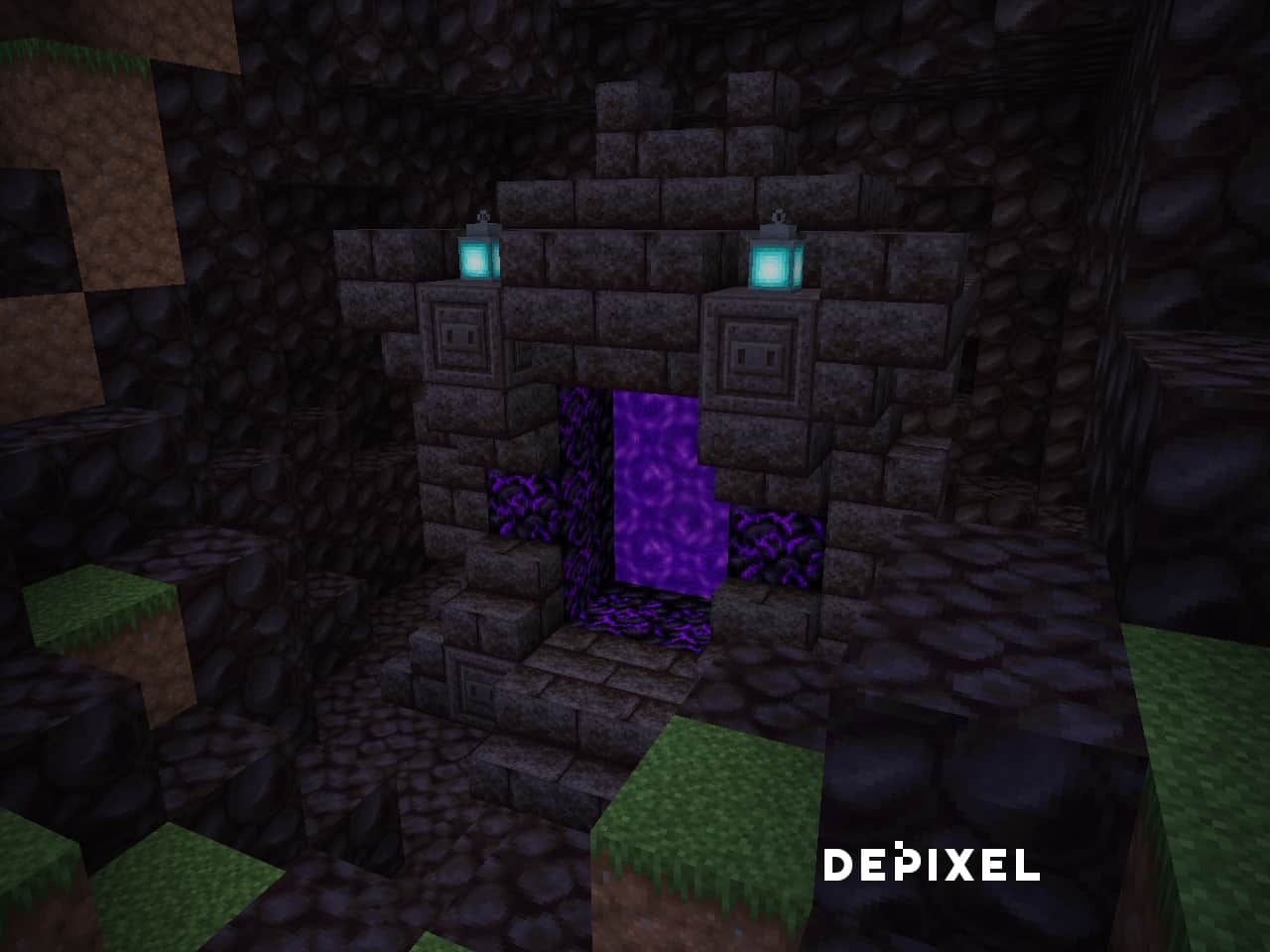
How to Install Texture Pack (Simple 10 Steps)
- Download OptiFine: Most of the texture packs and shaders need OptiFine. That’s why, first download and install OptiFine for the version of Minecraft you want to play.
- Download the Texture Pack: Get the texture pack you want from the download section. Choose the version that works with your Minecraft and your PC’s performance.
- Open Minecraft Launcher: Start Minecraft using the official game launcher — or even TLauncher, if you use that.
- Go to Options: From the main menu, click on the “Options” button.
- Open Resource Packs: Inside Options, click on “Resource Packs…”.
- Open the Resource Pack Folder: Click on “Open Resource Pack Folder” — this will open a folder named “resourcepacks”.
- Move the Pack File: Copy or move the .zip file you downloaded into that “resourcepacks” folder. (Don’t unzip the file — Minecraft uses it as-is!)
- Go Back and Refresh: Close the folder and click “Done”, then go back into “Resource Packs…” again.
- Activate the Pack: You’ll see the pack on the left side. Hover over it and click the arrow to move it to the right (active side).
Tip: If you get a message that the pack is for a different version, just click “Yes” — it usually works fine. - Click Done and Enjoy: Click “Done” again. Now your pack is ready to use in-game. It’s that easy!
Credits
This resource pack was originally created by Schmueles. We do not claim ownership of this content, nor do we host modified files on our servers. All rights belong to the original author. We strongly encourage players to visit the official sources and support the creator.
Download Links
Java Edition
- [32x] Minecraft 1.20.x
- [32x] Minecraft 1.19.x – 1.15.x
- [32x] Minecraft 1.19.x – 1.15.x (Mirror)
- [32x] Minecraft 1.14.x – 1.12.x
- [32x] Minecraft 1.11.x – 1.8.x
- Add-on: 3D Models
- Add-on: Extended
- Add-on: PvP
- Add-on: Alpha
- Add-on: Glass Pack
- Add-on: Bordered Ores
- Add-on: Better Grass
Bedrock Edition
Download Instructions
Curseforge: download starts automatically after a few seconds;
Mediafire: click the big blue button with the text “DOWNLOAD”;
Google Drive: in the top right corner you will see a small download icon (down arrow), click it and the download should start;


