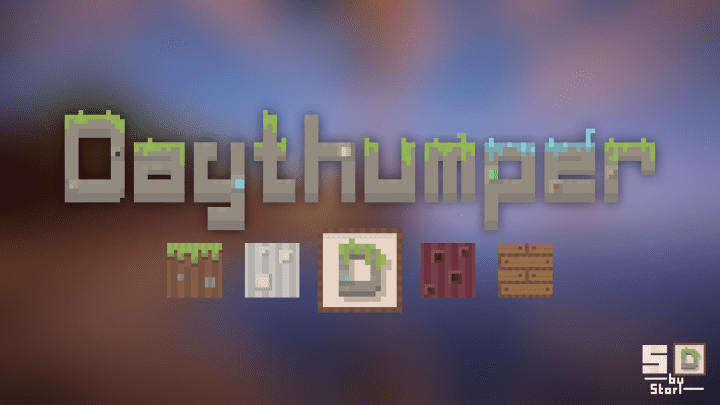
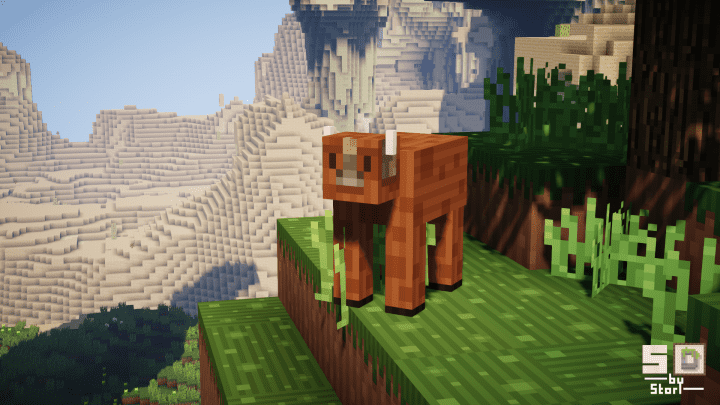
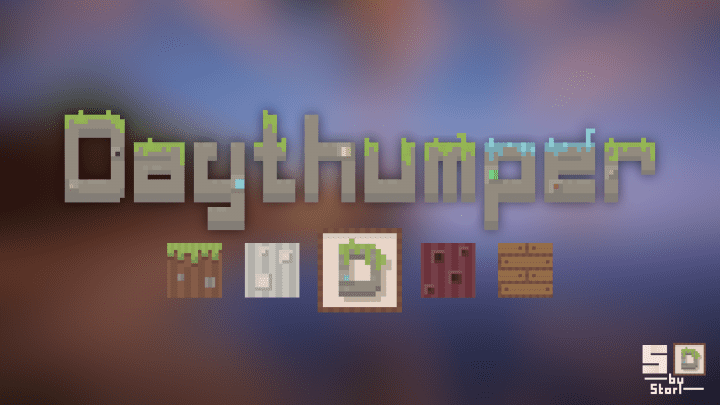
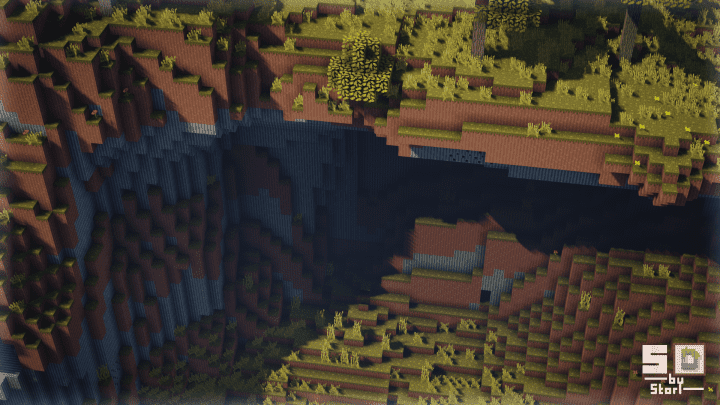
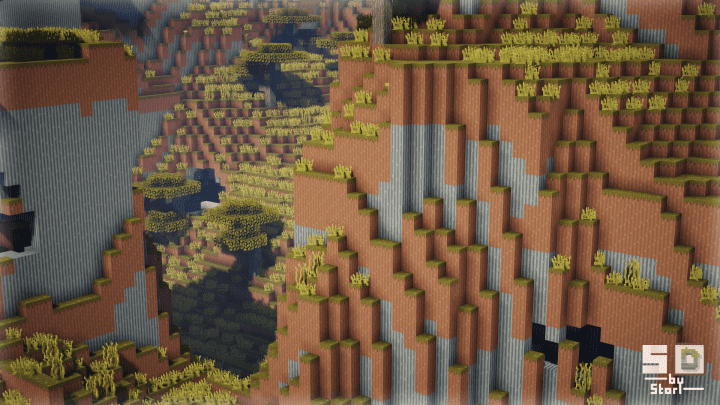
Daythumper is a truly stunning resource pack that draws heavy inspiration from the renowned PastelPlumb, yet it manages to carve out its own unique identity through just the right alterations. I absolutely love how this pack is tailored for players who adore cute and colourful art styles. It is definitely worth noting that this is not meant for those seeking hyper-realistic, high-definition resource packs. If realism is what you are after, you might want to keep looking because Daythumper proudly embraces a simplistic, clean look paired with a wonderfully vibrant art style that easily delivers the best experience possible for fans of this aesthetic.
It boasts an incredibly immersive and lively color palette unlike anything else I have seen in Minecraft resource packs so far. It never compromises on detail, making it endlessly appealing to enthusiastic players. The clean textures and gorgeous color scheme work together seamlessly to achieve this. In fact, you do not even need shaders for this pack to look breathtaking, which is a rare and welcome feature compared to many other options out there. The 16×16 resolution is just right since the textures are designed to be charmingly straightforward. This ensures optimal performance for a smooth visual experience that truly feels special. Best of all, this resolution means anyone can run it effortlessly on low-end PCs without suffering any FPS drops, making it a wonderfully inclusive choice for every player.
Daythumper should be compatible with all of these Minecraft versions: 1.14 – 1.13.2 – 1.13.1 – 1.13
Screenshots
How to Install Texture Pack (Simple 10 Steps)
- Download OptiFine: Most of the texture packs and shaders need OptiFine. That’s why, first download and install OptiFine for the version of Minecraft you want to play.
- Download the Texture Pack: Get the texture pack you want from the download section. Choose the version that works with your Minecraft and your PC’s performance.
- Open Minecraft Launcher: Start Minecraft using the official game launcher — or even TLauncher, if you use that.
- Go to Options: From the main menu, click on the “Options” button.
- Open Resource Packs: Inside Options, click on “Resource Packs…”.
- Open the Resource Pack Folder: Click on “Open Resource Pack Folder” — this will open a folder named “resourcepacks”.
- Move the Pack File: Copy or move the .zip file you downloaded into that “resourcepacks” folder. (Don’t unzip the file — Minecraft uses it as-is!)
- Go Back and Refresh: Close the folder and click “Done”, then go back into “Resource Packs…” again.
- Activate the Pack: You’ll see the pack on the left side. Hover over it and click the arrow to move it to the right (active side).
Tip: If you get a message that the pack is for a different version, just click “Yes” — it usually works fine. - Click Done and Enjoy: Click “Done” again. Now your pack is ready to use in-game. It’s that easy!
Credits
Daythumper was originally created and developed by Story. We do not claim ownership of this content, nor have we modified the original files. All rights belong to the original creator, and we highly encourage supporting their work.
Download Instructions
Curseforge: download starts automatically after a few seconds;
Mediafire: click the big blue button with the text “DOWNLOAD”;
Google Drive: in the top right corner you will see a small download icon (down arrow), click it and the download should start;


