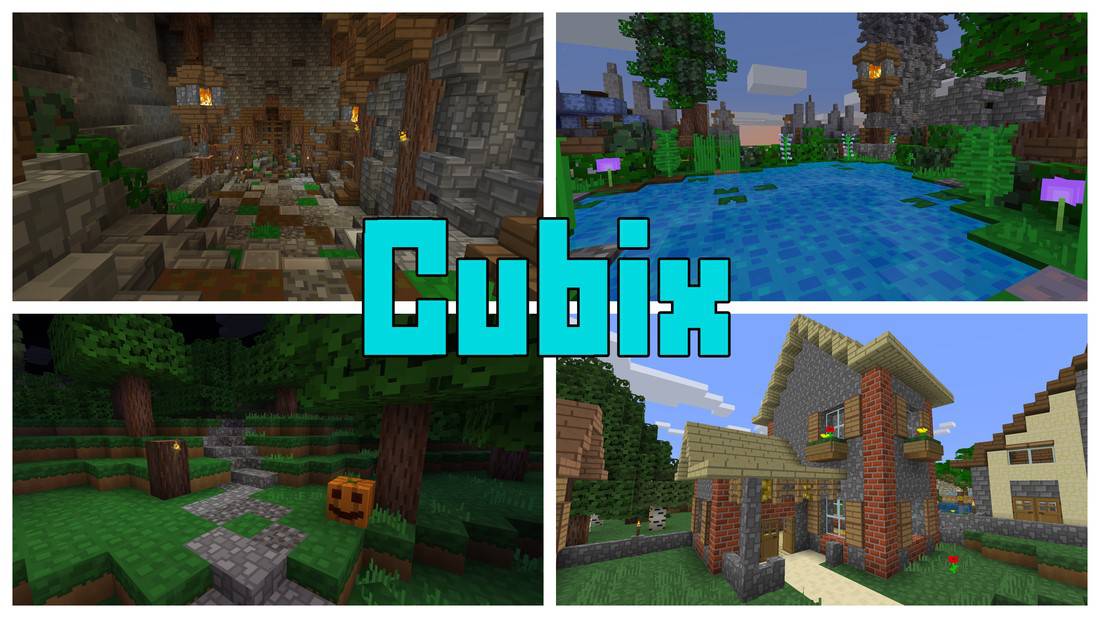
Do you love Minecraft and want to give it an impressive look? If you have ever heard about Cubix, you might have realized that it is genuinely one of the best-quality resource packs you can use to implement the blocky look of Minecraft in a much better and inspiring way. Many players are not entirely satisfied with the classic blocky look of vanilla Minecraft, believing it has a rather unimpressive and rigid art style, and they constantly look for effective ways to change the style and make it feel more realistic and appealing. However, you will surely have a truly unique experience with Cubix. The absolute specialty of the Cubix Resource Pack is that it does not try to abandon the iconic blocky art style; instead, it uses some pretty spectacular visuals to drastically improve the overall look. Once you experience this change, you will honestly never want to rely on other resource packs to achieve a cleaner look.
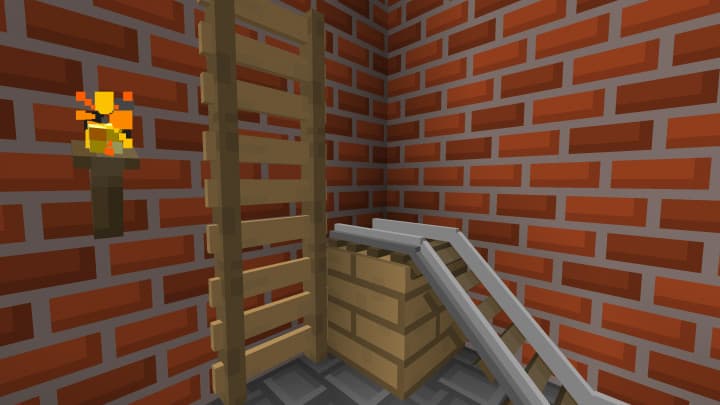
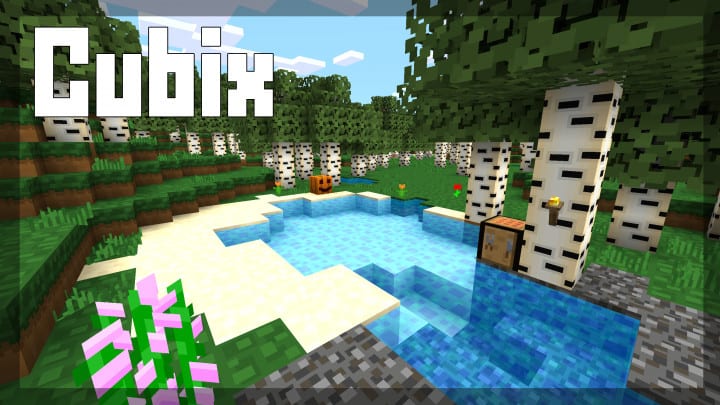
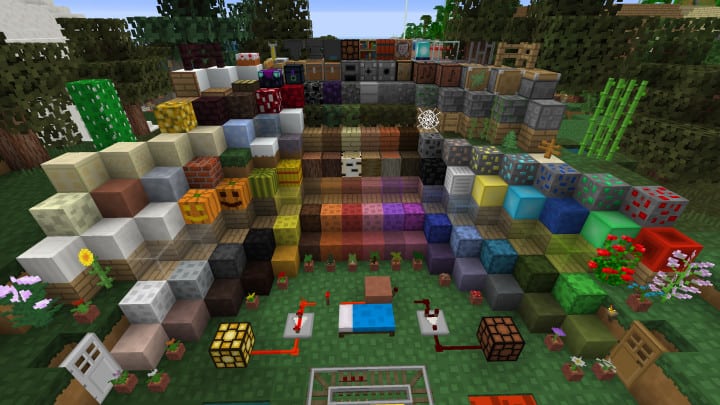
Cubix is highly appreciated due to the incredible number of benefits it brings to the game. The textures included in Cubix are some of the cleanest ones you will ever find, and the detailing is remarkably high-quality. While some textures might not seem overwhelmingly complex at first glance, you will find them exceptionally helpful without experiencing any visual noise in them. Besides, the final look is impressively smooth and polished. In addition to the above, Cubix is widely popular for its vibrant and bright color palette, which really helps you present your builds and world in a truly unique manner. Although it has only been out for a relatively short time and you might notice a few textures still missing, it is fully operative and serves your purpose wonderfully. The best thing about this resource pack is that it is built with a modest 16x resolution, meaning it works exceptionally well for players who rely on low-end PCs because the low resolution is not taxing at all and easily leads to much better frame-rates.
Cubix should be compatible with all of these Minecraft versions: 1.16.2 – 1.16.1 – 1.16 – 1.15.2 – 1.15.1 – 1.15 – 1.14.4 – 1.14.3 – 1.14.2 – 1.14 – 1.13.2 – 1.13.1 – 1.13 – 1.12.2 – 1.12 – 1.11.2 – 1.11
Screenshots
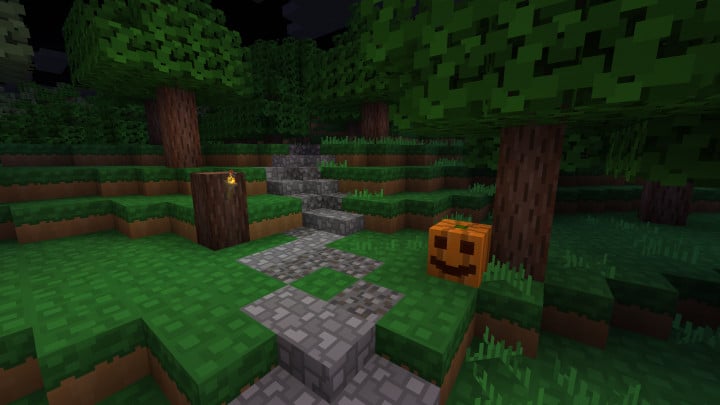
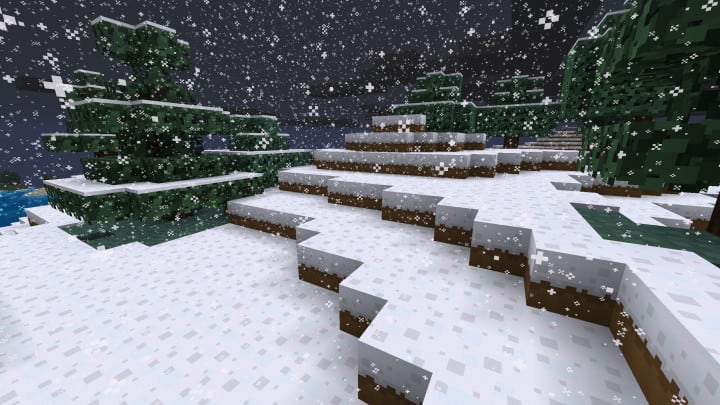
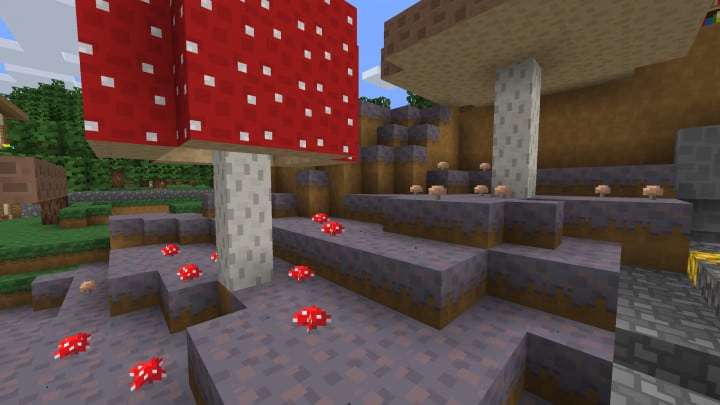
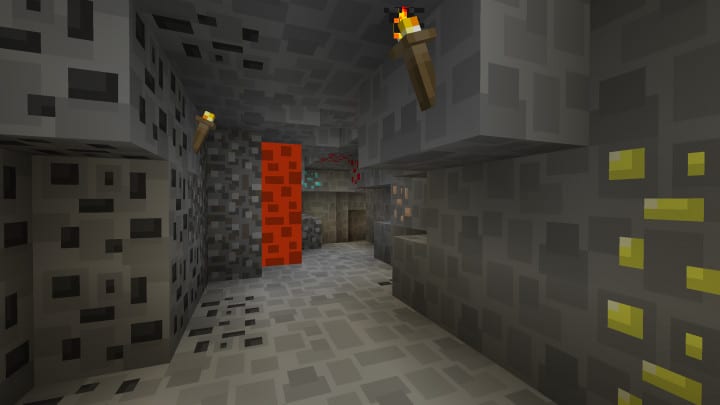
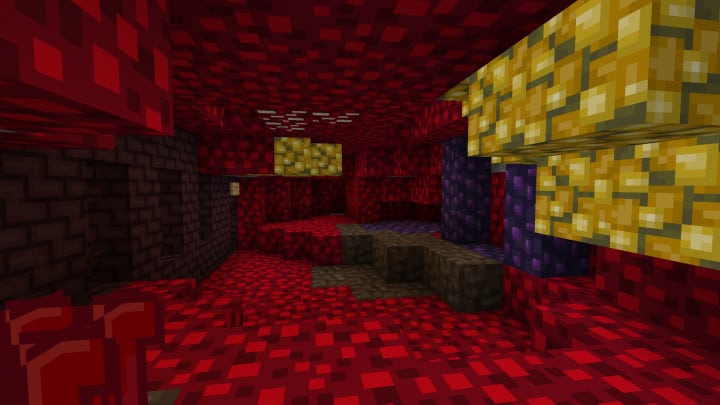
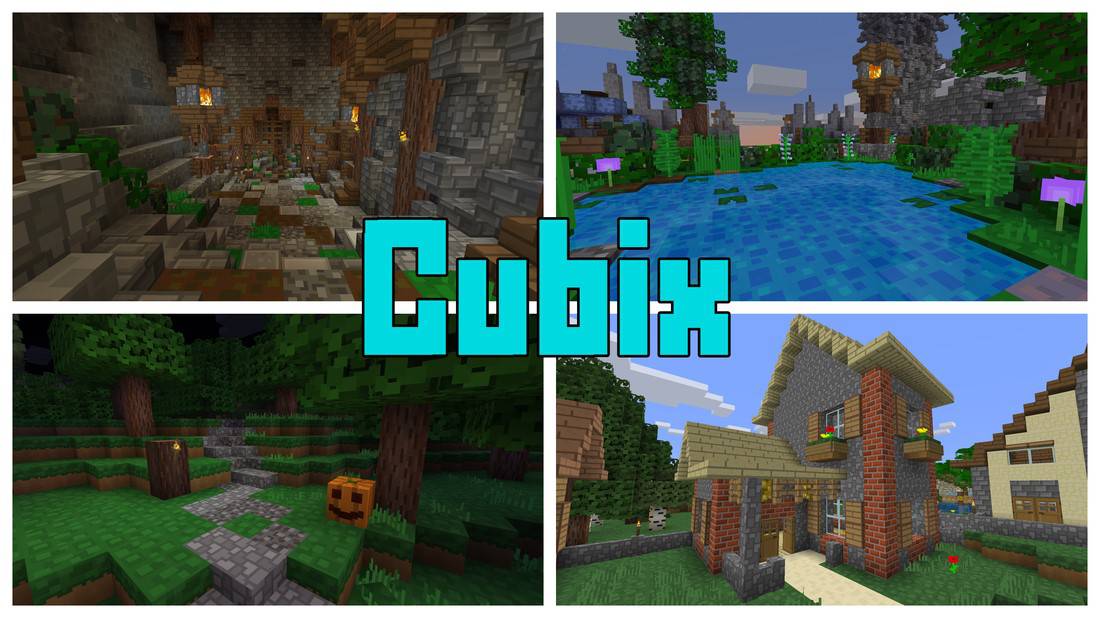
How to Install Texture Pack (Simple 10 Steps)
- Download OptiFine: Most of the texture packs and shaders need OptiFine. That’s why, first download and install OptiFine for the version of Minecraft you want to play.
- Download the Texture Pack: Get the texture pack you want from the download section. Choose the version that works with your Minecraft and your PC’s performance.
- Open Minecraft Launcher: Start Minecraft using the official game launcher — or even TLauncher, if you use that.
- Go to Options: From the main menu, click on the “Options” button.
- Open Resource Packs: Inside Options, click on “Resource Packs…”.
- Open the Resource Pack Folder: Click on “Open Resource Pack Folder” — this will open a folder named “resourcepacks”.
- Move the Pack File: Copy or move the .zip file you downloaded into that “resourcepacks” folder. (Don’t unzip the file — Minecraft uses it as-is!)
- Go Back and Refresh: Close the folder and click “Done”, then go back into “Resource Packs…” again.
- Activate the Pack: You’ll see the pack on the left side. Hover over it and click the arrow to move it to the right (active side).
Tip: If you get a message that the pack is for a different version, just click “Yes” — it usually works fine. - Click Done and Enjoy: Click “Done” again. Now your pack is ready to use in-game. It’s that easy!
Credits
Credits to antti662 for creating the Cubix Resource Pack. We do not claim ownership of this content, and we do not host or modify any files on our servers. All rights belong to the original creator. We strongly encourage you to support the author by downloading from the official sources.
Download Links
Java Edition
Download Instructions
Curseforge: download starts automatically after a few seconds;
Mediafire: click the big blue button with the text “DOWNLOAD”;
Google Drive: in the top right corner you will see a small download icon (down arrow), click it and the download should start;


