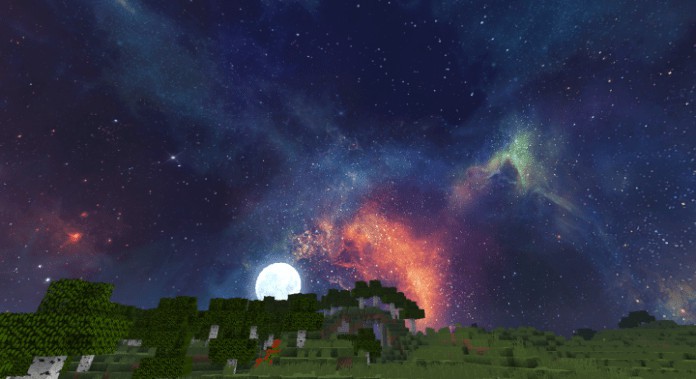
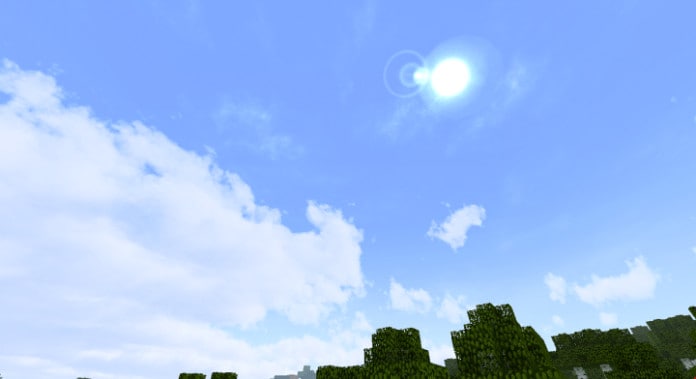
Crystal Galaxy is an absolute must-try resource pack that completely transforms the Minecraft sky into something truly breathtaking. If you have ever felt that the vanilla Minecraft sky looks a bit uninspired and detracts from your overall gameplay immersion, this pack is definitely for you. I was amazed to see how it focuses almost exclusively on the sky above, leaving the rest of the game world largely untouched save for a few minor tweaks to various in-game items. Because of this focused design, I highly recommend downloading and installing this resource pack alongside another pack that enhances the rest of the Minecraft visuals. Once you experience it, you will see how it does a phenomenal job of revamping the standard sky into an absolute visual treat every time you look up.
Getting into the specifics, the pack brilliantly introduces highly detailed sky textures paired with fantastic, high-quality lighting animations that make the entire atmosphere feel surprisingly realistic and deeply immersive. Hands down, the most impressive feature of this resolution pack is how genuinely exceptional the night sky looks; once darkness falls, it reveals stunning full galaxies that make for an unforgettable view. Best of all, the Crystal Galaxy textures maintain a standard 16x resolution, meaning you can easily run it without any performance issues, even if you are playing Minecraft on a lower-end computer. As a friendly tip, pairing this pack with a dedicated terrain enhancement pack will completely elevate your immersion to the next level. Overall, this resource pack performs wonderfully at upgrading the game’s visuals and bringing a magnificent touch to your Minecraft world.
Crystal Galaxy should be compatible with all of these Minecraft versions: 1.12.2 – 1.12 – 1.11.2 – 1.11
Screenshots

How to Install Texture Pack (Simple 10 Steps)
- Download OptiFine: Most of the texture packs and shaders need OptiFine. That’s why, first download and install OptiFine for the version of Minecraft you want to play.
- Download the Texture Pack: Get the texture pack you want from the download section. Choose the version that works with your Minecraft and your PC’s performance.
- Open Minecraft Launcher: Start Minecraft using the official game launcher — or even TLauncher, if you use that.
- Go to Options: From the main menu, click on the “Options” button.
- Open Resource Packs: Inside Options, click on “Resource Packs…”.
- Open the Resource Pack Folder: Click on “Open Resource Pack Folder” — this will open a folder named “resourcepacks”.
- Move the Pack File: Copy or move the .zip file you downloaded into that “resourcepacks” folder. (Don’t unzip the file — Minecraft uses it as-is!)
- Go Back and Refresh: Close the folder and click “Done”, then go back into “Resource Packs…” again.
- Activate the Pack: You’ll see the pack on the left side. Hover over it and click the arrow to move it to the right (active side).
Tip: If you get a message that the pack is for a different version, just click “Yes” — it usually works fine. - Click Done and Enjoy: Click “Done” again. Now your pack is ready to use in-game. It’s that easy!
Credits
The Crystal Galaxy Resource Pack was originally developed by Mrcoolisias Games. All rights remain with the original creator. We do not claim ownership of this modification and do not host modified files. We encourage players to support the original author by visiting their official download sources.
Download Instructions
Curseforge: download starts automatically after a few seconds;
Mediafire: click the big blue button with the text “DOWNLOAD”;
Google Drive: in the top right corner you will see a small download icon (down arrow), click it and the download should start;