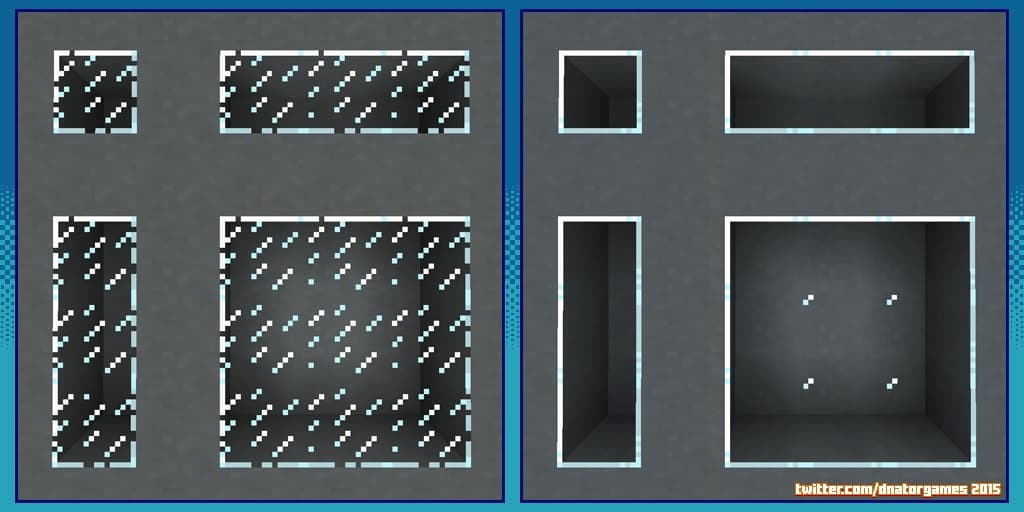
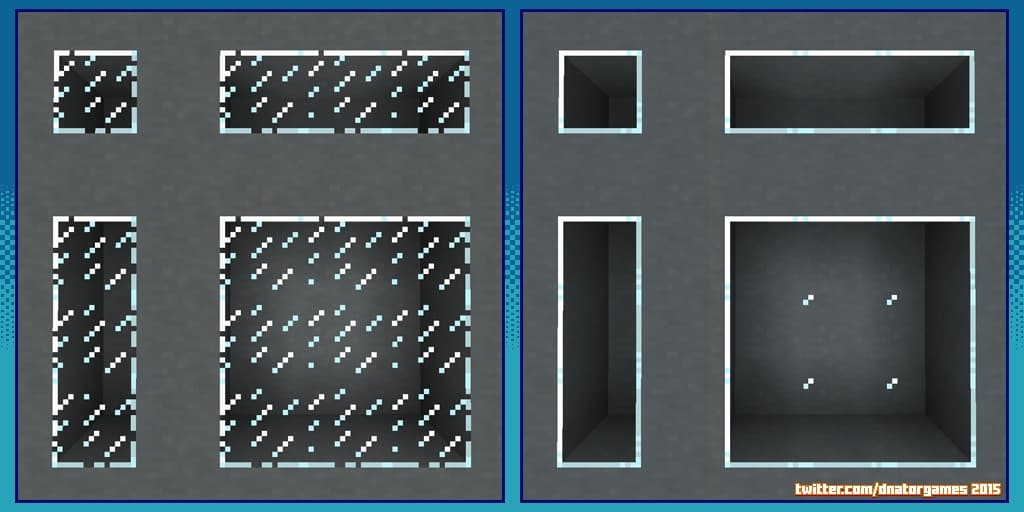
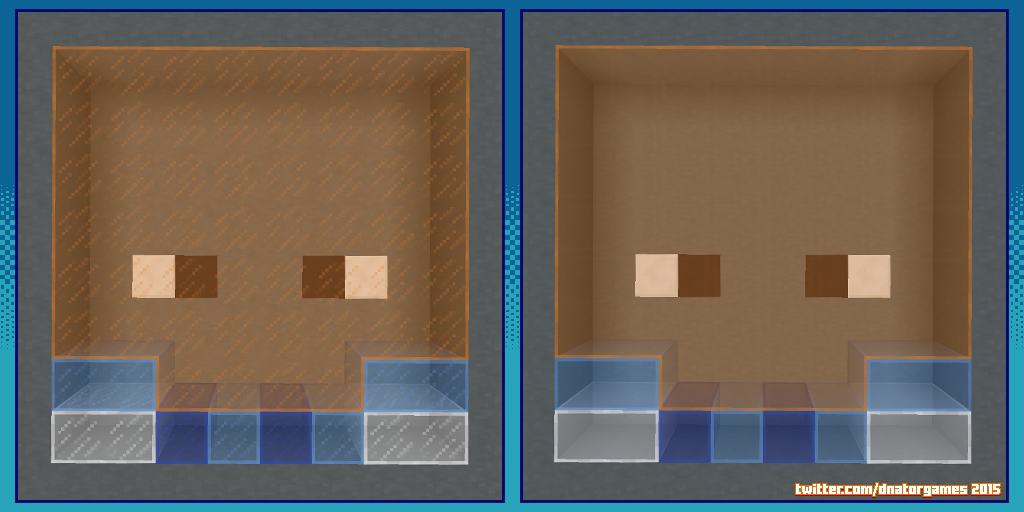
The Clear Glass resource pack has quickly generated an incredible amount of interest within the community, with its download count already soaring past a few hundred thousand. I found that the main reason for this massive popularity is its collection of truly fabulous features that directly address common building gripes. As the name implies, this texture pack brilliantly eliminates those irritating borders and lines from both ice and glass blocks. If you dislike the standard pixelated look of framed glass and want something to subtly modify your game visuals, this resource pack will undoubtedly exceed your expectations. It is evident that the authors designed this pack with the sole objective of livening up your game visuals without disrupting the original iconic style of Minecraft at all. The Clear Glass resource pack introduces a wide range of neat enhancements to the glass block while ensuring the core art style remains untouched.
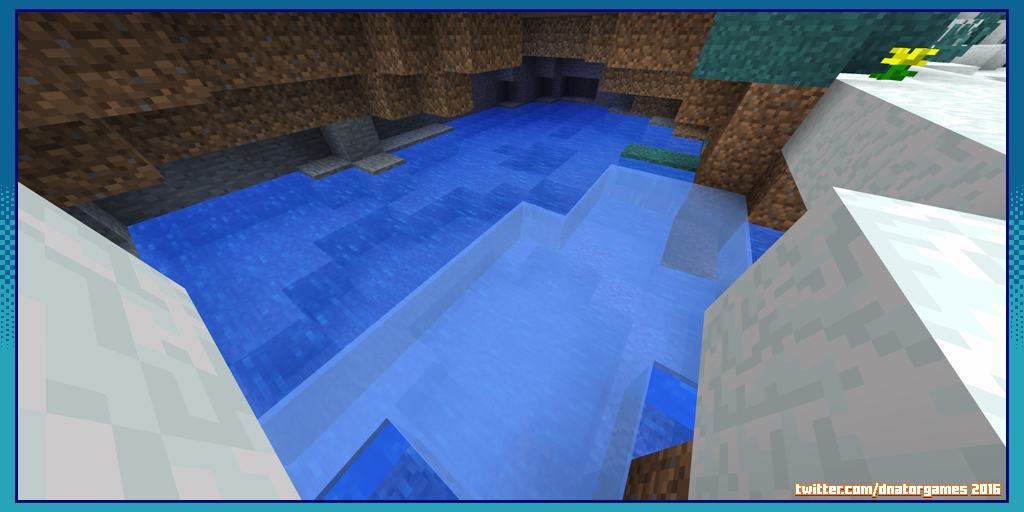
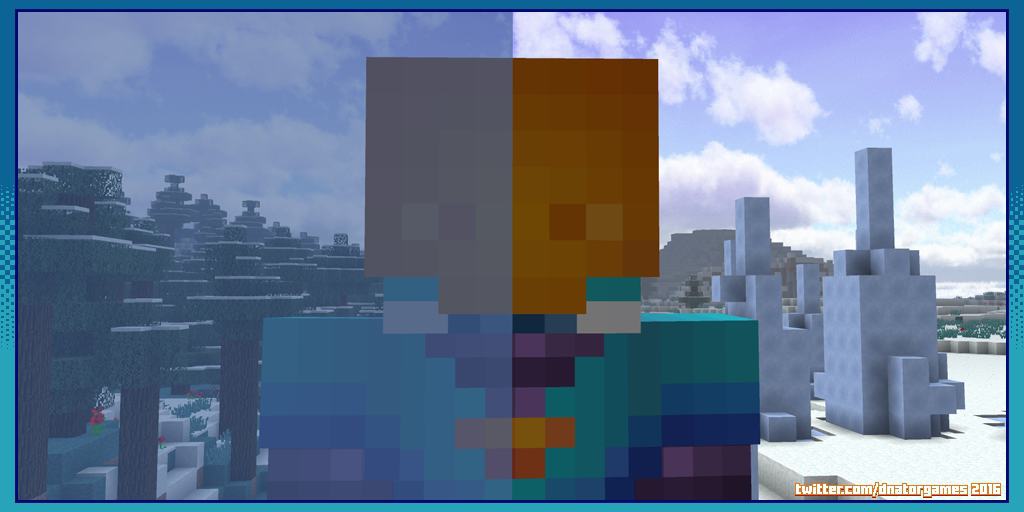
They have successfully maintained Minecraft’s original art style, which players have loved since the official launch of the game. This faithful style of improvement is something that all gamers praise quite a lot about this pack. Besides retaining the core textures, it also highlights other clever visual improvements that make glass buildings appear as though they have undergone a dramatic, beautiful transformation. The introduction of clean, smooth, and noise-free glass textures is a game-changer, and you will notice fantastic changes in the ice texture as well. I really love how the Clear Glass resource pack works exceptionally well with Optifine’s connected textures option, and remember that using Optifine is recommended to deliver the absolute best performance. Operating at a standard 16×16 resolution, it matches vanilla Minecraft perfectly, and because it focuses on a limited number of glass and ice textures, you will not face any performance drops. With this matching resolution and streamlined set of textures, it runs smoothly on virtually any ordinary computer system.
Clear Glass should be compatible with all of these Minecraft versions: 26.2 – 26.1.2 – 26.1.1 – 26.1 – 1.21.11 – 1.21.10 – 1.21.9 – 1.21.8 – 1.21.7 – 1.21.6 – 1.21.5 – 1.21.4 – 1.21.3 – 1.21.2 – 1.21.1 – 1.21 – 1.20.6 – 1.20.5 – 1.20.4 – 1.20.3 – 1.20.2 – 1.20.1 – 1.20 – 1.19.4 – 1.19.3 – 1.19.2 – 1.19.1 – 1.19 – 1.18.2 – 1.18.1 – 1.18 – 1.17.1 – 1.17 – 1.16.5 – 1.16.4 – 1.16.3 – 1.16.2 – 1.16.1 – 1.16 – 1.15.2 – 1.15.1 – 1.15 – 1.14.4 – 1.14.3 – 1.14.2 – 1.14 – 1.13.2 – 1.13.1 – 1.13 – 1.12.2 – 1.12 – 1.11.2 – 1.11 – 1.10.2 – 1.10 – 1.9.4 – 1.9 – 1.8.9 – 1.8.8 – 1.8.1 – 1.8.6 – 1.8
Screenshots
How to Install Texture Pack (Simple 10 Steps)
- Download OptiFine: Most of the texture packs and shaders need OptiFine. That’s why, first download and install OptiFine for the version of Minecraft you want to play.
- Download the Texture Pack: Get the texture pack you want from the download section. Choose the version that works with your Minecraft and your PC’s performance.
- Open Minecraft Launcher: Start Minecraft using the official game launcher — or even TLauncher, if you use that.
- Go to Options: From the main menu, click on the “Options” button.
- Open Resource Packs: Inside Options, click on “Resource Packs…”.
- Open the Resource Pack Folder: Click on “Open Resource Pack Folder” — this will open a folder named “resourcepacks”.
- Move the Pack File: Copy or move the .zip file you downloaded into that “resourcepacks” folder. (Don’t unzip the file — Minecraft uses it as-is!)
- Go Back and Refresh: Close the folder and click “Done”, then go back into “Resource Packs…” again.
- Activate the Pack: You’ll see the pack on the left side. Hover over it and click the arrow to move it to the right (active side).
Tip: If you get a message that the pack is for a different version, just click “Yes” — it usually works fine. - Click Done and Enjoy: Click “Done” again. Now your pack is ready to use in-game. It’s that easy!
Credits
This resource pack was created by Dnator. We do not own or claim ownership of this content, nor do we modify or host the download files on our servers. All rights and intellectual property remain with the original author. We encourage you to support Dnator by downloading the pack through the official links provided below.
Download Links
Java Edition
- [16x] Minecraft 26.2.x
- [16x] Minecraft 26.1.x
- [16x] Minecraft 1.21.x
- [16x] Minecraft 1.20.6 – 1.20.2
- [16x] Minecraft 1.20.1 – 1.20
- [16x] Minecraft 1.19.x
- [16x] Minecraft 1.18.x
- [16x] Minecraft 1.17.x
- [16x] Minecraft 1.16.x – 1.15.x
- [16x] Minecraft 1.14.x – 1.13.x
- [16x] Minecraft 1.12.x – 1.11.x
- [16x] Minecraft 1.10.x – 1.9.x
- [16x] Minecraft 1.8.x
Download Instructions
Curseforge: download starts automatically after a few seconds;
Mediafire: click the big blue button with the text “DOWNLOAD”;
Google Drive: in the top right corner you will see a small download icon (down arrow), click it and the download should start;


