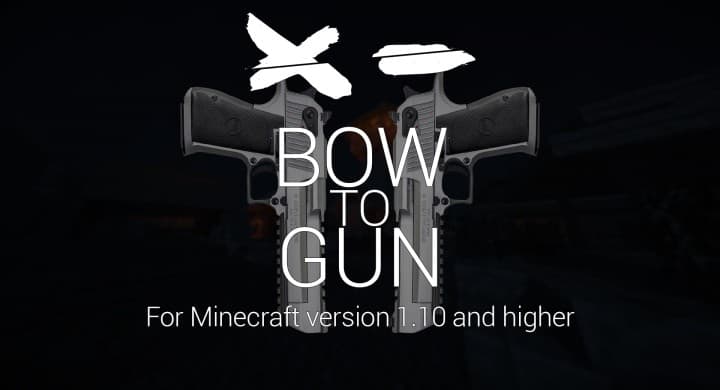
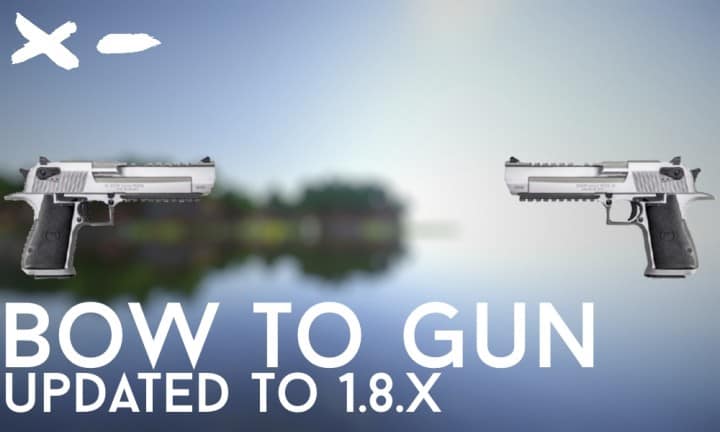
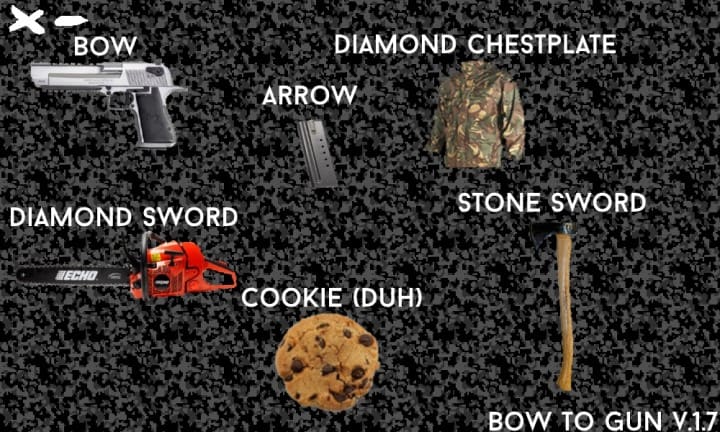
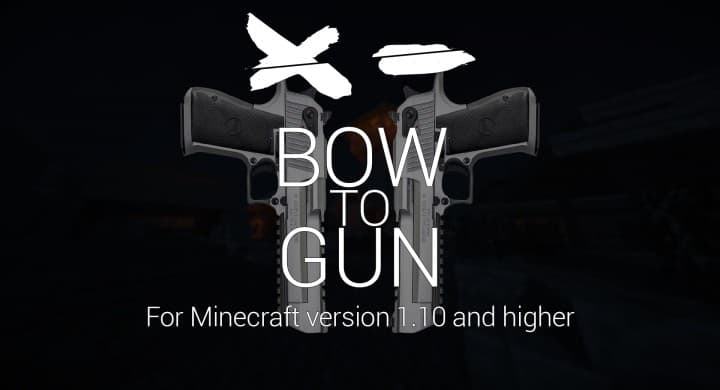
I just tested out the Bow to Gun resource pack, and it totally breaks the mainstream trend by steering clear of total block overhauls, choosing instead to creatively reinvent a select few items. As the name heavily implies, your standard bow is transformed into a flashy weapon modeled after a real-life Desert Eagle, complete with custom audio cues that replace normal arrow releases with authentic gunshots for a much more immersive and spiced-up experience. If you want even more combat variety, this texture pack also revamps sword options, turning the diamond sword into a stunning black and red chainsaw with intricate details, while the stone sword becomes a primitive club that brings out a fun caveman vibe.
Furthermore, equipping Steve with a diamond chestplate swaps the usual shiny blue armor for a cool tactical camo jacket, instantly making vanilla Minecraft feel like an action-packed survival game. All of these awesome visual tweaks are paired with custom effects, such as a special animation whenever you fire and watch your bullet fly, while standard arrows are cleverly redesigned as gun magazines that visually cycle as you go through your reloading animations. The entire resource pack blends sound design, visual effects, and textures together seamlessly without altering any core mechanics, meaning your damage values stay completely balanced while you enjoy the thrill of taking down mobs with heavy-duty firearms instead of traditional archery.
Bow To Gun should be compatible with all of these Minecraft versions: 1.11.2 – 1.11 – 1.10.2 – 1.10 – 1.9.4 – 1.9 – 1.8.9 – 1.8.8 – 1.8.1 – 1.8.6 – 1.8 – 1.7.10 – 1.7.9 – 1.7.4 – 1.7
Screenshots
How to Install Texture Pack (Simple 10 Steps)
- Download OptiFine: Most of the texture packs and shaders need OptiFine. That’s why, first download and install OptiFine for the version of Minecraft you want to play.
- Download the Texture Pack: Get the texture pack you want from the download section. Choose the version that works with your Minecraft and your PC’s performance.
- Open Minecraft Launcher: Start Minecraft using the official game launcher — or even TLauncher, if you use that.
- Go to Options: From the main menu, click on the “Options” button.
- Open Resource Packs: Inside Options, click on “Resource Packs…”.
- Open the Resource Pack Folder: Click on “Open Resource Pack Folder” — this will open a folder named “resourcepacks”.
- Move the Pack File: Copy or move the .zip file you downloaded into that “resourcepacks” folder. (Don’t unzip the file — Minecraft uses it as-is!)
- Go Back and Refresh: Close the folder and click “Done”, then go back into “Resource Packs…” again.
- Activate the Pack: You’ll see the pack on the left side. Hover over it and click the arrow to move it to the right (active side).
Tip: If you get a message that the pack is for a different version, just click “Yes” — it usually works fine. - Click Done and Enjoy: Click “Done” again. Now your pack is ready to use in-game. It’s that easy!
Credits
This resource pack was originally created by keffunge. We do not claim ownership of this content, nor do we host modified files on our servers. We fully encourage our community to visit the original creator’s official pages to support their ongoing work.
Download Instructions
Curseforge: download starts automatically after a few seconds;
Mediafire: click the big blue button with the text “DOWNLOAD”;
Google Drive: in the top right corner you will see a small download icon (down arrow), click it and the download should start;