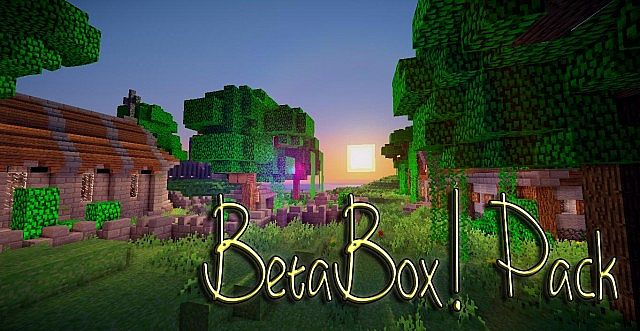
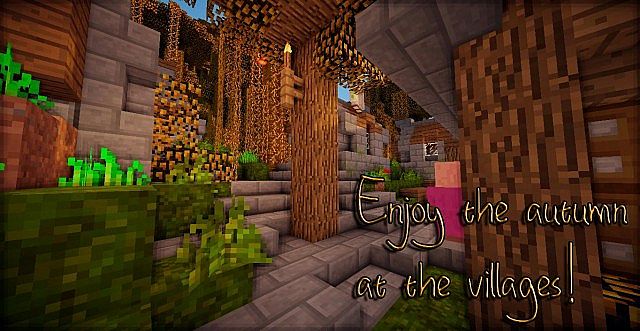
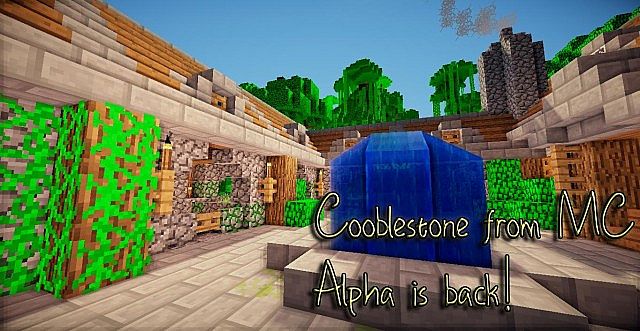
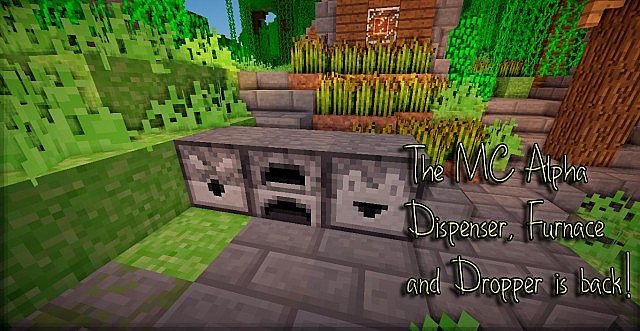
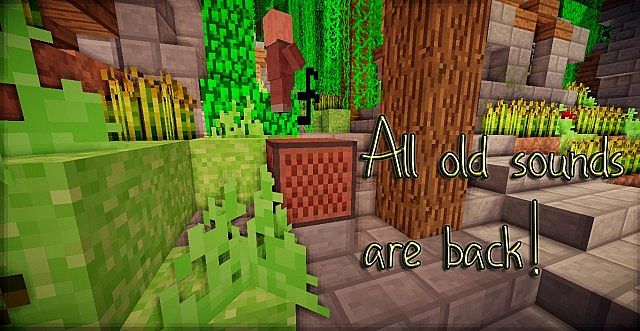
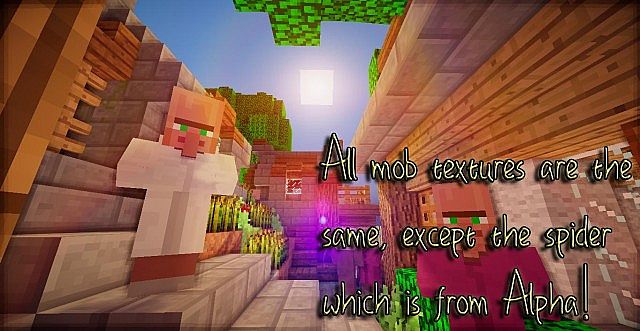
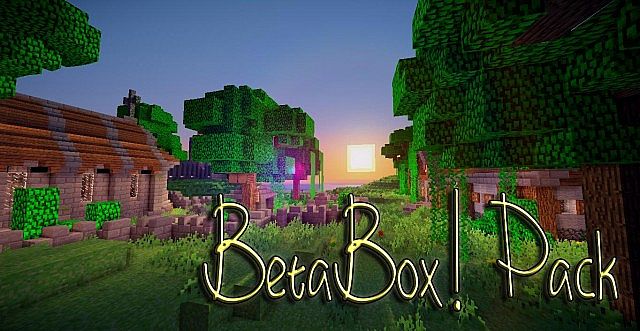
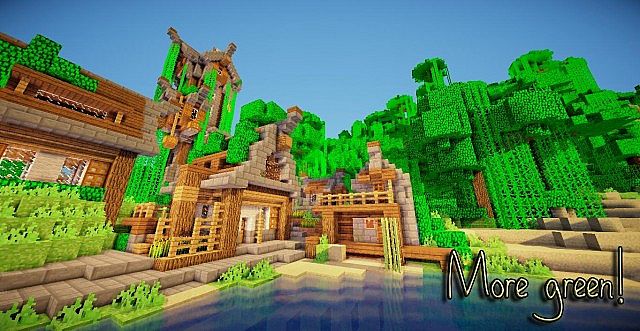
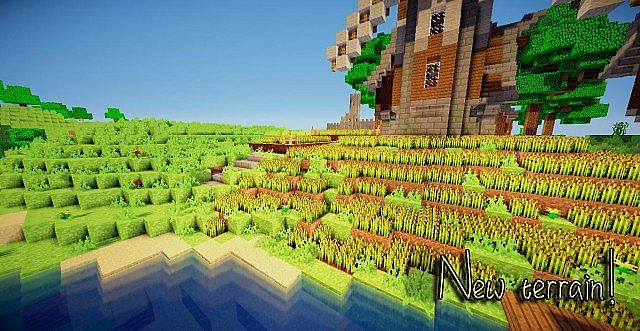
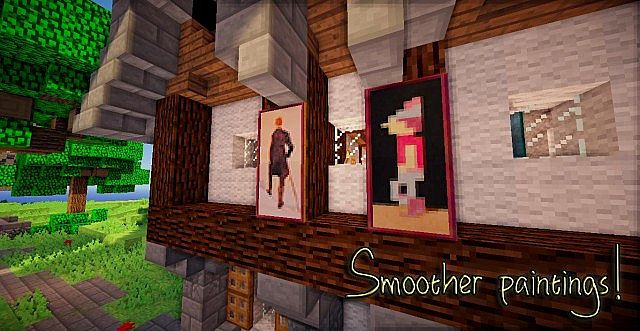
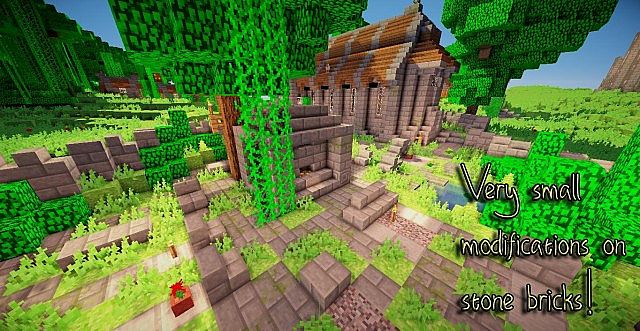
There is a truly wonderful feeling of nostalgia that washes right over you when you fire up a game and experience it just like you used to back in the day. Because of that exact feeling, there was a massive demand to create a special resource pack, one that genuinely allows you to play Minecraft like you used to back in its earliest stages. The BetaBox resource pack was created by SheldonTheAssassin, and I found that it was designed with one very specific thing in mind: to let veteran players fondly remember how they used to play in the good old Minecraft days, all the way back in the alpha stages. New players can also completely get to experience what is now unfortunately lost in newer versions. This fantastic texture pack successfully brings back all the old fun stuff for you to enjoy once again. Almost all of the classic textures are fully back, but I noticed some of them return with a neat little twist.
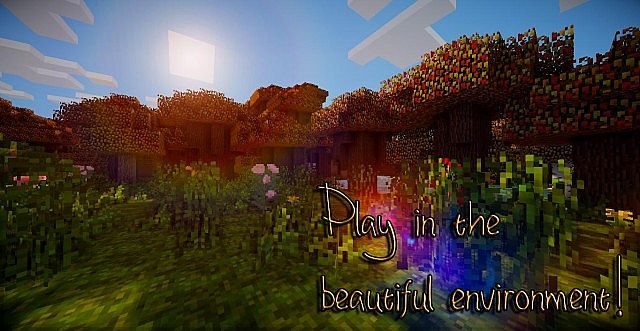
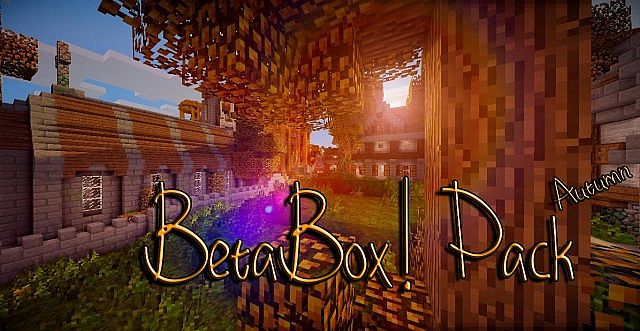
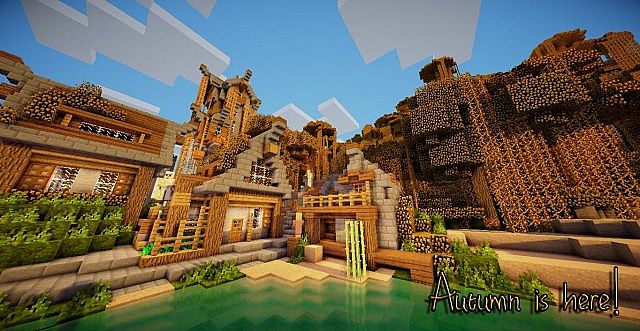
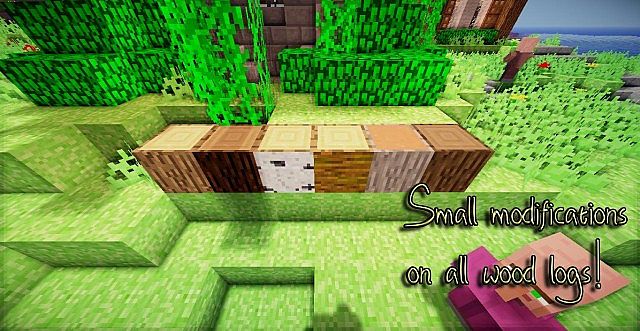
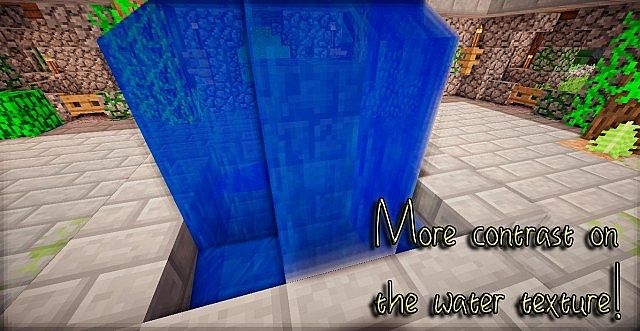
As you would naturally expect, most textures are expertly replaced with old variants straight from the alpha stage, but some of them were carefully curated and given a fresh new face for you to thoroughly enjoy. Don’t worry at all, though, because there are no extreme changes in this resource pack, only small and tasteful improvements in certain textures. The overall art style remains completely faithful in this resource pack, meaning there will be no jarring surprises here! If you choose to install the BetaBox resource pack, you are not only getting the authentic alpha stage experience, but you will also get to play with delightful new custom features and textures that are available for all players. This resource pack brilliantly brings back the best things from the Minecraft alpha stage while thoughtfully adding new things for you to play with. Best of all, this resource pack uses the standard 16x resolution, so there is truly nothing to worry about when it comes to framerate or performance issues. If you have a computer that can comfortably run vanilla Minecraft, you are completely good to go!
BetaBox! should be compatible with all of these Minecraft versions: 1.8.9 – 1.8.8 – 1.8.1 – 1.8.6 – 1.8 – 1.7.10 – 1.7.9 – 1.7.4 – 1.7
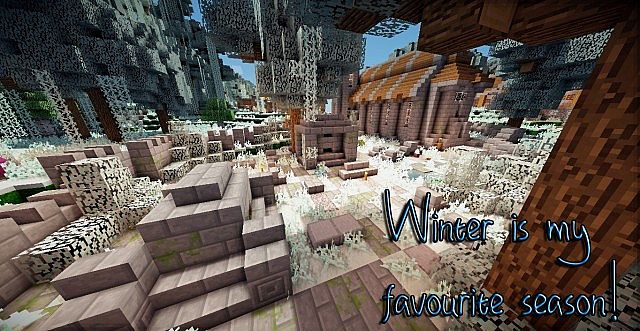
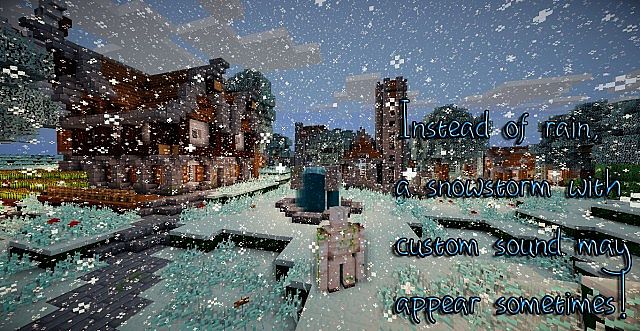
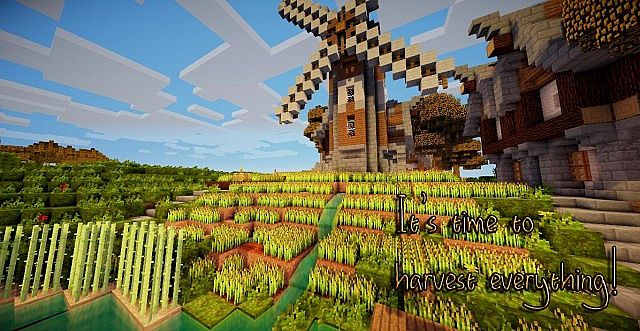
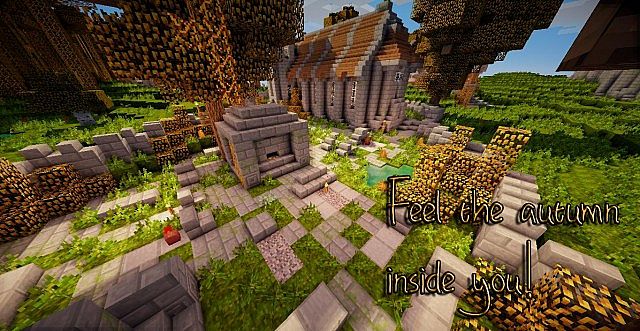
Screenshots
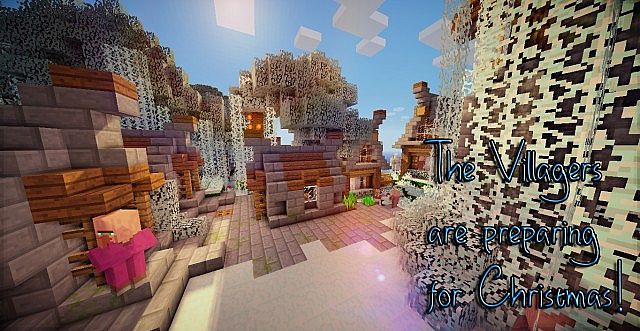
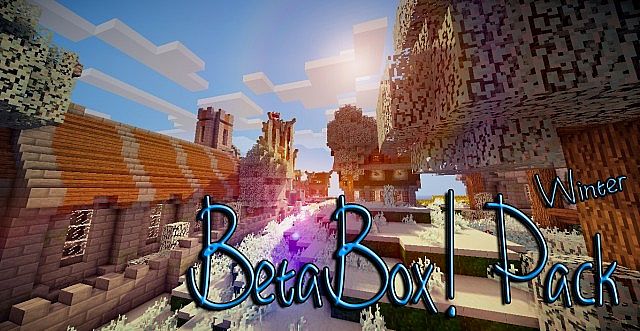
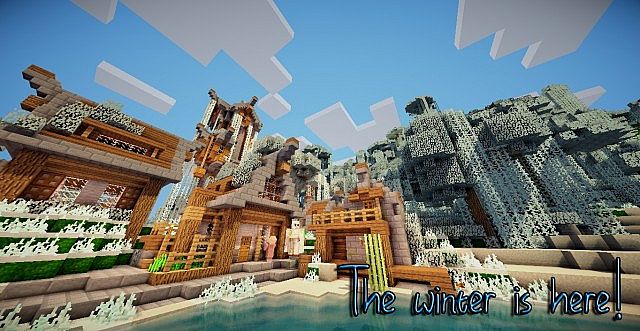
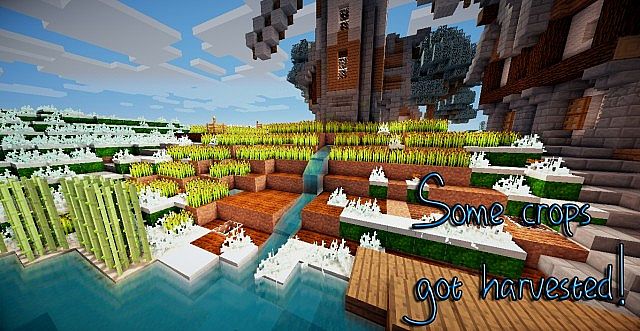
How to Install Texture Pack (Simple 10 Steps)
- Download OptiFine: Most of the texture packs and shaders need OptiFine. That’s why, first download and install OptiFine for the version of Minecraft you want to play.
- Download the Texture Pack: Get the texture pack you want from the download section. Choose the version that works with your Minecraft and your PC’s performance.
- Open Minecraft Launcher: Start Minecraft using the official game launcher — or even TLauncher, if you use that.
- Go to Options: From the main menu, click on the “Options” button.
- Open Resource Packs: Inside Options, click on “Resource Packs…”.
- Open the Resource Pack Folder: Click on “Open Resource Pack Folder” — this will open a folder named “resourcepacks”.
- Move the Pack File: Copy or move the .zip file you downloaded into that “resourcepacks” folder. (Don’t unzip the file — Minecraft uses it as-is!)
- Go Back and Refresh: Close the folder and click “Done”, then go back into “Resource Packs…” again.
- Activate the Pack: You’ll see the pack on the left side. Hover over it and click the arrow to move it to the right (active side).
Tip: If you get a message that the pack is for a different version, just click “Yes” — it usually works fine. - Click Done and Enjoy: Click “Done” again. Now your pack is ready to use in-game. It’s that easy!
Credits
This resource pack was originally created by SheldonTheAssassin. We do not claim ownership of this content, nor do we host modified versions of the files. All rights and intellectual property remain with the original creator. We strongly encourage players to support SheldonTheAssassin by downloading the pack from the official sources provided.
Download Links
Java Edition
Download Instructions
Curseforge: download starts automatically after a few seconds;
Mediafire: click the big blue button with the text “DOWNLOAD”;
Google Drive: in the top right corner you will see a small download icon (down arrow), click it and the download should start;


