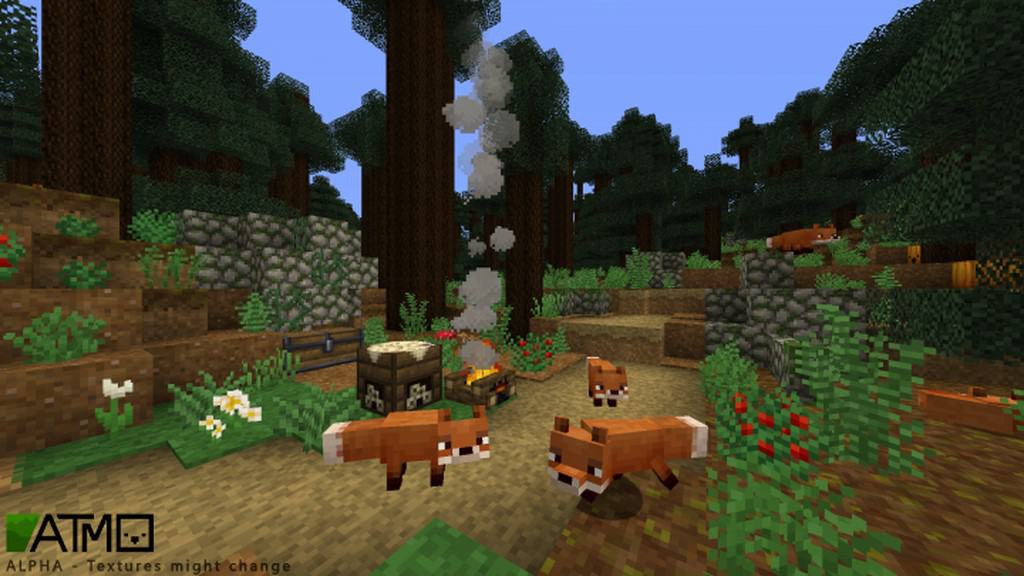
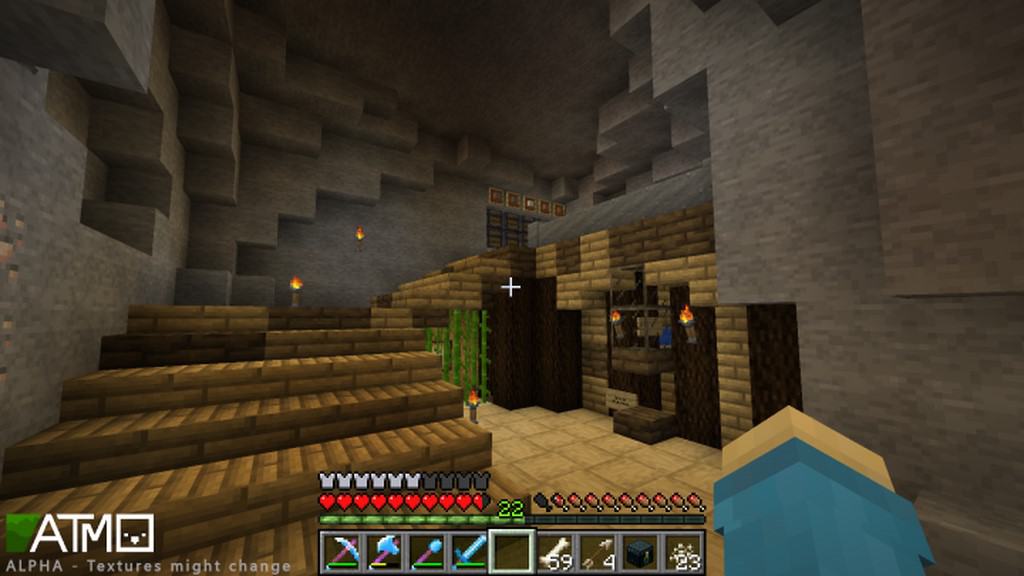
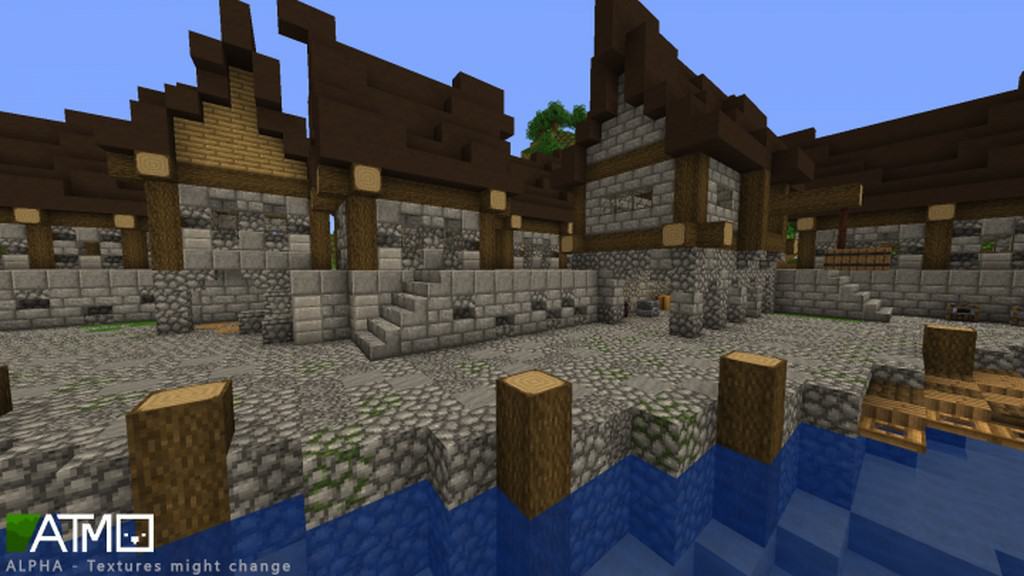
Atmo is an amazing and increasingly popular resource pack that has already pulled in close to 10,000 downloads, and after trying it myself, I can totally see why. Created by tomaxed44, the secret behind its massive appeal is its incredible myriad of texture varieties. The Atmo resource pack actually traces its history all the way back to 2017 when development first began, initially serving just as an add-on to another wonderful resource pack called Beyond the Lands. Today, it stands proudly on its own as a fully independent resource pack that you can easily download as a separate standalone file. Atmo is fully-fledged and has received enthusiastic endorsements from plenty of Minecraft player experts out there. You definitely need to try it out for yourself, because you are totally assured of an impressive visual experience while using this absolute godsend of a resource pack. It provides such a bright and crystal-clear view of the entire world of Minecraft, fulfilling the developers’ primary aim of creating a genuinely engaging and lively pack that truly brings everything to life.
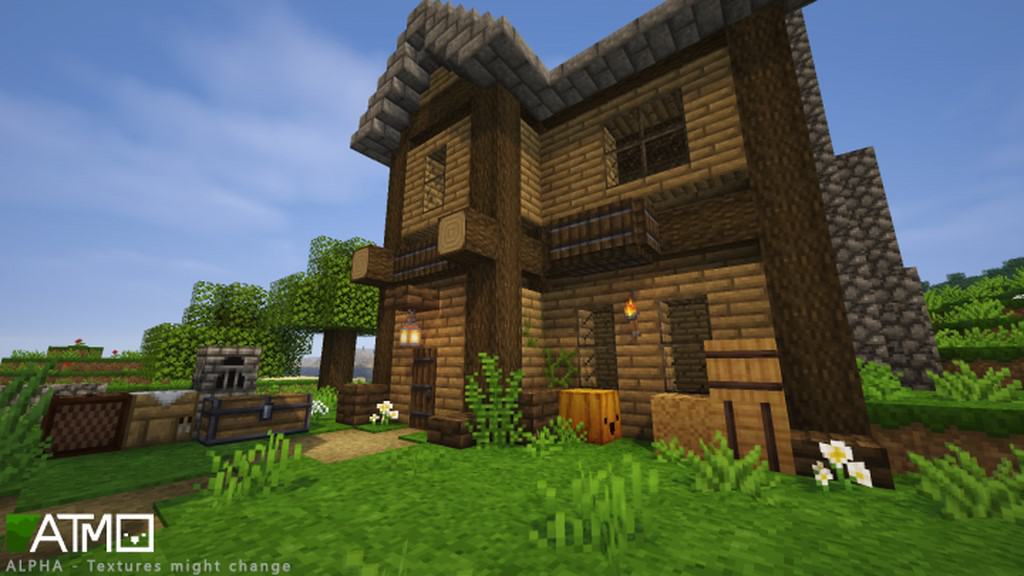
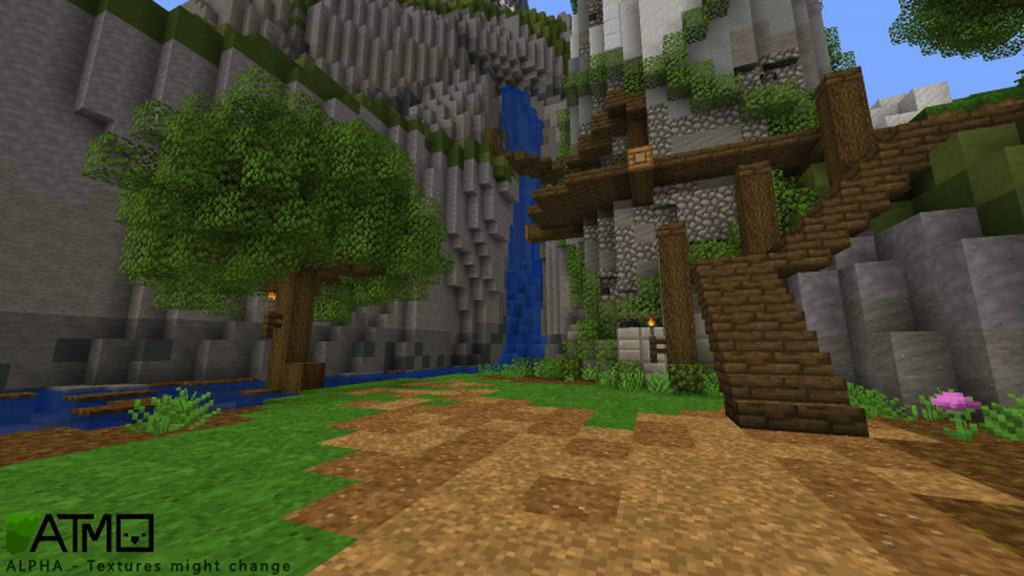
One of the absolute biggest highlights of this texture pack is its breathtaking color palette, which features a wonderfully bright tone throughout. Coupled with its exceptionally clean texture designs, this pack easily ranks among the very best for unbeaten views that will have players deeply immersed in the game for hours on end, making for such a wonderful experience. If you look at most Minecraft players, you will find that they are already very familiar with the standard 16×16 screen resolution, which happens to be the exact same resolution that Atmo delivers. Because of this, players won’t have to face any annoying FPS issues, and honestly, that is just fantastic. Do you already have a computer system that smoothly runs Vanilla Minecraft? If your answer is yes, which it likely is, you can comfortably use that exact same setup to run Atmo without any trouble whatsoever. You will experience zero frame-rate problems or performance drops, allowing you to fully enjoy all of Atmo’s features at your absolute convenience. Be sure to grab this brilliant resource pack and join the rest of the community in their happiness. Best of luck, pals!
Atmo should be compatible with all of these Minecraft versions: 1.14.4 – 1.14.3 – 1.14.2 – 1.14 – 1.13.2 – 1.13.1 – 1.13
Screenshots
How to Install Texture Pack (Simple 10 Steps)
- Download OptiFine: Most of the texture packs and shaders need OptiFine. That’s why, first download and install OptiFine for the version of Minecraft you want to play.
- Download the Texture Pack: Get the texture pack you want from the download section. Choose the version that works with your Minecraft and your PC’s performance.
- Open Minecraft Launcher: Start Minecraft using the official game launcher — or even TLauncher, if you use that.
- Go to Options: From the main menu, click on the “Options” button.
- Open Resource Packs: Inside Options, click on “Resource Packs…”.
- Open the Resource Pack Folder: Click on “Open Resource Pack Folder” — this will open a folder named “resourcepacks”.
- Move the Pack File: Copy or move the .zip file you downloaded into that “resourcepacks” folder. (Don’t unzip the file — Minecraft uses it as-is!)
- Go Back and Refresh: Close the folder and click “Done”, then go back into “Resource Packs…” again.
- Activate the Pack: You’ll see the pack on the left side. Hover over it and click the arrow to move it to the right (active side).
Tip: If you get a message that the pack is for a different version, just click “Yes” — it usually works fine. - Click Done and Enjoy: Click “Done” again. Now your pack is ready to use in-game. It’s that easy!
Credits
This resource pack was originally created and developed by tomaxed44. We do not own, host, or modify this file, and all rights remain with the original creator. We encourage you to support tomaxed44 by downloading from the official sources and visiting their project pages.
Download Instructions
Curseforge: download starts automatically after a few seconds;
Mediafire: click the big blue button with the text “DOWNLOAD”;
Google Drive: in the top right corner you will see a small download icon (down arrow), click it and the download should start;


