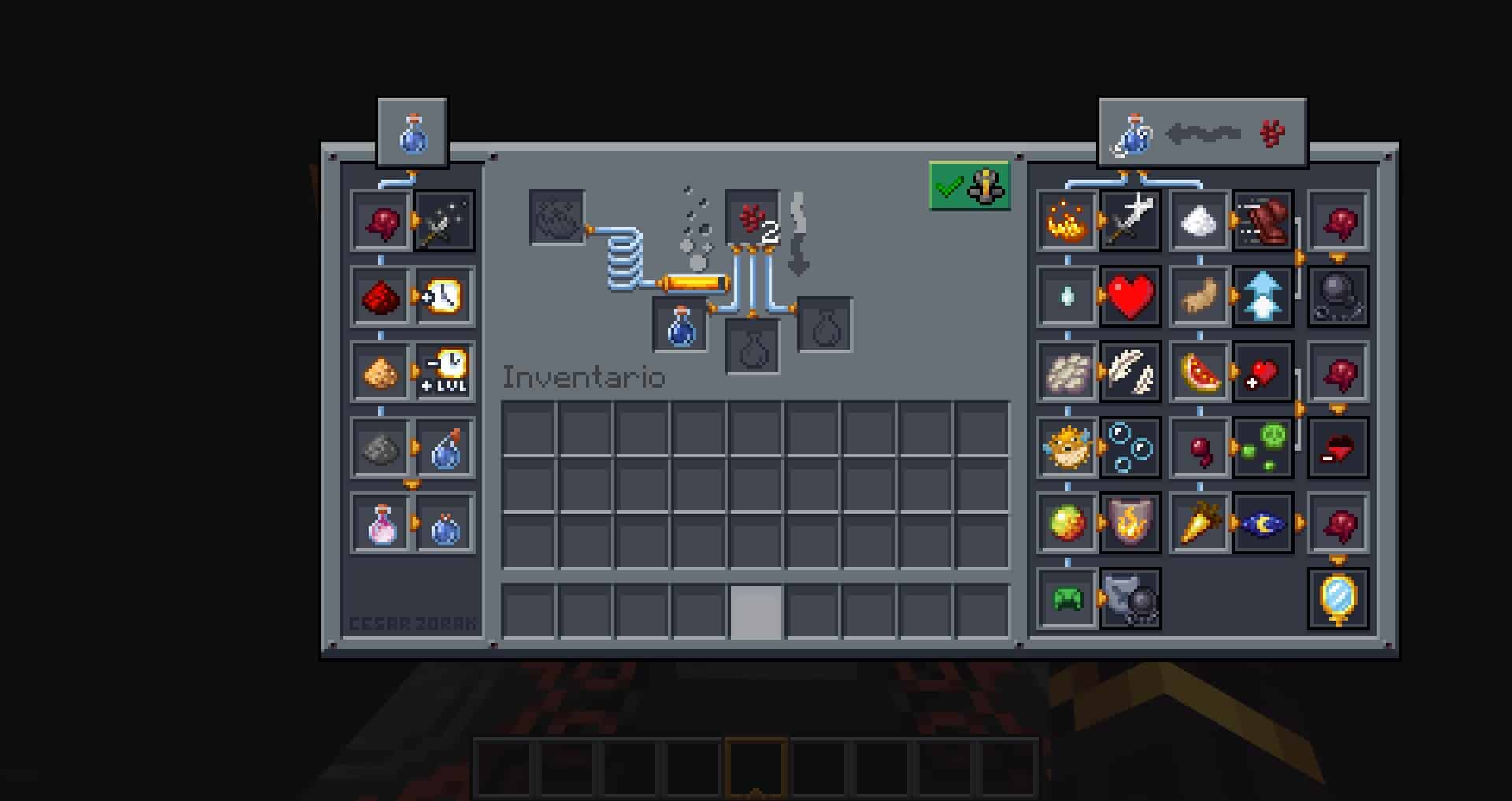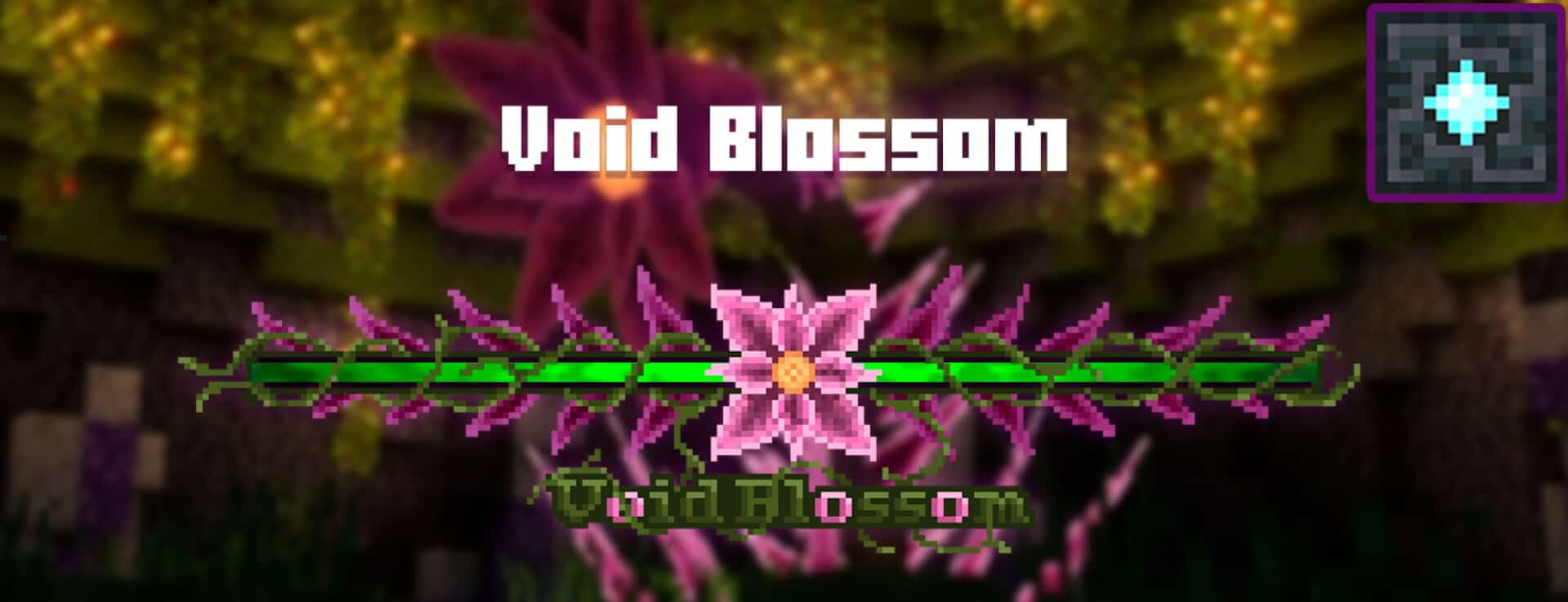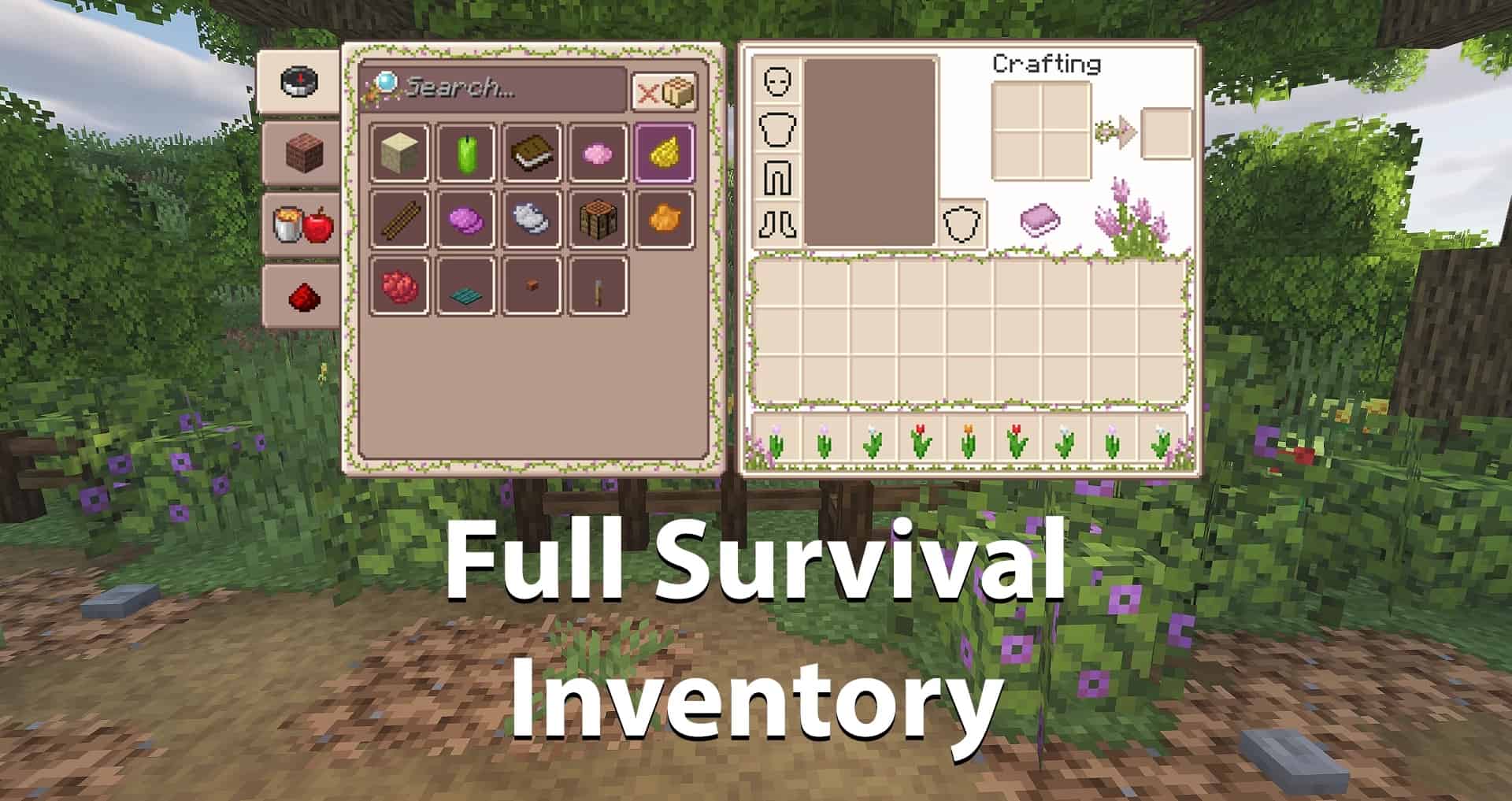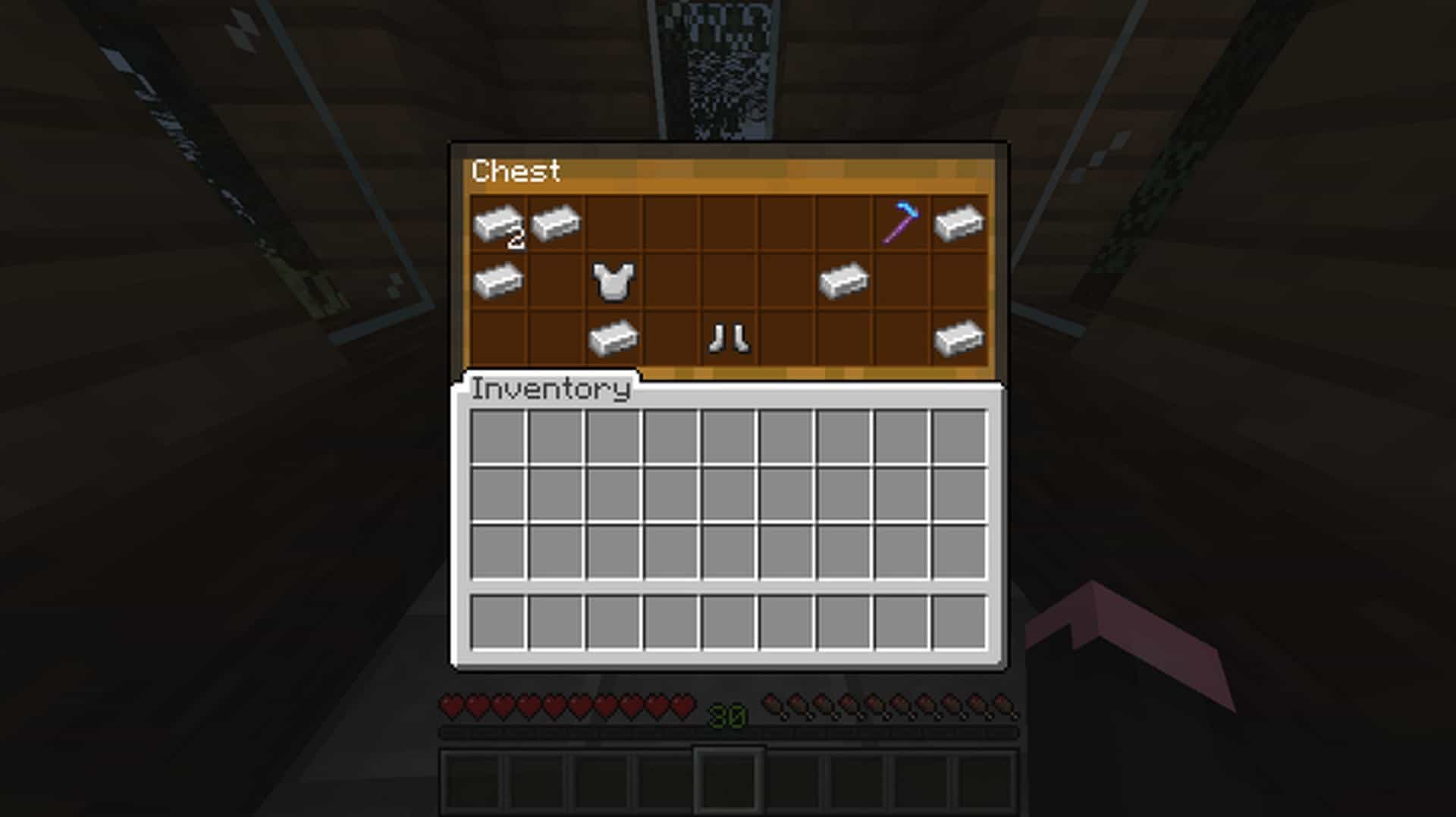
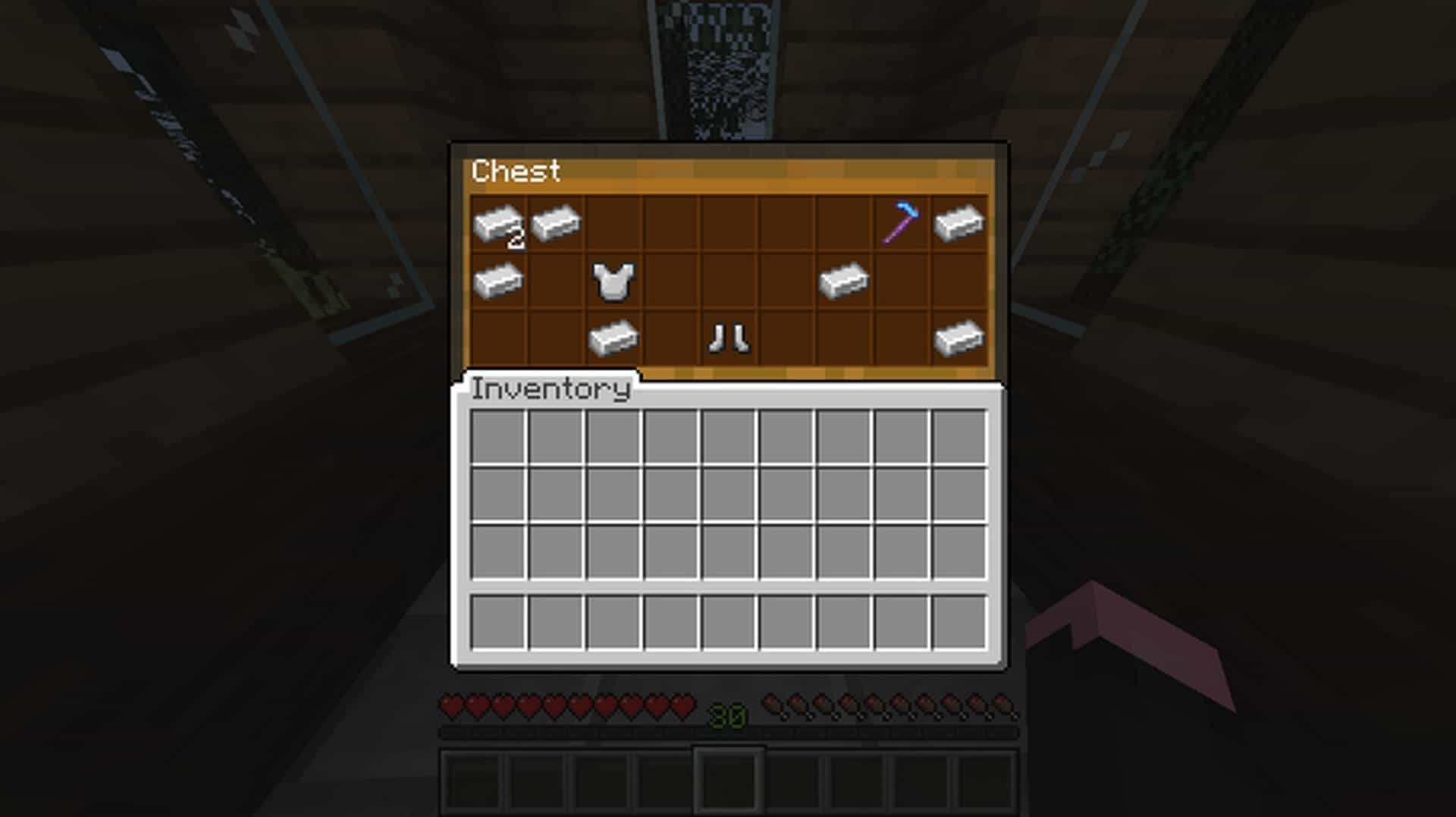
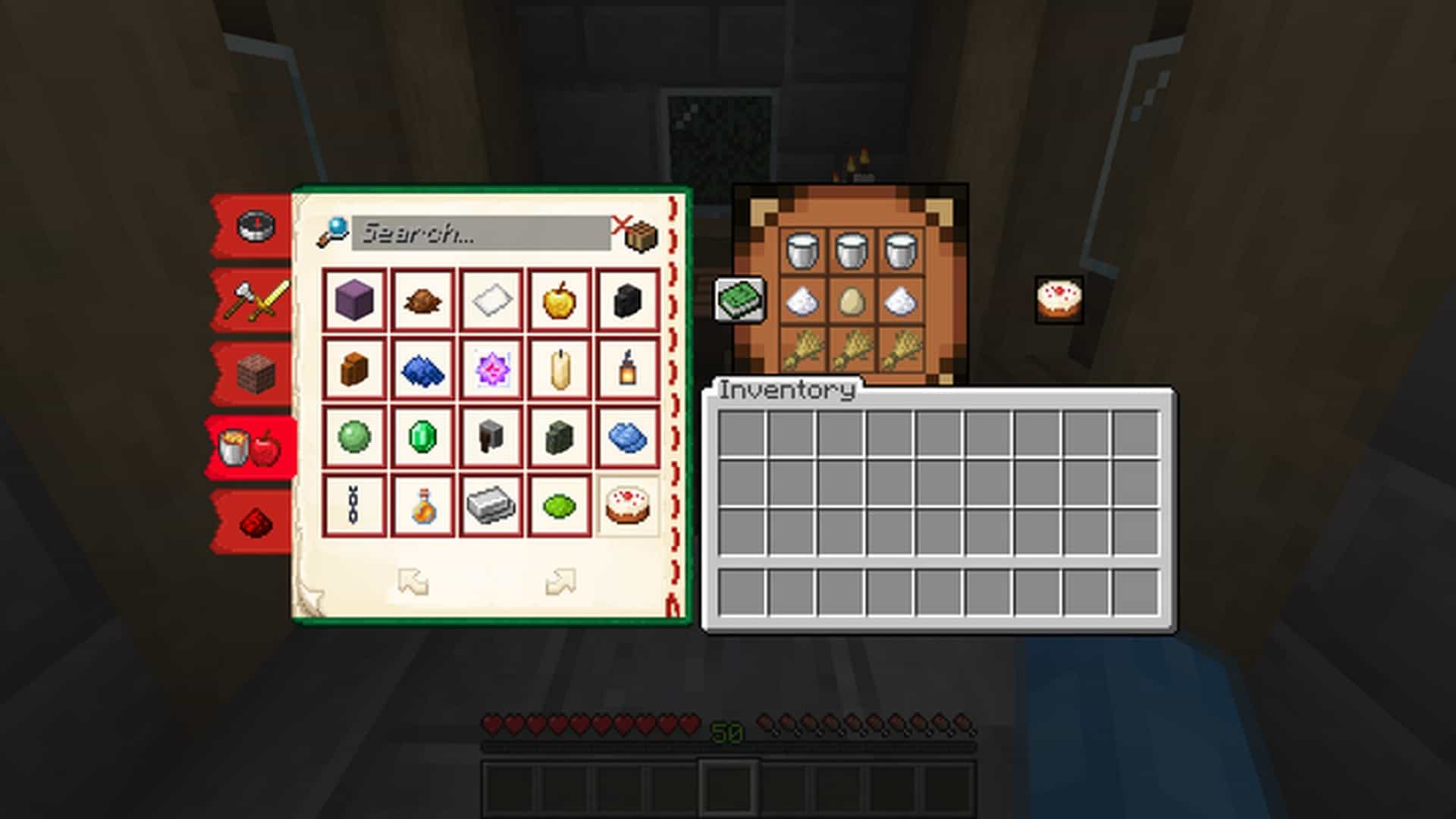
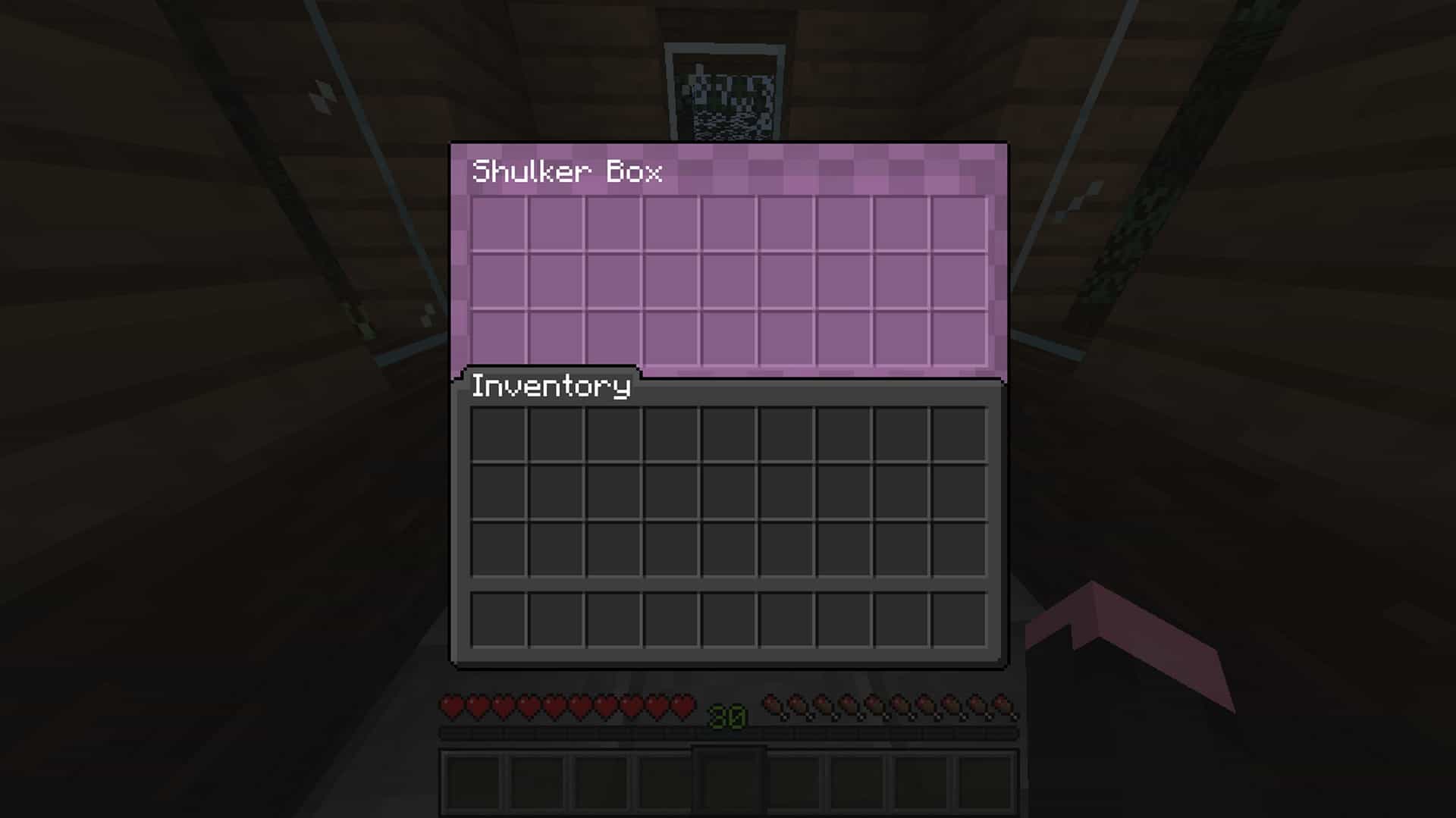
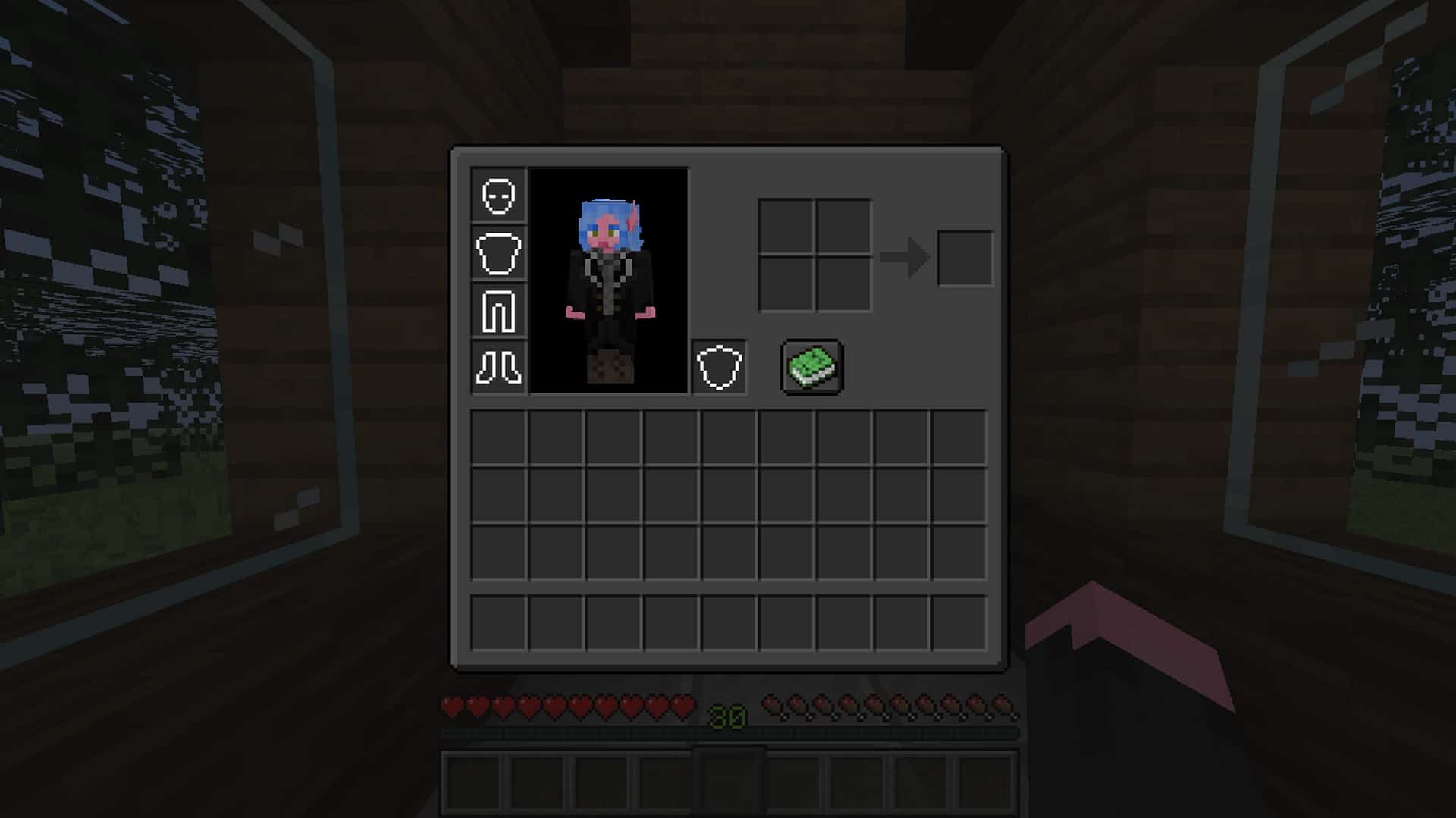
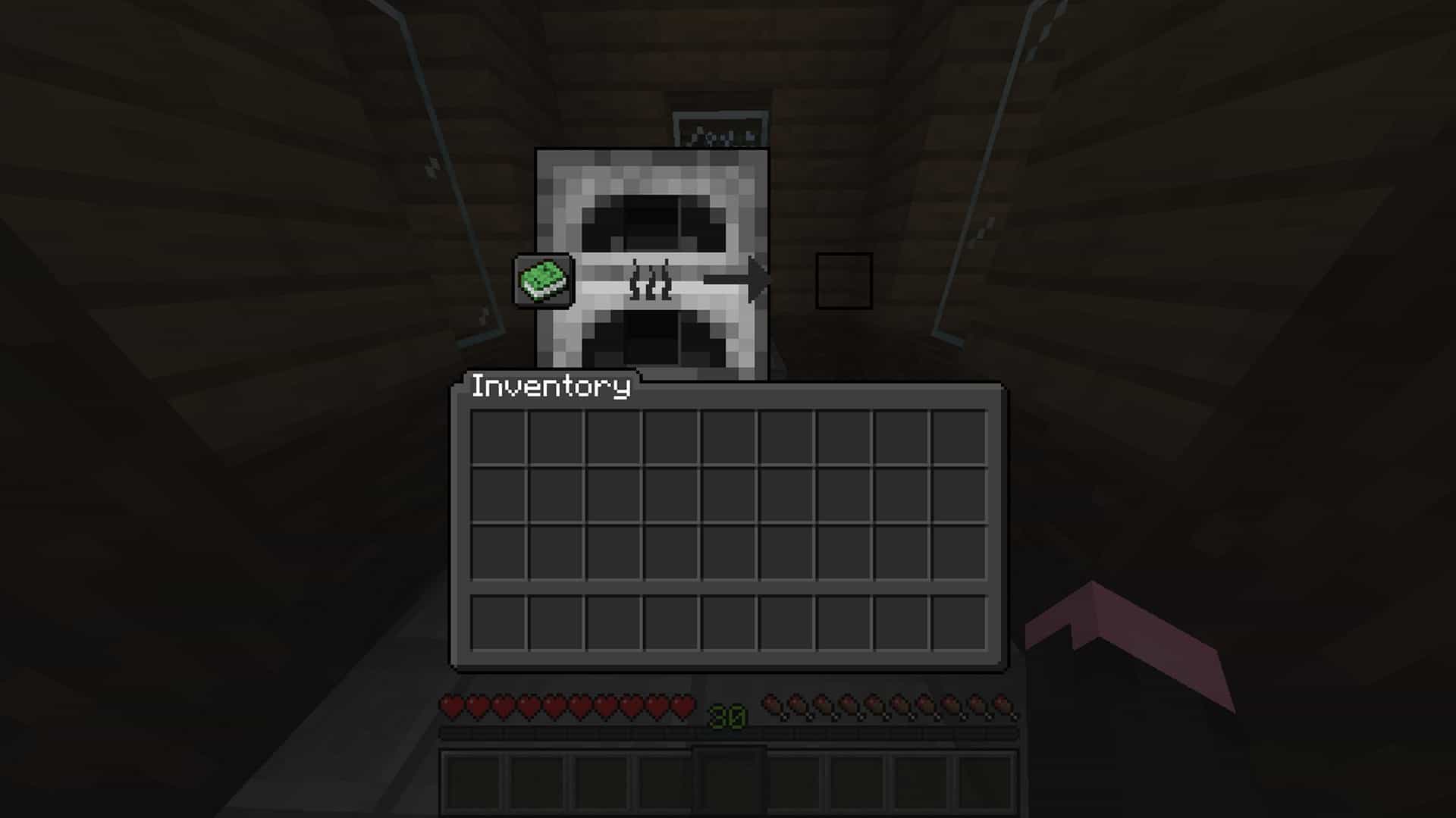
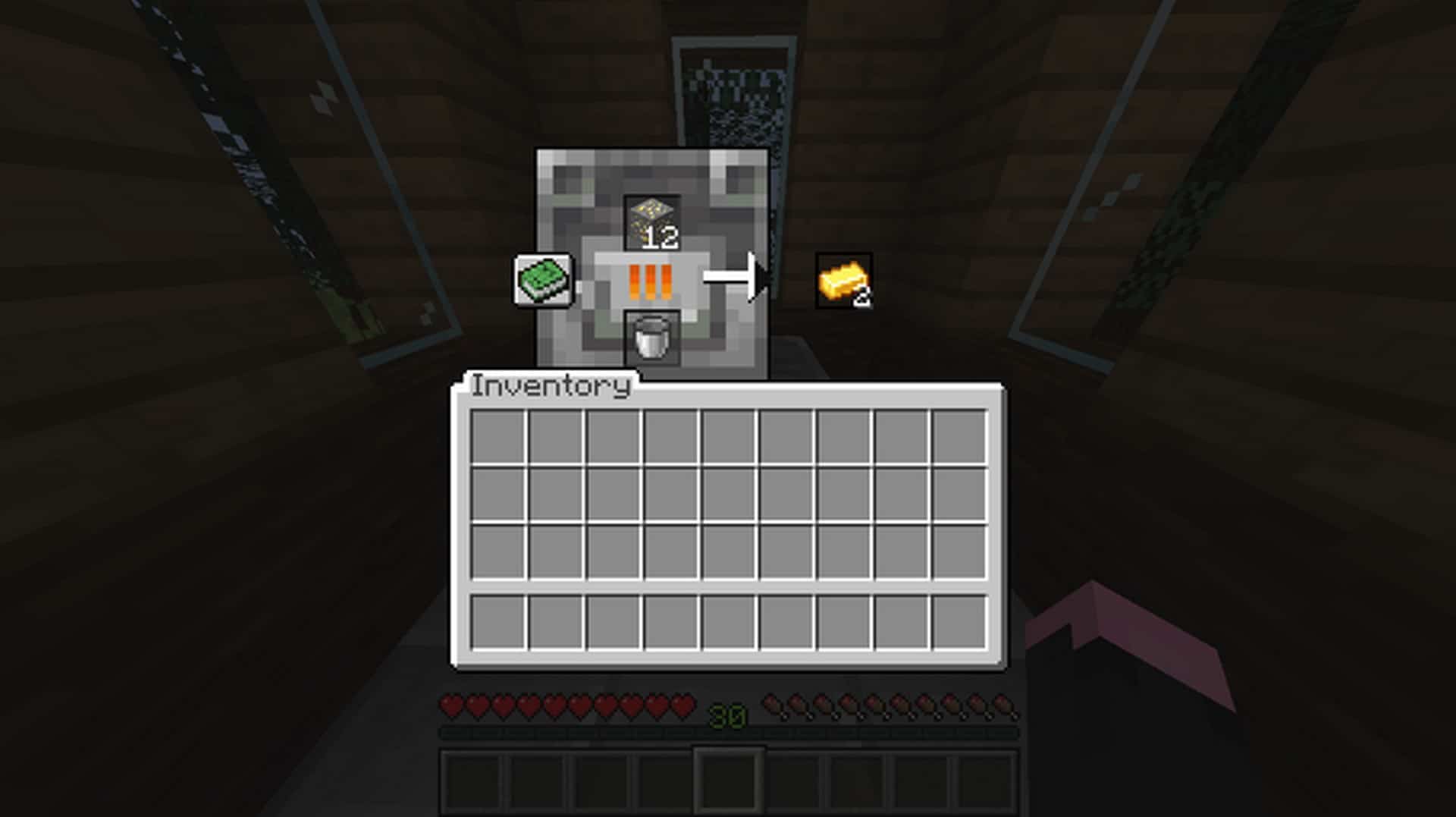
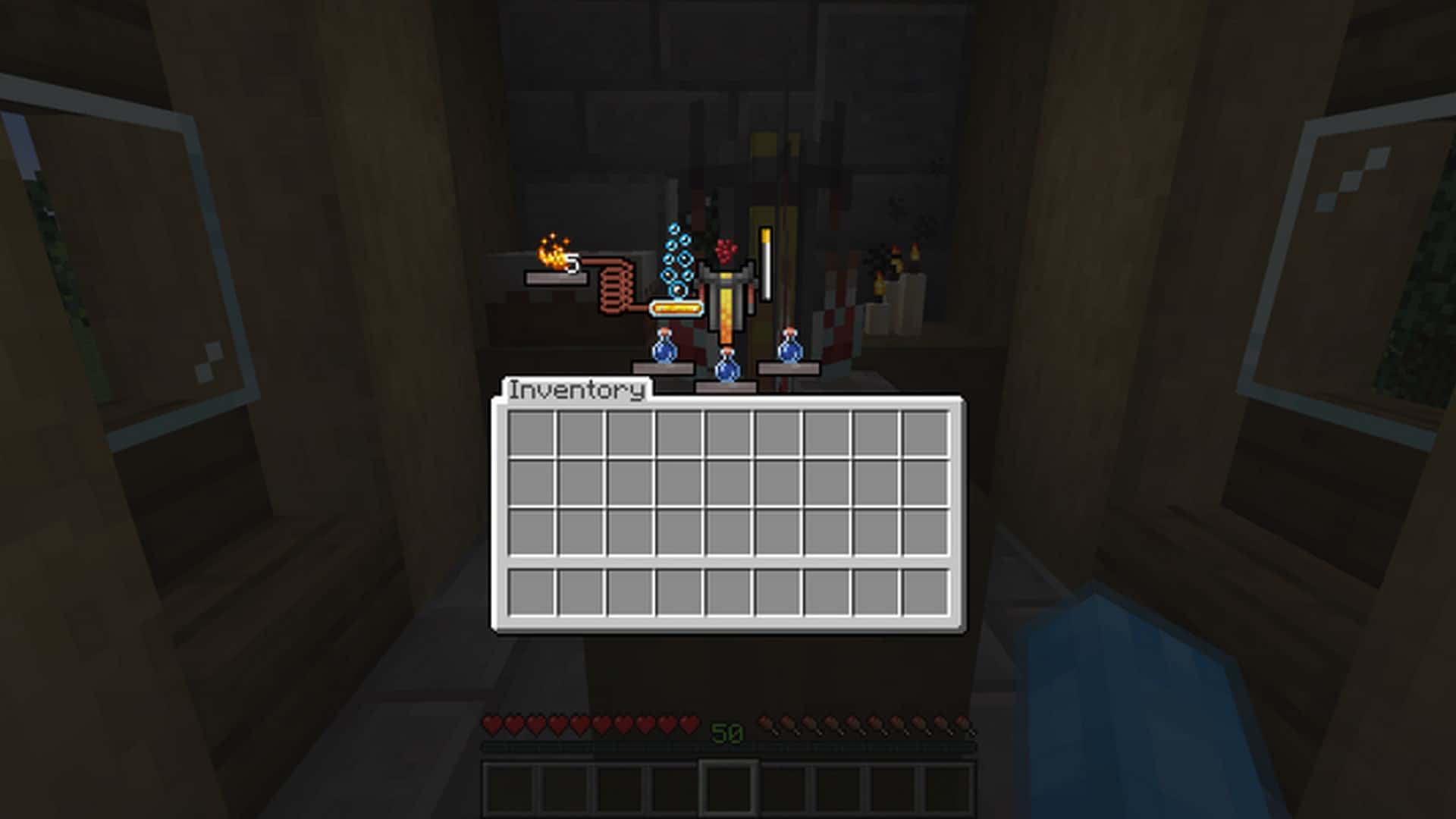
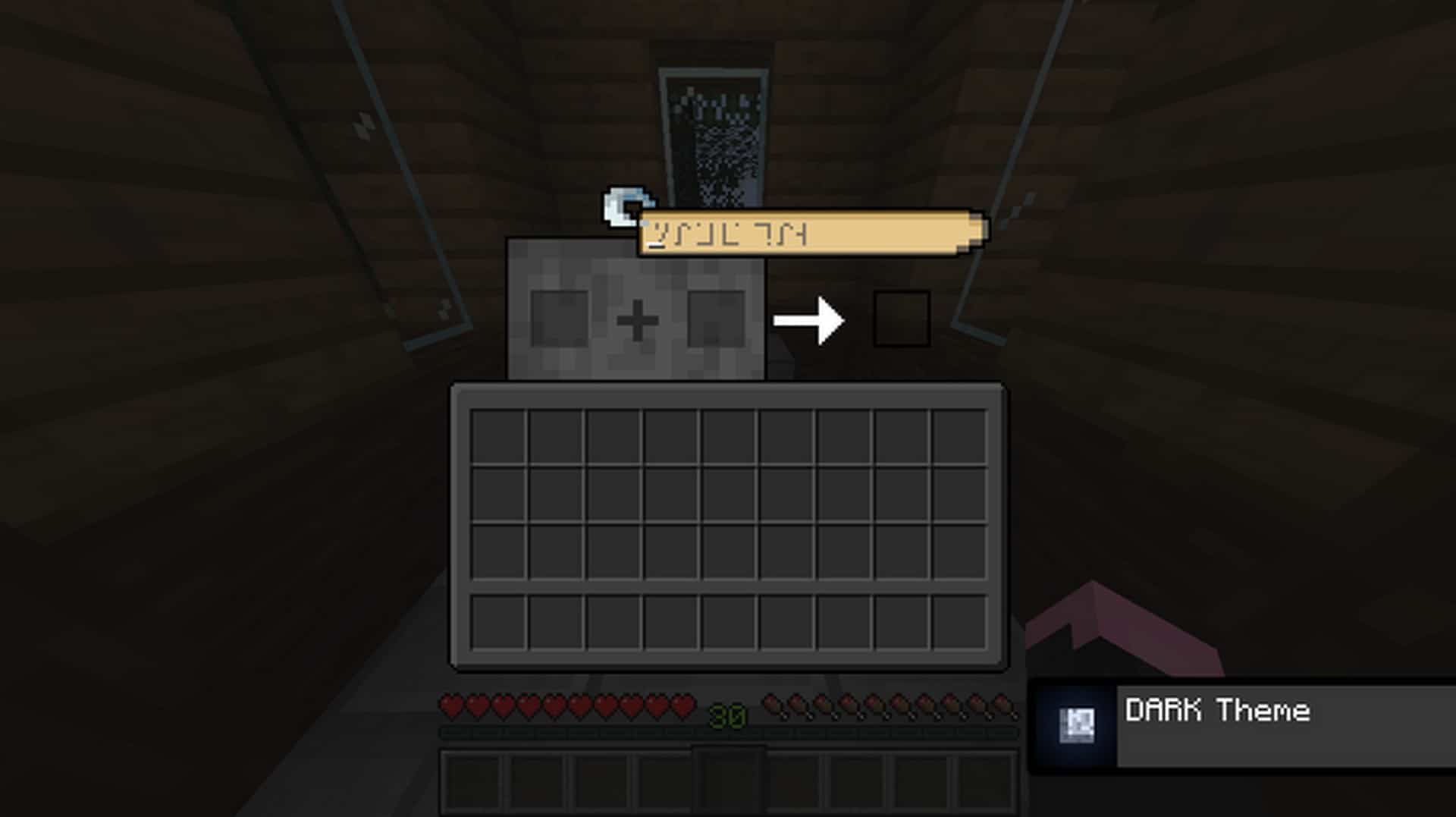
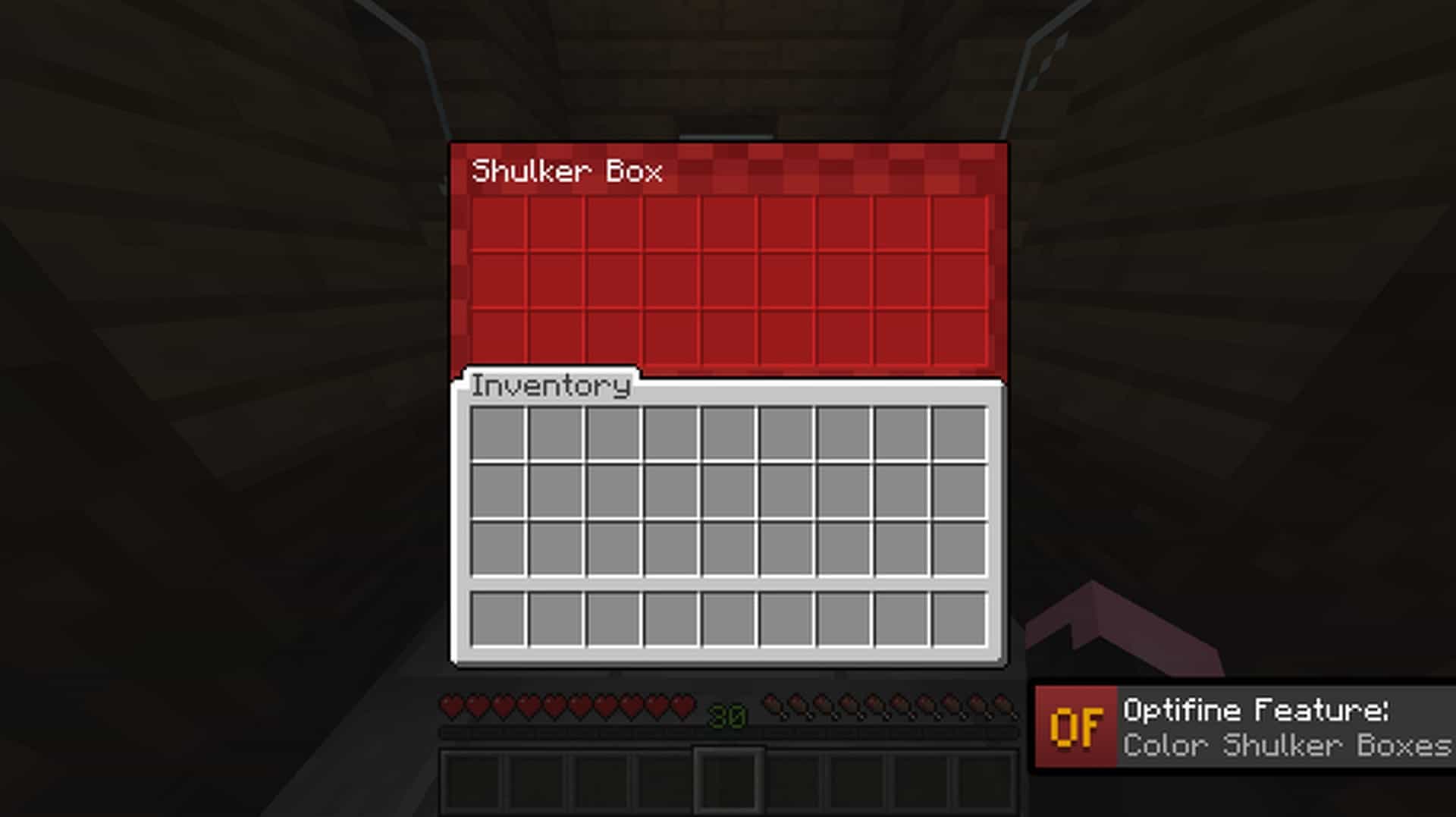
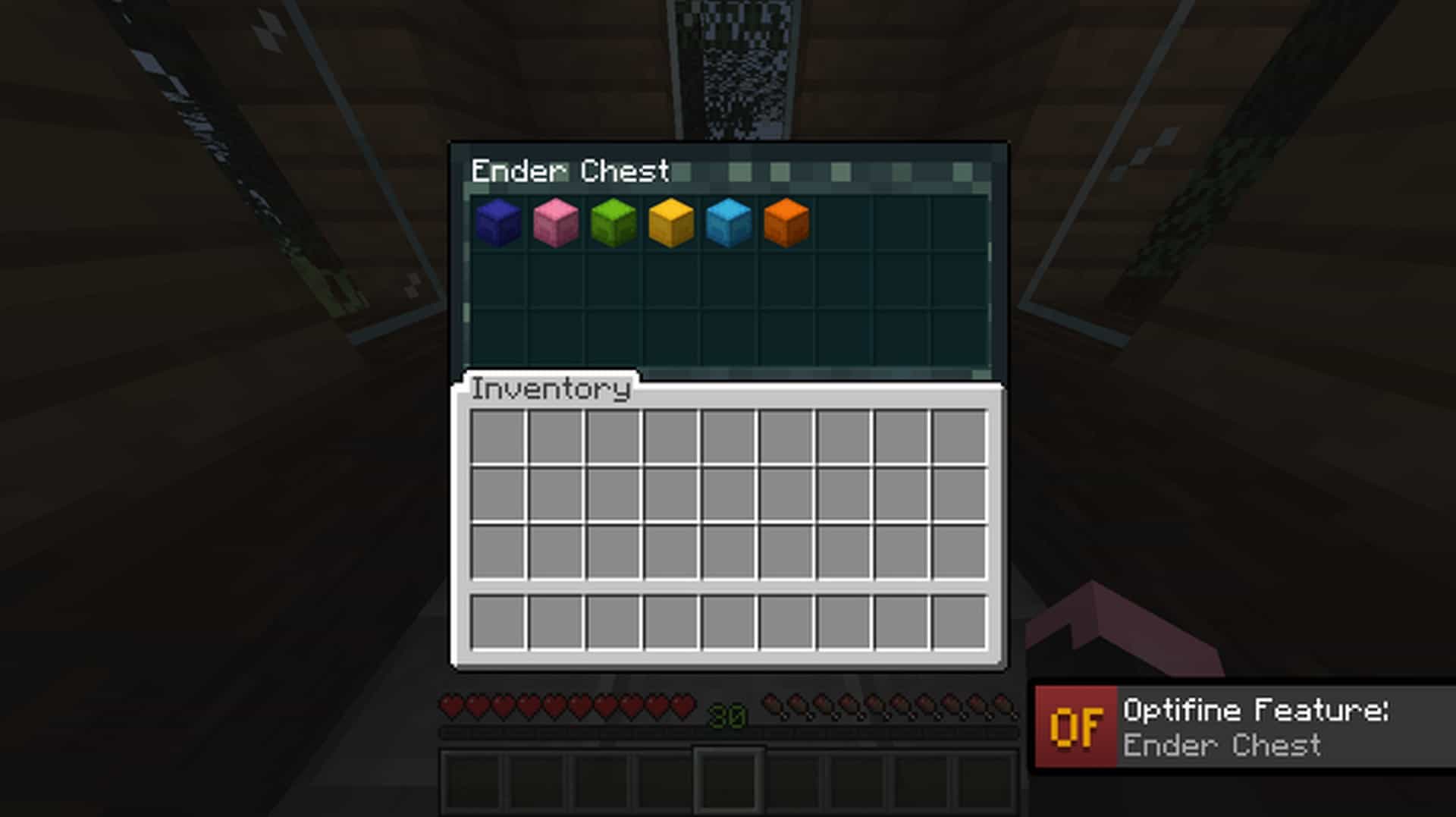
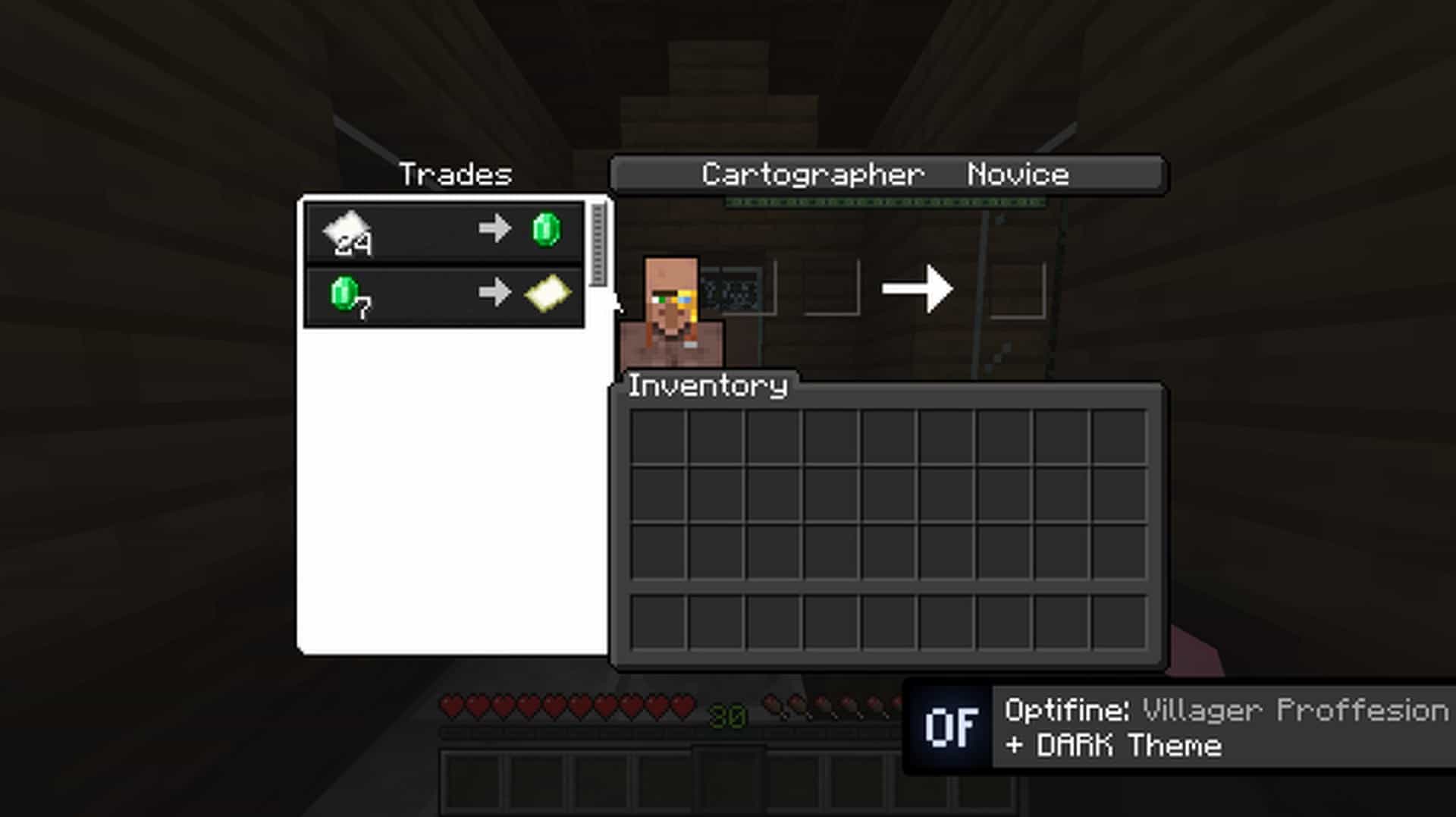
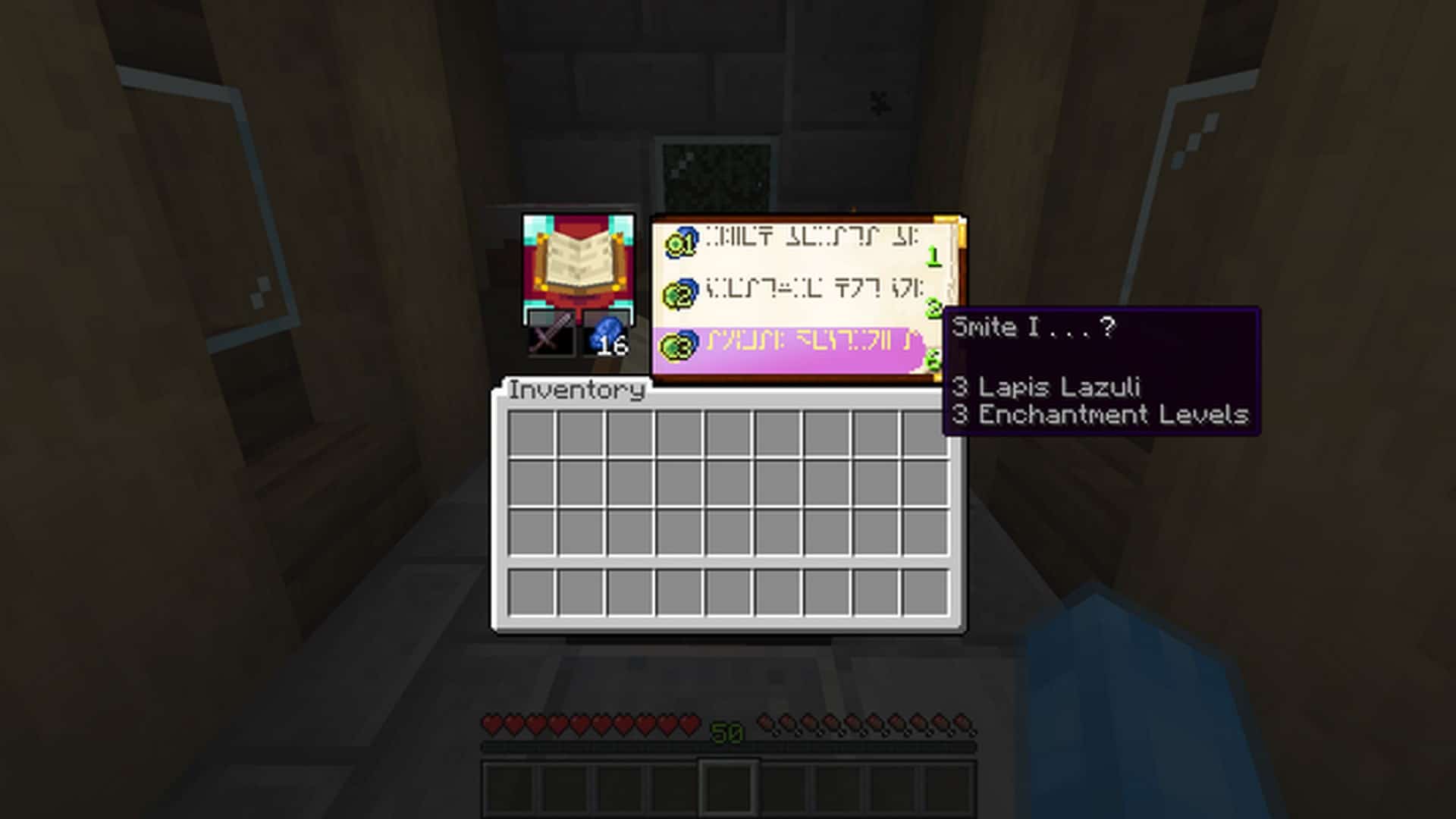
This is a brilliantly fresh resource pack that thoroughly transforms the initial graphical user interface to appear far more in tune with the actual blocks it represents. Minecraft’s Advanced GUI resource pack truly offers gamers a much more exciting experience in general, especially when you closely consider the incredible interface features packed into this add-on. Have you ever found yourself facing frustrating challenges when trying to craft and smelt various ores, or gotten completely lost in the middle of a crafting session with absolutely no clue what to do next?
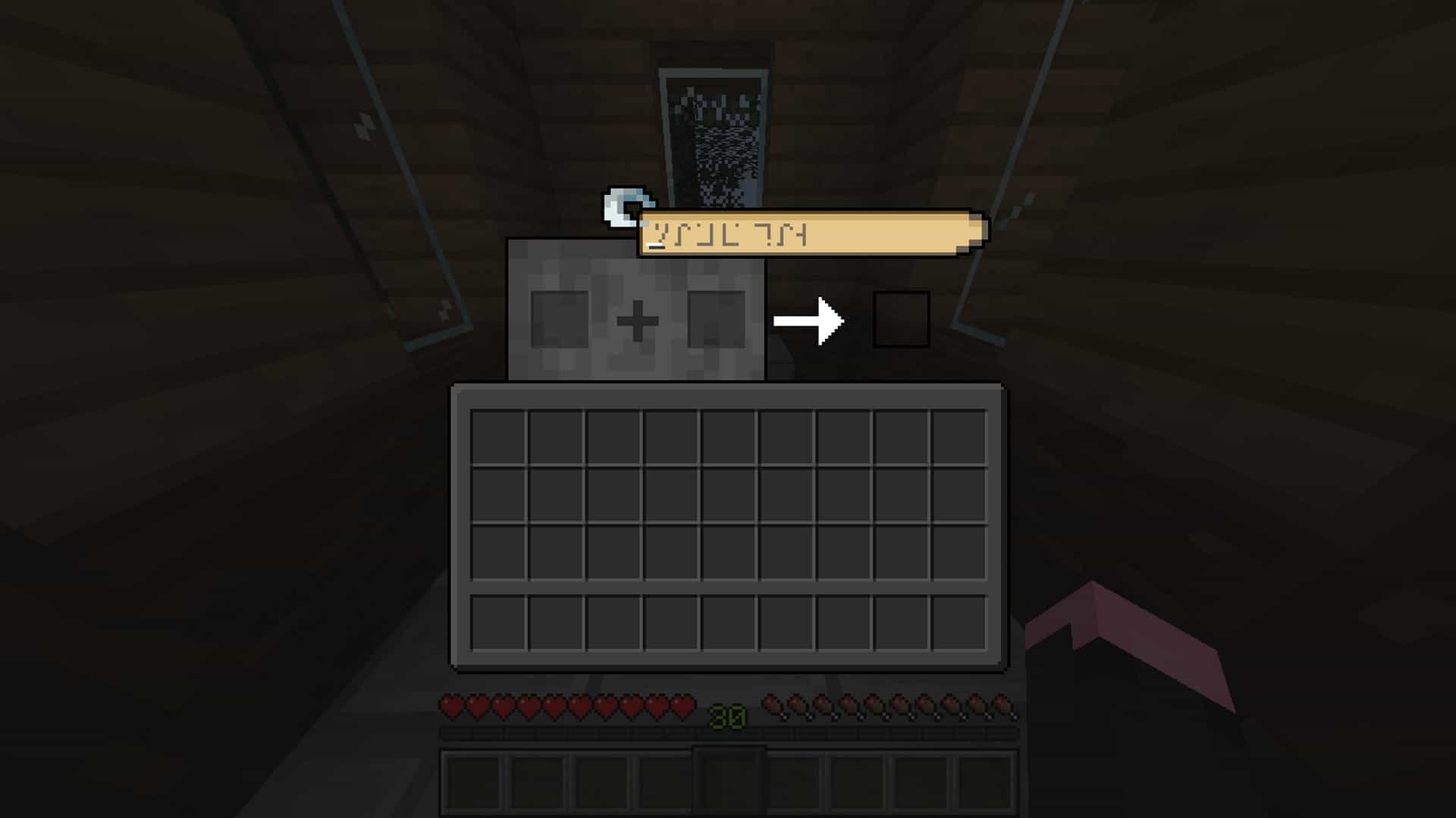
Does it annoy you to no end that the old, obscure letters used by the Enchantment Table can be so confusing? Well, you can happily put those worries behind you because the Advanced GUI texture pack has arrived to make your gameplay experience significantly more comfortable by ensuring everything is as crystal clear to novices as it is to any seasoned veteran. This fantastic resource pack genuinely guarantees that you won’t experience any pesky issues with the overall GUI and that you will have an absolute blast playing the game with a fully enhanced Minecraft interface.
Advanced GUI should be compatible with all of these Minecraft versions: 1.17.1 – 1.17 – 1.16.5 – 1.16.4 – 1.16.3 – 1.16.2 – 1.16.1 – 1.16 – 1.15.2 – 1.15.1 – 1.15 – 1.14.4 – 1.14.3 – 1.14.2 – 1.14 – 1.13.2 – 1.13.1 – 1.13 – 1.12.2 – 1.12 – 1.11.2 – 1.11 – 1.10.2 – 1.10 – 1.9.4 – 1.9 – 1.8.9 – 1.8.8 – 1.8.1 – 1.8.6 – 1.8
Screenshots

How to Install Texture Pack (Simple 10 Steps)
- Download OptiFine: Most of the texture packs and shaders need OptiFine. That’s why, first download and install OptiFine for the version of Minecraft you want to play.
- Download the Texture Pack: Get the texture pack you want from the download section. Choose the version that works with your Minecraft and your PC’s performance.
- Open Minecraft Launcher: Start Minecraft using the official game launcher — or even TLauncher, if you use that.
- Go to Options: From the main menu, click on the “Options” button.
- Open Resource Packs: Inside Options, click on “Resource Packs…”.
- Open the Resource Pack Folder: Click on “Open Resource Pack Folder” — this will open a folder named “resourcepacks”.
- Move the Pack File: Copy or move the .zip file you downloaded into that “resourcepacks” folder. (Don’t unzip the file — Minecraft uses it as-is!)
- Go Back and Refresh: Close the folder and click “Done”, then go back into “Resource Packs…” again.
- Activate the Pack: You’ll see the pack on the left side. Hover over it and click the arrow to move it to the right (active side).
Tip: If you get a message that the pack is for a different version, just click “Yes” — it usually works fine. - Click Done and Enjoy: Click “Done” again. Now your pack is ready to use in-game. It’s that easy!
Credits
The Advanced GUI resource pack was created by Blasjel. We do not claim ownership of this content, and all rights belong to the original creator. We strongly encourage visiting and supporting the creator via their official download pages.
Download Links
Java Edition
- [16x] Minecraft 1.17.x
- [16x] Minecraft 1.17.x (OptiFine)
- [16x] Minecraft 1.16.x
- [16x] Minecraft 1.16.x (OptiFine)
- [16x] Minecraft 1.15.x
- [16x] Minecraft 1.15.x (OptiFine)
- [16x] Minecraft 1.14.x
- [16x] Minecraft 1.14.x Dark (OptiFine)
- [16x] Minecraft 1.17.x Dark
- [16x] Minecraft 1.17.x Dark (OptiFine)
- [16x] Minecraft 1.16.x Dark
- [16x] Minecraft 1.16.x Dark (OptiFine)
- [16x] Minecraft 1.15.x Dark
- [16x] Minecraft 1.15.x Dark (OptiFine)
- [16x] Minecraft 1.14.x Dark
- [16x] Minecraft 1.13.x
- [16x] Minecraft 1.12.x – 1.8.x
Download Instructions
Curseforge: download starts automatically after a few seconds;
Mediafire: click the big blue button with the text “DOWNLOAD”;
Google Drive: in the top right corner you will see a small download icon (down arrow), click it and the download should start;