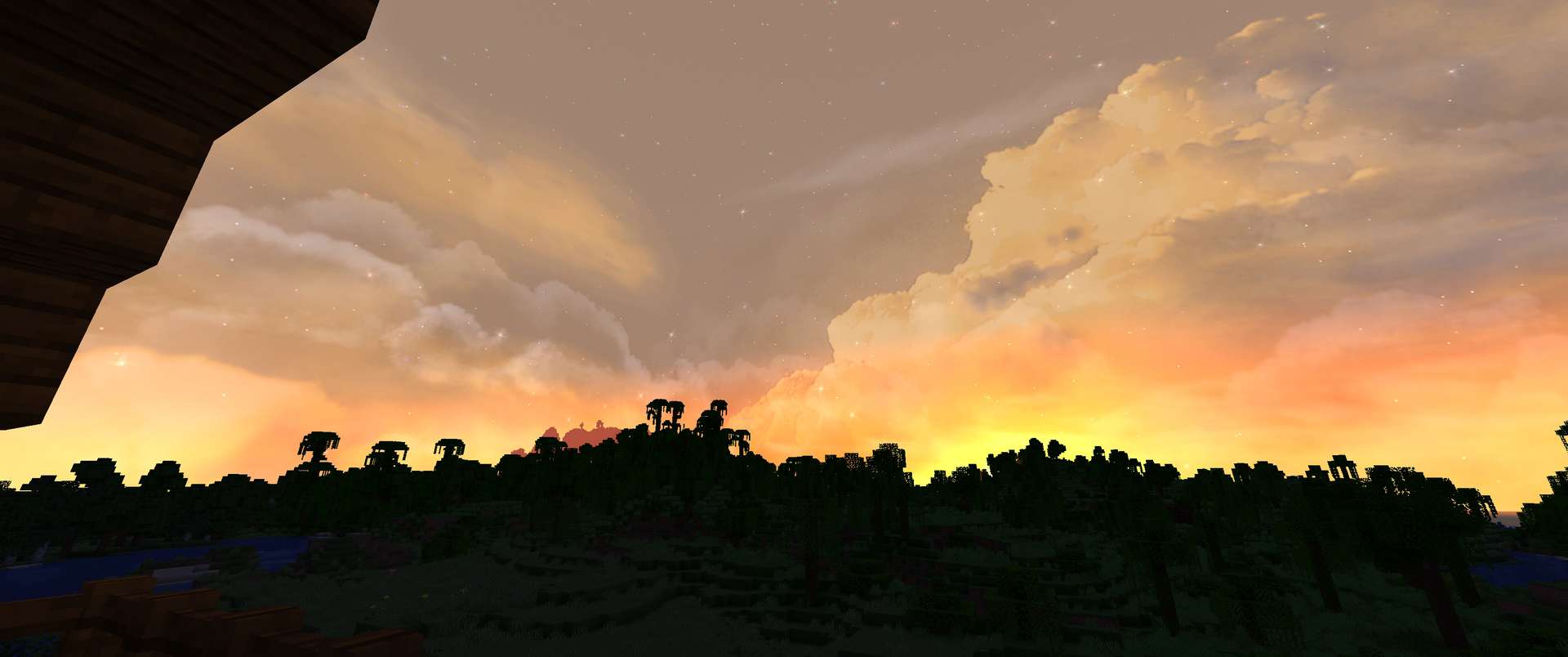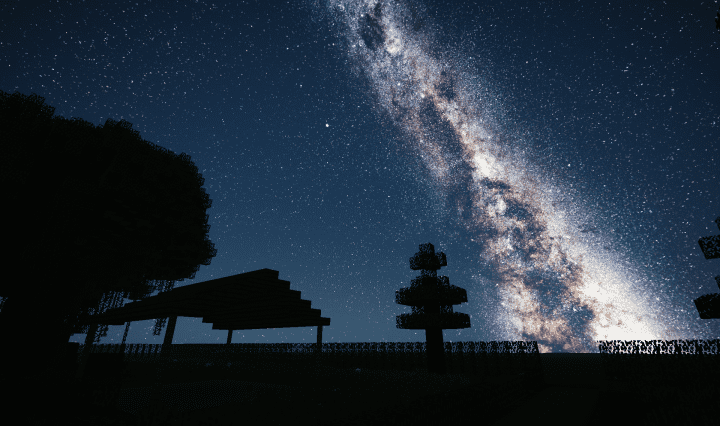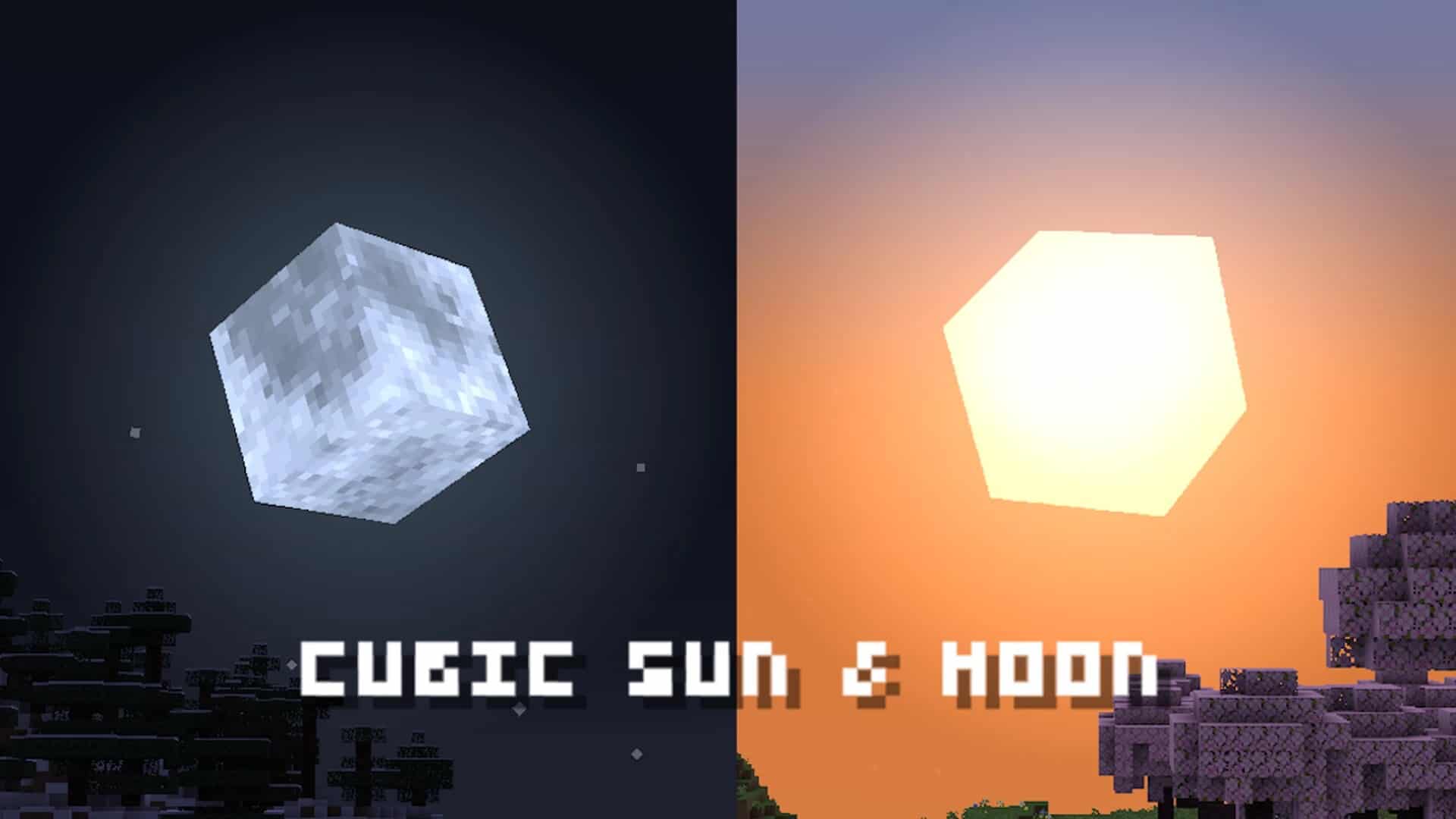
One thing I’ve always found interesting about Minecraft is how almost everything follows the game’s iconic blocky design, yet the sun and moon have traditionally looked square rather than properly cubic. It’s a small detail, but if you enjoy keeping your Minecraft world visually consistent, the Cubic Sun & Moon resource pack by JoeFly is a clever little upgrade worth checking out. Instead of completely changing the game’s graphics, this pack transforms the sun and moon into three-dimensional cubes that fit naturally into the vanilla aesthetic. The sun looks like a glowing cube with a soft radial gradient, while the moon features detailed textures inspired by NASA’s lunar imagery. What makes the moon particularly interesting is that each of its eight phases has its own texture, so you can still watch it change throughout the Minecraft night cycle. I really like this approach because it adds something unique to the sky without making the game feel unfamiliar. It’s the kind of small visual improvement you might not notice immediately, but once you do, it becomes difficult to imagine the original look the same way again.
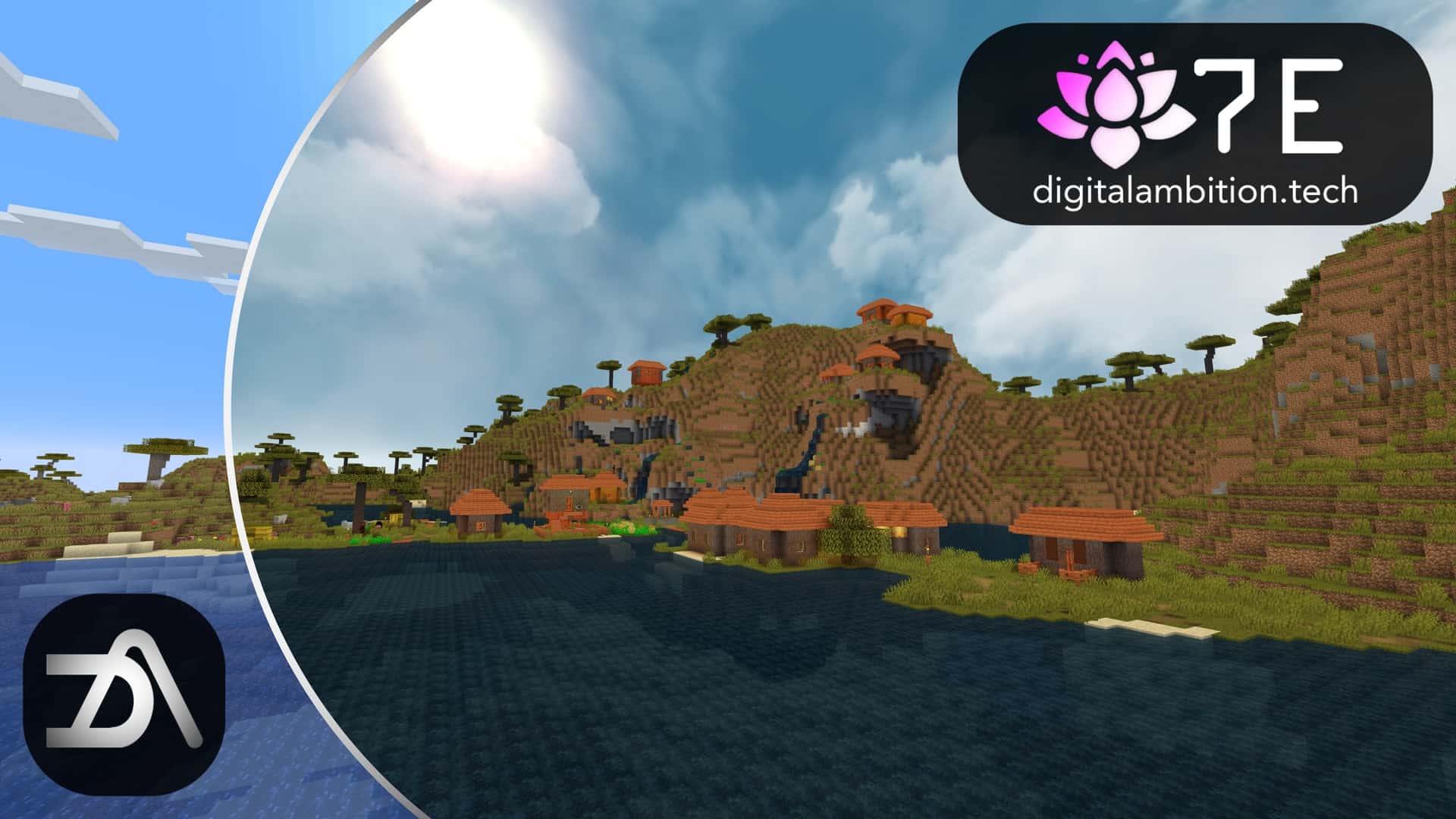
Another major advantage of Cubic Sun & Moon is its lightweight design. The pack uses Minecraft’s default 16x resolution, so it shouldn’t have any noticeable impact on performance. You can also use it alongside compatible shaders such as BSL and Complementary, although certain shader settings may override the custom sun and moon textures. Java Edition players can find support across a broad range of game versions, while Bedrock Edition users can also enjoy the cubic sky design. The pack is especially interesting for players who use mods that introduce custom dimensions or skies, with compatibility available for projects such as Ad Astra, Galacticraft, and Blue Skies. However, compatibility can depend on the specific mod, game version, and configuration, so checking the latest release details is always a good idea. Whether you play vanilla survival, spend your time building massive cities, or enjoy heavily modded adventures, this pack offers a simple way to make the sky feel more consistent with Minecraft’s block-based world.
Overall, Cubic Sun & Moon is a great example of how a tiny visual change can make Minecraft feel more polished. It doesn’t add new mechanics, alter gameplay, or demand powerful hardware. Instead, it focuses on one small detail and executes the idea beautifully. If you prefer resource packs that preserve the original Minecraft style while adding something fresh, JoeFly’s creation is definitely worth trying. Sometimes, the best improvements aren’t massive graphical overhauls; they’re the little touches that make the world feel just right.
Cubic Sun & Moon should be compatible with all of these Minecraft versions: 26.3 – 26.2 – 26.1.2 – 26.1.1 – 26.1 – 1.21.11 – 1.21.10 – 1.21.9 – 1.21.8 – 1.21.7 – 1.21.6 – 1.21.5 – 1.21.4 – 1.21.3 – 1.21.2 – 1.21.1 – 1.21 – 1.20.6 – 1.20.5 – 1.20.4 – 1.20.3 – 1.20.2 – 1.20.1 – 1.20 – 1.19.4 – 1.19.3 – 1.19.2 – 1.19.1 – 1.19 – 1.18.2 – 1.18.1 – 1.18 – 1.17.1 – 1.17 – 1.16.5 – 1.16.4 – 1.16.3 – 1.16.2 – 1.16.1 – 1.16 – 1.15.2 – 1.15.1 – 1.15 – 1.14.4 – 1.14.3 – 1.14.2 – 1.14 – 1.13.2 – 1.13.1 – 1.13 – 1.12.2 – 1.12 – 1.11.2 – 1.11 – 1.10.2 – 1.10 – 1.9.4 – 1.9 – 1.8.9 – 1.8.8 – 1.8.1 – 1.8.6 – 1.8 – 1.7.10 – 1.7.9 – 1.7.4 – 1.7 – 1.6.4 – 1.6.2
Cubic Sun & Moon Resource Pack – Screenshots


How to Install Texture Pack (Simple 10 Steps)
- Download OptiFine: Most of the texture packs and shaders need OptiFine. That’s why, first download and install OptiFine for the version of Minecraft you want to play.
- Download the Texture Pack: Get the texture pack you want from the download section. Choose the version that works with your Minecraft and your PC’s performance.
- Open Minecraft Launcher: Start Minecraft using the official game launcher — or even TLauncher, if you use that.
- Go to Options: From the main menu, click on the “Options” button.
- Open Resource Packs: Inside Options, click on “Resource Packs…”.
- Open the Resource Pack Folder: Click on “Open Resource Pack Folder” — this will open a folder named “resourcepacks”.
- Move the Pack File: Copy or move the .zip file you downloaded into that “resourcepacks” folder. (Don’t unzip the file — Minecraft uses it as-is!)
- Go Back and Refresh: Close the folder and click “Done”, then go back into “Resource Packs…” again.
- Activate the Pack: You’ll see the pack on the left side. Hover over it and click the arrow to move it to the right (active side).
Tip: If you get a message that the pack is for a different version, just click “Yes” — it usually works fine. - Click Done and Enjoy: Click “Done” again. Now your pack is ready to use in-game. It’s that easy!
Credits
This resource pack was created by JoeFly. We do not claim ownership of this content, and we do not host or modify any download files on our servers. All rights and credits belong entirely to the original creator. We strongly encourage you to support JoeFly by downloading the pack from the official sources and checking out their other projects.
Cubic Sun & Moon Texture Pack — Creator Credit
Original files: We feature community-made content without claiming ownership of other creators' work. Download the pack from its linked source rather than an independently re-uploaded copy on this website.
Download availability: The original publisher controls the availability of each file. Links and supported versions can change, so please report any broken download link in the comments to help us keep the page useful.
Independent fan website: Minecraft is a trademark of Mojang Studios and Microsoft. This website is independently operated and is not affiliated with or endorsed by either company.
Support the creator: Enjoying this pack? Consider visiting the creator's official page, leaving constructive feedback, or supporting their work through the options they provide.
Download Instructions
Choose the download source linked in this article and follow the steps below.
CurseForge
CFOpen the provided CurseForge page and select the download option if needed. The file may start downloading automatically after a short wait.
MediaFire
MFOn the MediaFire file page, locate the main Download button and click it. Avoid unrelated advertisements or pop-ups.
Google Drive
GDOpen the file preview and select the download icon near the upper-right corner. If preview is unavailable, follow the options shown by Google Drive.
Important Download Information
We provide links to original creator pages and third-party file-hosting services; downloads are not hosted on our own servers. We aim to use relevant source links and check them, but their availability and authenticity can change. A link is not a guarantee that a file has been independently security-tested. Please use trusted sources, review downloaded files carefully, and report broken links in the comments. Minecraft is a trademark of Mojang Studios and Microsoft; this website is independent and is not officially affiliated with either company.