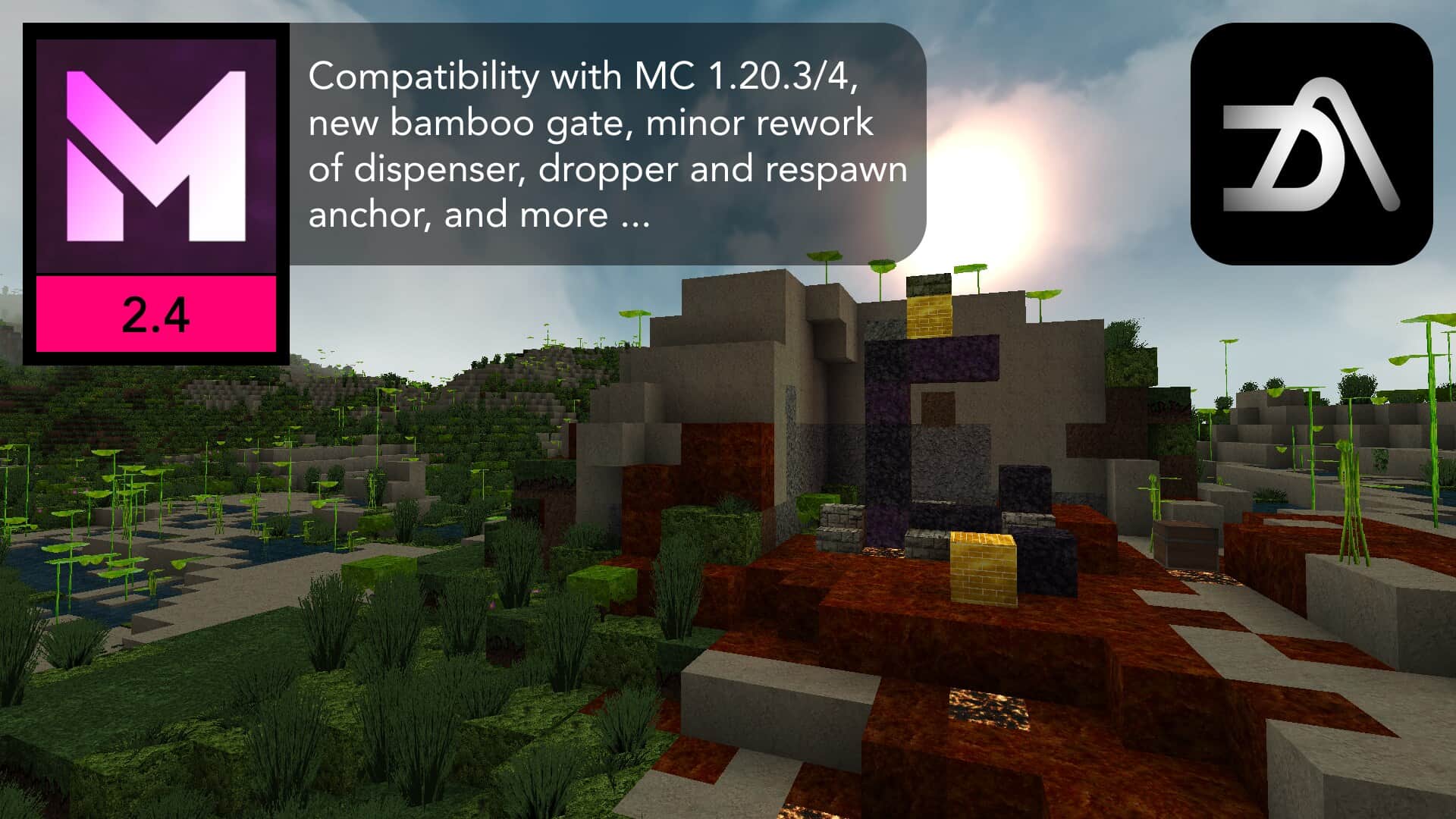
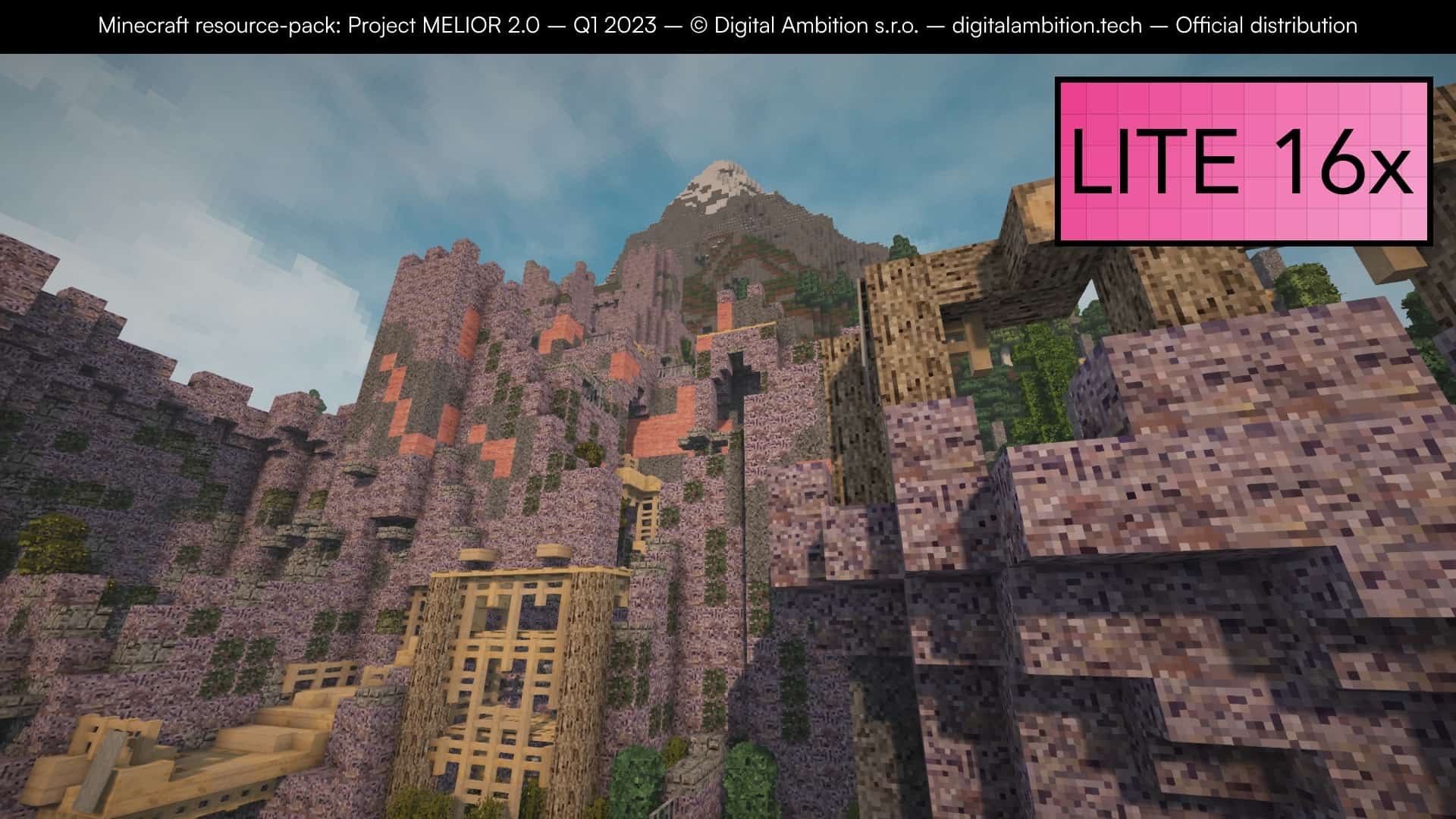
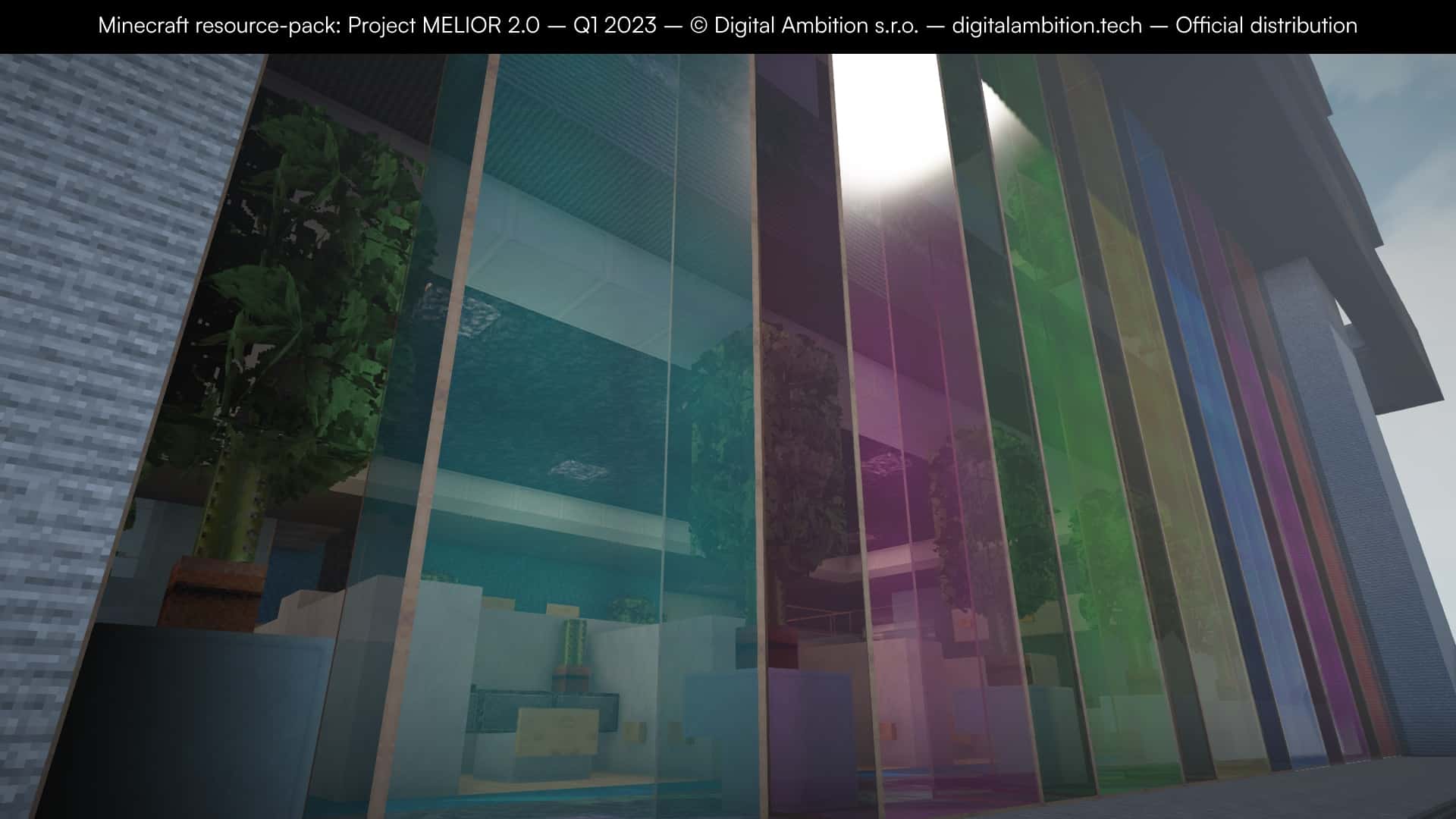
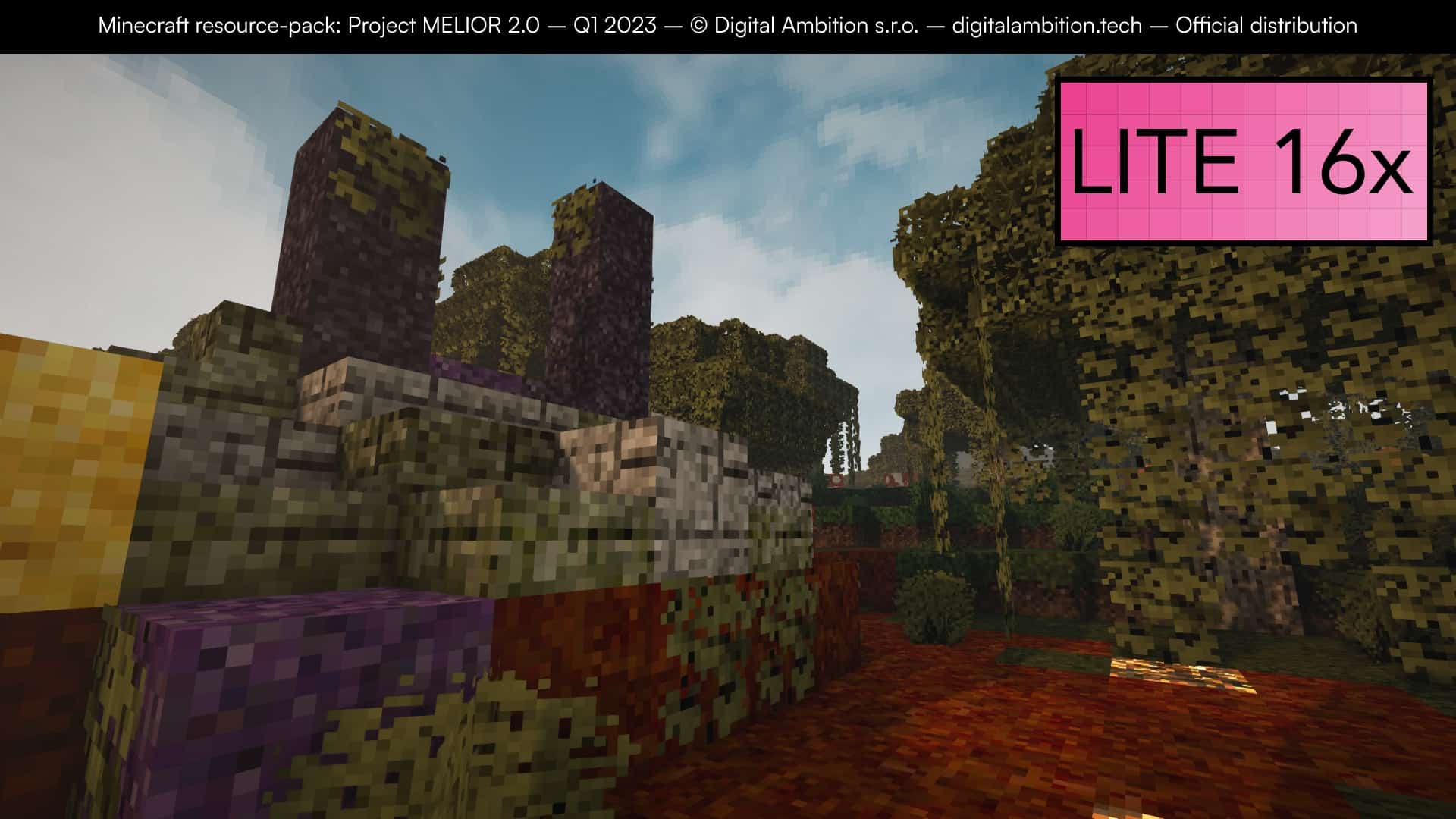
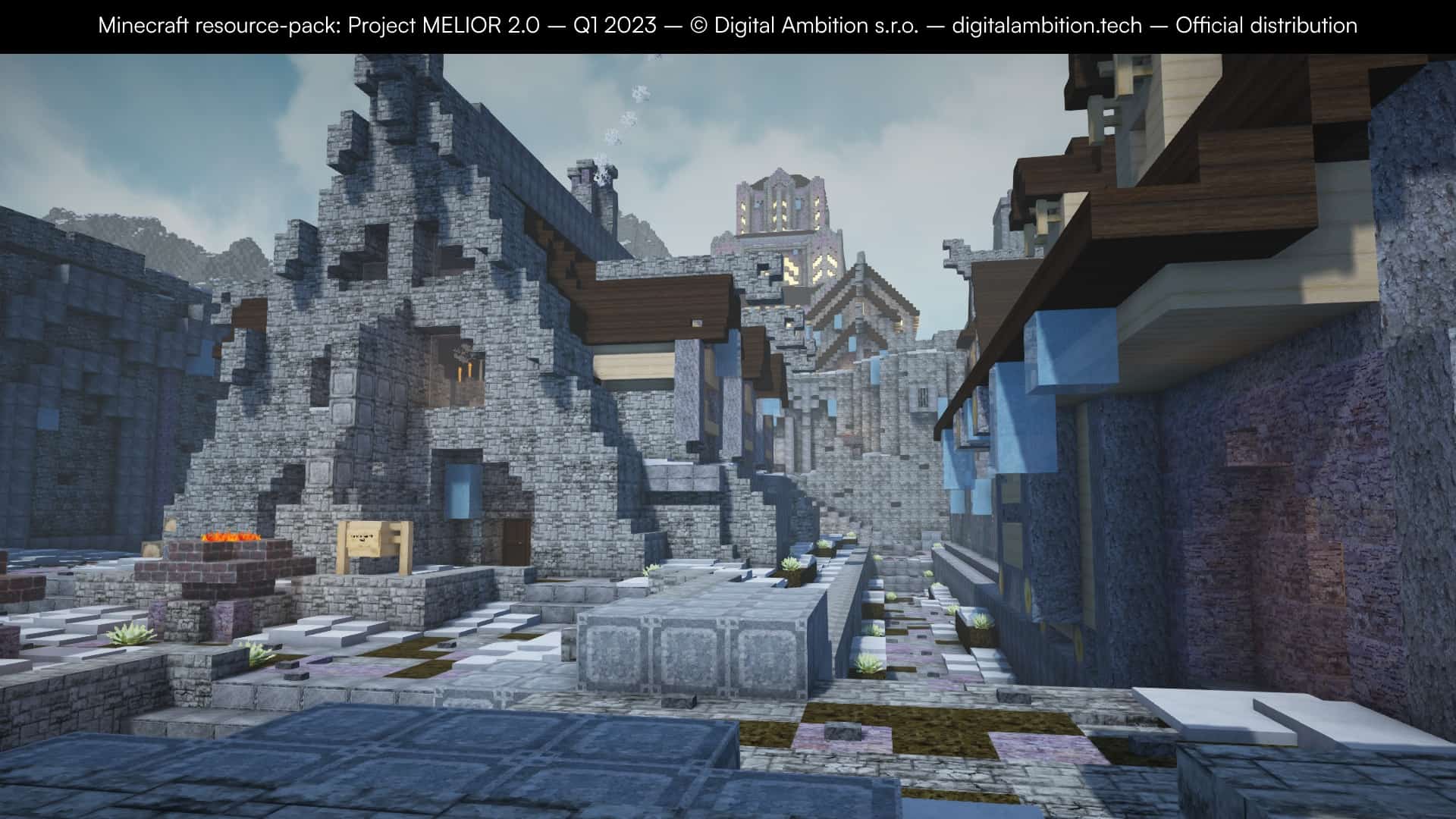
When it comes to originality, most resource packs simply take existing textures and add a bit of polish to them, usually by increasing the resolution, tweaking the colors, or smoothing out the edges. Truly original resource packs, however, completely replace existing textures with entirely new ones. Project MELIOR is an incredible resource pack that manages to be wonderfully original in terms of visuals while adding a much-needed layer of polish to Minecraft. Released in early 2022 for Minecraft 1.18, this pack benefits from having an active team of developers that continues to push out fantastic updates. The biggest advantage this pack had at launch was coming right out of the gate with over 2000 original textures from day one, making it feel almost completely finished with very few default textures left behind. The development team has even laid out a clear roadmap for their future updates. As mentioned, Project MELIOR introduces over 2000 original textures, yet it still brilliantly preserves the classic vibe and feel of Minecraft. The blocky charm of models, blocks, mobs, and items remains completely intact, while the details and appearances of the textures get a stunning upgrade. Everything from dirt, gravel, ores, weapons, tools, trees, leaves, and grass to mobs has received a much-needed visual improvement, alongside gorgeous updates to water and sky textures.
There are also fantastic improvements to weather effects like snow and rain, and various particle types have been tweaked to look significantly better overall. All these enhancements combine to make vanilla Minecraft look remarkably polished. Among its many additions, Project MELIOR also brings fresh new item icons and a revamped GUI that makes inventory management much smoother while improving visibility for elements like player hit points. To achieve these gorgeous visuals, the team had to step up the resolution, as replacing 16x textures with new 16x textures wouldn’t offer a substantial enough leap in quality. They wisely chose a 64x resolution. While this resolution bump drastically improves the looks, it might come with a minor cost to performance. Many packs stick to 32x, while heavier ones go up to 128x or 256x, but Project MELIOR sits in the absolute sweet spot. It doesn’t try to be hyper-photorealistic; instead, it strikes a perfect balance between realism, artistic creativity, and gameplay functionality, boosting your visuals without crippling your hardware. Please note that this is a premium pack available by supporting the creators on Patreon, and you will want to use tools like Optifine to fully enjoy features like the custom sky textures, ideally paired alongside the recommended BSL Shaders for the ultimate visual experience.
Project MELIOR should be compatible with all of these Minecraft versions: 1.20.4 – 1.20.3 – 1.20.2 – 1.20.1 – 1.20 – 1.19.4 – 1.19.3 – 1.19.2 – 1.19.1 – 1.19 – 1.18.2 – 1.18.1 – 1.18 – 1.17.1 – 1.17 – Bedrock Edition – PE
Screenshots
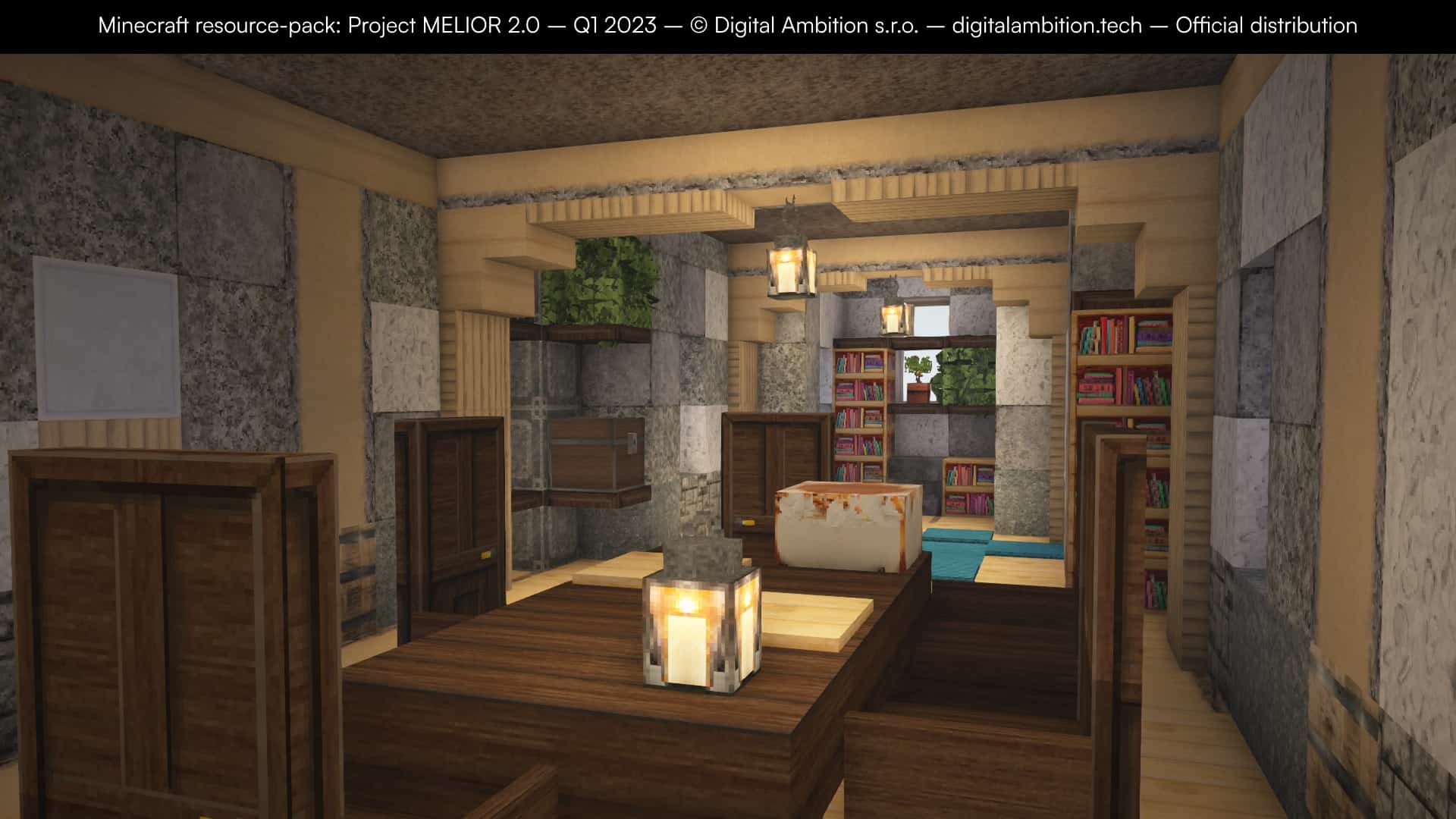
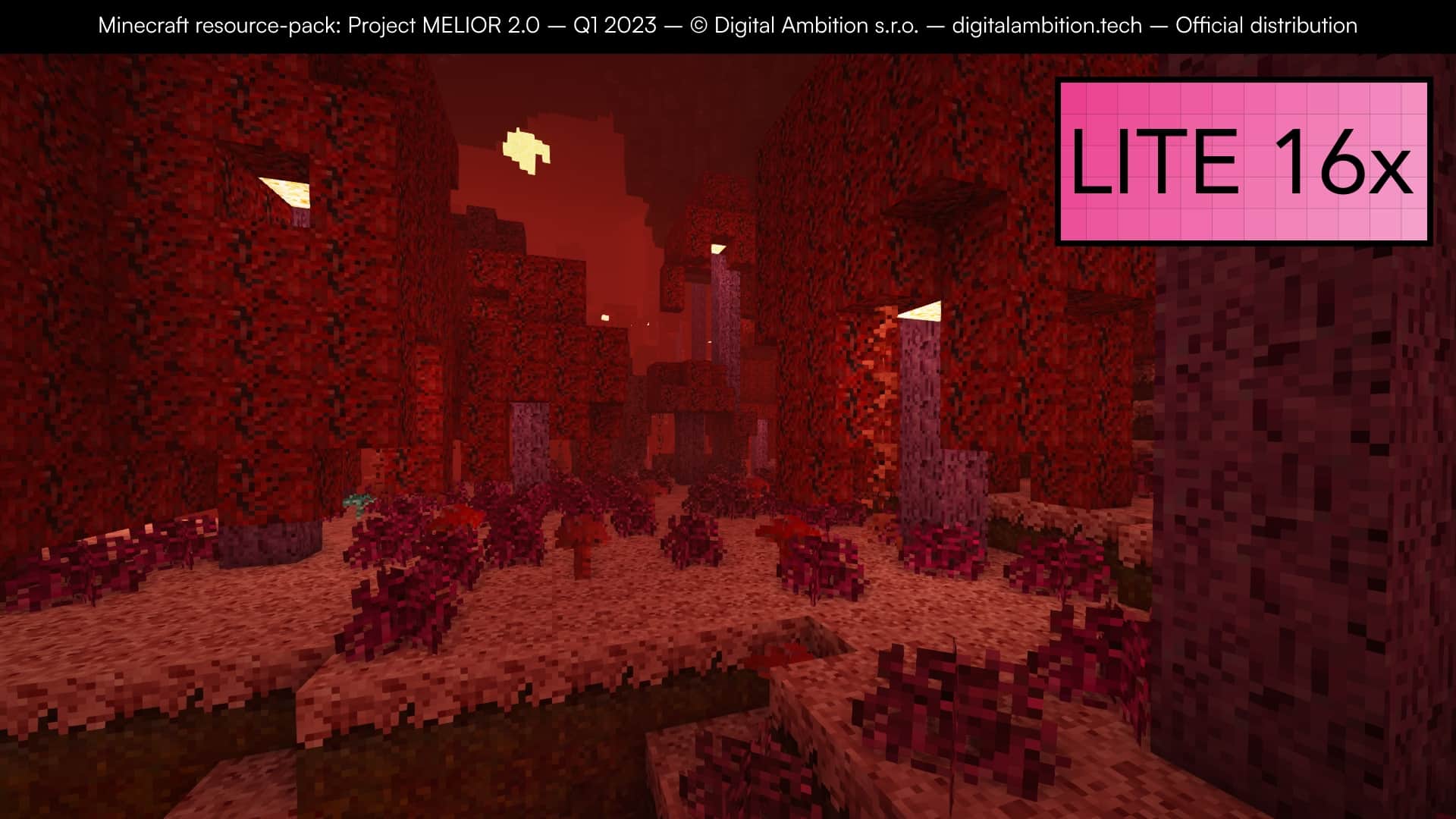
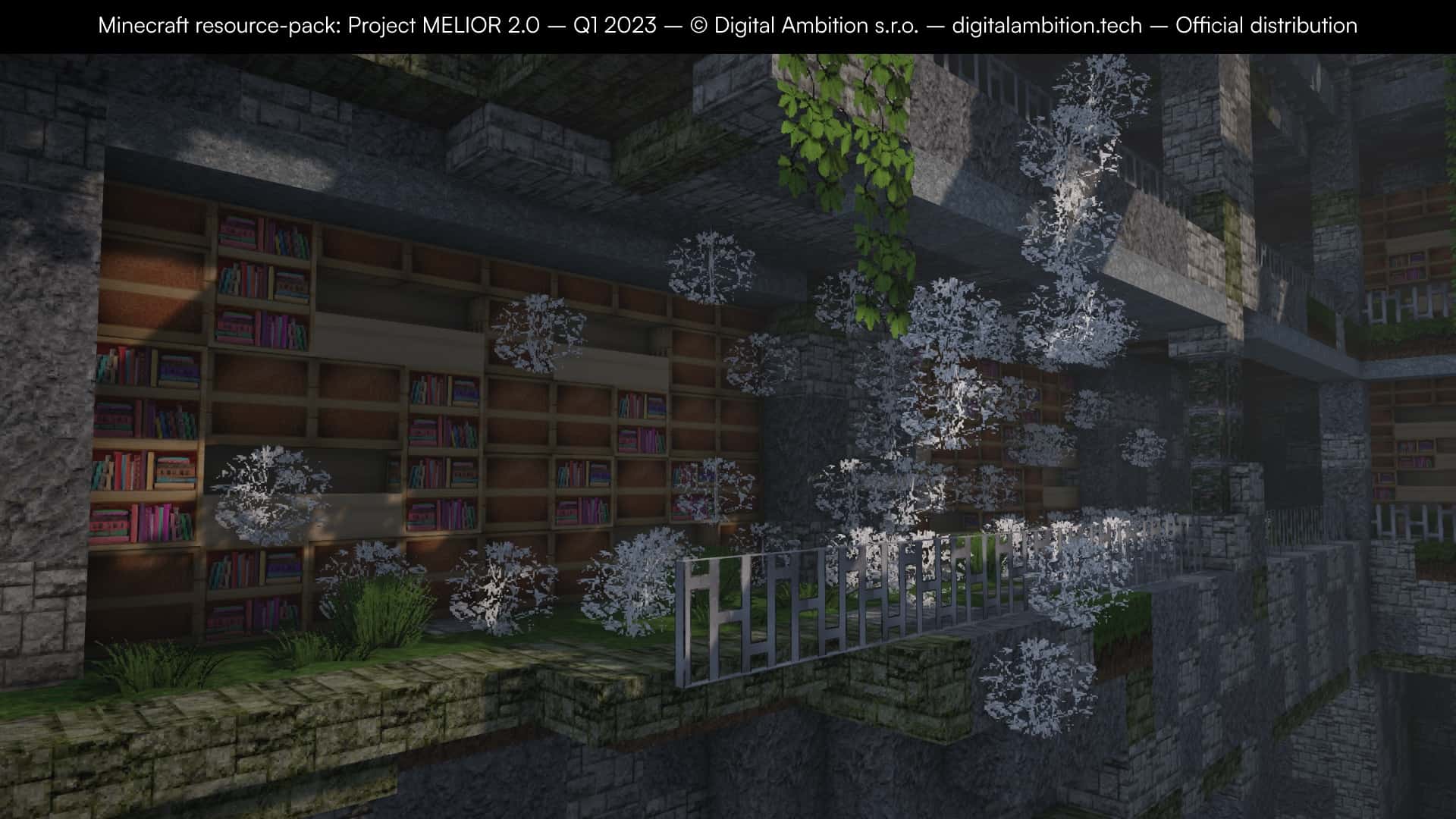
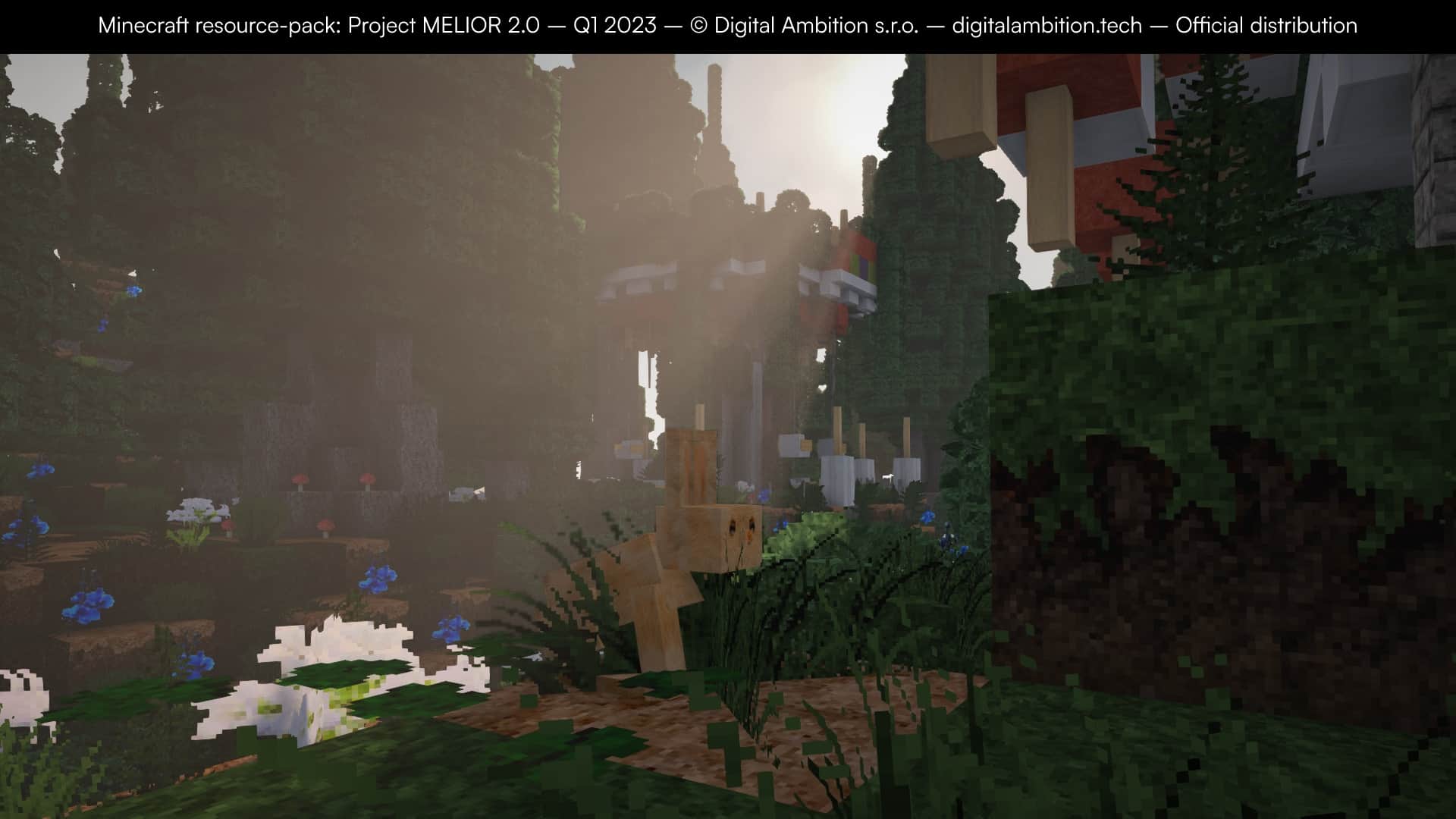

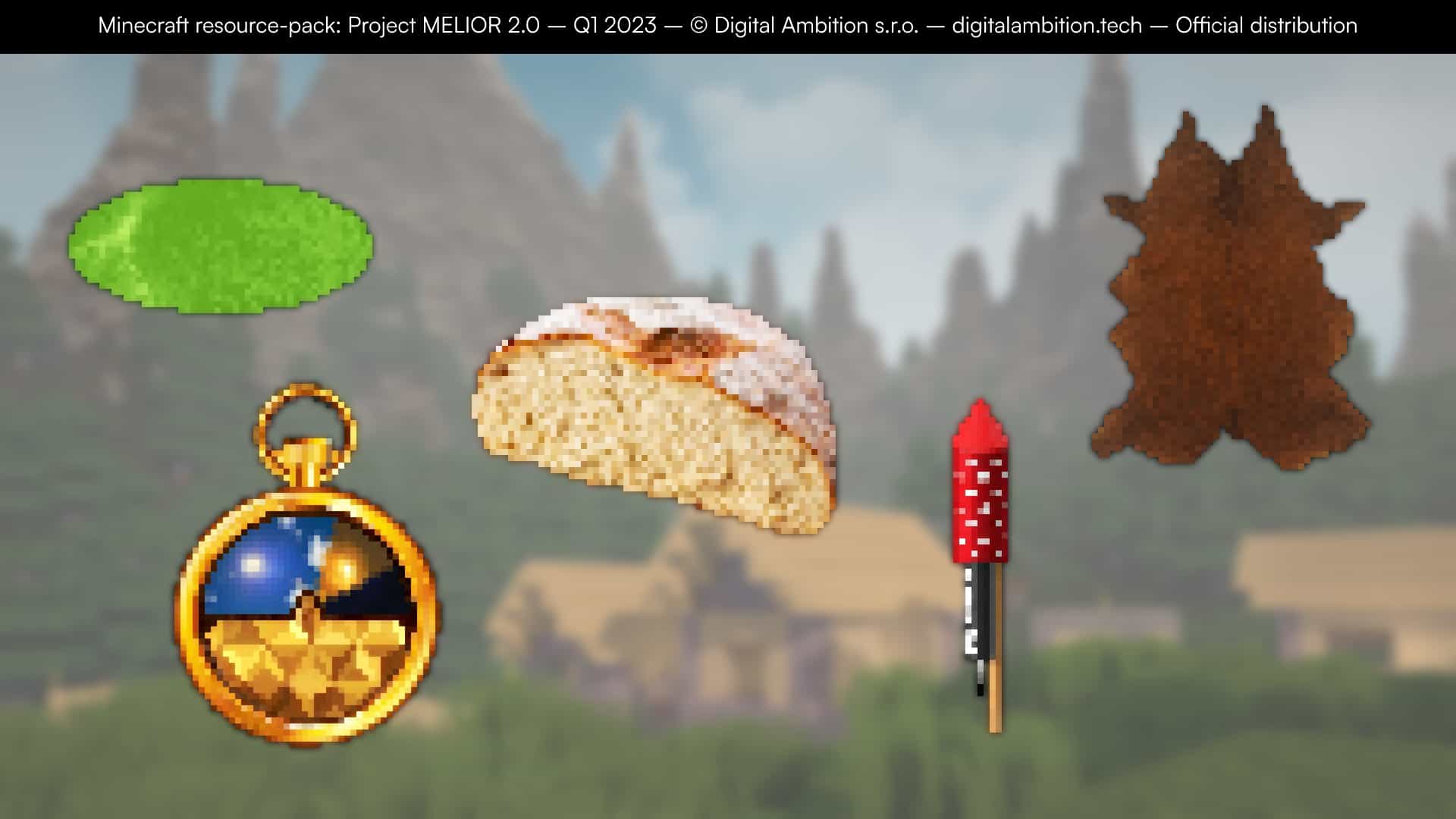
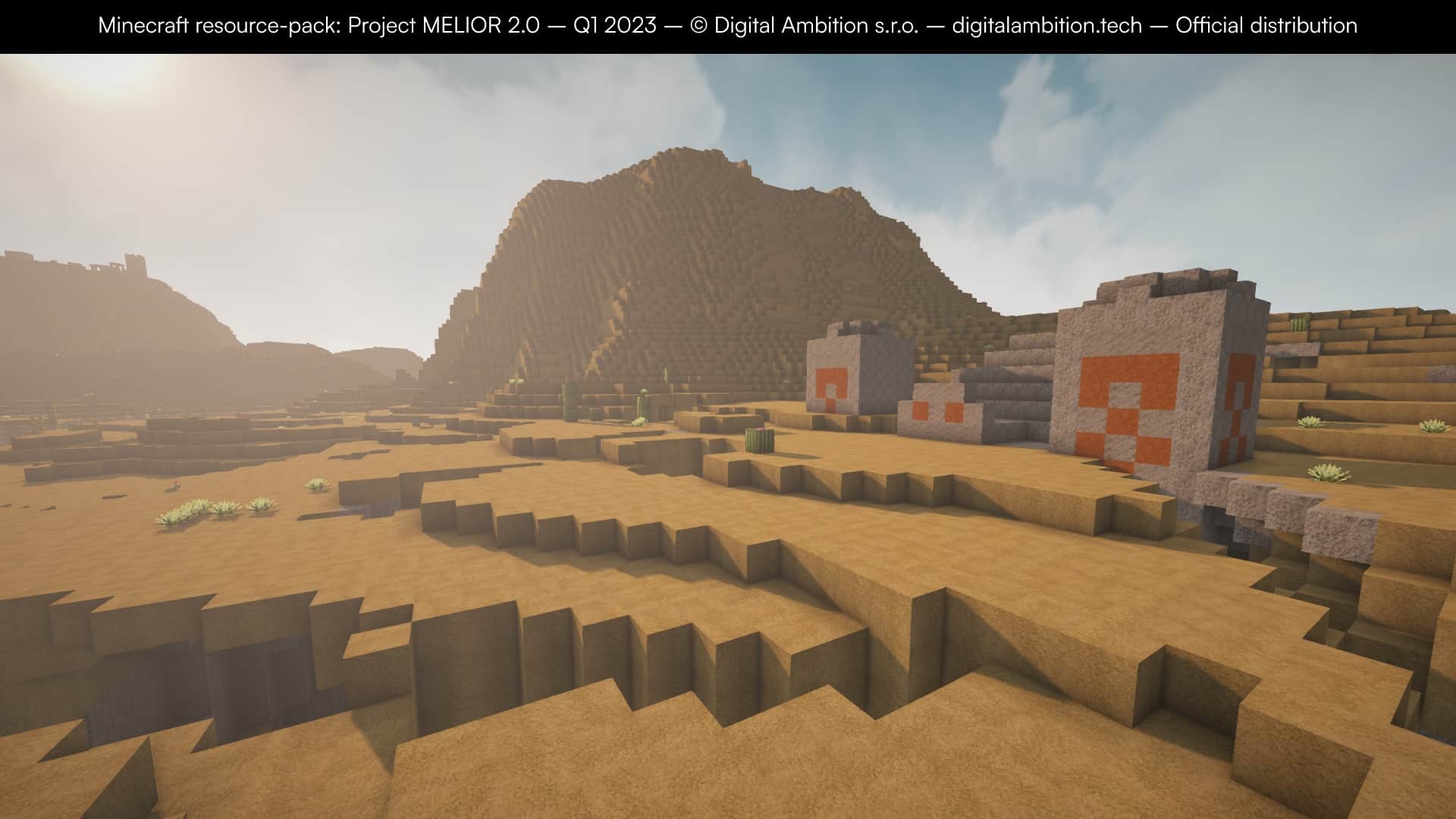
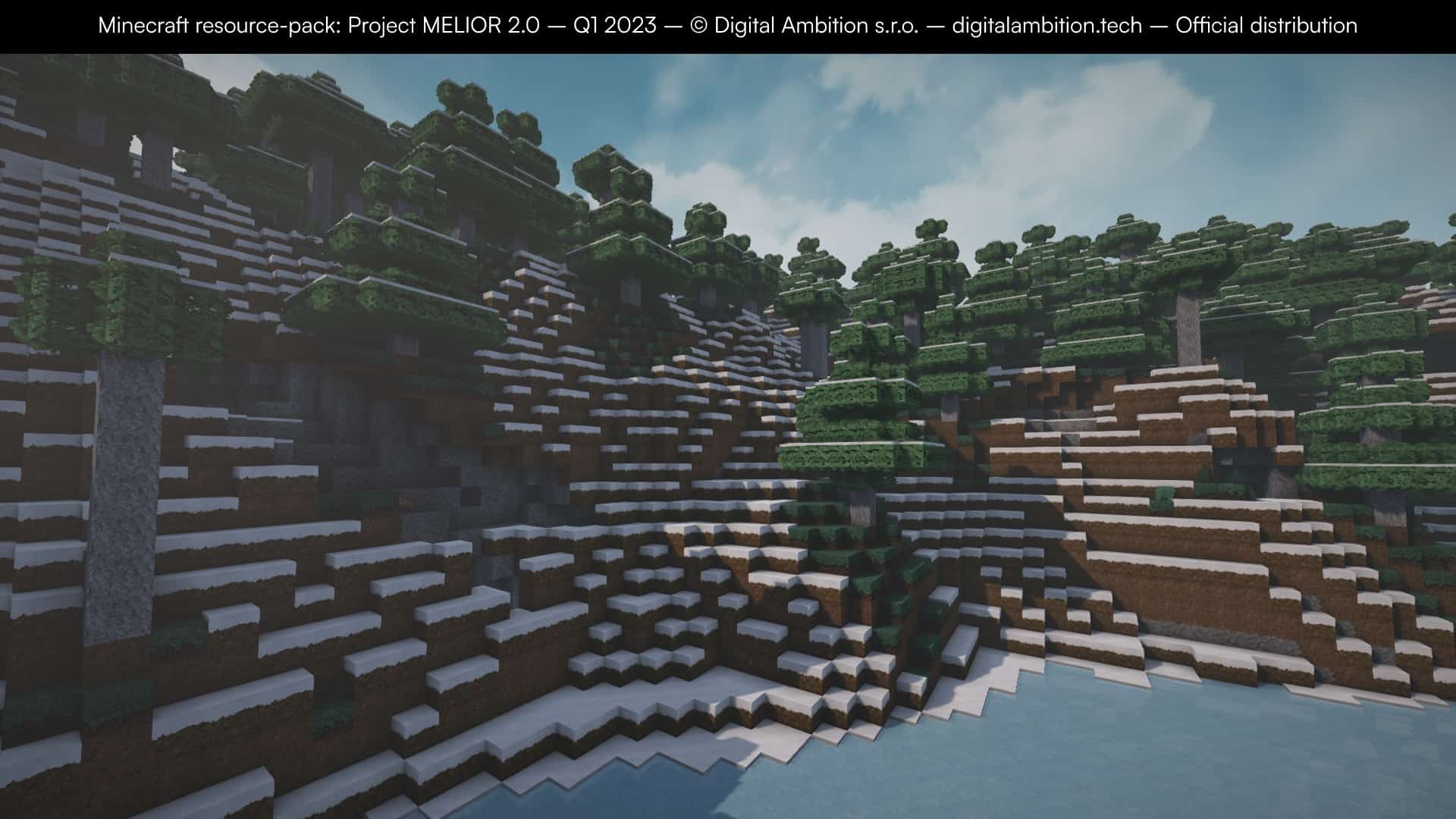
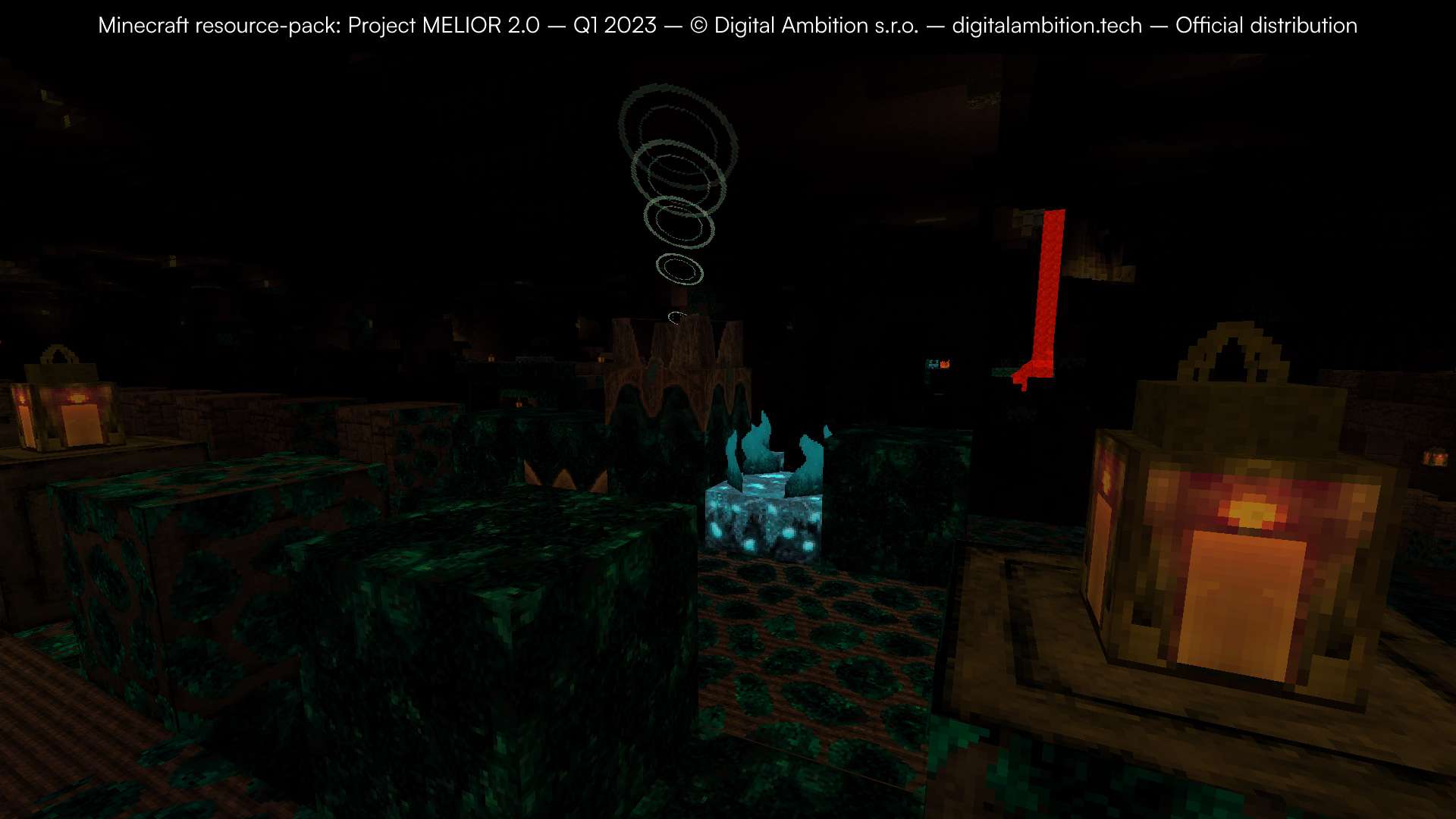

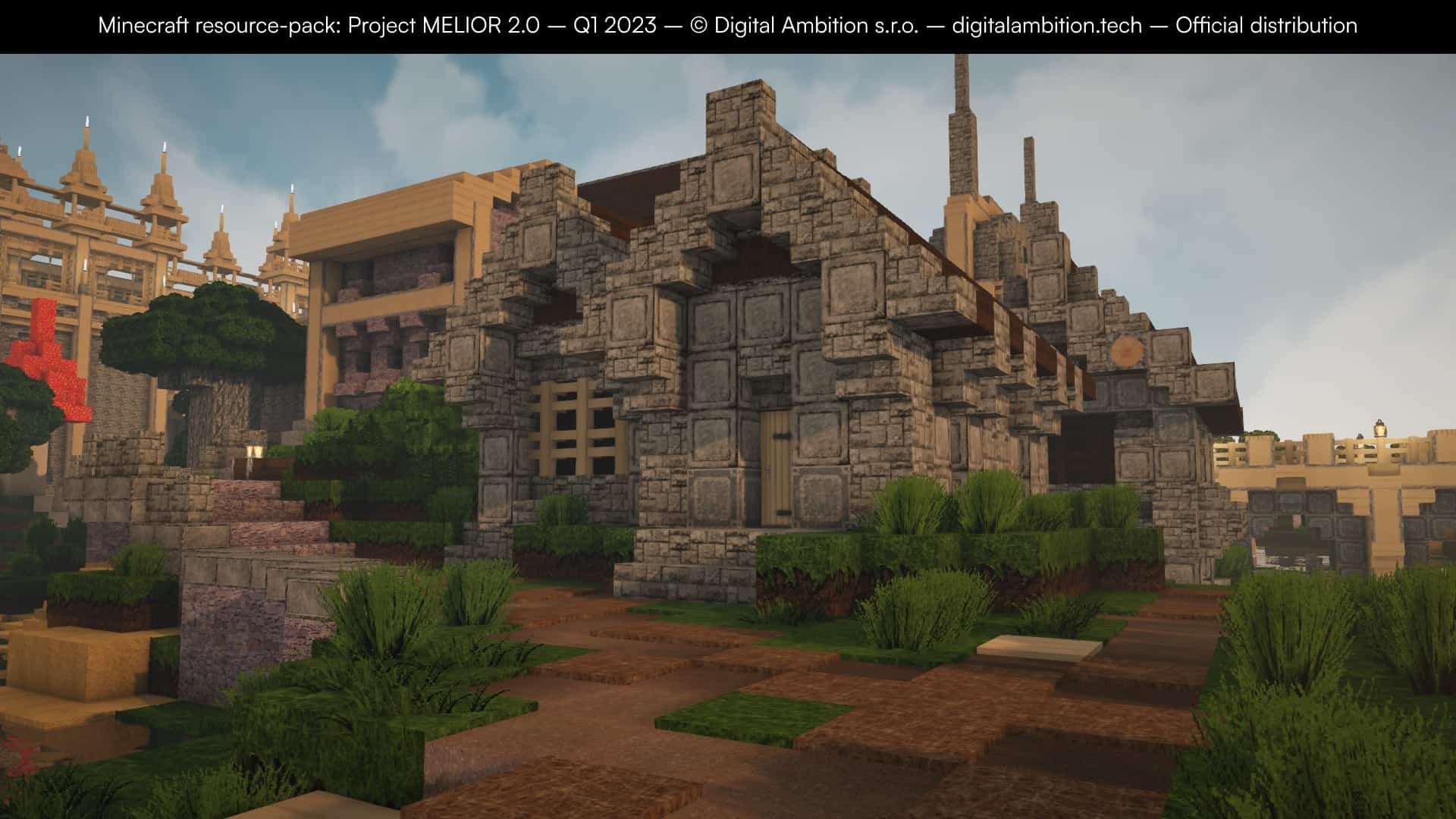
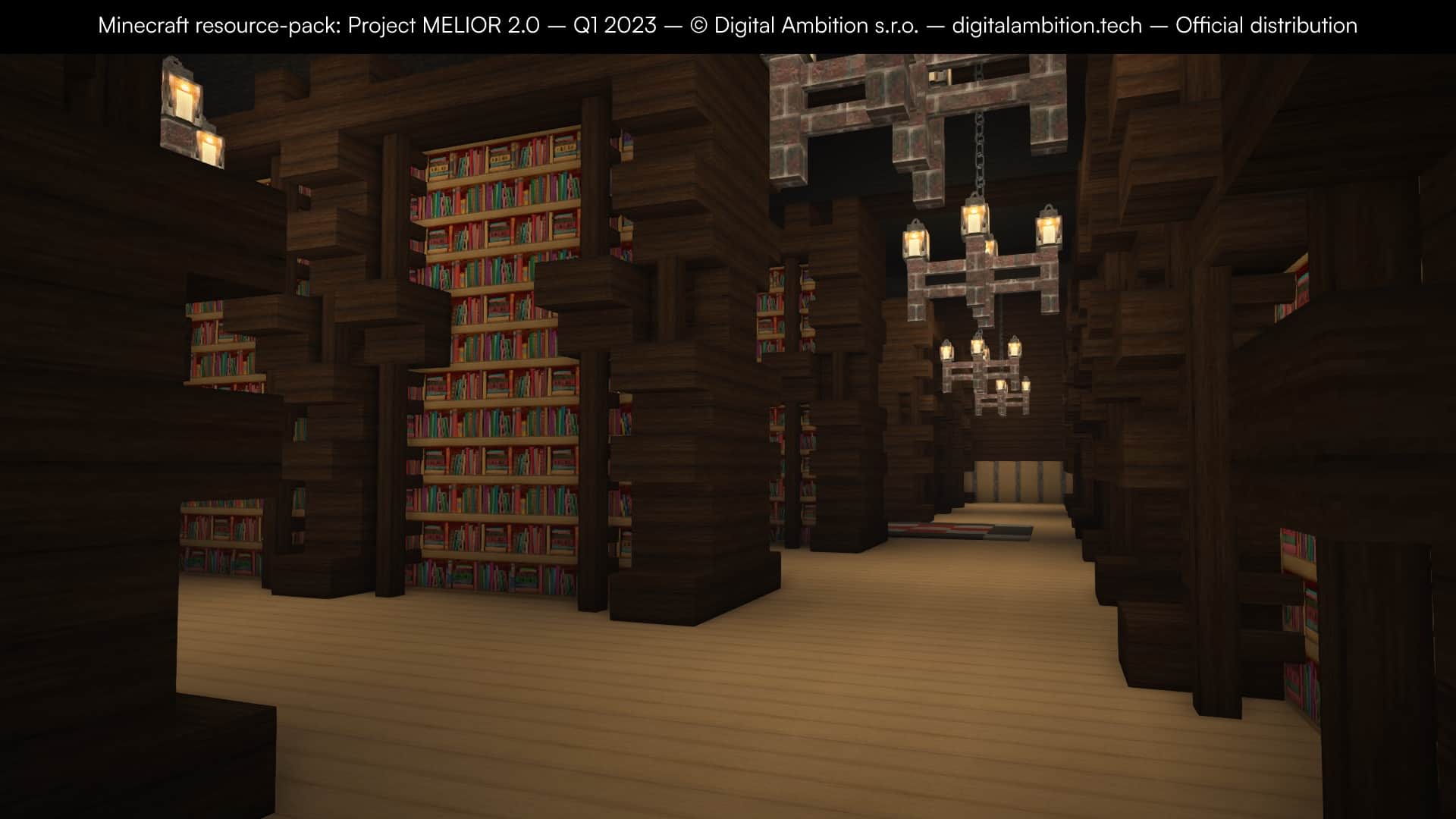

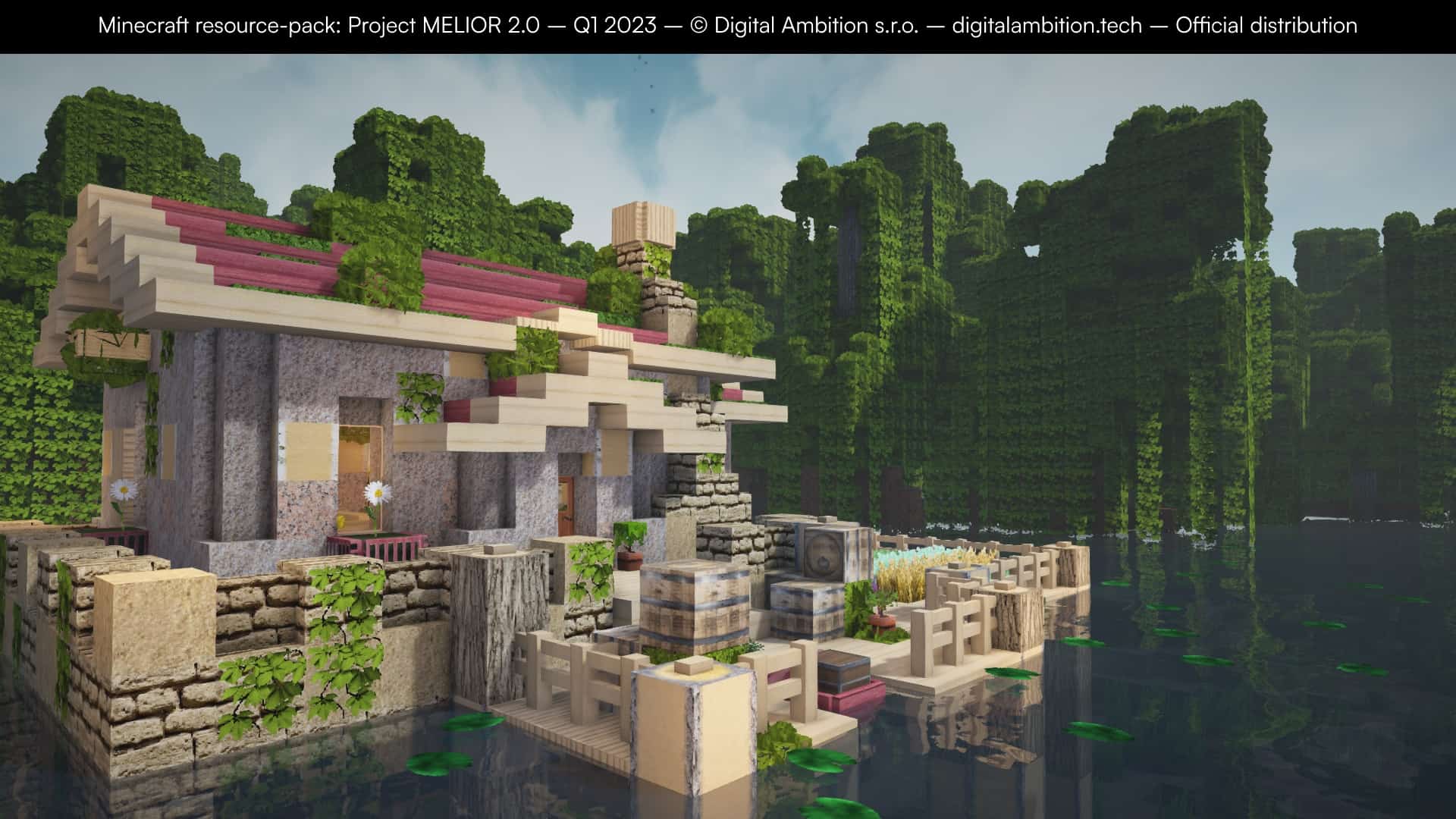
How to Install Texture Pack (Simple 10 Steps)
- Download OptiFine: Most of the texture packs and shaders need OptiFine. That’s why, first download and install OptiFine for the version of Minecraft you want to play.
- Download the Texture Pack: Get the texture pack you want from the download section. Choose the version that works with your Minecraft and your PC’s performance.
- Open Minecraft Launcher: Start Minecraft using the official game launcher — or even TLauncher, if you use that.
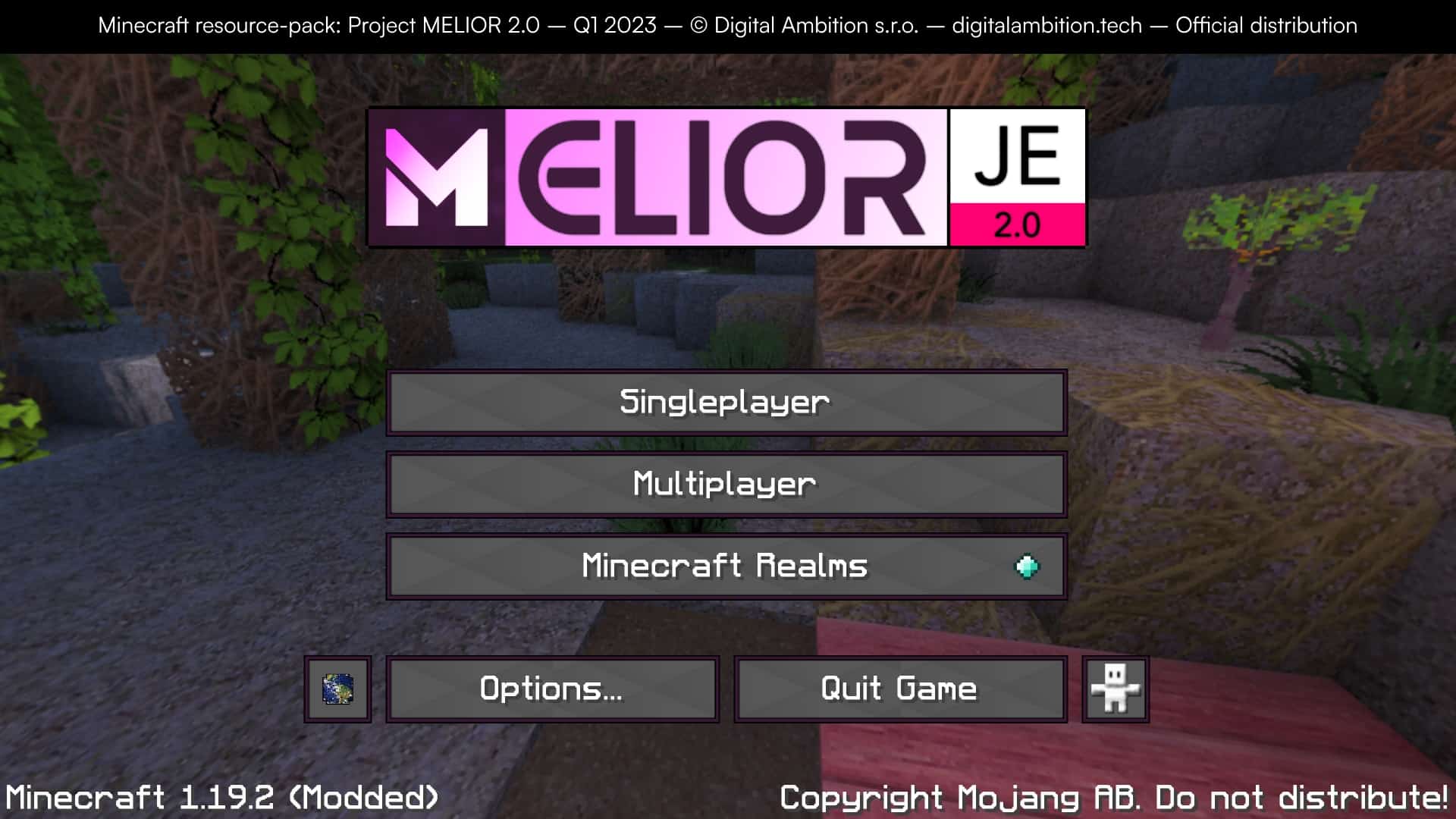
- Go to Options: From the main menu, click on the “Options” button.
- Open Resource Packs: Inside Options, click on “Resource Packs…”.
- Open the Resource Pack Folder: Click on “Open Resource Pack Folder” — this will open a folder named “resourcepacks”.
- Move the Pack File: Copy or move the .zip file you downloaded into that “resourcepacks” folder. (Don’t unzip the file — Minecraft uses it as-is!)
- Go Back and Refresh: Close the folder and click “Done”, then go back into “Resource Packs…” again.
- Activate the Pack: You’ll see the pack on the left side. Hover over it and click the arrow to move it to the right (active side).
Tip: If you get a message that the pack is for a different version, just click “Yes” — it usually works fine. - Click Done and Enjoy: Click “Done” again. Now your pack is ready to use in-game. It’s that easy!
Credits
Project MELIOR was created by Digital Ambition. We do not claim ownership of this content and do not modify the original files. Please visit and support the creator via their official platforms.
Download Links
Java Edition
- [Lite] [16x] Minecraft 1.20.x – 1.17.x
- [Demo] [64x] Minecraft 1.20.x – 1.17.x
- [Full] [64x] Minecraft 1.20.x – 1.17.x
Bedrock Edition
Download Instructions
Curseforge: download starts automatically after a few seconds;
Mediafire: click the big blue button with the text “DOWNLOAD”;
Google Drive: in the top right corner you will see a small download icon (down arrow), click it and the download should start;


