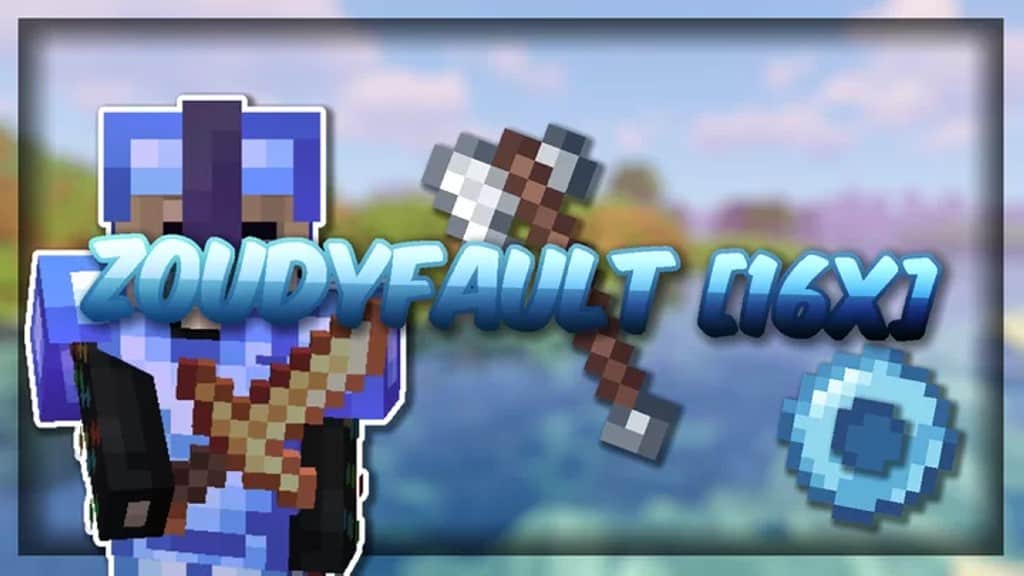
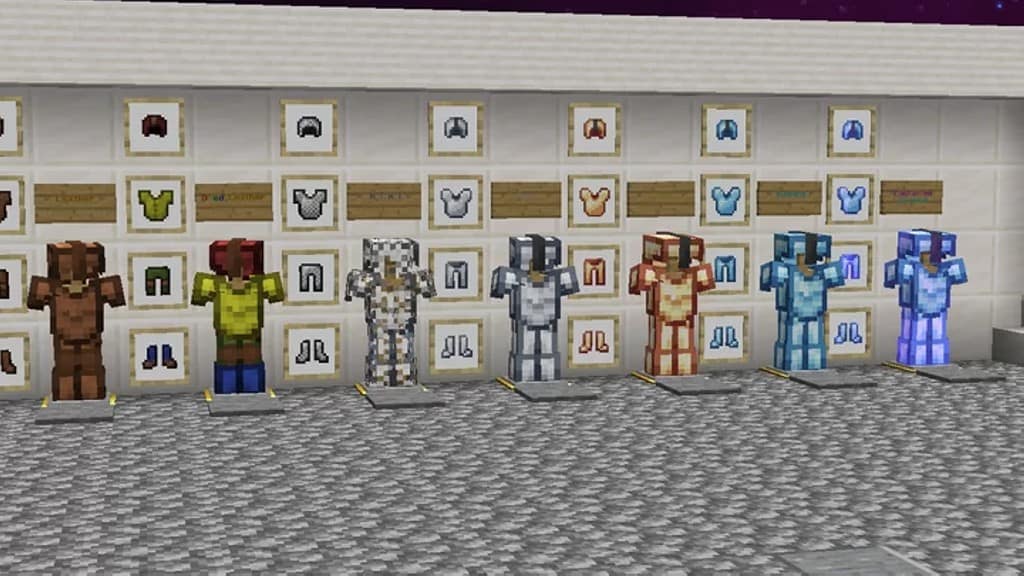
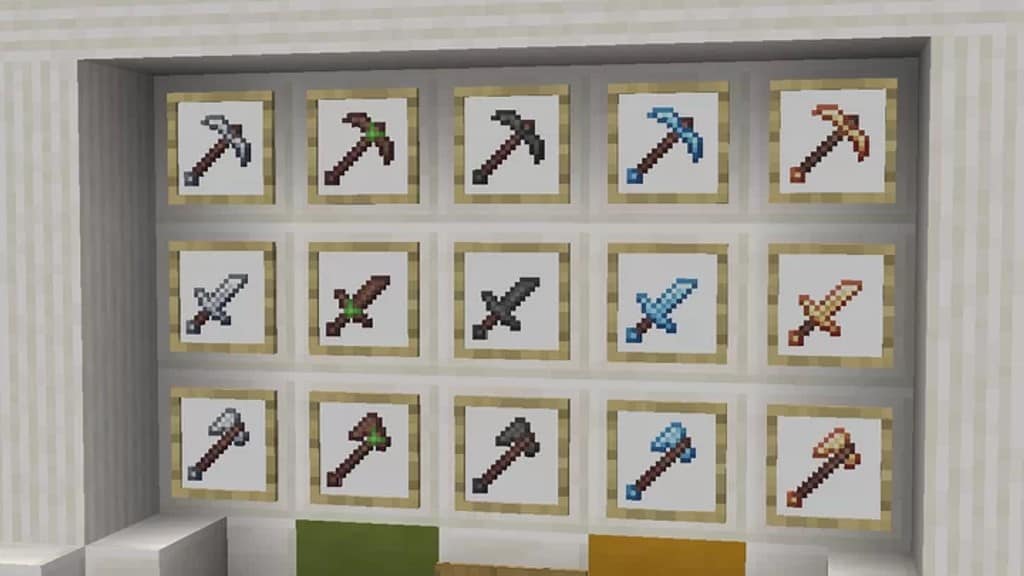
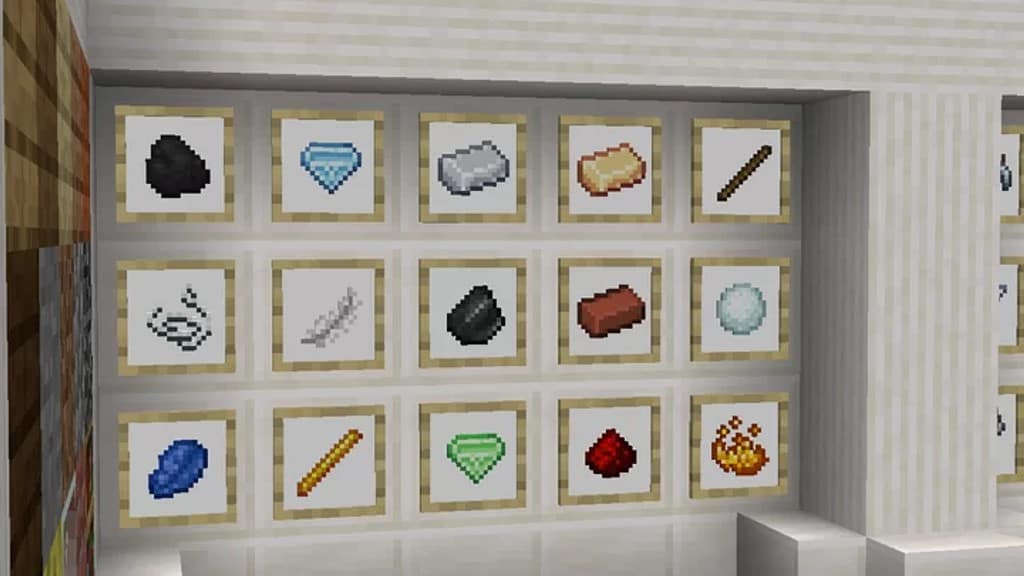
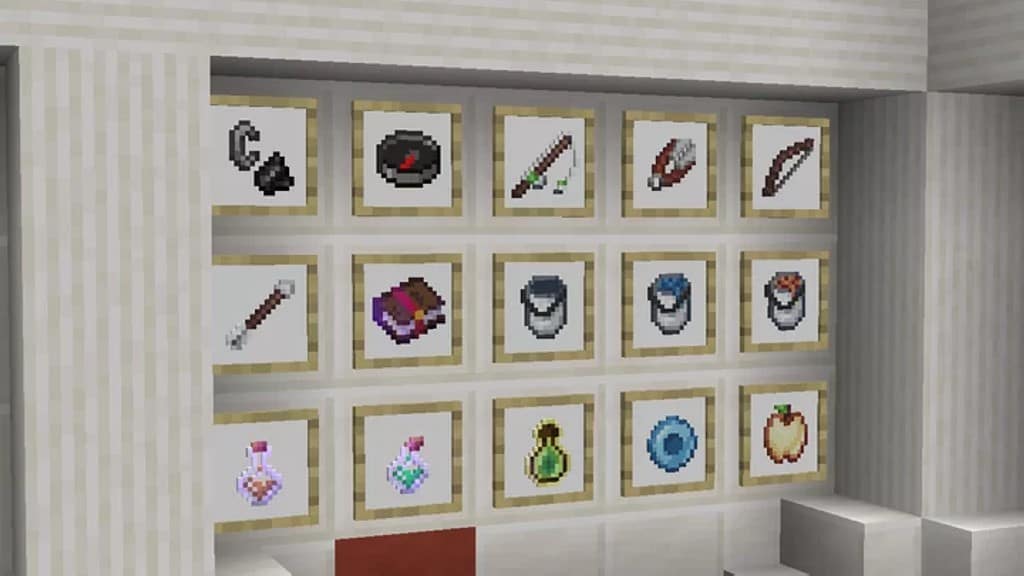
The ZoudyFault resource pack made its debut in early 2021. It is a wonderfully straightforward resource pack that does not try to reinvent vanilla Minecraft, but what it manages to achieve, it executes exceptionally well. Tailored specifically around PvP, this resource pack introduces targeted changes focusing heavily on combat and items. You will find brilliant new textures and icons for weapons, armors, and items. To top off all these incredible changes, there are also striking new designs for potions and shields. There are thousands of resource packs out there for Minecraft with fresh ones dropping almost daily, and most players tend to stay conservative, sticking to old resource packs for various reasons. Yet, every once in a while, a new resource pack comes along that is genuinely worth testing out, and ZoudyFault is a shining example of that. It is a simple resource pack and for many casual players, it might not seem all that impressive at first glance, but for dedicated PvP players, it is an absolute must-try texture pack. What this resource pack cleverly avoids doing is trying to needlessly upscale the visuals in Minecraft. In fact, some textures for blocks and items were thoughtfully simplified, making them much easier to distinguish while looking wonderfully smoother. It should come as no surprise that the resource pack strictly utilizes 16x textures. As a PvP-focused resource pack, maintaining optimal game performance is critically important, which is why ZoudyFault chooses not to upscale the textures.
If those textures had been upscaled to 32x, there definitely would have been a noticeable framerate drop for many Minecraft players, regardless of how powerful their gaming rigs happen to be. Instead, sticking with 16x textures, which matches the exact resolution of vanilla Minecraft, ensures a remarkably smooth PvP experience. Some players have even happily reported that the game runs even smoother with the ZoudyFault texture pack than it does with vanilla Minecraft, which in itself is a tremendous technical achievement. For PvP competitors, being able to instantly spot other players and mobs within their line of sight is vital. Furthermore, there have been a few key changes made to particles as well; these smart tweaks allow the game to run even smoother since they were crafted primarily to optimize performance. Overall, the ZoudyFault texture pack perfectly preserves the classic vanilla Minecraft vibe that we all know and love while tweaking several essential aspects to make intense PvP and high framerates much more reliable. The ZoudyFault pack also boasts a remarkably compact file size due to the limited changes it introduces and because it smartly relies on 16x resolution textures. Shader packs are generally not recommended when using ZoudyFault, as they can potentially decrease overall game performance.
ZoudyFault PvP should be compatible with all of these Minecraft versions: 1.8.9 – 1.8.8 – 1.8.1 – 1.8.6 – 1.8 – Bedrock Edition – PE
Screenshots
How to Install Texture Pack (Simple 10 Steps)
- Download OptiFine: Most of the texture packs and shaders need OptiFine. That’s why, first download and install OptiFine for the version of Minecraft you want to play.
- Download the Texture Pack: Get the texture pack you want from the download section. Choose the version that works with your Minecraft and your PC’s performance.
- Open Minecraft Launcher: Start Minecraft using the official game launcher — or even TLauncher, if you use that.
- Go to Options: From the main menu, click on the “Options” button.
- Open Resource Packs: Inside Options, click on “Resource Packs…”.
- Open the Resource Pack Folder: Click on “Open Resource Pack Folder” — this will open a folder named “resourcepacks”.
- Move the Pack File: Copy or move the .zip file you downloaded into that “resourcepacks” folder. (Don’t unzip the file — Minecraft uses it as-is!)
- Go Back and Refresh: Close the folder and click “Done”, then go back into “Resource Packs…” again.
- Activate the Pack: You’ll see the pack on the left side. Hover over it and click the arrow to move it to the right (active side).
Tip: If you get a message that the pack is for a different version, just click “Yes” — it usually works fine. - Click Done and Enjoy: Click “Done” again. Now your pack is ready to use in-game. It’s that easy!
Credits
This resource pack was originally created by retrozynth and RebornPacks. We do not claim ownership of this content, nor have we modified the original files. All rights remain with the original creator. We strongly encourage you to support retrozynth and RebornPacks by visiting their official distribution channels.
Download Links
Java Edition
Bedrock Edition
Download Instructions
Curseforge: download starts automatically after a few seconds;
Mediafire: click the big blue button with the text “DOWNLOAD”;
Google Drive: in the top right corner you will see a small download icon (down arrow), click it and the download should start;


