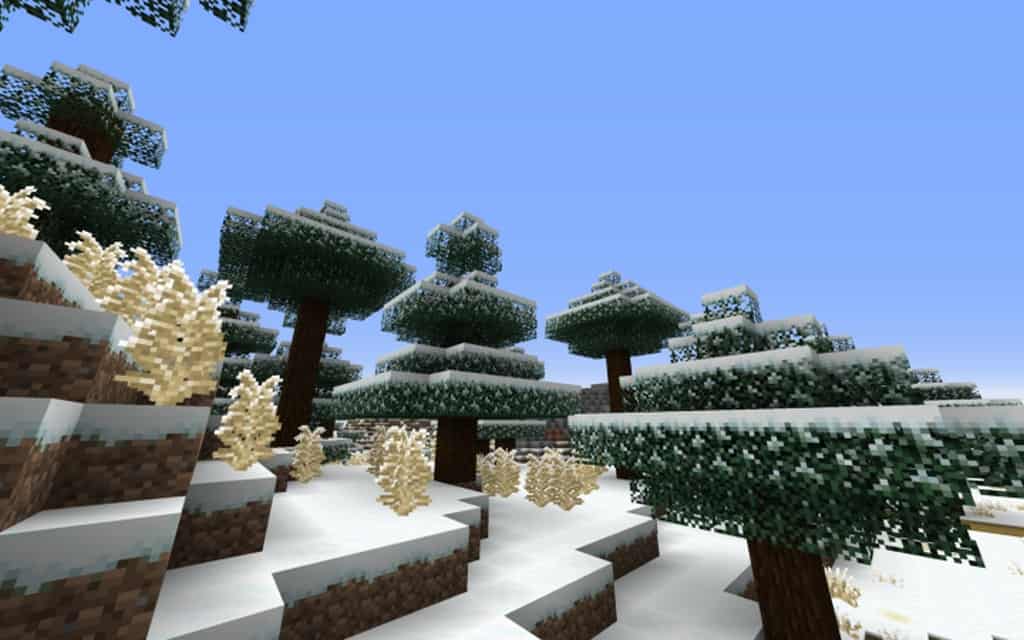
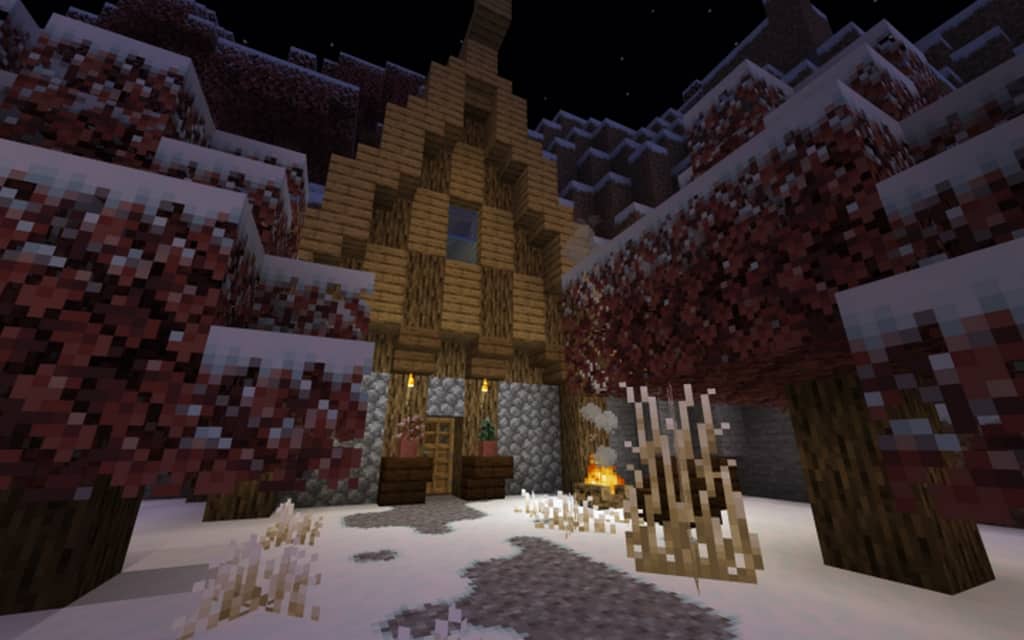
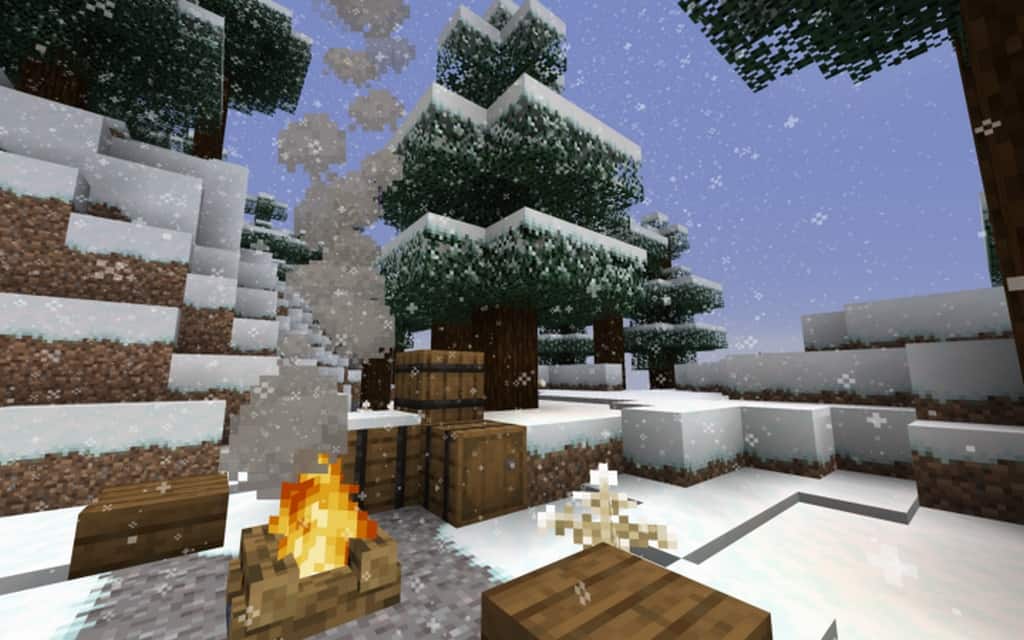
Are you a massive fan of Minecraft’s classic visual style? Do you want to celebrate the coming winter season with gorgeous snow-covered landscapes? Well, you are in absolute luck! Creator Futureazoo delivers an incredible Default-Style Winter Pack for anybody looking to decorate their worlds with a bit of cozy winter fun. We have all been touched by the iconic graphic style of Minecraft. It is an absolute classic by now, and sometimes, you just want to return to the basics and enjoy the game for how it was made to look in its early days. This pack totally honors that original art style while delivering scenic snowy whites to your worlds. Your worlds are still there, they are just beautifully covered in snow! Combining Minecraft’s default visual style with the themes of winter, this pack effortlessly blankets your world with snowy textures. You no longer need to climb high mountains for that winter view; your ice and snow can be seen everywhere you go! I love chilling at home with some nice rabbit stew in one hand and a delectable cookie in the other as I stare out into the snow-covered world around me. This festive mood is achieved by using a specially-made GUI for the winter effects. It seamlessly blends your default-style view with the crisp whites and cold of the winter season.
Your Creeper-hunting excursions just got so much more exciting! If only we could see them slipping on ice all the time. Anybody looking to apply this pack needs to have Optifine installed in their system. In case you do not know, Optifine is an essential optimization mod used to enhance the performance and aesthetic of the game. It enables the player to have full HD support, as well as other configuration settings. With Optifine, this resource pack’s trusty 16×16 resolution should be a total breeze for your system. Like ice cream, it runs smooth and sweet! Despite its recent release, the resource pack has already been downloaded by thousands of players. It is no wonder this pack is getting so much traction. It is a fantastic resource pack to use, and a deeply pleasant sight to behold. It is a welcome addition to the growing list of Minecraft packs, and it genuinely delivers on the winter aesthetic without ever getting in the way of the classic look we all came to love and expect. Install Optifine, download the resource pack, and return to your new world. What chilling adventures will you go on during this winter season? It is all in your hands, so let the winter fun begin!
Default-Style Winter Pack should be compatible with all of these Minecraft versions: 1.21.7 – 1.21.6 – 1.21.5 – 1.21.4 – 1.21.3 – 1.21.2 – 1.21.1 – 1.21 – 1.20.6 – 1.20.5 – 1.20.4 – 1.20.3 – 1.20.2 – 1.20.1 – 1.20 – 1.19.4 – 1.19.3 – 1.19.2 – 1.19.1 – 1.19 – 1.18.2 – 1.18.1 – 1.18 – 1.17.1 – 1.17 – 1.16.5 – 1.16.4 – 1.16.3 – 1.16.2 – 1.16.1 – 1.16 – 1.15.2 – 1.15.1 – 1.15 – 1.14.4 – 1.14.3 – 1.14.2 – 1.14 – 1.13.2 – 1.13.1 – 1.13
Screenshots
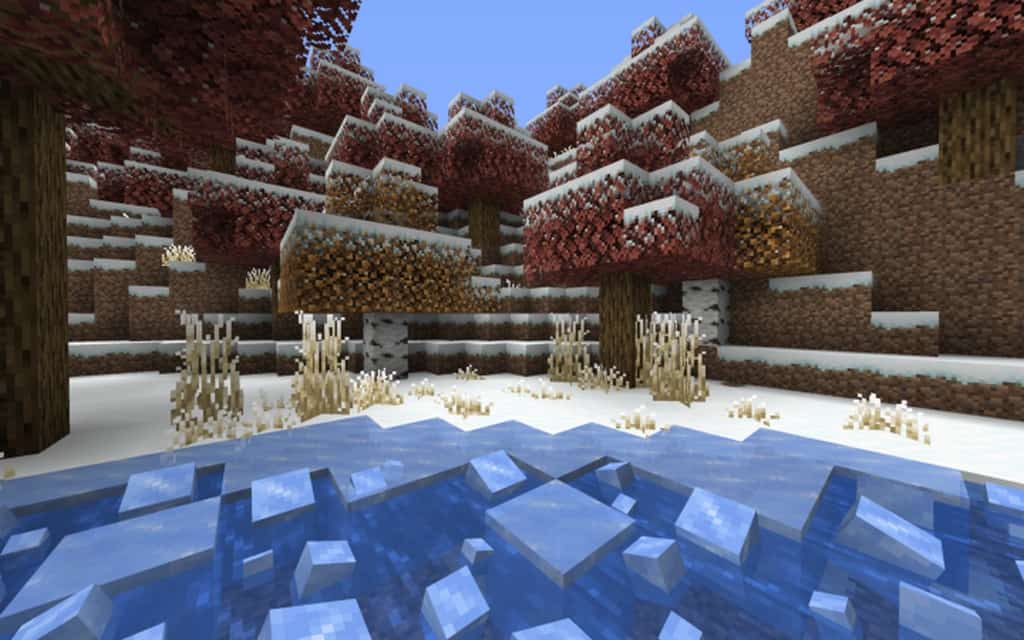
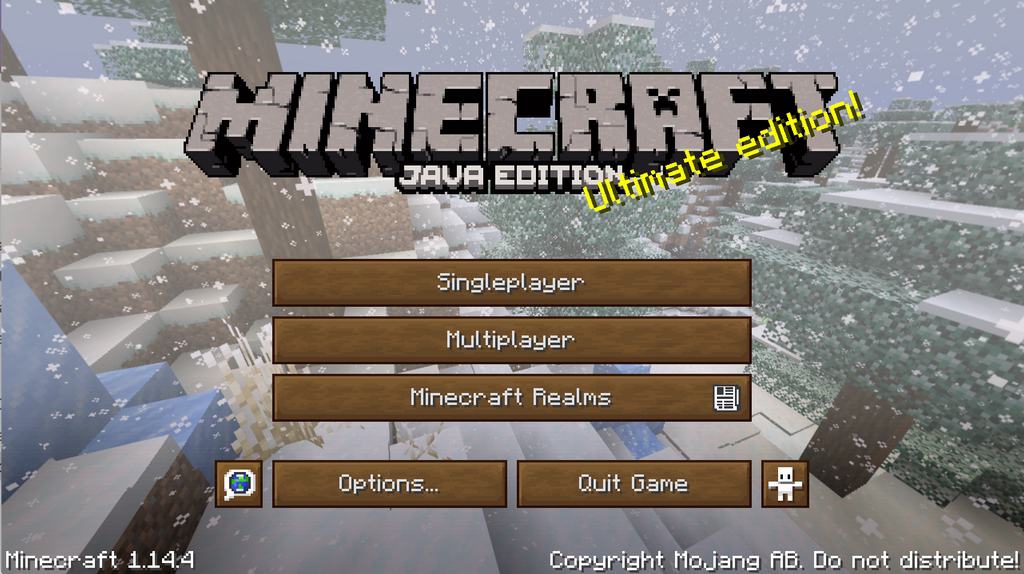
How to Install Texture Pack (Simple 10 Steps)
- Download OptiFine: Most of the texture packs and shaders need OptiFine. That’s why, first download and install OptiFine for the version of Minecraft you want to play.
- Download the Texture Pack: Get the texture pack you want from the download section. Choose the version that works with your Minecraft and your PC’s performance.
- Open Minecraft Launcher: Start Minecraft using the official game launcher — or even TLauncher, if you use that.
- Go to Options: From the main menu, click on the “Options” button.
- Open Resource Packs: Inside Options, click on “Resource Packs…”.
- Open the Resource Pack Folder: Click on “Open Resource Pack Folder” — this will open a folder named “resourcepacks”.
- Move the Pack File: Copy or move the .zip file you downloaded into that “resourcepacks” folder. (Don’t unzip the file — Minecraft uses it as-is!)
- Go Back and Refresh: Close the folder and click “Done”, then go back into “Resource Packs…” again.
- Activate the Pack: You’ll see the pack on the left side. Hover over it and click the arrow to move it to the right (active side).
Tip: If you get a message that the pack is for a different version, just click “Yes” — it usually works fine. - Click Done and Enjoy: Click “Done” again. Now your pack is ready to use in-game. It’s that easy!
Credits
This Resource Pack was created by Futureazoo. We do not claim ownership of this content, and all rights remain with the original creator. We encourage you to support Futureazoo by downloading the pack through the official links provided and checking out their other projects.
Download Links
Java Edition
Download Instructions
Curseforge: download starts automatically after a few seconds;
Mediafire: click the big blue button with the text “DOWNLOAD”;
Google Drive: in the top right corner you will see a small download icon (down arrow), click it and the download should start;


