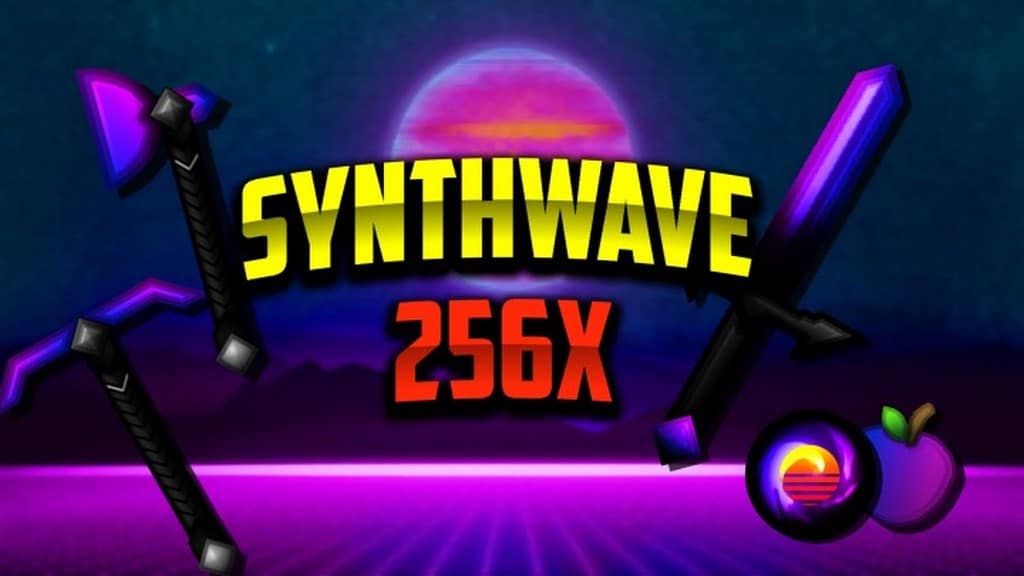
If you are looking for a resource pack that is going to change the style of your game to match the PvP and survival style textures, but with a twist, then the Synthwave PvP resource pack is definitely one you should take time to check out. After being started about a year ago, it became popular among Minecraft players who prefer survival and PvP play almost immediately. The creator of the Synthwave PvP texture pack is Yuruze, who is also the creator of the Smooth Blocks resource pack as well as many other resource packs that are popular among Minecraft users. If you aren’t familiar with Smooth Blocks, it was developed to make Minecraft blocks smooth and immersive while also improving visibility to allow PvP players to perform at their absolute best. However, the Synthwave PvP Resource Pack is not the same as the Smooth Blocks option.
Mainly, Synthwave does not change the block textures in any significant way. Instead, you will notice the most significant changes to your Minecraft world occur in the look of the sky, weapons, tools, items, and other graphical user interface (GUI) improvements. If you are bored with the way your Minecraft world is looking, this resource pack will certainly brighten things up. The Synthwave PvP resource pack adds visuals that are bright in color, using neons and appearing to be in high definition, while avoiding any unnecessary clutter. Considering the high level of detail that this pack consists of, it is no surprise that the Synthwave PvP textures have a resolution of 256×256. However, since the block textures are not affected, you shouldn’t notice any huge changes to your FPS. Now that this pack is 100% completed, it is a totally unique experience to witness how the bright colors influence your Minecraft world.
Synthwave PvP should be compatible with all of these Minecraft versions: 1.16.5 – 1.16.4 – 1.16.3 – 1.16.2 – 1.16.1 – 1.16 – 1.15.2 – 1.15.1 – 1.15 – 1.8.9 – 1.8.8 – 1.8.1 – 1.8.6 – 1.8 – 1.7.10 – 1.7.9 – 1.7.4 – 1.7
Screenshots
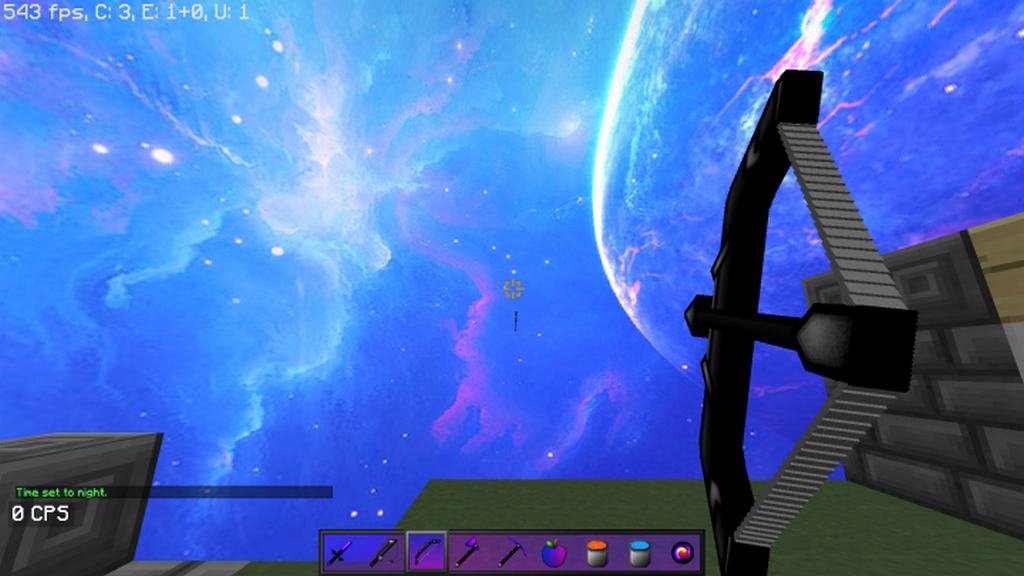
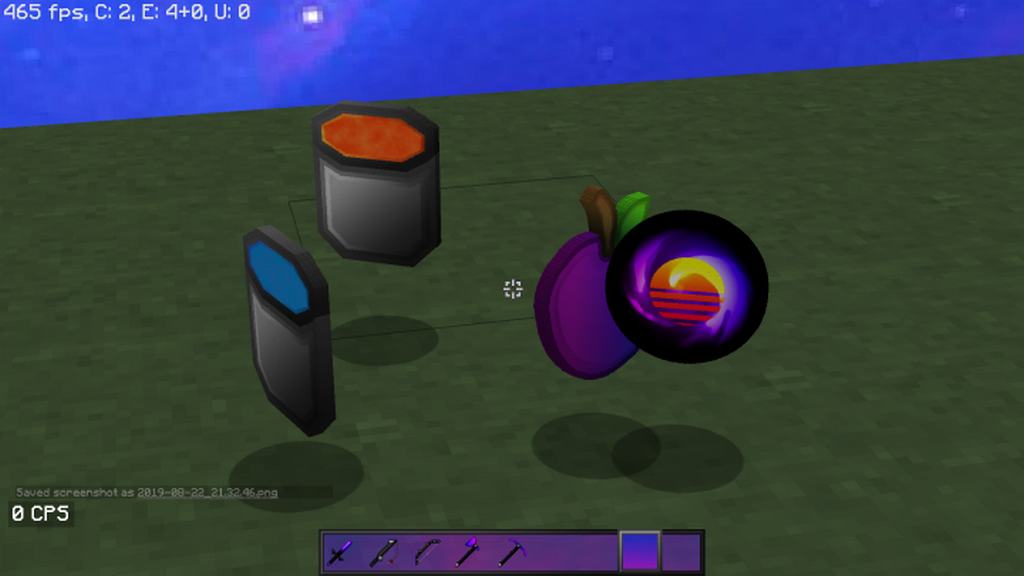
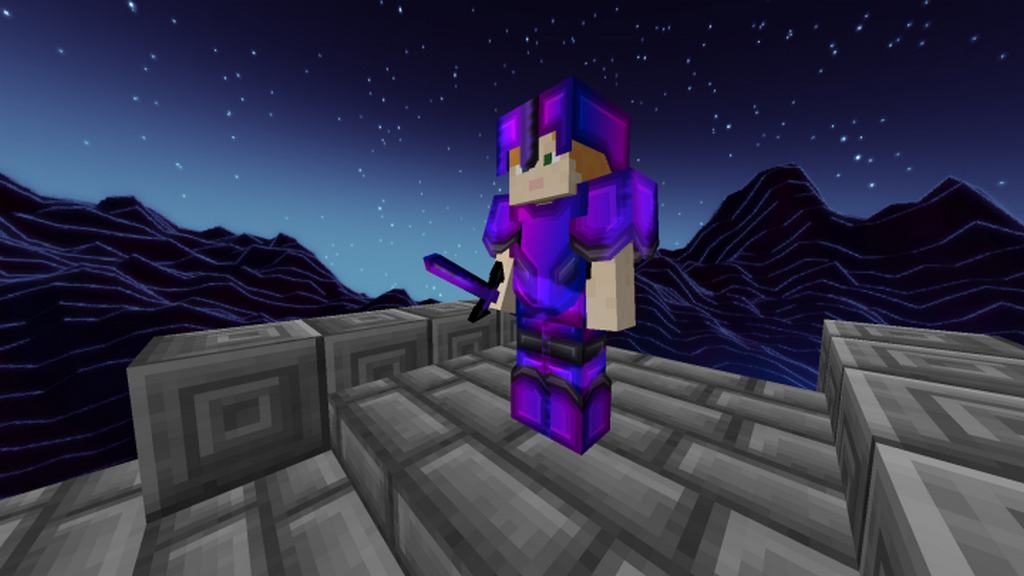

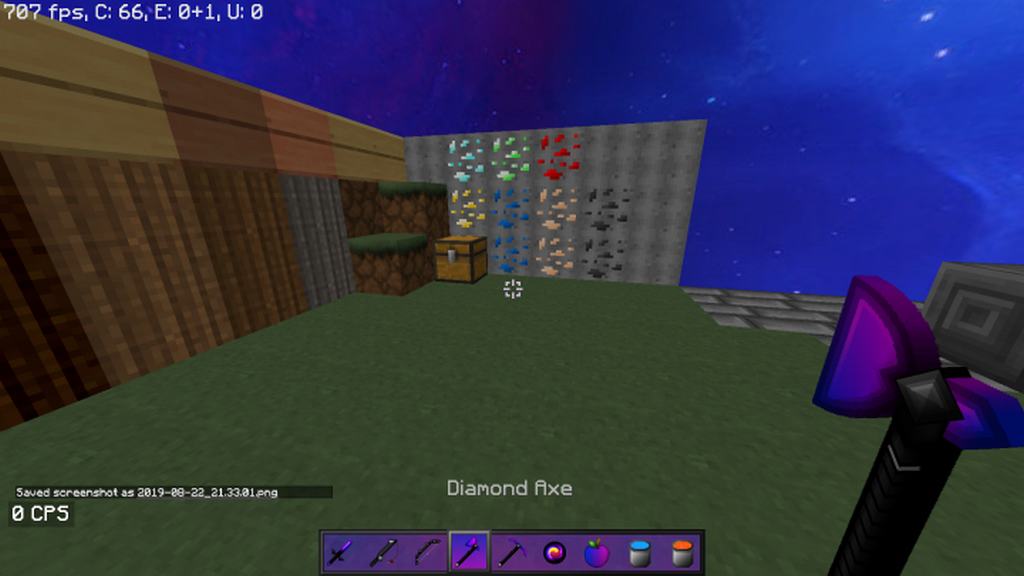
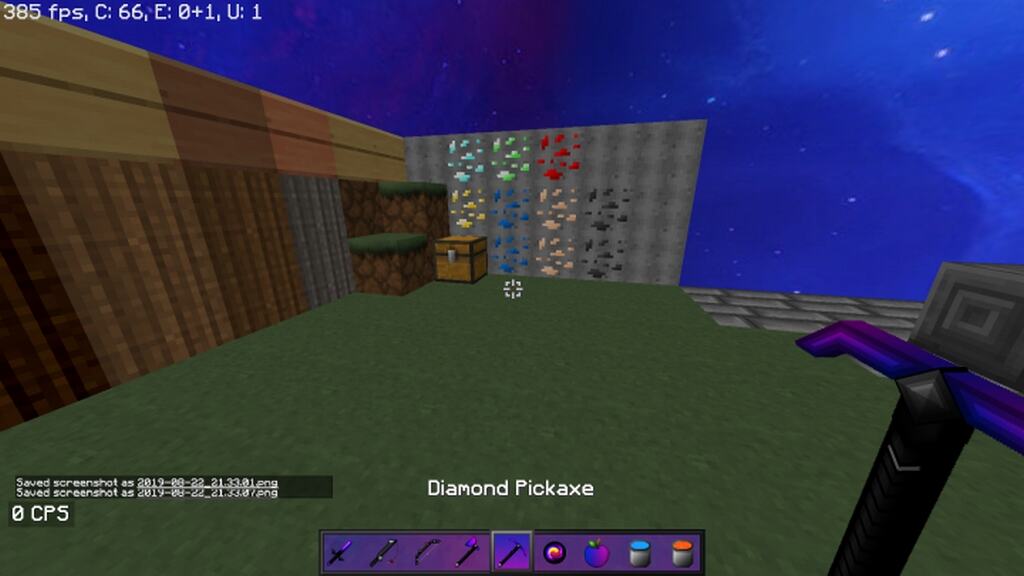
How to Install Texture Pack (Simple 10 Steps)
- Download OptiFine: Most of the texture packs and shaders need OptiFine. That’s why, first download and install OptiFine for the version of Minecraft you want to play.
- Download the Texture Pack: Get the texture pack you want from the download section. Choose the version that works with your Minecraft and your PC’s performance.
- Open Minecraft Launcher: Start Minecraft using the official game launcher — or even TLauncher, if you use that.
- Go to Options: From the main menu, click on the “Options” button.
- Open Resource Packs: Inside Options, click on “Resource Packs…”.
- Open the Resource Pack Folder: Click on “Open Resource Pack Folder” — this will open a folder named “resourcepacks”.
- Move the Pack File: Copy or move the .zip file you downloaded into that “resourcepacks” folder. (Don’t unzip the file — Minecraft uses it as-is!)
- Go Back and Refresh: Close the folder and click “Done”, then go back into “Resource Packs…” again.
- Activate the Pack: You’ll see the pack on the left side. Hover over it and click the arrow to move it to the right (active side).
Tip: If you get a message that the pack is for a different version, just click “Yes” — it usually works fine. - Click Done and Enjoy: Click “Done” again. Now your pack is ready to use in-game. It’s that easy!
Credits
This resource pack was created by Yuruze. We do not own, host, or modify this content, and all rights remain with the original author. Please consider supporting Yuruze by downloading the pack from their official links and checking out their other incredible creations.
Download Instructions
Curseforge: download starts automatically after a few seconds;
Mediafire: click the big blue button with the text “DOWNLOAD”;
Google Drive: in the top right corner you will see a small download icon (down arrow), click it and the download should start;


