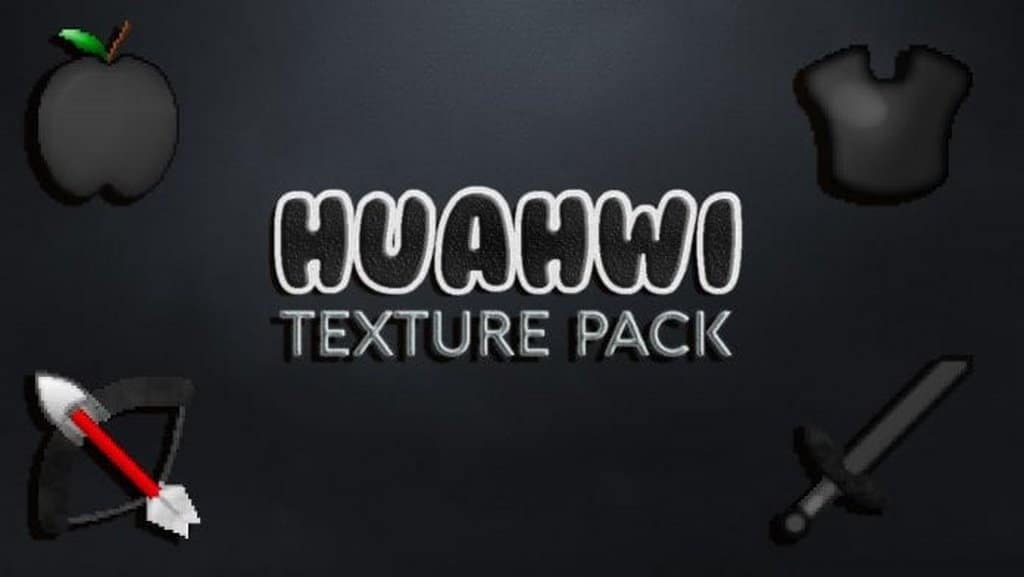
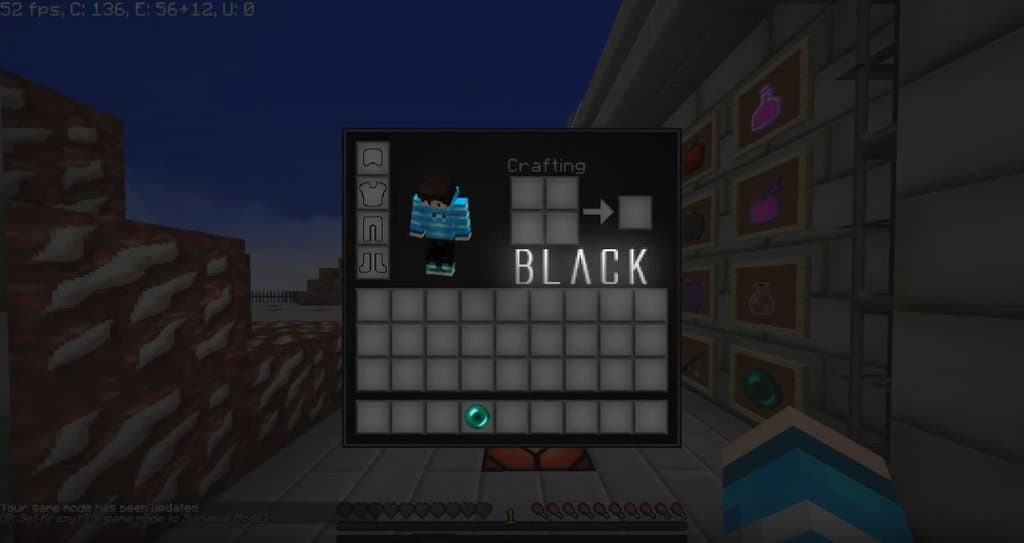
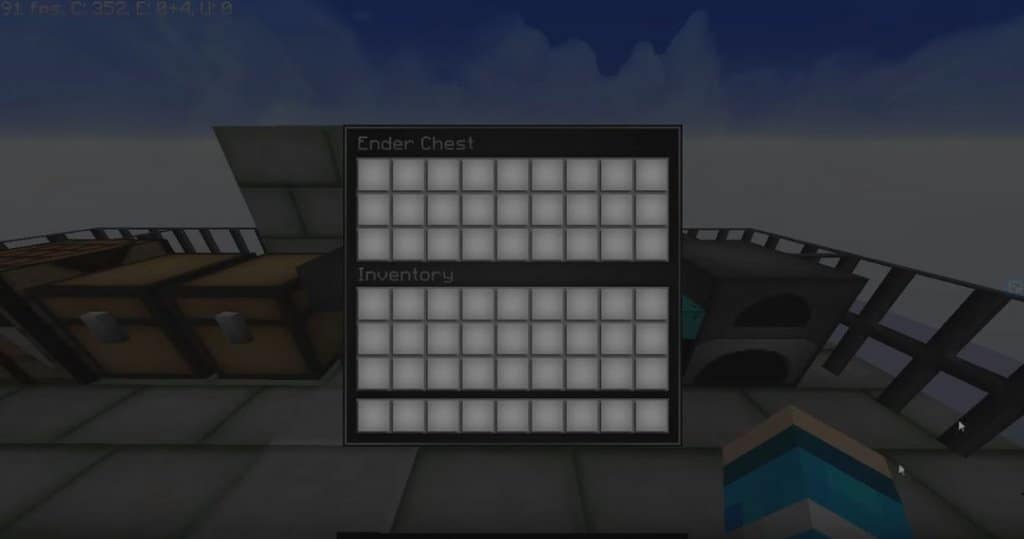
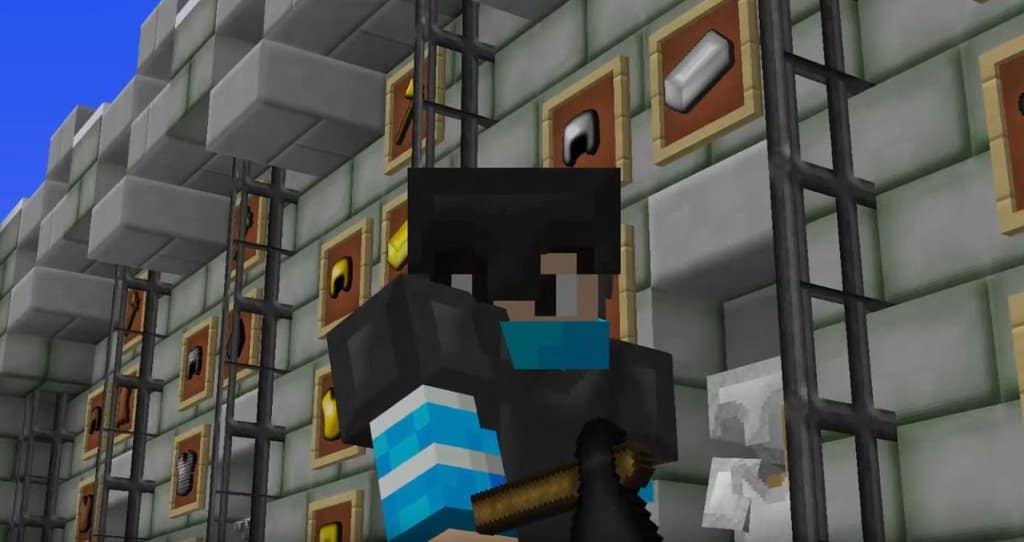
The Huahwi Black & White PvP resource pack is such an interesting pack, beautifully designed around a truly novel idea! While most resource packs typically try to switch things up by shifting the color palette, this pack focuses exclusively on striking black and white colors. Countless other packs offer similar changes, but this time there is something genuinely new to try. The Huahwi Black & White PvP texture pack adds several creative tweaks and changes to your Minecraft experience, most of them completely new—even for veteran Minecraft players. If the name sounds familiar, that is because this resource pack is a brilliant recolor of the original Huahwi resource pack, one that many have thoroughly enjoyed in the past. If you have tried that one before, just wait until you get to try this new and improved version. It truly has everything that made the first one great, along with amazing new things for you to see! As you probably know, the original Huahwi texture pack had plenty of appealing elements.
This time around, The Huahwi Black and White has successfully built upon those great features and added some fantastic ones of their own. The new textures, for example, are simple yet simply amazing. Even though they are not overly detailed, you will quickly notice they have practically no noise in them. These new and improved textures play along great with the fresh twist on the old Minecraft color palette, offering a completely new experience for anyone, even those who are greatly experienced with Minecraft mods. There is also something really important to mention: this resource pack is in huge demand because of its gorgeous x64 resolution. Most resource packs are always limited to the low-res, x16 resolution, but not this time around! Even though it features a higher resolution, you can still easily play it even if you do not have a premium computer, all thanks to this resource pack’s incredible optimization. The Huahwi Black & White PvP resource pack runs remarkably smoothly on most computers, and it is definitely one resource pack you should try out today!
Huahwi Black & White PvP should be compatible with all of these Minecraft versions: 1.8.9 – 1.8.8 – 1.8.1 – 1.8.6 – 1.8
Screenshots
How to Install Texture Pack (Simple 10 Steps)
- Download OptiFine: Most of the texture packs and shaders need OptiFine. That’s why, first download and install OptiFine for the version of Minecraft you want to play.
- Download the Texture Pack: Get the texture pack you want from the download section. Choose the version that works with your Minecraft and your PC’s performance.
- Open Minecraft Launcher: Start Minecraft using the official game launcher — or even TLauncher, if you use that.
- Go to Options: From the main menu, click on the “Options” button.
- Open Resource Packs: Inside Options, click on “Resource Packs…”.
- Open the Resource Pack Folder: Click on “Open Resource Pack Folder” — this will open a folder named “resourcepacks”.
- Move the Pack File: Copy or move the .zip file you downloaded into that “resourcepacks” folder. (Don’t unzip the file — Minecraft uses it as-is!)
- Go Back and Refresh: Close the folder and click “Done”, then go back into “Resource Packs…” again.
- Activate the Pack: You’ll see the pack on the left side. Hover over it and click the arrow to move it to the right (active side).
Tip: If you get a message that the pack is for a different version, just click “Yes” — it usually works fine. - Click Done and Enjoy: Click “Done” again. Now your pack is ready to use in-game. It’s that easy!
Credits
This resource pack was originally created by AcePacks. We do not claim ownership of this content, nor have we modified the download files. All rights remain with the original creator. We strongly encourage you to support AcePacks by downloading from their official links and checking out their other projects.
Download Instructions
Curseforge: download starts automatically after a few seconds;
Mediafire: click the big blue button with the text “DOWNLOAD”;
Google Drive: in the top right corner you will see a small download icon (down arrow), click it and the download should start;


