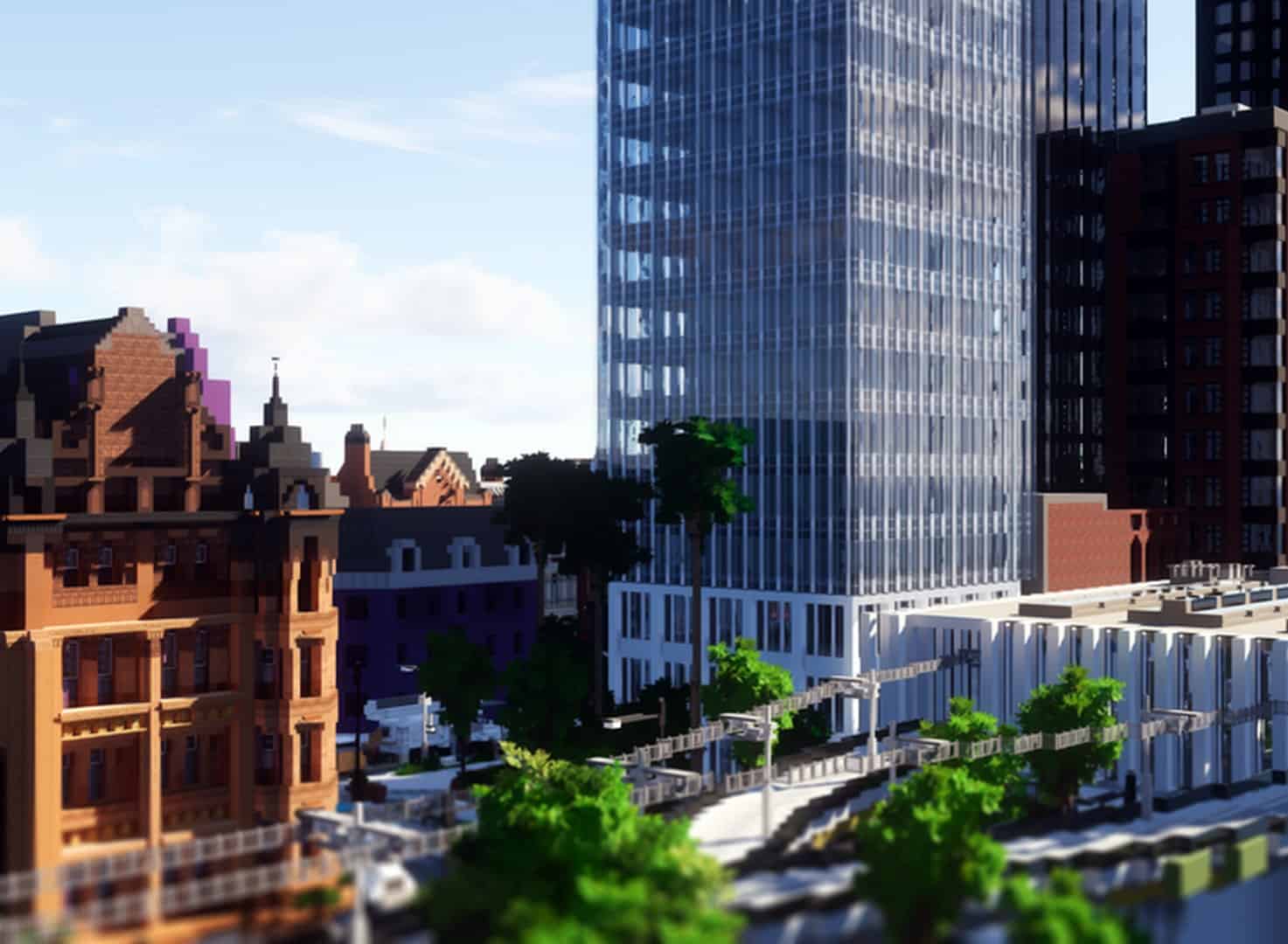
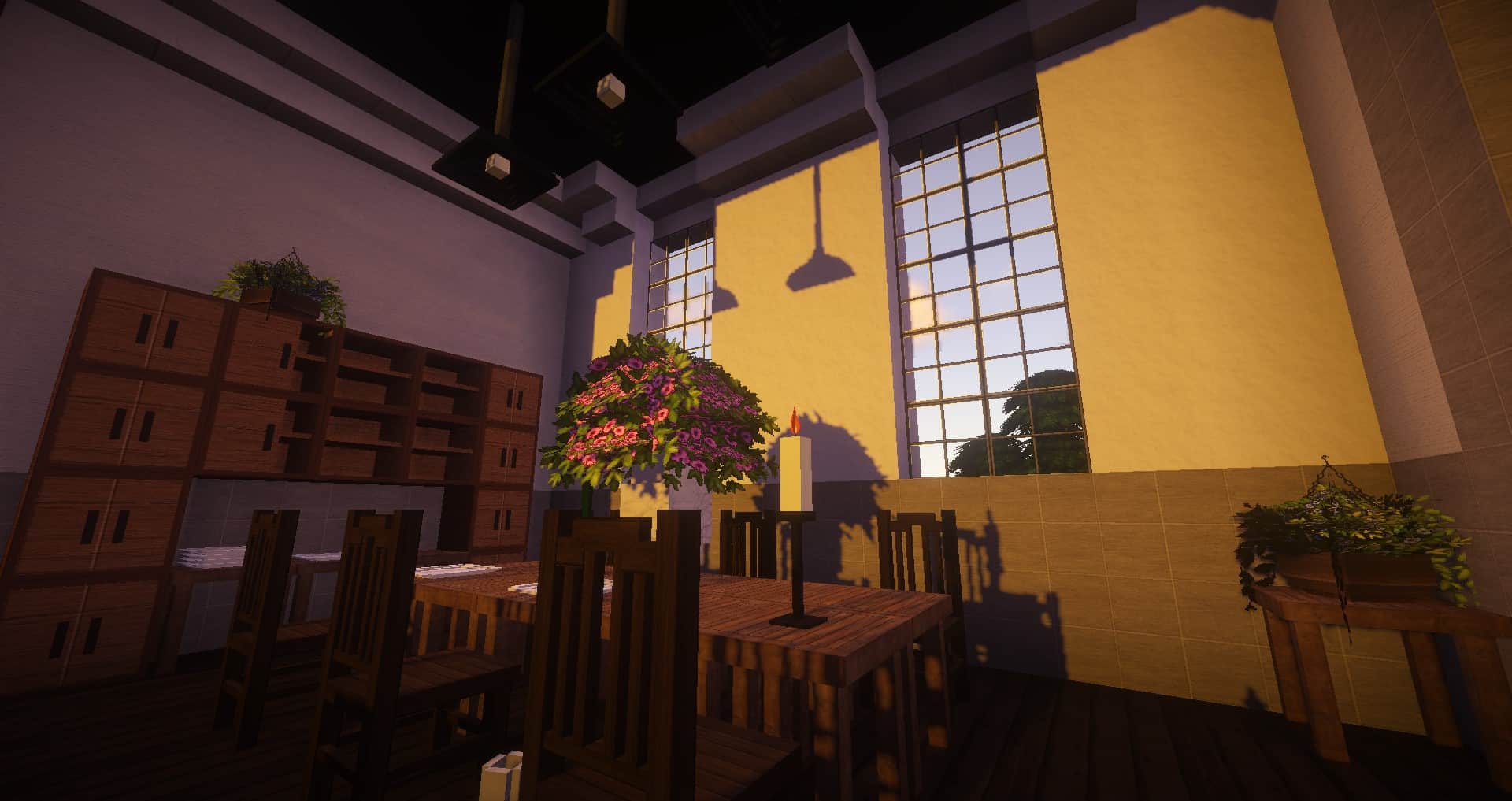
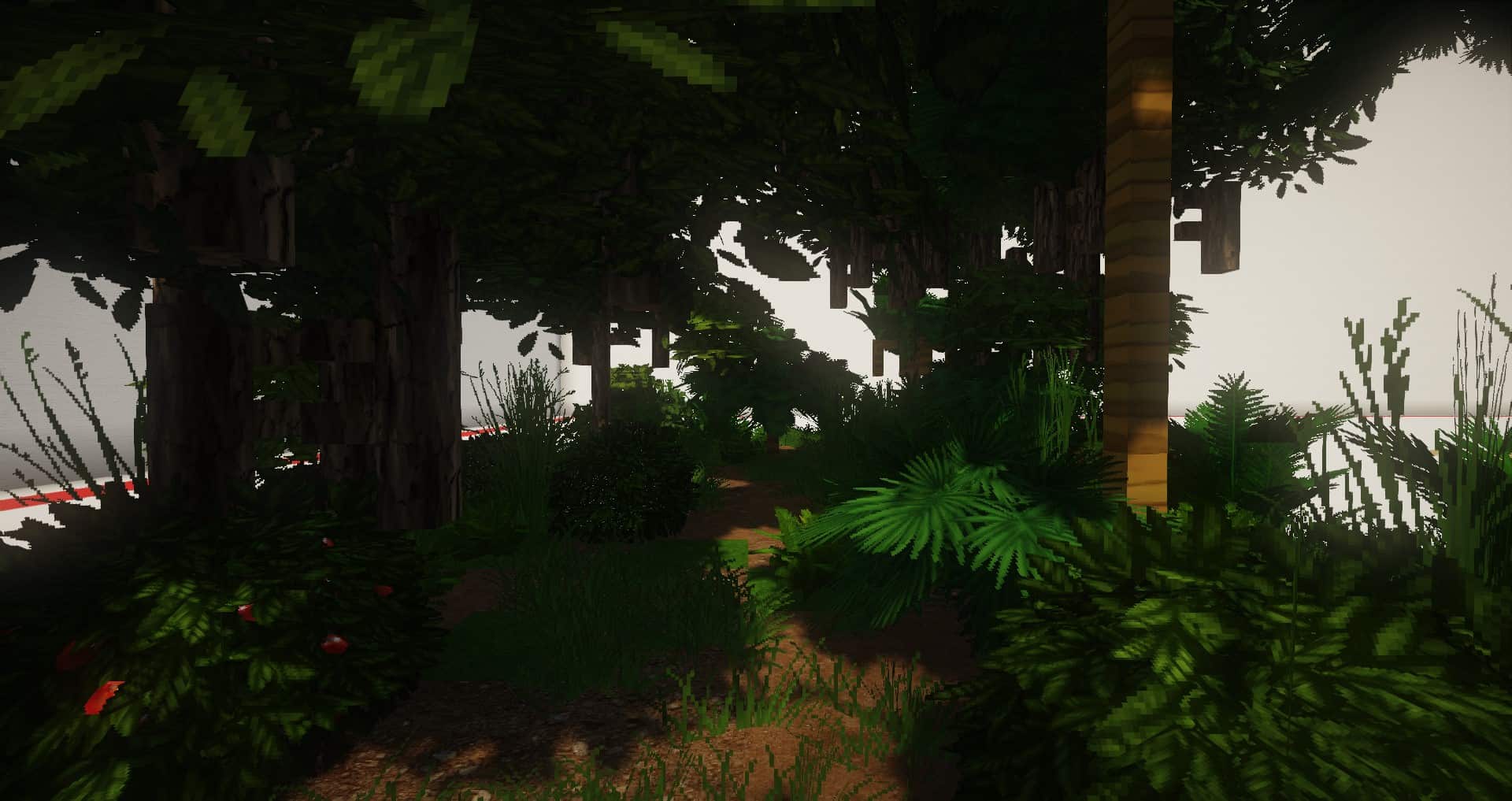
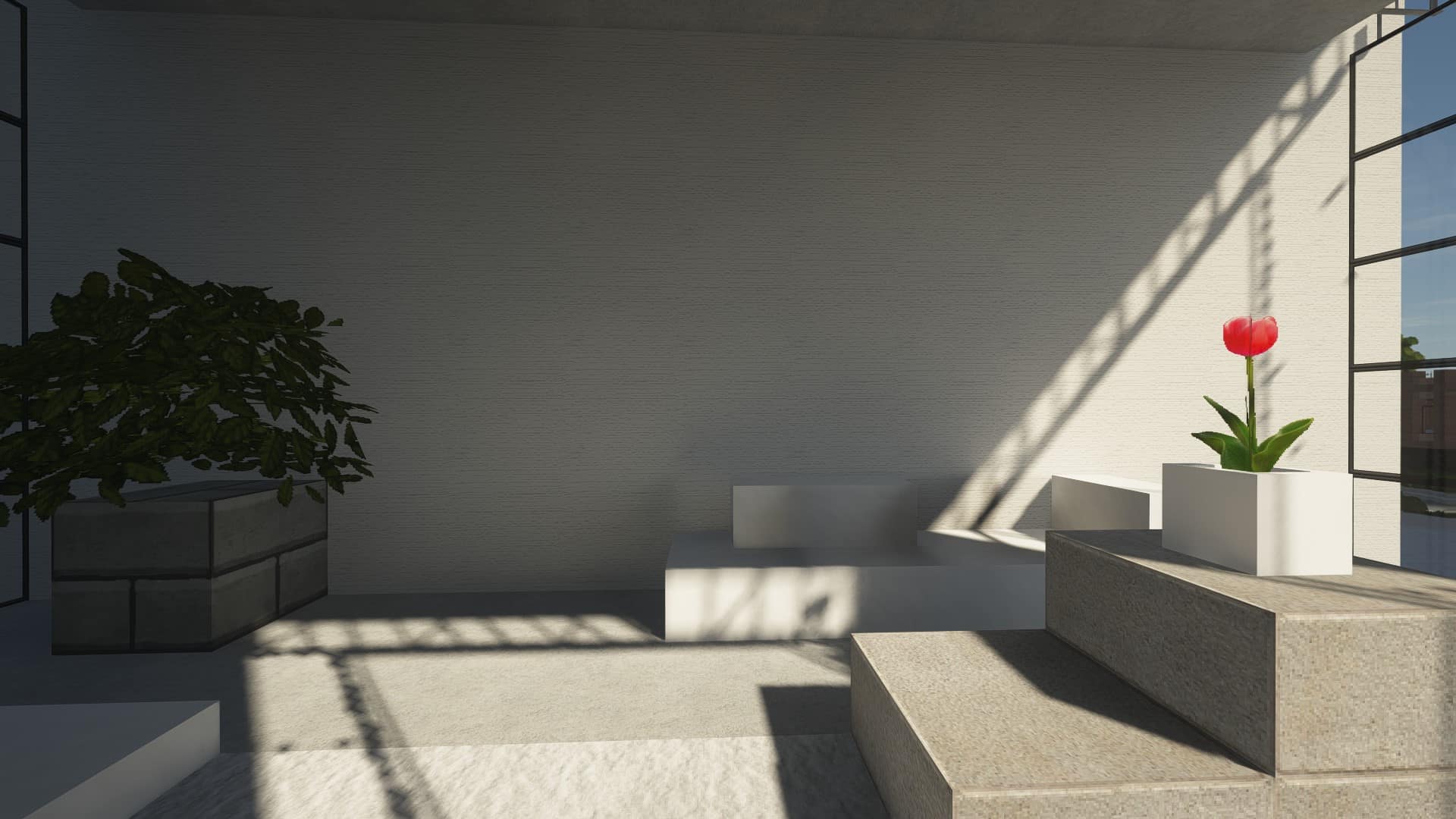
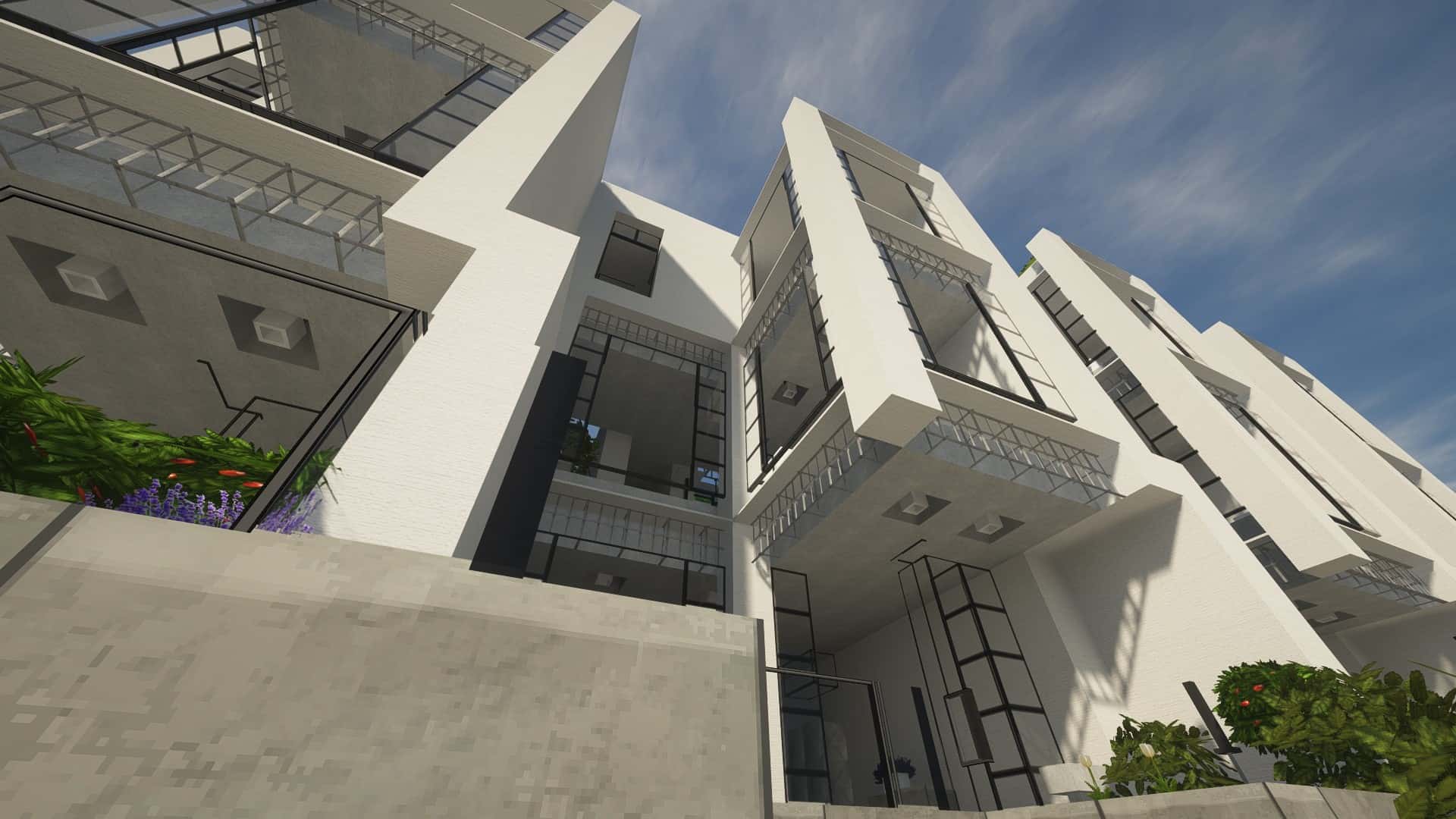
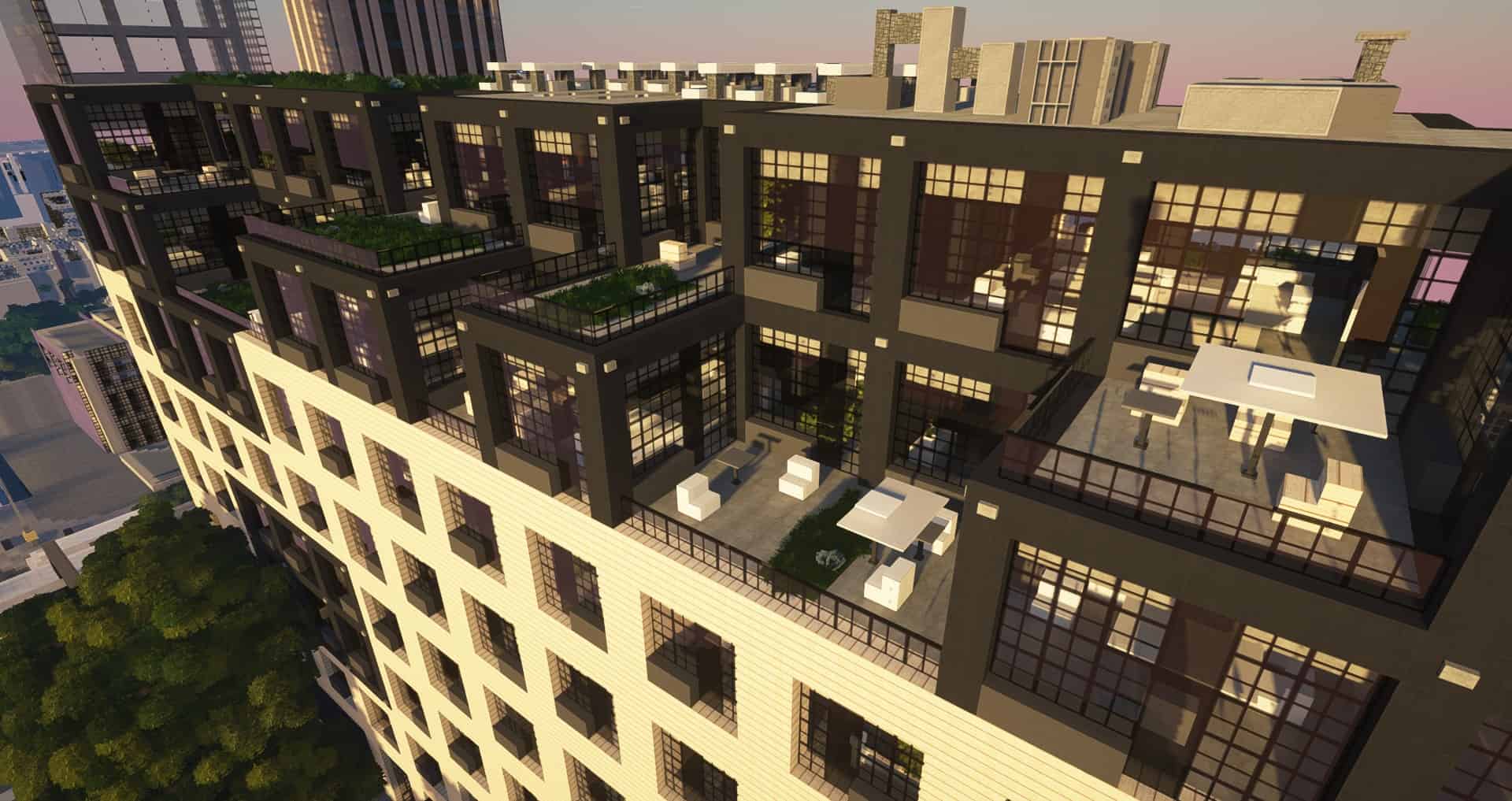
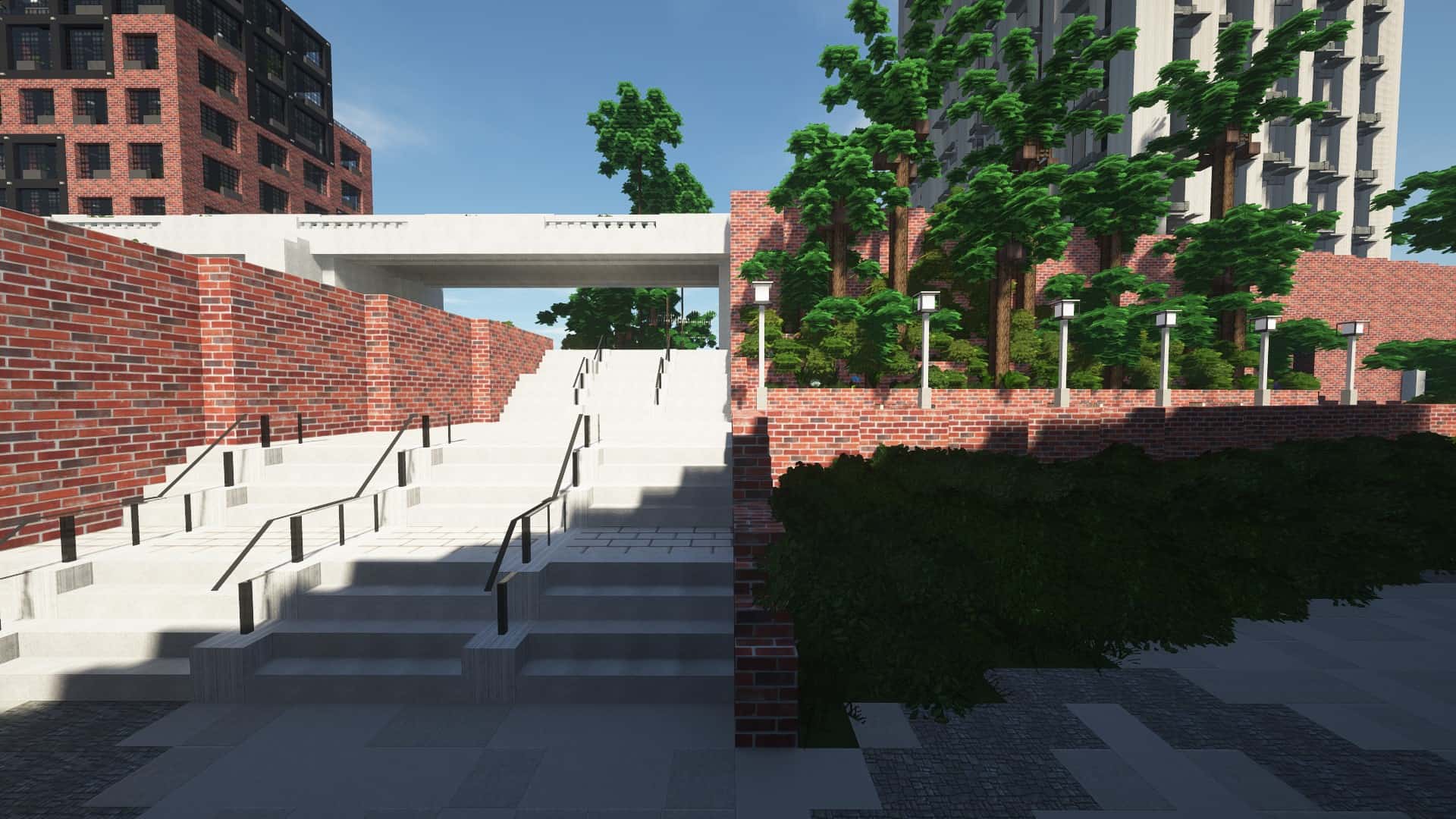
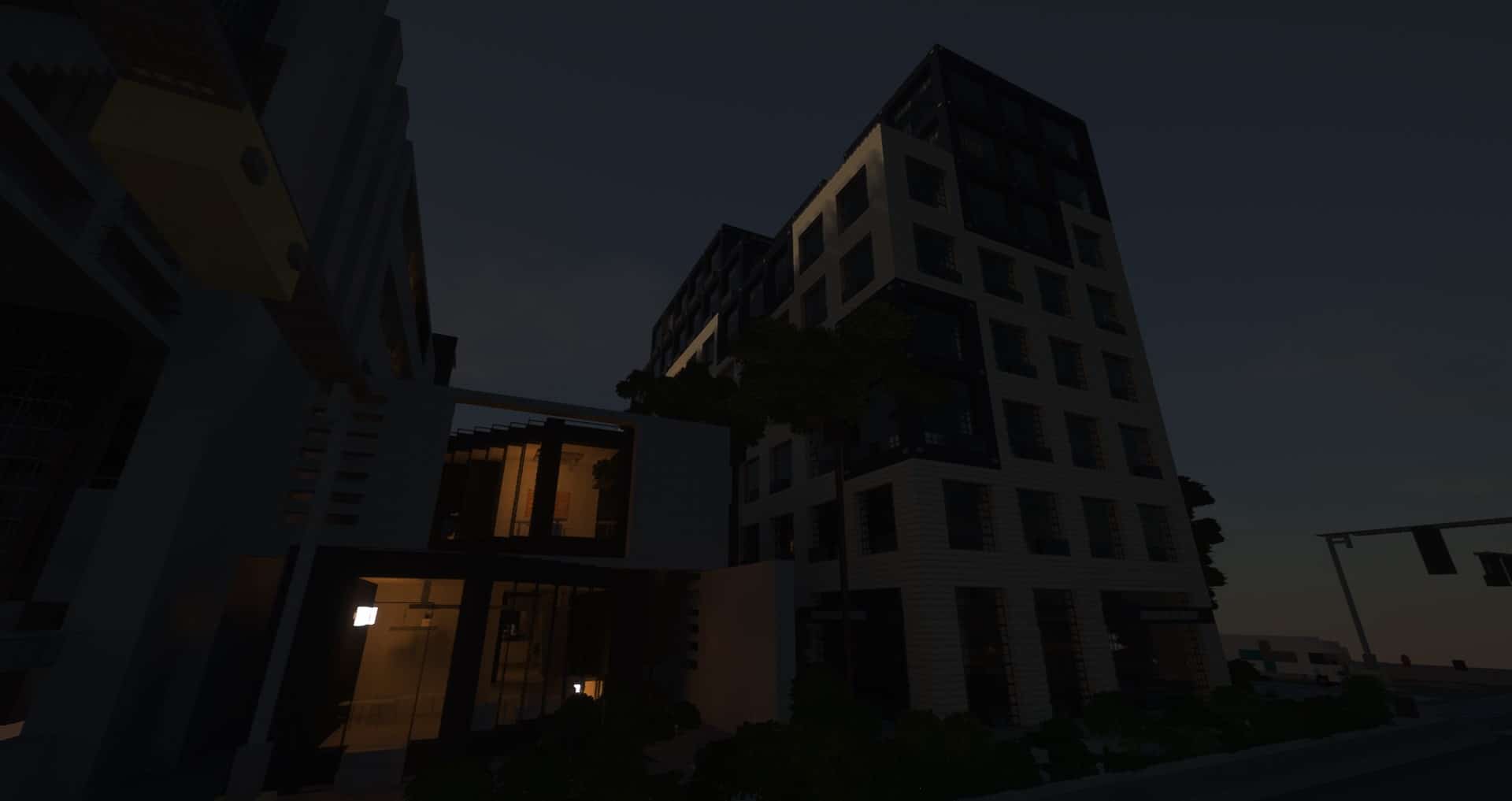
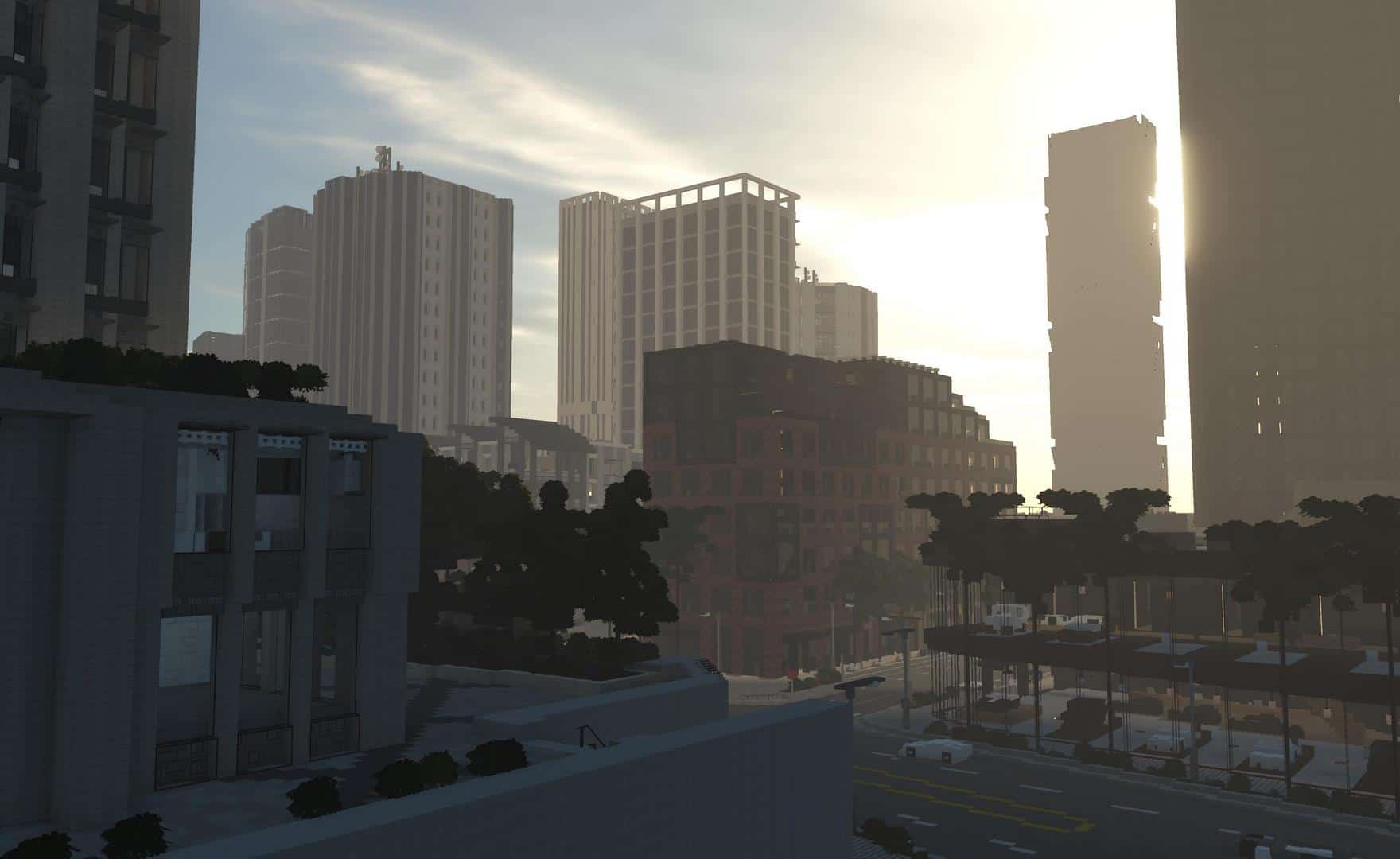
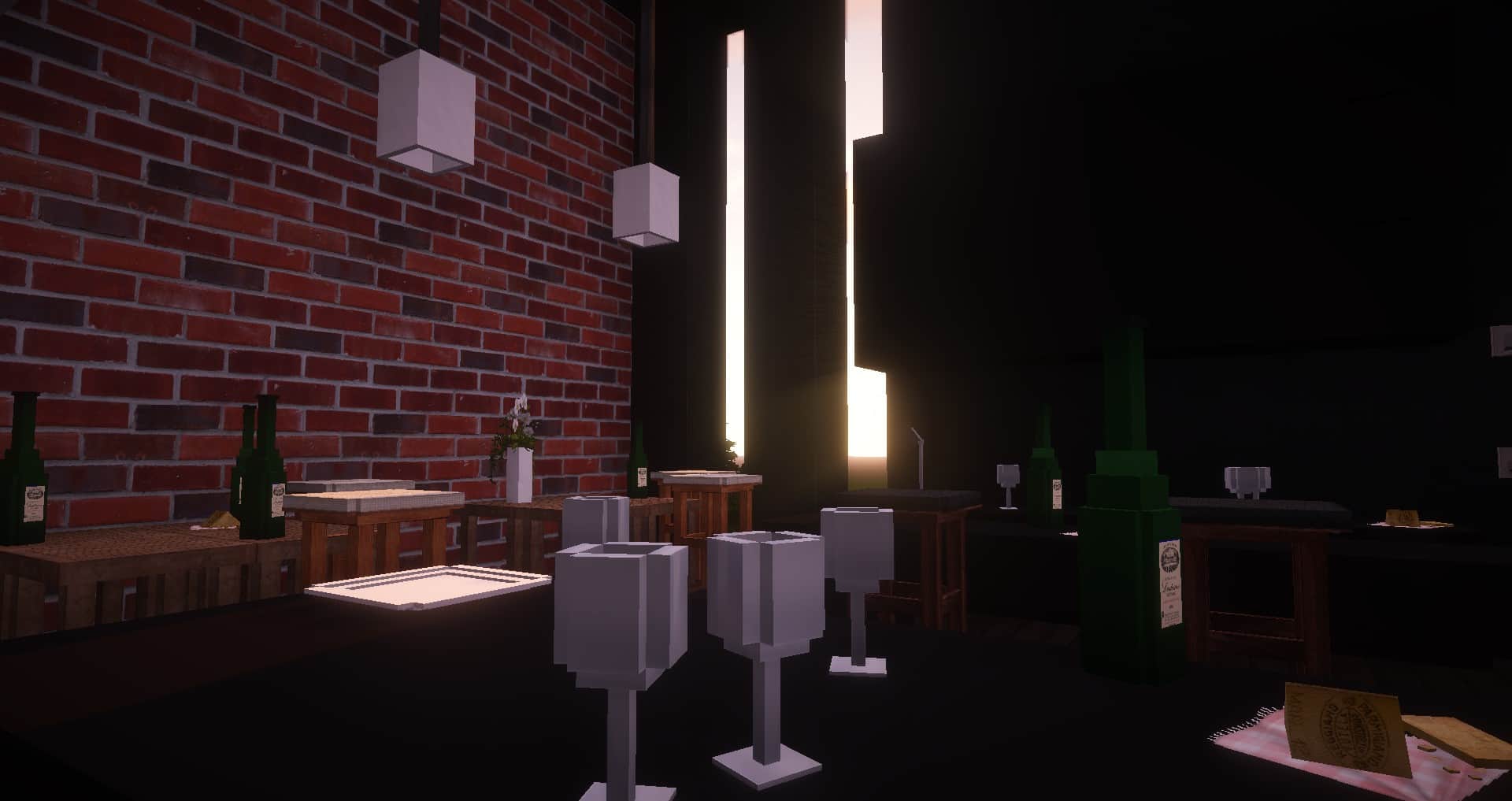
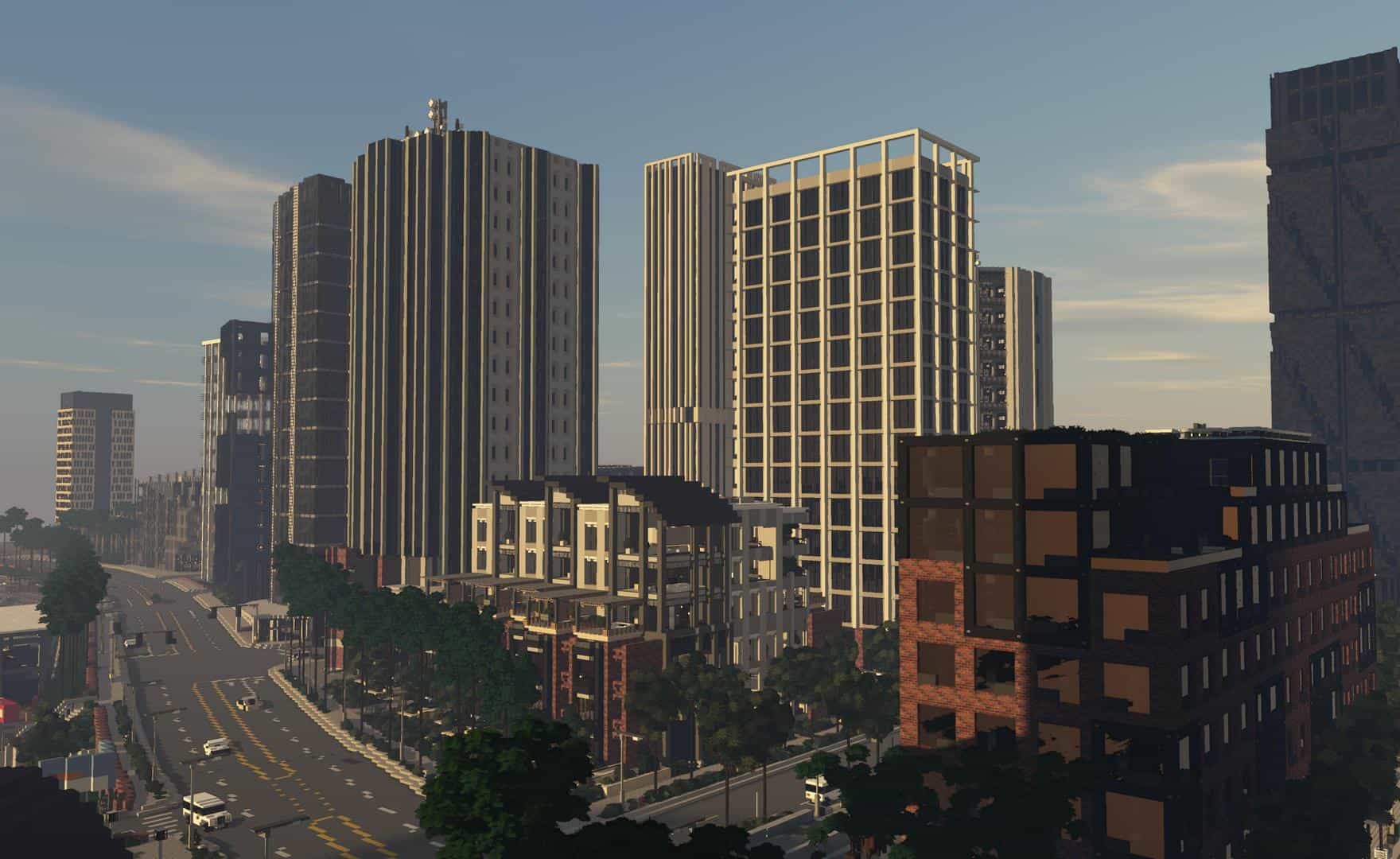
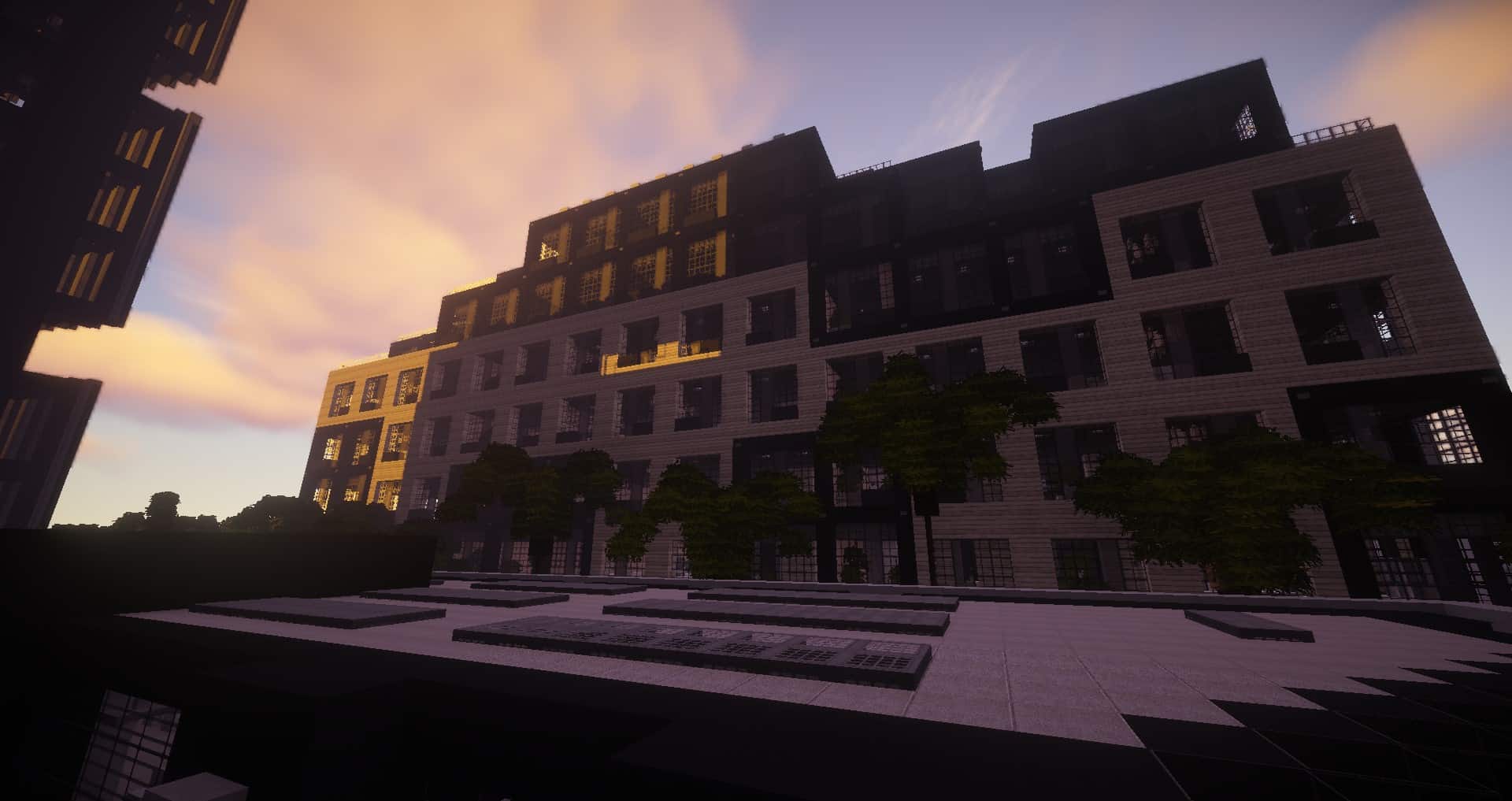
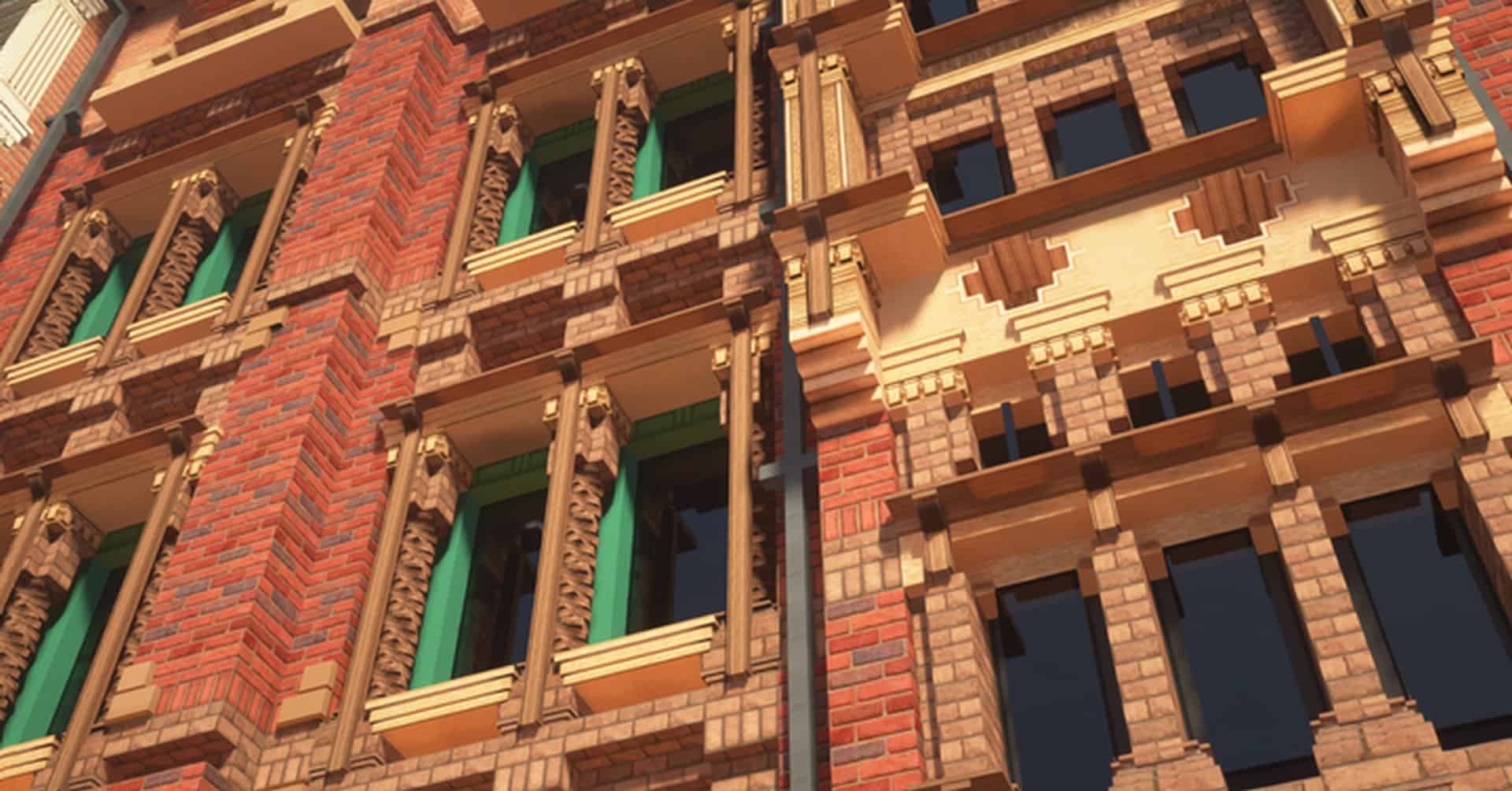
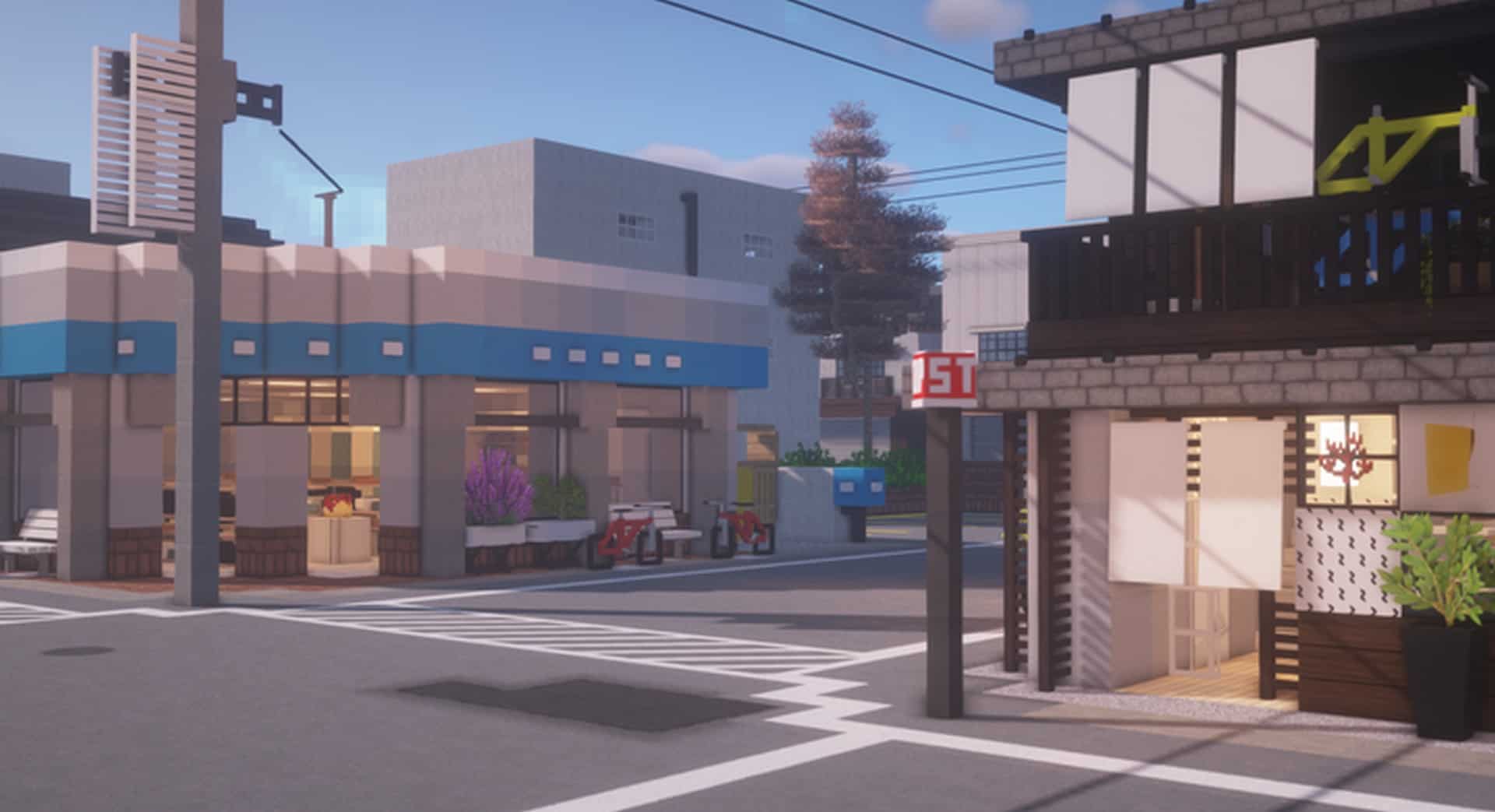
Oh man, you really have to check out the Cubed textures resource pack for Minecraft! Ever since it first dropped back in March 2017, it has easily remained one of the absolute most highly rated realistic packs among players of the game. I think any Minecraft player should definitely consider using this pack if they are aiming for a genuinely modern and realistic look for their game world. From my experience testing it, I found it exceptionally recommended for players who love building massive modern structures on a much bigger scale. You will definitely want your creations to look extremely attractive and clearly defined. One of the greatest advantages of using this pack, in my opinion, is that the developers consistently update it to add more features regularly, relying heavily on feedback from the community. Because of this dedication, you can always look forward to enjoying newer and better versions of the pack periodically. Plus, ray tracing is effectively utilized to make the overall gameplay feel so much more realistic, while the textures themselves are crafted with extreme detail to ensure everything looks stunningly attractive.
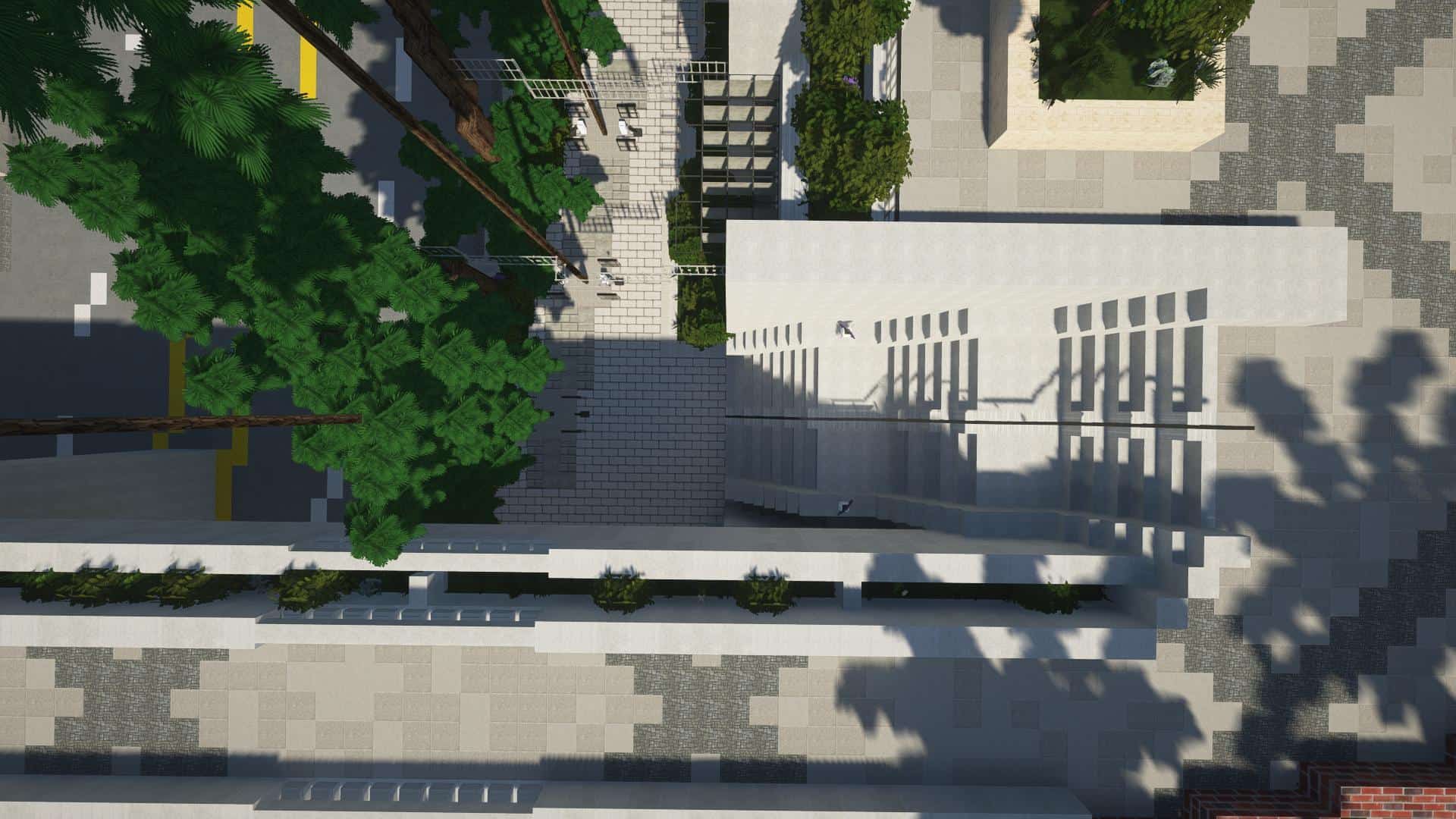
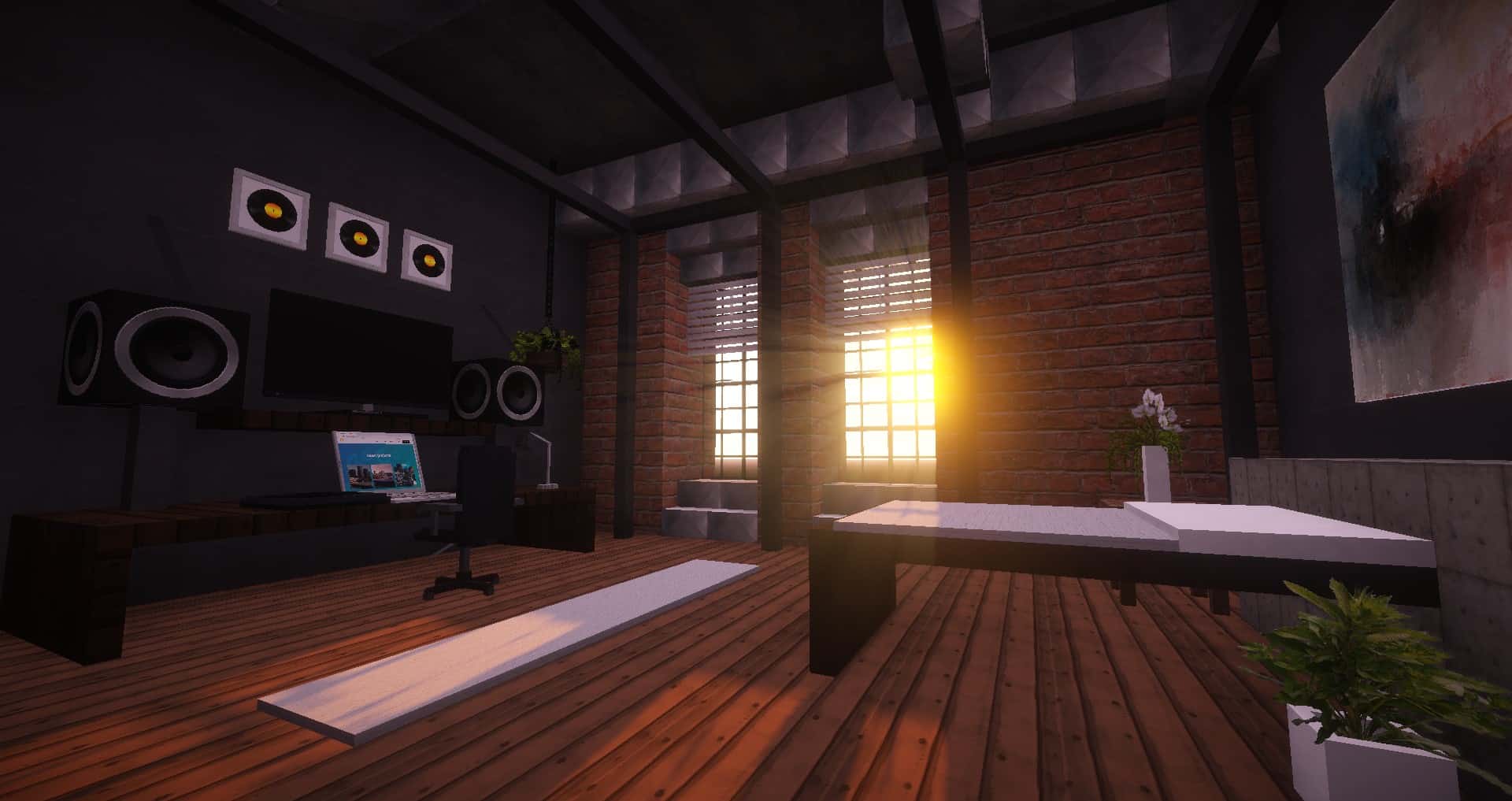
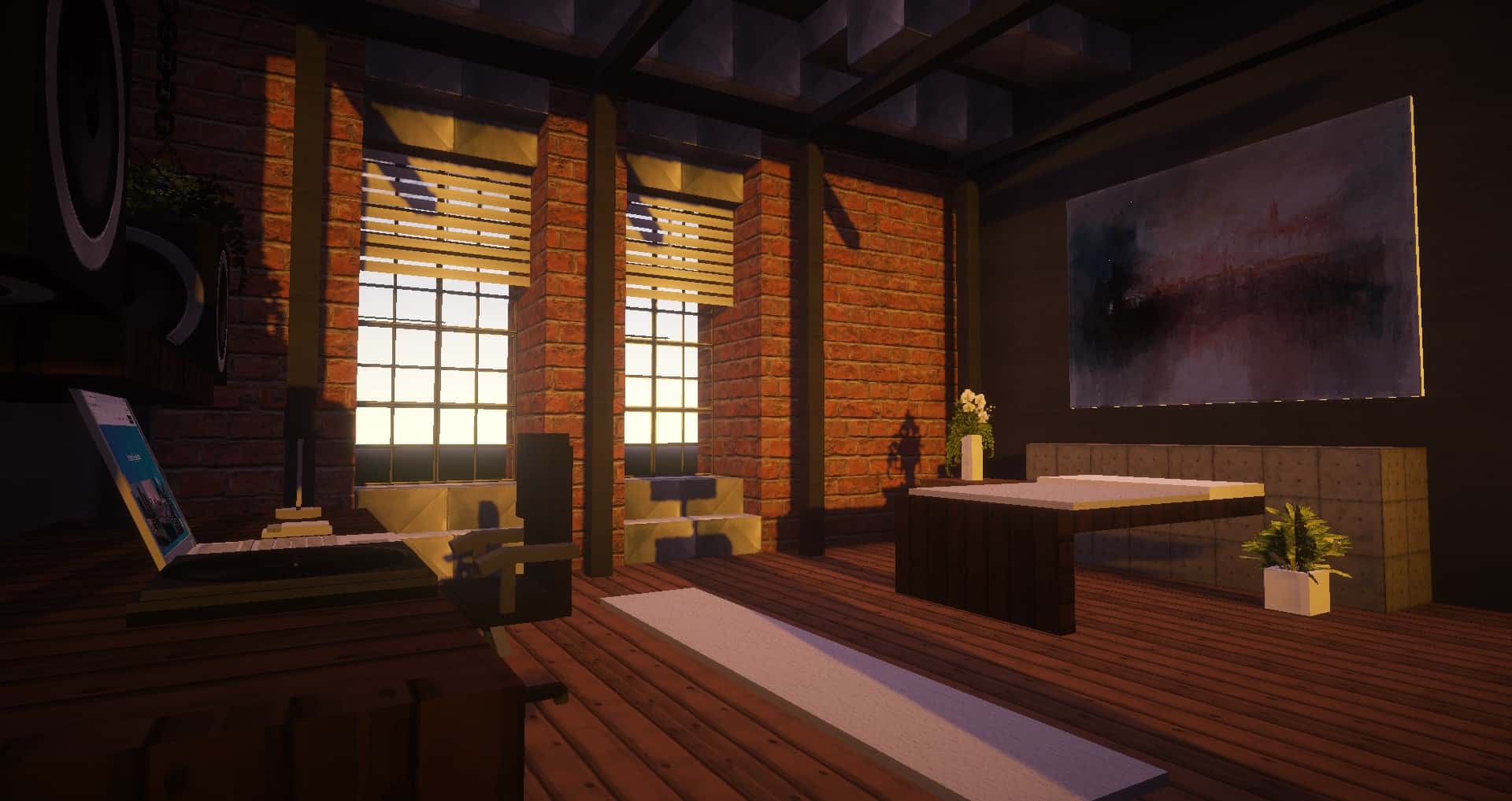
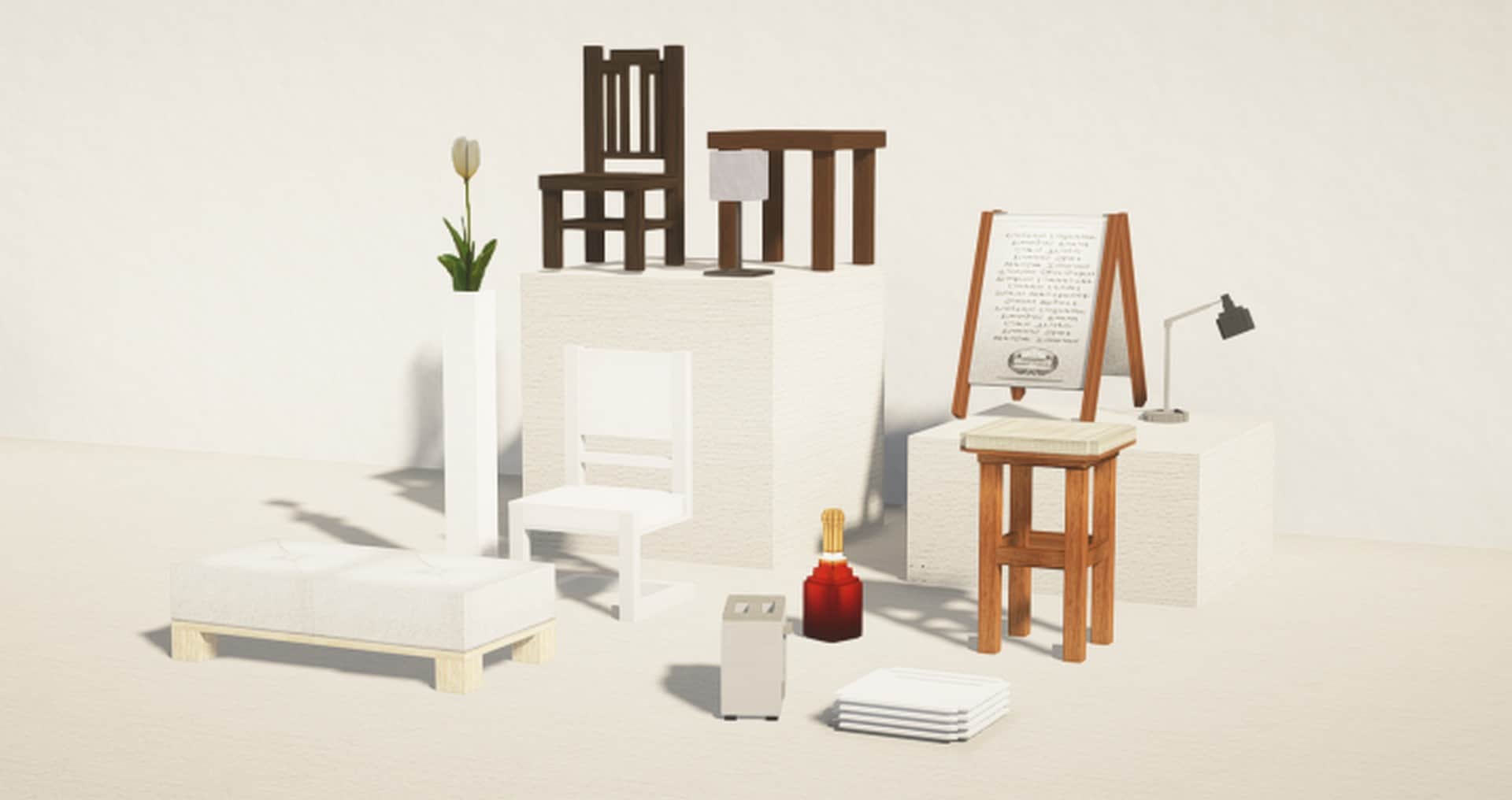
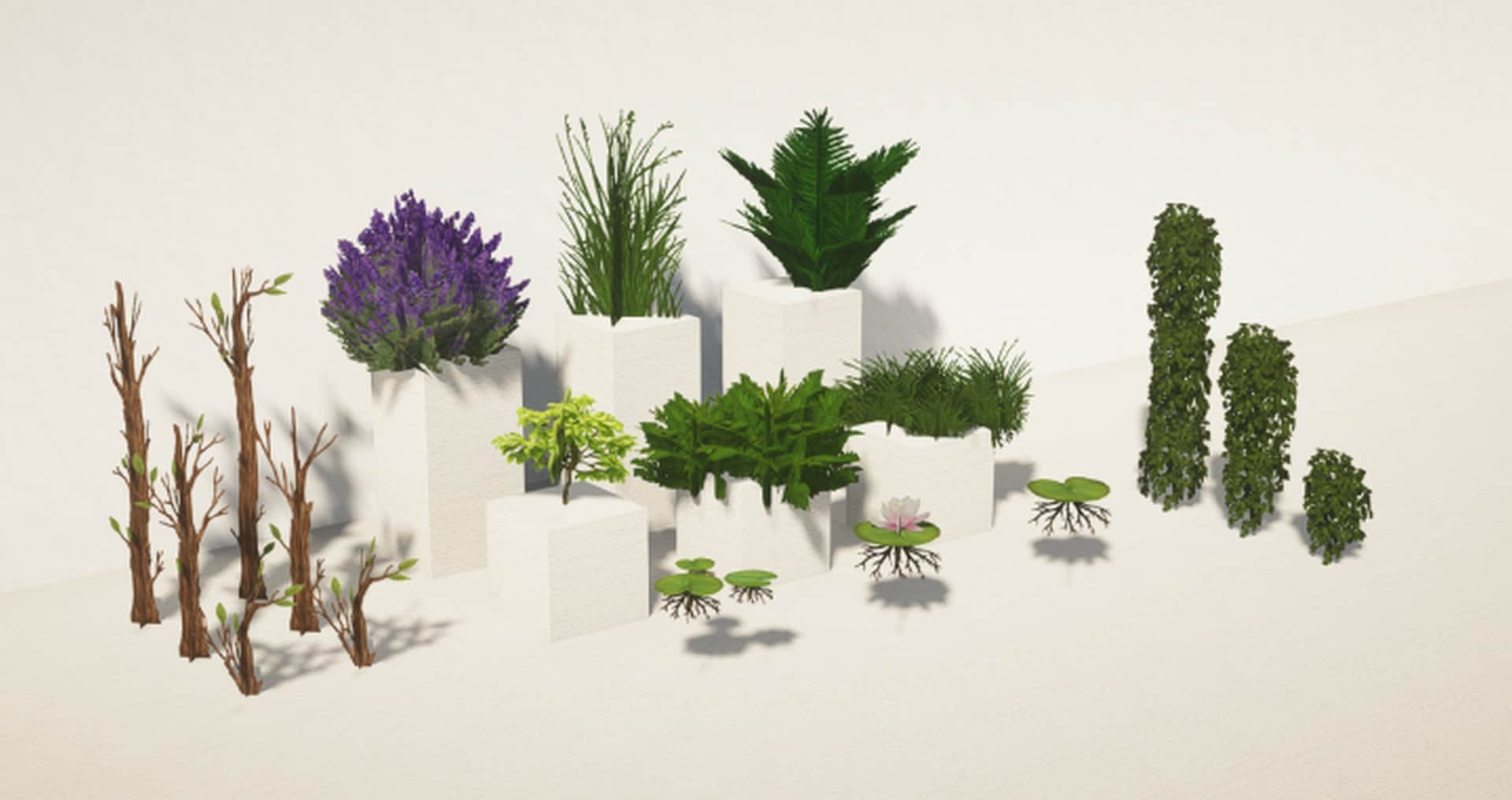
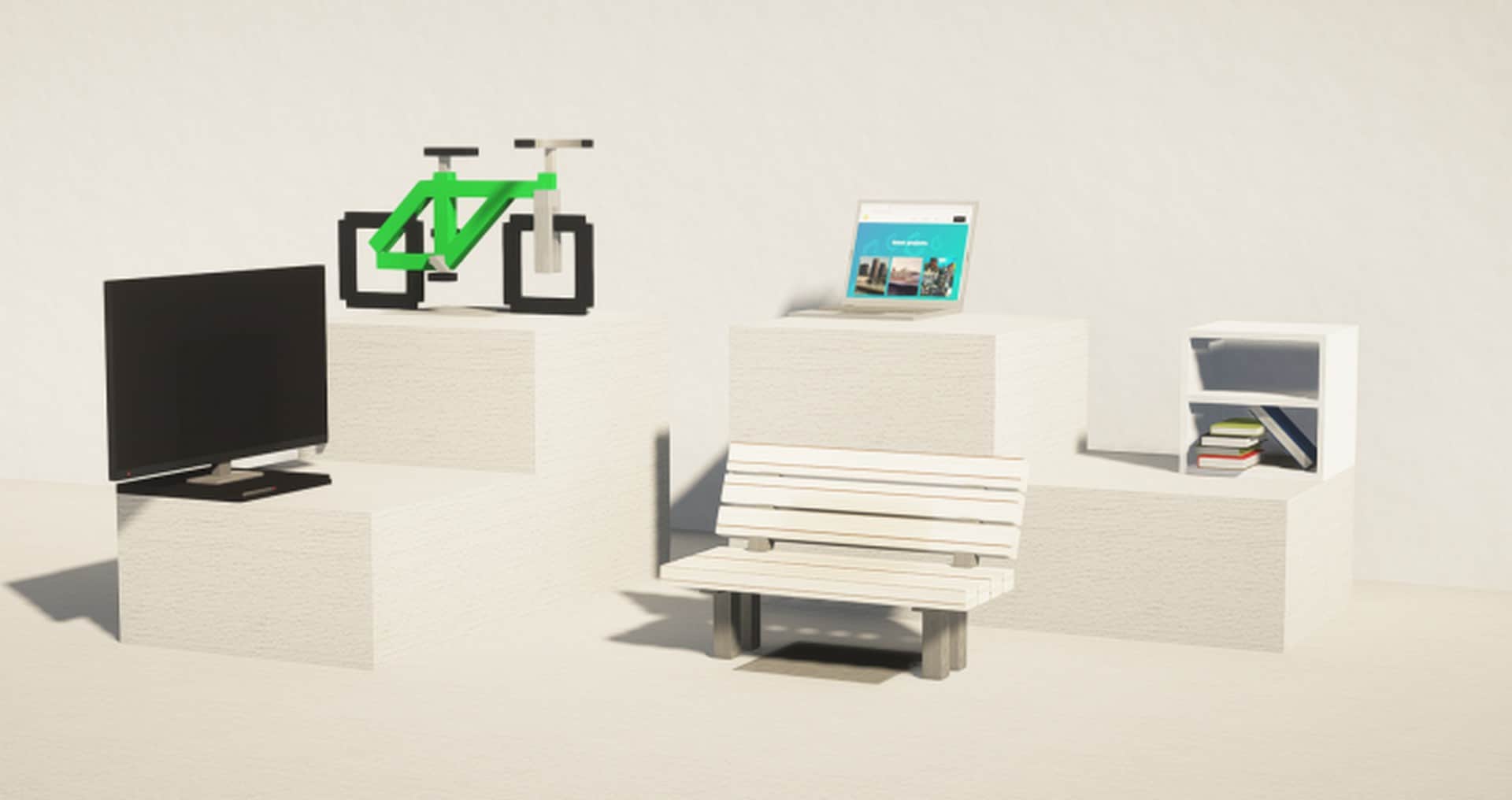
Additionally, I was so glad to notice that the textures are wonderfully free of noise, unlike most other detailed textures you find in Minecraft, making the whole visual experience remarkably clean and appealing. Most players will happily tell you that virtually every texture is carefully designed to avoid any annoying visual static. On top of that, the leaves and flora are brilliantly optimized, and there is an impressive number of custom models and furniture provided to flesh out your builds. The vibrant, bright colors and the smartly designed three-dimensional models really come together to create a deeply immersive and enjoyable experience. Just keep in mind that the creator suggests a 128×128 resolution. For the absolute best performance, I strongly recommend running it on a capable machine equipped with a fast CPU, a solid graphics processor, and plenty of memory and storage. If your computer hardware is a bit outdated, you might run into some frame drops, which could honestly hurt the gorgeous visuals and your overall gameplay.
Cubed Textures should be compatible with all of these Minecraft versions: 1.15.2 – 1.15.1 – 1.15 – 1.14.4 – 1.14.3 – 1.14.2 – 1.14 – 1.13.2 – 1.13.1 – 1.13 – 1.12.2 – 1.12
Screenshots





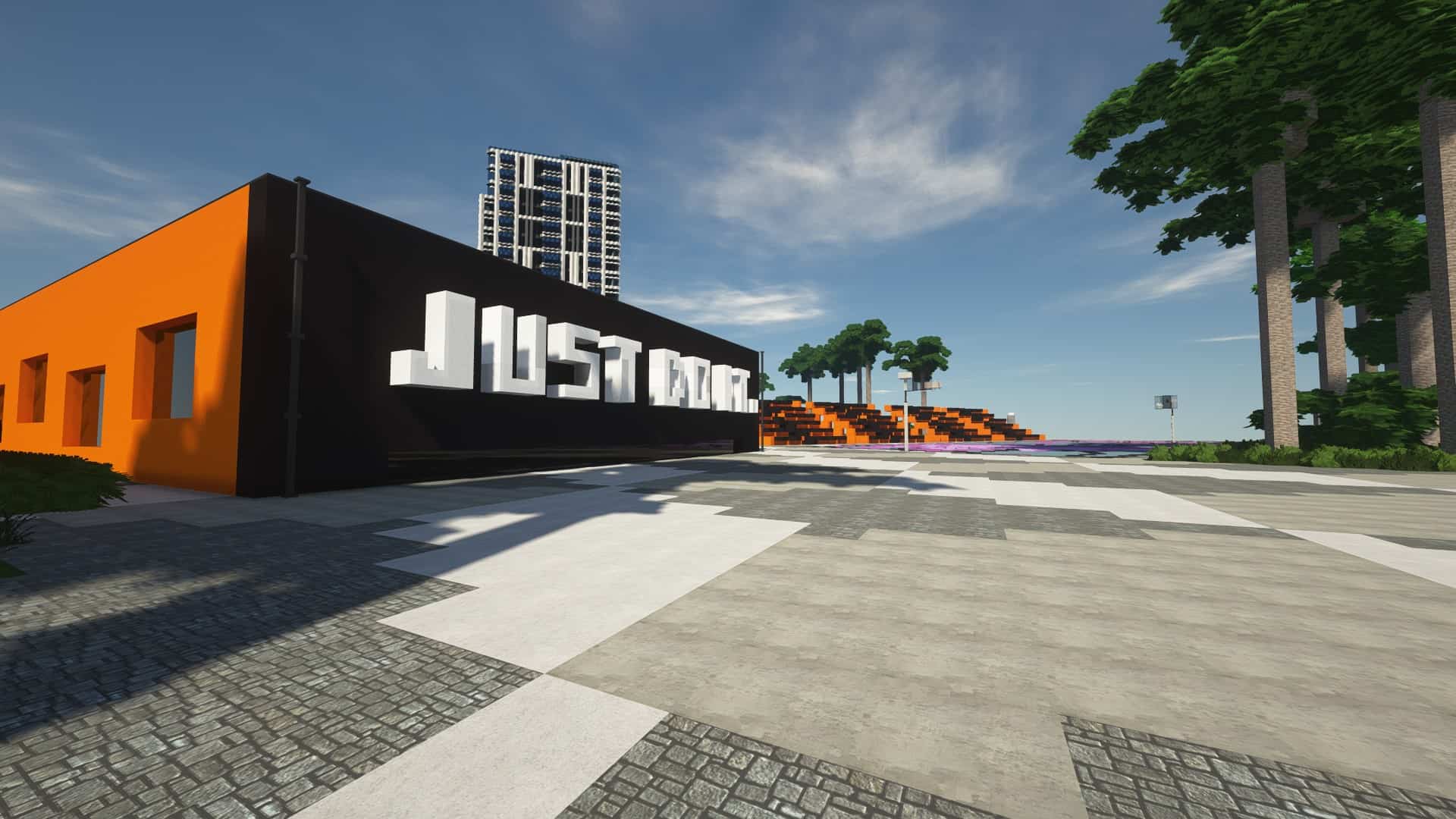
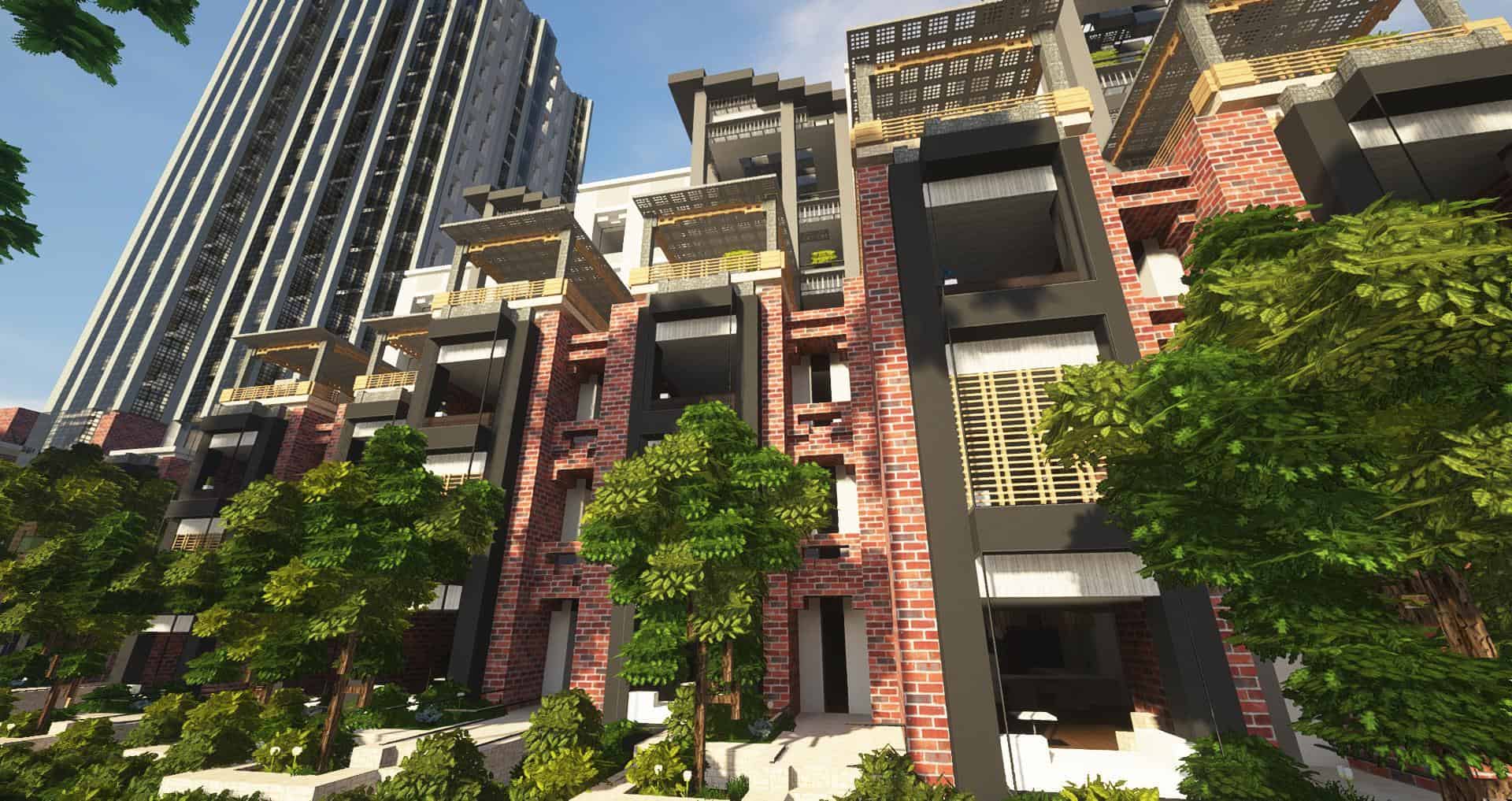
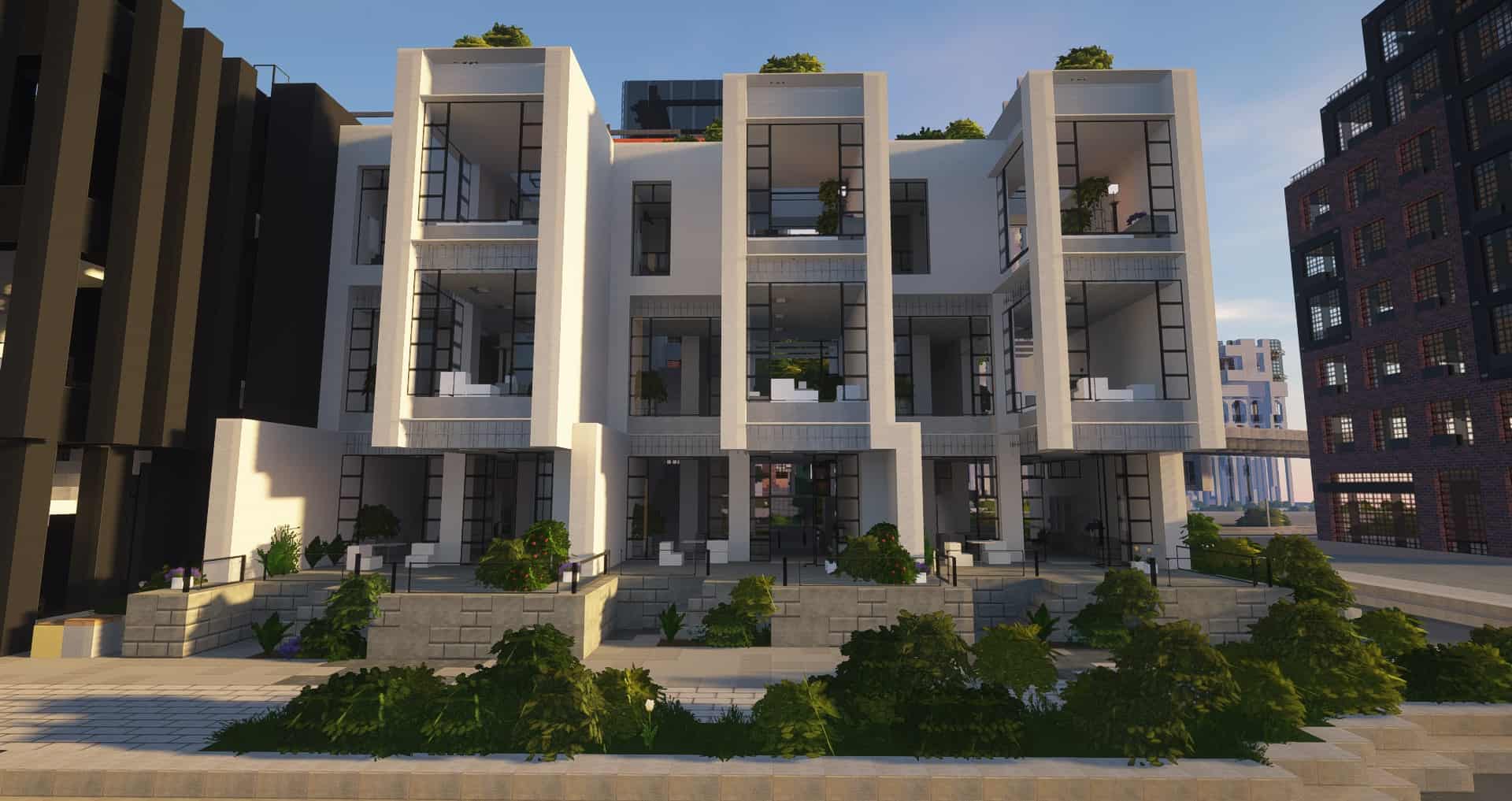
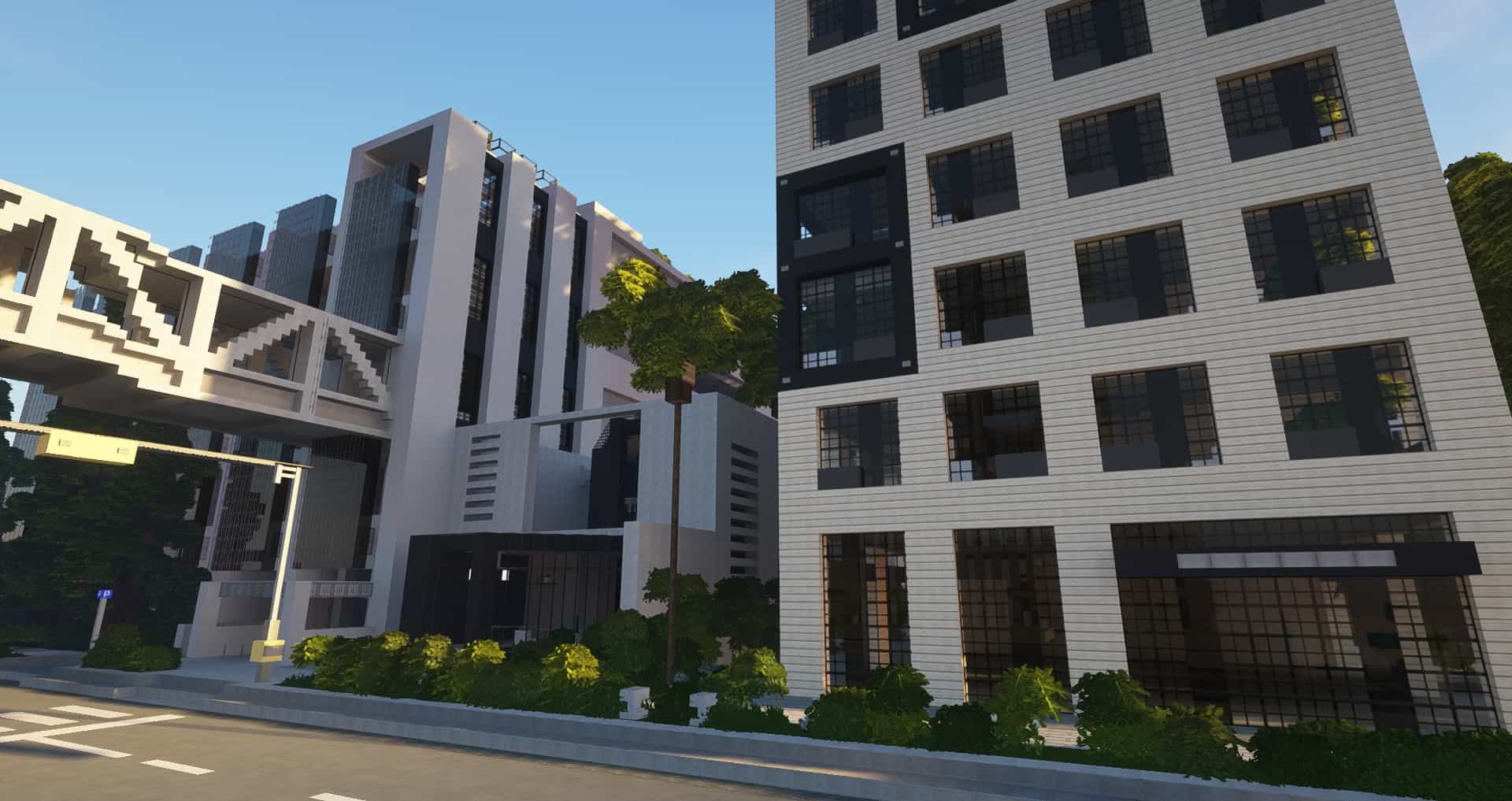

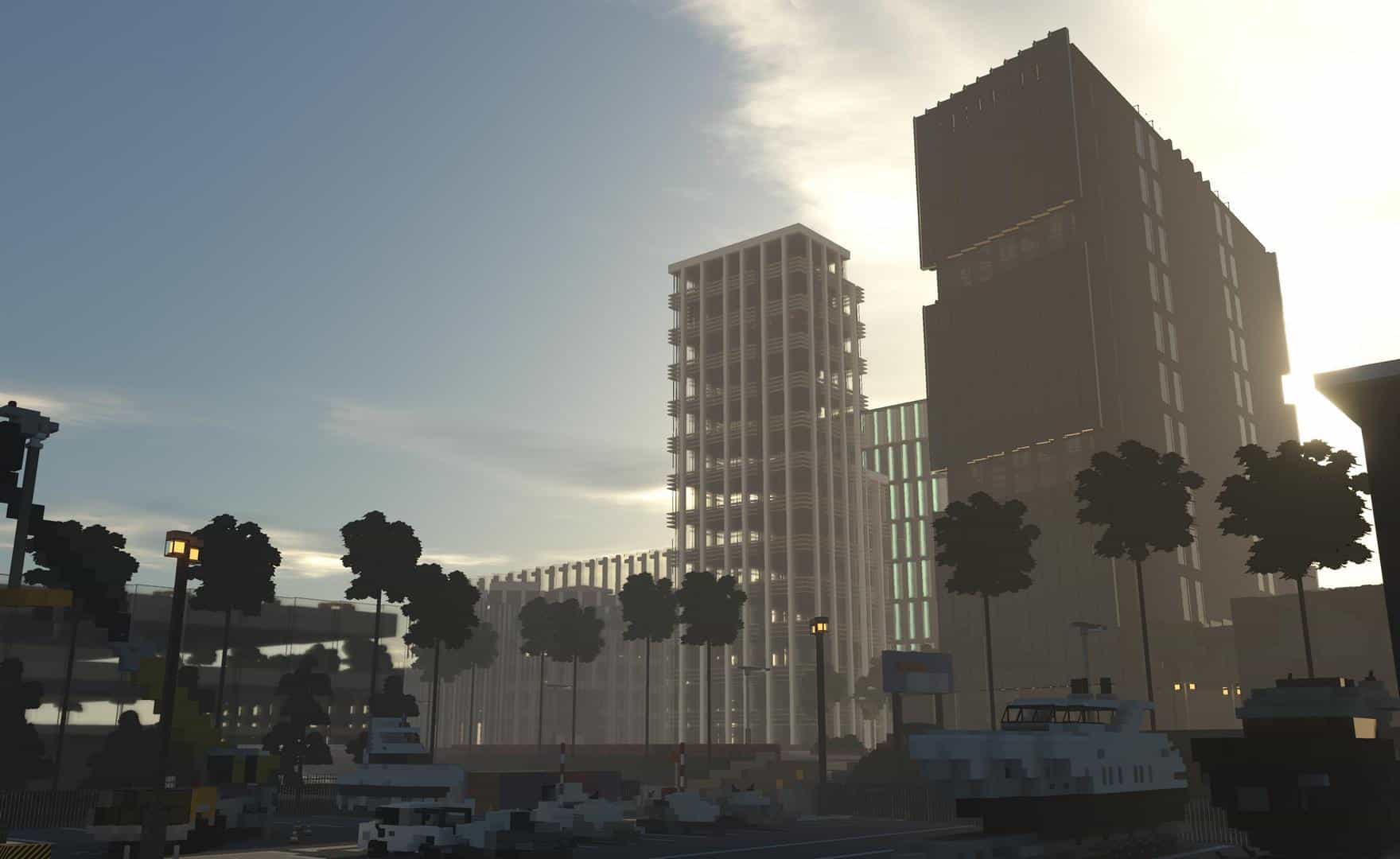
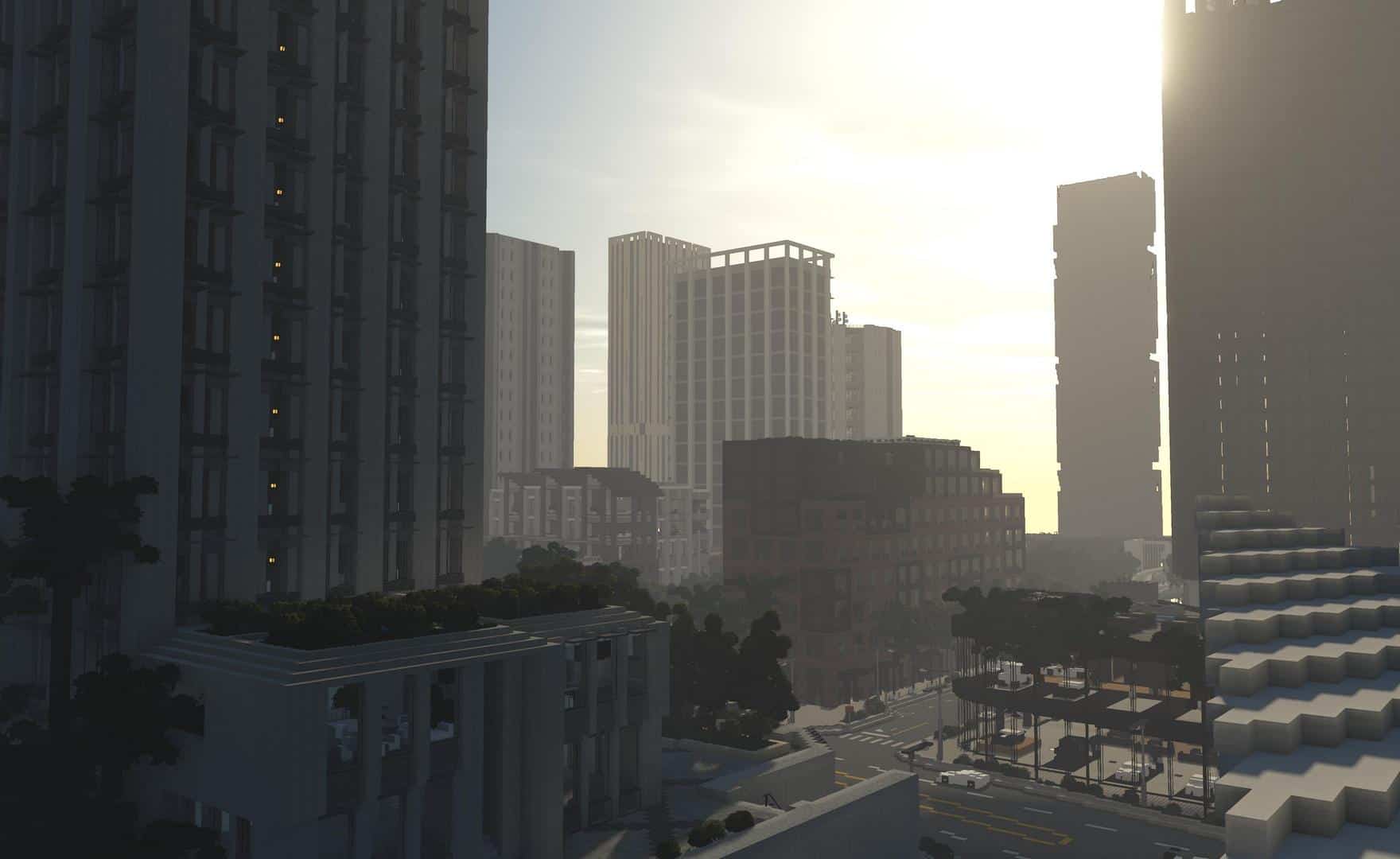
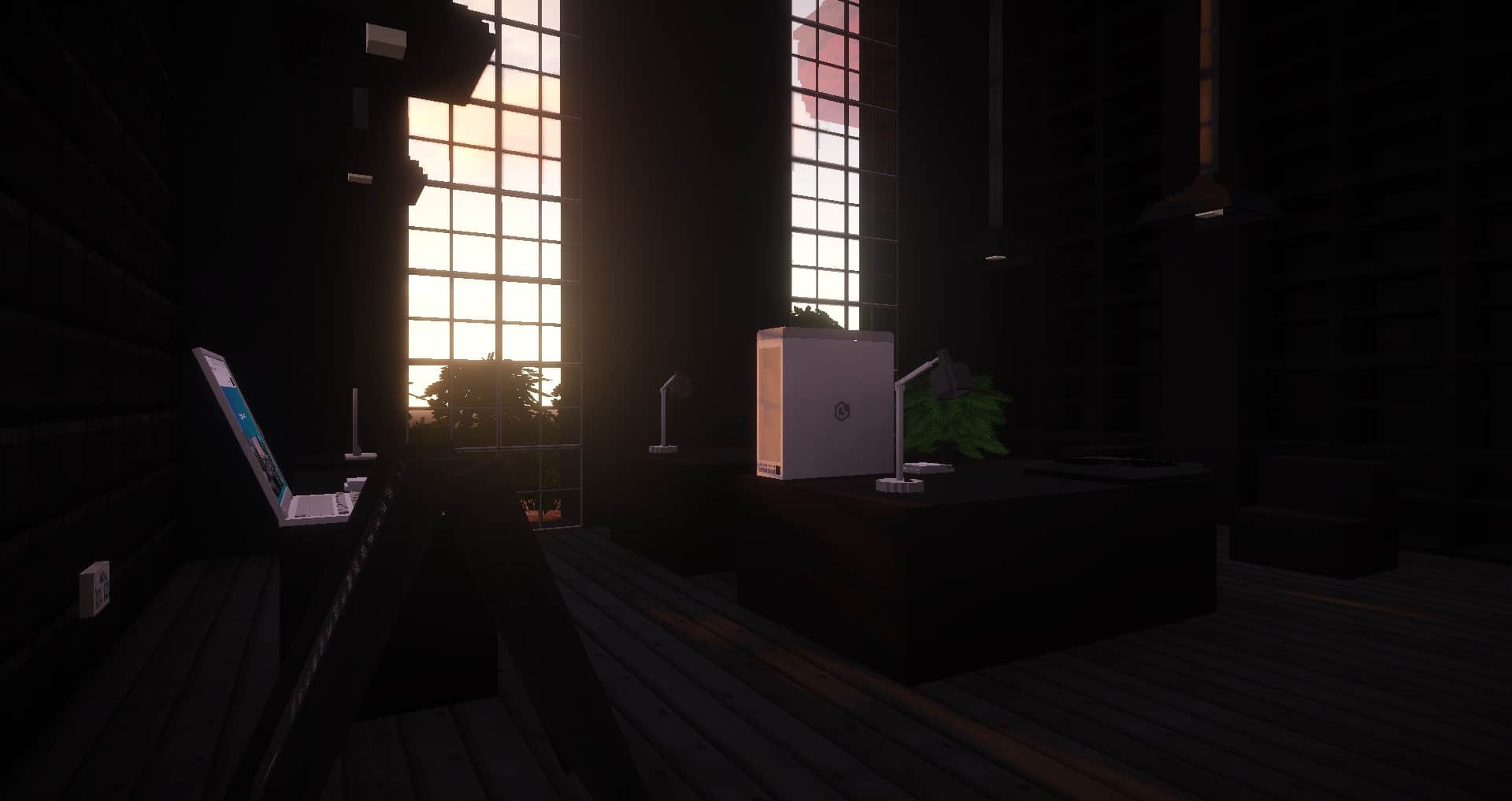


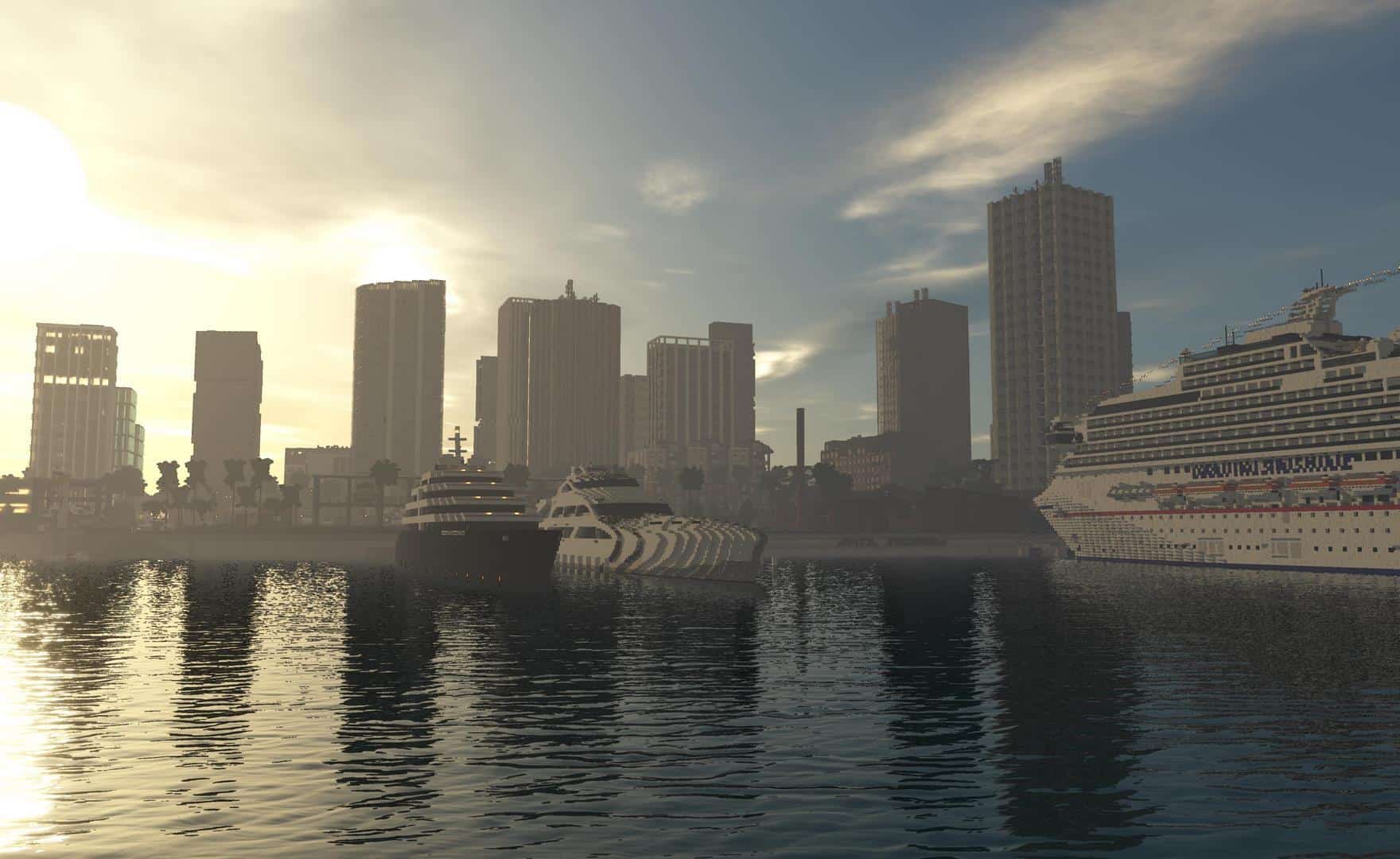



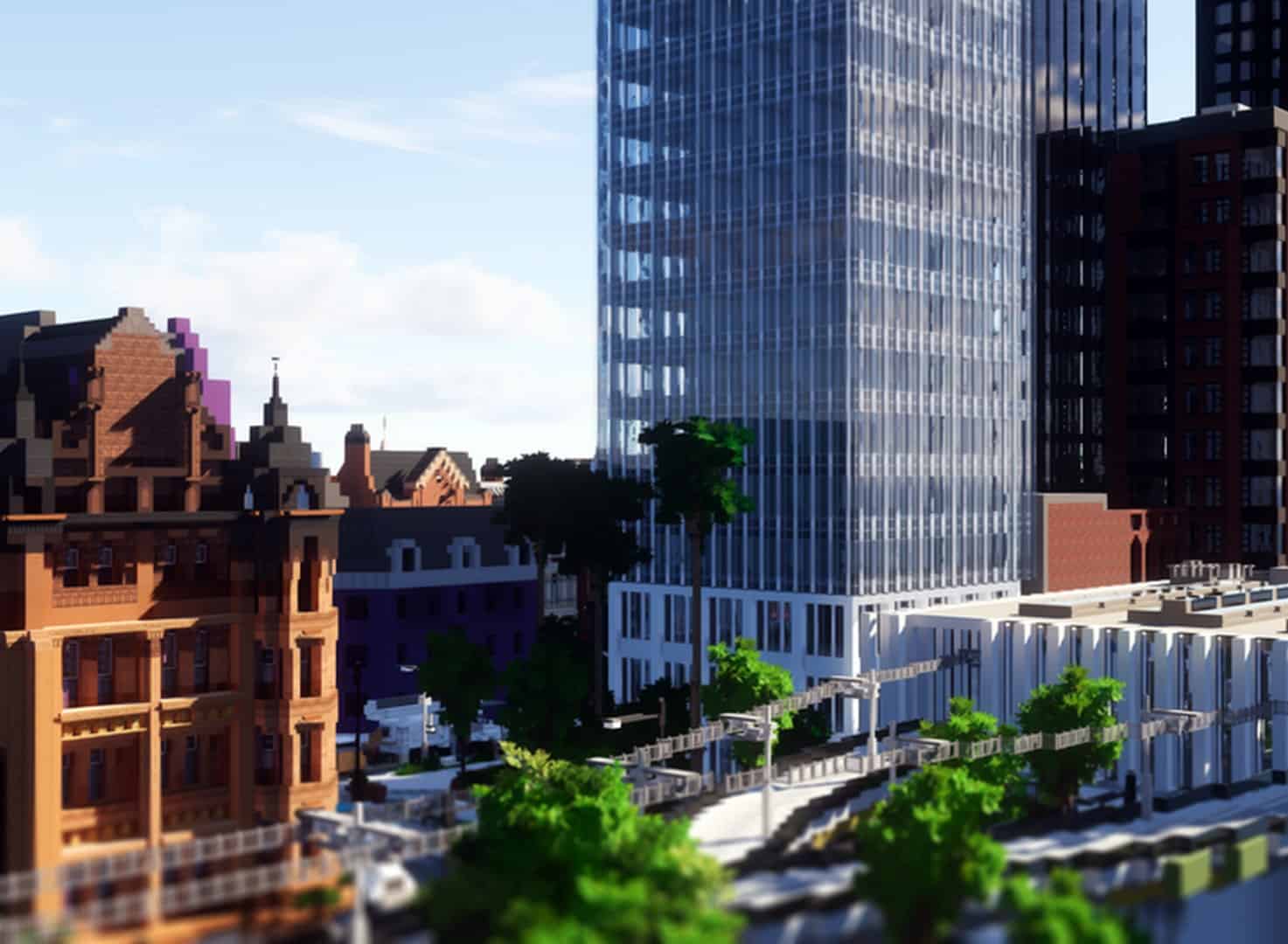

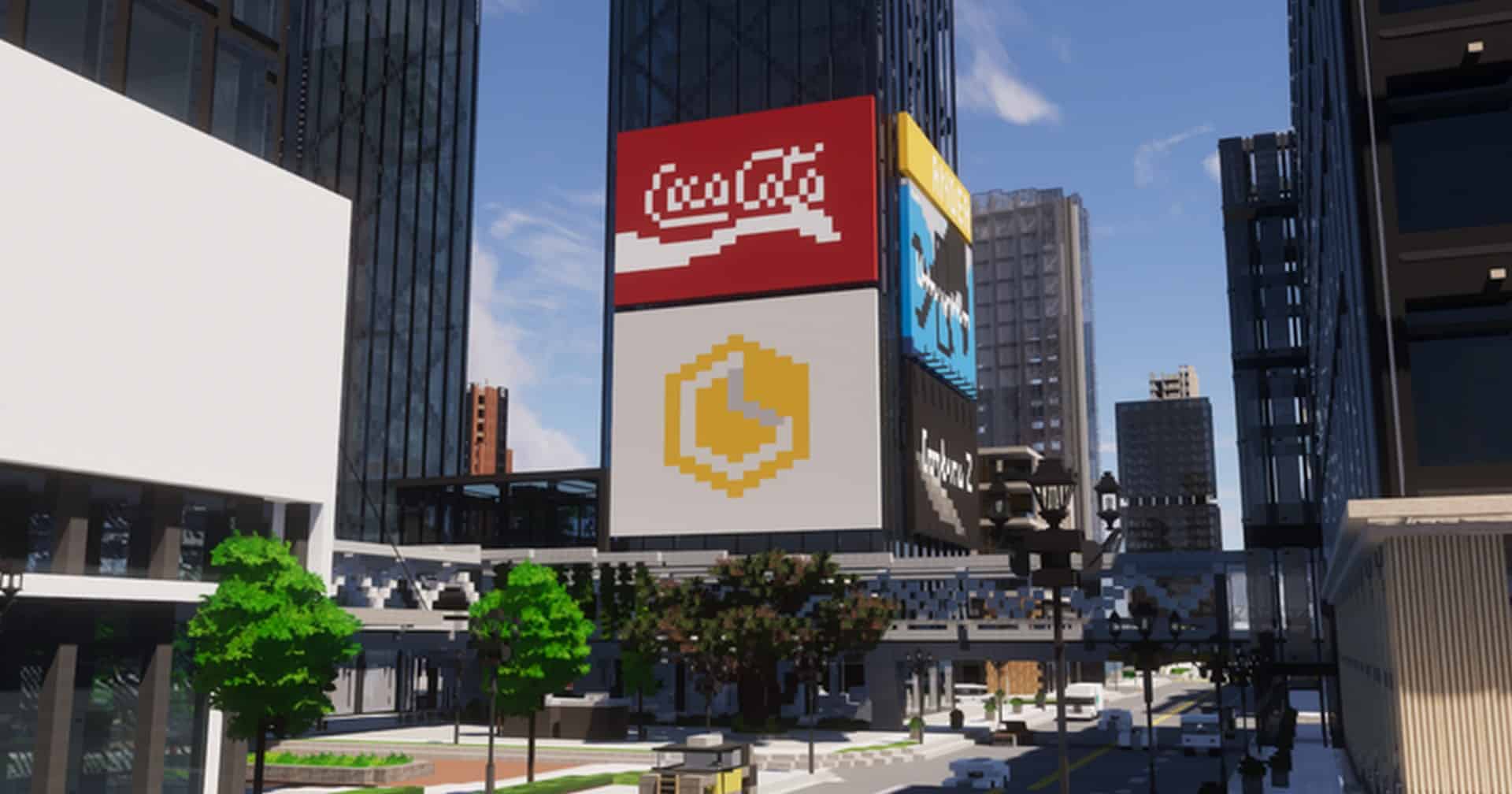
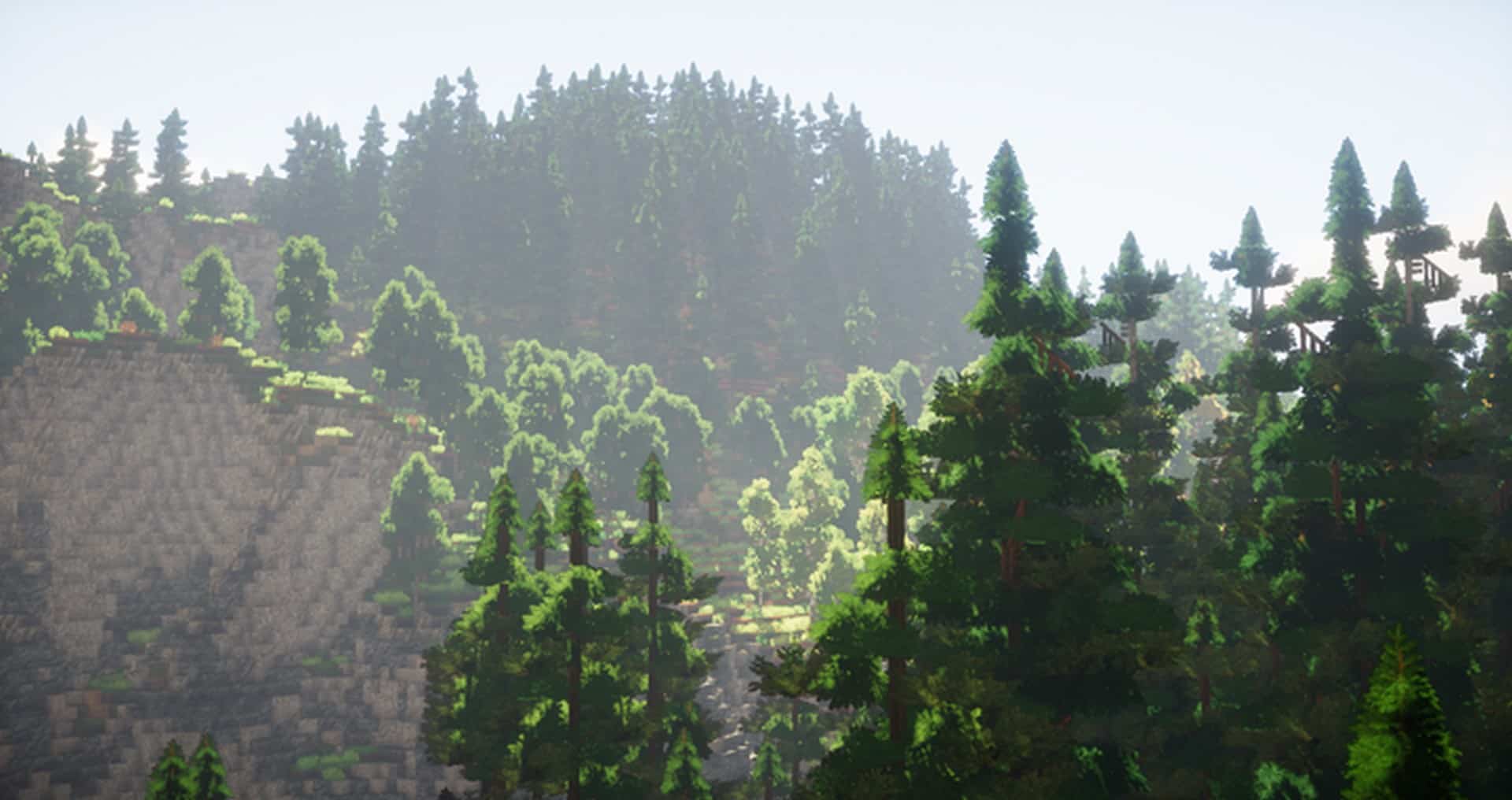
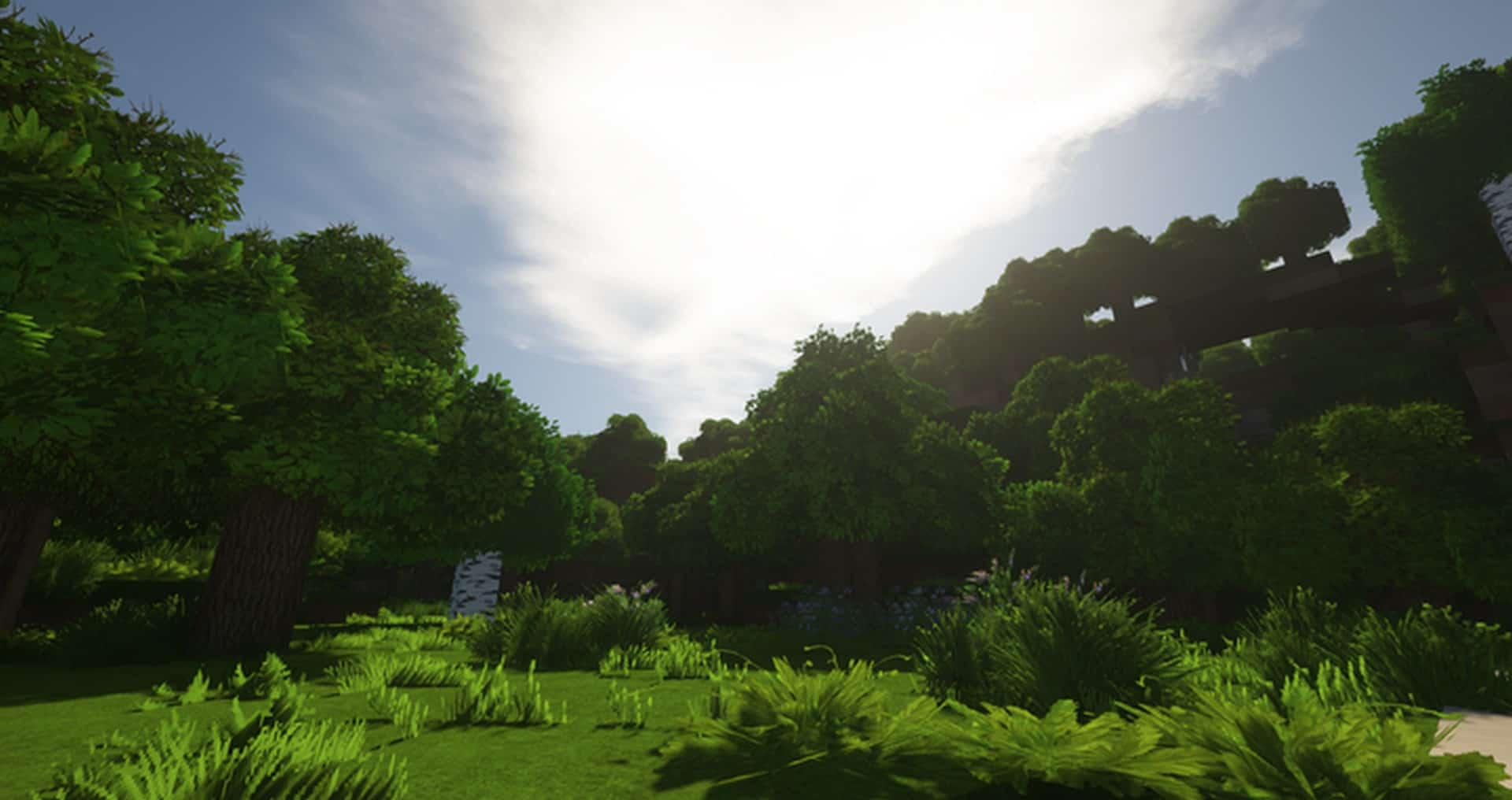
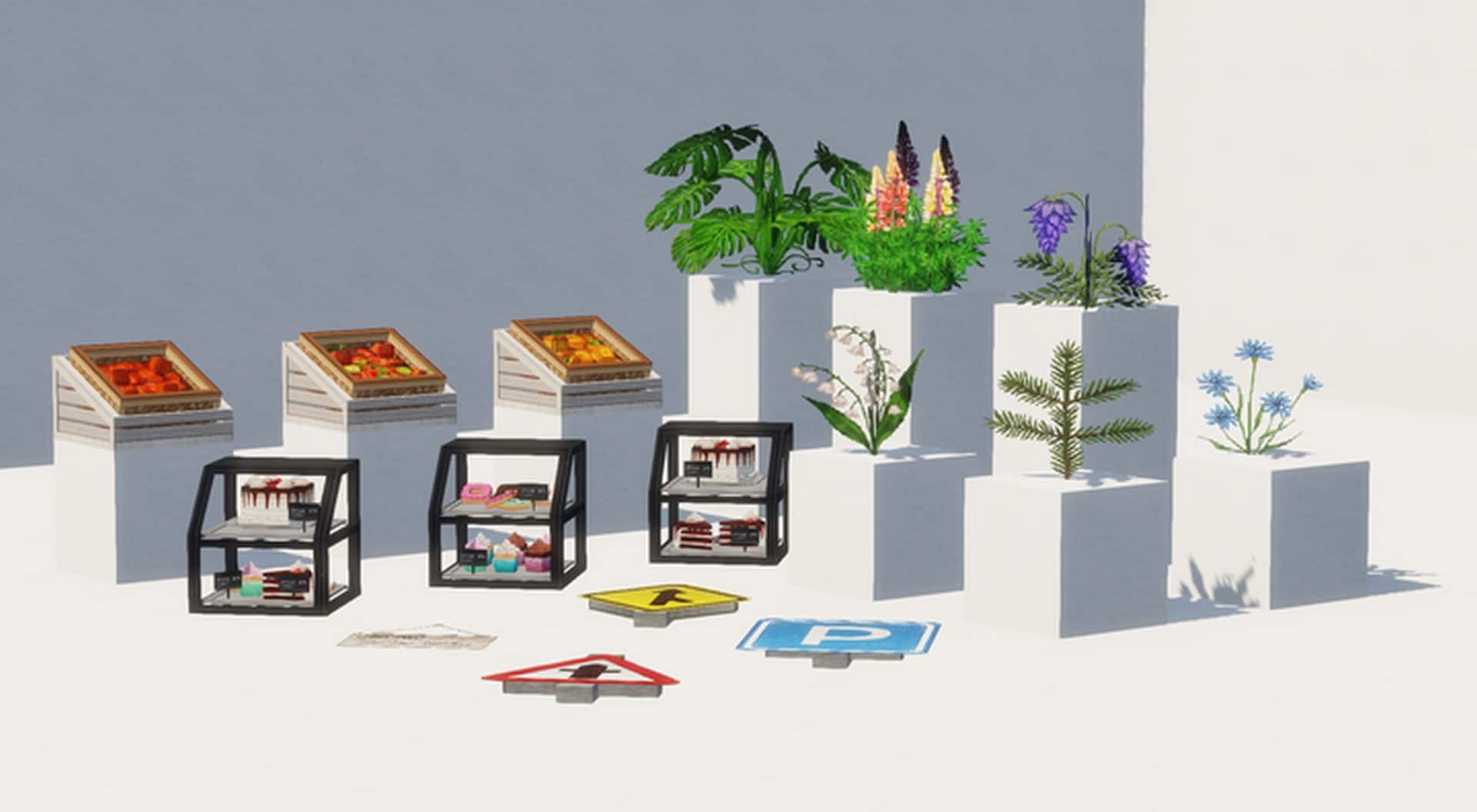
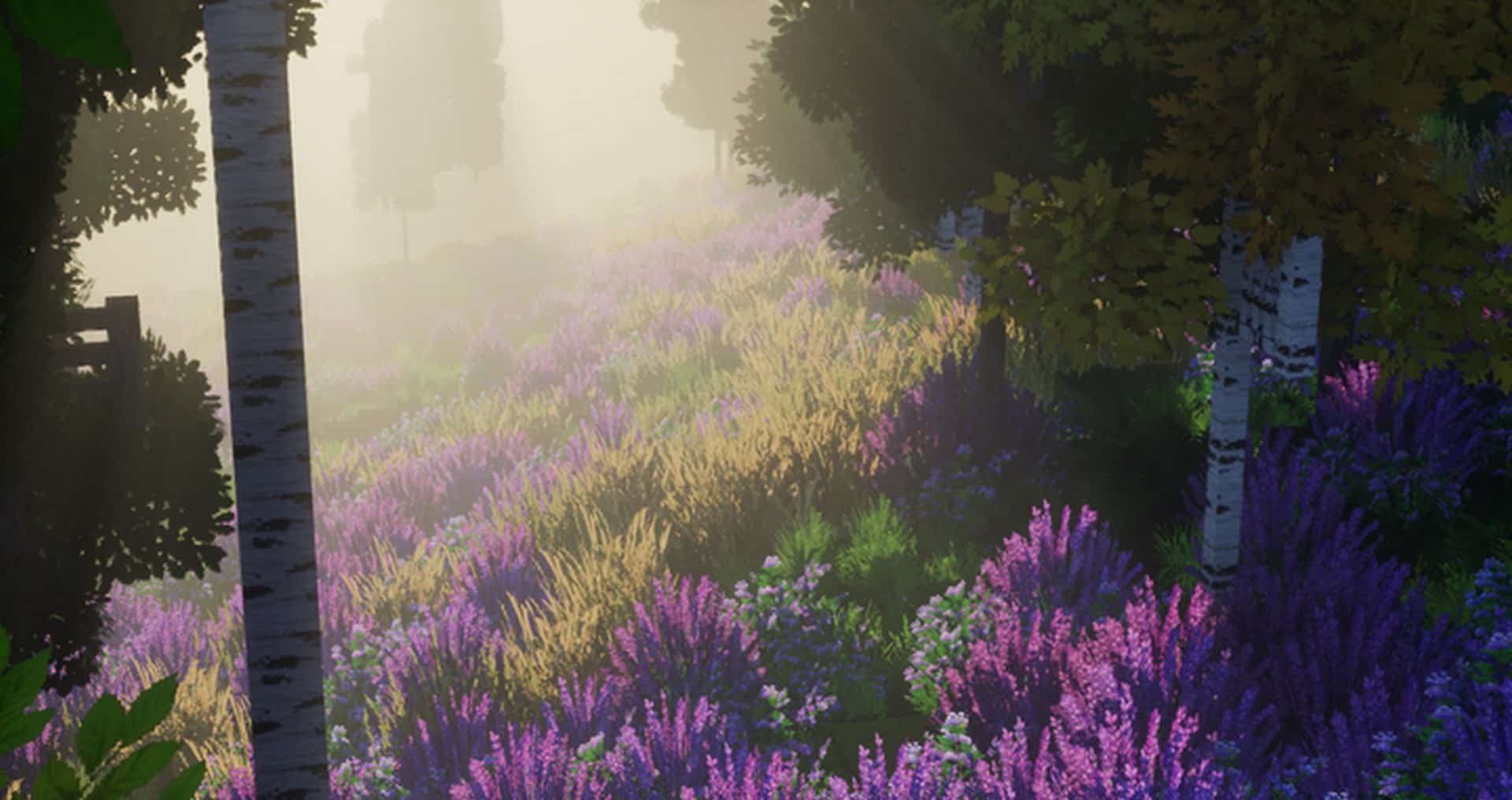
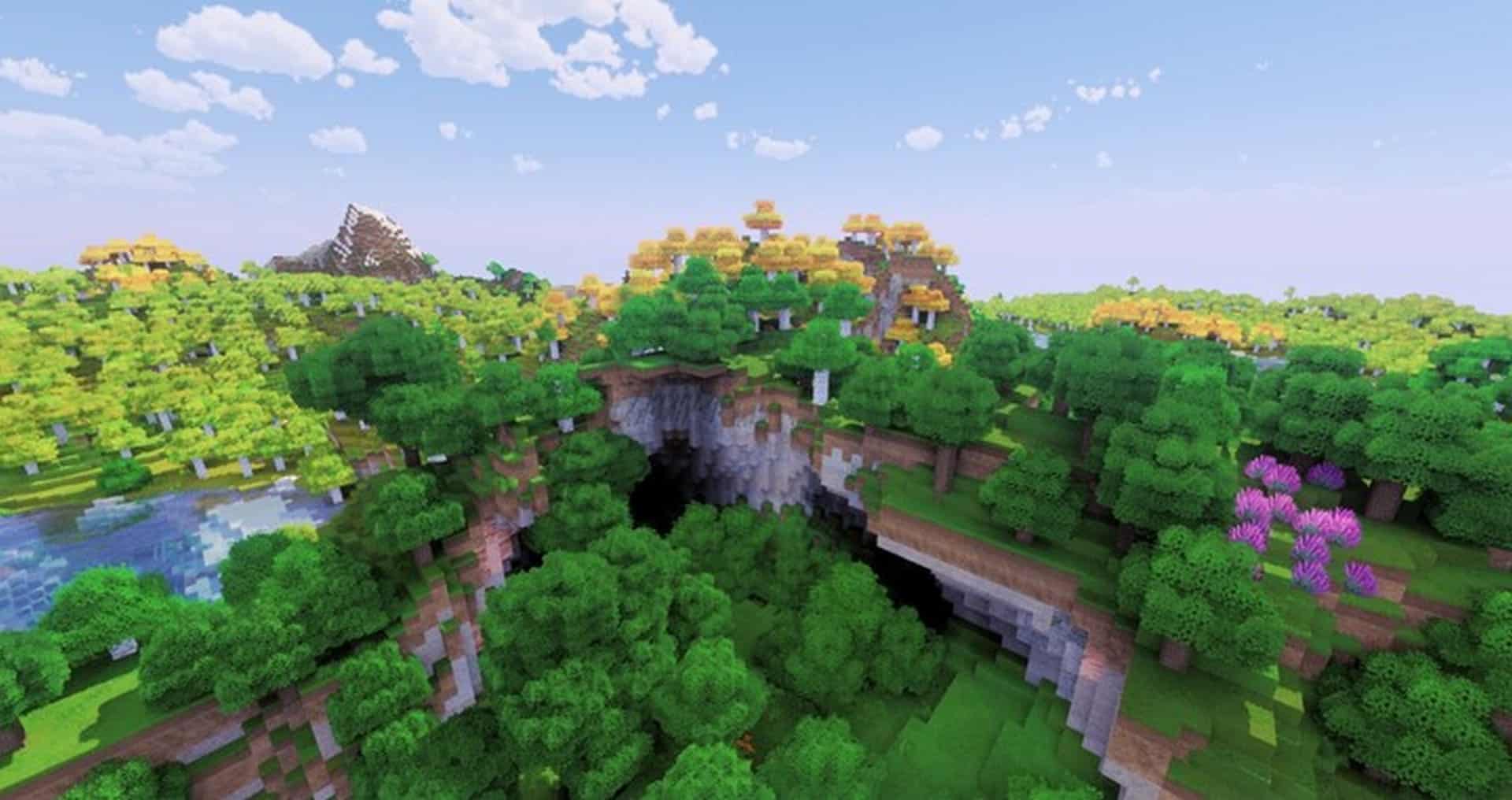
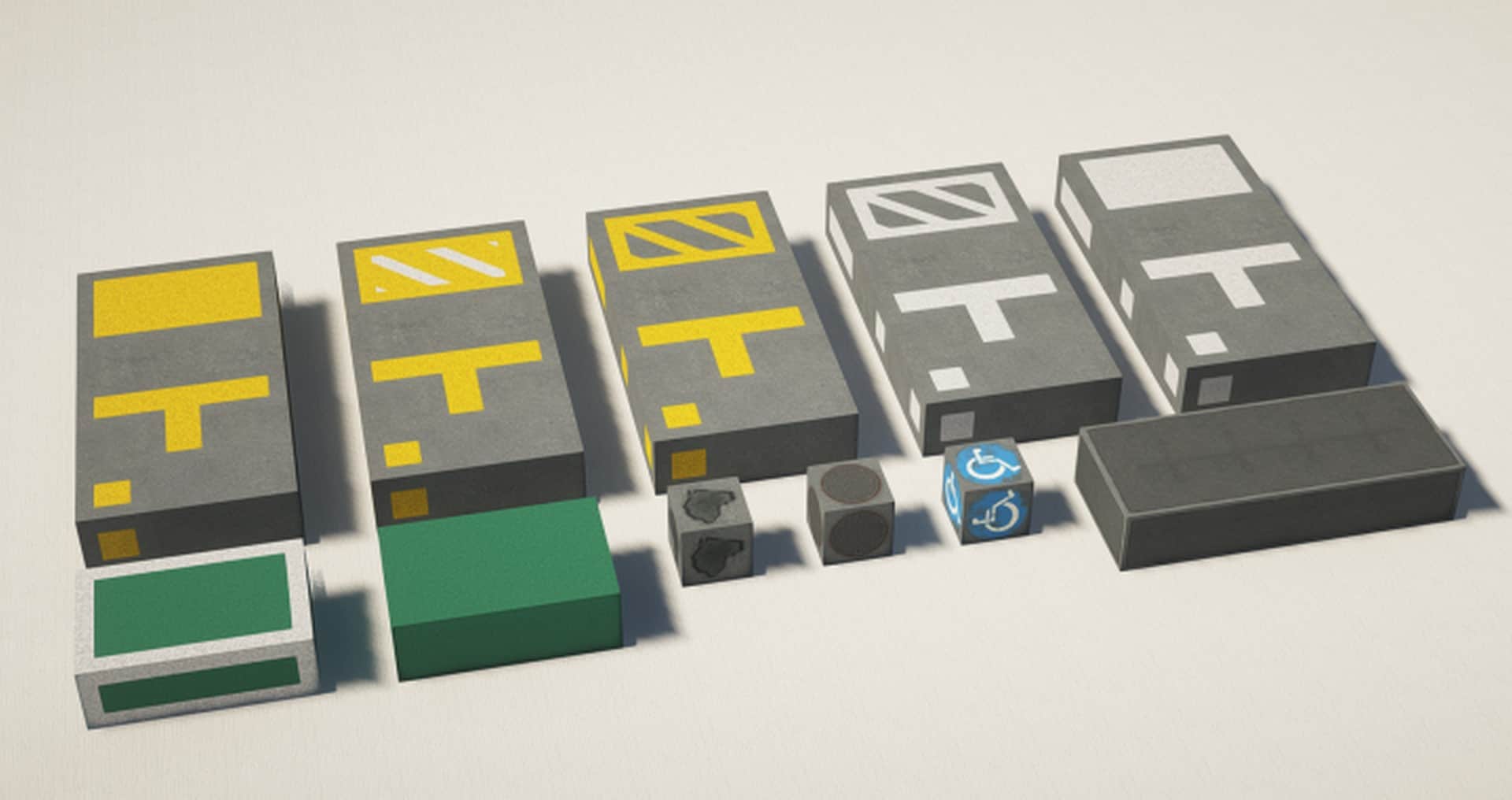
How to Install Texture Pack (Simple 10 Steps)
- Download OptiFine: Most of the texture packs and shaders need OptiFine. That’s why, first download and install OptiFine for the version of Minecraft you want to play.
- Download the Texture Pack: Get the texture pack you want from the download section. Choose the version that works with your Minecraft and your PC’s performance.
- Open Minecraft Launcher: Start Minecraft using the official game launcher — or even TLauncher, if you use that.
- Go to Options: From the main menu, click on the “Options” button.
- Open Resource Packs: Inside Options, click on “Resource Packs…”.
- Open the Resource Pack Folder: Click on “Open Resource Pack Folder” — this will open a folder named “resourcepacks”.
- Move the Pack File: Copy or move the .zip file you downloaded into that “resourcepacks” folder. (Don’t unzip the file — Minecraft uses it as-is!)
- Go Back and Refresh: Close the folder and click “Done”, then go back into “Resource Packs…” again.
- Activate the Pack: You’ll see the pack on the left side. Hover over it and click the arrow to move it to the right (active side).
Tip: If you get a message that the pack is for a different version, just click “Yes” — it usually works fine. - Click Done and Enjoy: Click “Done” again. Now your pack is ready to use in-game. It’s that easy!
Credits
This resource pack was originally created by Aequotis and Tarago. We do not claim ownership of this content nor do we host modified files on our servers. All rights remain with the original creators. We strongly encourage you to visit and support the creators through their official download channels.
Download Instructions
Curseforge: download starts automatically after a few seconds;
Mediafire: click the big blue button with the text “DOWNLOAD”;
Google Drive: in the top right corner you will see a small download icon (down arrow), click it and the download should start;


