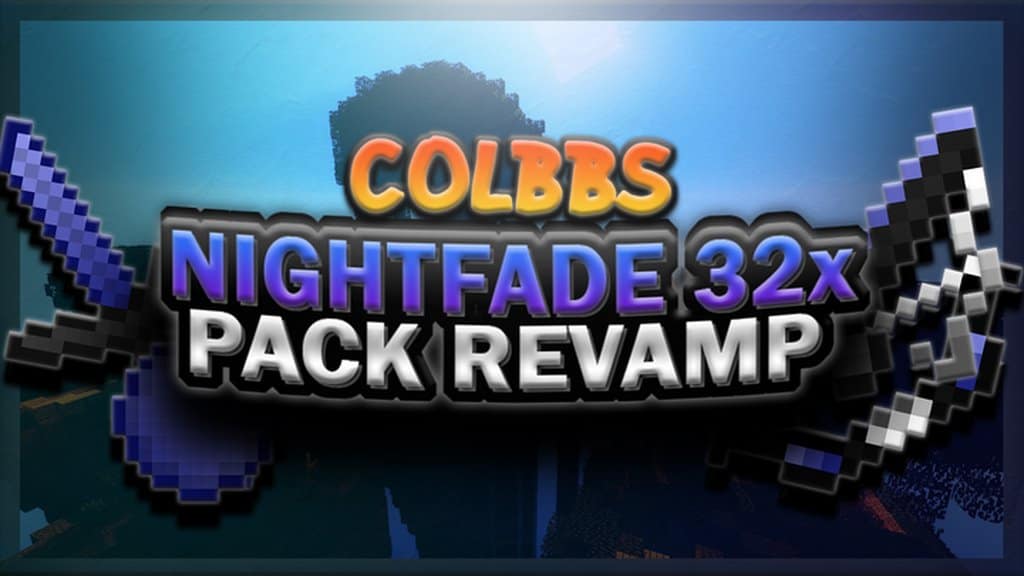
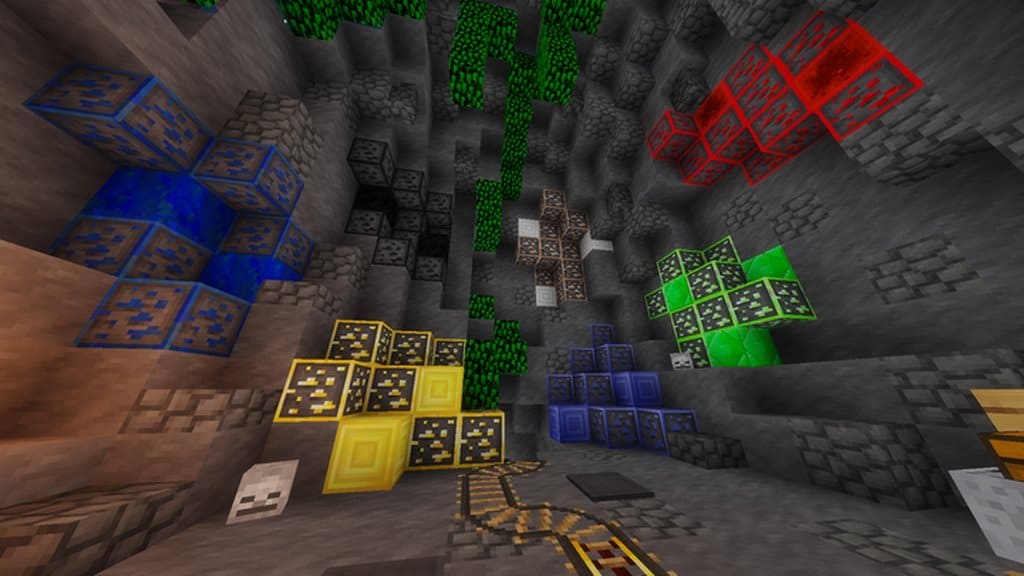
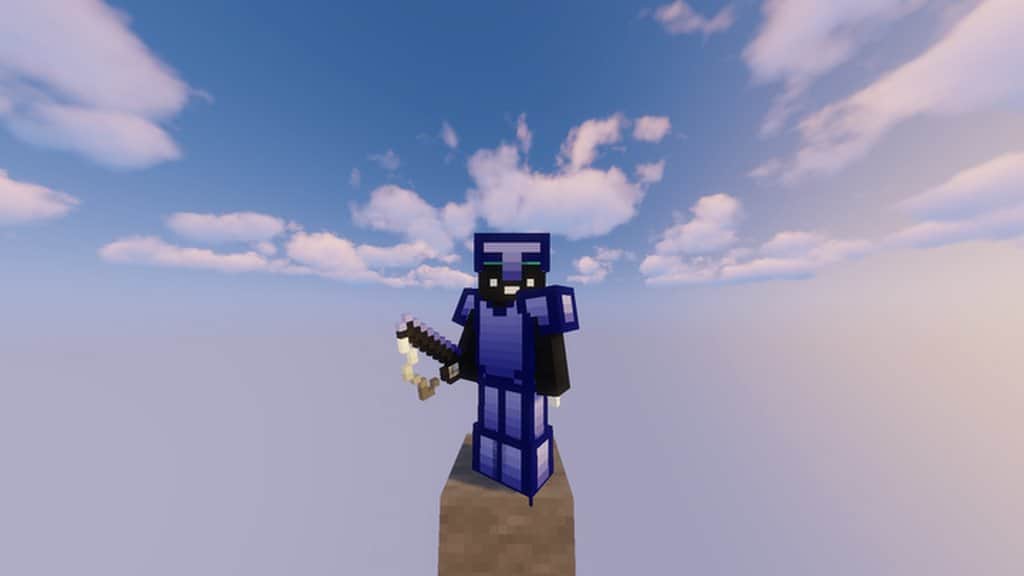
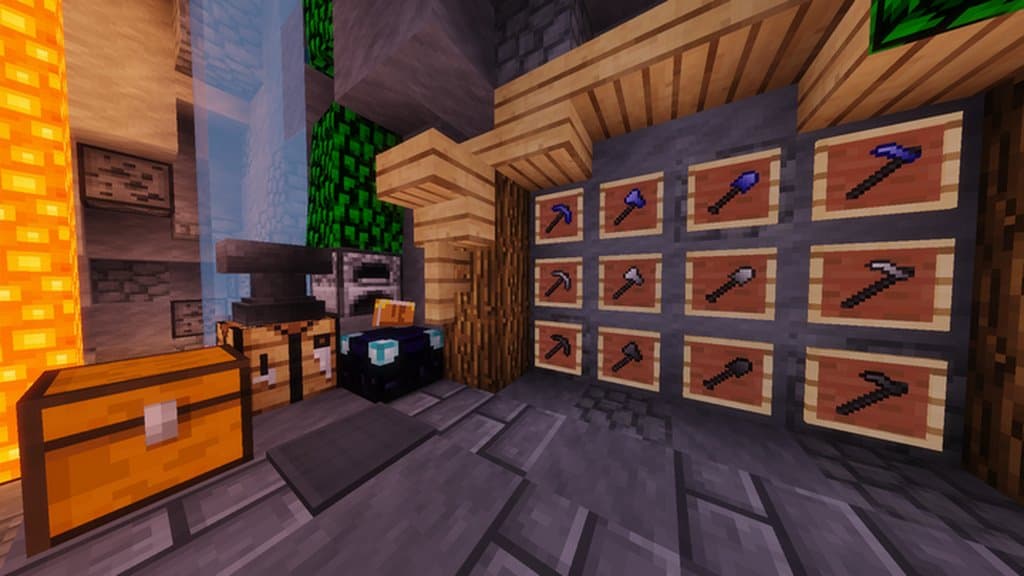
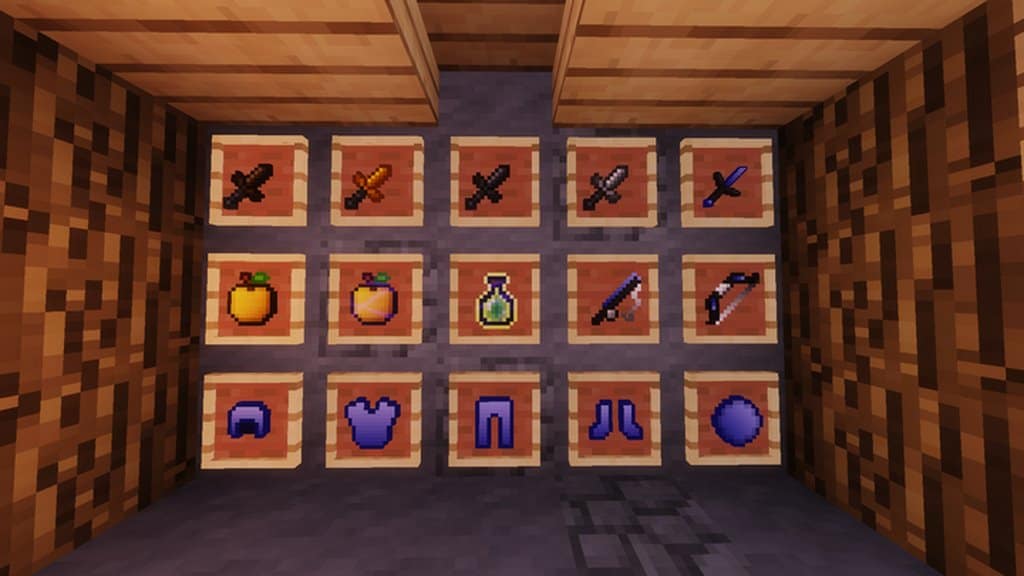
The Nightfade PvP resource pack has been brilliantly developed by experts who possess extensive experience in playing the game, its graphics, and its textures. To ensure that players truly have an immersive experience while playing, the visuals of the game have been thoughtfully and slightly altered. Additionally, I found that the pack is exceptionally well-designed to optimize the use of computing resources, improving game performance significantly. Even though there are a very large number of PvP packs currently available, I believe players should seriously consider using this pack for a number of wonderful reasons. It is designed extremely well, helps improve the overall performance of the game, and is visually very attractive. The designer of the pack is Colbb, who boasts a proven track record of developing a number of other highly rated PvP packs, so players can rest assured that the Nightfade pack is of the highest quality. One of the most unique features of the Nightfade pack is that it uses one of the darkest shades of dark blue available as the main color in the palette, beautifully accented with just the right amount of purple. This striking shade is used for coloring the swords as well as the other weapons which are skillfully altered in the resource pack. In addition to altering the weapons, some of the elements in the terrain are also adjusted. This effectively reduces visual noise in the game and makes everything wonderfully smooth, ensuring players are completely engrossed while playing. Alongside the dark blue and purple, the other colors used in the resource pack are also darker shades. This can definitely be considered a strong positive feature of the pack, since the game remains wonderfully uncluttered so players stay deeply immersed. On top of the fantastic improvements in the visuals, the Nightfade pack is highly preferred because players can experience a noticeable Frame per Second (FPS) boost. This is entirely due to the fact that the textures in the pack are expertly optimized for better performance while featuring a x32 resolution. Consequently, Minecraft players who only have access to a lower-end computer will definitely prefer using this pack, as it delivers high-quality visuals without adversely affecting performance at all.
Nightfade PvP should be compatible with all of these Minecraft versions: 1.8.9 – 1.8.8 – 1.8.1 – 1.8.6 – 1.8
Screenshots
How to Install Texture Pack (Simple 10 Steps)
- Download OptiFine: Most of the texture packs and shaders need OptiFine. That’s why, first download and install OptiFine for the version of Minecraft you want to play.
- Download the Texture Pack: Get the texture pack you want from the download section. Choose the version that works with your Minecraft and your PC’s performance.
- Open Minecraft Launcher: Start Minecraft using the official game launcher — or even TLauncher, if you use that.
- Go to Options: From the main menu, click on the “Options” button.
- Open Resource Packs: Inside Options, click on “Resource Packs…”.
- Open the Resource Pack Folder: Click on “Open Resource Pack Folder” — this will open a folder named “resourcepacks”.
- Move the Pack File: Copy or move the .zip file you downloaded into that “resourcepacks” folder. (Don’t unzip the file — Minecraft uses it as-is!)
- Go Back and Refresh: Close the folder and click “Done”, then go back into “Resource Packs…” again.
- Activate the Pack: You’ll see the pack on the left side. Hover over it and click the arrow to move it to the right (active side).
Tip: If you get a message that the pack is for a different version, just click “Yes” — it usually works fine. - Click Done and Enjoy: Click “Done” again. Now your pack is ready to use in-game. It’s that easy!
Credits
This resource pack was created by Colbb. We do not own or claim ownership of this content, and all rights remain with the original creator. We encourage you to support Colbb and their official release channels.
Download Instructions
Curseforge: download starts automatically after a few seconds;
Mediafire: click the big blue button with the text “DOWNLOAD”;
Google Drive: in the top right corner you will see a small download icon (down arrow), click it and the download should start;


