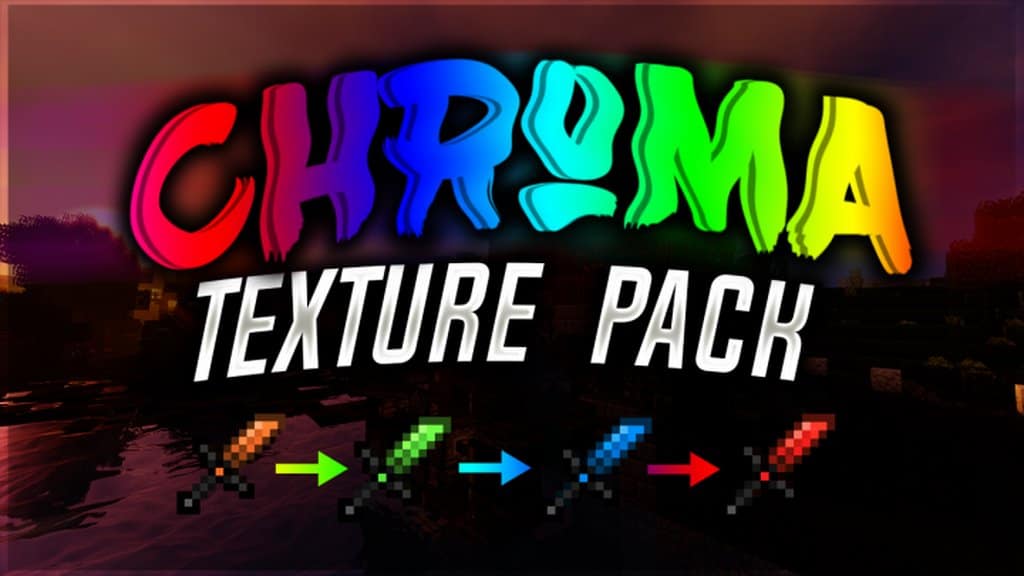
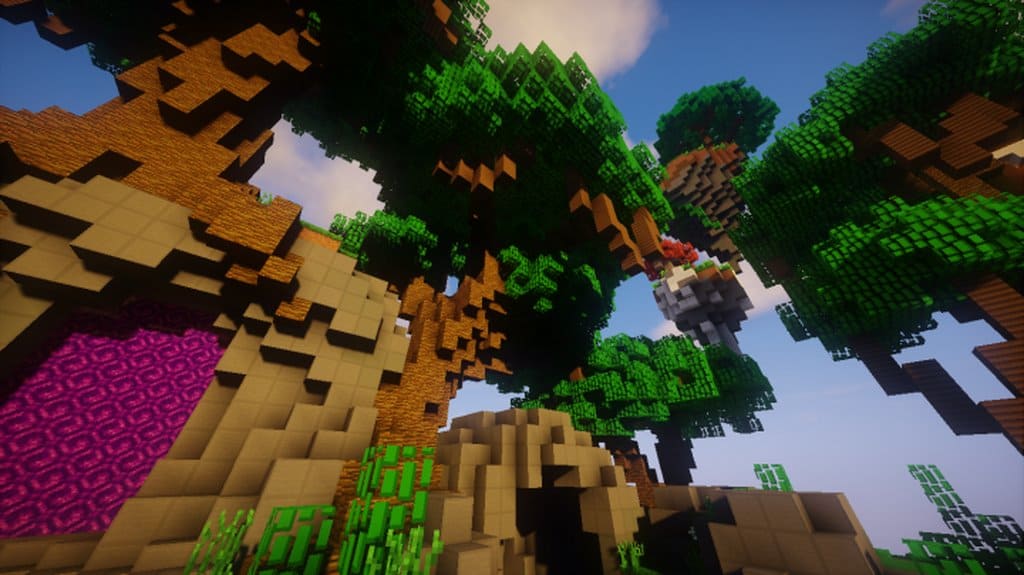
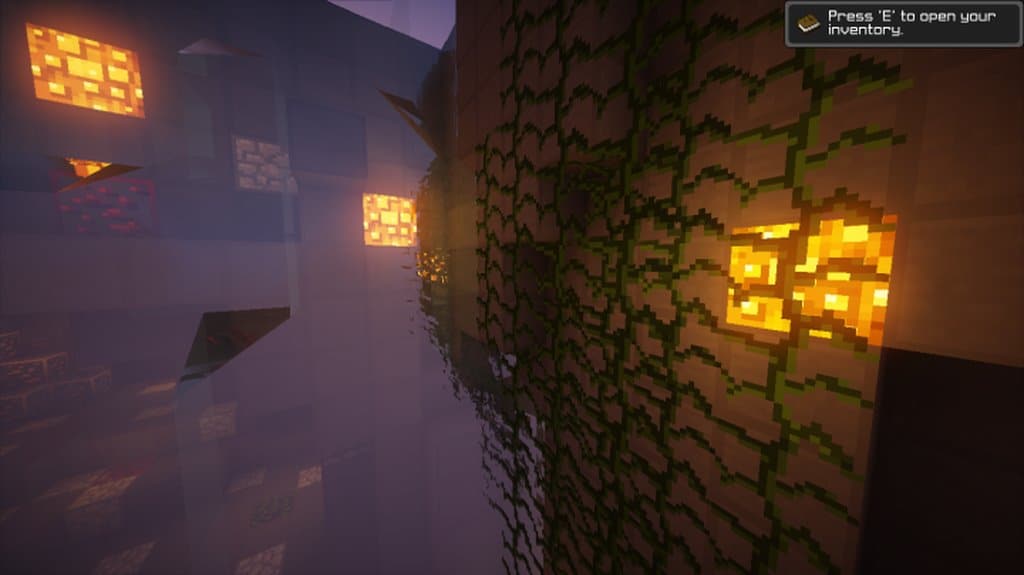
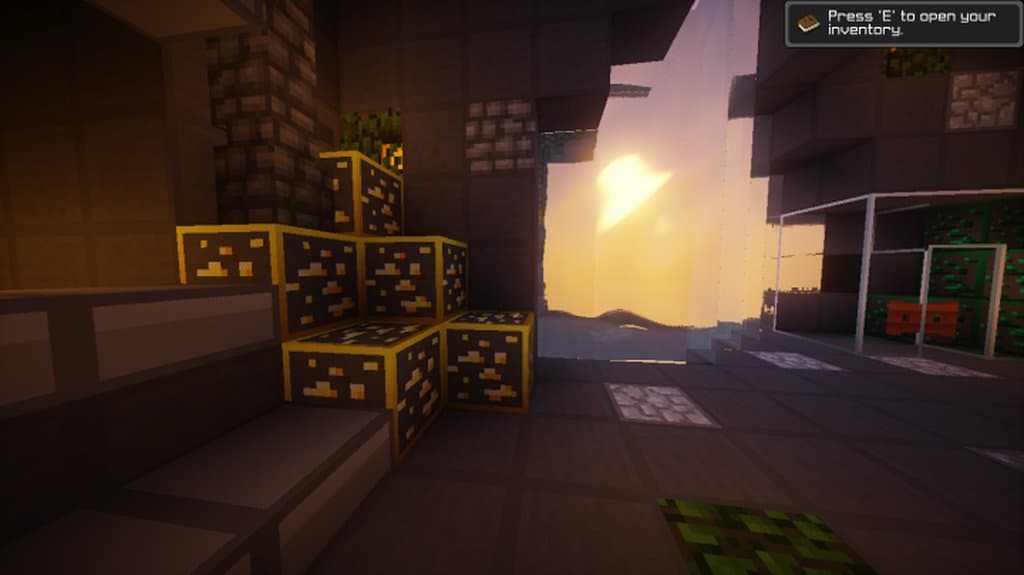
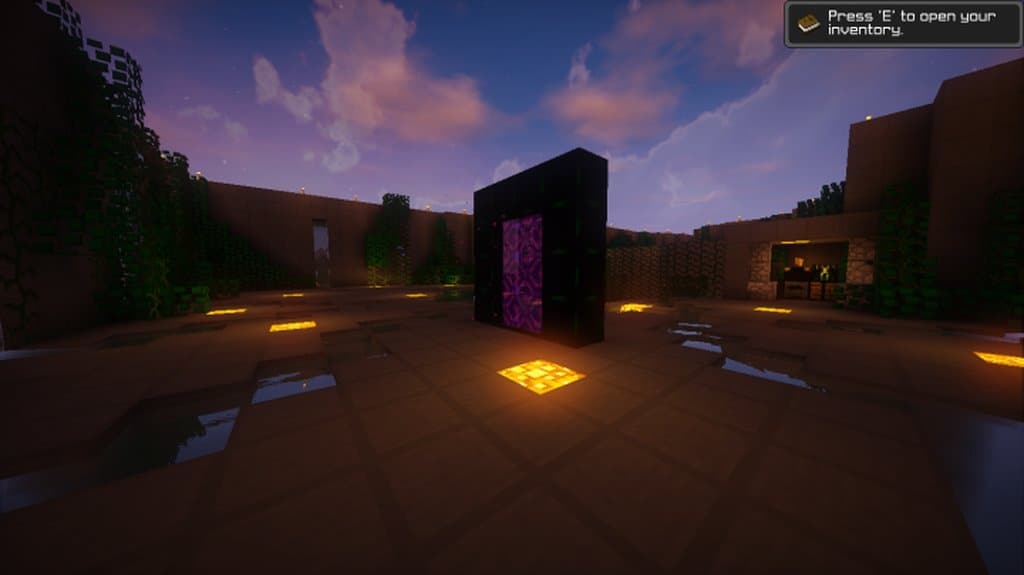
I recently tested Chroma PvP, and it is a truly one-of-a-kind animated and FPS resource pack that does not try to reinvent the wheel. Instead, it brilliantly builds on the fundamentals that are known and loved by anyone that has ever enjoyed a PvP pack before. But the Chroma resource pack doesn’t rely on fundamentals alone – it changes the game completely by using new features that no player has seen before. This is easily my number one, go-to option for anyone who enjoys PvP texture packs but doesn’t feel satisfied by the average feel and style most like-minded resource packs bring to the game. If you have tried over and over again a multitude of PvP resource packs to no avail, Chroma might be the right thing for you – one that’ll end the quest for the right PvP resource pack as soon as you try this. There are truly two sides to the Chroma resource pack that make it so special.
First of all, it covers every single fundamental element that you know and want from a PvP resource pack. You get low fire, short swords, and every other feature that is an absolute must-have for intense PvP sessions. On the other hand, Chroma offers next-level animated textures that I have never seen anywhere else before. For example, the armor and weapons’ textures feature a stunning animated loop between different vibrant colors. Chroma also adds crystal clear water and breathtaking custom skies, among other things. Chroma offers a level of detail that has no match right now. In fact, it presents such an immersive experience that it might prove slightly distracting at first – that’s just how remarkably good this is. It is one thing to try your average, run-off-the-mill PvP resource pack, but it’s another thing entirely to experience what Chroma has to offer. Best of all, the PvP resource pack’s textures use the standard Minecraft resolution at 16×16. Because of this, you will be able to run the resource pack smoothly without any framerate issues whatsoever – as long as you can run vanilla Minecraft normally.
Chroma PvP (Animated) should be compatible with all of these Minecraft versions: 1.8.9 – 1.8.8 – 1.8.1 – 1.8.6 – 1.8 – 1.7.10 – 1.7.9 – 1.7.4 – 1.7
Screenshots
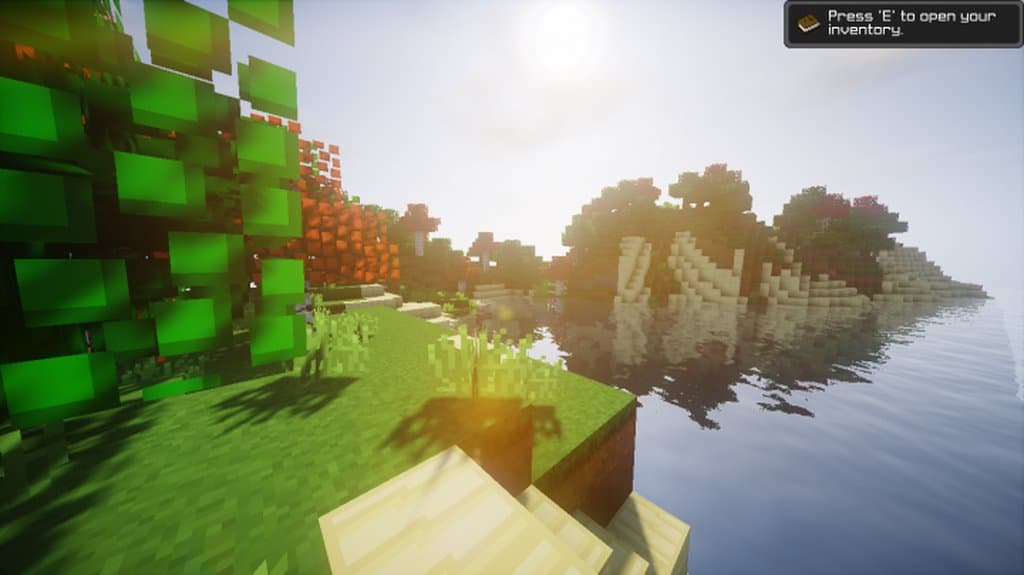
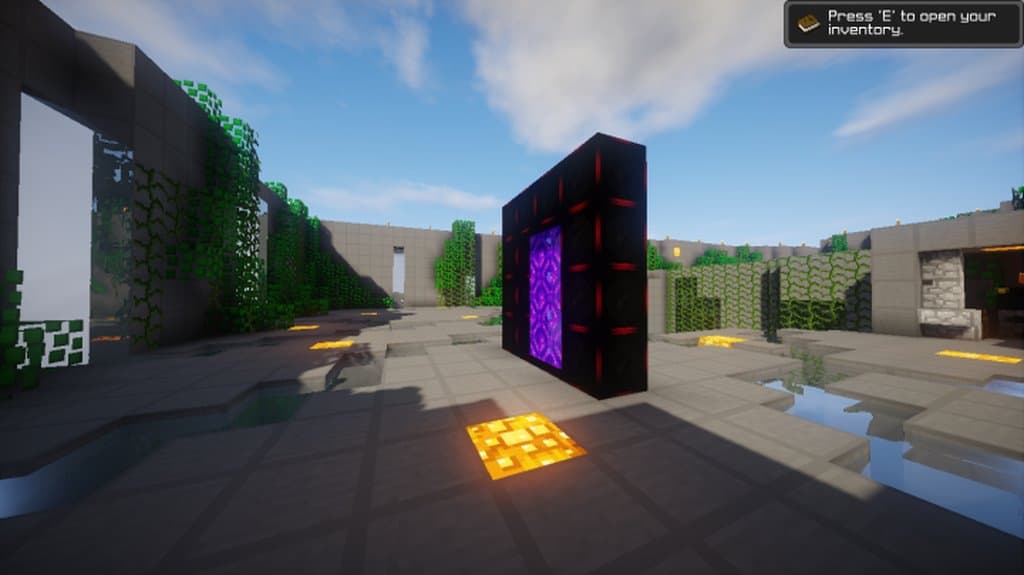
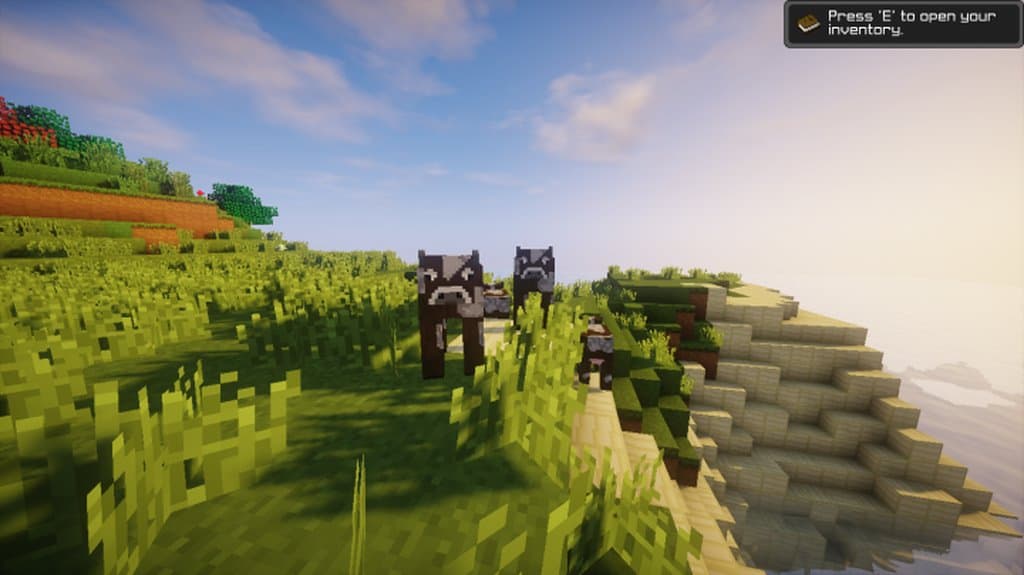
How to Install Texture Pack (Simple 10 Steps)
- Download OptiFine: Most of the texture packs and shaders need OptiFine. That’s why, first download and install OptiFine for the version of Minecraft you want to play.
- Download the Texture Pack: Get the texture pack you want from the download section. Choose the version that works with your Minecraft and your PC’s performance.
- Open Minecraft Launcher: Start Minecraft using the official game launcher — or even TLauncher, if you use that.
- Go to Options: From the main menu, click on the “Options” button.
- Open Resource Packs: Inside Options, click on “Resource Packs…”.
- Open the Resource Pack Folder: Click on “Open Resource Pack Folder” — this will open a folder named “resourcepacks”.
- Move the Pack File: Copy or move the .zip file you downloaded into that “resourcepacks” folder. (Don’t unzip the file — Minecraft uses it as-is!)
- Go Back and Refresh: Close the folder and click “Done”, then go back into “Resource Packs…” again.
- Activate the Pack: You’ll see the pack on the left side. Hover over it and click the arrow to move it to the right (active side).
Tip: If you get a message that the pack is for a different version, just click “Yes” — it usually works fine. - Click Done and Enjoy: Click “Done” again. Now your pack is ready to use in-game. It’s that easy!
Credits
This resource pack was originally created and developed by Siduction. We do not claim ownership of this content, nor have we modified the original files. We encourage you to support the original creator by downloading and using the pack directly through their official distribution channels.
Download Instructions
Curseforge: download starts automatically after a few seconds;
Mediafire: click the big blue button with the text “DOWNLOAD”;
Google Drive: in the top right corner you will see a small download icon (down arrow), click it and the download should start;


