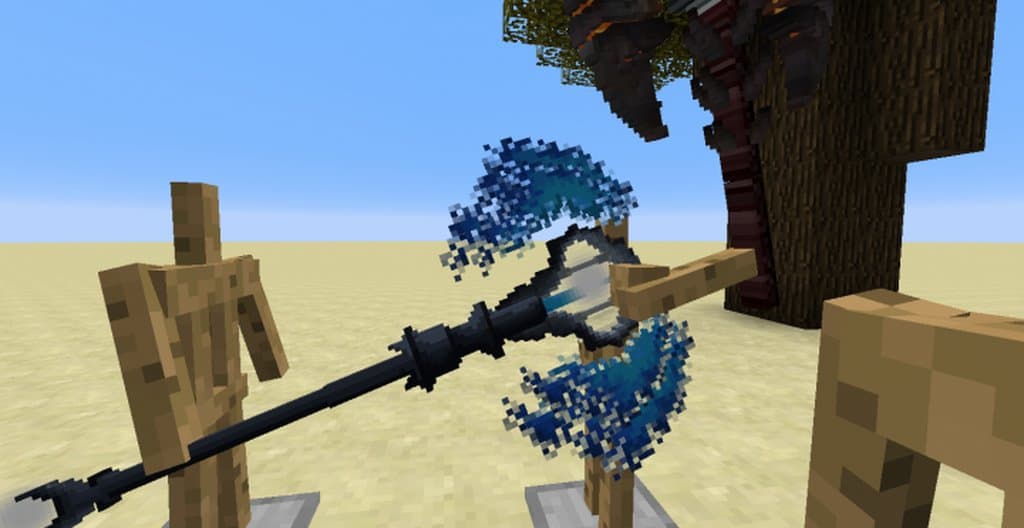
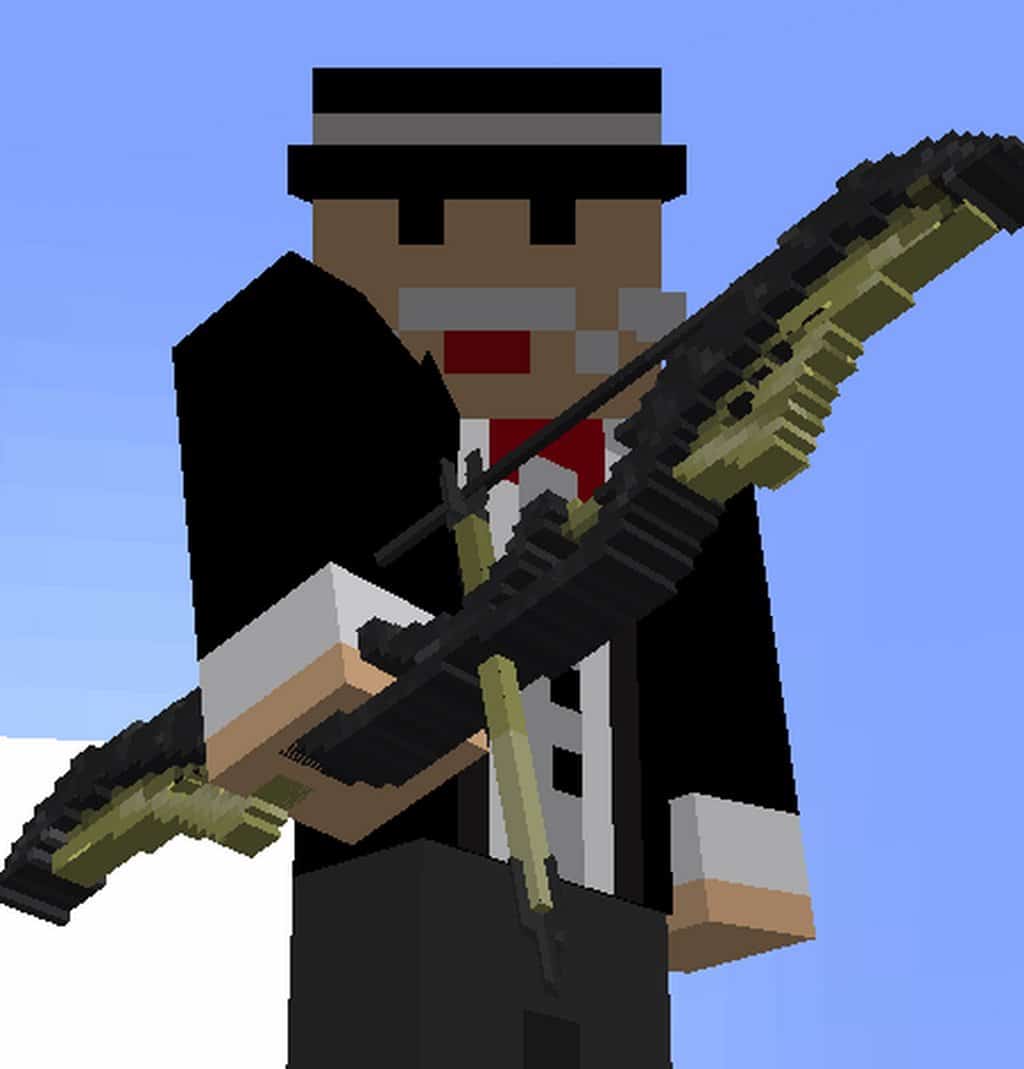
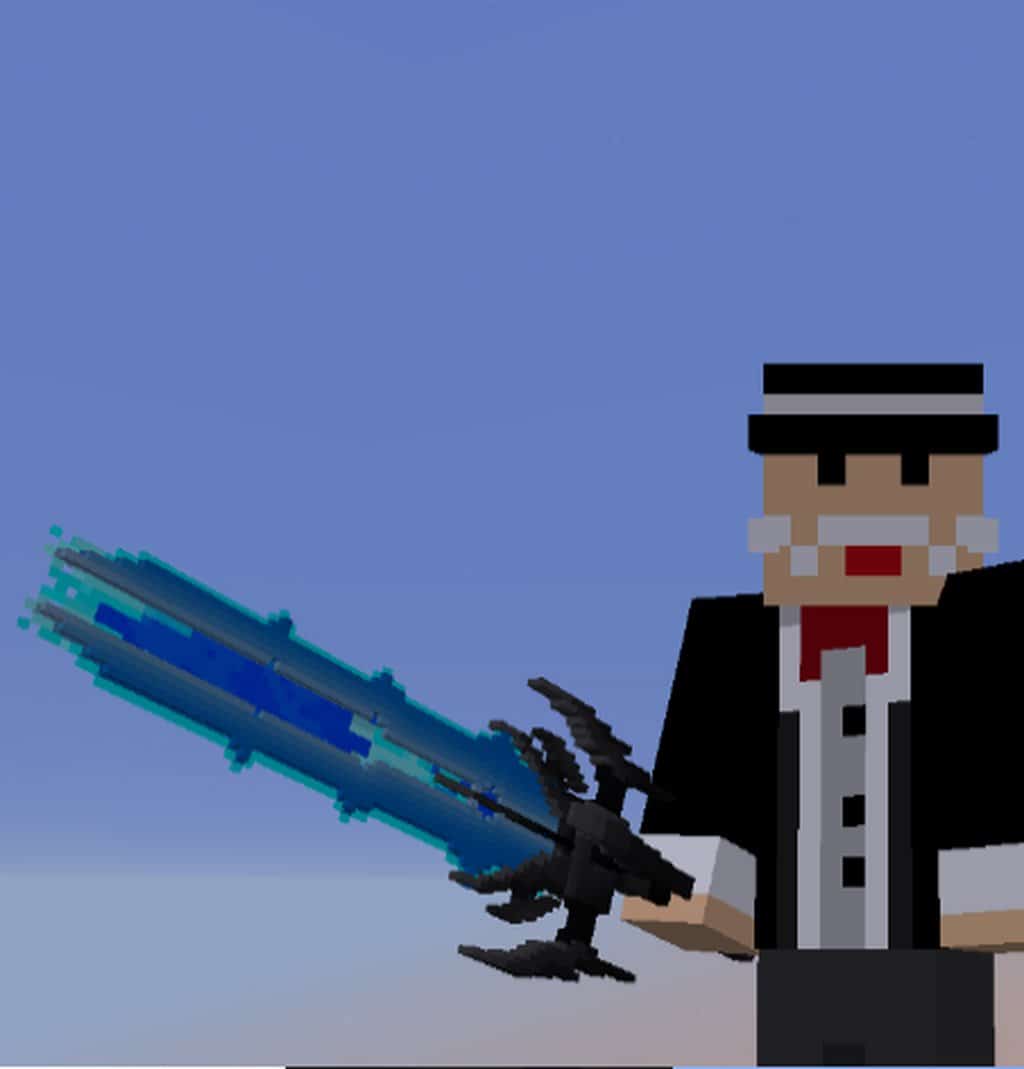
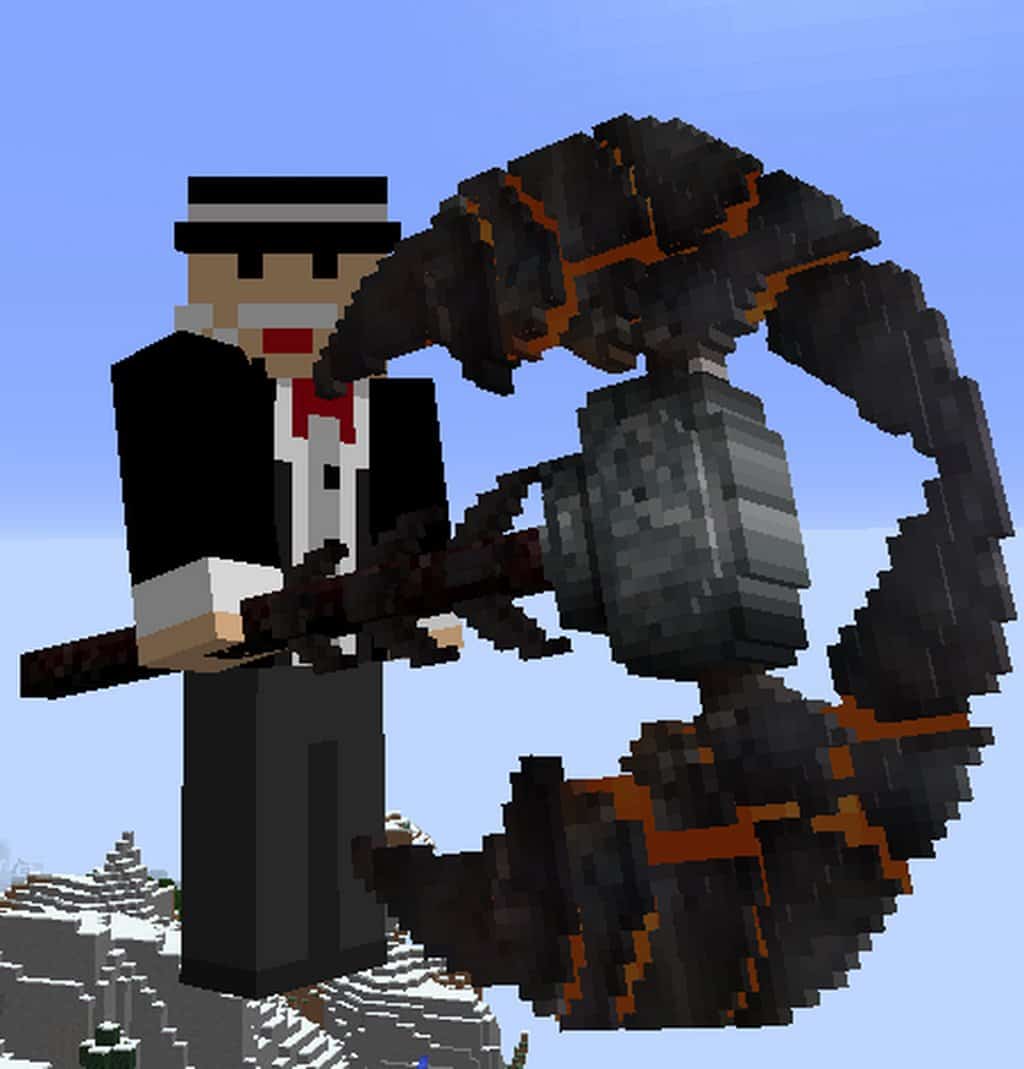
It is hard not to think that the LHMC 3D resource pack is definitely among the top best PvP packs available today. This is a super, top-level PvP-focused texture pack that makes the PvP experience far more intriguing and captivating by boosting the visuals by an immense amount while including a diverse range of distinctive new and fresh features you normally would not find in other PvP packs. As you can probably take notice from its title, the LHMC 3D PvP resource pack is literally a 3D pack, which is a rare and welcome sight, as very few PvP-focused packs dare to venture into the 3D territory.
The pack is composed of a large amount of skillfully crafted 3D models for all the items players regularly use during intense PvP matches. Installing this pack for your competitive sessions is an absolute delight because it makes all your equipment look remarkably high in quality. As you might expect, this is not the right pack if you are looking for a complete overhaul of all Minecraft visuals, as it hones in strictly on equipment and items. Right now, the LHMC 3D resource pack solely focuses on items, but it is entirely possible that future updates will introduce many new block textures as well. The creator has publicized that block textures will soon be arriving, and given that it receives frequent updates, we can likely expect to see superior block textures added to the pack eventually.
LHMC 3D PvP should be compatible with all of these Minecraft versions: 1.17.1 – 1.17 – 1.11.2 – 1.11 – 1.9.4 – 1.9 – 1.8.9 – 1.8.8 – 1.8.1 – 1.8.6 – 1.8
Screenshots
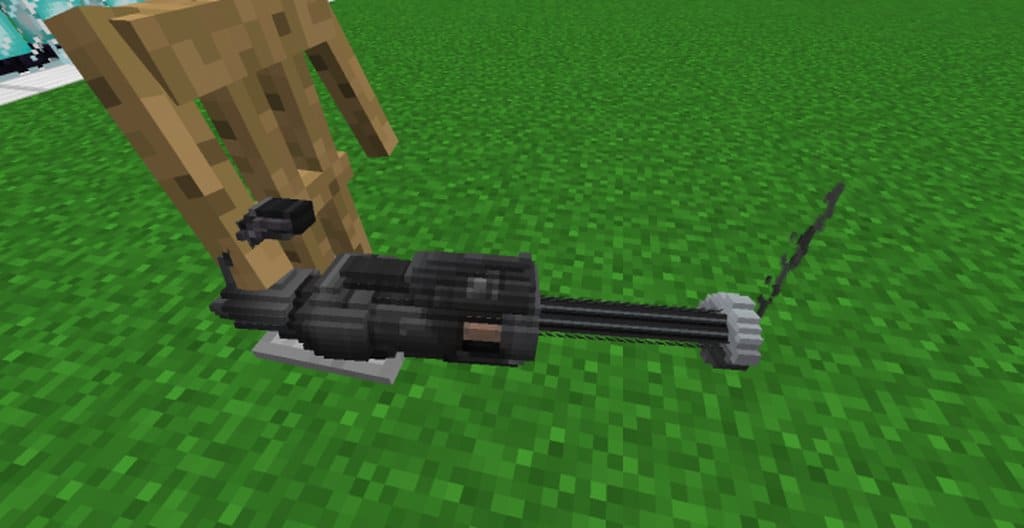
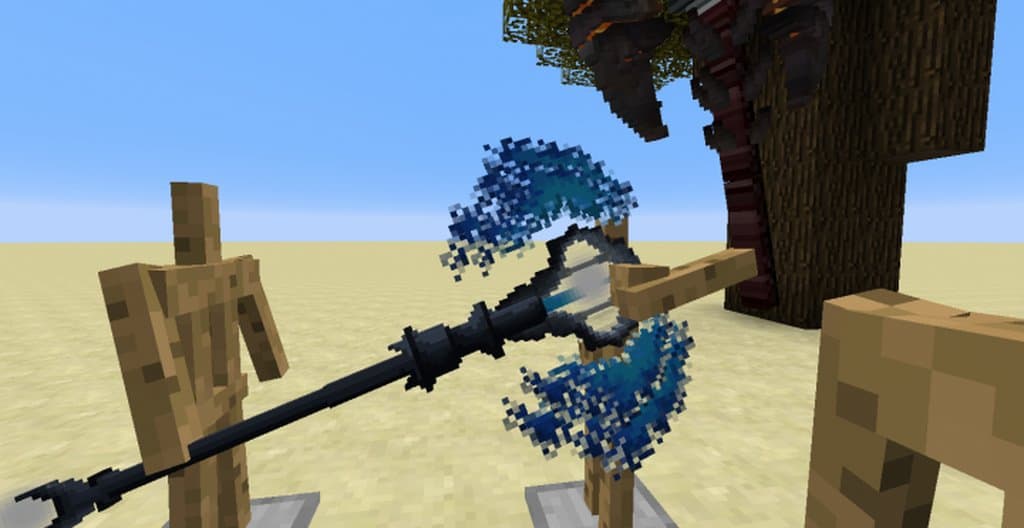
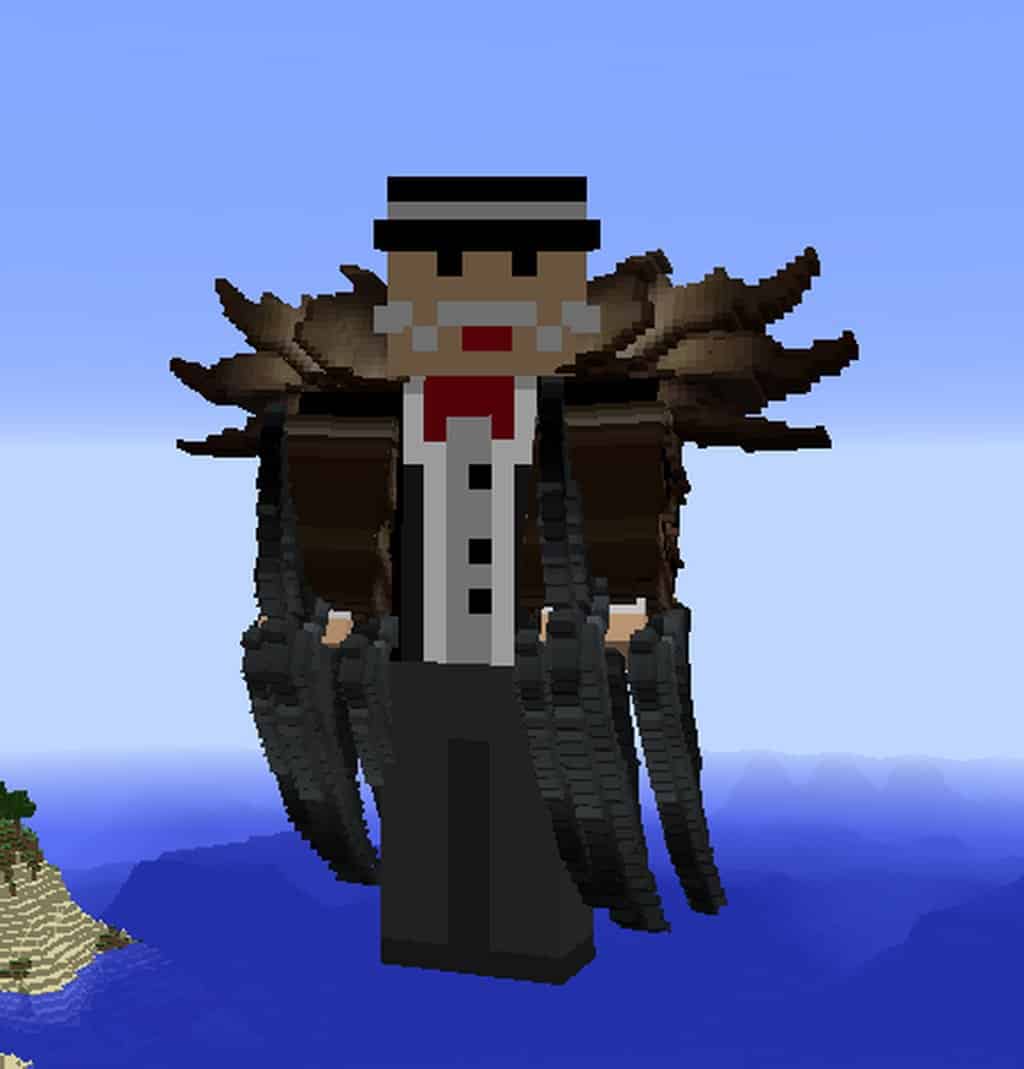
How to Install Texture Pack (Simple 10 Steps)
- Download OptiFine: Most of the texture packs and shaders need OptiFine. That’s why, first download and install OptiFine for the version of Minecraft you want to play.
- Download the Texture Pack: Get the texture pack you want from the download section. Choose the version that works with your Minecraft and your PC’s performance.
- Open Minecraft Launcher: Start Minecraft using the official game launcher — or even TLauncher, if you use that.
- Go to Options: From the main menu, click on the “Options” button.
- Open Resource Packs: Inside Options, click on “Resource Packs…”.
- Open the Resource Pack Folder: Click on “Open Resource Pack Folder” — this will open a folder named “resourcepacks”.
- Move the Pack File: Copy or move the .zip file you downloaded into that “resourcepacks” folder. (Don’t unzip the file — Minecraft uses it as-is!)
- Go Back and Refresh: Close the folder and click “Done”, then go back into “Resource Packs…” again.
- Activate the Pack: You’ll see the pack on the left side. Hover over it and click the arrow to move it to the right (active side).
Tip: If you get a message that the pack is for a different version, just click “Yes” — it usually works fine. - Click Done and Enjoy: Click “Done” again. Now your pack is ready to use in-game. It’s that easy!
Credits
This resource pack was created by Fizzy Chickens. We do not own or modify this file, and all rights remain with the original author. Please support the creator by downloading from official links.
Download Links
Java Edition
Download Instructions
Curseforge: download starts automatically after a few seconds;
Mediafire: click the big blue button with the text “DOWNLOAD”;
Google Drive: in the top right corner you will see a small download icon (down arrow), click it and the download should start;


