As you may or may not know, Jicklus crafts incredibly bright and stunning Minecraft resource packs that are ideal for capturing gorgeous screenshots, recording gameplay videos, or simply enjoying a heightened sense of exploration every single time you play Minecraft. The Jicklus resource pack traditionally comes in two flavors: the original Jicklus texture pack and the Orange addon, but did you know there is a fantastic third variation called the Jicklus Pretty In Pink resource pack? Don’t worry, we’ll get to that in a moment! If you’re not familiar with the Jicklus resource pack yet, it’s a truly beautiful atmospheric set of textures featuring bright, eye-catching designs while wonderfully staying true to the iconic art style of vanilla Minecraft. If you’re trying to breathe new life into your Minecraft experience, this is an absolute must-have base resource pack, and when combined with the Orange addon, you’re able to experience the entire game with an extra layer of cozy warmth and glow.
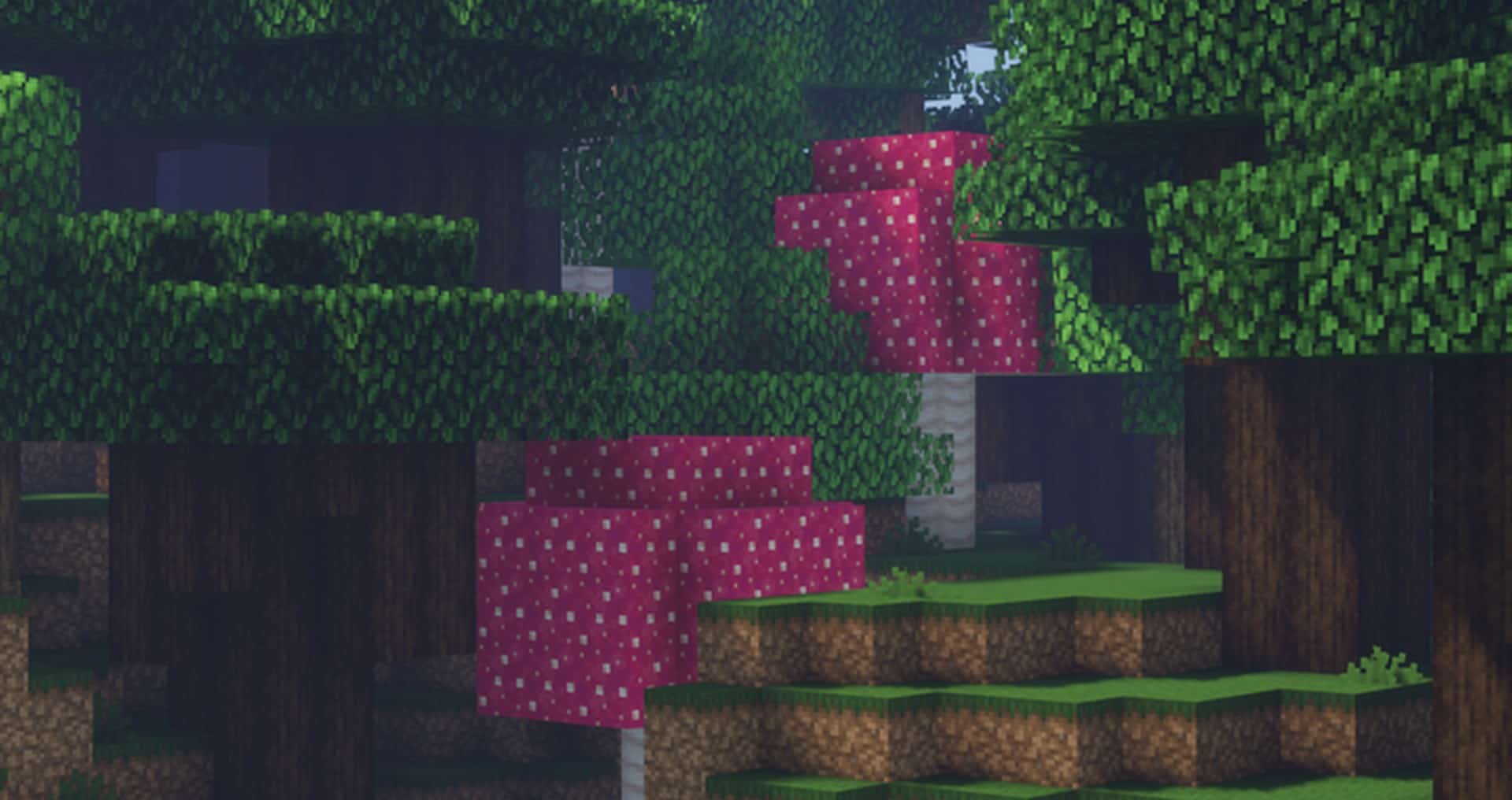
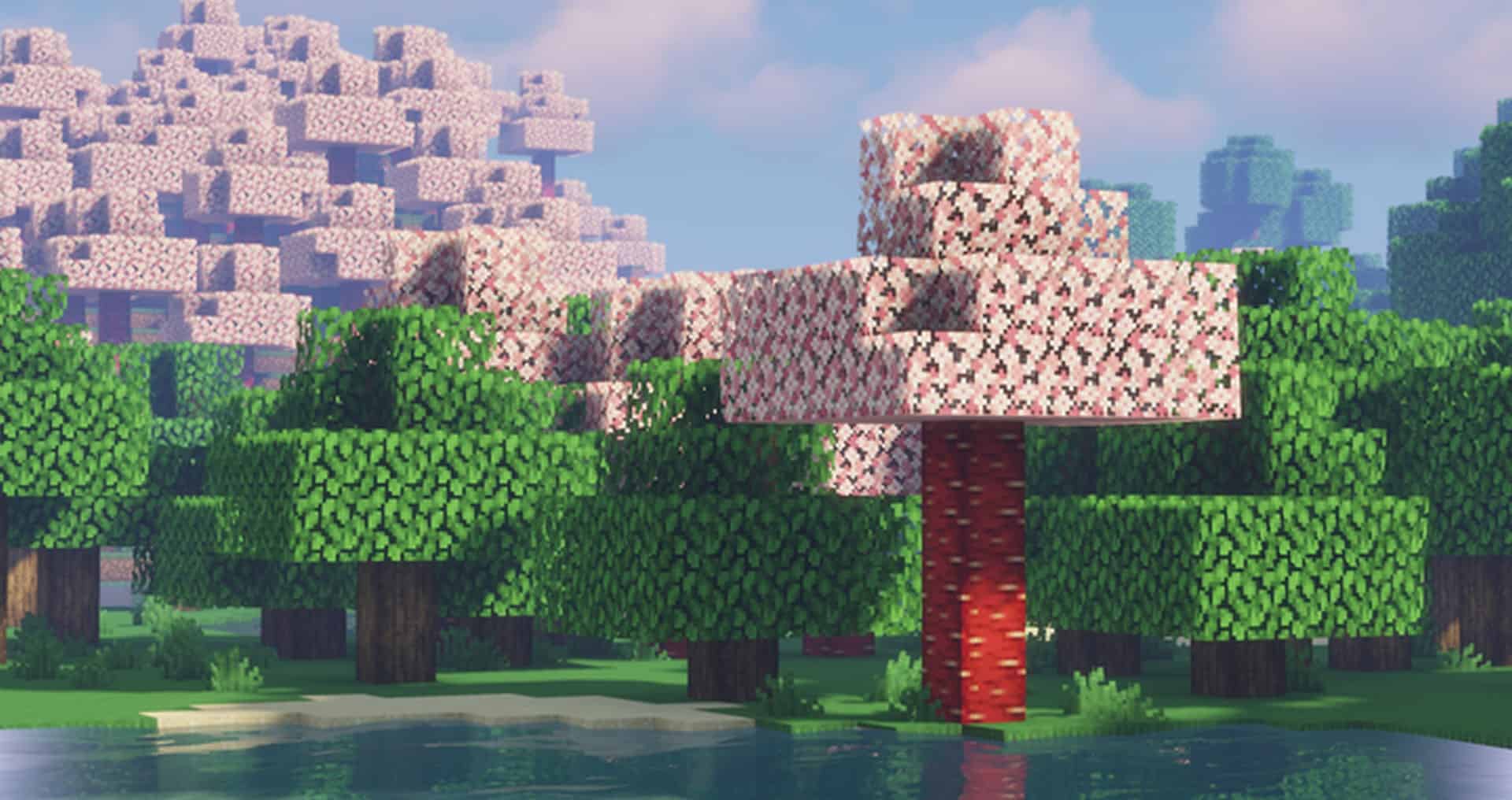
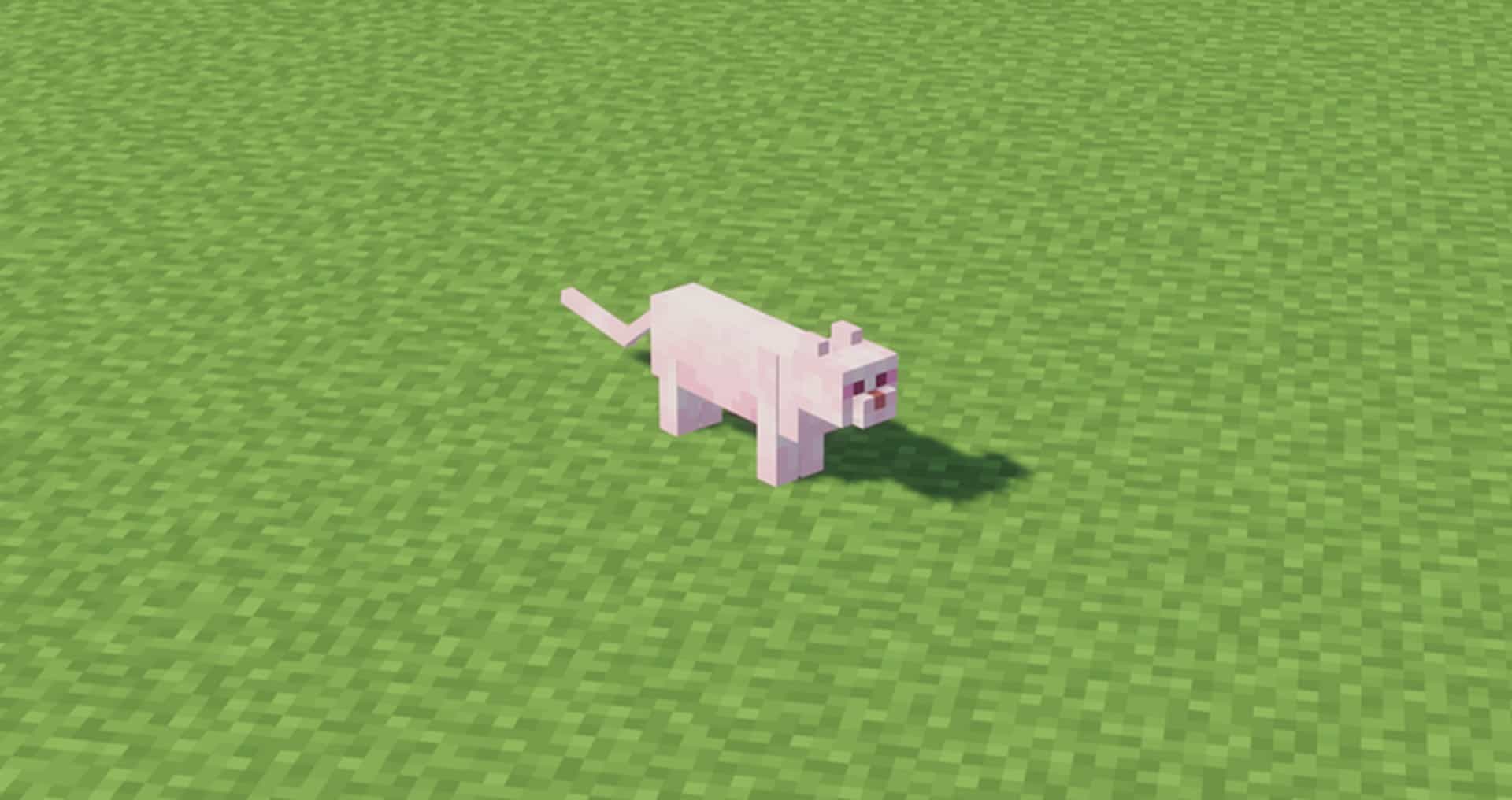
Combining the original and orange addon into a single Jicklus pack makes it so easy and convenient to upgrade the visuals in your game. One of the absolute latest additions from Jicklus is the new addon pack: Pretty in Pink, which cleverly builds off of the rock-solid foundation of the original Jicklus pack. Just like the Orange addon, the Pretty in Pink pack must be used alongside the base original Jicklus resource pack, but the Pretty in Pink addon will quickly shift things towards a gorgeous pinker variation. This means you can honestly expect a totally pink experience when loading this resource pack, ranging from your adorable pink crafting table to vibrant pink vegetation including pink trees, leaves, berries, tools, and mushrooms to name just a few. The original Jicklus pack easily stands on its own as a stunning way to breathe new life into the visuals of Minecraft, but for the right audience, the addition of the Pretty in Pink addon on top of the standard Jicklus pack turns your world into a true pink paradise. Anyone who loves Minecraft and the color pink is going to find this to be an absolute match made in heaven! We strongly recommend downloading and trying it out today!
Jicklus Pretty In Pink should be compatible with all of these Minecraft versions: 1.18.2 – 1.18.1 – 1.18 – 1.17.1 – 1.17 – 1.16.5 – 1.16.4 – 1.16.3 – 1.16.2 – 1.16.1 – 1.16 – 1.15.2 – 1.15.1 – 1.15 – 1.14.4 – 1.14.3 – 1.14.2 – 1.14
Screenshots


How to Install Texture Pack (Simple 10 Steps)
- Download OptiFine: Most of the texture packs and shaders need OptiFine. That’s why, first download and install OptiFine for the version of Minecraft you want to play.
- Download the Texture Pack: Get the texture pack you want from the download section. Choose the version that works with your Minecraft and your PC’s performance.
- Open Minecraft Launcher: Start Minecraft using the official game launcher — or even TLauncher, if you use that.
- Go to Options: From the main menu, click on the “Options” button.
- Open Resource Packs: Inside Options, click on “Resource Packs…”.
- Open the Resource Pack Folder: Click on “Open Resource Pack Folder” — this will open a folder named “resourcepacks”.
- Move the Pack File: Copy or move the .zip file you downloaded into that “resourcepacks” folder. (Don’t unzip the file — Minecraft uses it as-is!)
- Go Back and Refresh: Close the folder and click “Done”, then go back into “Resource Packs…” again.
- Activate the Pack: You’ll see the pack on the left side. Hover over it and click the arrow to move it to the right (active side).
Tip: If you get a message that the pack is for a different version, just click “Yes” — it usually works fine. - Click Done and Enjoy: Click “Done” again. Now your pack is ready to use in-game. It’s that easy!
Credits
This resource pack was created by Jicklus. We do not claim ownership of this content, nor do we host modified versions of these files. All rights and intellectual property belong strictly to the original creator. We highly encourage you to support Jicklus by visiting their official pages and downloading directly from their authorized links.
Download Links
Java Edition
Download Instructions
Curseforge: download starts automatically after a few seconds;
Mediafire: click the big blue button with the text “DOWNLOAD”;
Google Drive: in the top right corner you will see a small download icon (down arrow), click it and the download should start;


