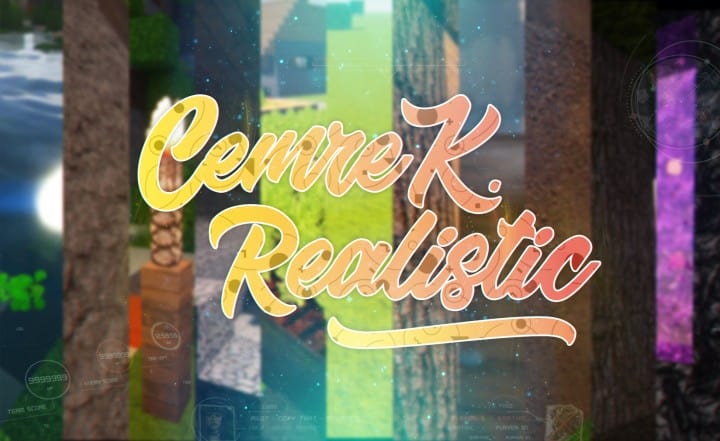
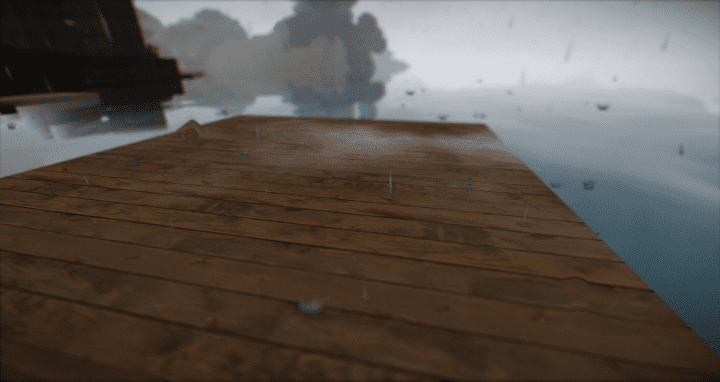
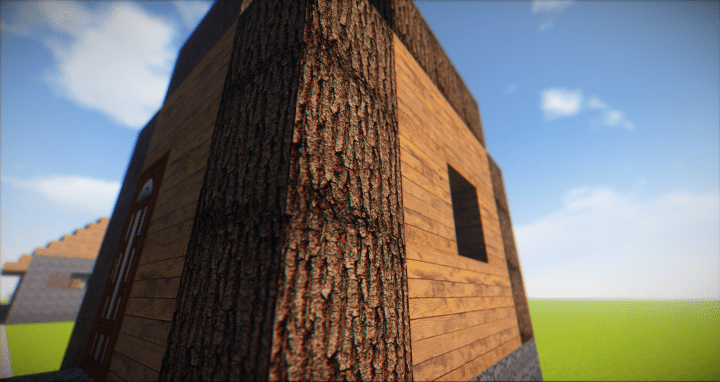
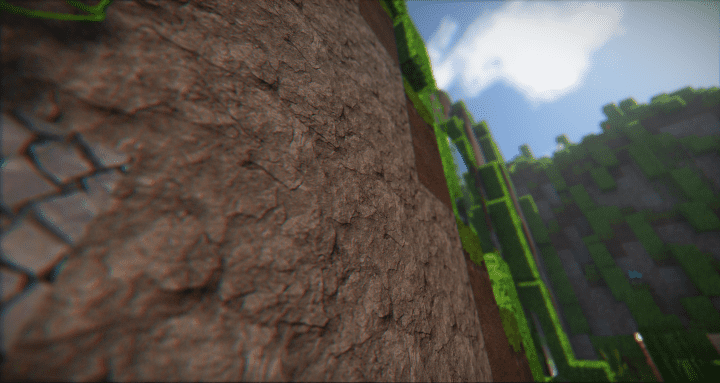
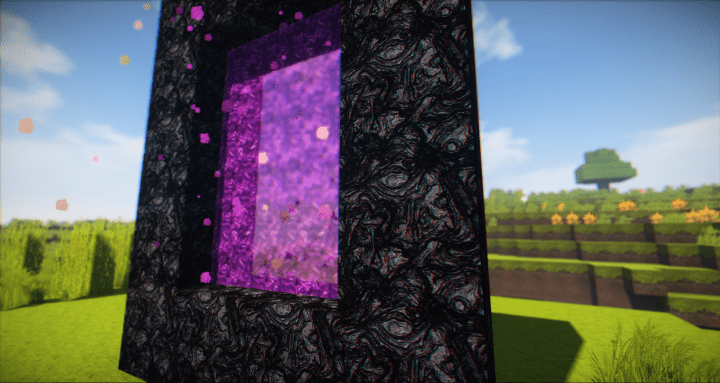
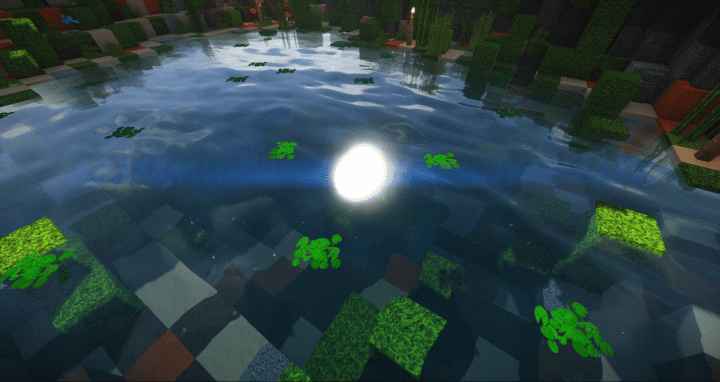
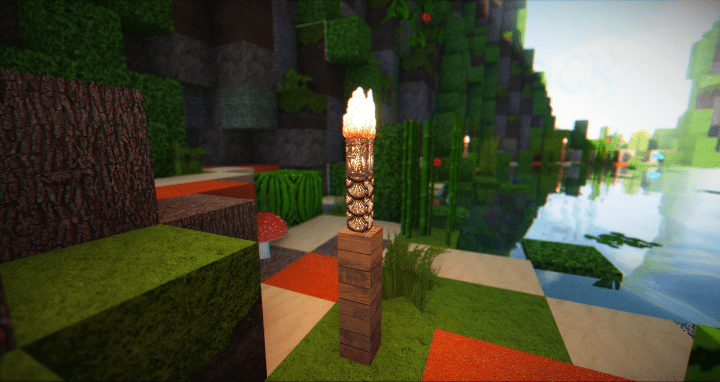
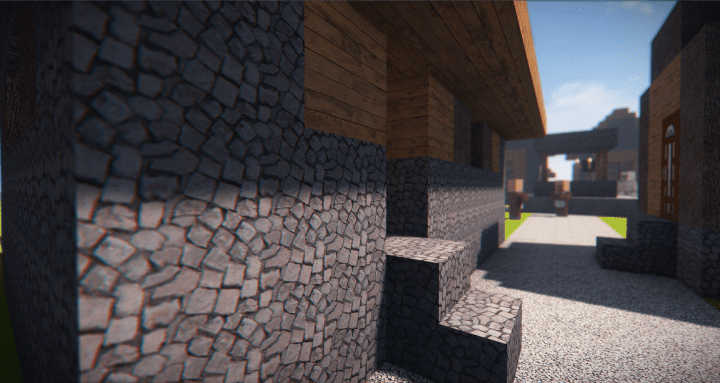
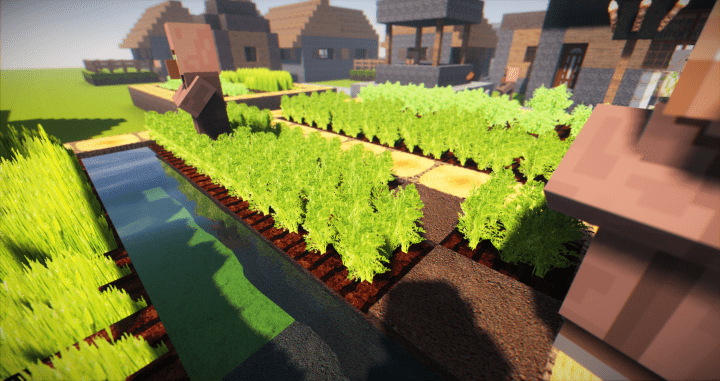
Every gamer truly loves a game with amazing graphics, regardless of which game they like to play. Ever since Minecraft was created, there has only been a slight improvement in the graphics quality, until now! I was completely blown away to discover that CemreK is a top-tier resource pack with an aim to add more realistic-looking visuals into Minecraft to make it even more enjoyable to play than it already is. The CemreK resource pack gives the game high-definition textures that look a lot more realistic to give Minecraft players a breathtaking experience when they explore the world. While realistic resource packs are generally easy to find, we strongly urge players to give CemreK a try as it is simply not the same as the rest of the resource packs that seem to surface almost every single day. CemreK shows a lot more finesse and polish than the rest of the packs in this category to really elevate your game’s visuals.
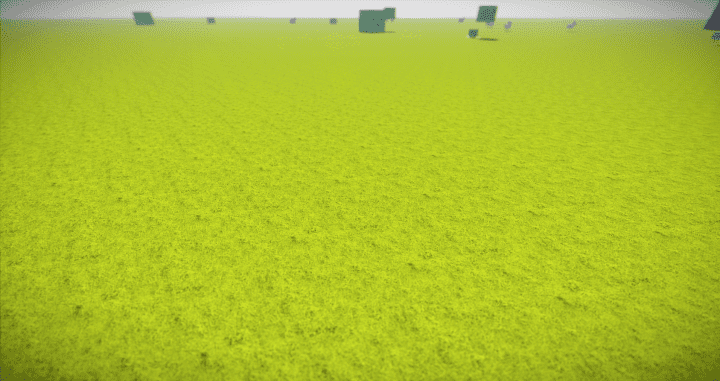
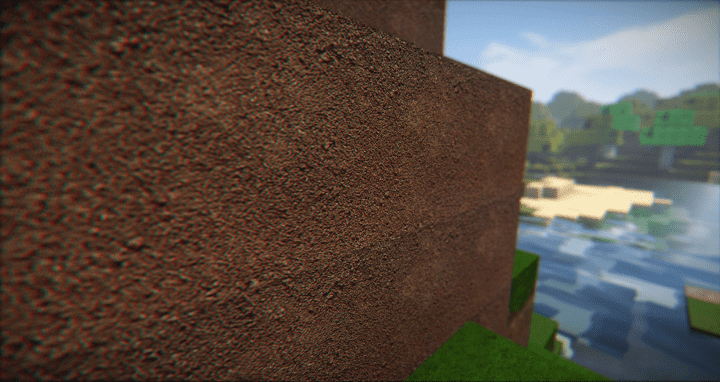
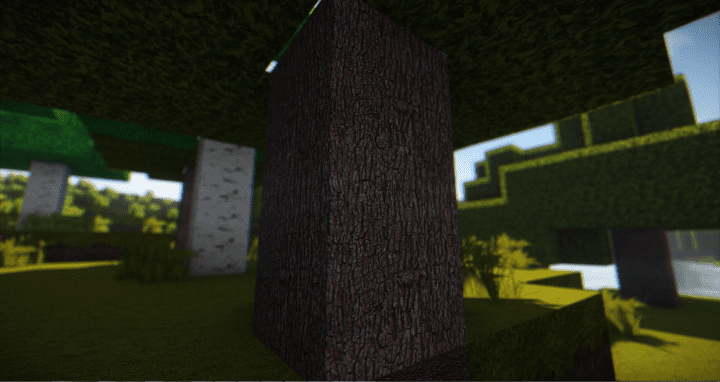
The main reason why I found CemreK to be so far ahead of the competition is that it features extremely high-definition textures. The level of detail in the pack’s textures is beyond anything you have ever seen in Minecraft, and on top of this, the pack doesn’t have any noticeable noise, which results in incredibly smooth-looking textures. The brightness of the color palette has been toned down a bit, which we believe is great for the game as it enhances the realistic style of the pack. The CemreK resource pack comes with a x256 resolution, which is high enough to implement the high-definition and realistic textures to the game. This high resolution is fully expected for a pack that aims to implement such high-quality graphics. It is definitely worth mentioning that the CemreK pack should be used with shaders, which means you will need a PC that is above average in terms of the hardware needed to run the pack without any frame rate issues.
CemreK Realistic should be compatible with all of these Minecraft versions: 1.16.5 – 1.16.4 – 1.16.3 – 1.16.2 – 1.16.1 – 1.16 – 1.15.2 – 1.15.1 – 1.15 – 1.14.4 – 1.14.3 – 1.14.2 – 1.14 – 1.13.2 – 1.13.1 – 1.13 – 1.12.2 – 1.12 – 1.11.2 – 1.11
Screenshots
How to Install Texture Pack (Simple 10 Steps)
- Download OptiFine: Most of the texture packs and shaders need OptiFine. That’s why, first download and install OptiFine for the version of Minecraft you want to play.
- Download the Texture Pack: Get the texture pack you want from the download section. Choose the version that works with your Minecraft and your PC’s performance.
- Open Minecraft Launcher: Start Minecraft using the official game launcher — or even TLauncher, if you use that.
- Go to Options: From the main menu, click on the “Options” button.
- Open Resource Packs: Inside Options, click on “Resource Packs…”.
- Open the Resource Pack Folder: Click on “Open Resource Pack Folder” — this will open a folder named “resourcepacks”.
- Move the Pack File: Copy or move the .zip file you downloaded into that “resourcepacks” folder. (Don’t unzip the file — Minecraft uses it as-is!)
- Go Back and Refresh: Close the folder and click “Done”, then go back into “Resource Packs…” again.
- Activate the Pack: You’ll see the pack on the left side. Hover over it and click the arrow to move it to the right (active side).
Tip: If you get a message that the pack is for a different version, just click “Yes” — it usually works fine. - Click Done and Enjoy: Click “Done” again. Now your pack is ready to use in-game. It’s that easy!
Credits
The CemreK resource pack was created by CemreK. We do not claim ownership of this modification, nor do we host or distribute modified versions of the original files. All rights, intellectual property, and updates remain exclusively with the original creator. We encourage players to support CemreK by downloading the pack from the official sources provided below.
Download Instructions
Curseforge: download starts automatically after a few seconds;
Mediafire: click the big blue button with the text “DOWNLOAD”;
Google Drive: in the top right corner you will see a small download icon (down arrow), click it and the download should start;


