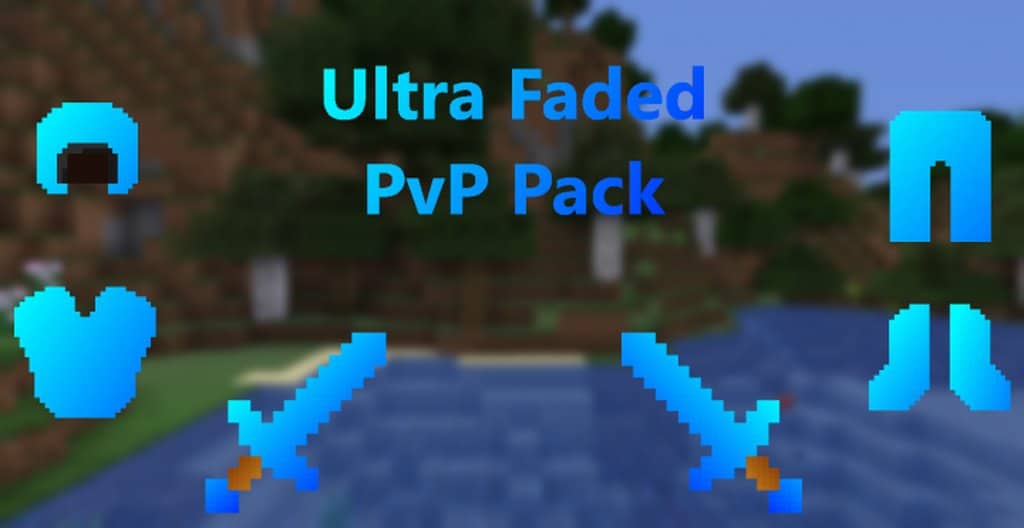
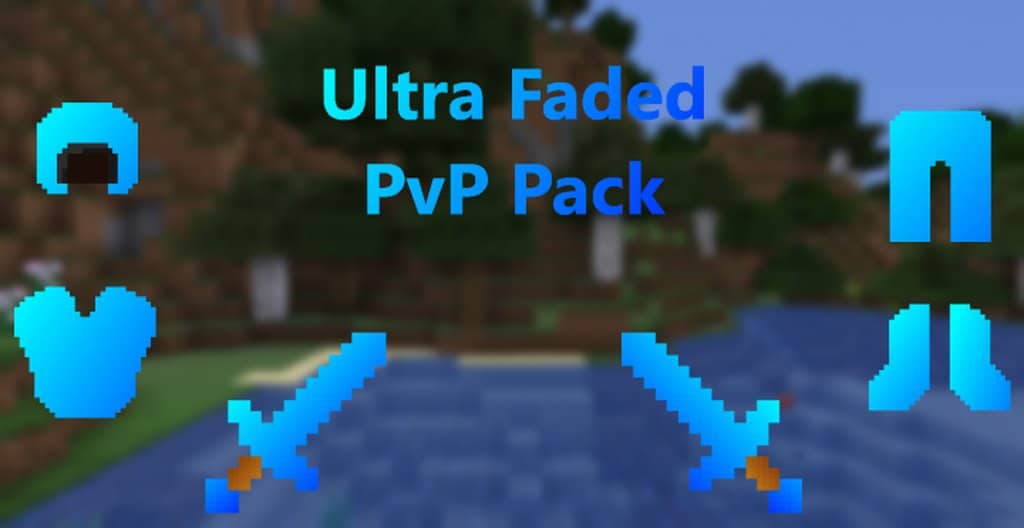
If you love diving into competitive Player versus Player combat, you are definitely going to want to try out the Ultra Fade PvP resource pack! It has been expertly crafted to deliver peak performance, an amazing user experience, and genuinely stunning visuals specifically tailored for a PvP environment. Unlike other packs that heavily overhaul the vanilla art style, Ultra Fade keeps things refreshing by focusing on subtle, clean alterations. This design choice makes it so much easier to spot items and opponents clearly during intense close-range duels, giving you a serious competitive edge. Honestly, many veteran players regard this as one of the finest PvP packs ever made because it hits every single requirement for high-level competitive play.
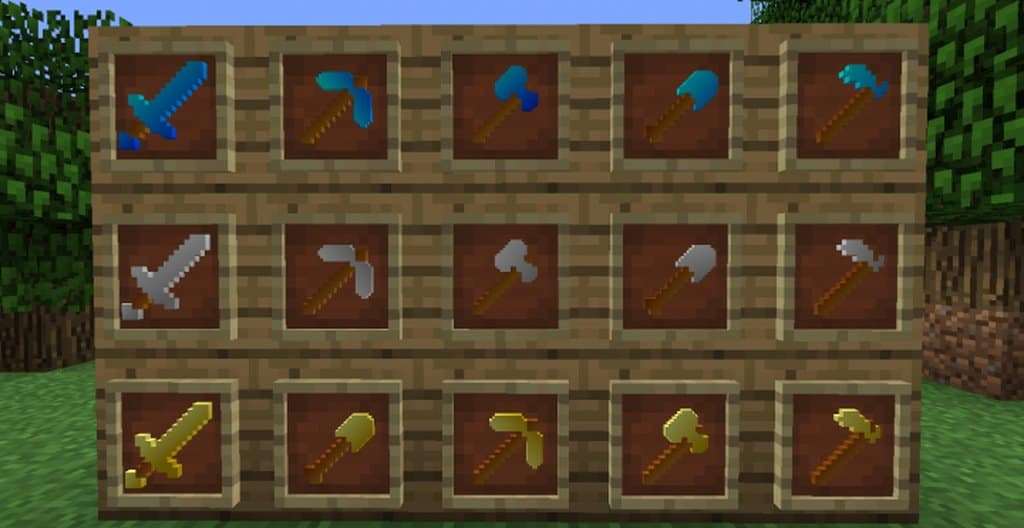
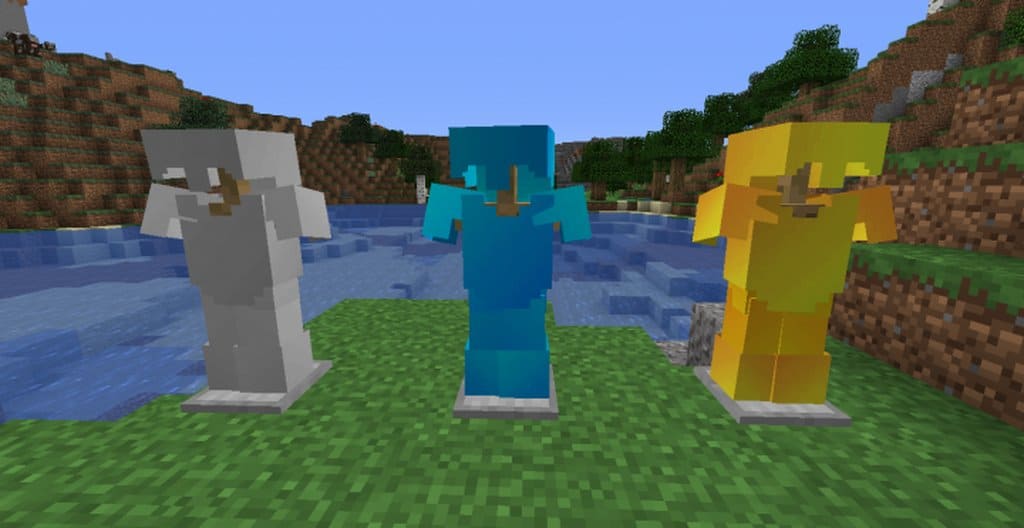
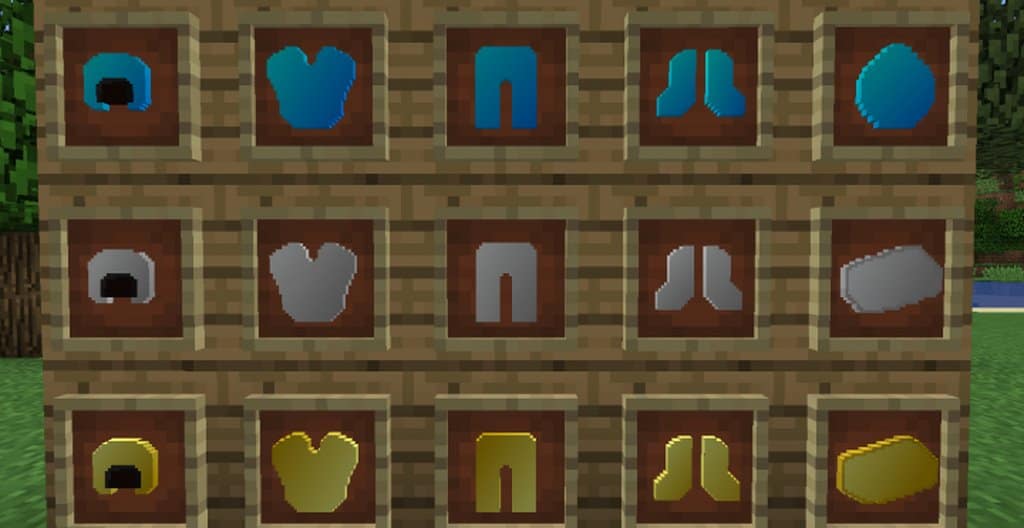
You will immediately notice the custom-crafted designs for ingots, armor sets, and especially the swords that you rely on every single match. The pack actually gets its name, Ultra Fade, from the unique textures that create a gorgeous fading illusion. This smooth visual effect sets it apart from standard packs and feels wonderfully fluid during fast-paced matches. While vanilla Minecraft typically uses a 16x resolution, Ultra Fade bumps things up to a crisp 32×32 resolution. Best of all, even with the sharper textures, it is expertly optimized so you won’t have to worry about frame drops or lagging your computer resources.
Ultra Fade PvP should be compatible with all of these Minecraft versions: 1.16.5 – 1.16.4 – 1.16.3 – 1.16.2 – 1.16.1 – 1.16 – 1.15.2 – 1.15.1 – 1.15 – 1.14.4 – 1.14.3 – 1.14.2 – 1.14 – 1.13.2 – 1.13.1 – 1.13 – 1.12.2 – 1.12 – 1.11.2 – 1.11 – 1.10.2 – 1.10 – 1.9.4 – 1.9 – 1.8.9 – 1.8.8 – 1.8.1 – 1.8.6 – 1.8
Screenshots
How to Install Texture Pack (Simple 10 Steps)
- Download OptiFine: Most of the texture packs and shaders need OptiFine. That’s why, first download and install OptiFine for the version of Minecraft you want to play.
- Download the Texture Pack: Get the texture pack you want from the download section. Choose the version that works with your Minecraft and your PC’s performance.
- Open Minecraft Launcher: Start Minecraft using the official game launcher — or even TLauncher, if you use that.
- Go to Options: From the main menu, click on the “Options” button.
- Open Resource Packs: Inside Options, click on “Resource Packs…”.
- Open the Resource Pack Folder: Click on “Open Resource Pack Folder” — this will open a folder named “resourcepacks”.
- Move the Pack File: Copy or move the .zip file you downloaded into that “resourcepacks” folder. (Don’t unzip the file — Minecraft uses it as-is!)
- Go Back and Refresh: Close the folder and click “Done”, then go back into “Resource Packs…” again.
- Activate the Pack: You’ll see the pack on the left side. Hover over it and click the arrow to move it to the right (active side).
Tip: If you get a message that the pack is for a different version, just click “Yes” — it usually works fine. - Click Done and Enjoy: Click “Done” again. Now your pack is ready to use in-game. It’s that easy!
Credits
This resource pack was originally created by lazaros28. We do not claim ownership of this modification, nor do we host modified files on our servers. All rights and intellectual property remain with the original creator. We highly encourage you to support lazaros28 by downloading the pack from their official links and checking out their other work.
Download Instructions
Curseforge: download starts automatically after a few seconds;
Mediafire: click the big blue button with the text “DOWNLOAD”;
Google Drive: in the top right corner you will see a small download icon (down arrow), click it and the download should start;


