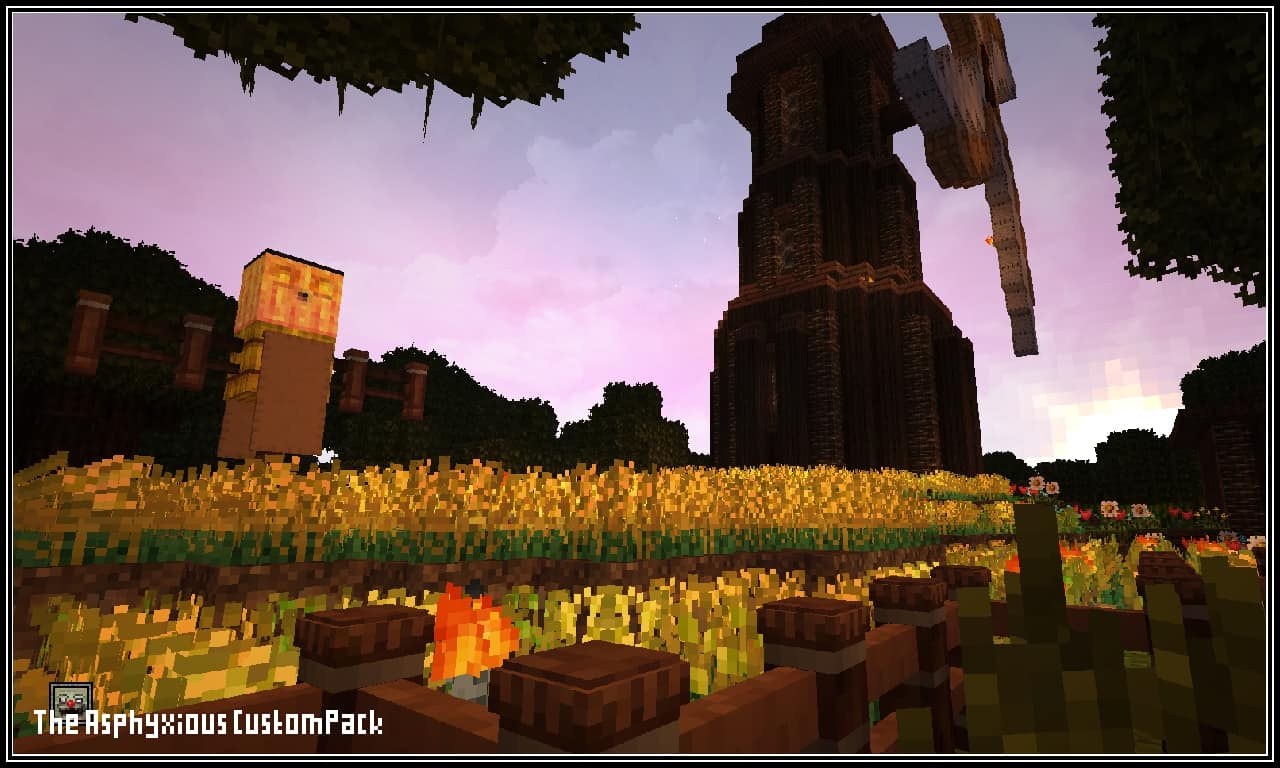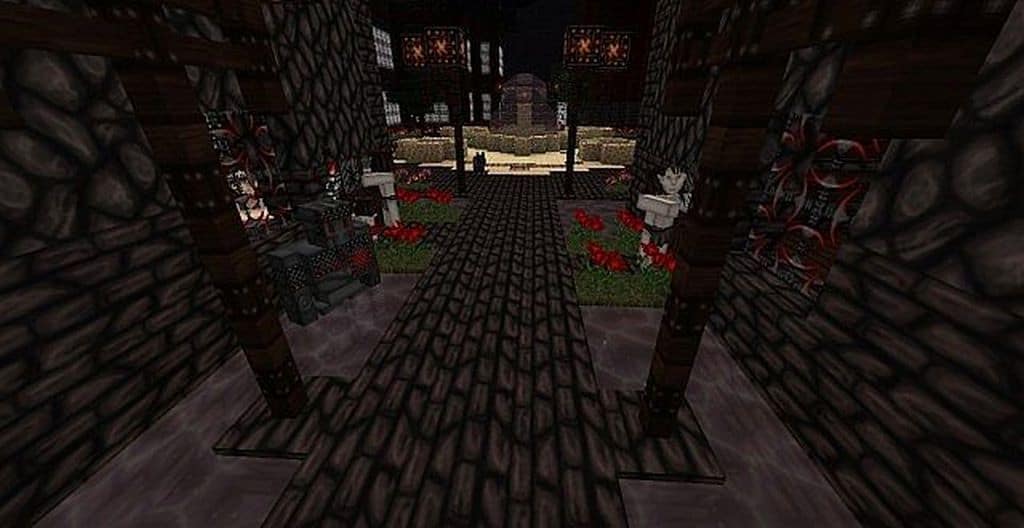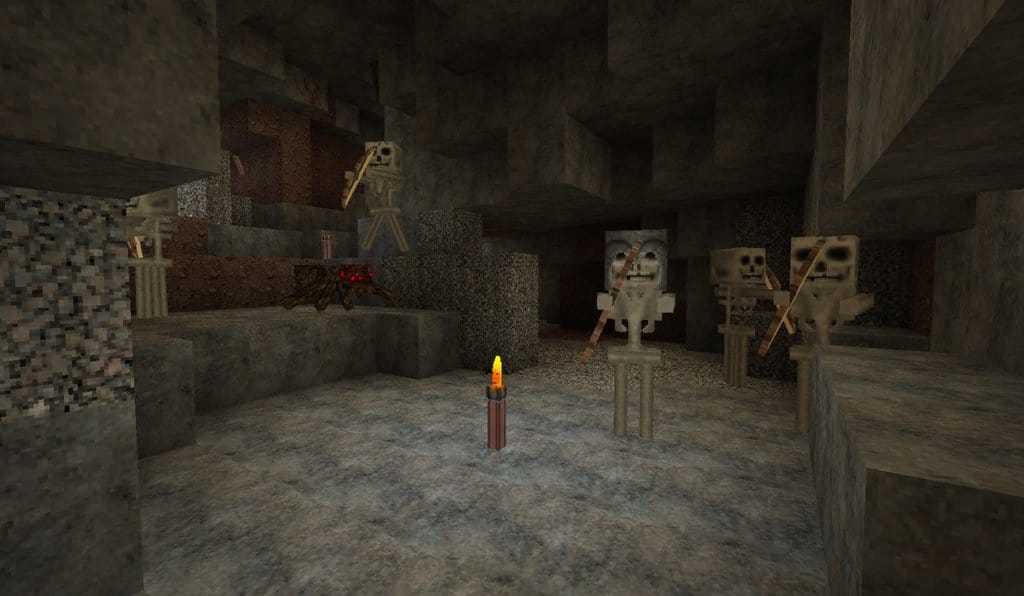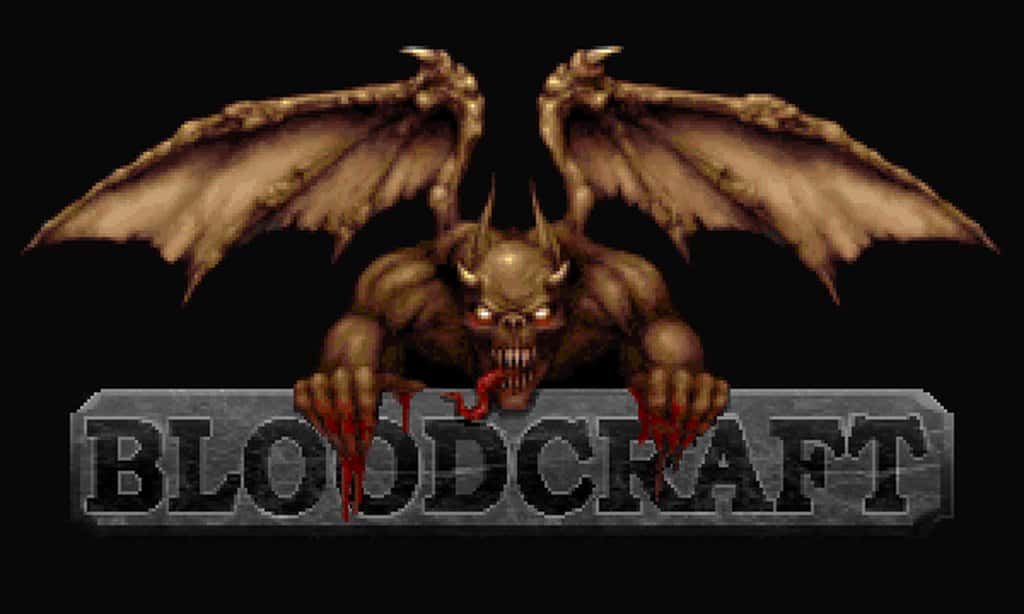
The BloodCraft resource pack stands out as one of the freshest additions to the Minecraft world, and testing it out was an absolute thrill! While it draws inspiration from the classic horror game Blood developed by Monolith, it delivers an entirely fresh perspective on horror-themed packs. It is a rare gem of its kind, and I really appreciate how the resource pack pays massive attention to color scheme details. Although its predecessor, Blood, might not have been among the most popular games of its time, it still attracted a dedicated following of fans who play it up to date. Bloodcraft is simply perfect for players who grew up with the Blood shooting game, offering an even more enhanced experience. However, even if you never played the original game, you will find it is still a great pack for you because it features more advanced features that ensure a better experience in Minecraft.
Just like Blood, the BloodCraft resource pack features a dark tone, which feels much more enhanced than the usual style seen in other Minecraft texture packs. Bloodcraft features ominous art and a dark style that really sets the mood when you are exploring. Furthermore, it features gorgeous textures with distinct designs that pop out nicely. The BloodCraft resource pack comes with a resolution of 64×64, which is notably higher compared to most other packs out there. Because of this, I noticed you will need a high-end PC to run this game smoothly. Still, this pack can run on low-end PCs, though you might experience a lower frame rate, which could potentially deny you the chance to have the concrete experience that you truly deserve. BloodCraft expertly employs its high-end tricks to tweak the atmosphere around and environment to horrify you effectively. The combination of dark and moody color patterns, twisted-looking models and objects, as well as horrifying sounds are some of the main tricks that are used in Bloodcraft, making every single moment genuinely suspenseful.
BloodCraft should be compatible with all of these Minecraft versions: 26.2 – 26.1.2 – 26.1.1 – 26.1 – 1.21.11 – 1.21.10 – 1.21.9 – 1.21.8 – 1.21.7 – 1.21.6 – 1.21.5 – 1.21.4 – 1.21.3 – 1.21.2 – 1.21.1 – 1.21 – 1.20.6 – 1.20.5 – 1.20.4 – 1.20.3 – 1.20.2 – 1.20.1 – 1.20 – 1.19.4 – 1.19.3 – 1.19.2 – 1.19.1 – 1.19 – 1.18.2 – 1.18.1 – 1.18 – 1.17.1 – 1.17 – 1.16.5 – 1.16.4 – 1.16.3 – 1.16.2 – 1.16.1 – 1.16 – 1.15.2 – 1.15.1 – 1.15 – 1.14.4 – 1.14.3 – 1.14.2 – 1.14 – 1.13.2 – 1.13.1 – 1.13 – 1.12.2 – 1.12
Screenshots
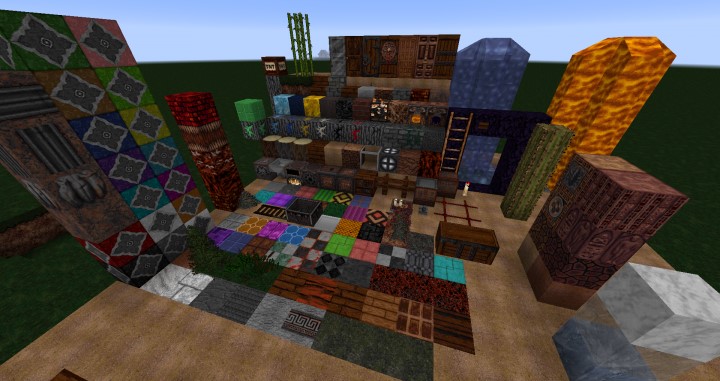
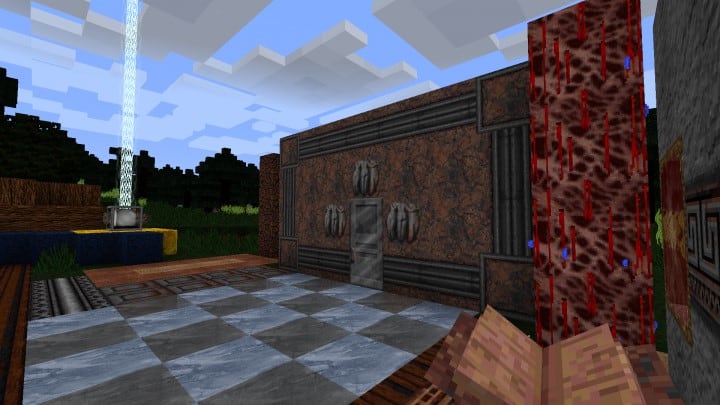
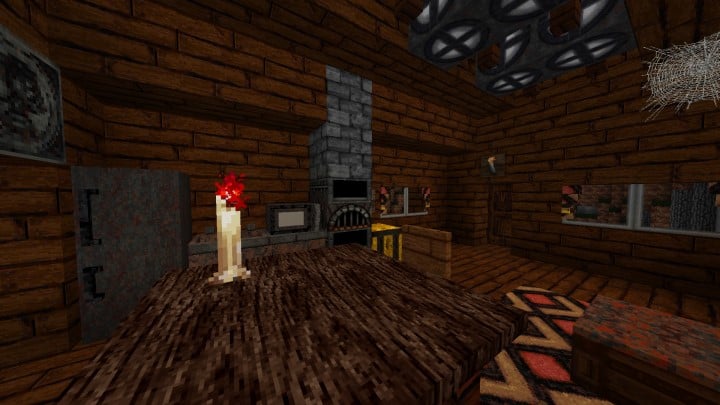
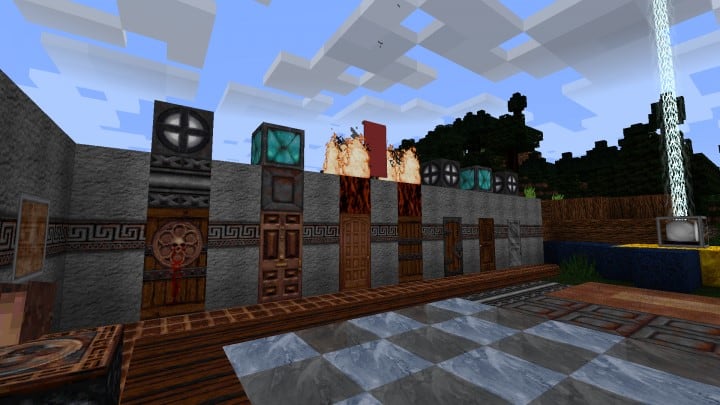
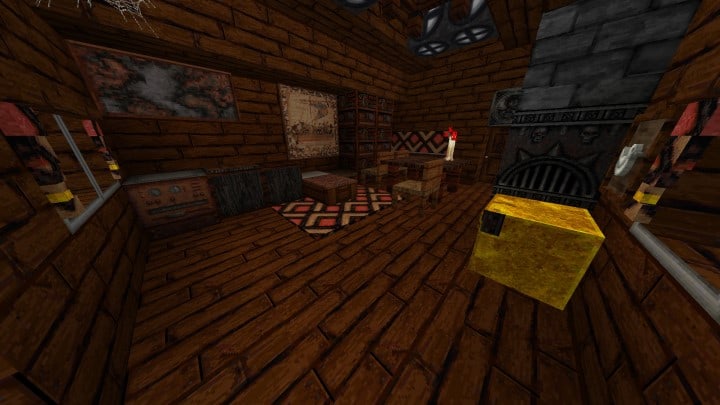
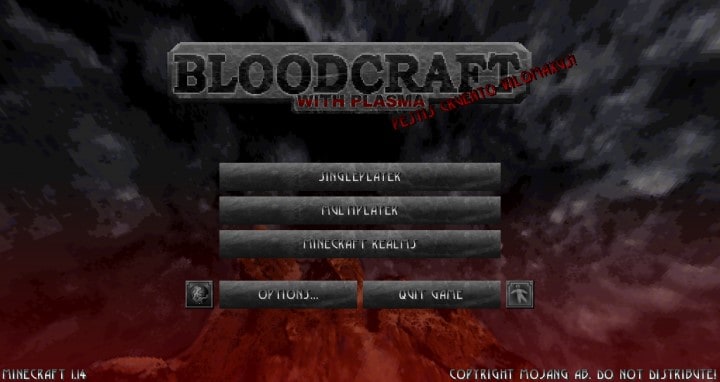
How to Install Texture Pack (Simple 10 Steps)
- Download OptiFine: Most of the texture packs and shaders need OptiFine. That’s why, first download and install OptiFine for the version of Minecraft you want to play.
- Download the Texture Pack: Get the texture pack you want from the download section. Choose the version that works with your Minecraft and your PC’s performance.
- Open Minecraft Launcher: Start Minecraft using the official game launcher — or even TLauncher, if you use that.
- Go to Options: From the main menu, click on the “Options” button.
- Open Resource Packs: Inside Options, click on “Resource Packs…”.
- Open the Resource Pack Folder: Click on “Open Resource Pack Folder” — this will open a folder named “resourcepacks”.
- Move the Pack File: Copy or move the .zip file you downloaded into that “resourcepacks” folder. (Don’t unzip the file — Minecraft uses it as-is!)
- Go Back and Refresh: Close the folder and click “Done”, then go back into “Resource Packs…” again.
- Activate the Pack: You’ll see the pack on the left side. Hover over it and click the arrow to move it to the right (active side).
Tip: If you get a message that the pack is for a different version, just click “Yes” — it usually works fine. - Click Done and Enjoy: Click “Done” again. Now your pack is ready to use in-game. It’s that easy!
Credits
This resource pack was originally created by Djigallag. We do not claim ownership of this content, and no modifications have been made to the original files provided by the author. We encourage all players to support Djigallag and their future projects.
Download Links
Java Edition
Download Instructions
Curseforge: download starts automatically after a few seconds;
Mediafire: click the big blue button with the text “DOWNLOAD”;
Google Drive: in the top right corner you will see a small download icon (down arrow), click it and the download should start;