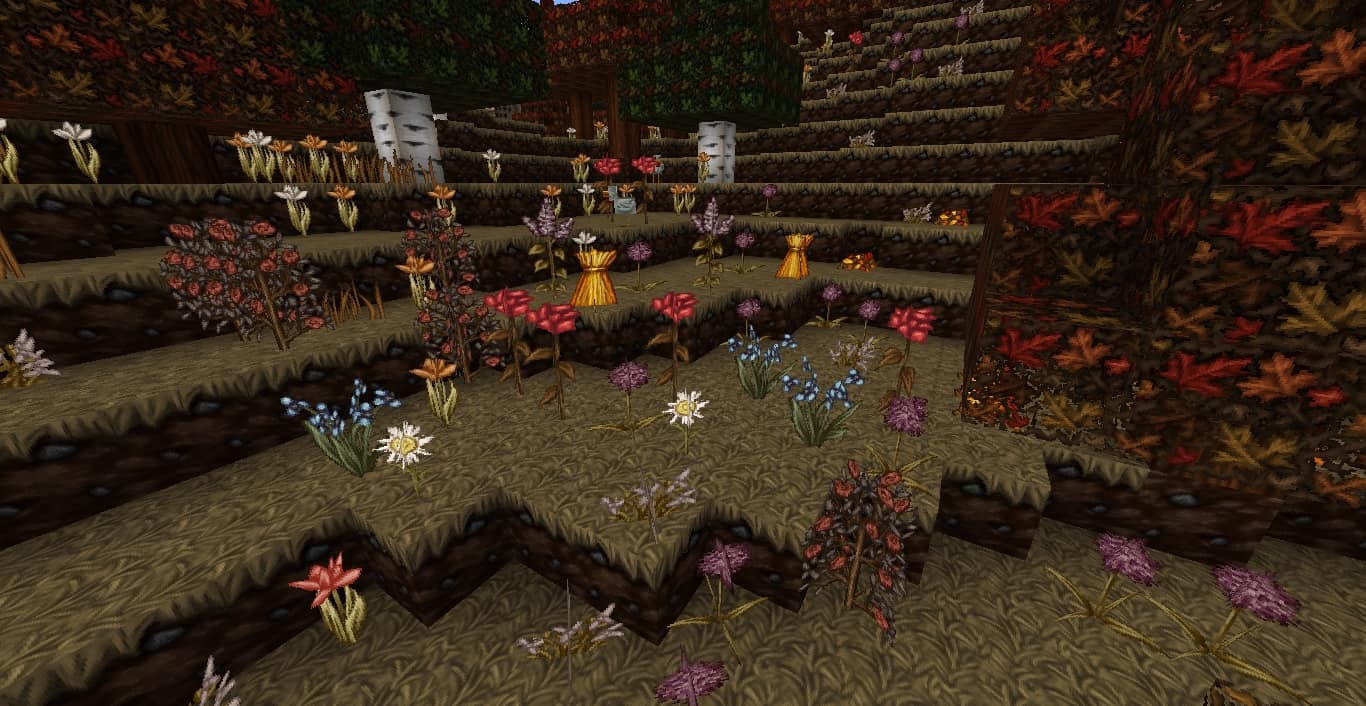
Initially released all the way back in 2012, I’ve found that the Wolfhound resource pack for Minecraft has truly remained an absolute fan favorite over the years. Featuring smoother textures alongside a wonderful variety of other enhancements, this amazing add-on continues to be downloaded eagerly by both veteran and new players alike. In an effort to keep the content fresh and exciting, the creator has rolled out various updates over the years, with some featuring dark themes while others embrace much lighter aesthetics. On top of all this, the creator has also introduced the brilliant Wolfhound seasonal texture pack. This lets us as players use three different themed seasonal changes to our game depending on what suits our mood, or what matches the real-world time of year. Even though there are three distinct themes to explore, it is definitely the winter theme that has drawn the most attention from both fans and critics. This is likely because, out of the trio, it feels by far the most complete and polished in terms of overall content.
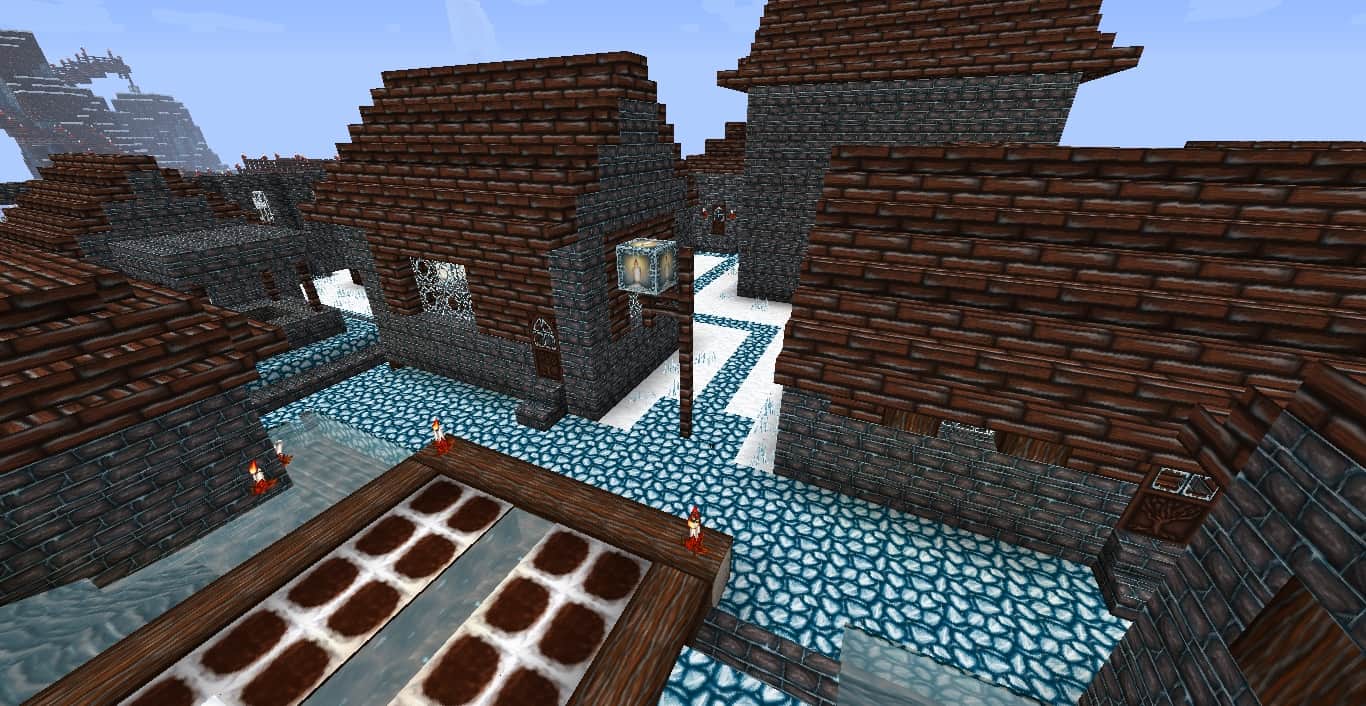
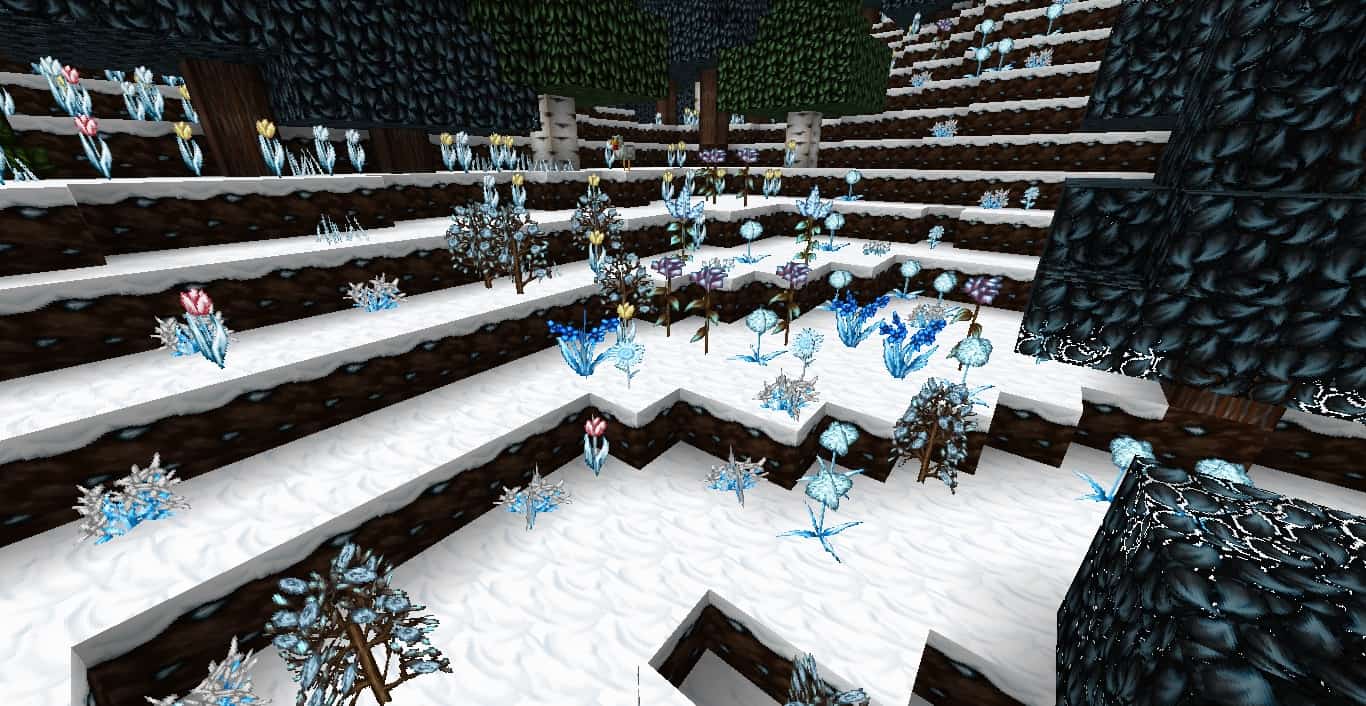
Its massive popularity might just be down to it reminding us of the holidays, getting us feeling wonderfully festive and looking forward to the near future. Or quite simply, it could be because the winter-themed pack does the absolute best job of capturing the true essence and cozy feel of the season. Getting into the spirit of winter, I love how even the game’s foliage has been given a gorgeous icy makeover. The winter pack transforms the color palette into crisp light blues and whites, filling the world with snow and giving it an undeniable winter wonderland atmosphere. Honestly, I found there is something rather absorbing about this pack, perhaps even deeply relaxing when you are just wandering around. In terms of resolution, the Wolfhound Seasons resource pack runs at a steady 64×64, which allows it to maintain just the right amount of sharpness for its enhanced texture models. Fortunately, the developer has been very careful to make sure that the pack doesn’t suffer from those annoying, grainy textures that many high-resolution Minecraft packs unfortunately struggle with. They have also gone to the trouble of ensuring the pack is fully compatible with the latest version of Minecraft in an effort to reach as many players as possible.
Wolfhound Seasons should be compatible with all of these Minecraft versions: 1.21.5 – 1.21.4 – 1.21.3 – 1.21.2 – 1.21.1 – 1.21 – 1.20.6 – 1.20.5 – 1.20.4 – 1.20.3 – 1.20.2 – 1.20.1 – 1.20 – 1.19.4 – 1.19.3 – 1.19.2 – 1.19.1 – 1.19 – 1.18.2 – 1.18.1 – 1.18 – 1.17.1 – 1.17 – 1.16.5 – 1.16.4 – 1.16.3 – 1.16.2 – 1.16.1 – 1.16 – 1.15.2 – 1.15.1 – 1.15 – 1.14.4 – 1.14.3 – 1.14.2 – 1.14 – 1.13.2 – 1.13.1 – 1.13
Screenshots

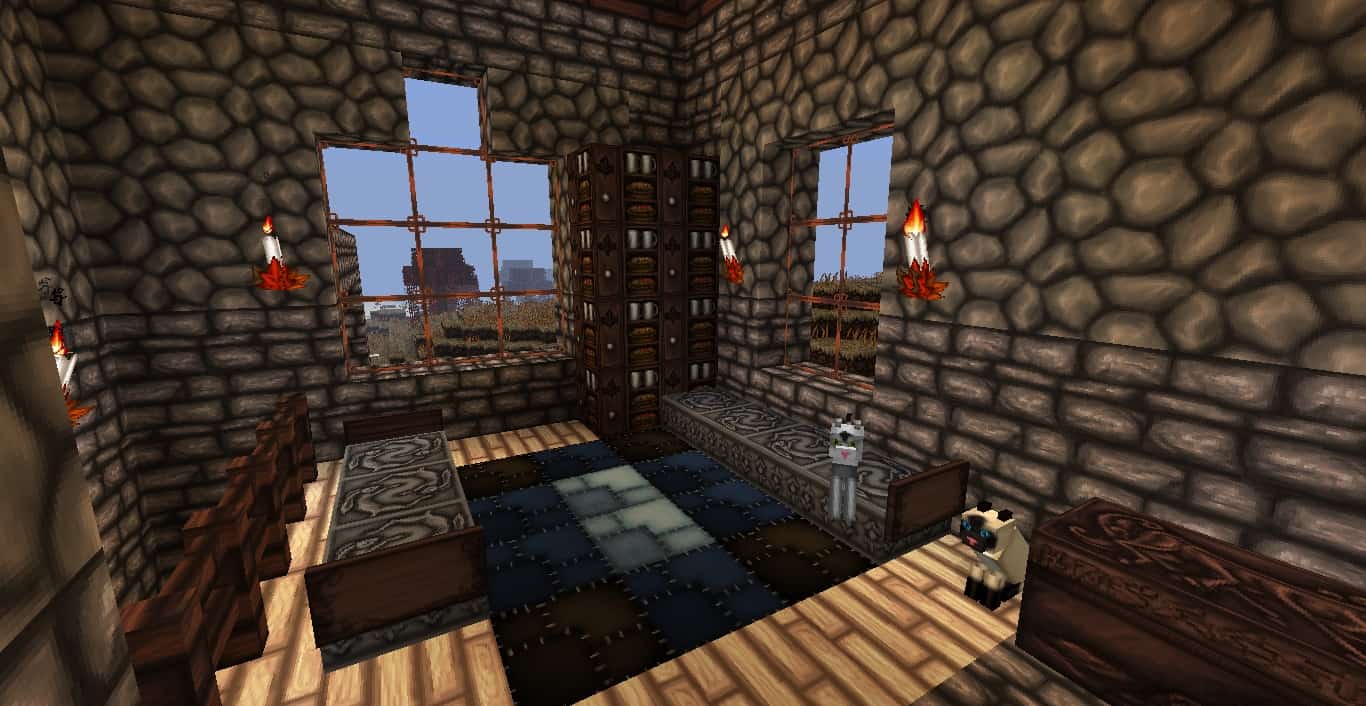
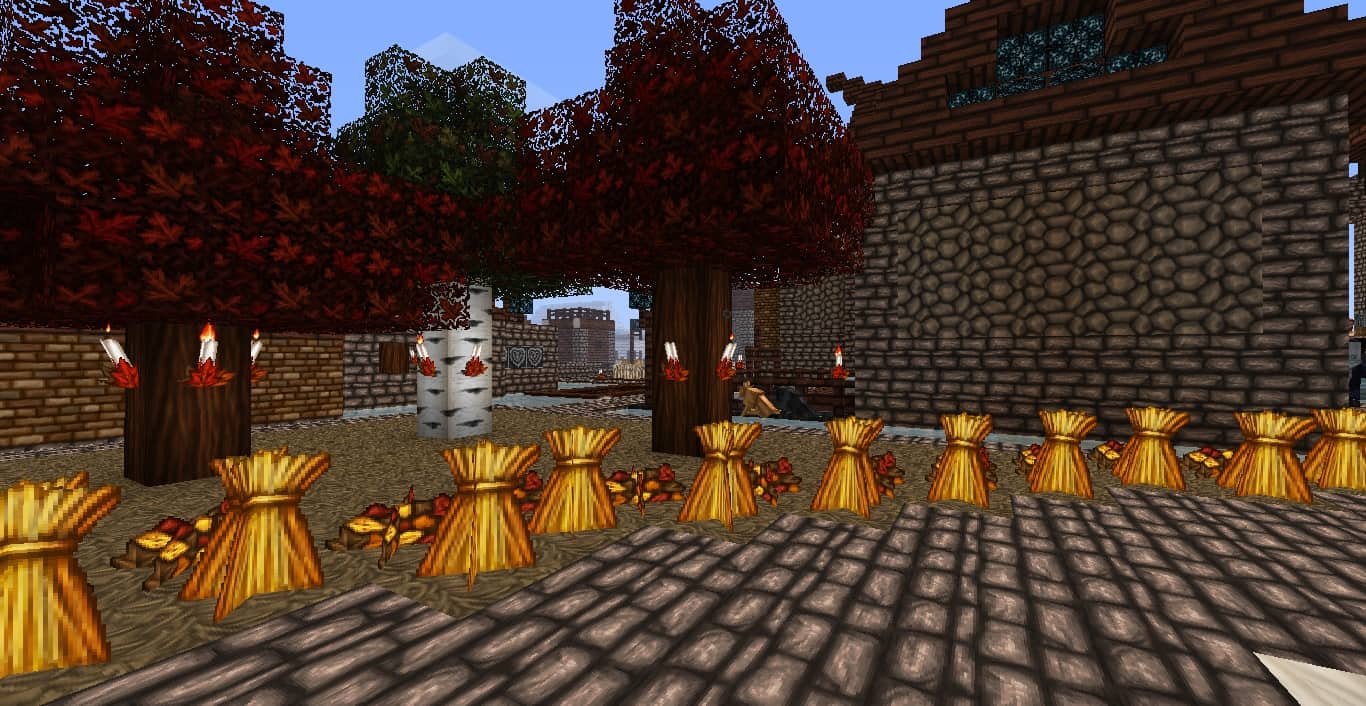
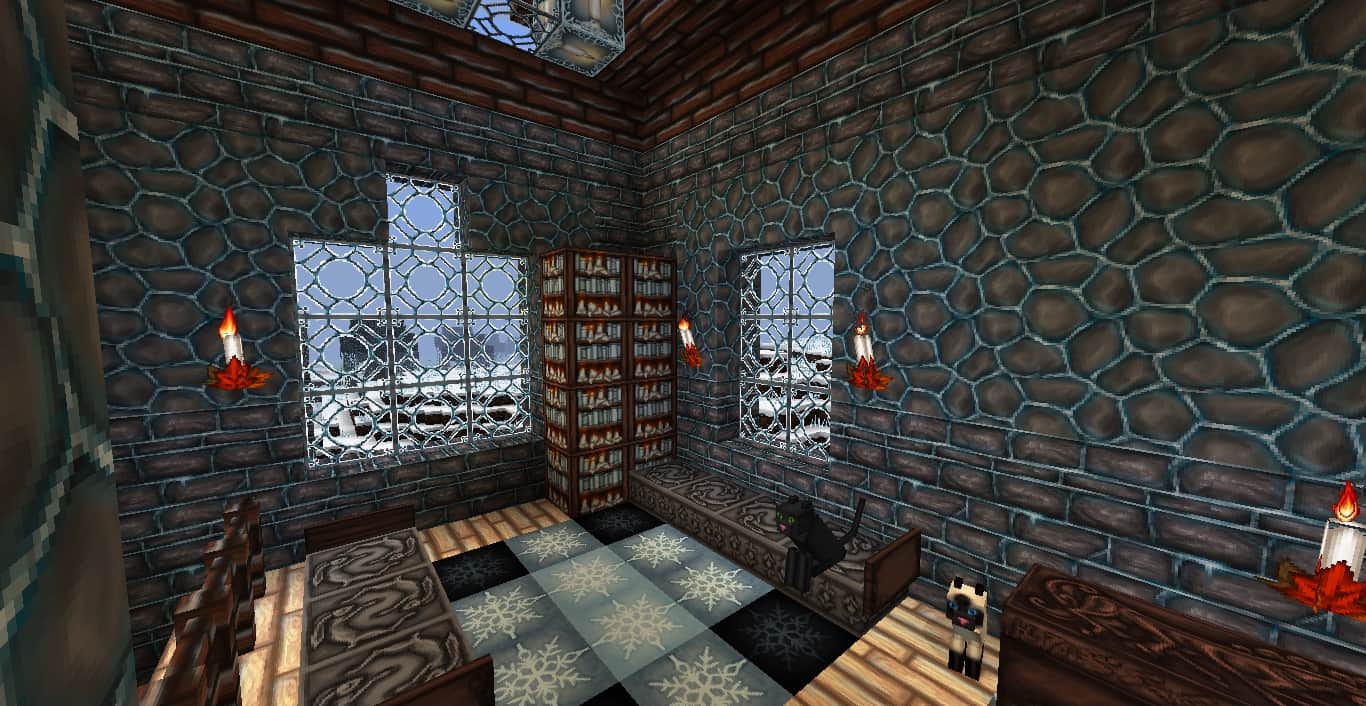
How to Install Texture Pack (Simple 10 Steps)
- Download OptiFine: Most of the texture packs and shaders need OptiFine. That’s why, first download and install OptiFine for the version of Minecraft you want to play.
- Download the Texture Pack: Get the texture pack you want from the download section. Choose the version that works with your Minecraft and your PC’s performance.
- Open Minecraft Launcher: Start Minecraft using the official game launcher — or even TLauncher, if you use that.
- Go to Options: From the main menu, click on the “Options” button.
- Open Resource Packs: Inside Options, click on “Resource Packs…”.
- Open the Resource Pack Folder: Click on “Open Resource Pack Folder” — this will open a folder named “resourcepacks”.
- Move the Pack File: Copy or move the .zip file you downloaded into that “resourcepacks” folder. (Don’t unzip the file — Minecraft uses it as-is!)
- Go Back and Refresh: Close the folder and click “Done”, then go back into “Resource Packs…” again.
- Activate the Pack: You’ll see the pack on the left side. Hover over it and click the arrow to move it to the right (active side).
Tip: If you get a message that the pack is for a different version, just click “Yes” — it usually works fine. - Click Done and Enjoy: Click “Done” again. Now your pack is ready to use in-game. It’s that easy!
Credits
The Wolfhound Seasons resource pack was originally created and owned by ThistlePack. We do not claim ownership of this content, nor have we modified the original files. All rights and credits belong entirely to ThistlePack. We strongly encourage you to support the creator by downloading the pack from their official links and checking out their other work.
Download Instructions
Curseforge: download starts automatically after a few seconds;
Mediafire: click the big blue button with the text “DOWNLOAD”;
Google Drive: in the top right corner you will see a small download icon (down arrow), click it and the download should start;


