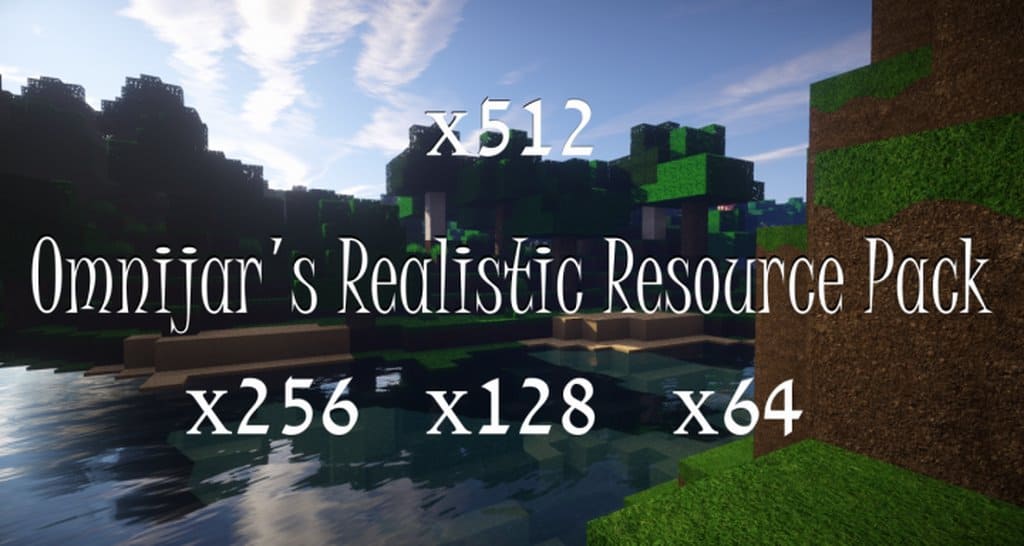
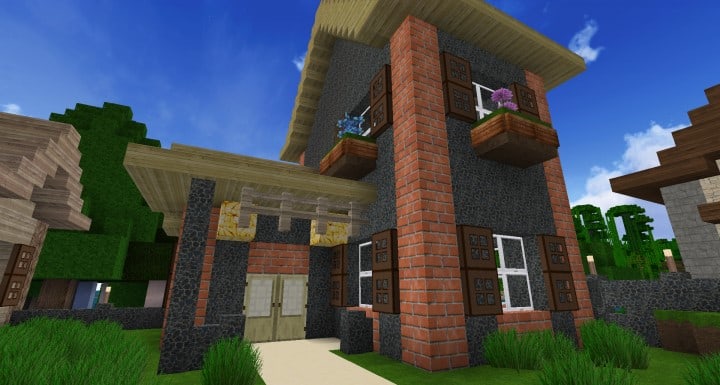
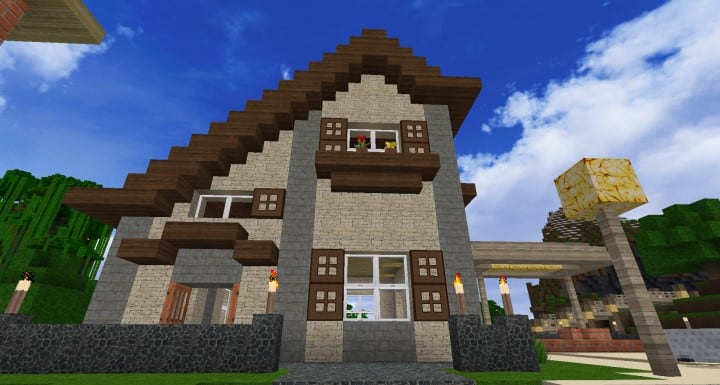
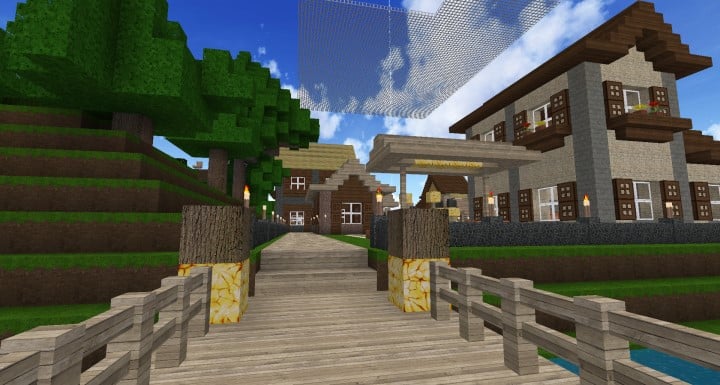
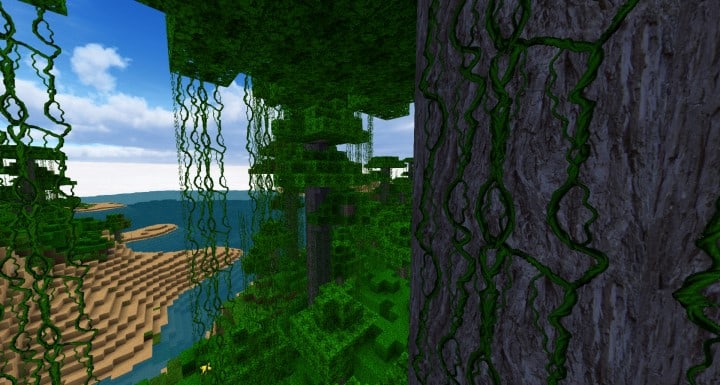
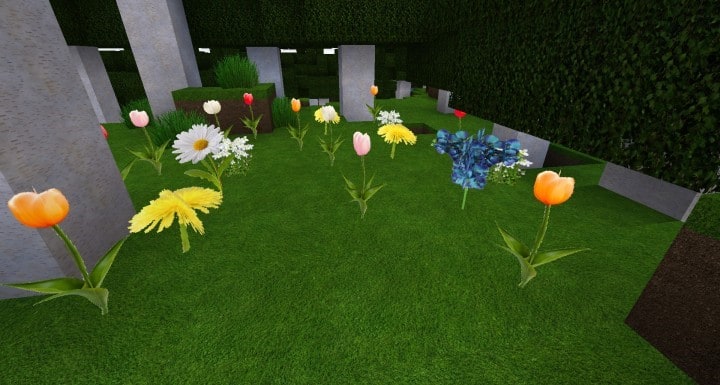
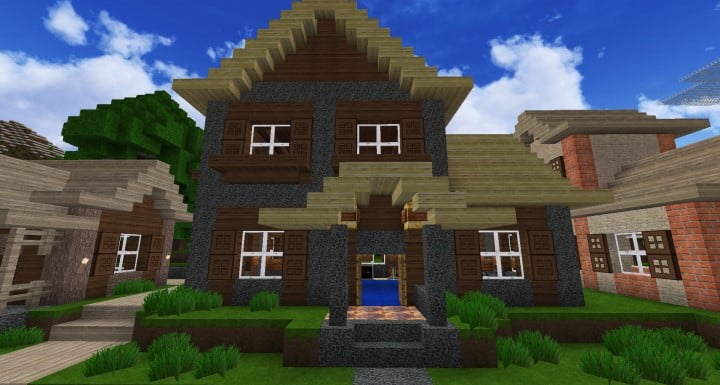
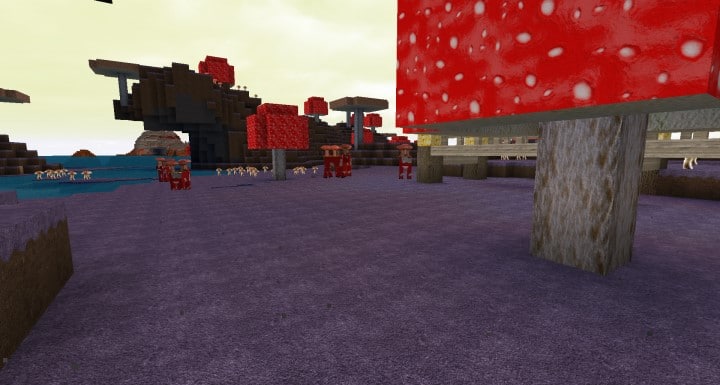
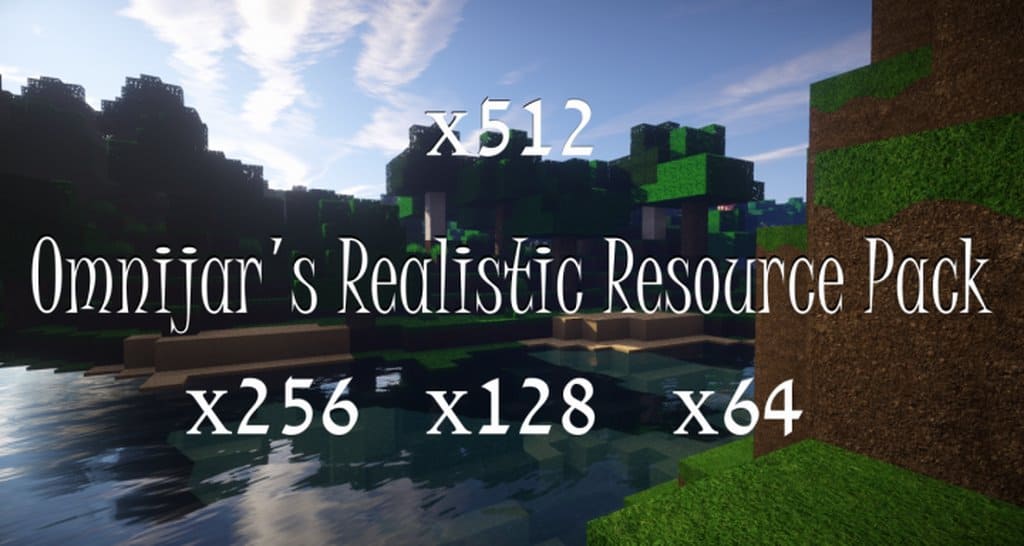
The name OmniJar’s Realistic Resource Pack immediately defines the purpose for which it has been compiled. I found that its purpose is not only to enhance the textures and make them appear more realistic, but to stay faithful to Minecraft’s default theme. OmniJar, the developer that created this pack, did a tremendous job creating new textures that appear more real, but that at same time, do not change too much the original theme. Despite this being a difficult task, OmniJar has won over the obstacles and successfully created this pack, which I now consider one of the best texture packs currently available. Do note however, that this pack is still in Alpha phase; So until it is 100% complete, some missing textures will still be detectable, and as time progresses, these will slowly be added in the following updates.
Because of the alterations in the textures, the loading time for this pack in the game can be of almost 50 seconds; This is a key issue where there is space for improvement and optimization to make load time faster. Nevertheless, the change in textures is noticeable: They have almost perfect colors which are neither extreme nor very dull, blending in perfectly with the vanilla theme. Not only are the colors more realistic, but also the level of detail and sharpness in each texture, given that the OmniJar’s Realistic Resource Pack resolution is x512. This will be no problem at all for players with top notch and sophisticated configurations in their PCs; On the other hand, players that are using computers with lower specs will end up having trouble with reduced frame rates and lagging. And it should be mentioned that it is a requirement when using this pack, to utilize Optifine. Without Optifine, the game will not run correctly and will most likely crash every time when playing.
OmniJar’s Realistic should be compatible with all of these Minecraft versions: 1.15.2 – 1.15.1 – 1.15 – 1.14.4 – 1.14.3 – 1.14.2 – 1.14 – 1.13.2 – 1.13.1 – 1.13 – 1.12.2 – 1.12 – 1.11.2 – 1.11
Screenshots
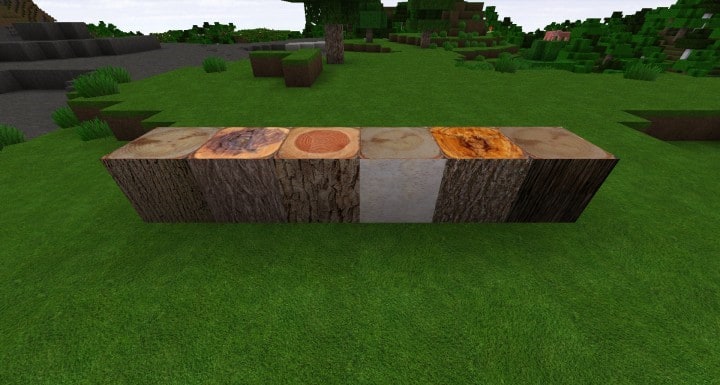
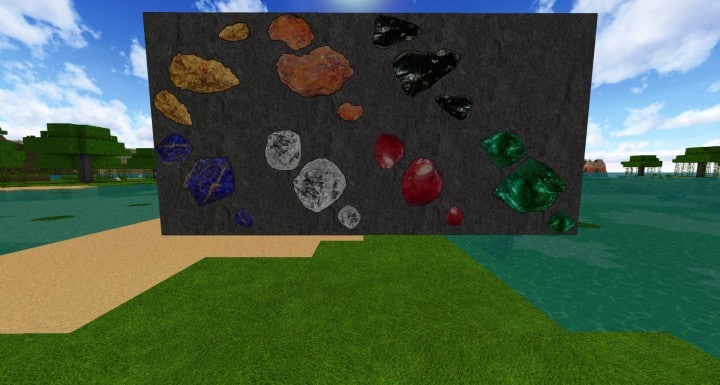

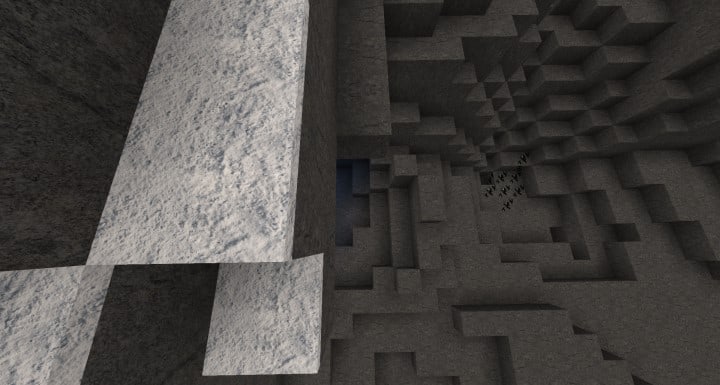
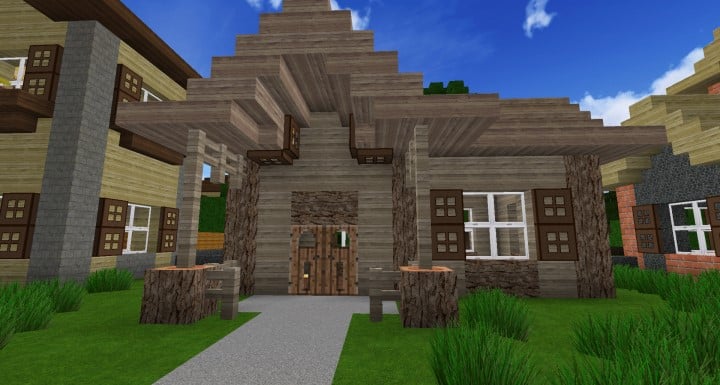
How to Install Texture Pack (Simple 10 Steps)
- Download OptiFine: Most of the texture packs and shaders need OptiFine. That’s why, first download and install OptiFine for the version of Minecraft you want to play.
- Download the Texture Pack: Get the texture pack you want from the download section. Choose the version that works with your Minecraft and your PC’s performance.
- Open Minecraft Launcher: Start Minecraft using the official game launcher — or even TLauncher, if you use that.
- Go to Options: From the main menu, click on the “Options” button.
- Open Resource Packs: Inside Options, click on “Resource Packs…”.
- Open the Resource Pack Folder: Click on “Open Resource Pack Folder” — this will open a folder named “resourcepacks”.
- Move the Pack File: Copy or move the .zip file you downloaded into that “resourcepacks” folder. (Don’t unzip the file — Minecraft uses it as-is!)
- Go Back and Refresh: Close the folder and click “Done”, then go back into “Resource Packs…” again.
- Activate the Pack: You’ll see the pack on the left side. Hover over it and click the arrow to move it to the right (active side).
Tip: If you get a message that the pack is for a different version, just click “Yes” — it usually works fine. - Click Done and Enjoy: Click “Done” again. Now your pack is ready to use in-game. It’s that easy!
Credits
OmniJar’s Realistic Resource Pack was created by OmniJar. All rights to the original content belong solely to the author. We do not claim ownership of this content, nor do we host modified files on our servers. We encourage you to support the creator by visiting their official release links.
Download Links
Java Edition
Download Instructions
Curseforge: download starts automatically after a few seconds;
Mediafire: click the big blue button with the text “DOWNLOAD”;
Google Drive: in the top right corner you will see a small download icon (down arrow), click it and the download should start;


