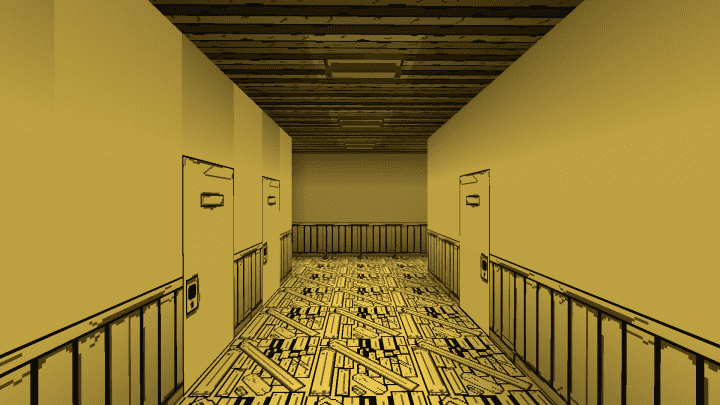
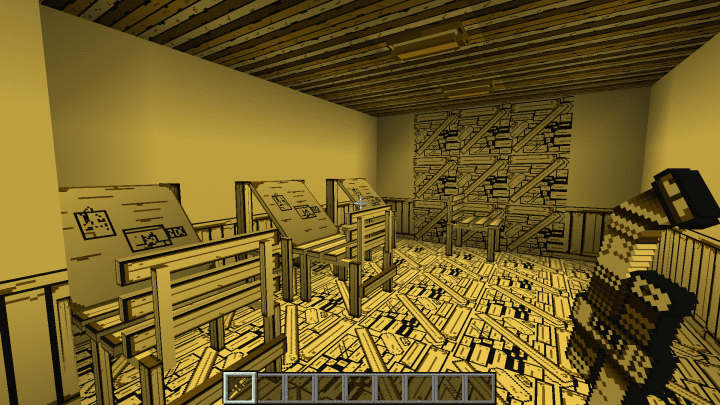
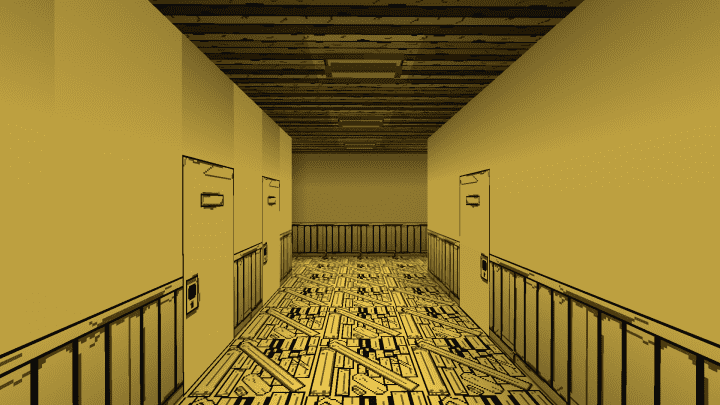
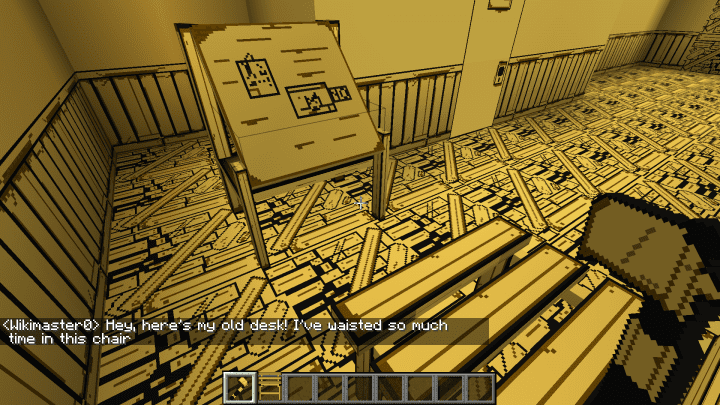
Hey everyone! I just tried out this incredible new resource pack called Bendycraft, and the graphics are honestly incomparable to anything else currently existing in the Minecraft universe. It completely transforms your game in the best way possible! The Bendycraft resource pack derives its direct inspiration from a fan-favorite, thrilling horror puzzle game called Bendy and the Ink Machine. That game is genuinely loved by countless players because of how exhilarating it is to play. Something that truly makes Bendy and the Ink Machine stand out and capture everyone’s attention is its distinct and iconic art style. The Bendycraft resource pack successfully brings this exact same artistic style straight into the Minecraft world, making you appreciate the visual experience immensely like never before. Before we dive into all the details about this resource pack, I should mention that Bendycraft was created recently and is currently still in its early stages of development.
Because of this, you will notice there are still quite a few incomplete textures, but your anticipation definitely shouldn’t die out yet—there is an exciting series of updates to expect that will completely amaze you. This pack will seriously blow your mind when it is fully finished! Even while still sitting in its pre-alpha state, the Bendycraft resource pack is something that every single player needs to try out, regardless of a few minor issues that still need fixing. The textures feature a remarkably unique design, supported wonderfully by a striking color palette mixing bold yellows and deep blacks. While the detail levels in the textures might not be super high yet, this is honestly a minor issue because providing hyper-detailed textures isn’t the primary objective of this pack. That said, I’d recommend keeping an eye on your hardware: using a personal computer with very low-end specifications isn’t ideal here because the Bendycraft resource pack features a 64×64 resolution, which is on the higher side and might occasionally cause some frame-rate drops if your rig struggles, preventing you from getting the absolute best visual experience from it.
Bendycraft should be compatible with all of these Minecraft versions: 1.12.2 – 1.12 – 1.11.2 – 1.11
Screenshots
How to Install Texture Pack (Simple 10 Steps)
- Download OptiFine: Most of the texture packs and shaders need OptiFine. That’s why, first download and install OptiFine for the version of Minecraft you want to play.
- Download the Texture Pack: Get the texture pack you want from the download section. Choose the version that works with your Minecraft and your PC’s performance.
- Open Minecraft Launcher: Start Minecraft using the official game launcher — or even TLauncher, if you use that.
- Go to Options: From the main menu, click on the “Options” button.
- Open Resource Packs: Inside Options, click on “Resource Packs…”.
- Open the Resource Pack Folder: Click on “Open Resource Pack Folder” — this will open a folder named “resourcepacks”.
- Move the Pack File: Copy or move the .zip file you downloaded into that “resourcepacks” folder. (Don’t unzip the file — Minecraft uses it as-is!)
- Go Back and Refresh: Close the folder and click “Done”, then go back into “Resource Packs…” again.
- Activate the Pack: You’ll see the pack on the left side. Hover over it and click the arrow to move it to the right (active side).
Tip: If you get a message that the pack is for a different version, just click “Yes” — it usually works fine. - Click Done and Enjoy: Click “Done” again. Now your pack is ready to use in-game. It’s that easy!
Credits
This resource pack was created by Wikimaster0. All rights, title, and original ownership belong entirely to the original creator. We do not claim ownership of this content, nor have we modified the original files. We strongly encourage you to support Wikimaster0 and their ongoing work by downloading the pack from their official links.
Download Instructions
Curseforge: download starts automatically after a few seconds;
Mediafire: click the big blue button with the text “DOWNLOAD”;
Google Drive: in the top right corner you will see a small download icon (down arrow), click it and the download should start;


