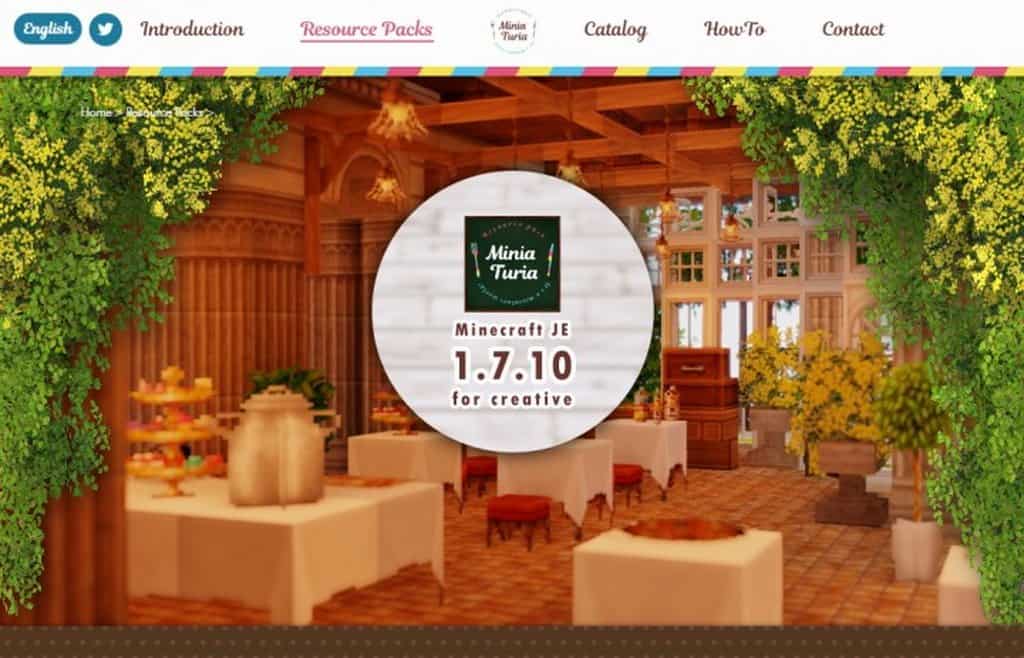
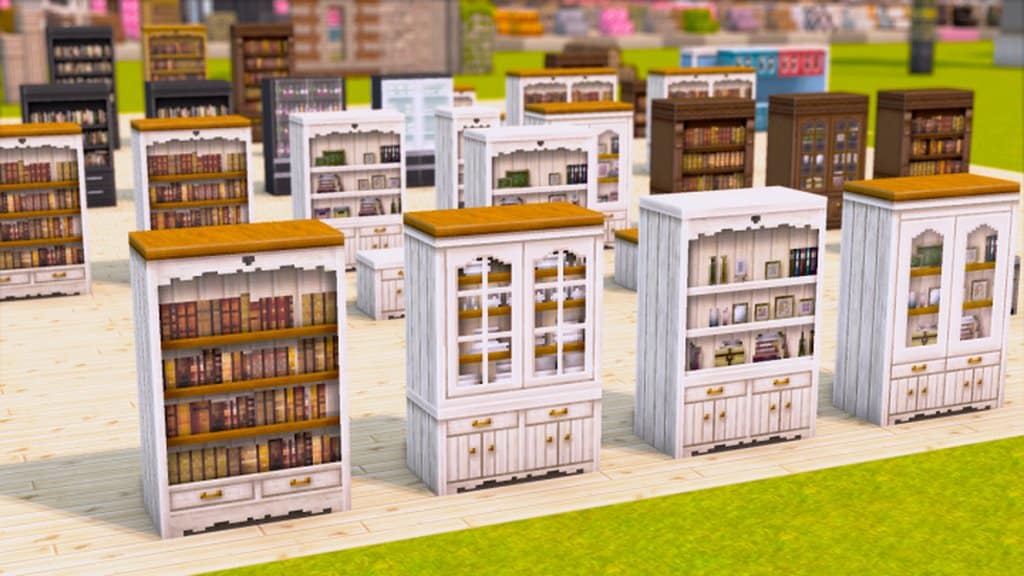
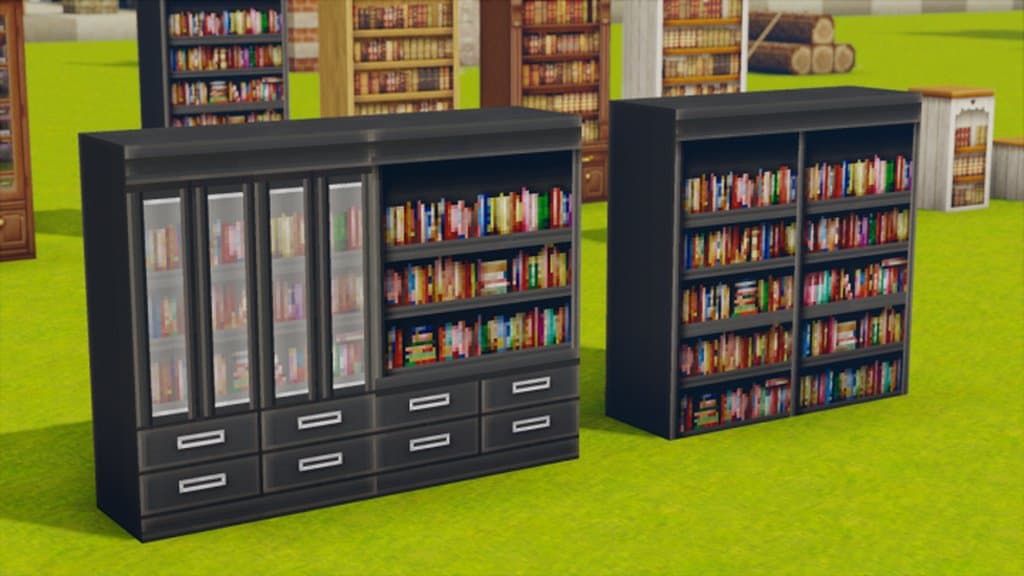
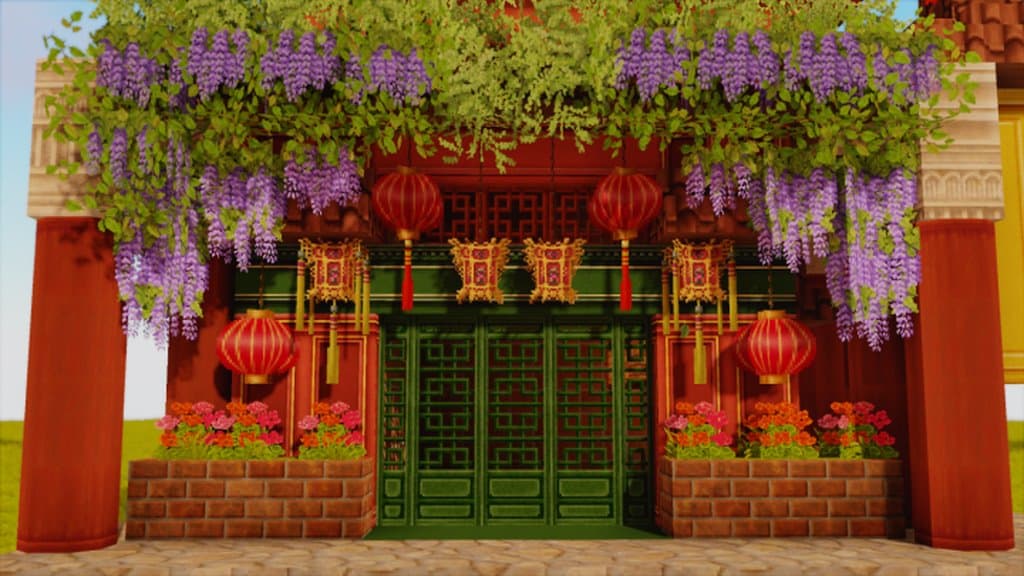
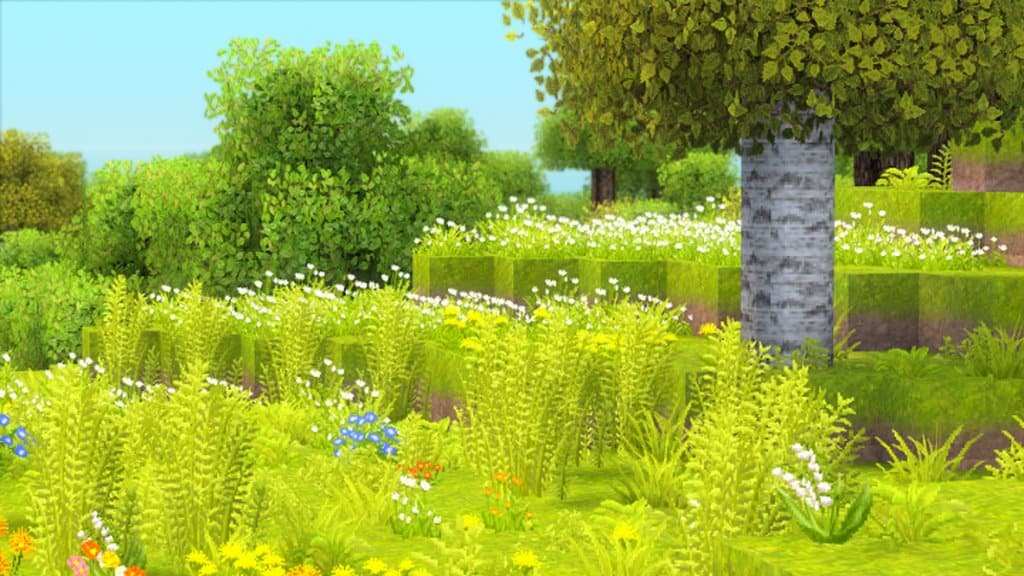
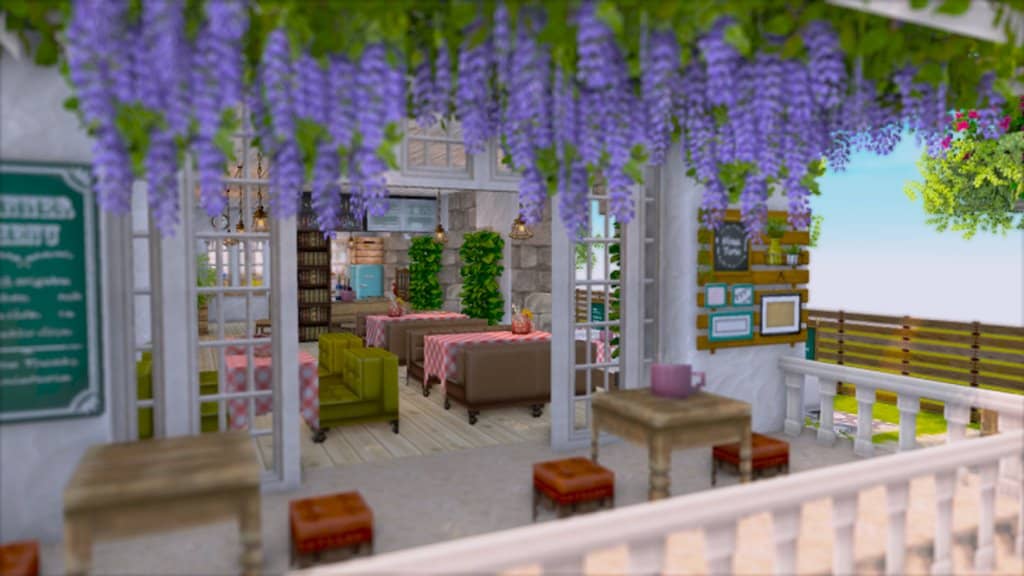
If you are currently looking for an incredible new resource pack for Minecraft, you simply have to check out MiniaTuria! This fantastic pack has completely captured my attention and is already making waves across the entire Minecraft community. It has quickly drawn widespread praise due to its hugely colorful features, which look remarkably interesting and vibrant in-game. I especially love the fact that the MiniaTuria resource pack is brimming over with intricate details that truly bring your world to life. It is exceptionally easy on the eyes because the creators thoughtfully removed any annoying visual noise that tends to plague rival packs. Get ready to completely lose yourself in this engaging and mesmeric visual experience that will leave you wanting to return to your builds again and again.
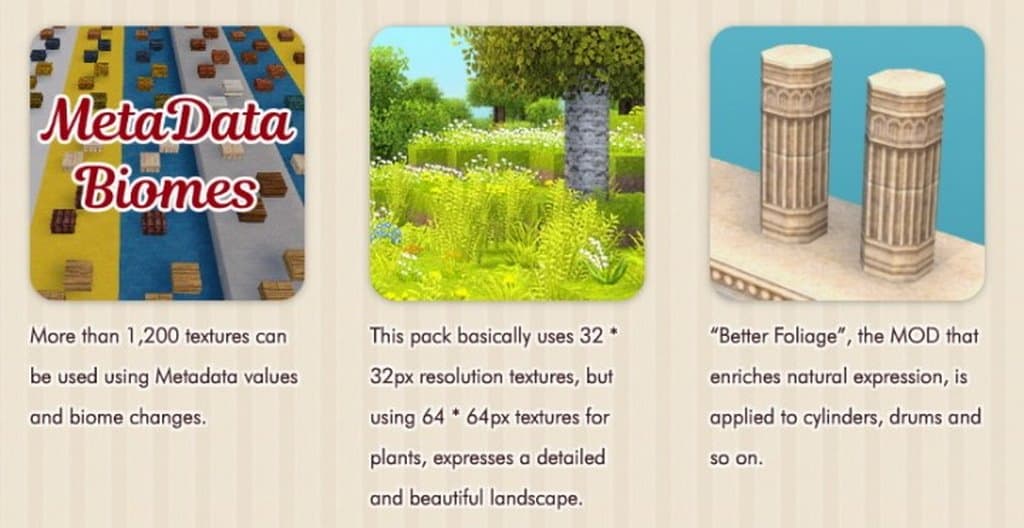
The absolute best aspect of this pack is that it cleverly refuses to limit you to just one single art style. Instead, it draws wonderful inspiration from a vast array of different styles and genres, allowing you to seamlessly explore modern, fantasy, and historical architectural themes all at once. The textures also beautifully draw inspiration from Eastern culture, heavily influenced by traditional Chinese and Japanese architecture. All of these diverse design elements come together brilliantly to provide a truly engrossing gaming experience that never ceases to impress right from the very outset. Best of all, the entire pack is expertly designed in a crisp 32×32 texture resolution to ensure that you will not run into any frustrating issues with your frame rates. The MiniaTuria team notes that you only need a system capable of handling vanilla Minecraft to run this smoothly.
MiniaTuria should be compatible with all of these Minecraft versions: 1.7.10 – 1.7.9 – 1.7.4 – 1.7
Screenshots
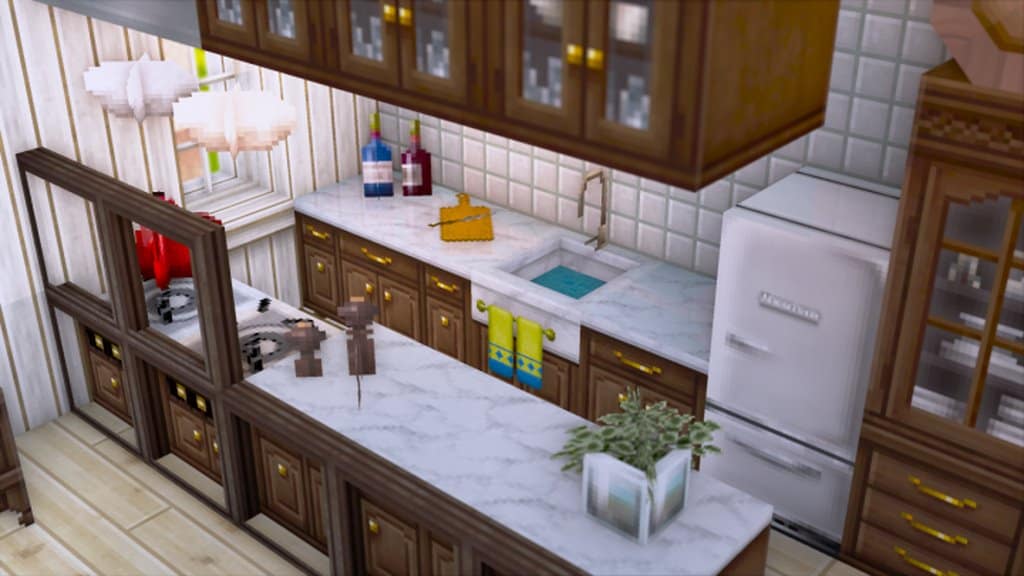
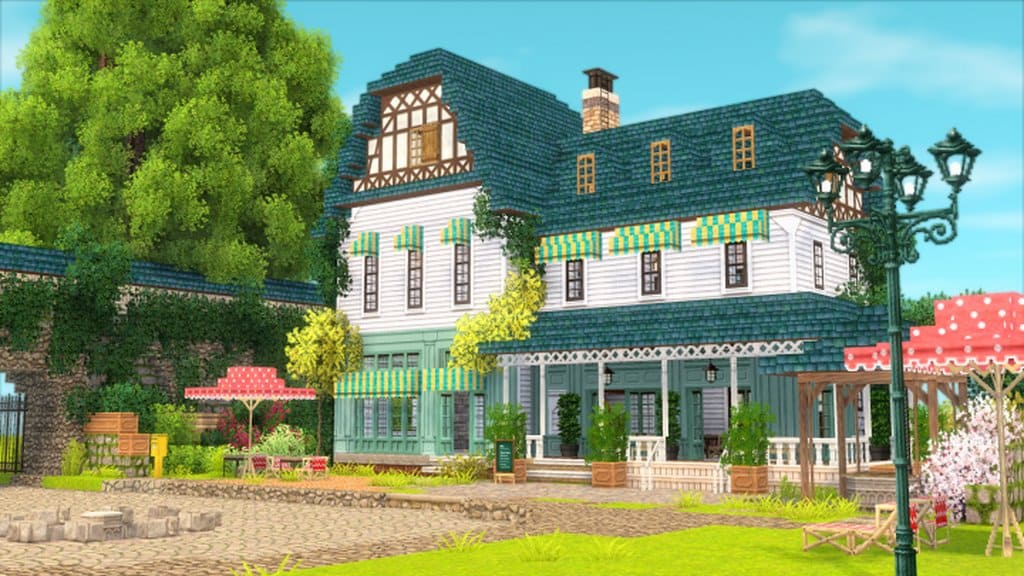
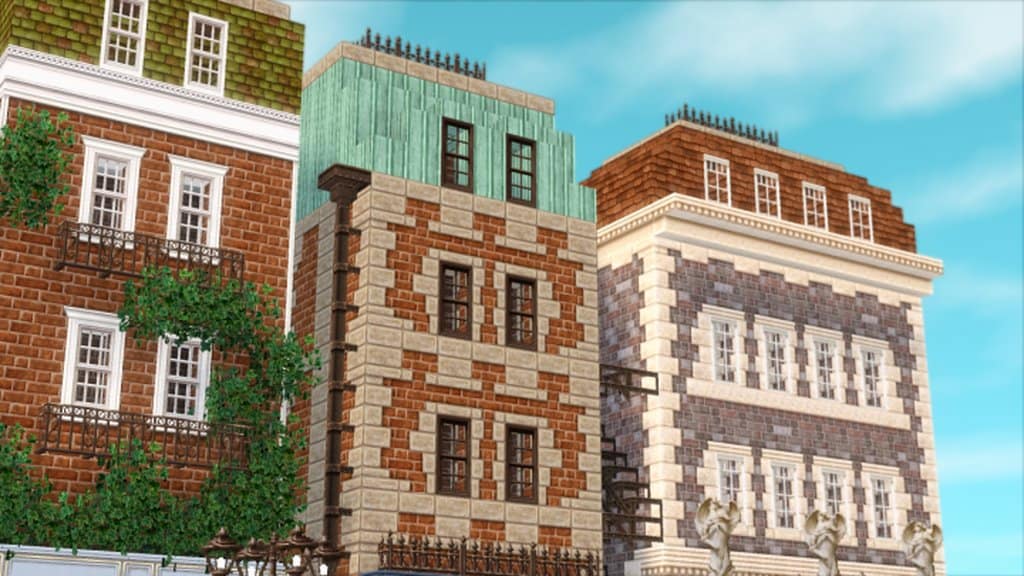
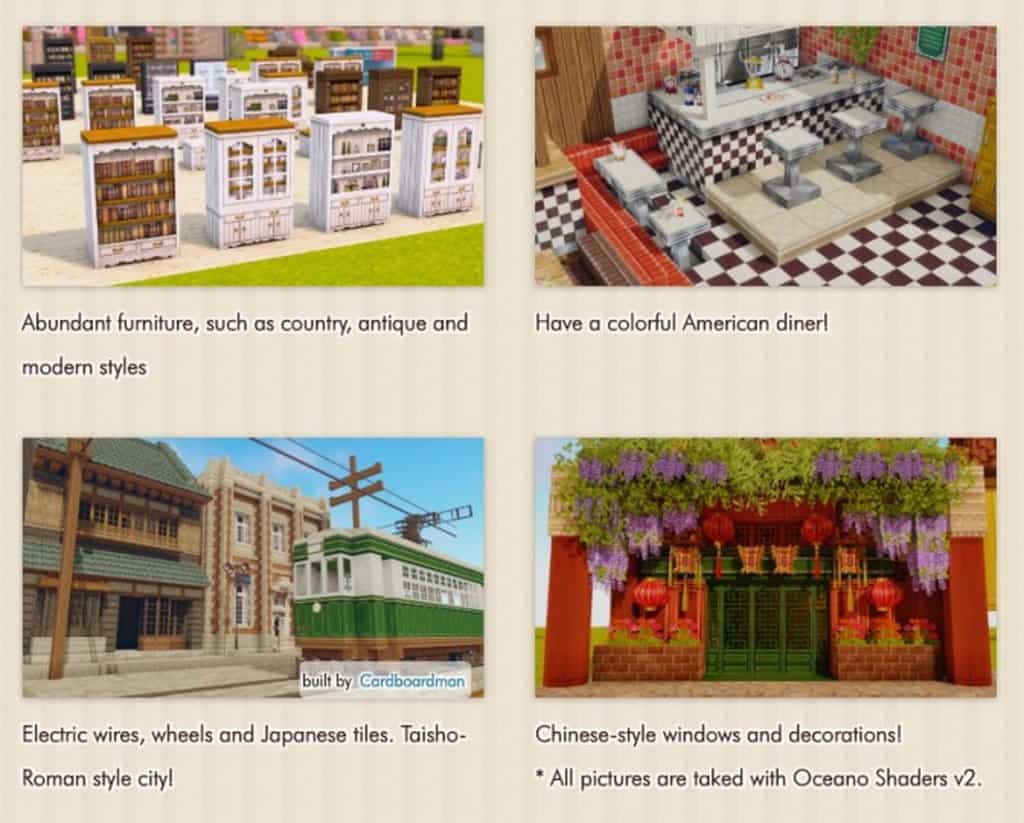

How to Install Texture Pack (Simple 10 Steps)
- Download OptiFine: Most of the texture packs and shaders need OptiFine. That’s why, first download and install OptiFine for the version of Minecraft you want to play.
- Download the Texture Pack: Get the texture pack you want from the download section. Choose the version that works with your Minecraft and your PC’s performance.
- Open Minecraft Launcher: Start Minecraft using the official game launcher — or even TLauncher, if you use that.
- Go to Options: From the main menu, click on the “Options” button.
- Open Resource Packs: Inside Options, click on “Resource Packs…”.
- Open the Resource Pack Folder: Click on “Open Resource Pack Folder” — this will open a folder named “resourcepacks”.
- Move the Pack File: Copy or move the .zip file you downloaded into that “resourcepacks” folder. (Don’t unzip the file — Minecraft uses it as-is!)
- Go Back and Refresh: Close the folder and click “Done”, then go back into “Resource Packs…” again.
- Activate the Pack: You’ll see the pack on the left side. Hover over it and click the arrow to move it to the right (active side).
Tip: If you get a message that the pack is for a different version, just click “Yes” — it usually works fine. - Click Done and Enjoy: Click “Done” again. Now your pack is ready to use in-game. It’s that easy!
Credits
This resource pack was created by Hasukko. We acknowledge that the original ownership of this content belongs entirely to Hasukko, and we do not claim ownership of or modify these files. We strongly encourage you to support the original creator by visiting their official sources and downloading the pack through their designated channels.
Download Links
Java Edition
Download Instructions
Curseforge: download starts automatically after a few seconds;
Mediafire: click the big blue button with the text “DOWNLOAD”;
Google Drive: in the top right corner you will see a small download icon (down arrow), click it and the download should start;


