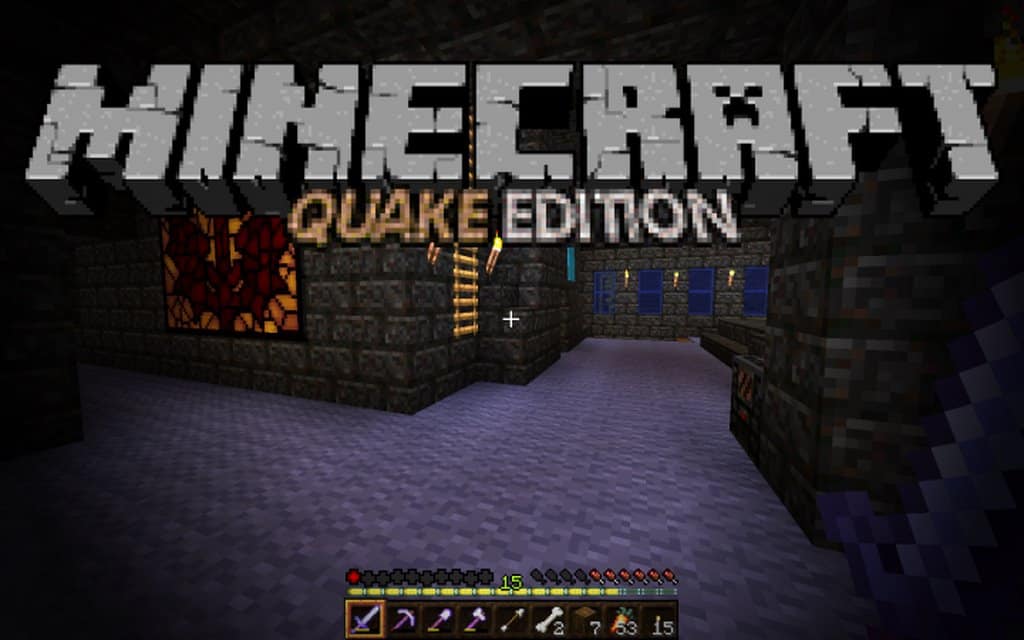
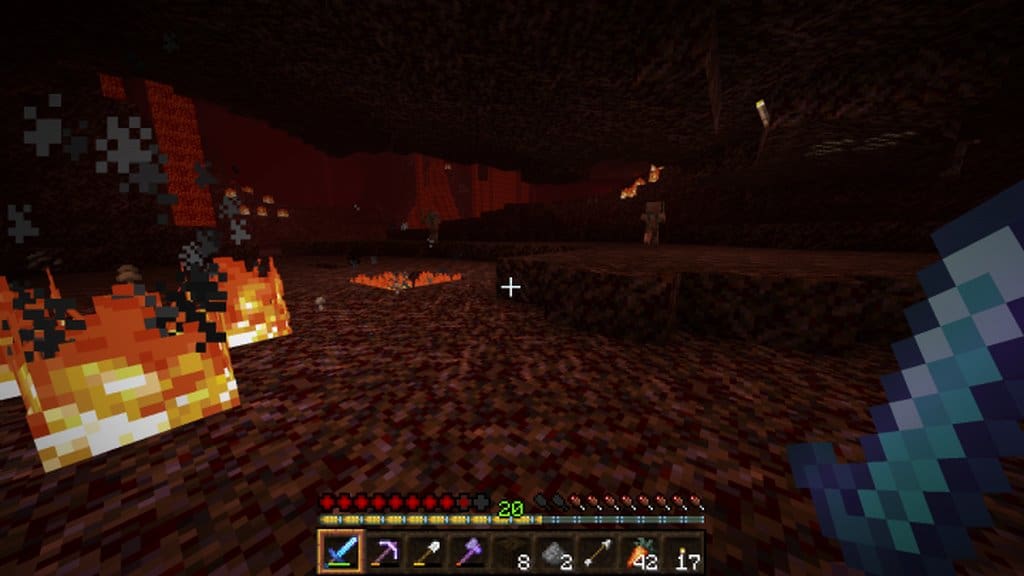
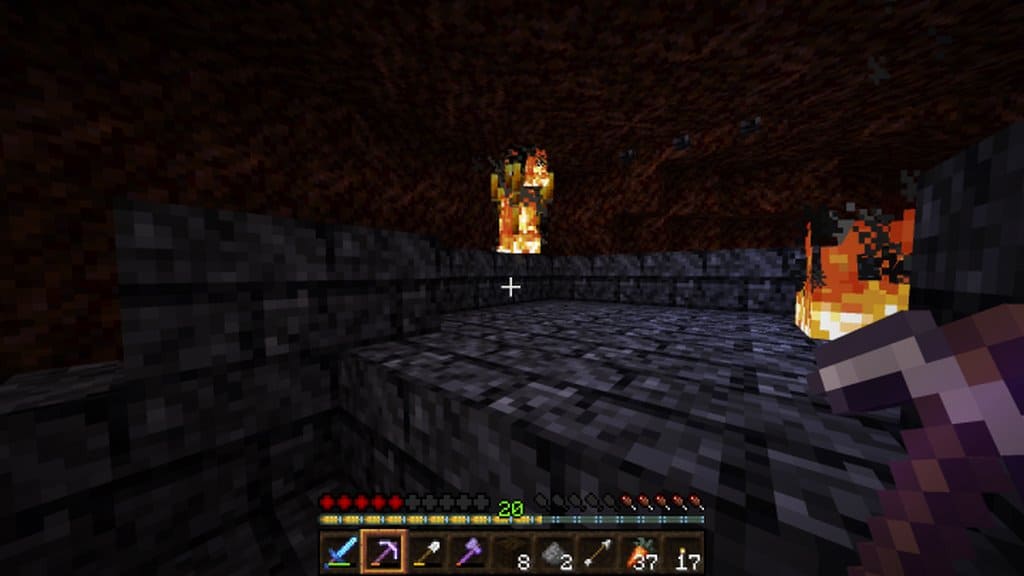
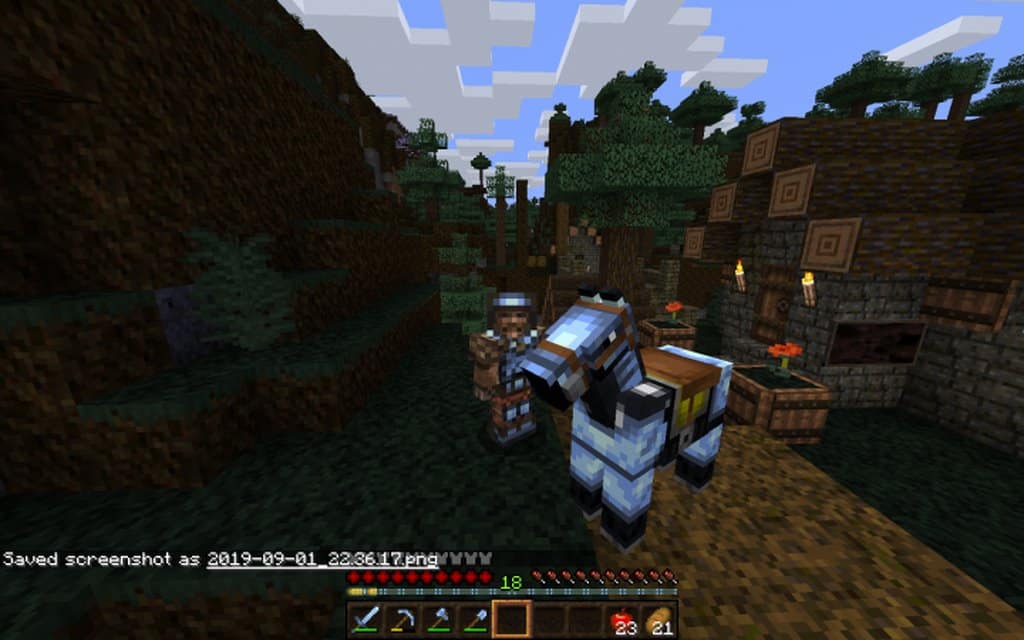
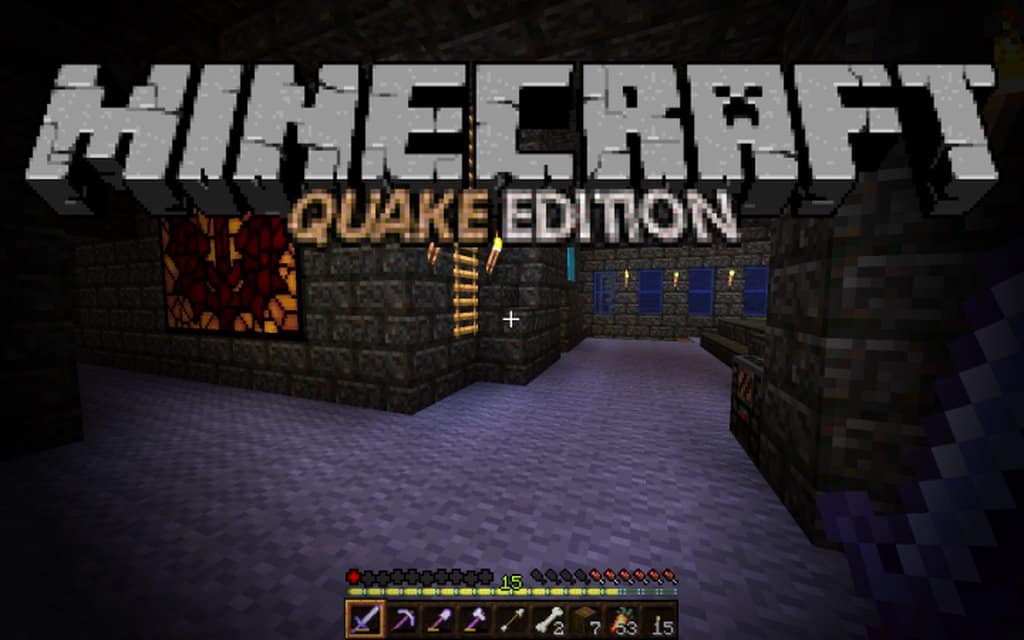
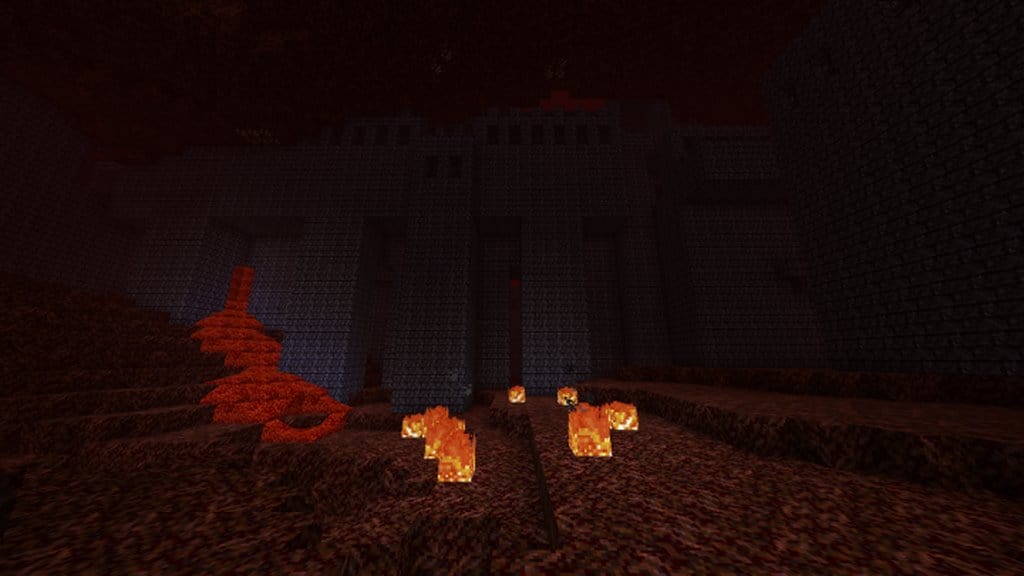
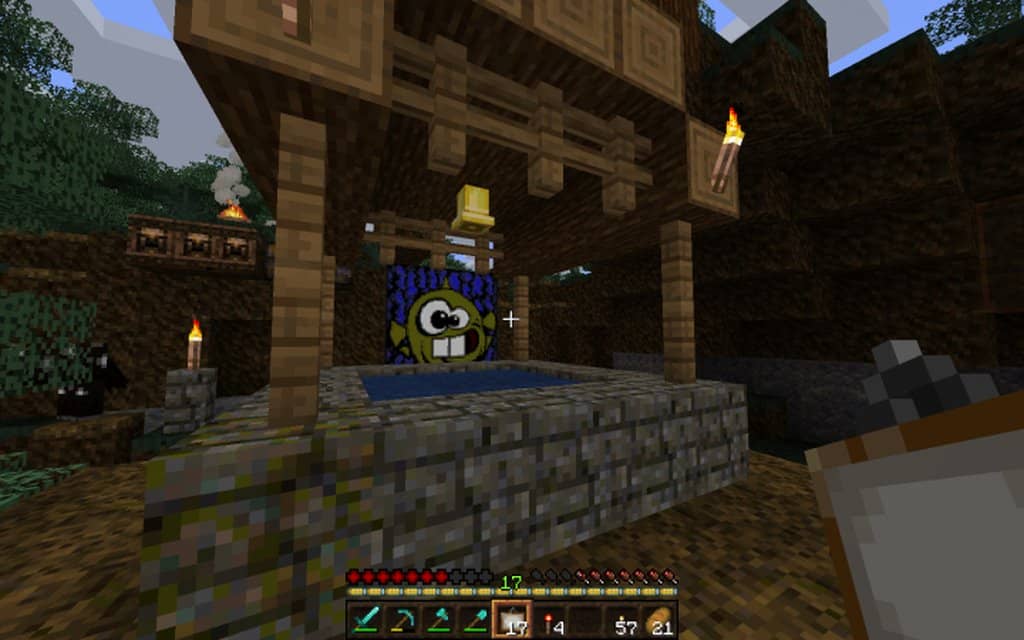
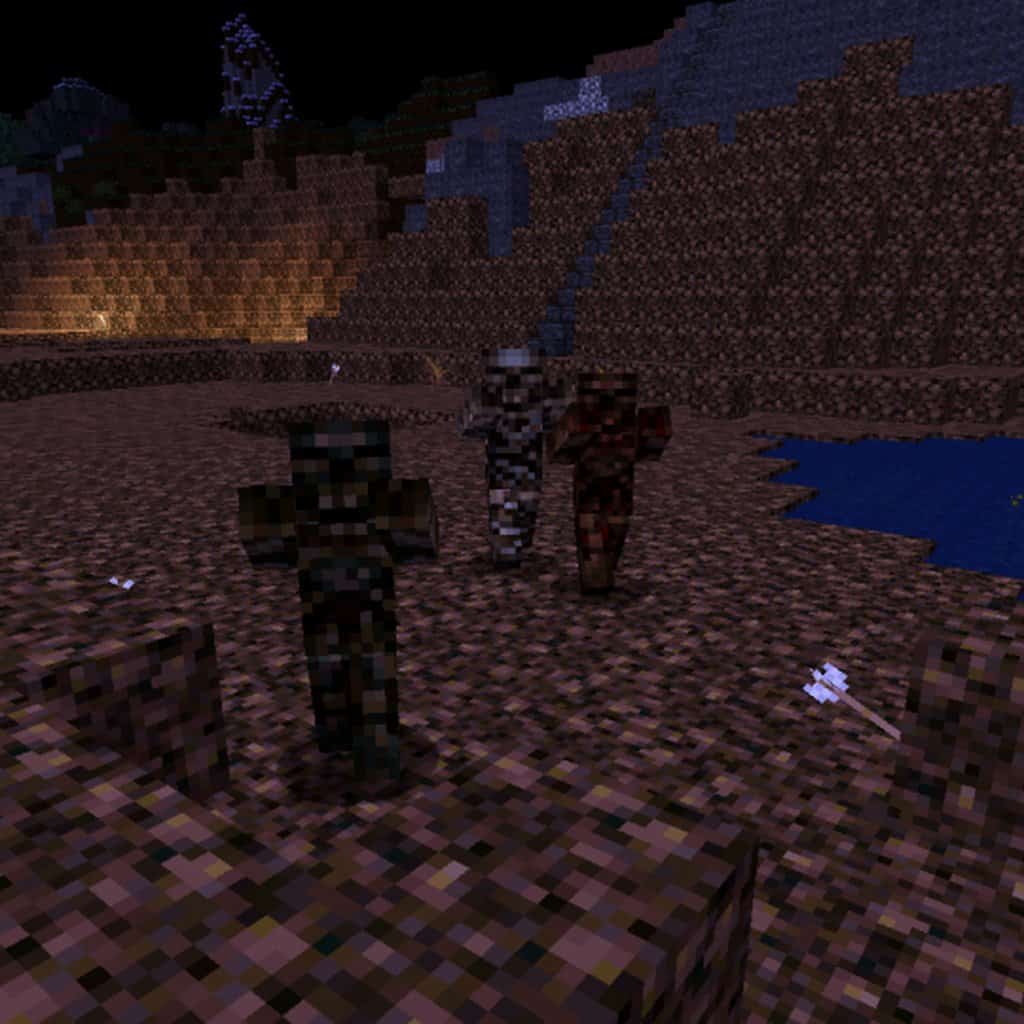
Quake is undeniably one of the most iconic franchises out there, having pulled in a massive fanbase over the years. Because of that, none of us were really surprised when the incredible QuakeTex resource pack dropped for Minecraft, bringing that legendary Quake inspiration right into our favorite blocky world! Compared to many other packs out there, the QuakeTex resource pack is delightfully fresh, having landed in the community just a week ago. Shifting away from standard vanilla Minecraft textures which can sometimes feel a bit plain, QuakeTex is an exceptionally eye-catching resource pack that completely transforms your atmosphere. Equipping this pack instantly plunges your game into a moody, dark aesthetic, pulling you in so deeply that you will find yourself totally immersed. While default Minecraft graphics have their own simple charm that hooks you at first, spending hours exploring can make those visuals feel a bit repetitive and tire out your gameplay experience.
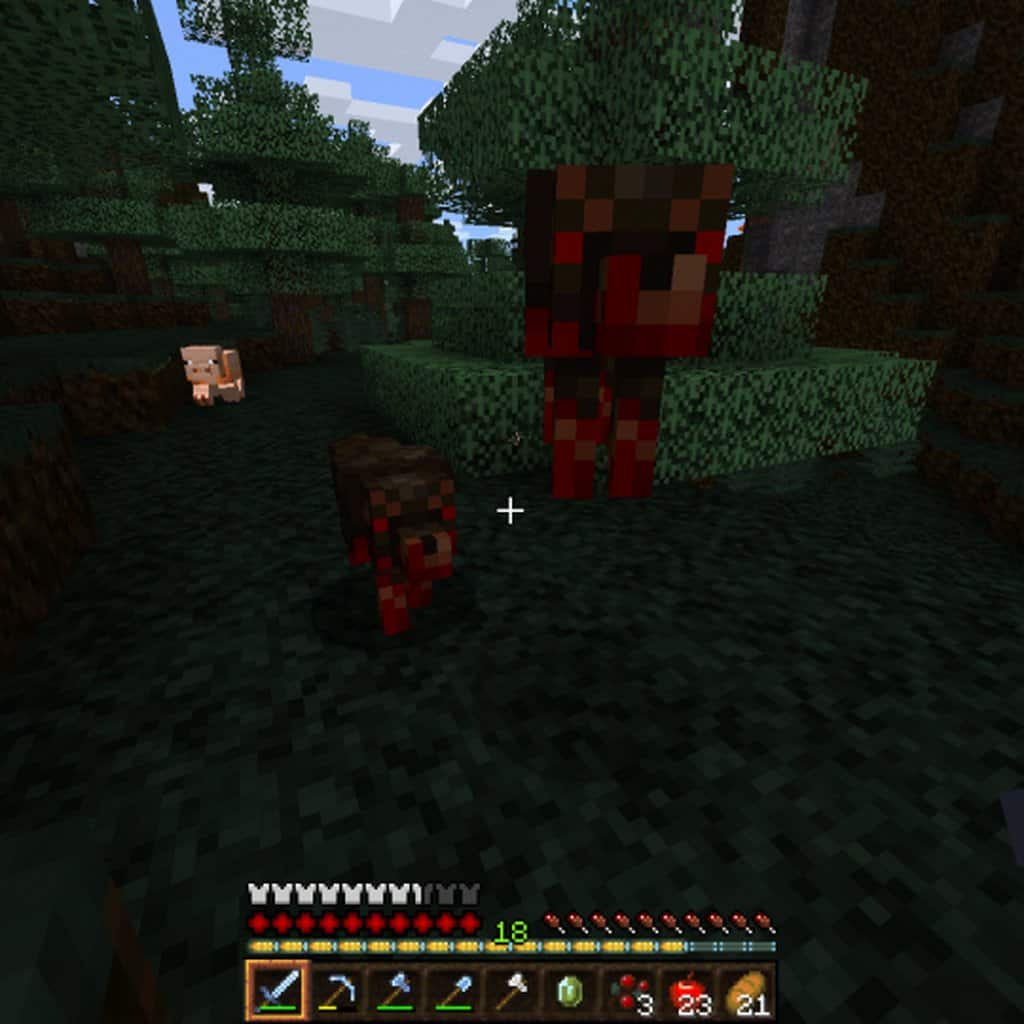
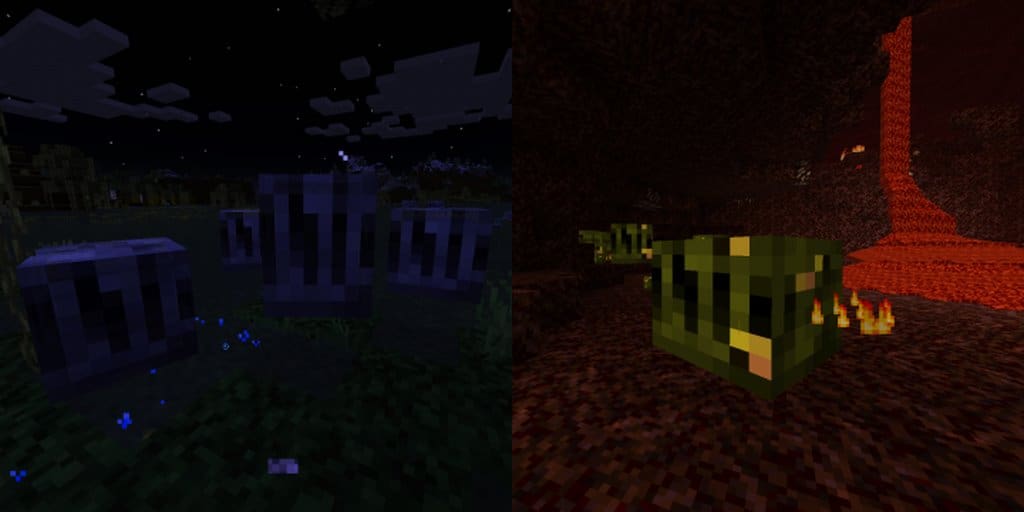
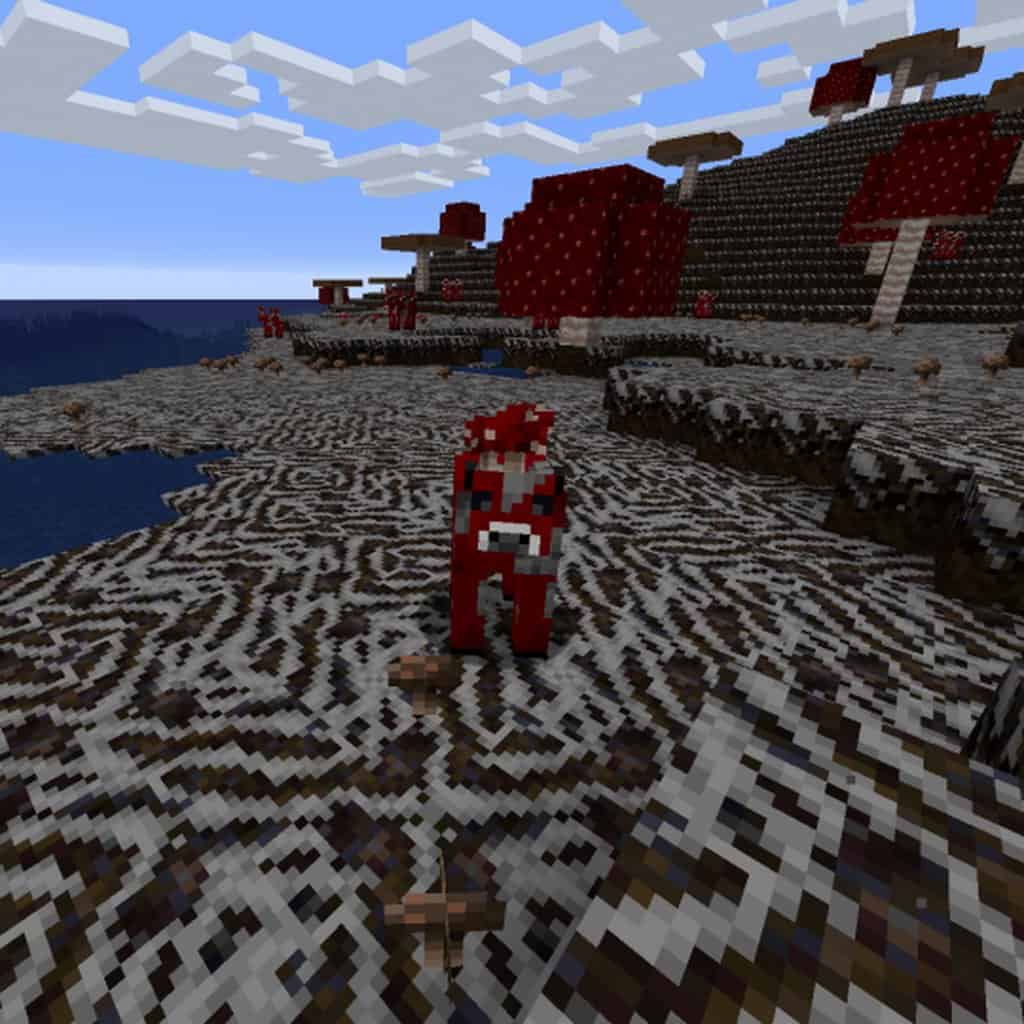
If you have been craving a much darker, atmospheric style of gameplay, you seriously need to check out the QuakeTex texture pack. The graphical user interface (GUI) and block textures have been lovingly overhauled to echo the classic Quake vibe. Even better, the core feel of Minecraft stays wonderfully intact while world blocks get a gritty, shadowy re-texturing that looks phenomenal. Since the texture pixels are toned down and less bright, ambient light drops significantly, meaning you will need to stock up on extra torches and reliable light sources to survive the shadows. You definitely want to come prepared with the right tools before heading out into the dark. Common essentials like dirt, grass, wood, sand, and stone see the most dramatic changes, anchoring that gritty aesthetic. Meanwhile, precious gemstones like emeralds and diamonds pop with brighter colors, though the overall palette stays true to the classic Quake roots. Best of all, because QuakeTex maintains a smooth 16×16 texture resolution, it runs like a dream without eating up your computer resources, meaning practically any PC that handles vanilla Minecraft can run this pack effortlessly!
QuakeTex should be compatible with all of these Minecraft versions: 1.14.4 – 1.14.3 – 1.14.2 – 1.14 – 1.13.2 – 1.13.1 – 1.13
Screenshots
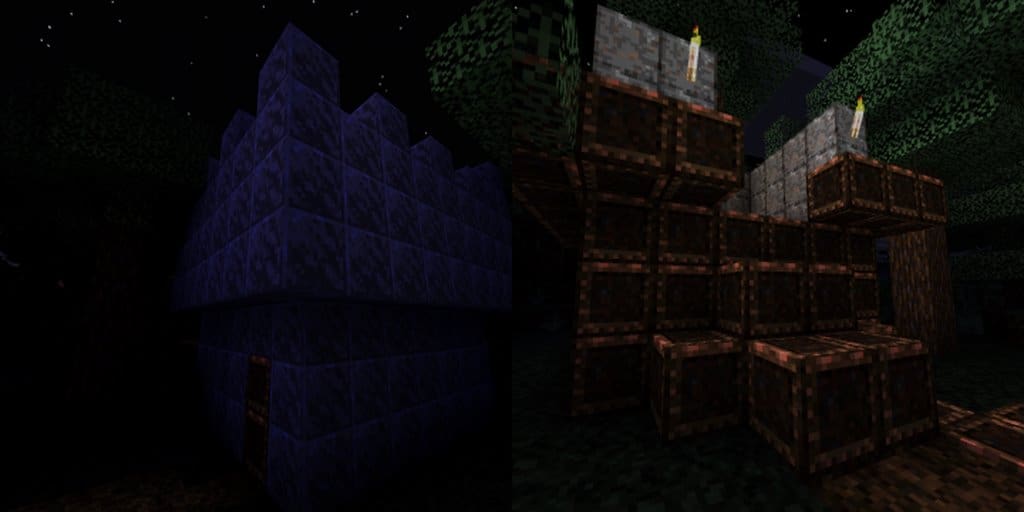
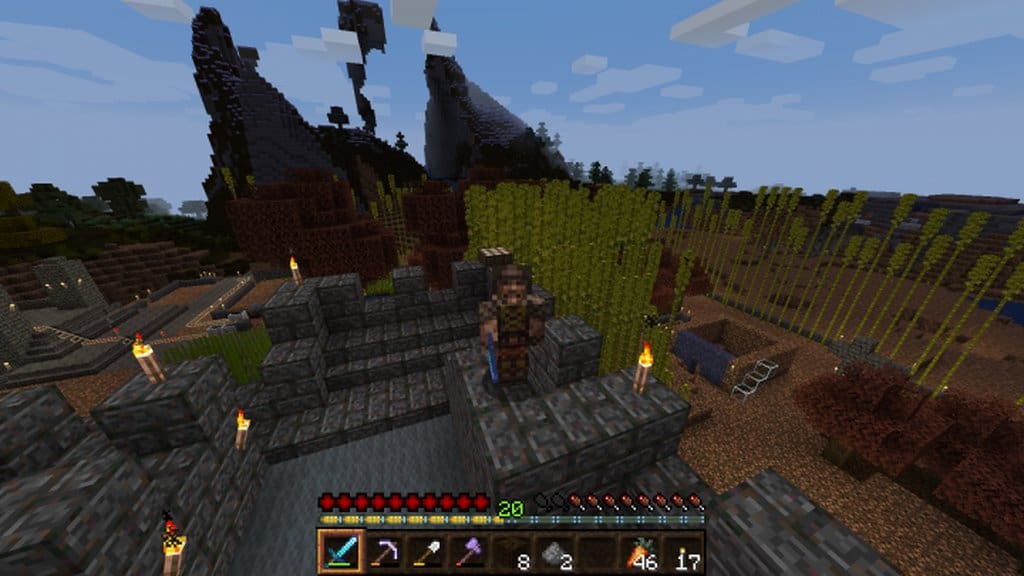
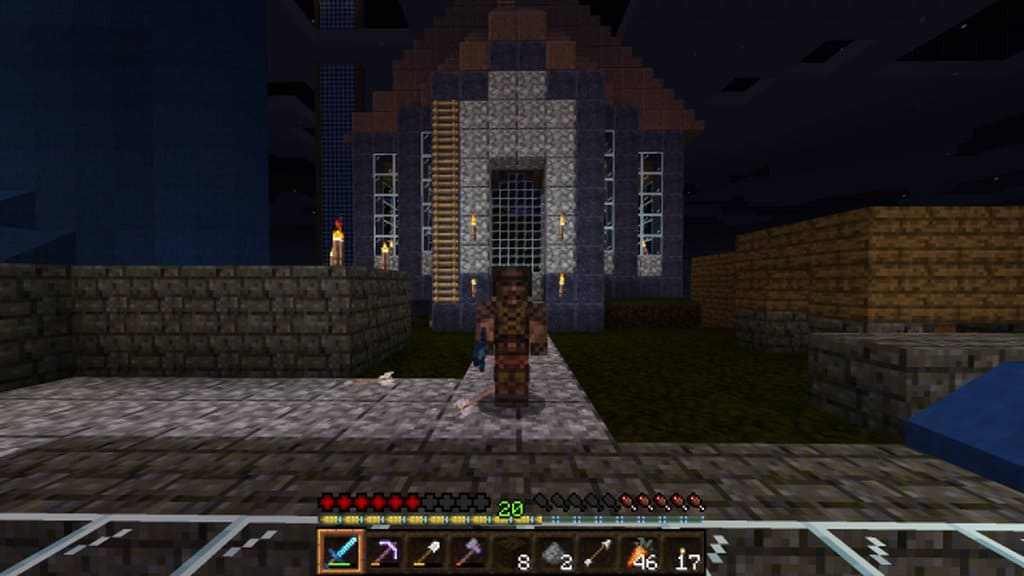
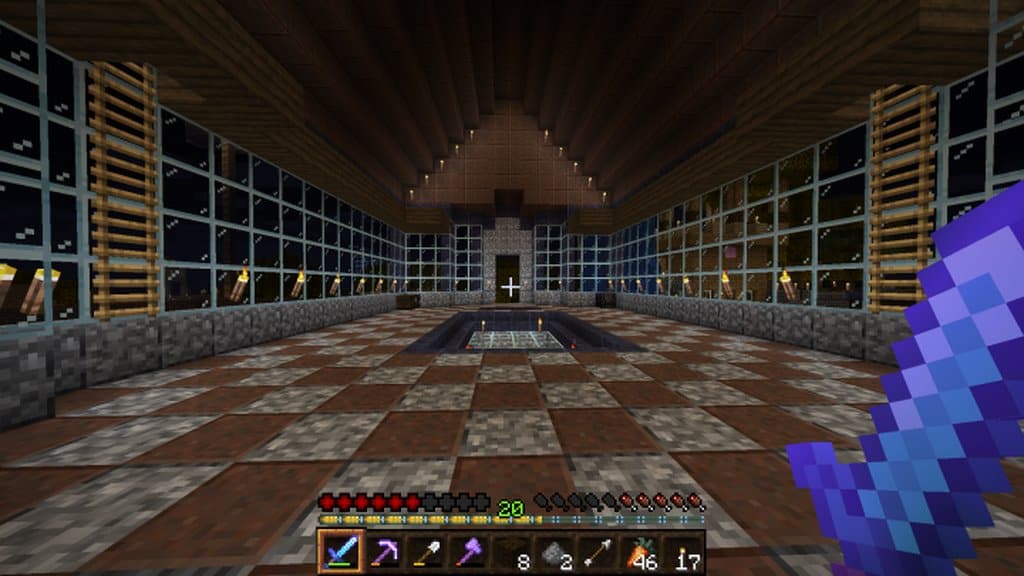
How to Install Texture Pack (Simple 10 Steps)
- Download OptiFine: Most of the texture packs and shaders need OptiFine. That’s why, first download and install OptiFine for the version of Minecraft you want to play.
- Download the Texture Pack: Get the texture pack you want from the download section. Choose the version that works with your Minecraft and your PC’s performance.
- Open Minecraft Launcher: Start Minecraft using the official game launcher — or even TLauncher, if you use that.
- Go to Options: From the main menu, click on the “Options” button.
- Open Resource Packs: Inside Options, click on “Resource Packs…”.
- Open the Resource Pack Folder: Click on “Open Resource Pack Folder” — this will open a folder named “resourcepacks”.
- Move the Pack File: Copy or move the .zip file you downloaded into that “resourcepacks” folder. (Don’t unzip the file — Minecraft uses it as-is!)
- Go Back and Refresh: Close the folder and click “Done”, then go back into “Resource Packs…” again.
- Activate the Pack: You’ll see the pack on the left side. Hover over it and click the arrow to move it to the right (active side).
Tip: If you get a message that the pack is for a different version, just click “Yes” — it usually works fine. - Click Done and Enjoy: Click “Done” again. Now your pack is ready to use in-game. It’s that easy!
Credits
This resource pack was created by PapaRhoq. We do not own or modify the files hosted here; all rights and original ownership belong to PapaRhoq. We strongly encourage you to support the creator by downloading from their official links and checking out their future projects.
Download Links
Java Edition
Download Instructions
Curseforge: download starts automatically after a few seconds;
Mediafire: click the big blue button with the text “DOWNLOAD”;
Google Drive: in the top right corner you will see a small download icon (down arrow), click it and the download should start;


