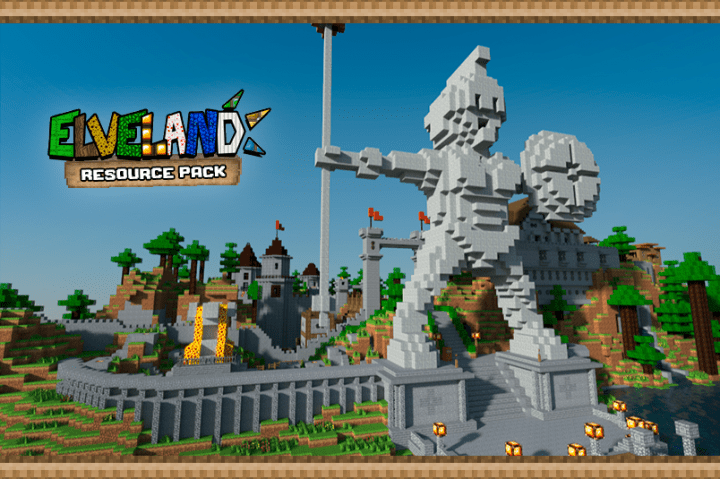
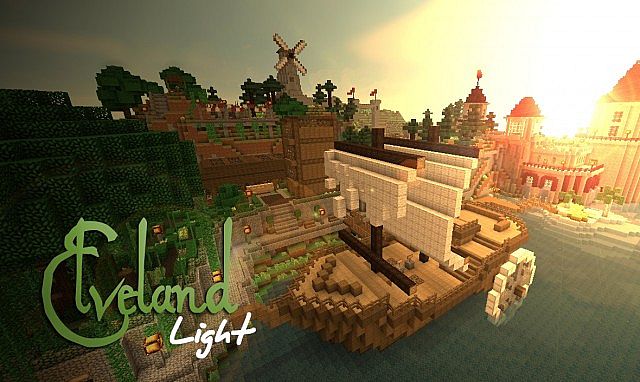
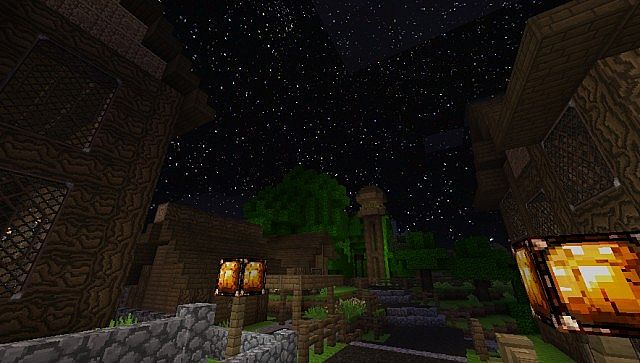
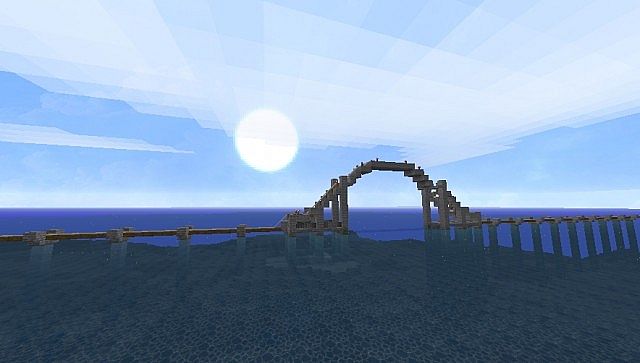
Players who have already used the original Elveland texture pack developed for Minecraft will immediately know what to expect from the Elveland Light resource pack, which is a wonderfully optimized and lighter version of Elveland. Even though this light version includes many of the amazing textures found in the original Elveland, the computer resources required are significantly less compared to the full version of Elveland, which is visually stunning yet notably resource-intensive. However, this definitely does not imply that the light version of Elveland is not an absolute joy to look at! Just like the standard Elveland pack, players should use MCPatcher as well as the OptiFine add-on for the absolute optimal performance of Elveland Light. These brilliant tools make the skies and related textures like windows look even better. It is best to install these add-on mods before applying the pack itself. Furthermore, the OptiFine and MCPatcher add-ons will successfully enhance the appearance of various mobs throughout your Minecraft world. If these recommended add-ons are not used, the mobs will simply look like their vanilla counterparts.
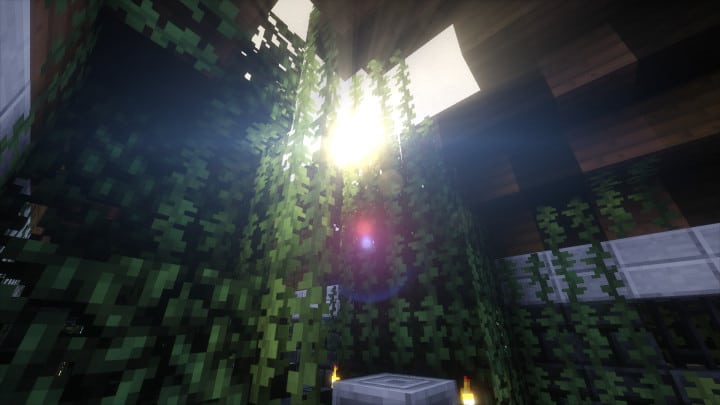
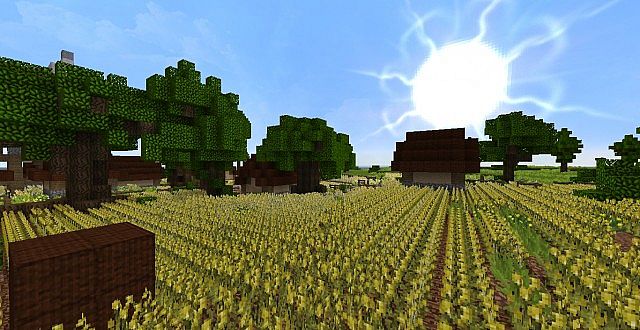
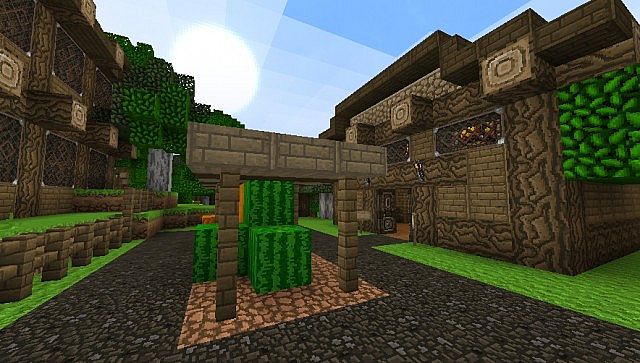
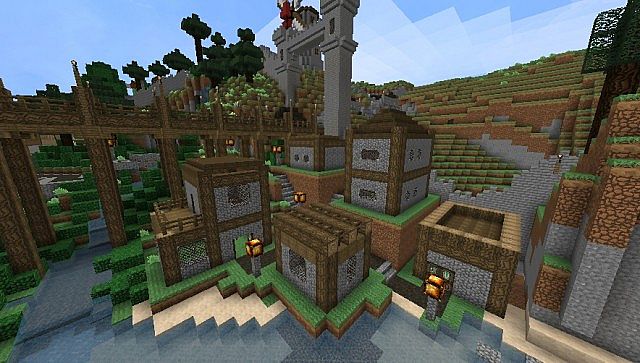
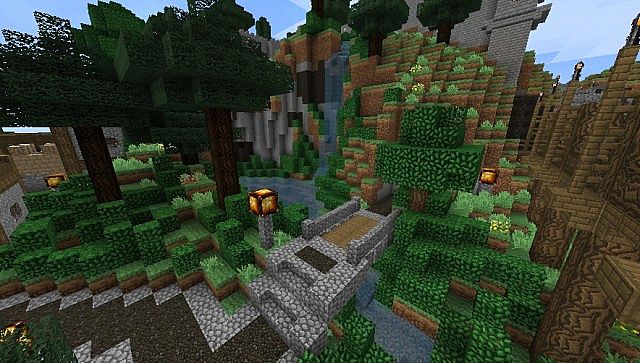
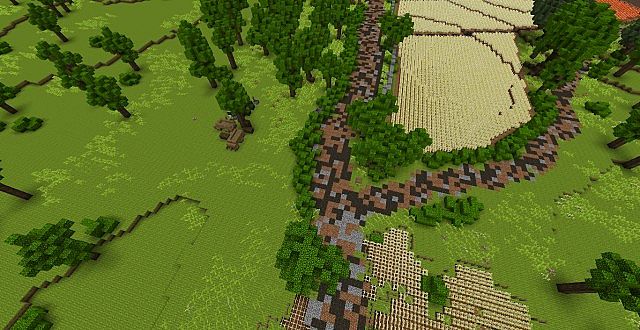
It should be noted that even if the add-ons are not installed, your Minecraft game will look dramatically different the moment you activate the Elveland Light resource pack. The visual difference is instantly noticeable whether the pack is used on an older, existing Minecraft world or a brand new one. With this pack, tree foliage looks wonderfully thicker, and the snow covering the ground takes on a dazzling, pure white appearance instead of the dull, graying, dotted, and scaly look found in default Minecraft. The grass, which acts as a primary source for seeds, also looks considerably better in this pack. Many users claim that in Elveland Light, the grass growing on patches of dirt boasts one of the most attractive textures available. The grass grows unevenly, making it look incredibly realistic and possessing a delightfully fluffy appearance that almost makes you wish you could reach out and step on it. The astonishingly realistic look of this lighter pack is deeply appreciated, especially since it maintains a modest resolution of 32x. This ensures that the pack will not require a high-end gaming computer in order for you to fully enjoy all the fantastic features of Elveland Light.
Elveland Light should be compatible with all of these Minecraft versions: 1.14.4 – 1.14.3 – 1.14.2 – 1.14 – 1.13.2 – 1.13.1 – 1.13 – 1.8.1 – 1.8.6 – 1.8 – 1.7.10 – 1.7.9 – 1.7.4 – 1.7
Screenshots
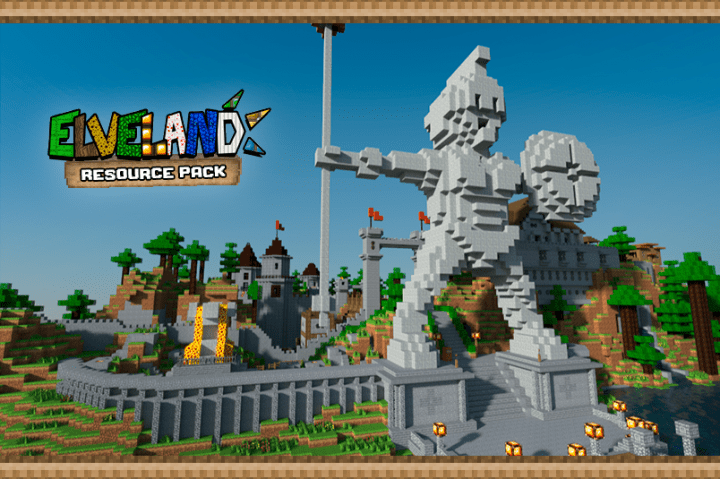
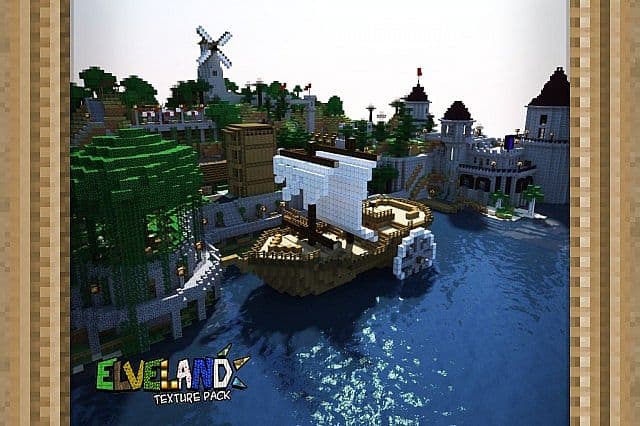
How to Install Texture Pack (Simple 10 Steps)
- Download OptiFine: Most of the texture packs and shaders need OptiFine. That’s why, first download and install OptiFine for the version of Minecraft you want to play.
- Download the Texture Pack: Get the texture pack you want from the download section. Choose the version that works with your Minecraft and your PC’s performance.
- Open Minecraft Launcher: Start Minecraft using the official game launcher — or even TLauncher, if you use that.
- Go to Options: From the main menu, click on the “Options” button.
- Open Resource Packs: Inside Options, click on “Resource Packs…”.
- Open the Resource Pack Folder: Click on “Open Resource Pack Folder” — this will open a folder named “resourcepacks”.
- Move the Pack File: Copy or move the .zip file you downloaded into that “resourcepacks” folder. (Don’t unzip the file — Minecraft uses it as-is!)
- Go Back and Refresh: Close the folder and click “Done”, then go back into “Resource Packs…” again.
- Activate the Pack: You’ll see the pack on the left side. Hover over it and click the arrow to move it to the right (active side).
Tip: If you get a message that the pack is for a different version, just click “Yes” — it usually works fine. - Click Done and Enjoy: Click “Done” again. Now your pack is ready to use in-game. It’s that easy!
Credits
Credits to renanslk for creating the Elveland Light resource pack. We do not own or modify the files provided here, and we encourage all players to support the original creator by visiting their official distribution channels.
Download Links
Java Edition
Download Instructions
Curseforge: download starts automatically after a few seconds;
Mediafire: click the big blue button with the text “DOWNLOAD”;
Google Drive: in the top right corner you will see a small download icon (down arrow), click it and the download should start;