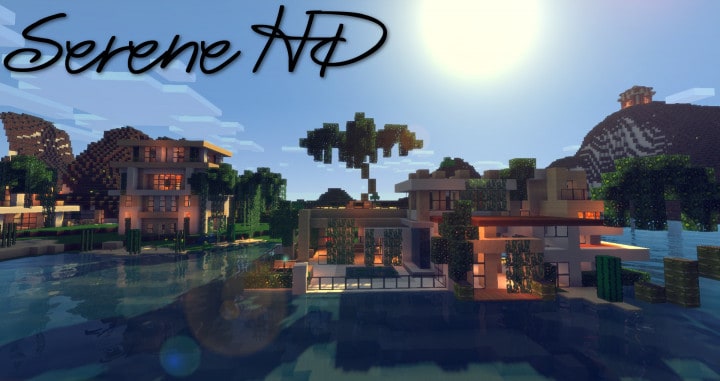
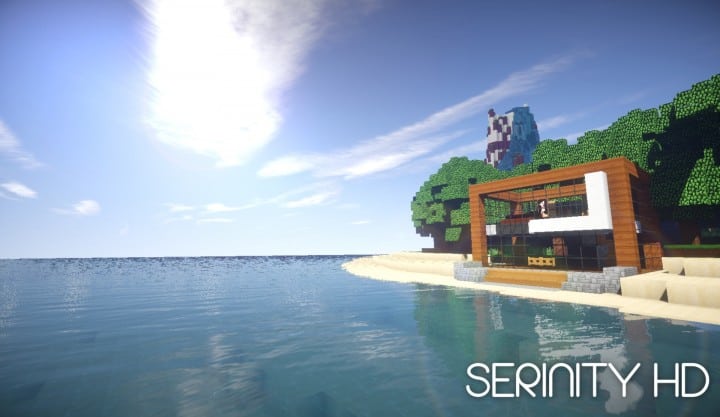
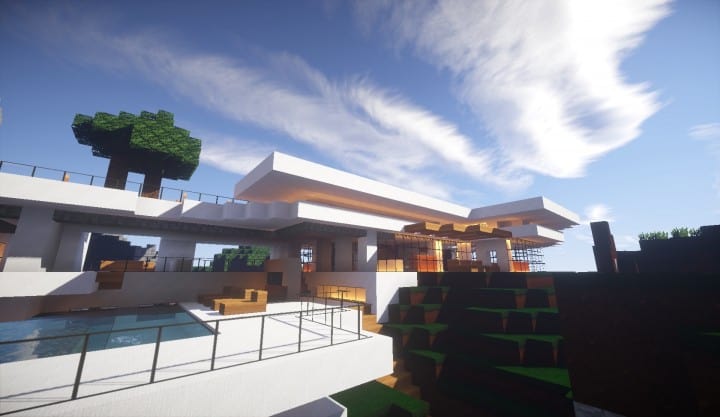
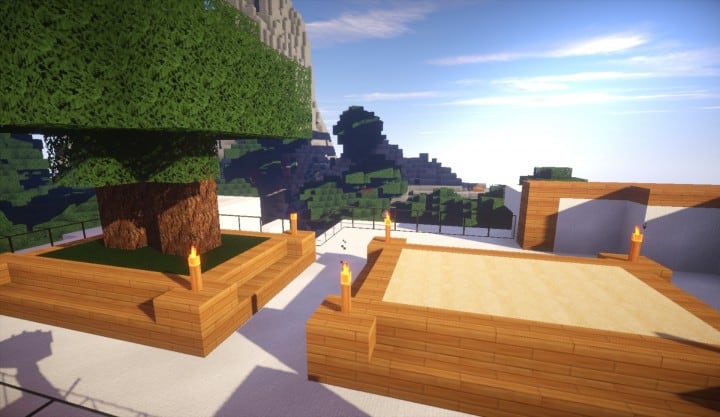
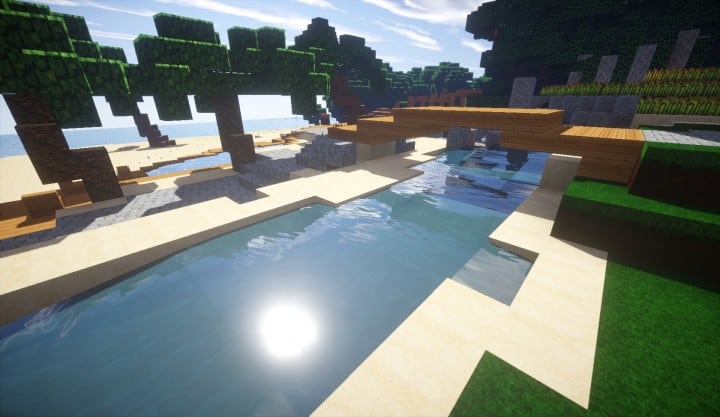
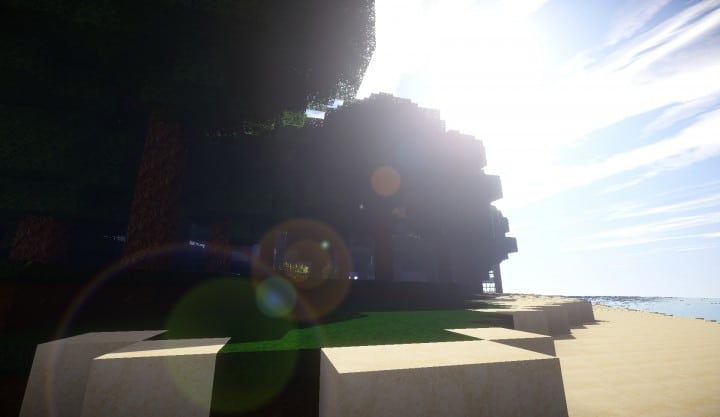
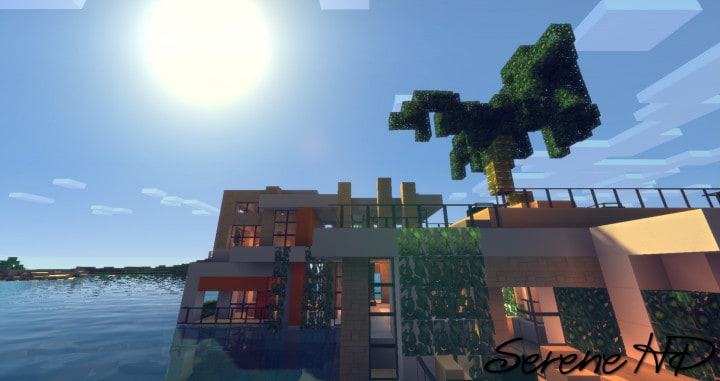
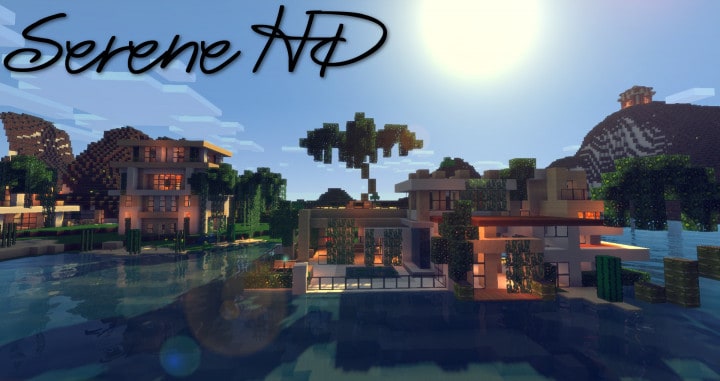
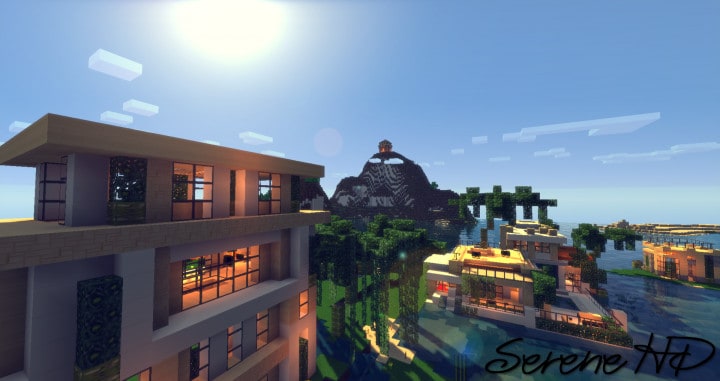
I have been testing the stunning Serene HD resource pack, and I can honestly say it is one of the most gorgeous Minecraft resource packs available today. With a wonderful touch of realism, it completely transforms your Minecraft world to appear much more smooth and calming in contrast to the standard vanilla experience. While the default style is great on its own, it can sometimes feel a tad overbearing with busy and crowded visuals, but the Serene resource pack aims to mend that brilliantly. If you enjoy the classic look of default Minecraft but want to add a touch of realism with a smoother effect on the eyes, you will find this resource pack to be absolutely perfect. It leaves you feeling completely satisfied with its crisp and refreshing visuals, all without sacrificing that nostalgic feel of Vanilla Minecraft we all know and love. The ultimate aim of the Serene HD texture pack is to leave you feeling peaceful within its tranquil environment by eliminating redundant details and addressing the major issues that most other resource packs suffer from.
A common issue with most HD resource packs in Minecraft is the clutter of the overall visuals, which often adds too many details that lend themselves to a very clumsy and noisy atmosphere. Fortunately, I found that the smooth tone and slightly muted brightness of the Serene HD textures leaves you with a great HD experience completely free of all that clutter. The Serenity HD resource pack boasts an improved resolution of 32x. While this is not the highest resolution possible for resource packs, it offers a really nice improvement over the standard 16x without ever feeling overbearing. Best of all, the pack carefully focuses only on improving the visuals of the game’s environment, such as block textures, item textures, and mob designs, while keeping the user interface and animations delightfully untouched. I strongly recommend you download the Serene HD Minecraft resource pack for a smooth, enhanced experience that will not leave you feeling over-bloated with redundant detail like most other HD resource packs do.
Serene HD [Serinity] should be compatible with all of these Minecraft versions: 1.17.1 – 1.17 – 1.16.5 – 1.16.4 – 1.16.3 – 1.16.2 – 1.16.1 – 1.16 – 1.15.2 – 1.15.1 – 1.15 – 1.14.4 – 1.14.3 – 1.14.2 – 1.14 – 1.13.2 – 1.13.1 – 1.13 – 1.12.2 – 1.12 – 1.11.2 – 1.11 – 1.10.2 – 1.10 – 1.9.4 – 1.9 – 1.8.9 – 1.8.8 – 1.8.1 – 1.8.6 – 1.8
Screenshots



How to Install Texture Pack (Simple 10 Steps)
- Download OptiFine: Most of the texture packs and shaders need OptiFine. That’s why, first download and install OptiFine for the version of Minecraft you want to play.
- Download the Texture Pack: Get the texture pack you want from the download section. Choose the version that works with your Minecraft and your PC’s performance.
- Open Minecraft Launcher: Start Minecraft using the official game launcher — or even TLauncher, if you use that.
- Go to Options: From the main menu, click on the “Options” button.
- Open Resource Packs: Inside Options, click on “Resource Packs…”.
- Open the Resource Pack Folder: Click on “Open Resource Pack Folder” — this will open a folder named “resourcepacks”.
- Move the Pack File: Copy or move the .zip file you downloaded into that “resourcepacks” folder. (Don’t unzip the file — Minecraft uses it as-is!)
- Go Back and Refresh: Close the folder and click “Done”, then go back into “Resource Packs…” again.
- Activate the Pack: You’ll see the pack on the left side. Hover over it and click the arrow to move it to the right (active side).
Tip: If you get a message that the pack is for a different version, just click “Yes” — it usually works fine. - Click Done and Enjoy: Click “Done” again. Now your pack is ready to use in-game. It’s that easy!
Credits
This resource pack was originally created by Assasin794 and FlyingV. We do not claim ownership of this content, nor do we host modified files on our servers. All rights remain with the original creators. We encourage players to support the authors by downloading through their official links.
Download Links
Java Edition
Download Instructions
Curseforge: download starts automatically after a few seconds;
Mediafire: click the big blue button with the text “DOWNLOAD”;
Google Drive: in the top right corner you will see a small download icon (down arrow), click it and the download should start;