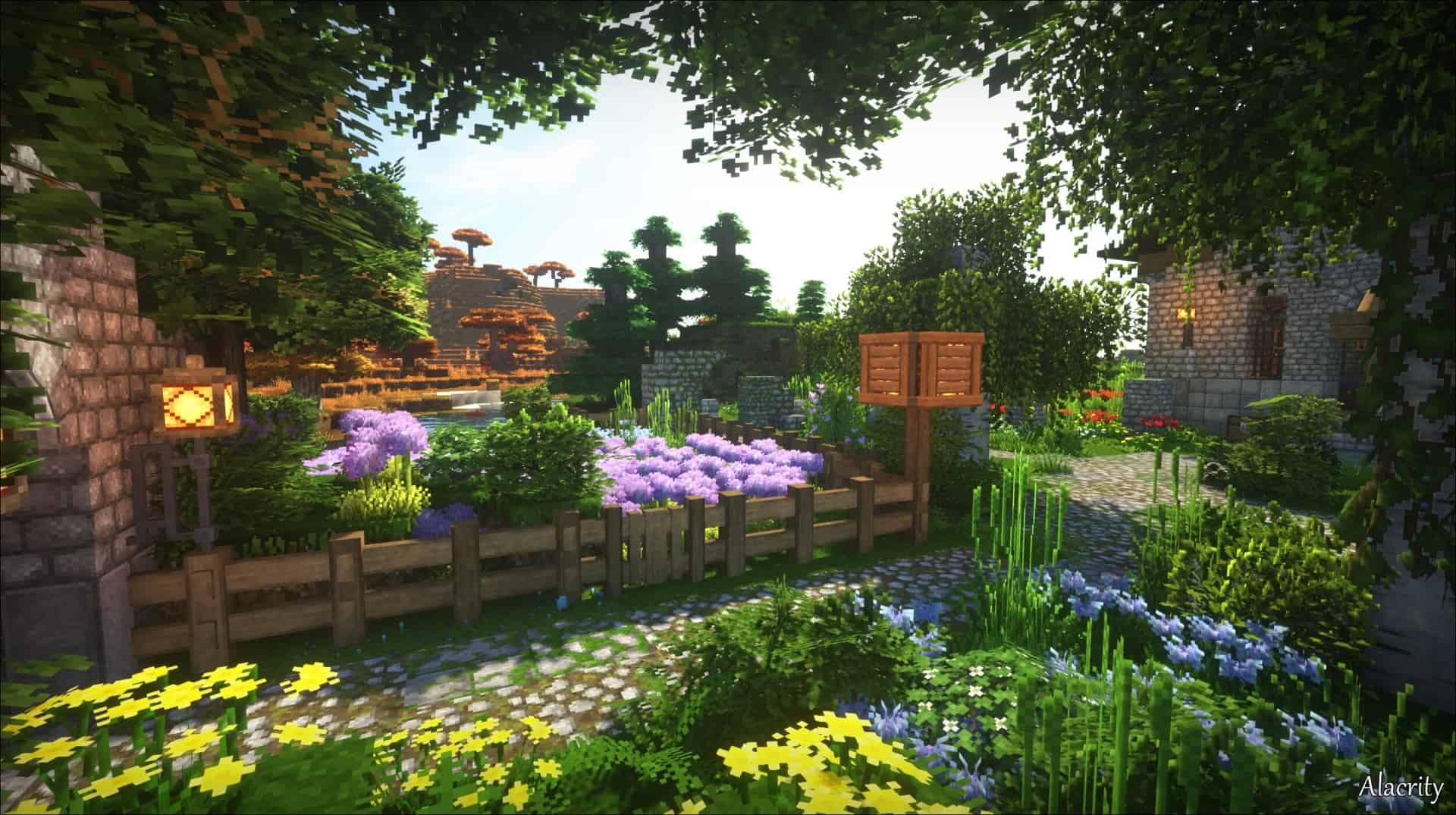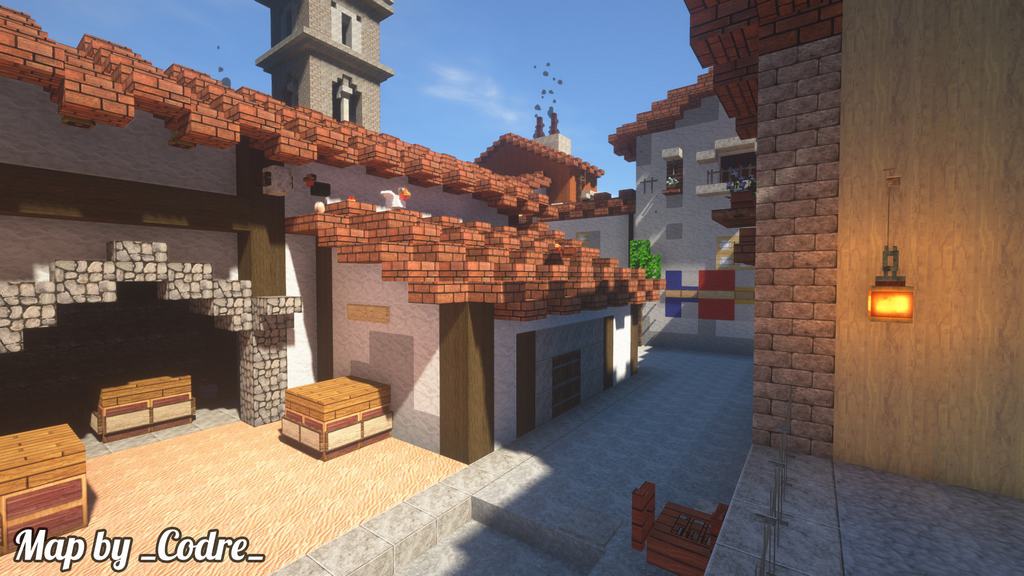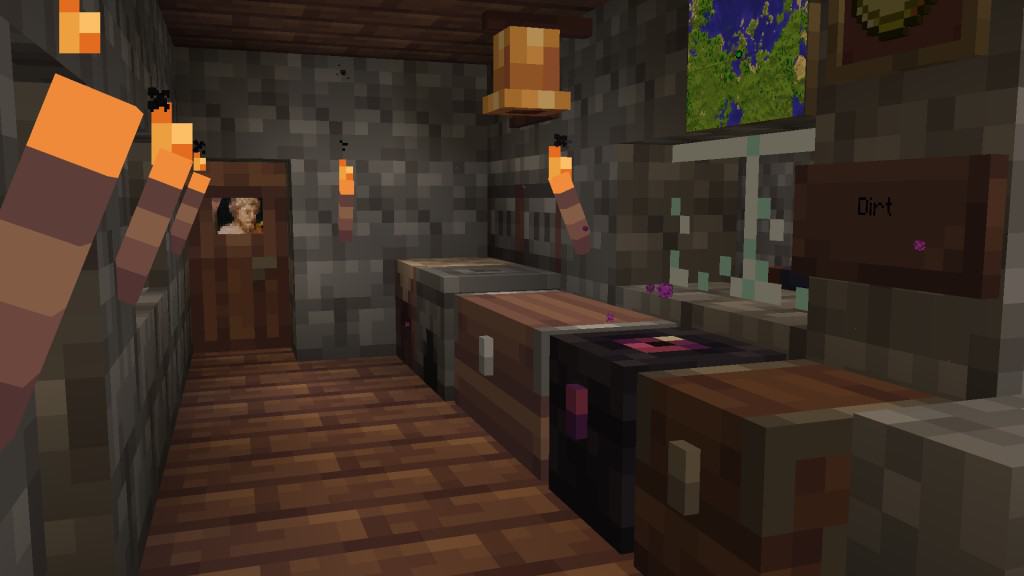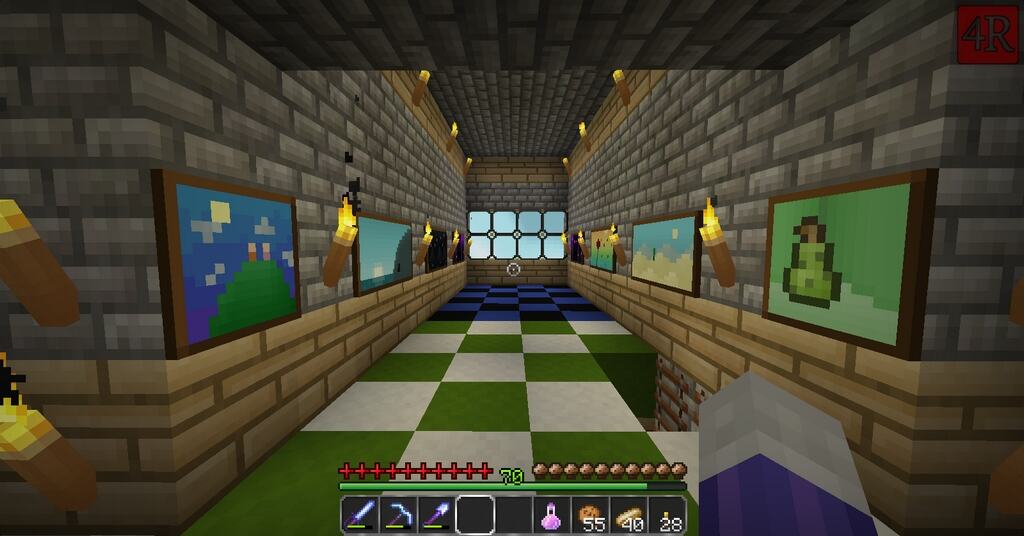
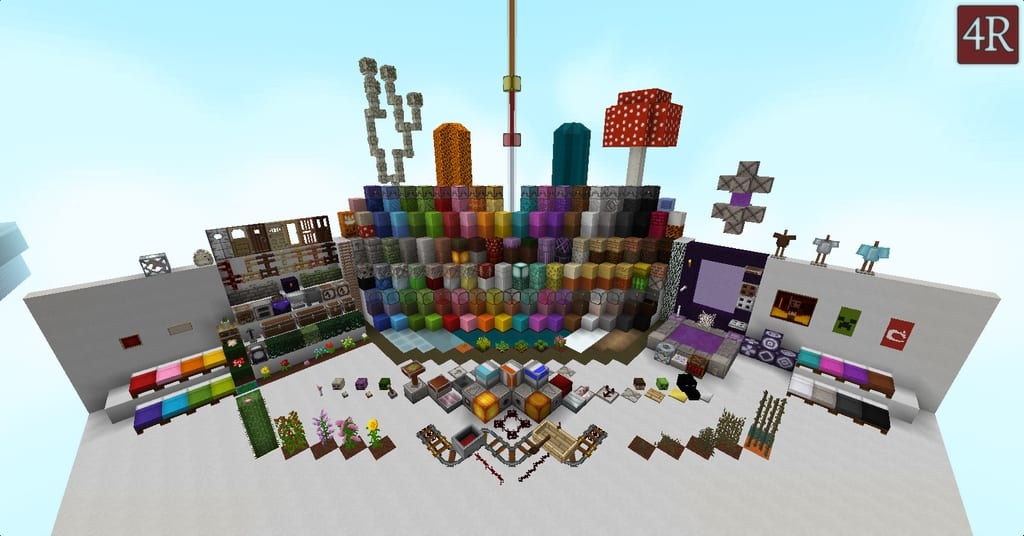
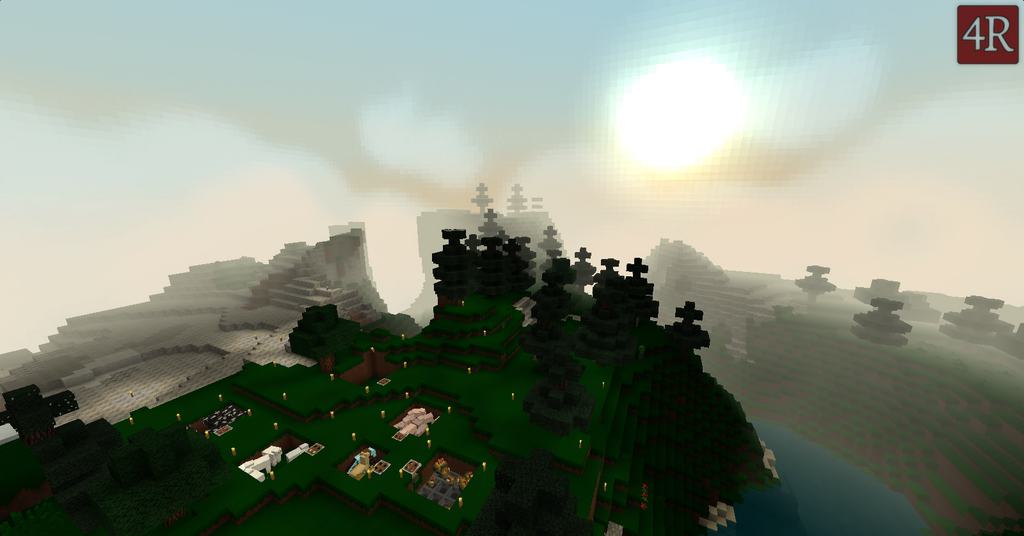
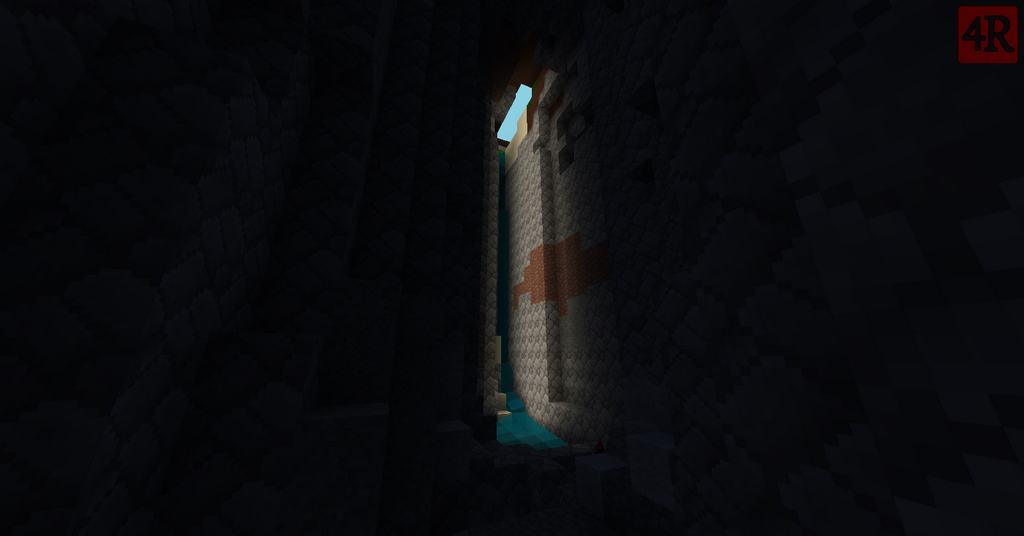
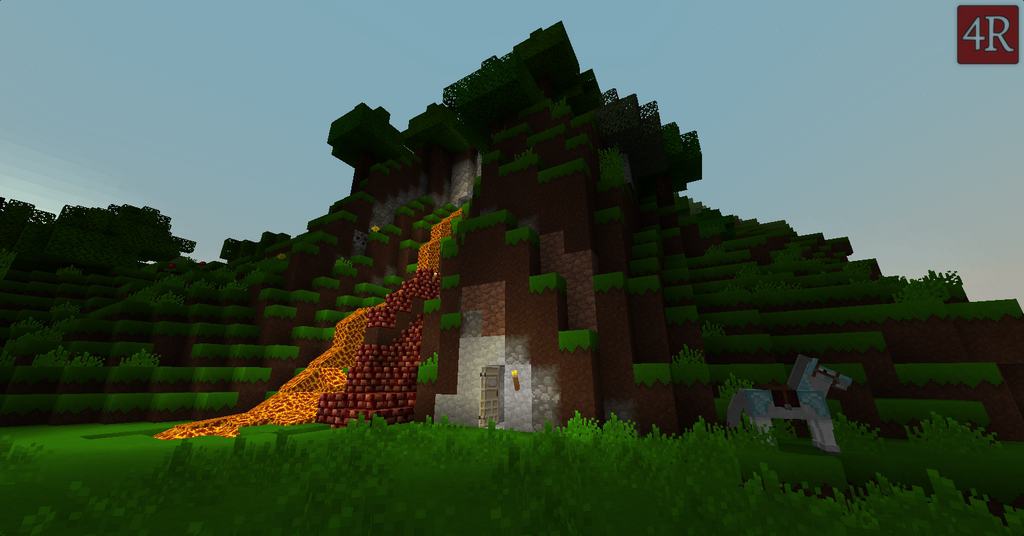
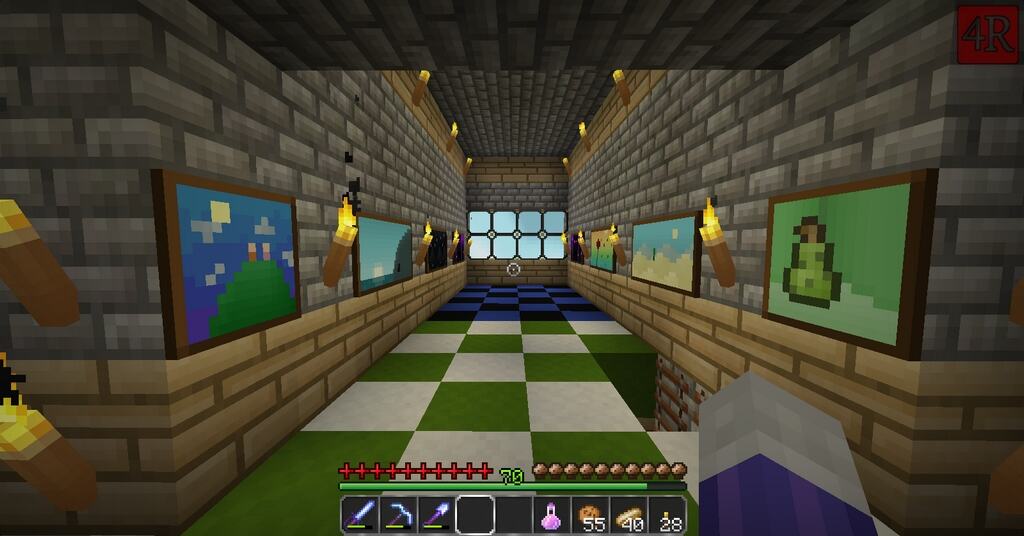
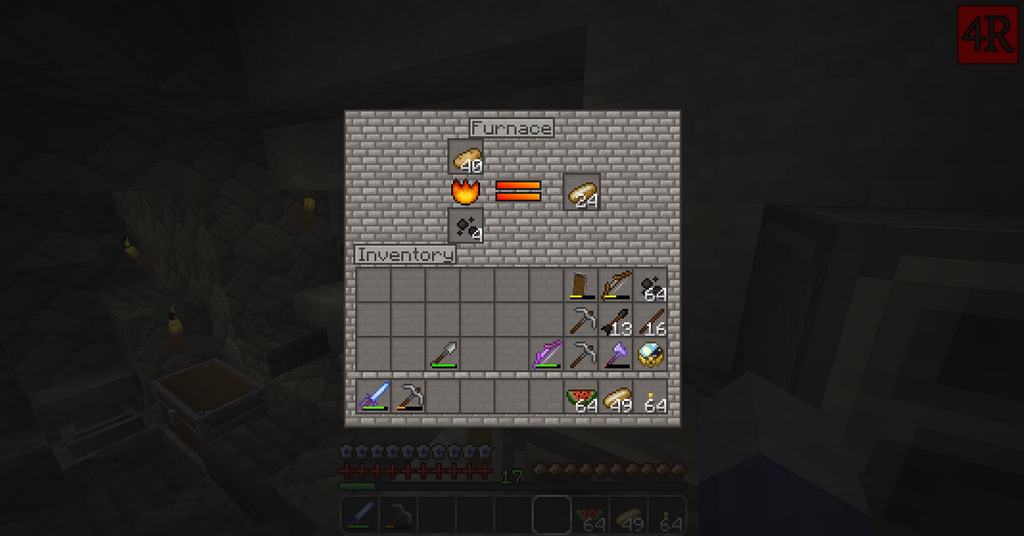
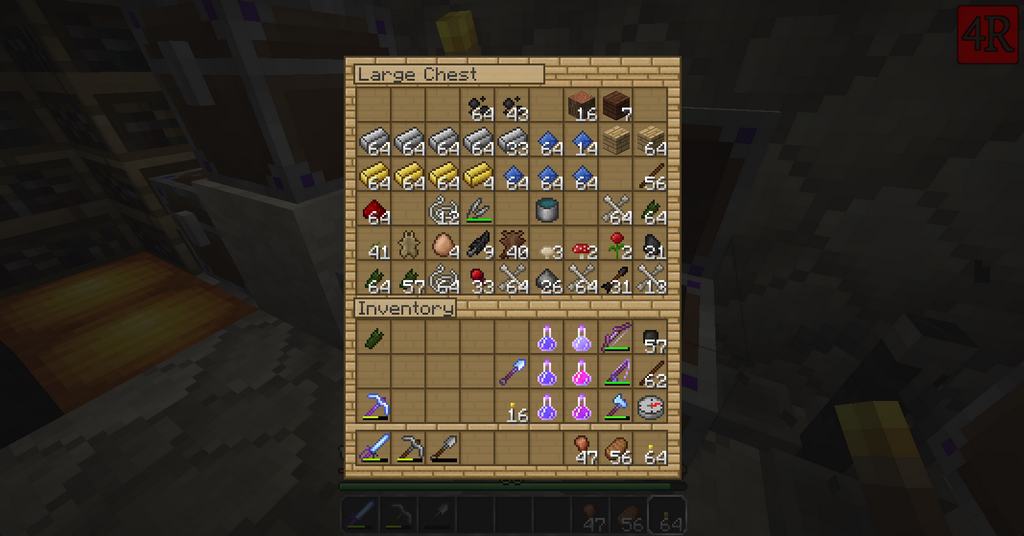
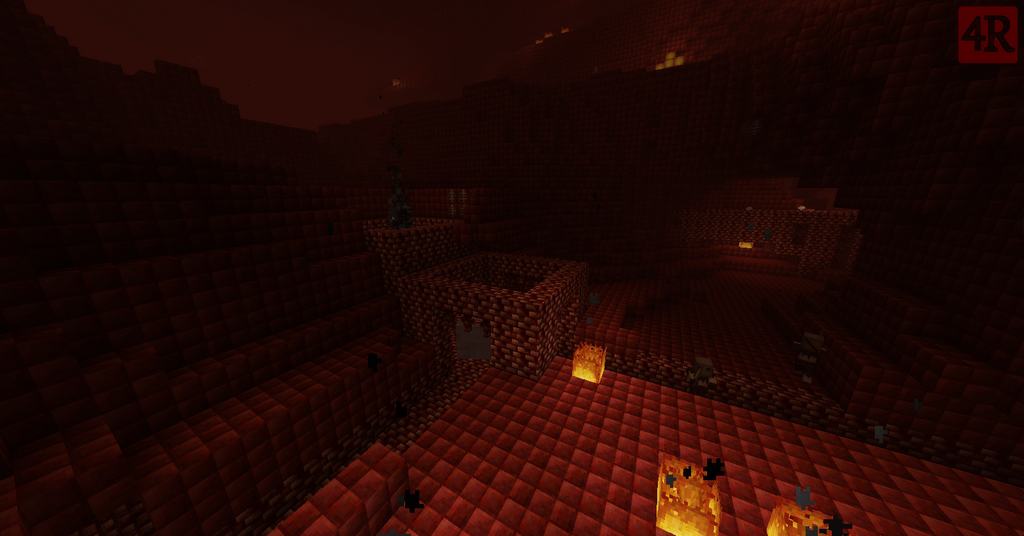
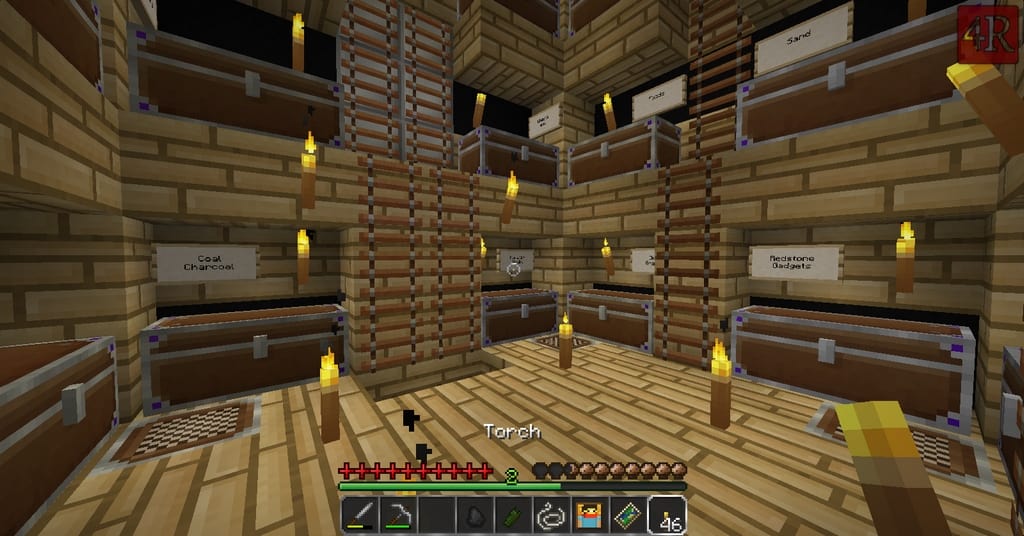
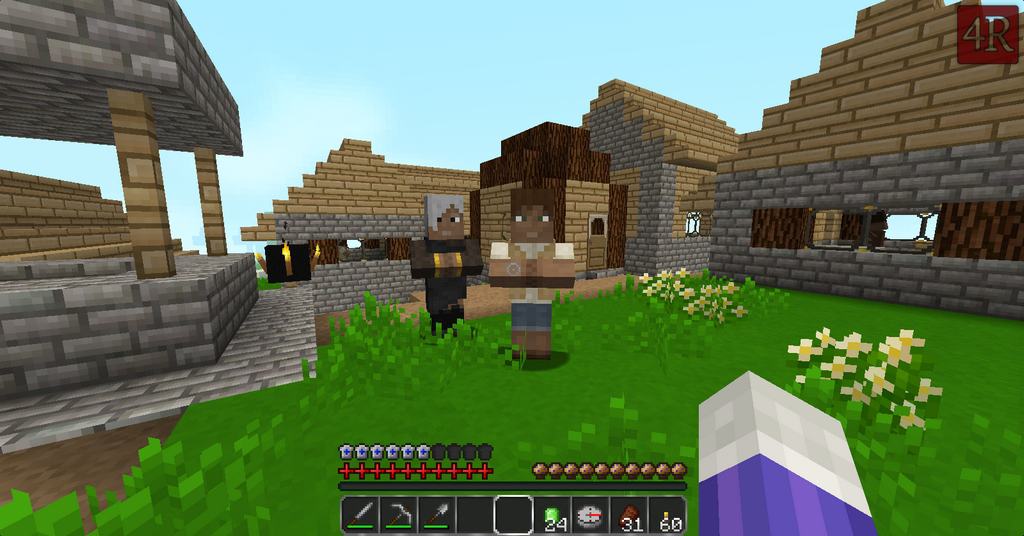
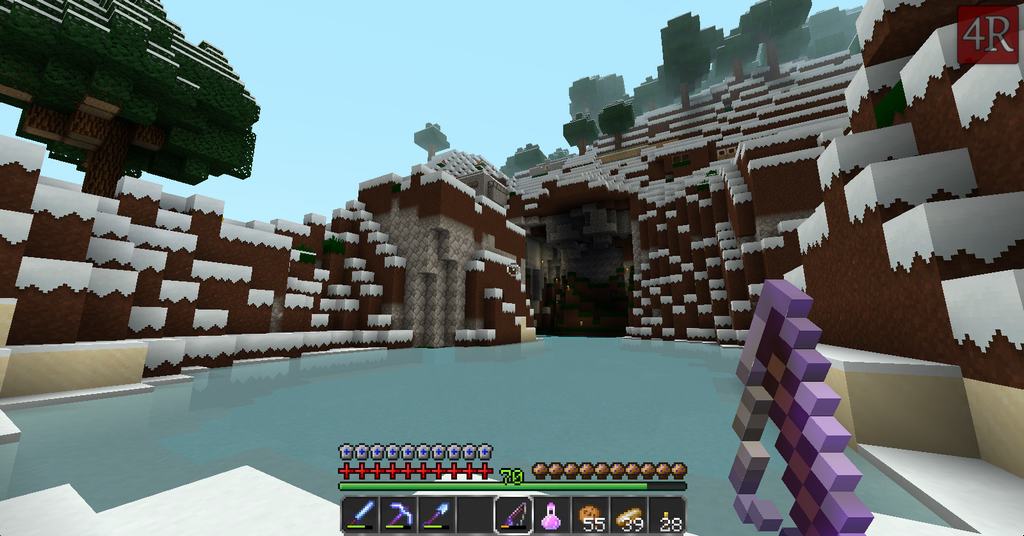
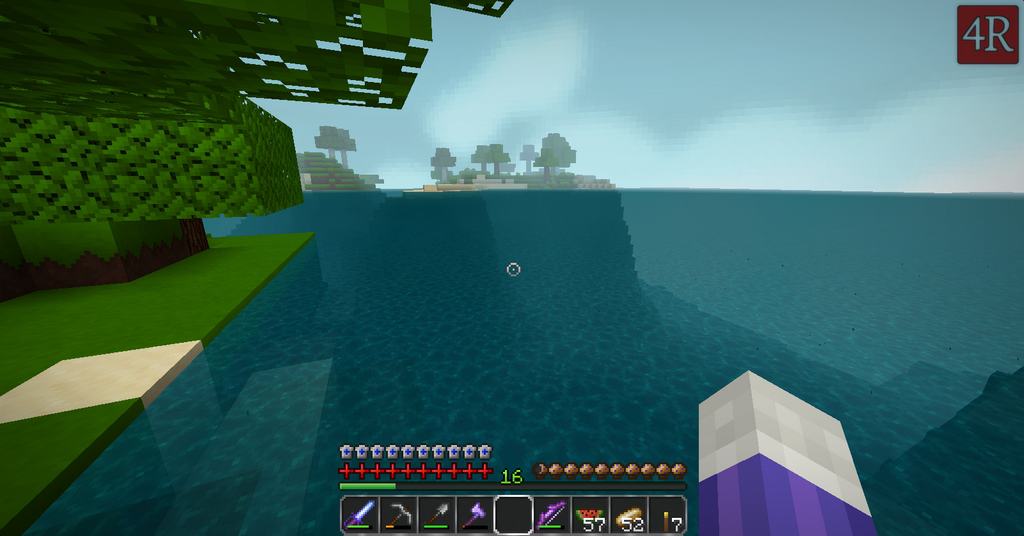
If you are looking to seriously level up your gameplay and give your Minecraft world an absolute jaw-dropping makeover, I genuinely think you should give 4R Craft a try; it honestly delivers the exact opportunity to do so! Beyond the clever alternate textures, I found that the rest of the textures in this pack are remarkably solid, bursting with wonderfully bright colors and packed with a ton of intricate details. Considering the honestly crazy quantities of resource packs currently flooding the Minecraft scene, it is such a tough task to identify something truly novel. Luckily, this wonderfully unique texture pack is out there, giving you a gameplay experience that feels completely unlike what the regular vanilla packs could ever hope to offer. By the way, if you were wondering like I was, Rabbittt’s RPG Realism Retro Craft is precisely what the title 4R stands for!
True to its name, I noticed right away that the pack’s visuals are an inspired aggregate of a variety of different art styles that surprisingly synergize exceptionally well together to craft some truly awesome visuals. What makes 4R stand out so brilliantly from the rest isn’t just its distinct art style, but rather the sheer abundance of different textures for players to try out, which I love. Best of all, they are wonderfully free from annoying noise. I was also super impressed by how 4R features plenty of attractive user-interface modifications that give Minecraft a remarkably clean and cohesive look. Let’s be real, default Minecraft menus can sometimes feel a bit unappealing, but with the smooth modifications brought by this pack, the interface feels delightfully slick and solid at large. Best of all, 4R keeps a friendly x16 resolution, which means it runs buttery smooth on all kinds of personal computers, including even lower-end setups!
4R Craft should be compatible with all of these Minecraft versions: 1.14.4 – 1.14.3 – 1.14.2 – 1.14 – 1.13.2 – 1.13.1 – 1.13 – 1.12.2 – 1.12 – 1.11.2 – 1.11 – 1.10.2 – 1.10 – 1.9.4 – 1.9 – 1.8.9 – 1.8.8 – 1.8.1 – 1.8.6 – 1.8
Screenshots
How to Install Texture Pack (Simple 10 Steps)
- Download OptiFine: Most of the texture packs and shaders need OptiFine. That’s why, first download and install OptiFine for the version of Minecraft you want to play.
- Download the Texture Pack: Get the texture pack you want from the download section. Choose the version that works with your Minecraft and your PC’s performance.
- Open Minecraft Launcher: Start Minecraft using the official game launcher — or even TLauncher, if you use that.
- Go to Options: From the main menu, click on the “Options” button.
- Open Resource Packs: Inside Options, click on “Resource Packs…”.
- Open the Resource Pack Folder: Click on “Open Resource Pack Folder” — this will open a folder named “resourcepacks”.
- Move the Pack File: Copy or move the .zip file you downloaded into that “resourcepacks” folder. (Don’t unzip the file — Minecraft uses it as-is!)
- Go Back and Refresh: Close the folder and click “Done”, then go back into “Resource Packs…” again.
- Activate the Pack: You’ll see the pack on the left side. Hover over it and click the arrow to move it to the right (active side).
Tip: If you get a message that the pack is for a different version, just click “Yes” — it usually works fine. - Click Done and Enjoy: Click “Done” again. Now your pack is ready to use in-game. It’s that easy!
Credits
The 4R Craft Resource Pack was created by Rabbittt. We do not claim ownership of this content, nor do we host modified files on our servers. All rights remain exclusively with the original creator. We strongly encourage you to support Rabbittt by downloading the pack through the official channels provided below.
Download Links
Java Edition
Download Instructions
Curseforge: download starts automatically after a few seconds;
Mediafire: click the big blue button with the text “DOWNLOAD”;
Google Drive: in the top right corner you will see a small download icon (down arrow), click it and the download should start;