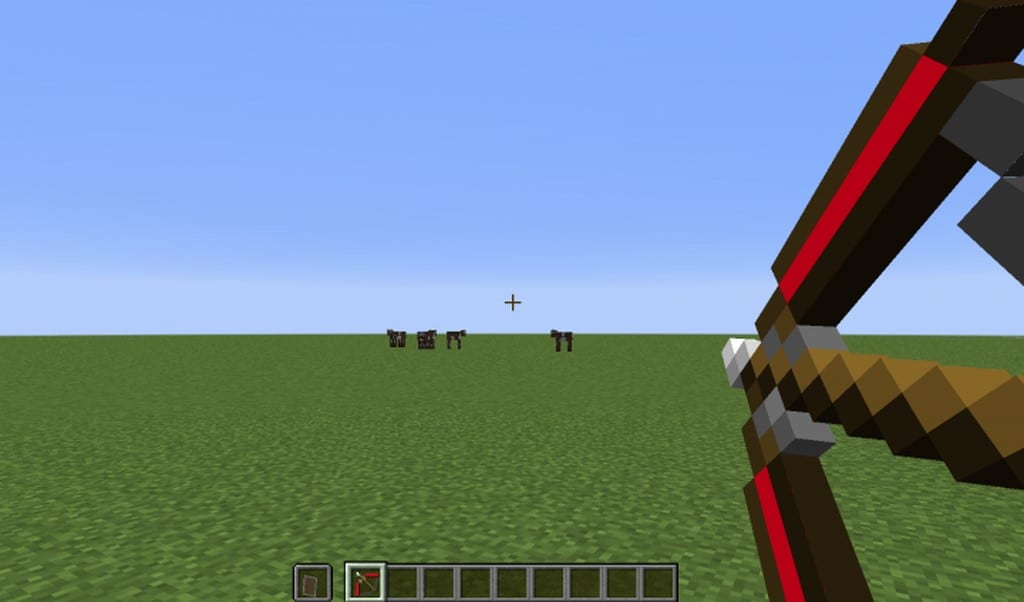
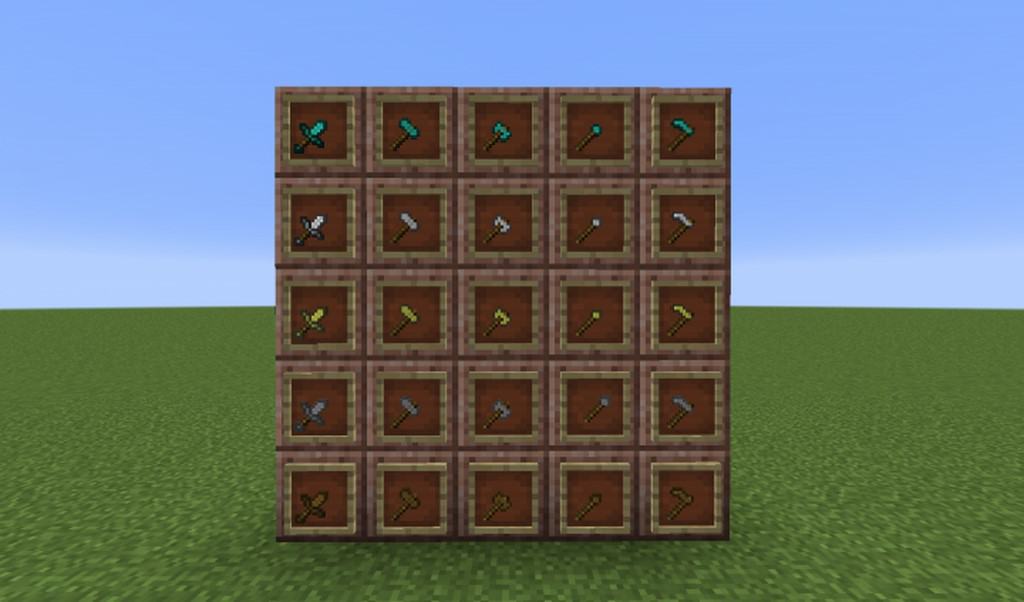
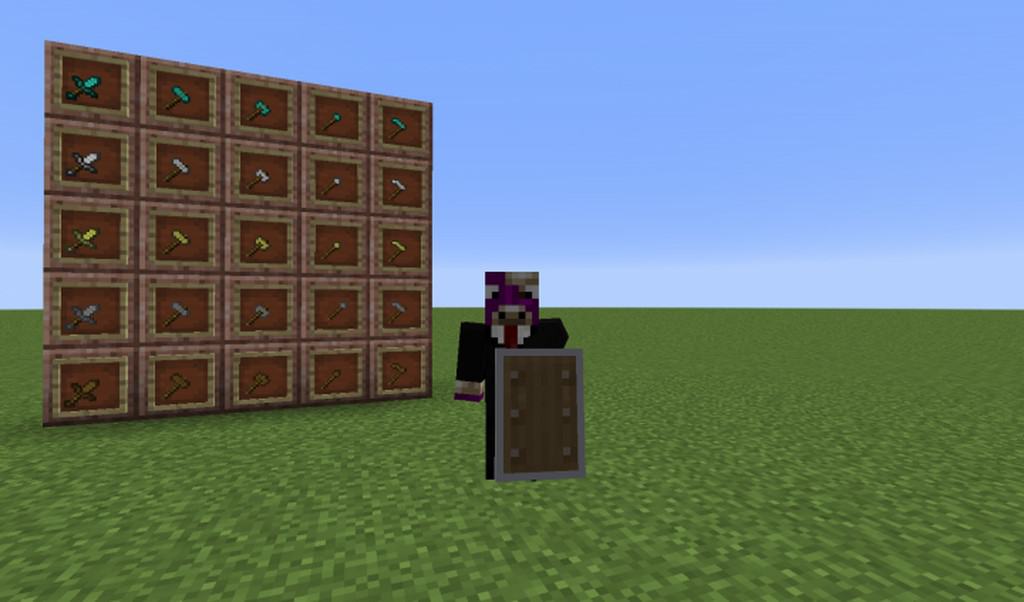
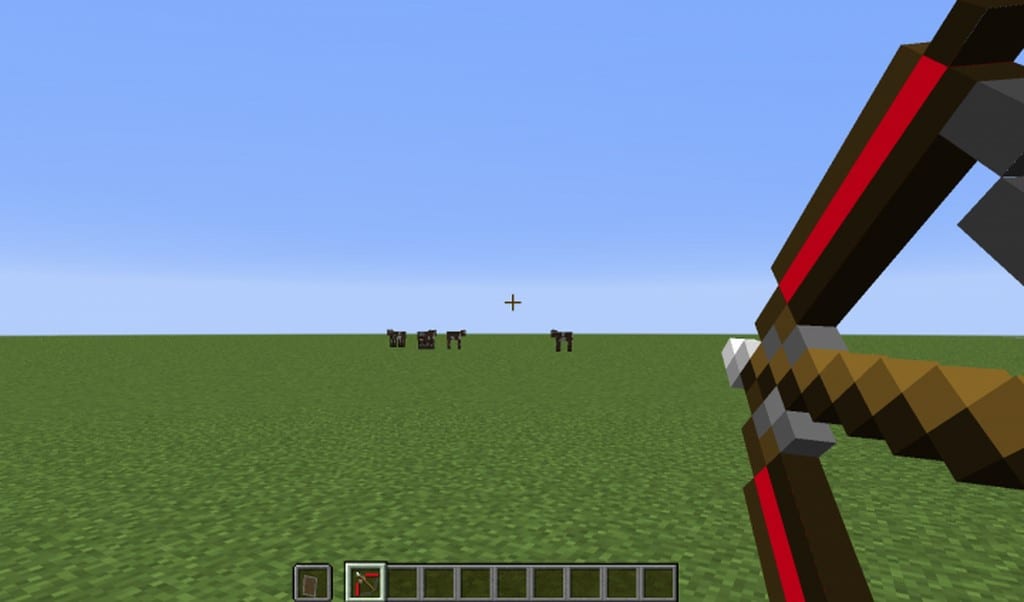
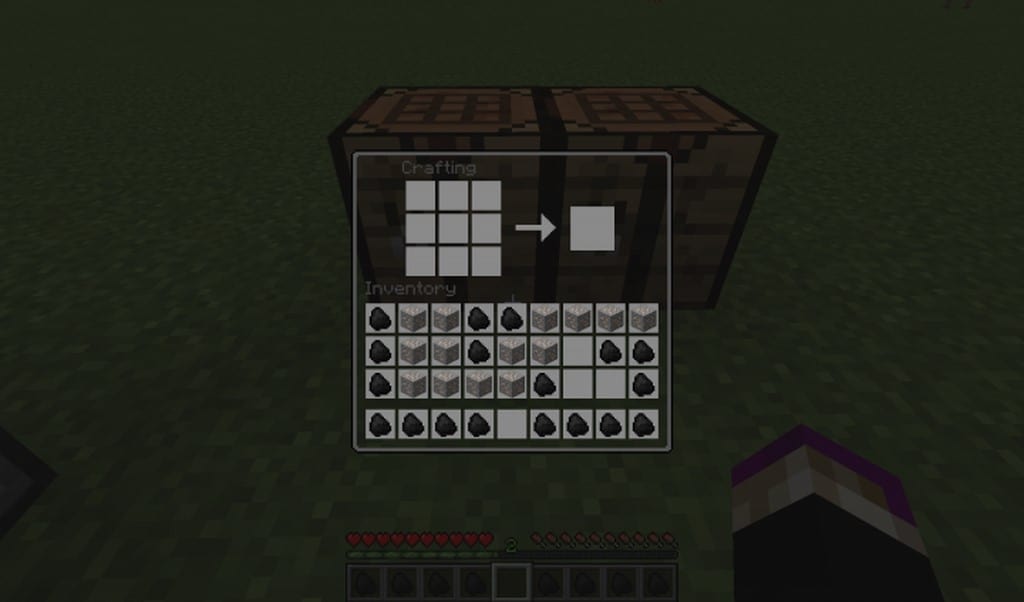
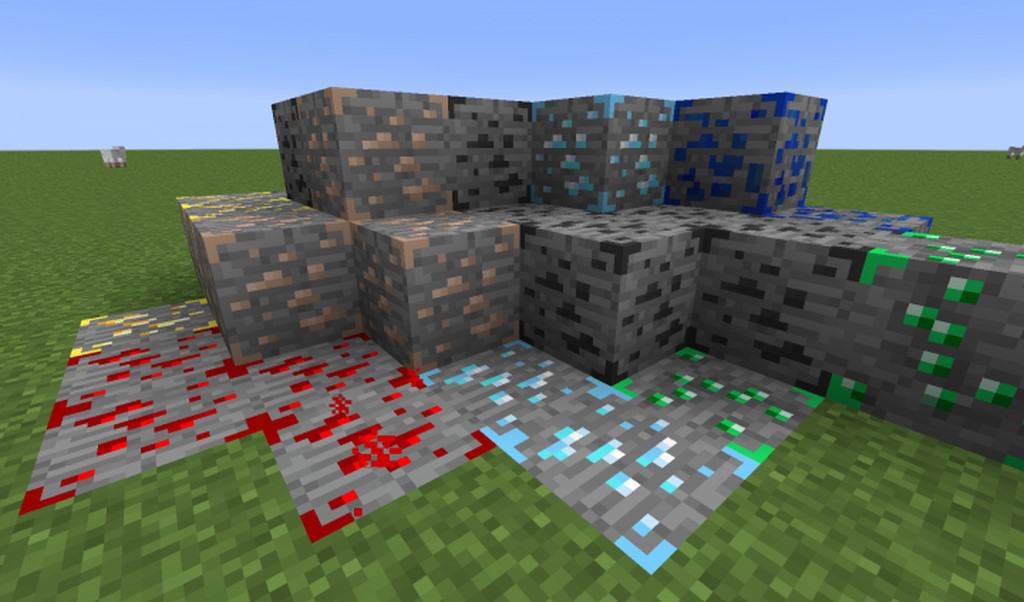
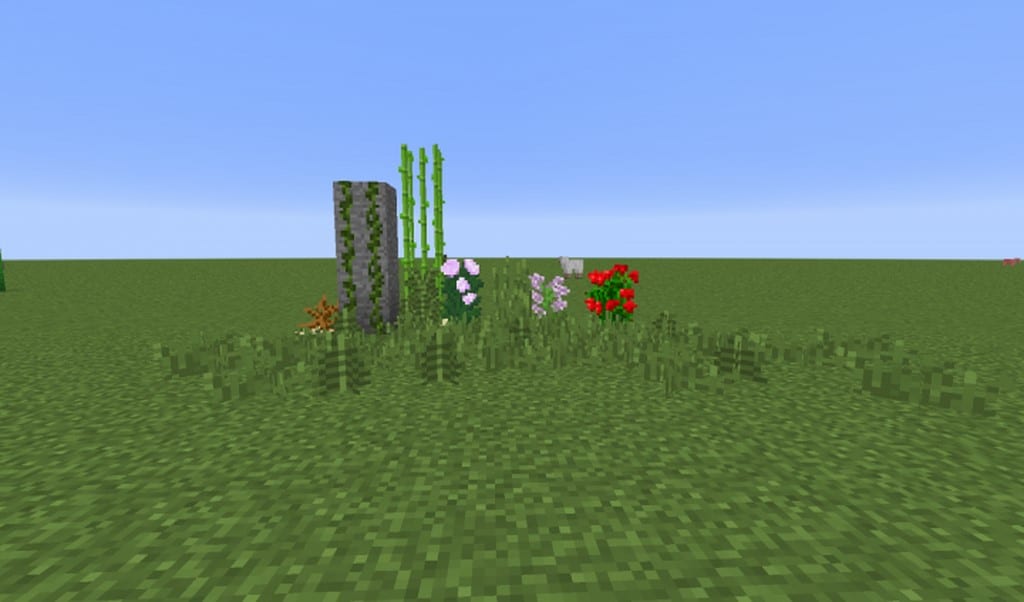
Vanilla PvP is an absolute game-changer of a texture pack that has been designed solely to enhance the PvP experience for Minecraft players. Minecraft has a large number of PvP packs at its disposal, however, since they change the art style of the game too much, they aren’t particularly popular among all players. But there is good news on this front, a new pack has been created, called the Vanilla PvP resource pack which is specifically for players who want to have the full-fledged PvP experience in the game, but don’t want to have to go through the hassle of changing the style of the game to achieve this. We highly recommend, that if you are a player who wants the best of both worlds, you should definitely try out this pack. There are plenty of other benefits to using the Vanilla PvP resource pack; namely, the fantastic way it manages to ensure that all players have clean vision in their PvP sessions, it eliminates all the details and noise, from the textures, that have no purpose, therefore, the game world is left looking substantially smoother and easier to look at. With this pack, not being able to keep an enemy in your line of sight will not happen anymore. Interestingly, there are four distinct modules contained in the Vanilla PvP resource pack, and each of these focuses on a particular visual aspect. Owing to this, you can pick and choose which modules you want, if you want the full experience and enable all the features available, then just install all four of the modules, however, if you are only wanting to use certain features, then all you need to do is install the modules needed for this. The resolution for the Vanilla PvP resource pack is x16, so it is very unlikely that you will notice any frame-rate drops after using it, if anything, it’s more likely that you will see FPS increase, all thanks to the clean textures.
Vanilla PvP should be compatible with all of these Minecraft versions: 1.14.4 – 1.14.3 – 1.14.2 – 1.14 – 1.13.2 – 1.13.1 – 1.13 – 1.12.2 – 1.12 – 1.11.2 – 1.11
Screenshots

How to Install Texture Pack (Simple 10 Steps)
- Download OptiFine: Most of the texture packs and shaders need OptiFine. That’s why, first download and install OptiFine for the version of Minecraft you want to play.
- Download the Texture Pack: Get the texture pack you want from the download section. Choose the version that works with your Minecraft and your PC’s performance.
- Open Minecraft Launcher: Start Minecraft using the official game launcher — or even TLauncher, if you use that.
- Go to Options: From the main menu, click on the “Options” button.
- Open Resource Packs: Inside Options, click on “Resource Packs…”.
- Open the Resource Pack Folder: Click on “Open Resource Pack Folder” — this will open a folder named “resourcepacks”.
- Move the Pack File: Copy or move the .zip file you downloaded into that “resourcepacks” folder. (Don’t unzip the file — Minecraft uses it as-is!)
- Go Back and Refresh: Close the folder and click “Done”, then go back into “Resource Packs…” again.
- Activate the Pack: You’ll see the pack on the left side. Hover over it and click the arrow to move it to the right (active side).
Tip: If you get a message that the pack is for a different version, just click “Yes” — it usually works fine. - Click Done and Enjoy: Click “Done” again. Now your pack is ready to use in-game. It’s that easy!
Credits
This resource pack was created by Vulcainos. We do not claim ownership of this content nor do we host modified versions of these files. All rights remain with the original creator, and we encourage the community to support Vulcainos by utilizing the official download sources.
Download Links
Java Edition
Download Instructions
Curseforge: download starts automatically after a few seconds;
Mediafire: click the big blue button with the text “DOWNLOAD”;
Google Drive: in the top right corner you will see a small download icon (down arrow), click it and the download should start;


