As you play Minecraft, your creative juices truly flow thanks to the incredible construction and imaginative aspects of the game. It is amazing how you can put up stunning structures using a variety of cubes in a fully three-dimensional world. You can easily download specific content from the internet that will allow you to completely change the surface textures in the game and genuinely enhance your overall gameplay experience. This fantastic downloadable content includes awesome texture packs like the Magma resource pack. In case you prefer playing Minecraft on the competitive PvP mode, you will be thrilled to know that the Magma resource pack has been specifically designed for you. Once you download and install this brilliant resource pack, you will immediately notice that everything appears in a striking, vibrant orange.
Everything in the Minecraft world takes on a significant and immersive hint of orange when you use the Magma pack. Even though there is a lot of emphasis on the gorgeous color orange, you will find the game’s graphics to be surprisingly visually appealing and wonderfully clean. However, since this resource pack is heavily optimized for playing in PvP mode, you will notice that the textures do not feature an overwhelming amount of intricate detail. The resource pack adequately compensates for this design choice by ensuring that you thoroughly enjoy a clean, fluid visual gaming experience. To crown it all up, once you install the Magma pack, you will experience a noticeably higher frame rate. With this fantastic feature, you will get a fluid, smooth, and lag-free Minecraft PvP gaming experience every single time.
Magma should be compatible with all of these Minecraft versions: 1.16.5 – 1.16.4 – 1.16.3 – 1.16.2 – 1.16.1 – 1.16 – 1.15.2 – 1.15.1 – 1.15 – 1.14.4 – 1.14.3 – 1.14.2 – 1.14 – 1.13.2 – 1.13.1 – 1.13 – 1.12.2 – 1.12 – 1.11.2 – 1.11 – 1.10.2 – 1.10 – 1.9.4 – 1.9 – 1.8.9 – 1.8.8 – 1.8.1 – 1.8.6 – 1.8 – 1.7.10 – 1.7.9 – 1.7.4 – 1.7
Screenshots
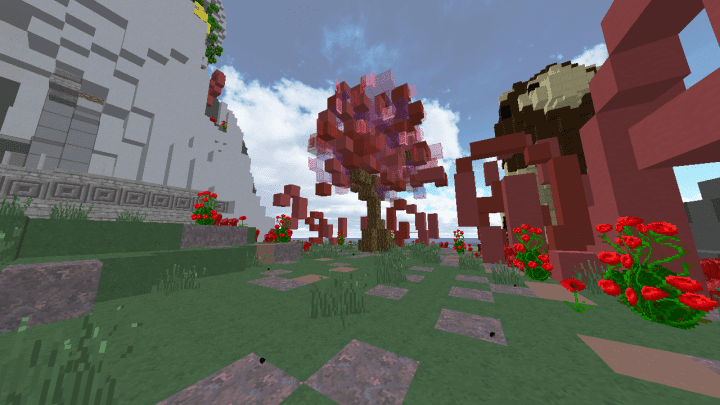
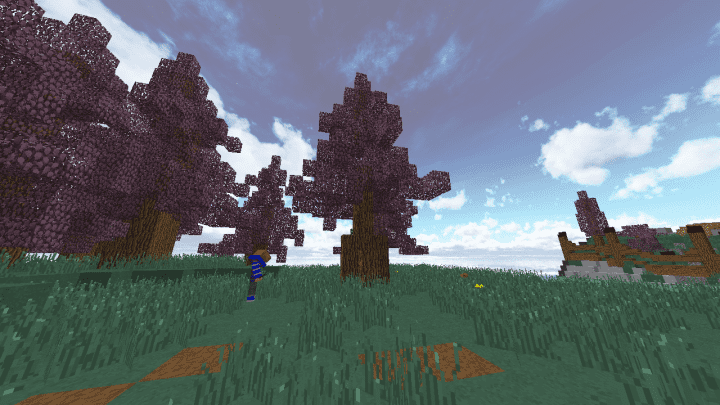
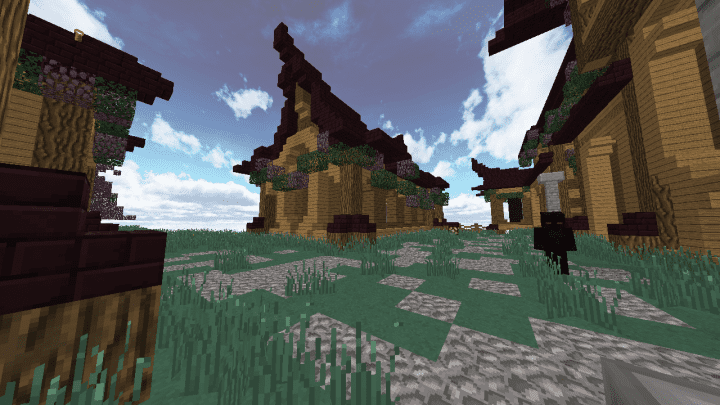
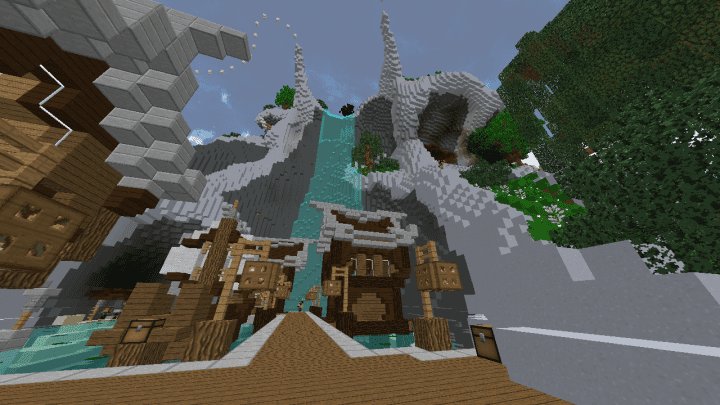
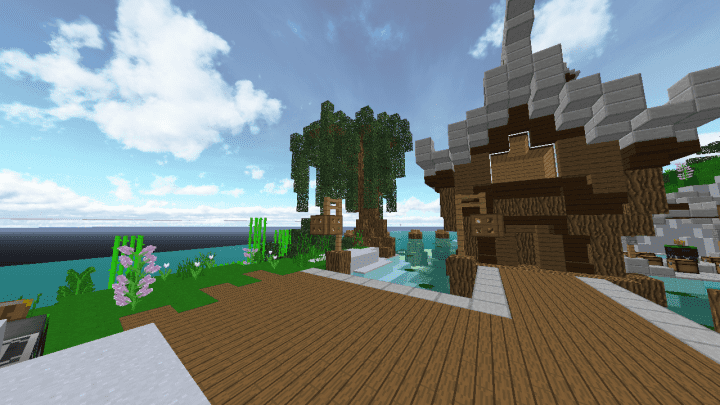
How to Install Texture Pack (Simple 10 Steps)
- Download OptiFine: Most of the texture packs and shaders need OptiFine. That’s why, first download and install OptiFine for the version of Minecraft you want to play.
- Download the Texture Pack: Get the texture pack you want from the download section. Choose the version that works with your Minecraft and your PC’s performance.
- Open Minecraft Launcher: Start Minecraft using the official game launcher — or even TLauncher, if you use that.
- Go to Options: From the main menu, click on the “Options” button.
- Open Resource Packs: Inside Options, click on “Resource Packs…”.
- Open the Resource Pack Folder: Click on “Open Resource Pack Folder” — this will open a folder named “resourcepacks”.
- Move the Pack File: Copy or move the .zip file you downloaded into that “resourcepacks” folder. (Don’t unzip the file — Minecraft uses it as-is!)
- Go Back and Refresh: Close the folder and click “Done”, then go back into “Resource Packs…” again.
- Activate the Pack: You’ll see the pack on the left side. Hover over it and click the arrow to move it to the right (active side).
Tip: If you get a message that the pack is for a different version, just click “Yes” — it usually works fine. - Click Done and Enjoy: Click “Done” again. Now your pack is ready to use in-game. It’s that easy!
Credits
This resource pack was originally created by Siduction. We do not claim ownership of this content, nor have we modified the files. All rights remain with the original creator, and we strongly encourage you to support them.
Download Instructions
Curseforge: download starts automatically after a few seconds;
Mediafire: click the big blue button with the text “DOWNLOAD”;
Google Drive: in the top right corner you will see a small download icon (down arrow), click it and the download should start;


