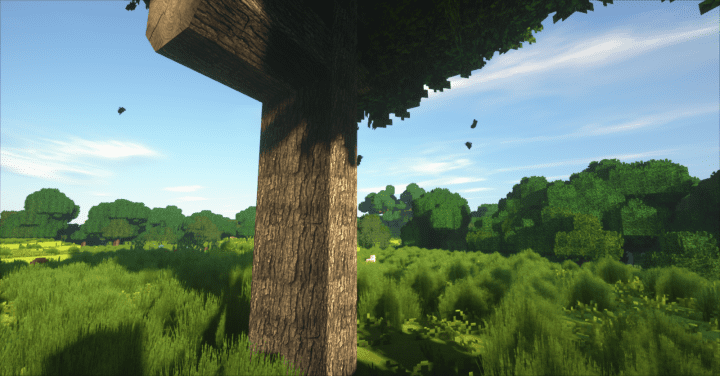
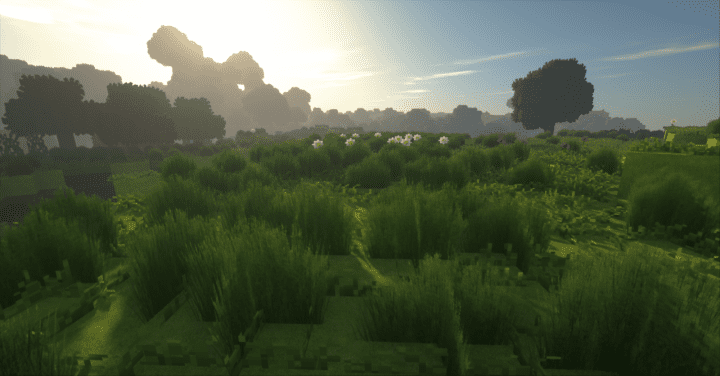
If you are a devoted Minecraft player keen on following the latest resource packs to pick whichever fits your game, then surely you have come across any of the packs created by IwOB3ar. He is a dedicated resource pack creator behind some of the most popular high quality Minecraft packs such as Fantasy Realism and MARS Ultra Realistic. Recently, he has also released his latest pack: God Rays resource pack which is another member in his family of realistic, highly detailed packs. IwOB3ar’s packs are known for their realistic and detailed design, a style that has its own fan base among Minecraft players. God Rays pack shares a lot of the graphic features with the creator’s other packs but still has the elements to make it distinct and outstanding enough. Unlike other texture packs that are simple and blocky in style, God Rays pack is mainly influenced by realistic themes, with details and items that can enrich your world and add magnificent depth to it.
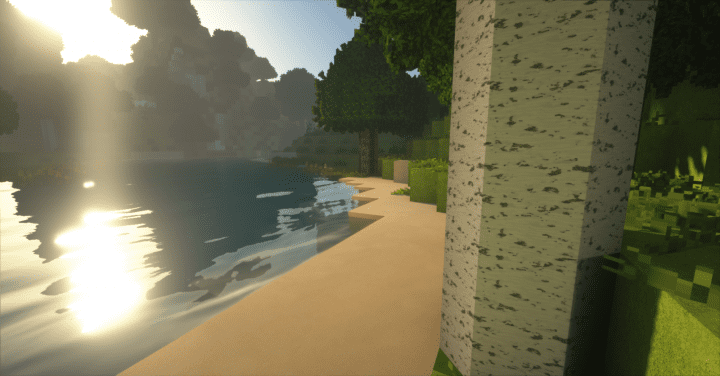
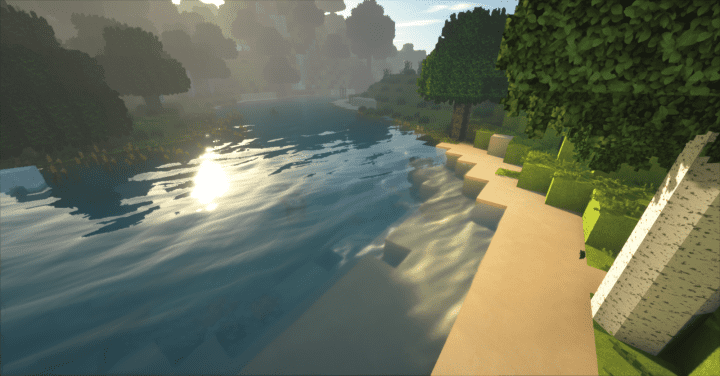
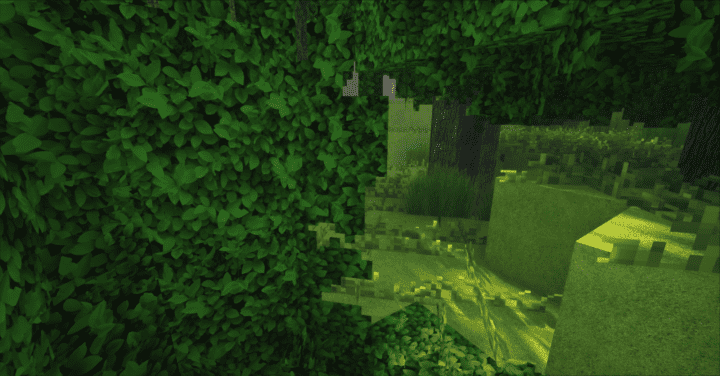
IwOB3ar himself claims that the pack comes in an ‘ultra-realistic’ texture. The color palette of this texture pack is a darkened version of the vanilla palette, and it blends perfectly smoothly with the realistic theme of the pack. A brighter or more colorful palette would have made the graphics look a little strange. Naturally, such detailed packs usually come with the downside of being hard to run even on PCs with high-end specifications, running in low frame rates that kill the fun of the game. However, God Rays pack is optimized in a way that this isn’t a problem anymore. Even with its high resolution of 512 x 512, you can still run the pack smoothly on medium tier PCs. The pack has made over 3300 downloads in a little more than a month, which is spectacular. If you are looking for a pack that can add more depth and detail to your world, this one will be a quintessential choice.
God Rays should be compatible with all of these Minecraft versions: 1.13.2 – 1.13.1 – 1.13 – 1.12.2 – 1.12 – 1.11.2 – 1.11 – 1.10.2 – 1.10 – 1.9.4 – 1.9 – 1.8.8 – 1.8.1 – 1.8.6 – 1.8
Screenshots
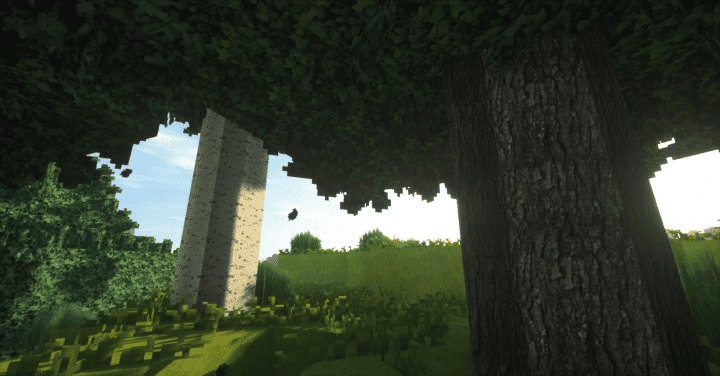
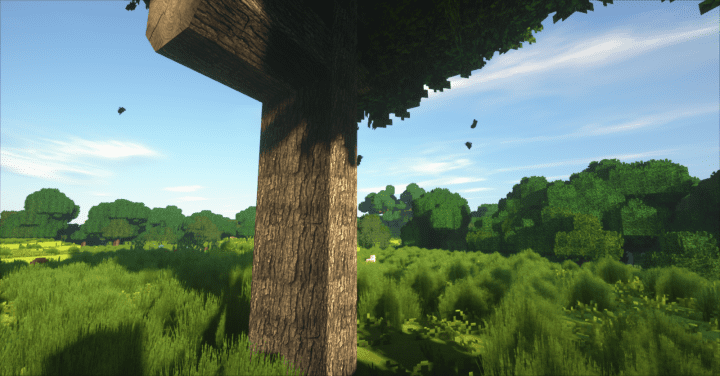
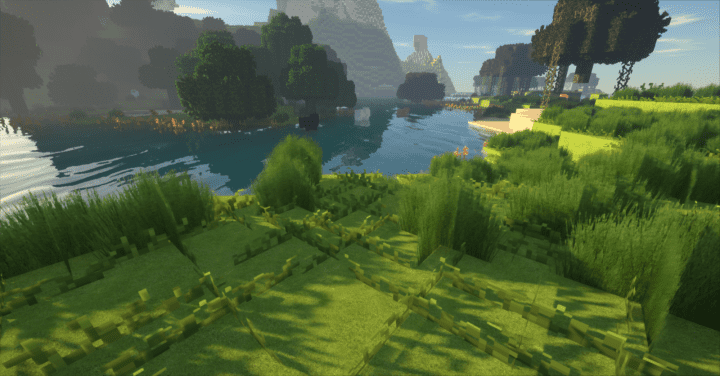
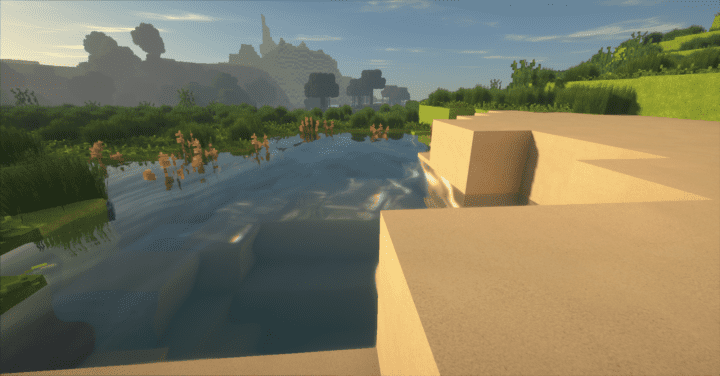
How to Install Texture Pack (Simple 10 Steps)
- Download OptiFine: Most of the texture packs and shaders need OptiFine. That’s why, first download and install OptiFine for the version of Minecraft you want to play.
- Download the Texture Pack: Get the texture pack you want from the download section. Choose the version that works with your Minecraft and your PC’s performance.
- Open Minecraft Launcher: Start Minecraft using the official game launcher — or even TLauncher, if you use that.
- Go to Options: From the main menu, click on the “Options” button.
- Open Resource Packs: Inside Options, click on “Resource Packs…”.
- Open the Resource Pack Folder: Click on “Open Resource Pack Folder” — this will open a folder named “resourcepacks”.
- Move the Pack File: Copy or move the .zip file you downloaded into that “resourcepacks” folder. (Don’t unzip the file — Minecraft uses it as-is!)
- Go Back and Refresh: Close the folder and click “Done”, then go back into “Resource Packs…” again.
- Activate the Pack: You’ll see the pack on the left side. Hover over it and click the arrow to move it to the right (active side).
Tip: If you get a message that the pack is for a different version, just click “Yes” — it usually works fine. - Click Done and Enjoy: Click “Done” again. Now your pack is ready to use in-game. It’s that easy!
Credits
The God Rays Resource Pack was originally created and developed by IwOB3ar. All rights, ownership, and intellectual property associated with the pack belong exclusively to the original author. We do not claim ownership of this content, nor do we host modified versions of the download files. We encourage users to support IwOB3ar and their future projects by downloading the pack through the official links provided.
Download Instructions
Curseforge: download starts automatically after a few seconds;
Mediafire: click the big blue button with the text “DOWNLOAD”;
Google Drive: in the top right corner you will see a small download icon (down arrow), click it and the download should start;


