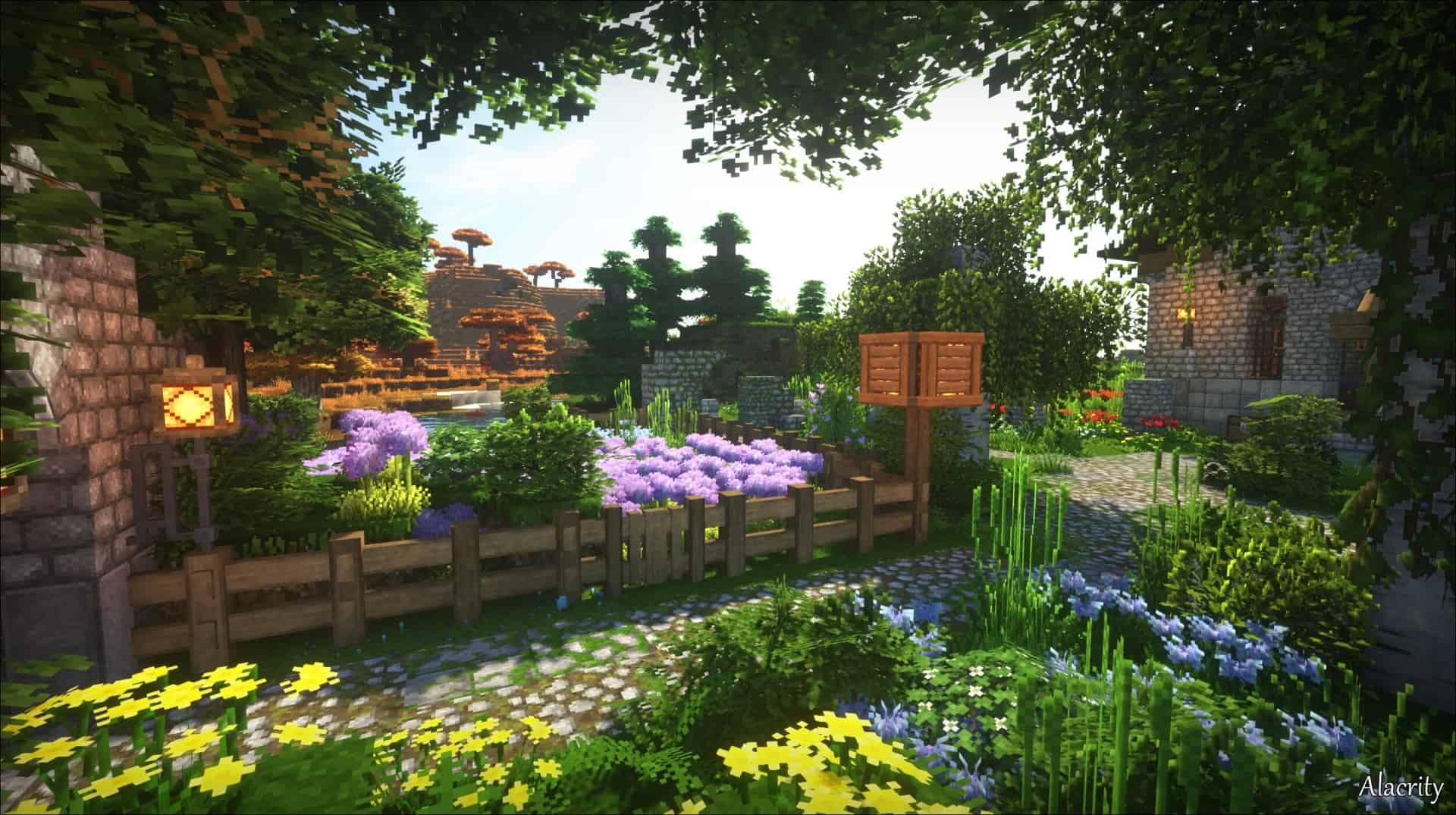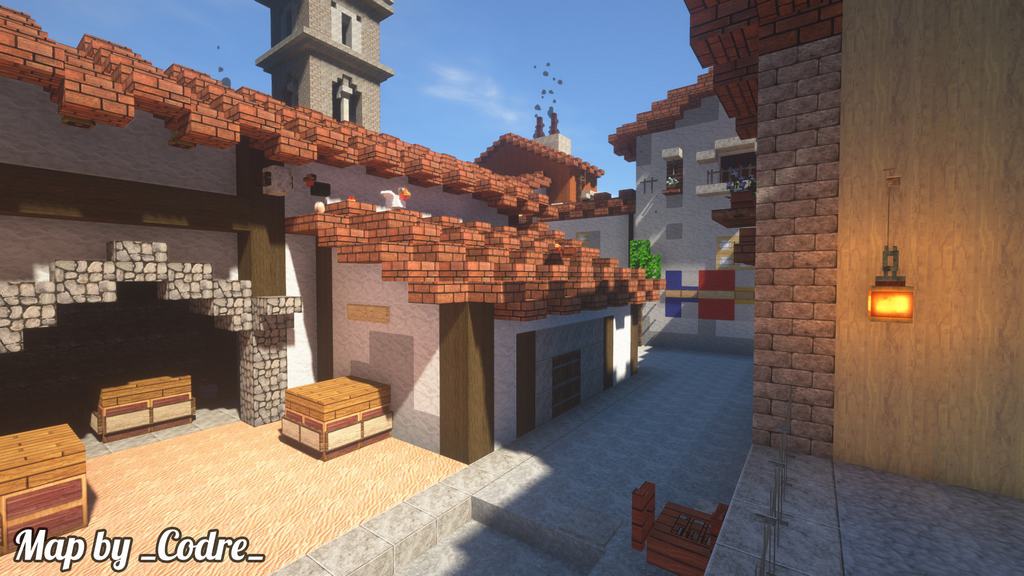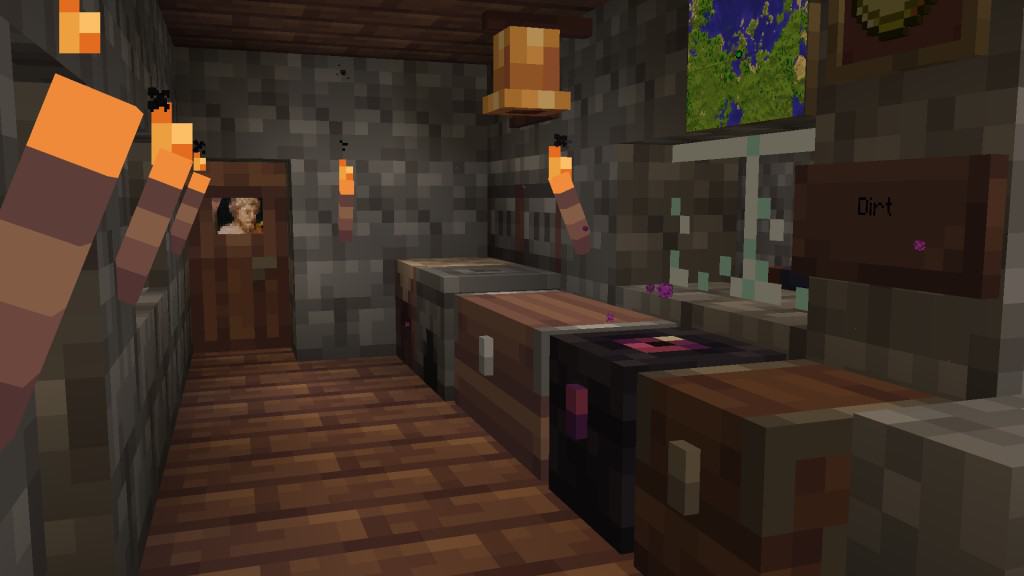
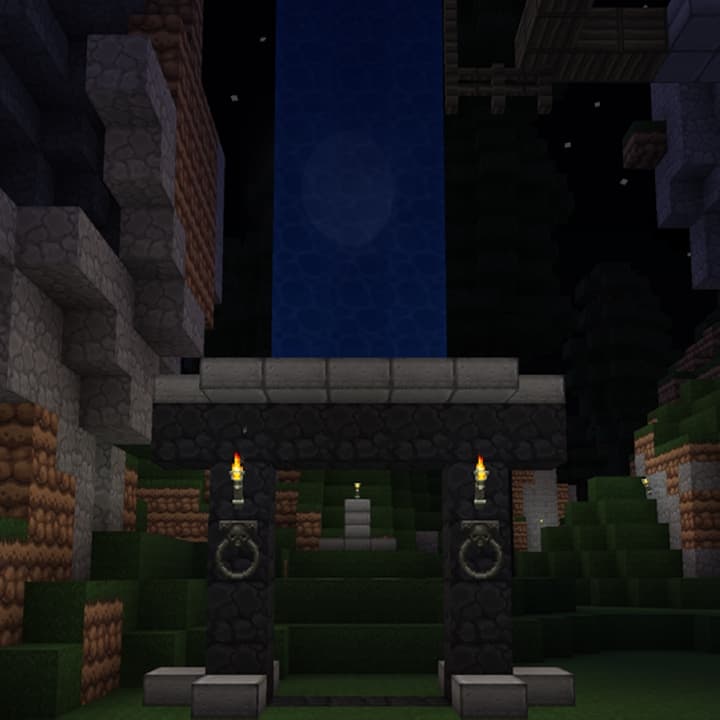
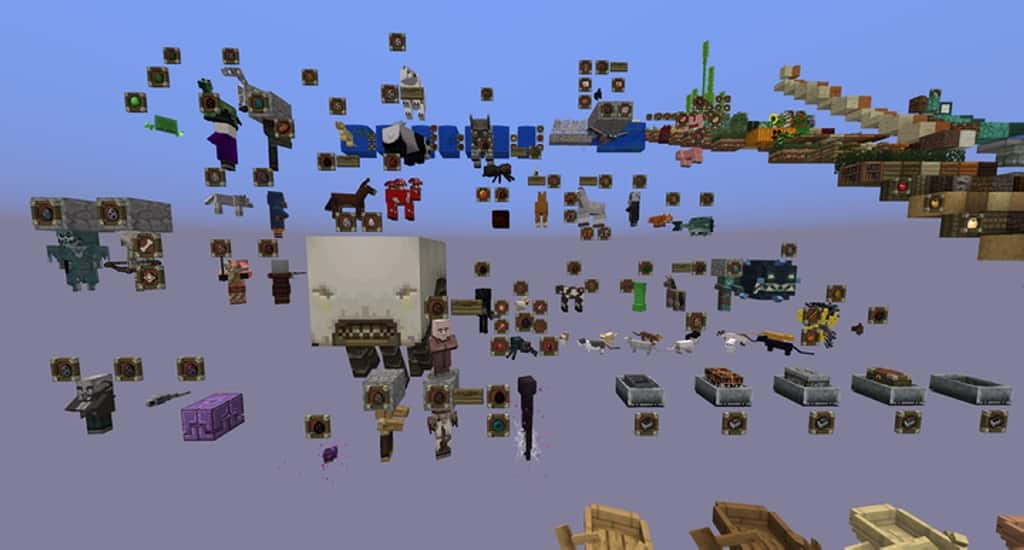
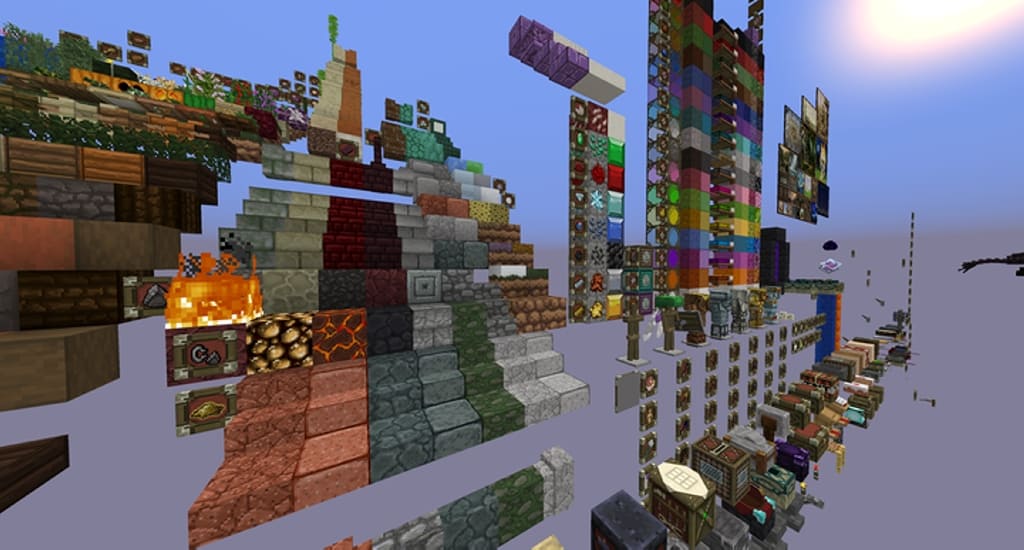
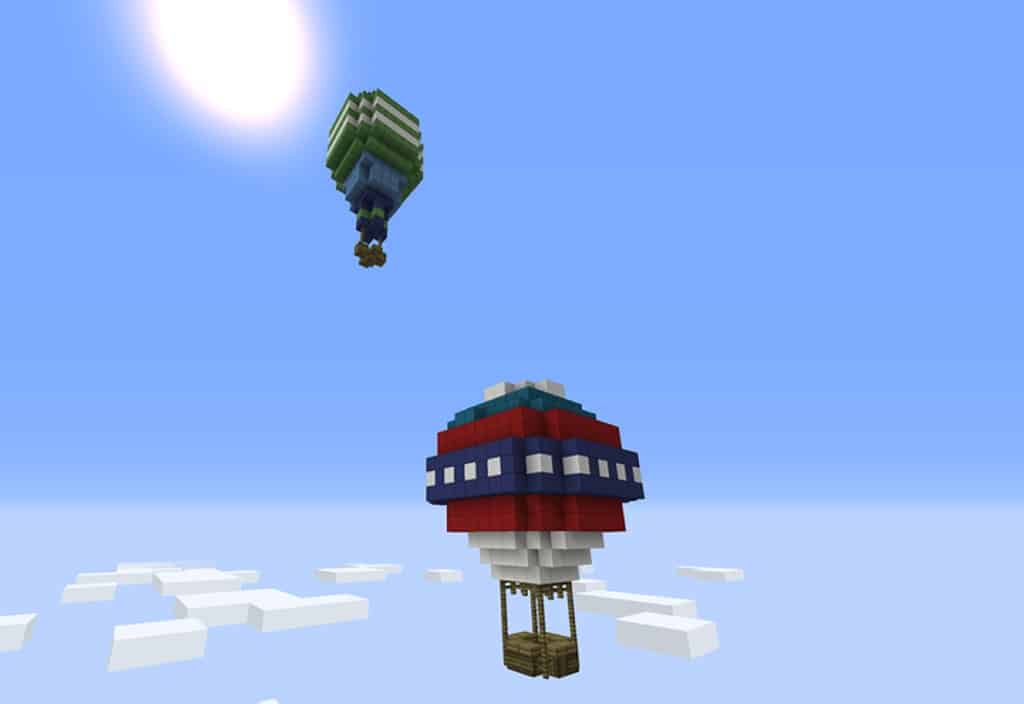
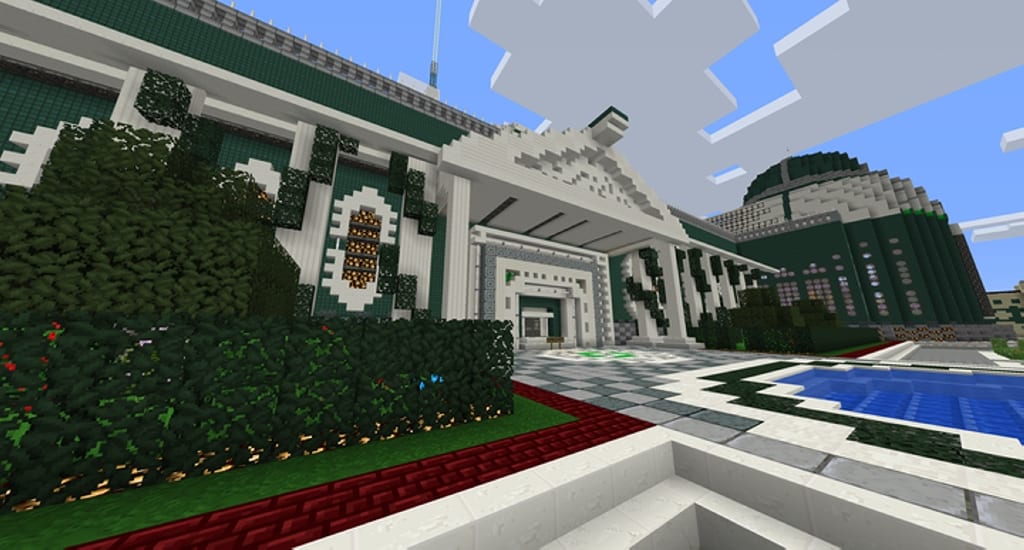
If vanilla Minecraft no longer cuts it for some players, I found that the Gerudoku resource pack is the absolute solution. It truly takes Minecraft to a new level by introducing gorgeous visual changes that completely refresh the overall look of the game. Based on my testing, the Gerudoku texture pack is an incredible variation of Dokucraft, seamlessly integrating Dokucraft elements with really unique textures to create a massive resource pack that transforms almost all visuals in the game. Developed initially by user Dangeresque486 and continuously updated with great input from the Minecraft community, the most notable and easily recognizable upgrades it brings are the terrain and block textures. Most of them have been thoughtfully redesigned to feature clearer textures and a better balance between dark and bright tones. The changes do not end with these improved 32x visuals, as there are several interesting items introduced in the game such as armors, swords, bows, books, blocks, and more.
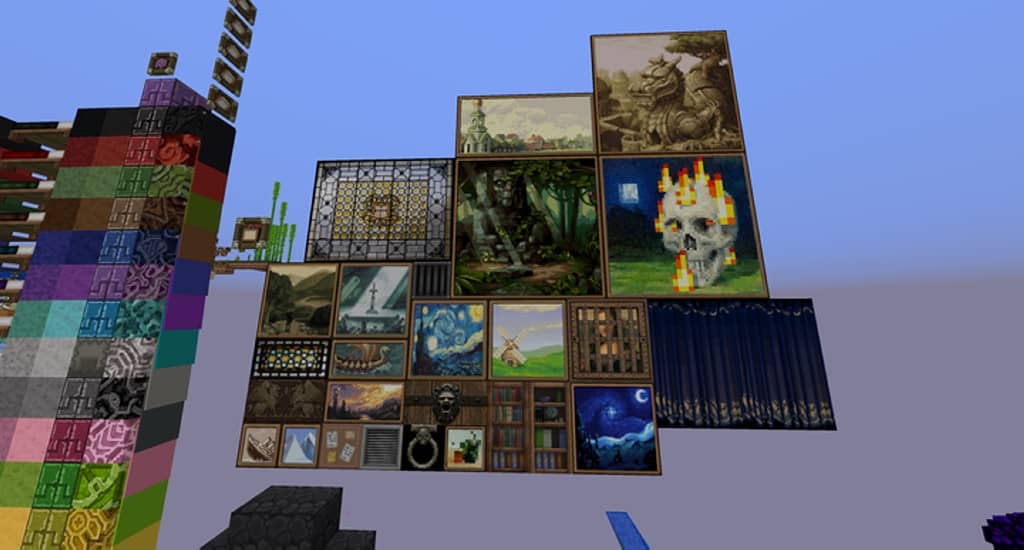
They carry a distinct medieval tone which makes it possible to build amazing medieval castles and dungeons. Additionally, the resource pack also adds decorative items such as paintings portraying various scenes, bookshelves, and stained glass windows, all of which are typical for the medieval age. Besides the texture upgrades, I really love that the Gerudoku resource pack also introduces a few additional changes, including new 3D models for several items and subtle tweaks to the GUI that make managing and swapping between weapons and items a breeze. Some RPG elements have been woven in, making it a fantastic resource pack for RPG fans. Unlike other resource packs, Gerudoku doesn’t rely heavily on shaders and looks amazing without them, as the standard lighting in the game is more than good enough. The 32x resolution makes it a wonderfully light resource pack that is not very resource-intensive at all, meaning it runs smoothly on most computers with minimal impact on framerate while taking up very little disk space.
GeruDoku should be compatible with all of these Minecraft versions: 1.19.4 – 1.19.3 – 1.19.2 – 1.19.1 – 1.19 – 1.18.2 – 1.18.1 – 1.18 – 1.17.1 – 1.17 – 1.16.5 – 1.16.4 – 1.16.3 – 1.16.2 – 1.16.1 – 1.16 – 1.15.2 – 1.15.1 – 1.15 – 1.14.4 – 1.14.3 – 1.14.2 – 1.14 – 1.13.2 – 1.13.1 – 1.13 – 1.12.2 – 1.12 – 1.11.2 – 1.11 – 1.10.2 – 1.10 – 1.9.4 – 1.9 – 1.8.9 – 1.8.8 – 1.8.1 – 1.8.6 – 1.8 – Bedrock Edition – PE
Screenshots

How to Install Texture Pack (Simple 10 Steps)
- Download OptiFine: Most of the texture packs and shaders need OptiFine. That’s why, first download and install OptiFine for the version of Minecraft you want to play.
- Download the Texture Pack: Get the texture pack you want from the download section. Choose the version that works with your Minecraft and your PC’s performance.
- Open Minecraft Launcher: Start Minecraft using the official game launcher — or even TLauncher, if you use that.
- Go to Options: From the main menu, click on the “Options” button.
- Open Resource Packs: Inside Options, click on “Resource Packs…”.
- Open the Resource Pack Folder: Click on “Open Resource Pack Folder” — this will open a folder named “resourcepacks”.
- Move the Pack File: Copy or move the .zip file you downloaded into that “resourcepacks” folder. (Don’t unzip the file — Minecraft uses it as-is!)
- Go Back and Refresh: Close the folder and click “Done”, then go back into “Resource Packs…” again.
- Activate the Pack: You’ll see the pack on the left side. Hover over it and click the arrow to move it to the right (active side).
Tip: If you get a message that the pack is for a different version, just click “Yes” — it usually works fine. - Click Done and Enjoy: Click “Done” again. Now your pack is ready to use in-game. It’s that easy!
Credits
This resource pack was originally created by Dangeresque486, Barytyrannus, and Syben. We do not claim ownership of this content and do not modify the original files. Please support the creators by visiting their official download pages.
Download Links
Java Edition
- [32x] Minecraft 1.19.x
- [32x] Minecraft 1.18.x
- [32x] Minecraft 1.17.x
- [32x] Minecraft 1.16.x – 1.15.x
- [32x] Minecraft 1.14.x
- [32x] Minecraft 1.13.x
- [32x] Minecraft 1.12.x – 1.9
- [32x] Minecraft 1.8.x
Bedrock Edition
Download Instructions
Curseforge: download starts automatically after a few seconds;
Mediafire: click the big blue button with the text “DOWNLOAD”;
Google Drive: in the top right corner you will see a small download icon (down arrow), click it and the download should start;