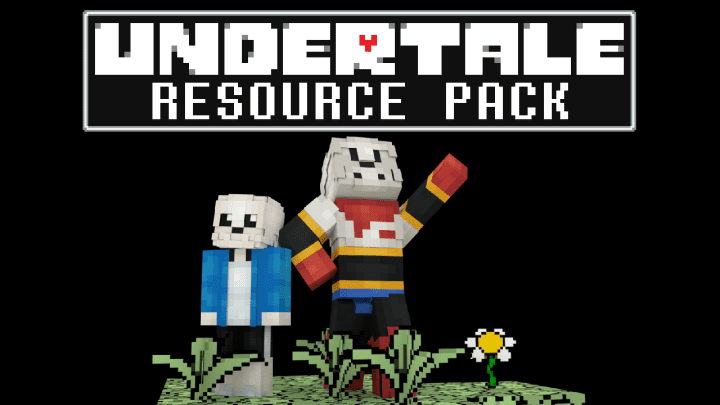
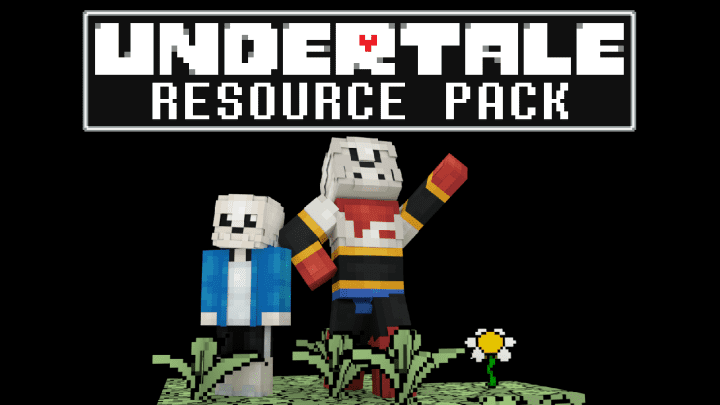
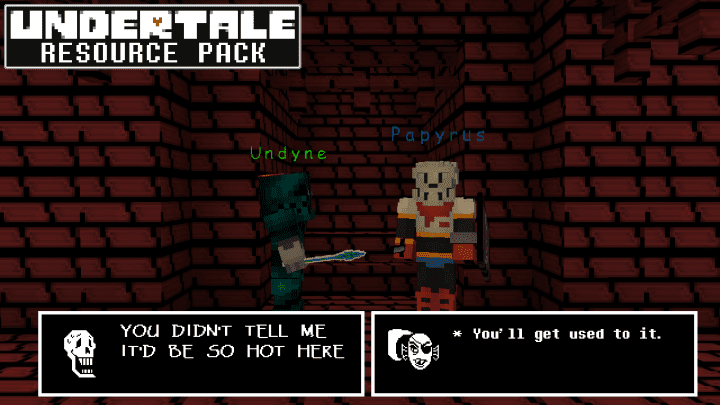
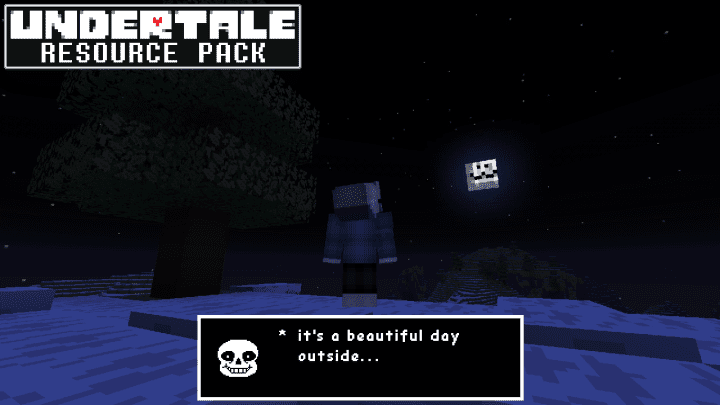
Minecraft is an absolute powerhouse of a game that nearly everyone knows and loves. We also see all the time how new random games launch daily, and whenever a title gains even a little bit of popularity, talented community developers immediately jump on the opportunity to build a mod, craft an adventure map, or design a custom resource pack for it. Exactly this happened with the incredible Undertale Resource Pack. Undertale is a beloved Steam game that achieved massive popularity in a remarkably short amount of time, and the creator Kardiamente decided to bring that universe to life by creating an Undertale-themed Minecraft resource pack, letting you genuinely enjoy two fantastic games all in one place.
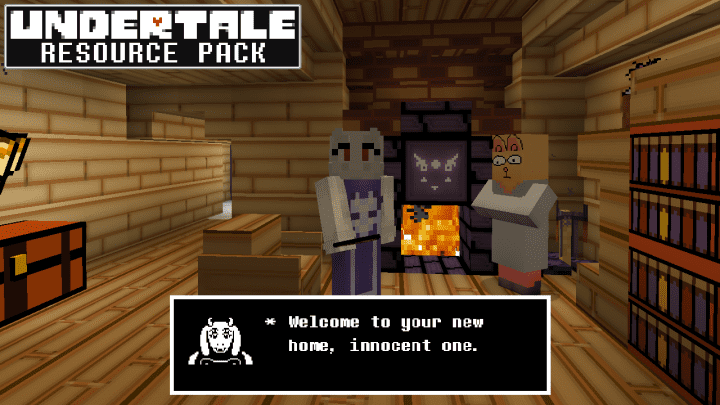
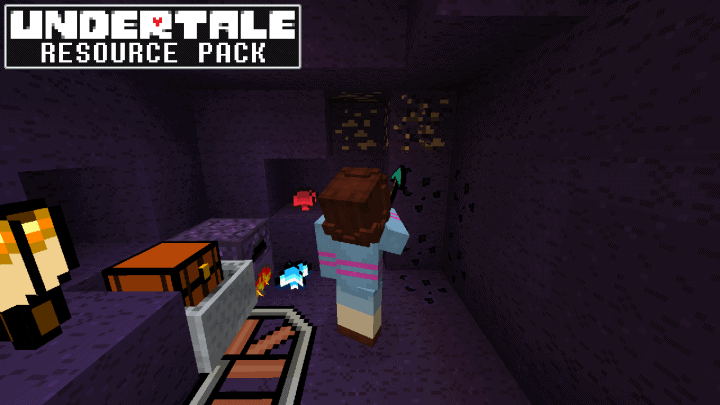
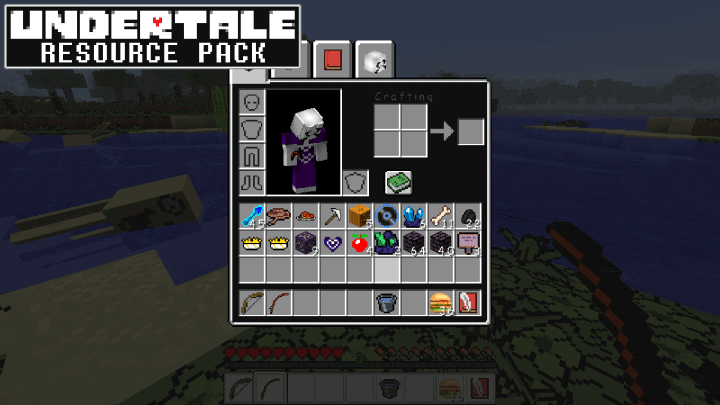
The Undertale Resource Pack is an awesome set of textures that will truly enhance your overall Minecraft gameplay experience. Particularly if you have played or are currently playing the Undertale Steam game, you are going to get an absolute blast out of using this Undertale Resource Pack for Minecraft. There is not much else that needs to be said, but once you complete a successful installation of this pack, you will immediately find yourself fully immersed in the unique world of Undertale right inside of Minecraft. To wrap things up, we are happy to note that this pack has earned a well-deserved following and is definitely well worth a try for any fan.
Undertale should be compatible with all of these Minecraft versions: 1.13.2 – 1.13.1 – 1.13 – 1.12.2 – 1.12 – 1.11.2 – 1.11
Screenshots
How to Install Texture Pack (Simple 10 Steps)
- Download OptiFine: Most of the texture packs and shaders need OptiFine. That’s why, first download and install OptiFine for the version of Minecraft you want to play.
- Download the Texture Pack: Get the texture pack you want from the download section. Choose the version that works with your Minecraft and your PC’s performance.
- Open Minecraft Launcher: Start Minecraft using the official game launcher — or even TLauncher, if you use that.
- Go to Options: From the main menu, click on the “Options” button.
- Open Resource Packs: Inside Options, click on “Resource Packs…”.
- Open the Resource Pack Folder: Click on “Open Resource Pack Folder” — this will open a folder named “resourcepacks”.
- Move the Pack File: Copy or move the .zip file you downloaded into that “resourcepacks” folder. (Don’t unzip the file — Minecraft uses it as-is!)
- Go Back and Refresh: Close the folder and click “Done”, then go back into “Resource Packs…” again.
- Activate the Pack: You’ll see the pack on the left side. Hover over it and click the arrow to move it to the right (active side).
Tip: If you get a message that the pack is for a different version, just click “Yes” — it usually works fine. - Click Done and Enjoy: Click “Done” again. Now your pack is ready to use in-game. It’s that easy!
Credits
This resource pack was created by Kardiamente. We do not claim ownership of this creation and do not host modified files on our servers. All rights remain with the original author. We strongly encourage you to support Kardiamente by downloading the pack from their official links and checking out their other works.
Download Instructions
Curseforge: download starts automatically after a few seconds;
Mediafire: click the big blue button with the text “DOWNLOAD”;
Google Drive: in the top right corner you will see a small download icon (down arrow), click it and the download should start;


