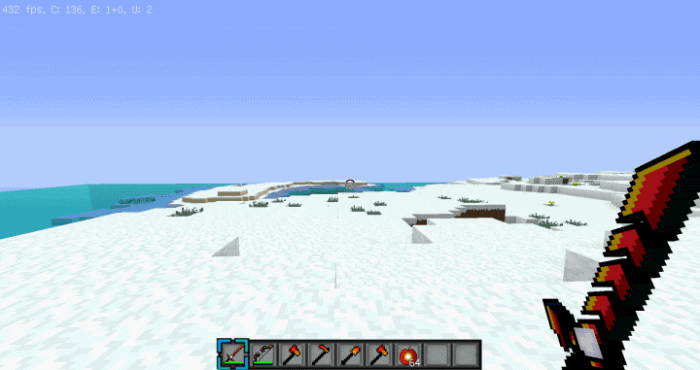
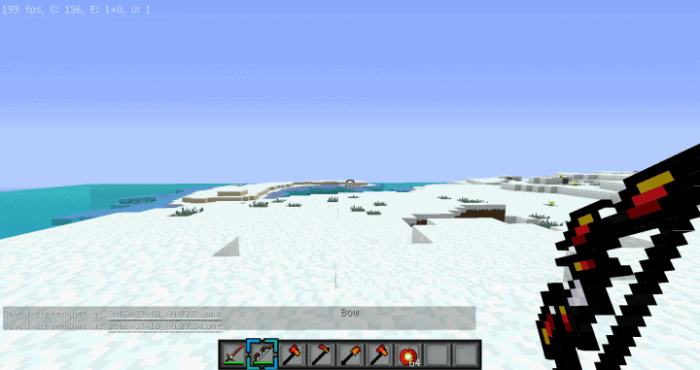
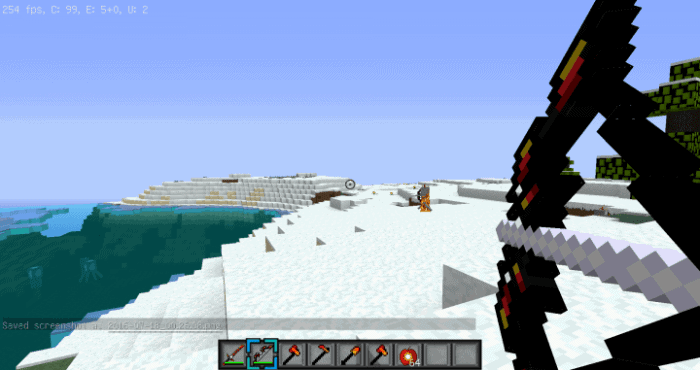
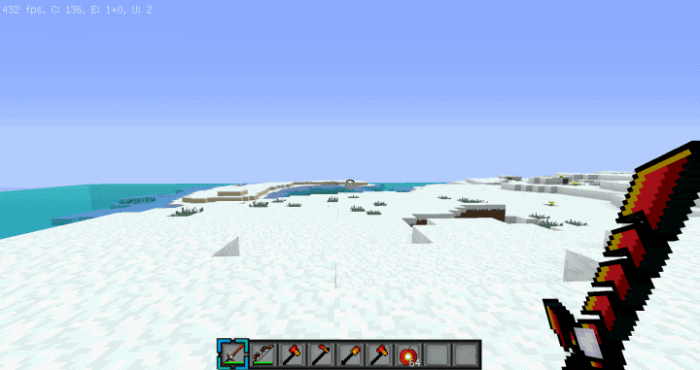
GeneralSmogyYT is the brilliant developer behind the production of the IronMan PvP resource pack, and honestly, you are going to love it. IronMan PvP is a well-known, stellar texture-designed pack that really stands out. GeneralSmogyYT is also famously behind the development of HellFire PvP and MatrixPVP. Similar to those other two fantastic packs done by the same developer, IronMan PvP contains wonderfully firm visuals. It also features a unique theme, precise textures, and many more elements that you will surely appreciate. These features are expertly used to make any player fully enjoy the PvP experience. This pack genuinely offers a superior visual experience while enhancing Minecraft’s performance at the same time, making it one of the absolute best additions for the world. The textures are heavily influenced by IronMan, where you will immediately realize that red and gold are the striking primary colors. The majority of the in-game weapons used for PvP have been massively improved, featuring completely new textures and an updated color mixture that looks amazing in combat. The IronMan PvP pack also comes with a few thoughtful changes done on the game’s environment alongside some minor, very clean changes to the user interface.
The animation features of the game have received some slight improvements that make everything feel so much better and smoother. Generally, the pack does not completely alter Minecraft’s classic visuals into something unrecognizable; instead, it refines and enhances them to look a bit better and much cleaner. The second outstanding feature of the IronMan PvP pack is its remarkably enhanced Minecraft performance. Apart from the improved visuals, you can easily play this on low-end computers without breaking a sweat. When players are fiercely fighting against each other, the gameplay is fast and intense, and during those moments, even a tiny bit of lag might cost you the whole fight. Luckily, a noticeable increment in the number of FPS while using the IronMan PvP pack makes the experience so much better. You genuinely do not need to worry anymore about your frame rate dropping when you are already deeply immersed in the game. With its comfortable and optimized resolution of 16x, the frame rate stability ensures that the game works wonderfully on every computer.
IronMan PvP should be compatible with all of these Minecraft versions: 1.9.4 – 1.9 – 1.8.9 – 1.8.8 – 1.8.1 – 1.8.6 – 1.8
Screenshots
How to Install Texture Pack (Simple 10 Steps)
- Download OptiFine: Most of the texture packs and shaders need OptiFine. That’s why, first download and install OptiFine for the version of Minecraft you want to play.
- Download the Texture Pack: Get the texture pack you want from the download section. Choose the version that works with your Minecraft and your PC’s performance.
- Open Minecraft Launcher: Start Minecraft using the official game launcher — or even TLauncher, if you use that.
- Go to Options: From the main menu, click on the “Options” button.
- Open Resource Packs: Inside Options, click on “Resource Packs…”.
- Open the Resource Pack Folder: Click on “Open Resource Pack Folder” — this will open a folder named “resourcepacks”.
- Move the Pack File: Copy or move the .zip file you downloaded into that “resourcepacks” folder. (Don’t unzip the file — Minecraft uses it as-is!)
- Go Back and Refresh: Close the folder and click “Done”, then go back into “Resource Packs…” again.
- Activate the Pack: You’ll see the pack on the left side. Hover over it and click the arrow to move it to the right (active side).
Tip: If you get a message that the pack is for a different version, just click “Yes” — it usually works fine. - Click Done and Enjoy: Click “Done” again. Now your pack is ready to use in-game. It’s that easy!
Credits
This resource pack was created by GeneralSmogyYT. We do not own, host, or modify any files associated with this pack. All rights belong to the original creator. We strongly encourage visiting and supporting the author through their official download channels.
Download Instructions
Curseforge: download starts automatically after a few seconds;
Mediafire: click the big blue button with the text “DOWNLOAD”;
Google Drive: in the top right corner you will see a small download icon (down arrow), click it and the download should start;


