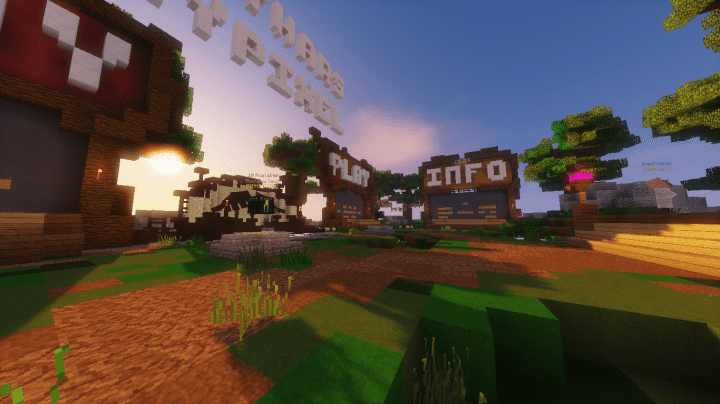
The Garnet Resource Pack is an absolute treat when you are playing the Minecraft PC game, and I had a blast testing it out! This pack is specially designed to enhance the visual and colour effects of the game while throwing in a fantastic touch of vibrancy. It is particularly created to augur well with players who strive to boost graphics in their Minecraft game, which the garnet resource pack does very well while still seeing to it that that the whole application neither lags nor hangs your PC. In my experience, this pack literally raises the frame-rate of the game rapidly, making it wonderfully suitable for gamers who use less advanced computers which can barely sustain a pleasant frame rate. It does so seamlessly, and I can confirm it definitely does not interfere with the smooth running of the game. The Garnet Resource Pack essentially chips in distinct touches of purple onto Minecraft’s outlook, making it appeal more to players like us who love a fresh aesthetic. These lovely touches really smoothen out the game’s colours and overall appearance.
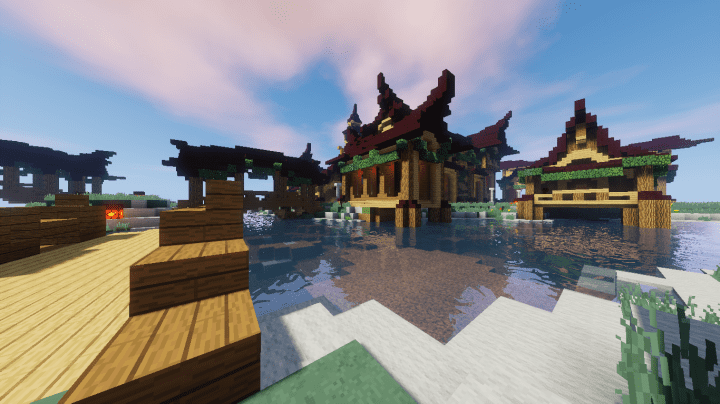
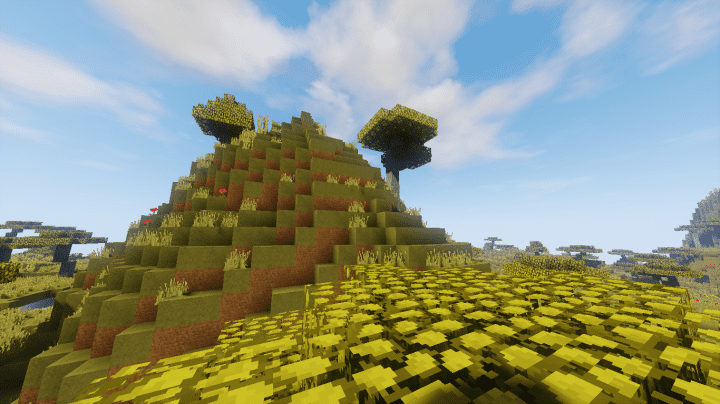
It, however, ensures that it doesn’t exaggerate this touch thus leaving the game looking fresh albeit the underlying vanilla Minecraft outlook. I noticed that the magnitude of texture detail has been more pronounced while the noise embedded in the texture has seemingly been decreased, hence leaving them with a much more attractive look than the regular pack. This truly gives the player a lively playing experience riddled with exciting colour density and a magnified resolution. The shading of the colour palette has enhanced dark colour touches which fit in exceptionally well with the Garnet Resource pack’s obsession with the purple colour. Best of all, this resource pack enjoys a default x16 resolution. There is honestly no reason why you should not try out this resource pack for yourself. If your PC is the low-end type, I can assure you that the Garnet resource pack has you completely covered and will not only boost graphics and colour but also heighten your frame-rates nicely.
Garnet should be compatible with all of these Minecraft versions: 1.16.5 – 1.16.4 – 1.16.3 – 1.16.2 – 1.16.1 – 1.16 – 1.15.2 – 1.15.1 – 1.15 – 1.14.4 – 1.14.3 – 1.14.2 – 1.14 – 1.13.2 – 1.13.1 – 1.13 – 1.12.2 – 1.12 – 1.11.2 – 1.11 – 1.10.2 – 1.10 – 1.9.4 – 1.9 – 1.8.9 – 1.8.8 – 1.8.1 – 1.8.6 – 1.8
Screenshots
How to Install Texture Pack (Simple 10 Steps)
- Download OptiFine: Most of the texture packs and shaders need OptiFine. That’s why, first download and install OptiFine for the version of Minecraft you want to play.
- Download the Texture Pack: Get the texture pack you want from the download section. Choose the version that works with your Minecraft and your PC’s performance.
- Open Minecraft Launcher: Start Minecraft using the official game launcher — or even TLauncher, if you use that.
- Go to Options: From the main menu, click on the “Options” button.
- Open Resource Packs: Inside Options, click on “Resource Packs…”.
- Open the Resource Pack Folder: Click on “Open Resource Pack Folder” — this will open a folder named “resourcepacks”.
- Move the Pack File: Copy or move the .zip file you downloaded into that “resourcepacks” folder. (Don’t unzip the file — Minecraft uses it as-is!)
- Go Back and Refresh: Close the folder and click “Done”, then go back into “Resource Packs…” again.
- Activate the Pack: You’ll see the pack on the left side. Hover over it and click the arrow to move it to the right (active side).
Tip: If you get a message that the pack is for a different version, just click “Yes” — it usually works fine. - Click Done and Enjoy: Click “Done” again. Now your pack is ready to use in-game. It’s that easy!
Credits
The Garnet Resource Pack was originally created and developed by Siduction. We do not claim ownership of this content, nor do we host or modify the original files. All rights remain with the original author. We strongly encourage you to support Siduction by visiting their official release channels.
Download Links
Java Edition
Download Instructions
Curseforge: download starts automatically after a few seconds;
Mediafire: click the big blue button with the text “DOWNLOAD”;
Google Drive: in the top right corner you will see a small download icon (down arrow), click it and the download should start;


