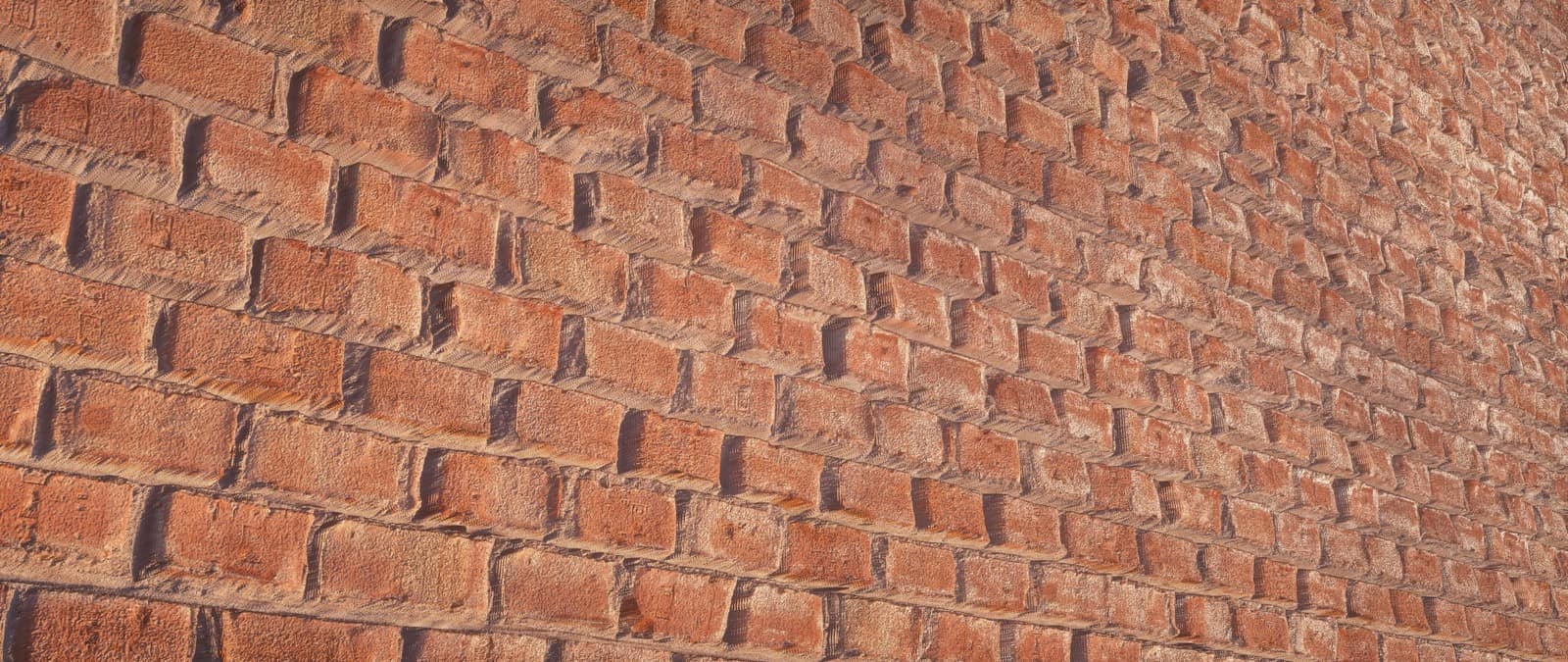
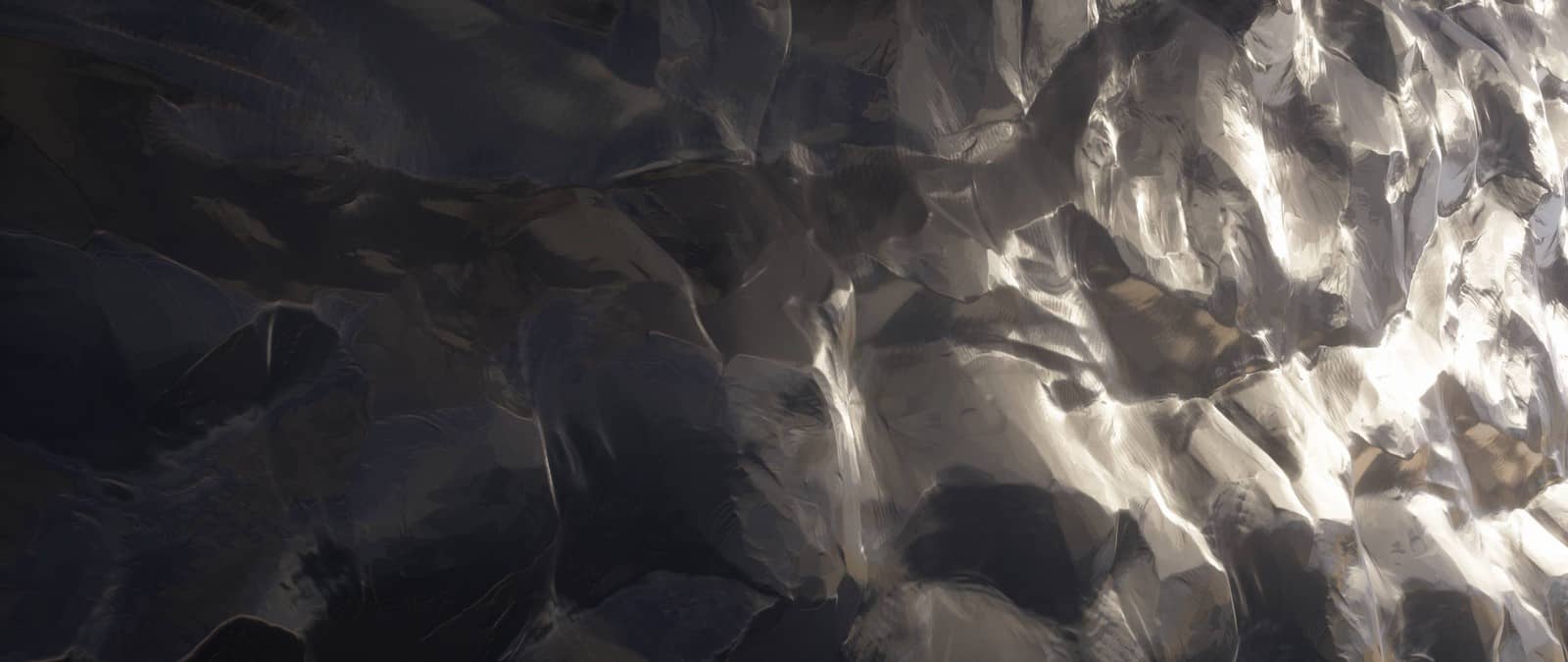
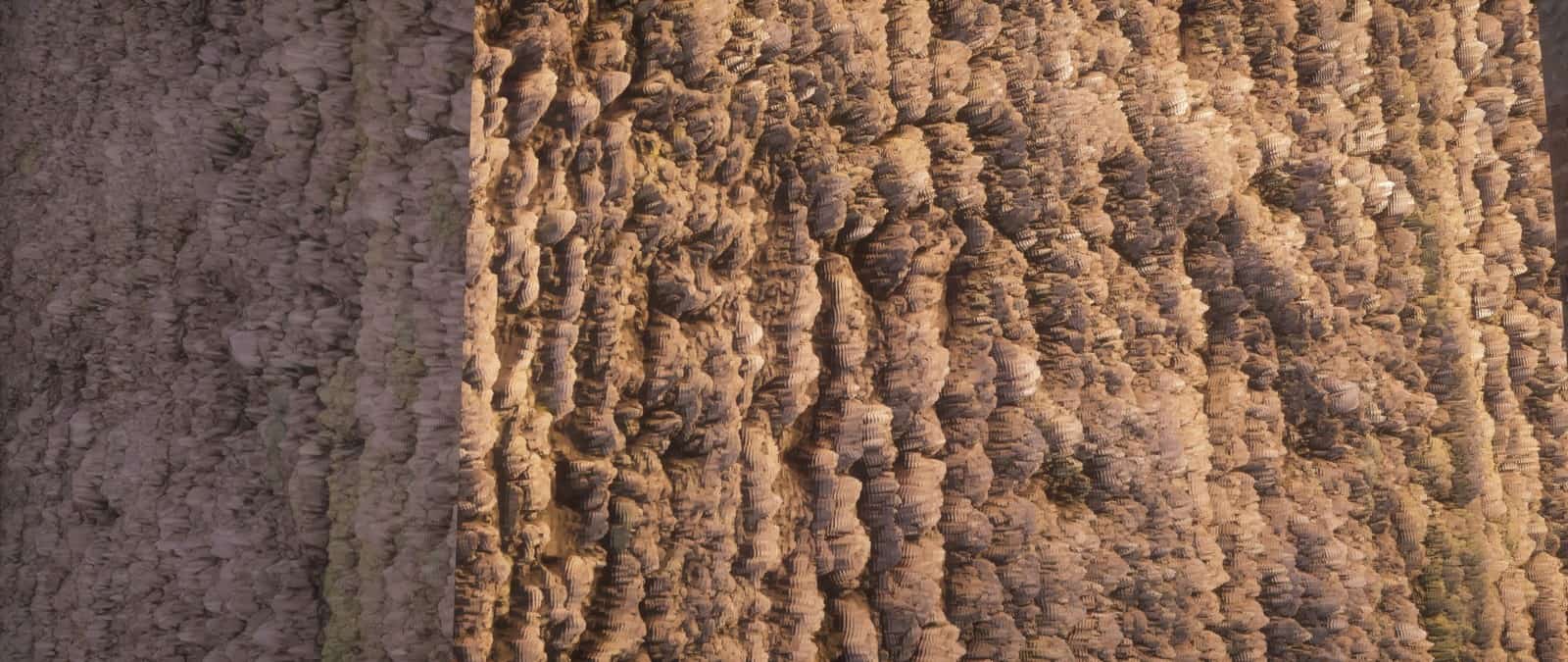
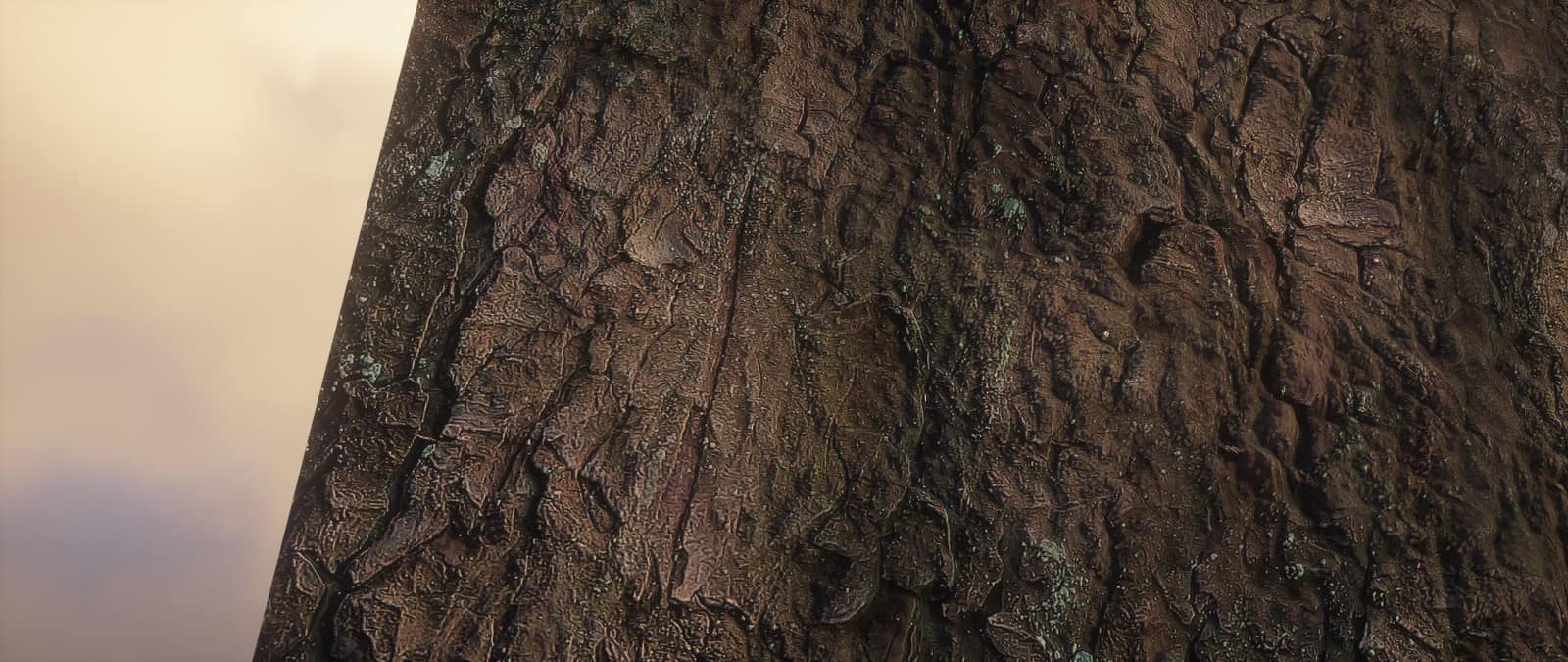
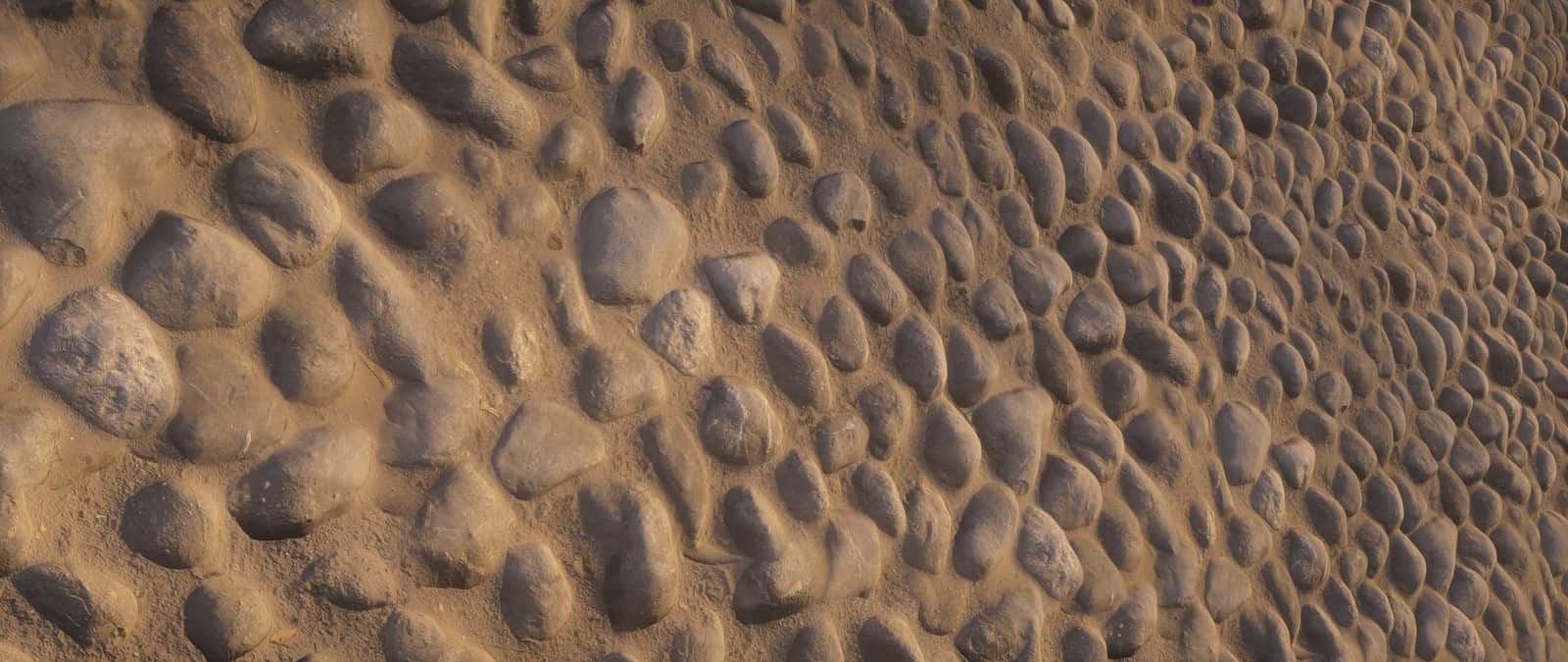
Today we are going to talk about the incredible Pulchra Revisited textures, and I am so excited to share my thoughts! As you might already know, there happens to be quite a huge number of resource packs that have been made available for Minecraft, and out of all these, the Pulchra Revisited resource pack is certainly the absolute perfect demonstration of quality. Pulchra Revisited, at the time of writing this article, has been out for less than a month, and from that exact moment on, it has done nothing but turn heads in its direction. This pack, and similar packs to it, comes in very useful for a variety of use case scenarios. Besides being a genuinely innovative pack, it also provides you with a breathtaking visual experience that you will not soon forget. Most other resource packs simply cannot offer the features that Pulchra Revisited can, and I honestly think it is an amazing choice for most Minecraft players looking to upgrade their worlds.
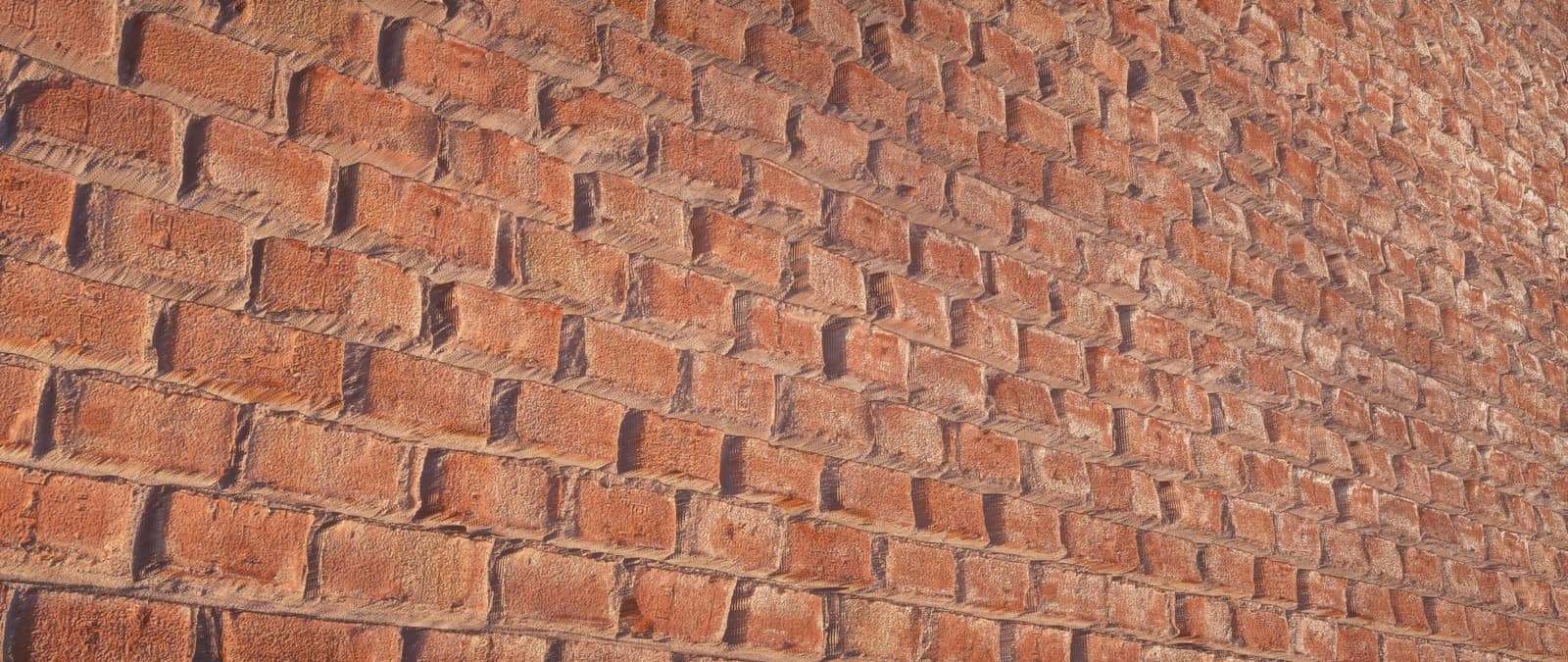
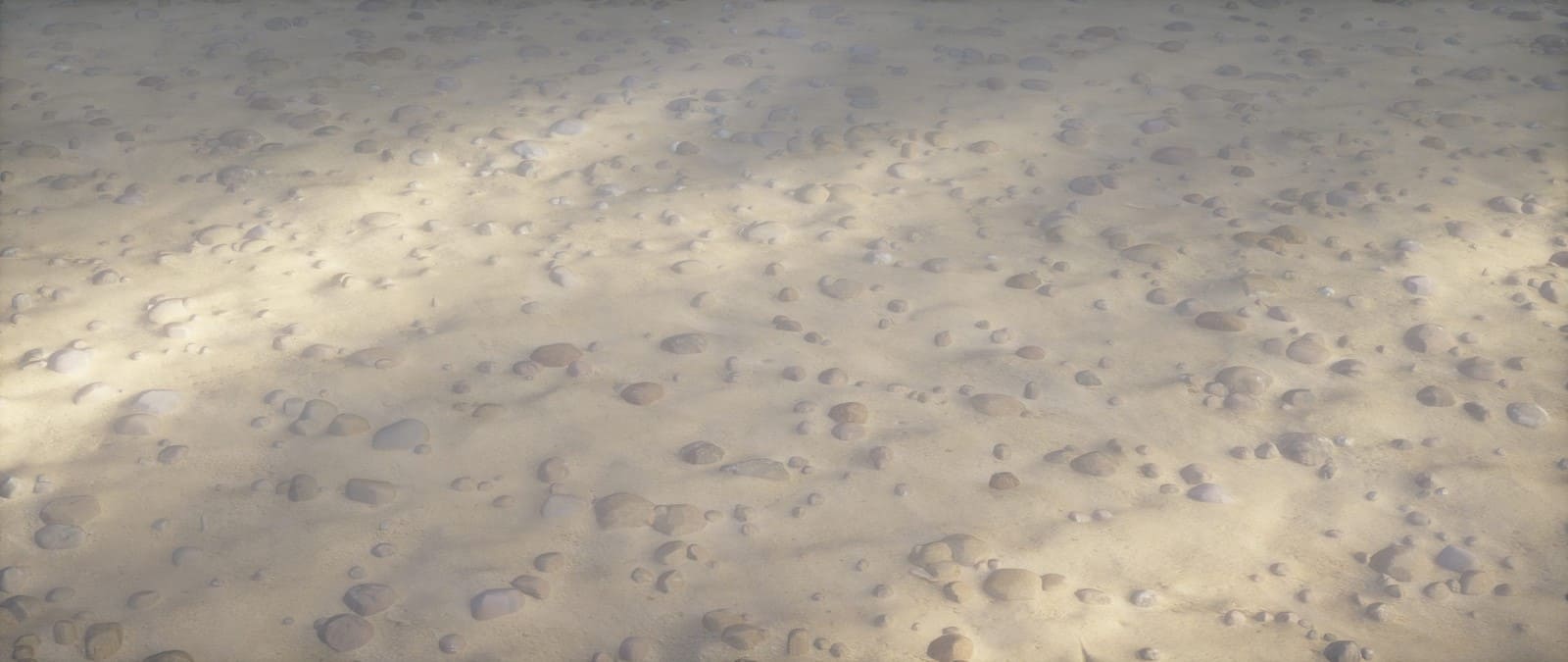
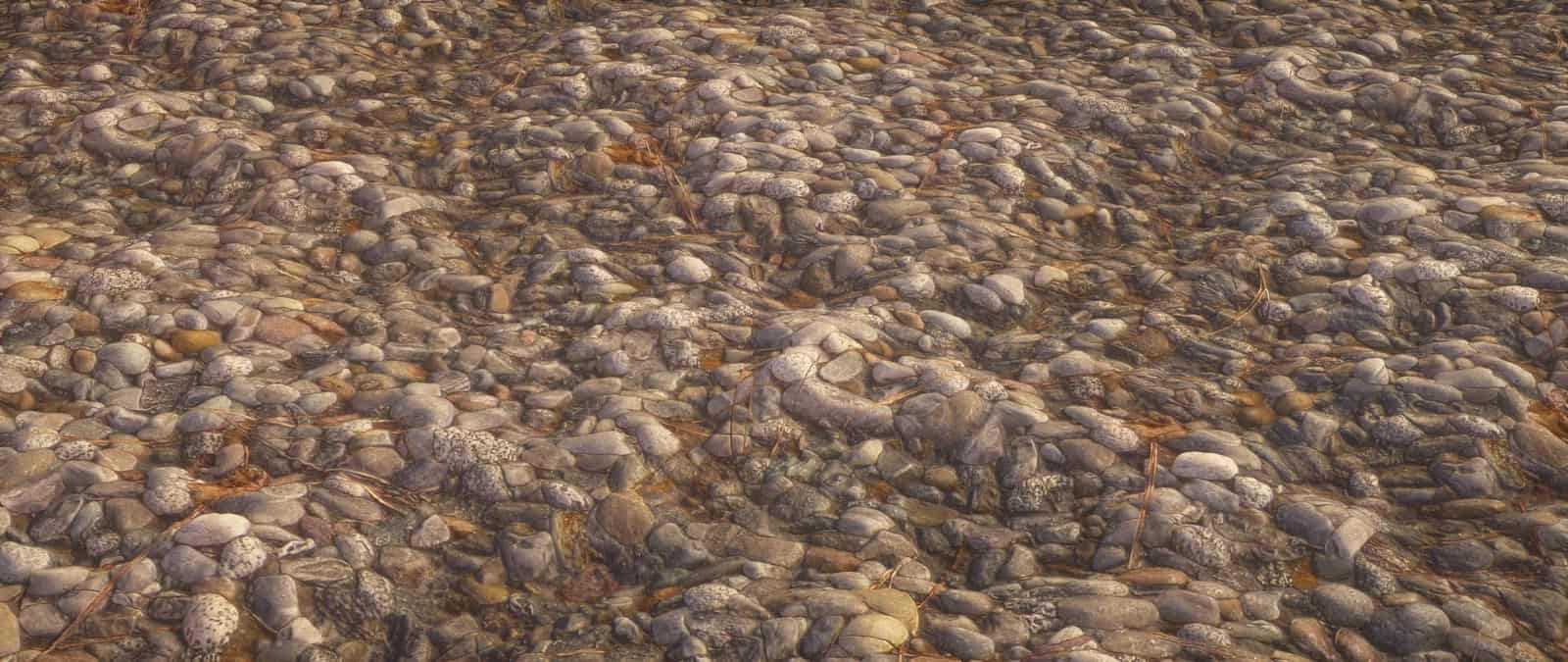
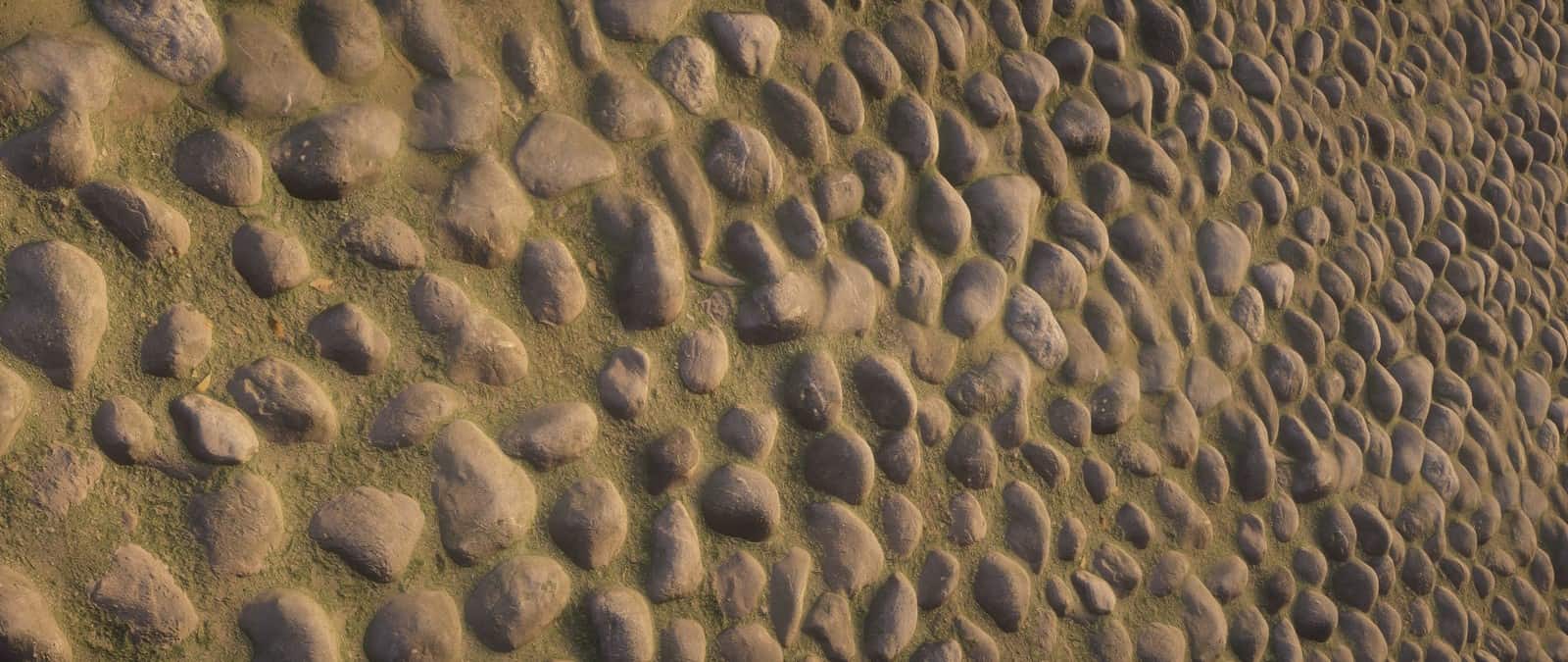
One of the absolute best features of this texture set is that it uses many modern and advanced design techniques to create and modify the textures to make them look as polished as possible. One such technique is full support for parallax occlusion mapping, and this is truly what makes the textures look especially lifelike in-game. Just like other popular photorealistic resource packs, Pulchra Revisited textures have been painstakingly photo-scanned, and because of that, everyone who downloads and installs this resource pack will thoroughly enjoy the highest possible quality. In conclusion, it is simply an amazing resource pack, but you definitely must have pretty good hardware at your disposal for it to function accordingly without lag. This pack is available in multiple resolutions, so you have got a lot to choose from depending on your specific PC power.
Pulchra Revisited should be compatible with all of these Minecraft versions: 1.12.2 – 1.12 – 1.11.2 – 1.11 – 1.10.2 – 1.10
Screenshots
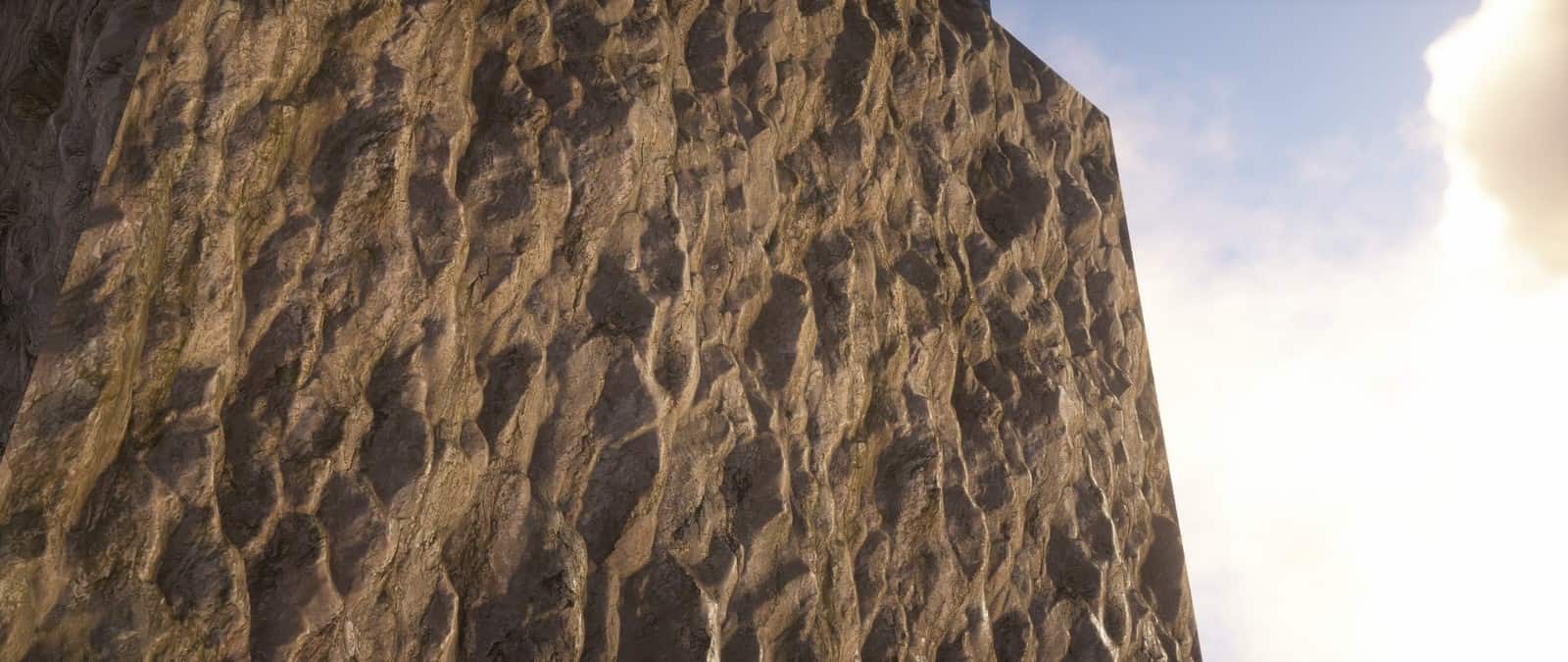
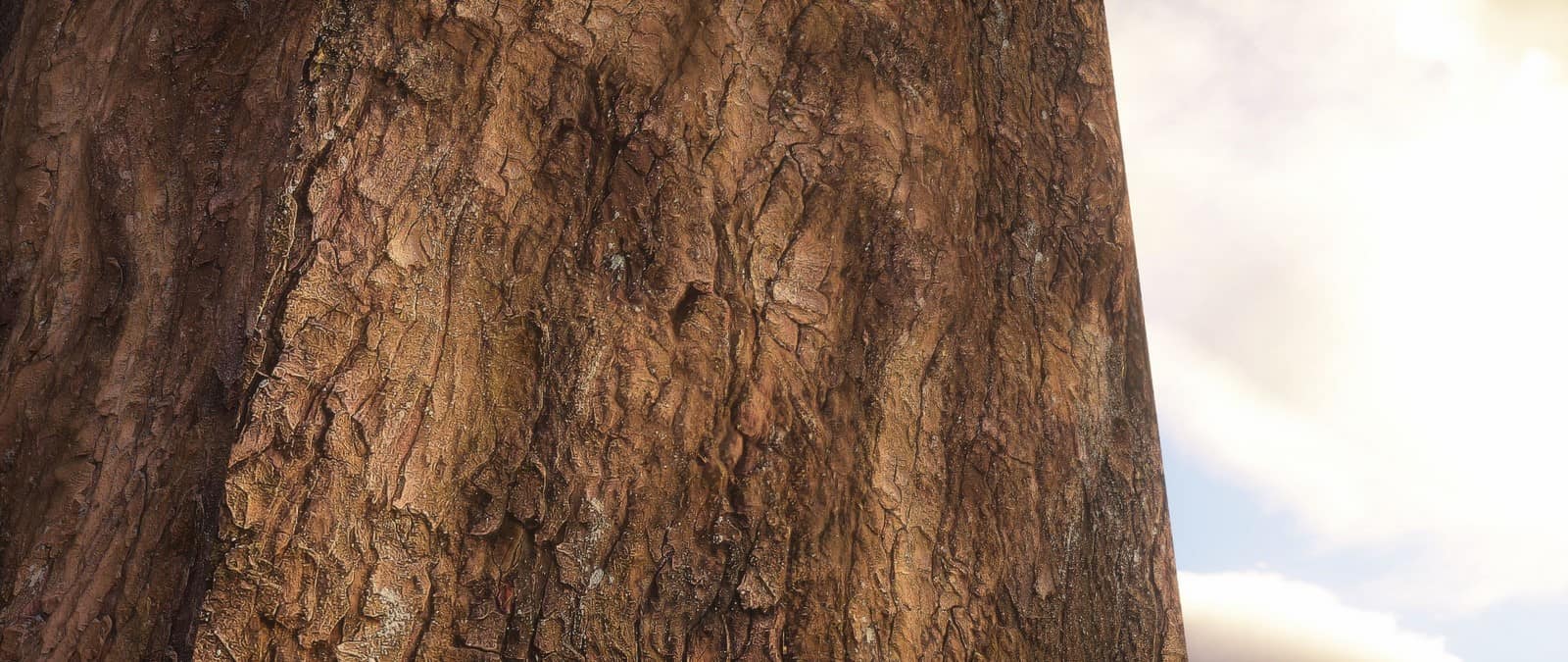
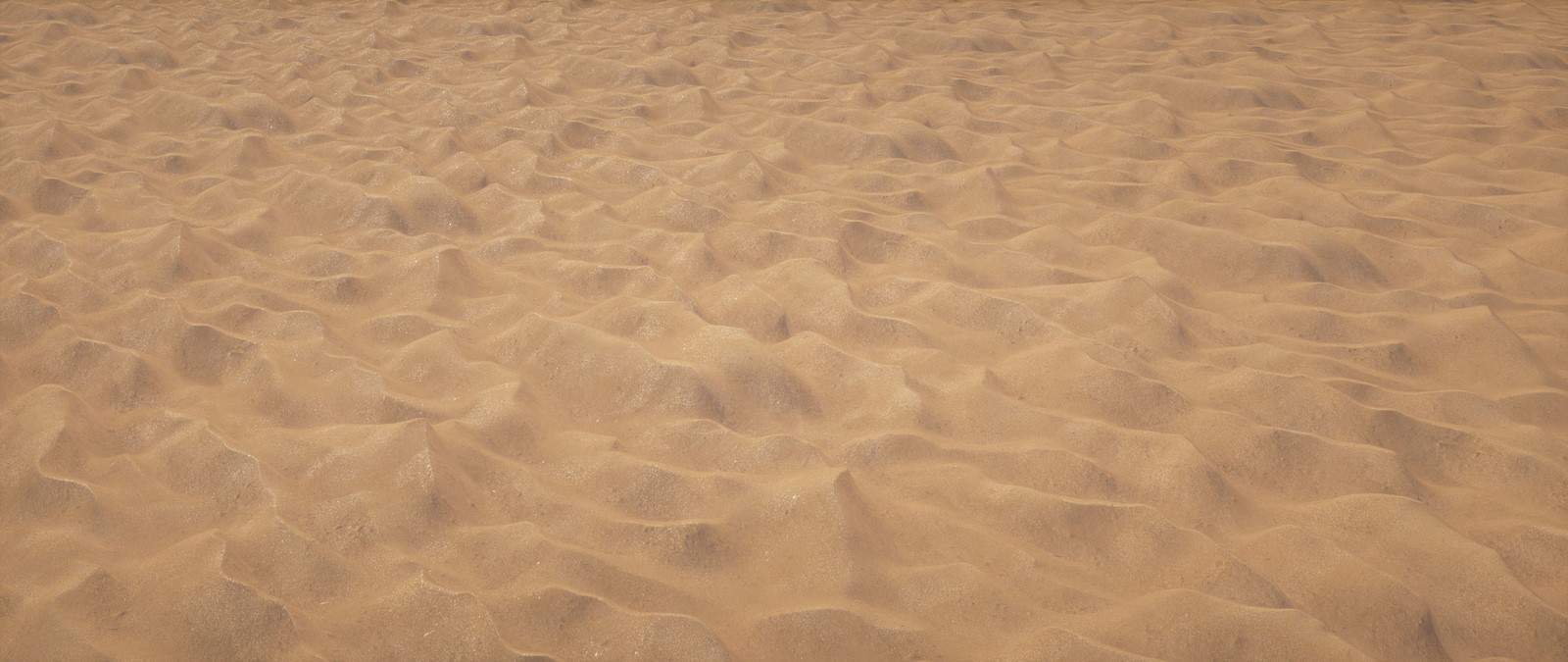
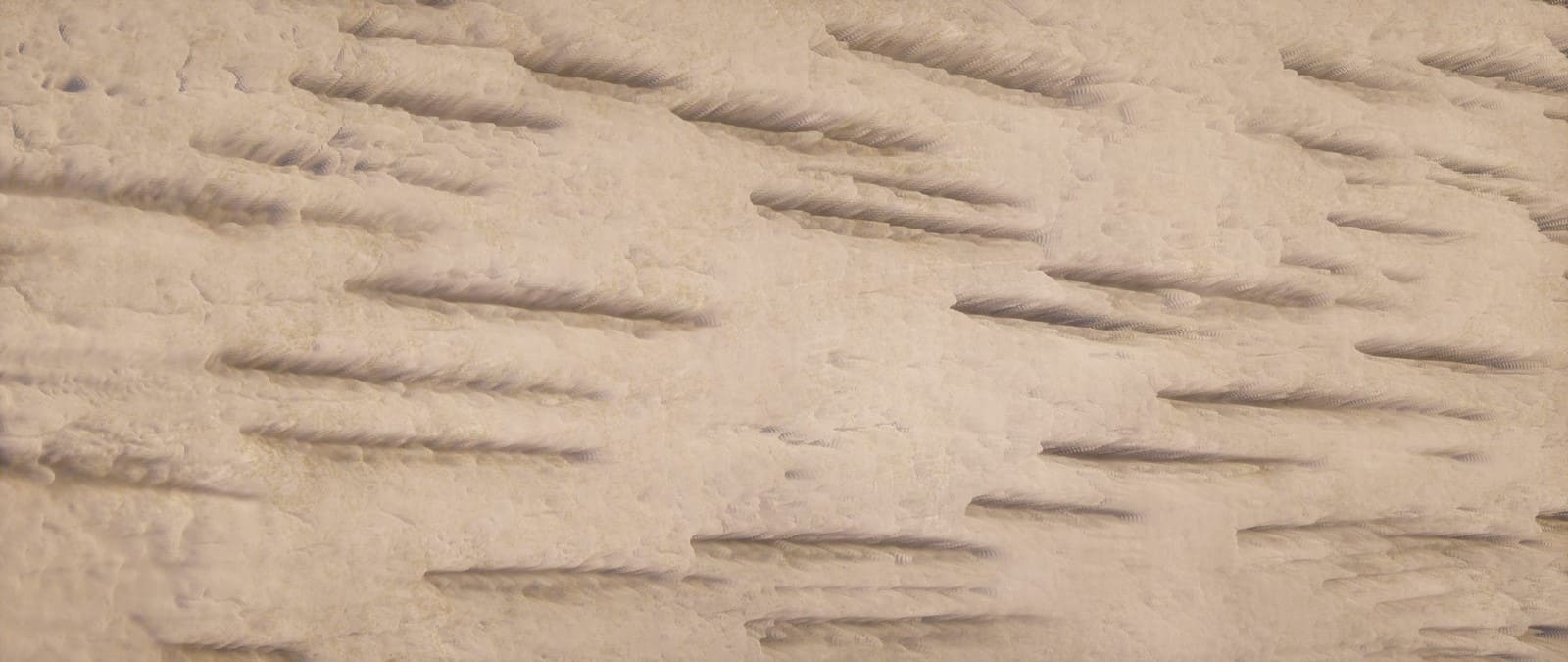
How to Install Texture Pack (Simple 10 Steps)
- Download OptiFine: Most of the texture packs and shaders need OptiFine. That’s why, first download and install OptiFine for the version of Minecraft you want to play.
- Download the Texture Pack: Get the texture pack you want from the download section. Choose the version that works with your Minecraft and your PC’s performance.
- Open Minecraft Launcher: Start Minecraft using the official game launcher — or even TLauncher, if you use that.
- Go to Options: From the main menu, click on the “Options” button.
- Open Resource Packs: Inside Options, click on “Resource Packs…”.
- Open the Resource Pack Folder: Click on “Open Resource Pack Folder” — this will open a folder named “resourcepacks”.
- Move the Pack File: Copy or move the .zip file you downloaded into that “resourcepacks” folder. (Don’t unzip the file — Minecraft uses it as-is!)
- Go Back and Refresh: Close the folder and click “Done”, then go back into “Resource Packs…” again.
- Activate the Pack: You’ll see the pack on the left side. Hover over it and click the arrow to move it to the right (active side).
Tip: If you get a message that the pack is for a different version, just click “Yes” — it usually works fine. - Click Done and Enjoy: Click “Done” again. Now your pack is ready to use in-game. It’s that easy!
Credits
Created by Atlas Graphics. We do not own or modify this resource pack. All rights belong to the original author. Please support the creator by downloading from official sources.
Download Instructions
Curseforge: download starts automatically after a few seconds;
Mediafire: click the big blue button with the text “DOWNLOAD”;
Google Drive: in the top right corner you will see a small download icon (down arrow), click it and the download should start;


