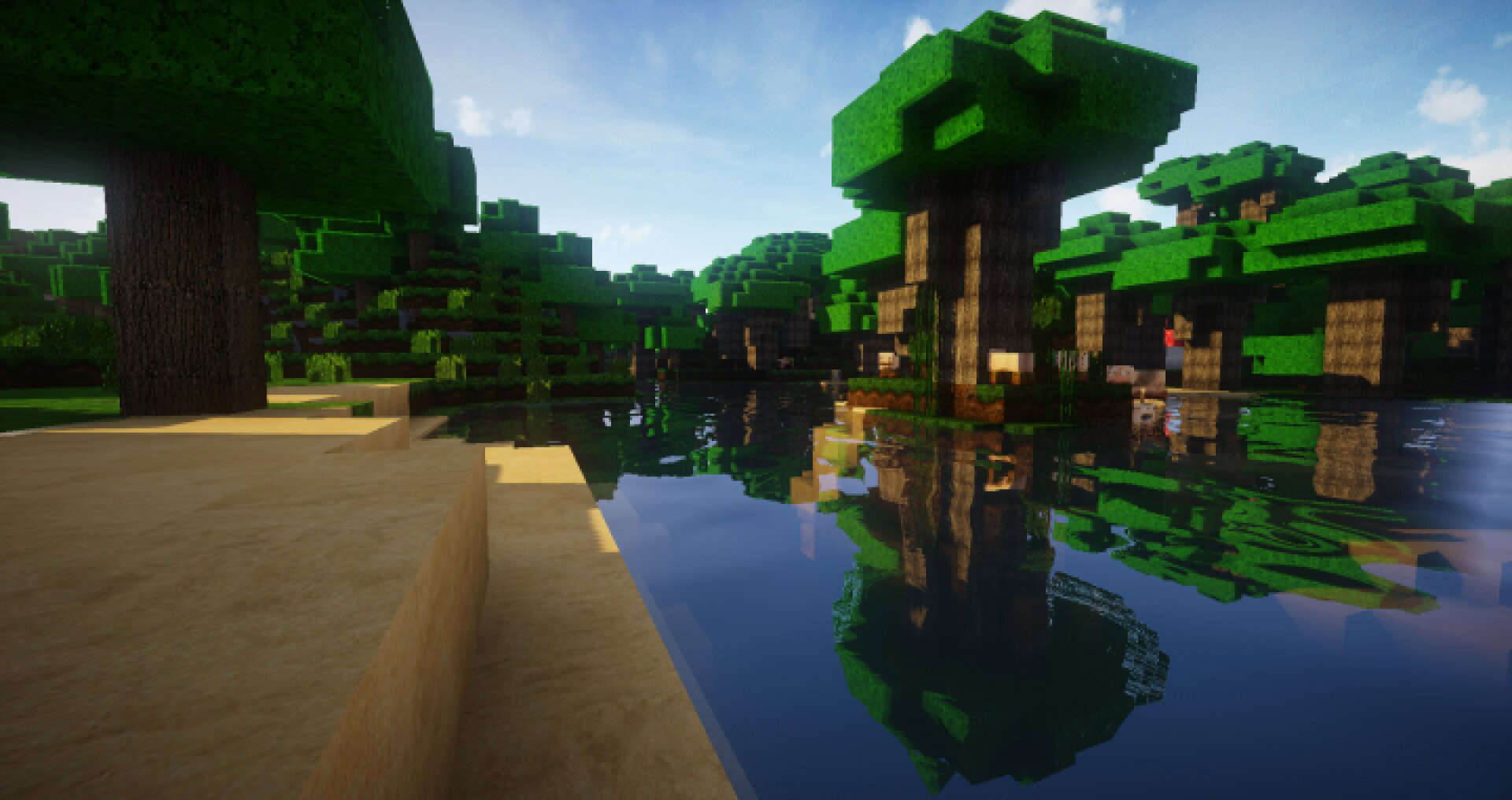
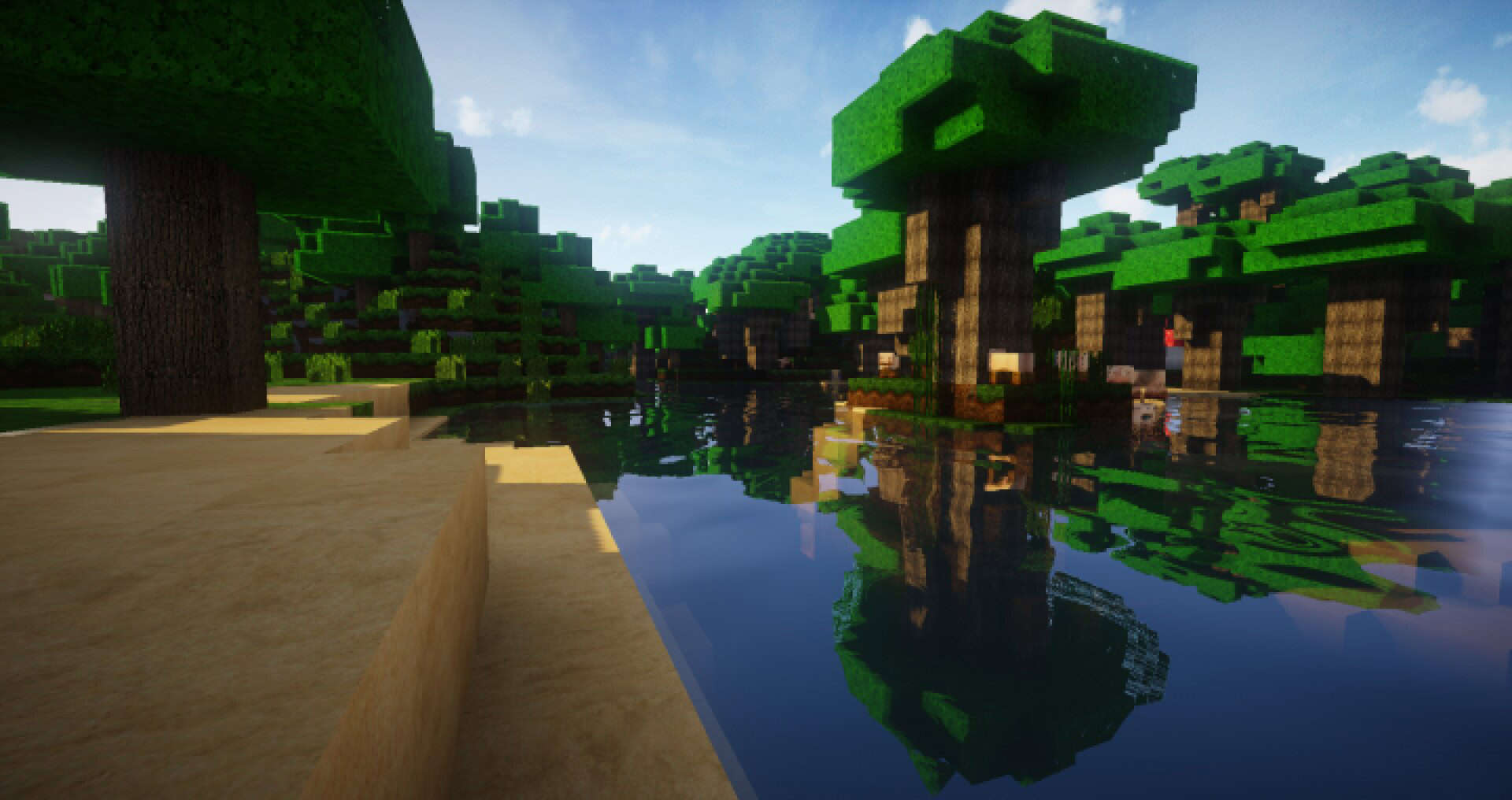
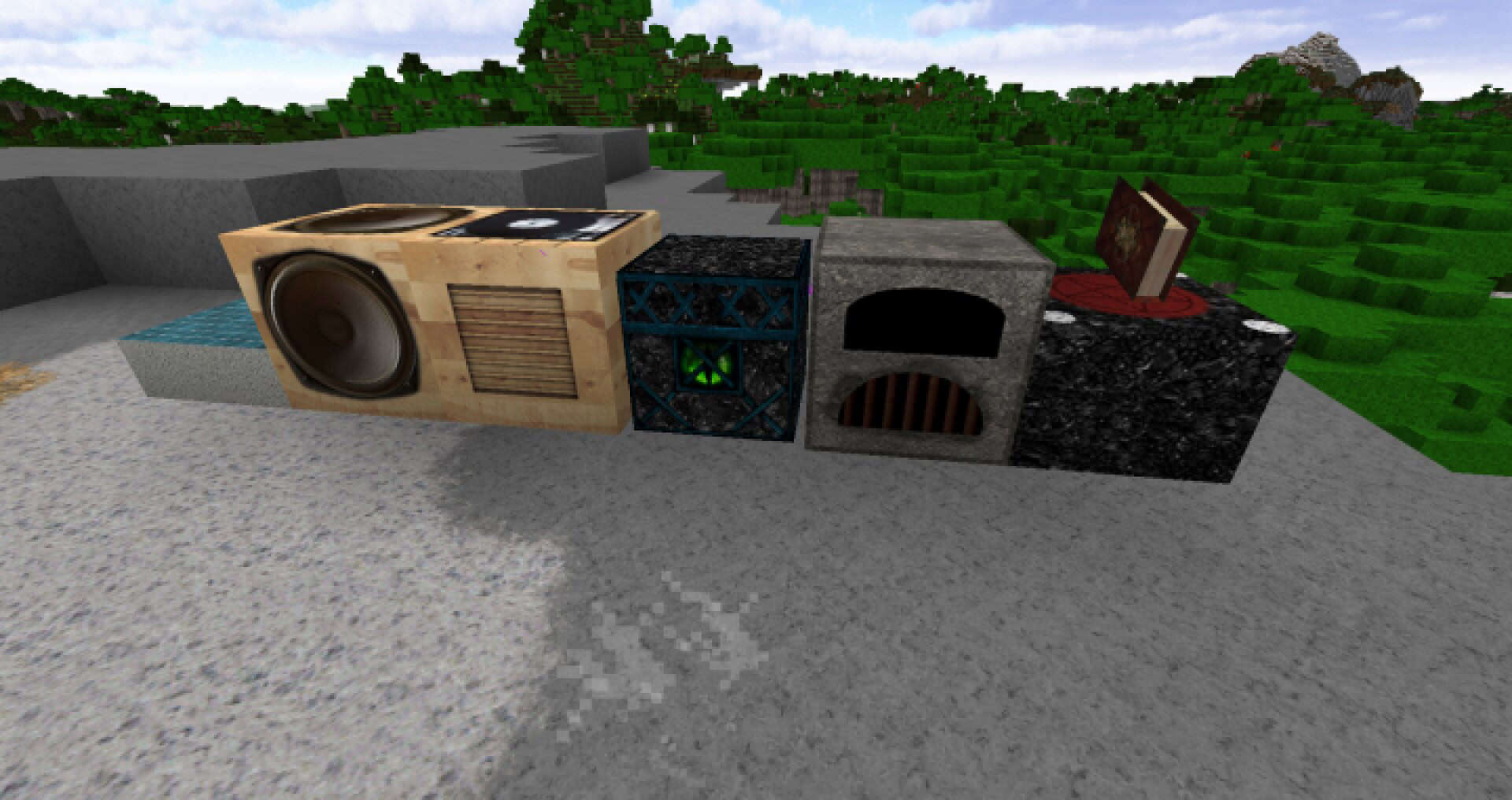
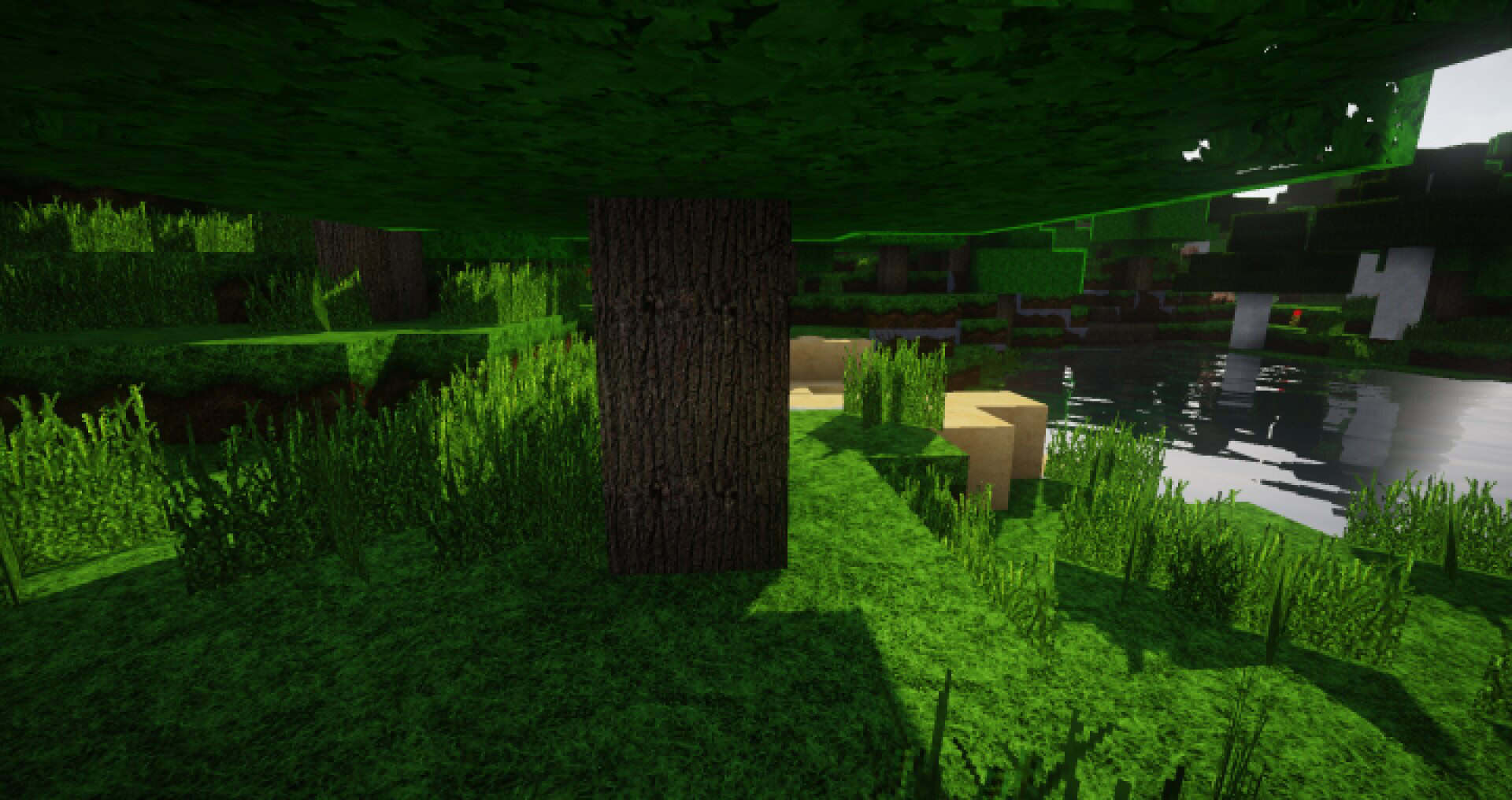
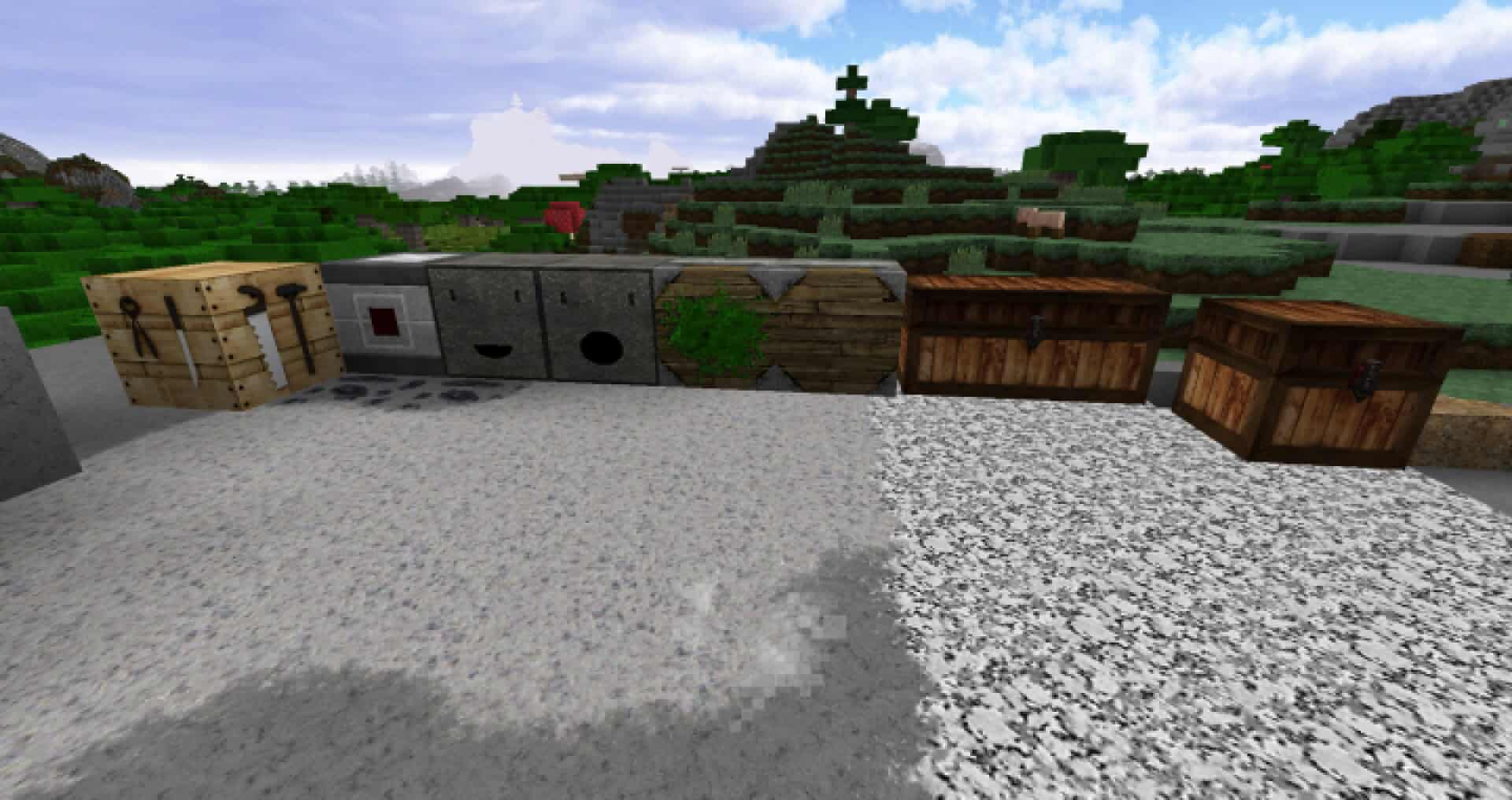
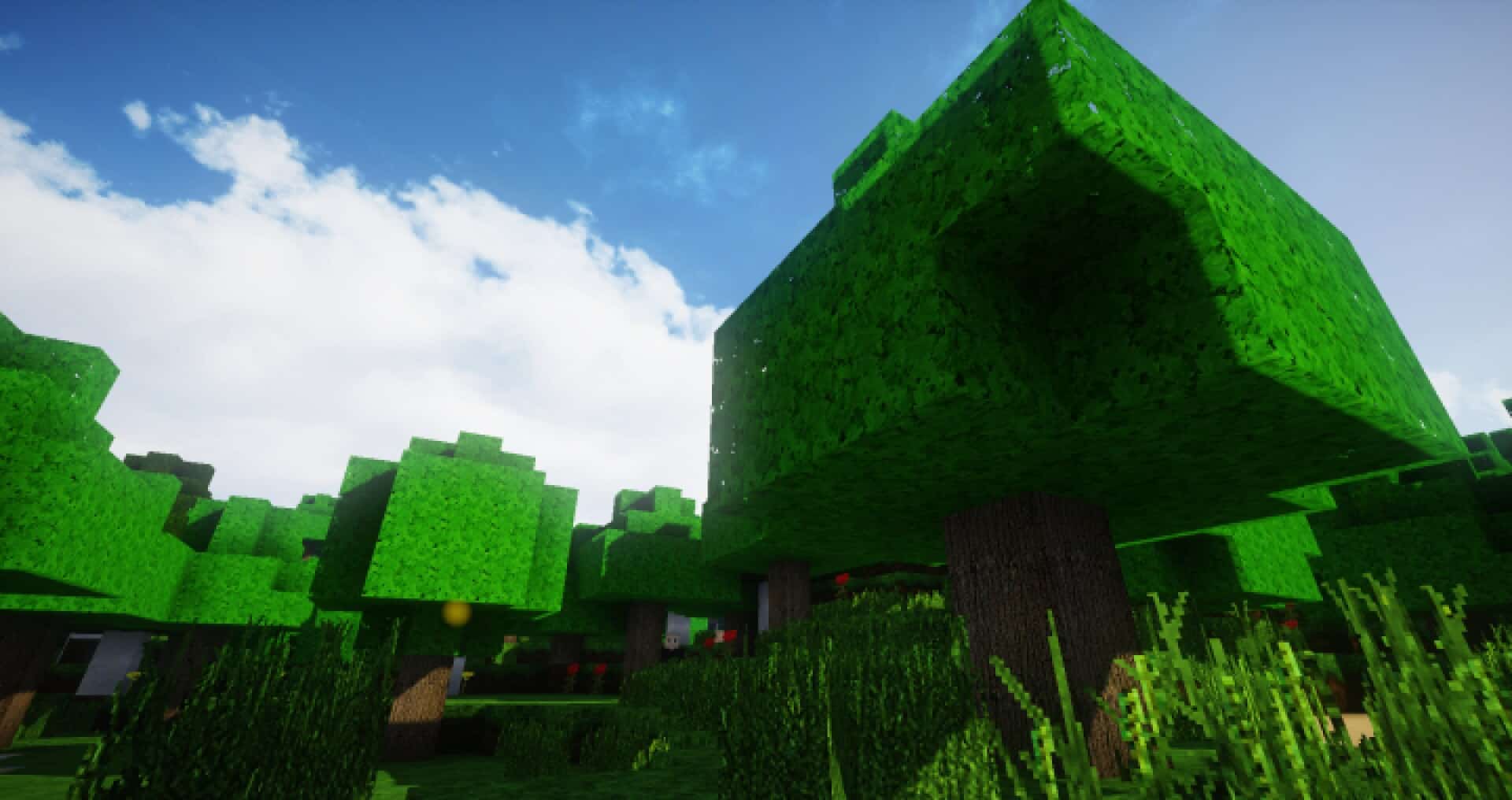
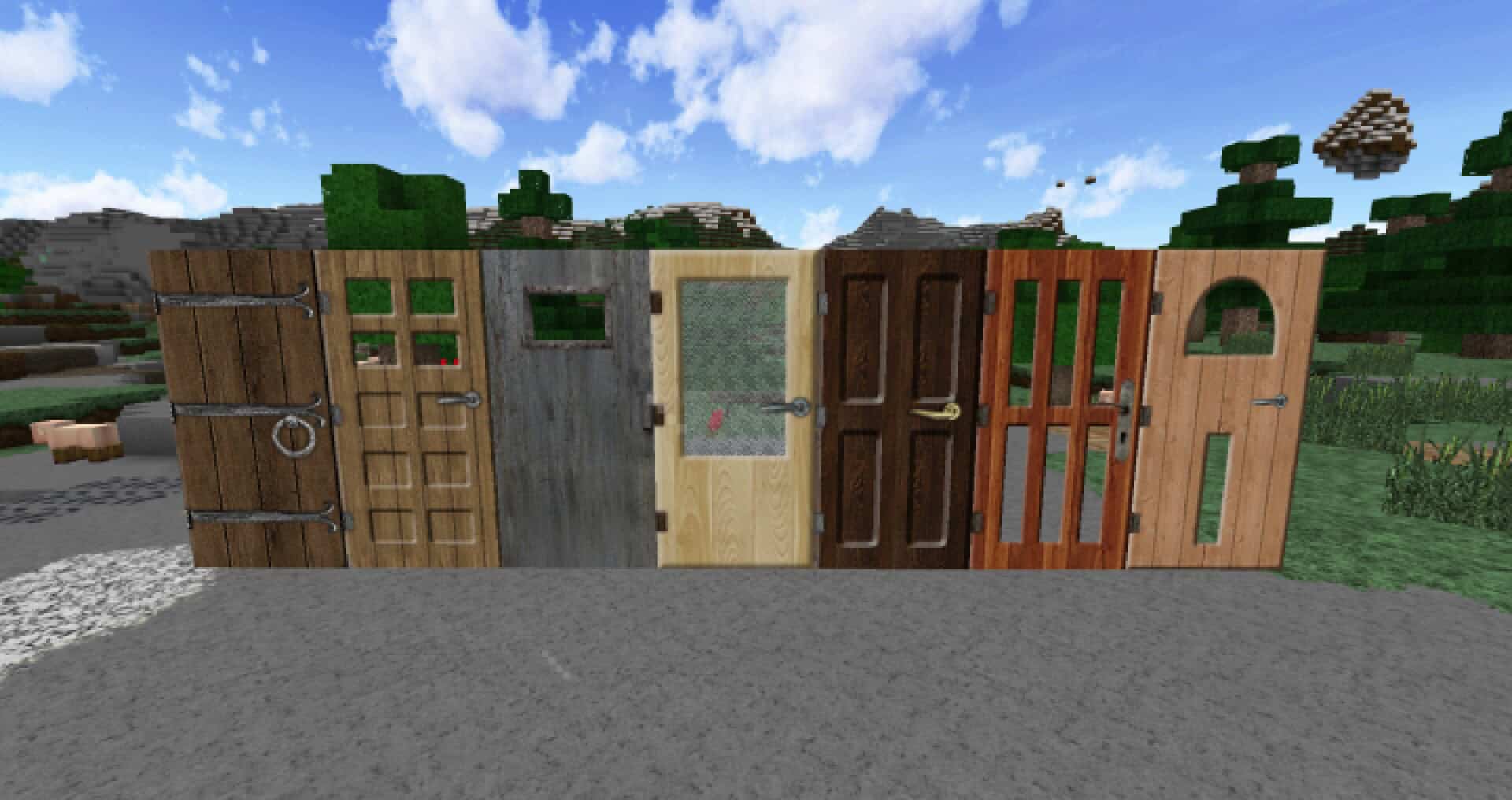
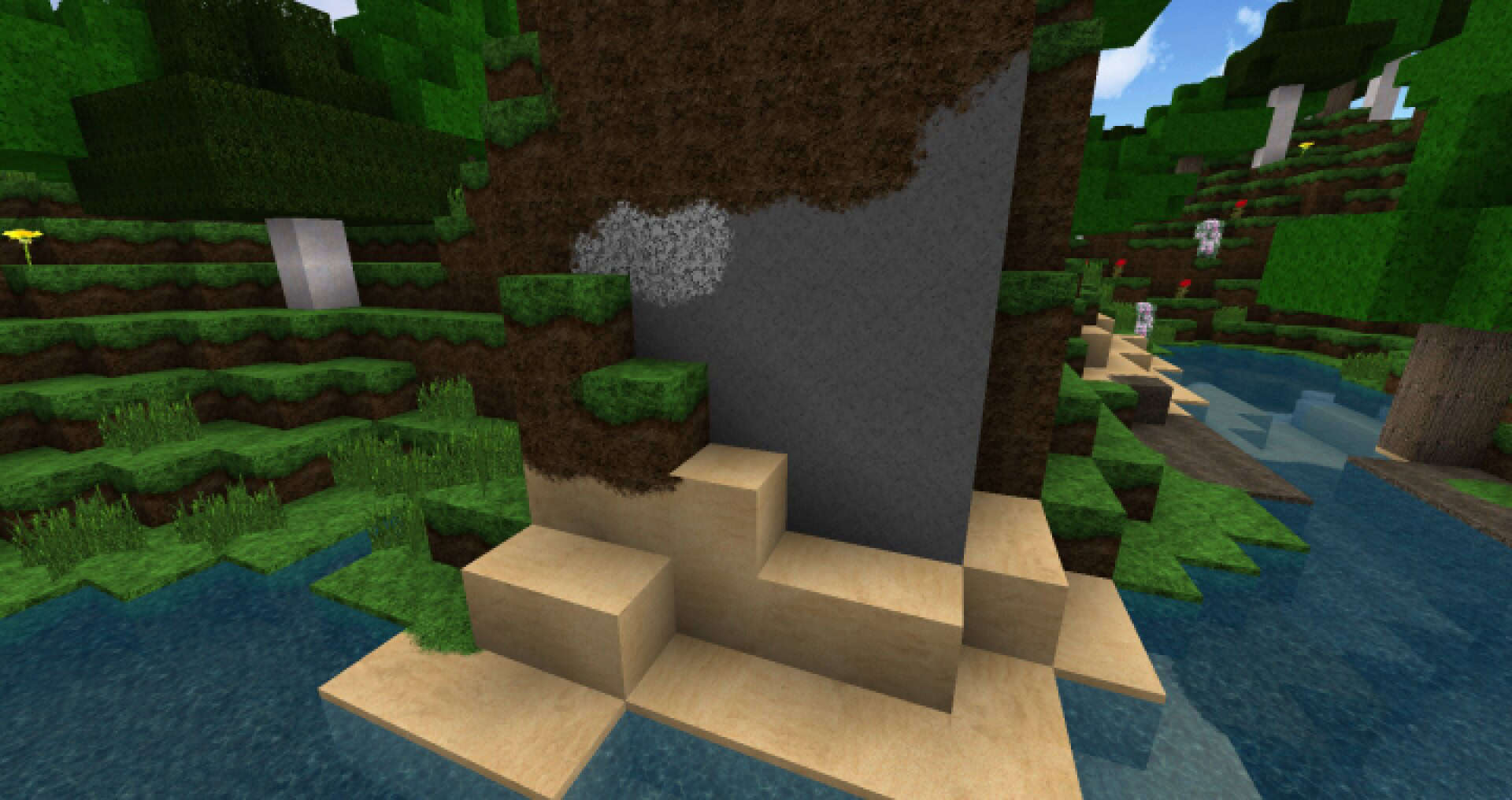
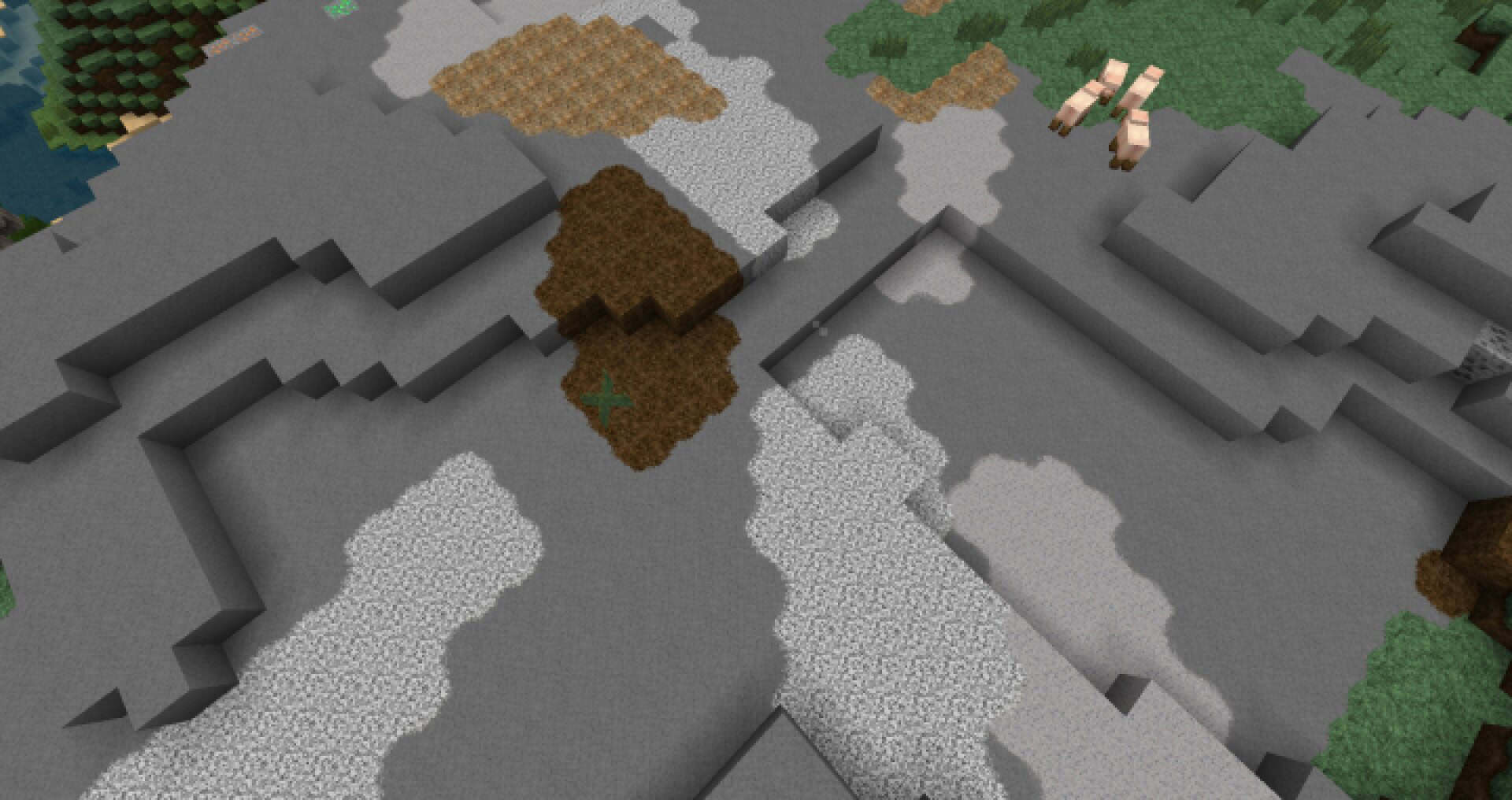
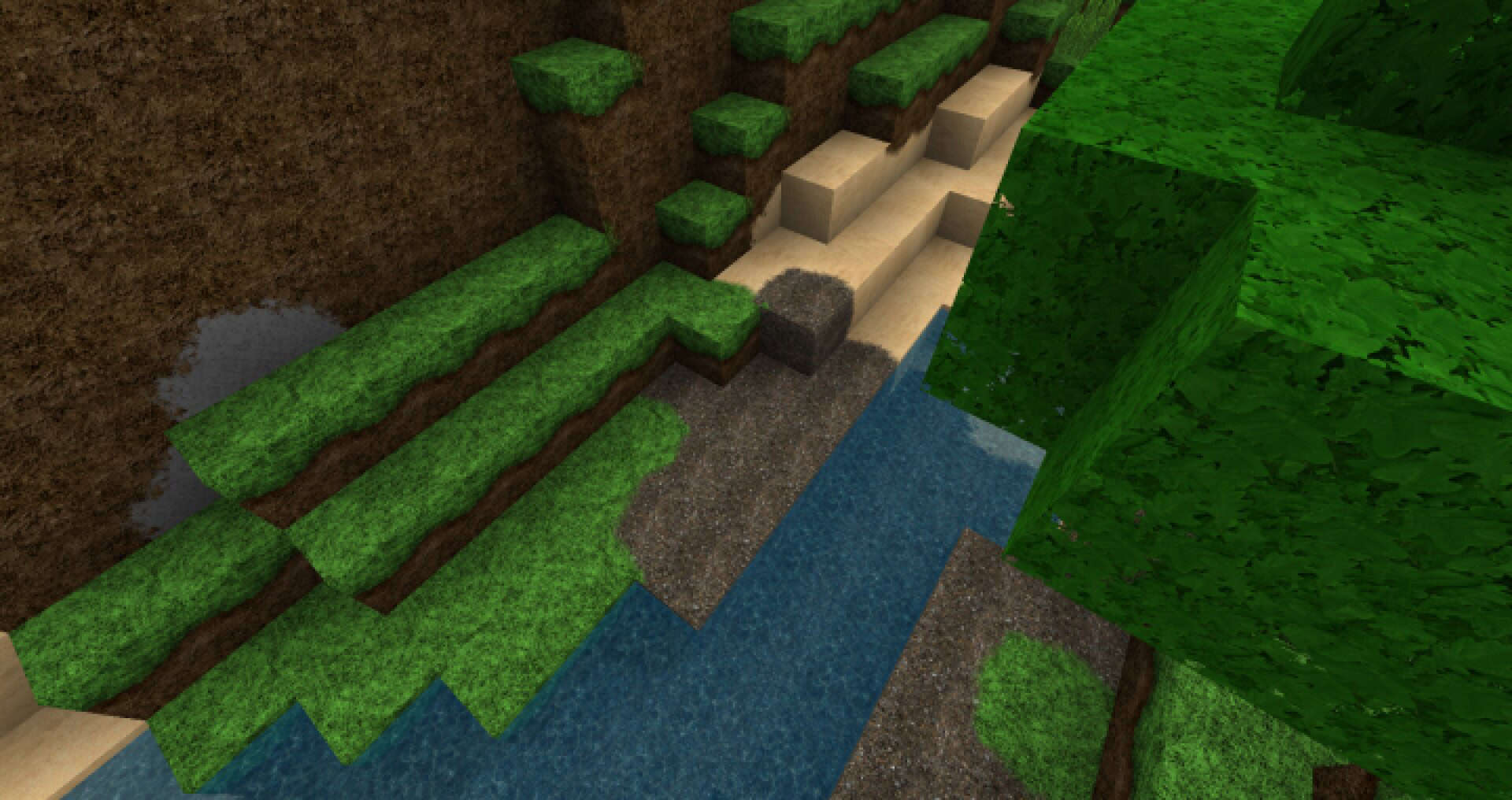
Hyper HD Realism is a widely popular resource pack that operates exactly as its name suggests. Yes! The pack is designed to make Minecraft appear much more realistic than it usually is. And guess what? After testing it firsthand, we would definitely say this pack achieves its stated goal. Over the last couple of years, there have been several attempts at developing high-definition resource packs focusing on realism. However, when it comes to execution, there are only a few packs that can match the efficiency of Hyper HD Realism. This is yet another reason why we are asking you to give this pack a try. This Hyper HD Realism resource pack gives your regular Minecraft textures a lot more detail, and the final result is a truly immersive visual experience that will keep most players hooked on the game.
Although the amount of detail in the textures is quite impressive, this pack also comes with one of the brightest color palettes that we have had the chance to enjoy. When you first start using the pack, you will be totally amazed by the number of resources you get to use. All of this collectively makes way for some excellent graphics that will compel players to keep exploring this world time and time again. They will love to play the game for hours simply in order to take in those beautiful sights. In case you are planning to download this pack, we recommend using it with shaders, because shaders themselves can bring out the best this pack has to offer, thereby making your overall experience completely worthwhile. Hyper HD Resolution comes with a 128x texture, which is quite high. To put it simply: you will definitely need a PC with high-end hardware for using this resource pack.
Hyper HD Realism should be compatible with all of these Minecraft versions: 1.12.2 – 1.12 – 1.11.2 – 1.11
Screenshots
How to Install Texture Pack (Simple 10 Steps)
- Download OptiFine: Most of the texture packs and shaders need OptiFine. That’s why, first download and install OptiFine for the version of Minecraft you want to play.
- Download the Texture Pack: Get the texture pack you want from the download section. Choose the version that works with your Minecraft and your PC’s performance.
- Open Minecraft Launcher: Start Minecraft using the official game launcher — or even TLauncher, if you use that.
- Go to Options: From the main menu, click on the “Options” button.
- Open Resource Packs: Inside Options, click on “Resource Packs…”.
- Open the Resource Pack Folder: Click on “Open Resource Pack Folder” — this will open a folder named “resourcepacks”.
- Move the Pack File: Copy or move the .zip file you downloaded into that “resourcepacks” folder. (Don’t unzip the file — Minecraft uses it as-is!)
- Go Back and Refresh: Close the folder and click “Done”, then go back into “Resource Packs…” again.
- Activate the Pack: You’ll see the pack on the left side. Hover over it and click the arrow to move it to the right (active side).
Tip: If you get a message that the pack is for a different version, just click “Yes” — it usually works fine. - Click Done and Enjoy: Click “Done” again. Now your pack is ready to use in-game. It’s that easy!
Credits
This resource pack was originally created by hdl34. We do not claim ownership of this creation and have not modified the original files. Please support the original creator by downloading from their official links.
Download Instructions
Curseforge: download starts automatically after a few seconds;
Mediafire: click the big blue button with the text “DOWNLOAD”;
Google Drive: in the top right corner you will see a small download icon (down arrow), click it and the download should start;


