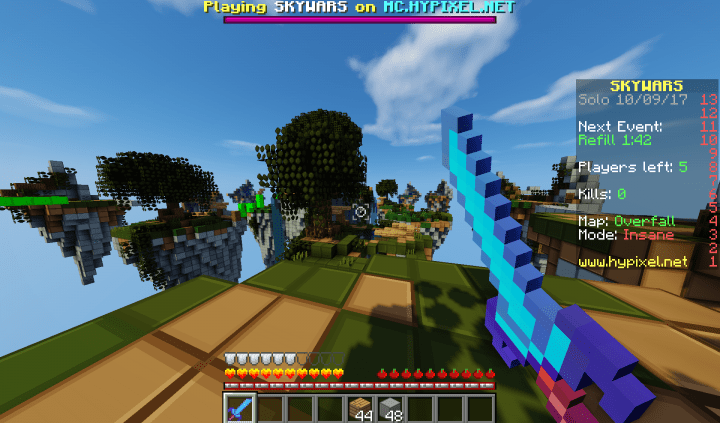
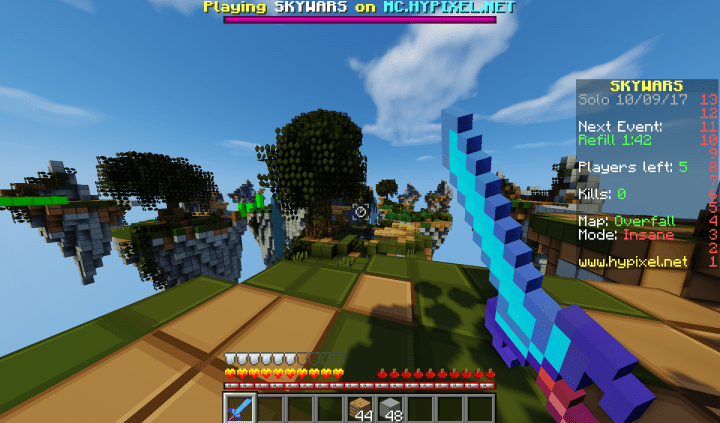
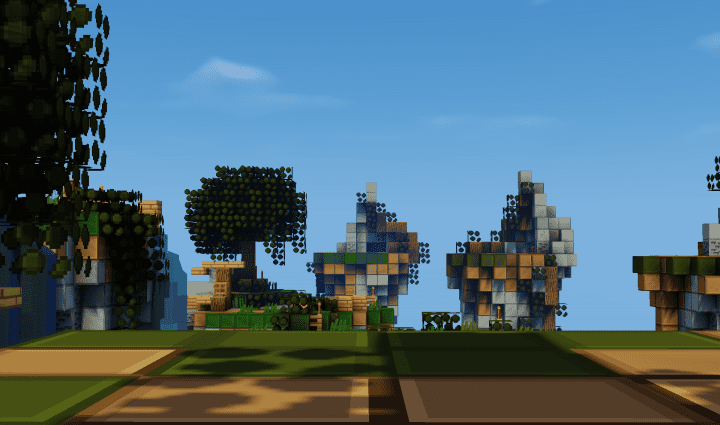
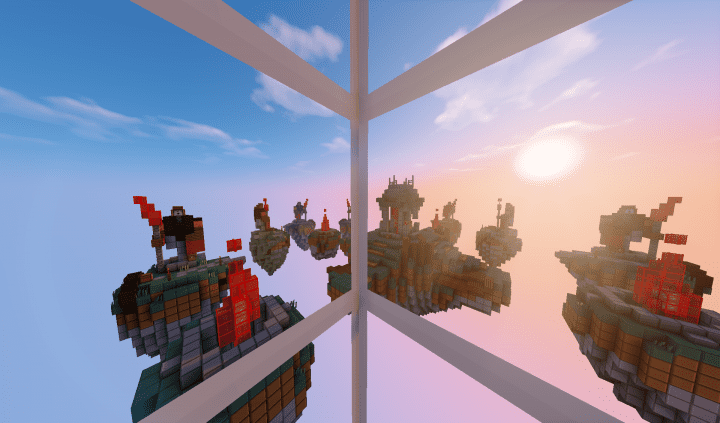
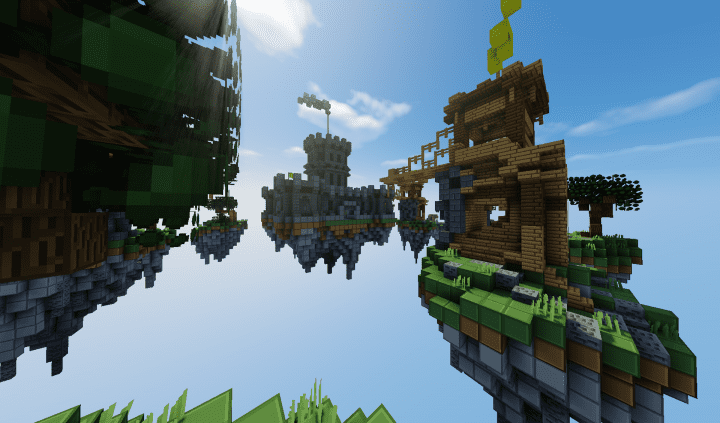
InjataFlame is a wonderfully attractive PvP themed resource pack for Minecraft that considerably enhances your entire gameplay experience. On top of that, this fantastic resource pack works to boost your Minecraft visual quality by an enormous amount. One huge difference and trend that every Minecraft player will definitely notice when using a dedicated PvP resource pack is the ability to streamline visuals to significantly improve in-game FPS. Because of this, the InjtataFlame PvP resource pack is undoubtedly an exceptional choice since it manages to boost visual quality by a considerable margin while simultaneously improving the overall speed and performance of your Minecraft game.
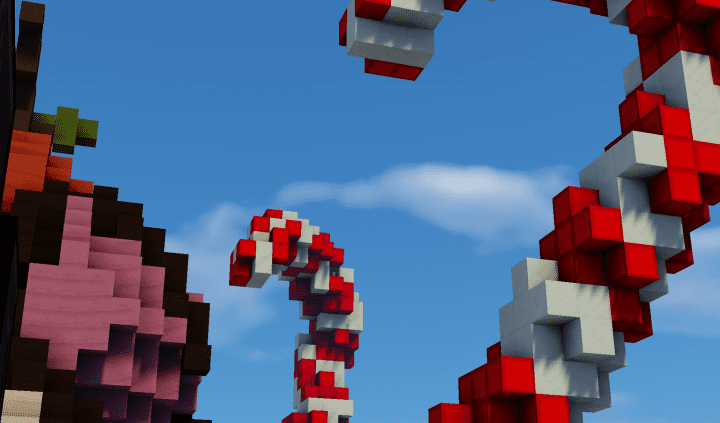
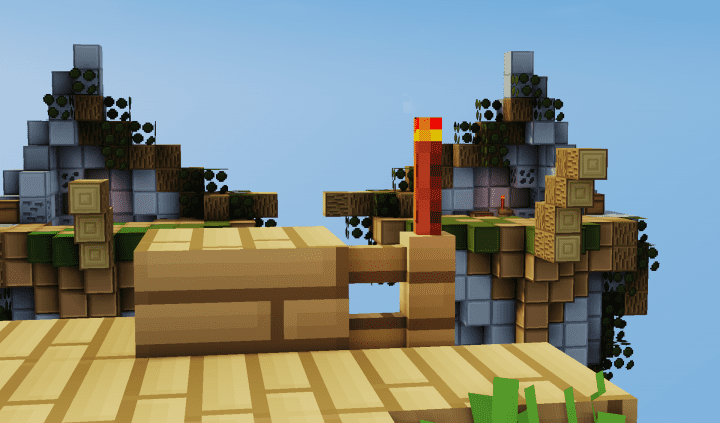
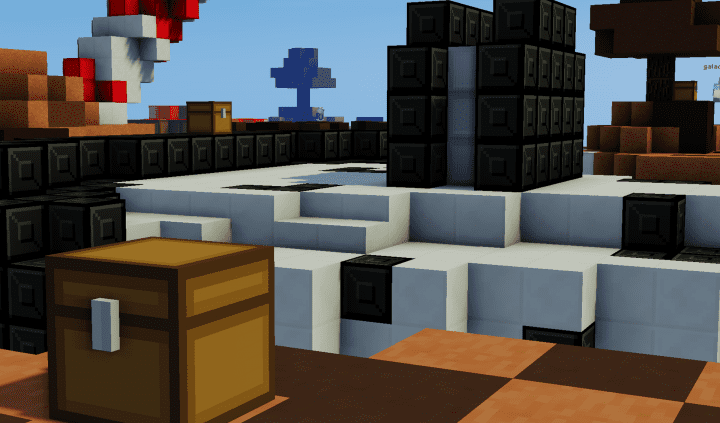
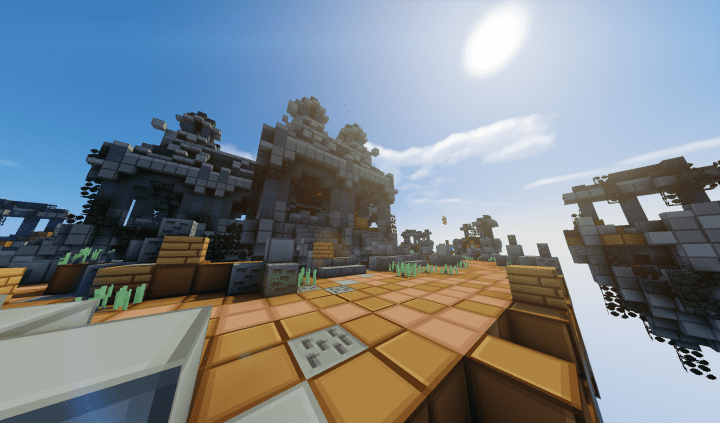
When you examine the Minecraft graphics after loading up the InjtataFlame PvP resource pack, you will completely agree that it features some of the best and smoothest textures you have ever observed inside a PvP focused pack. One thing this pack brilliantly manages to drop is visual noise, and by doing so, it makes every single texture appear exceptionally attractive and neat. Besides the elimination of visual clutter, InjataFlame PvP further comes with a vigorous and splendid color scheme that gives every texture a truly outstanding look. Furthermore, the brilliant colors supplied by these textures actually help improve your awareness in PvP situations. Best of all, InjtataFlame PvP comes in a performance-friendly 16×16 resolution,
InjtataFlame PvP should be compatible with all of these Minecraft versions: 1.8.9 – 1.8.8 – 1.8.1 – 1.8.6 – 1.8
Screenshots
How to Install Texture Pack (Simple 10 Steps)
- Download OptiFine: Most of the texture packs and shaders need OptiFine. That’s why, first download and install OptiFine for the version of Minecraft you want to play.
- Download the Texture Pack: Get the texture pack you want from the download section. Choose the version that works with your Minecraft and your PC’s performance.
- Open Minecraft Launcher: Start Minecraft using the official game launcher — or even TLauncher, if you use that.
- Go to Options: From the main menu, click on the “Options” button.
- Open Resource Packs: Inside Options, click on “Resource Packs…”.
- Open the Resource Pack Folder: Click on “Open Resource Pack Folder” — this will open a folder named “resourcepacks”.
- Move the Pack File: Copy or move the .zip file you downloaded into that “resourcepacks” folder. (Don’t unzip the file — Minecraft uses it as-is!)
- Go Back and Refresh: Close the folder and click “Done”, then go back into “Resource Packs…” again.
- Activate the Pack: You’ll see the pack on the left side. Hover over it and click the arrow to move it to the right (active side).
Tip: If you get a message that the pack is for a different version, just click “Yes” — it usually works fine. - Click Done and Enjoy: Click “Done” again. Now your pack is ready to use in-game. It’s that easy!
Credits
This resource pack was originally created by Injata. We do not claim ownership of this content and do not modify the original files. We strongly encourage you to support the original creator by visiting their official social channels and downloading the pack directly from official sources.
Download Instructions
Curseforge: download starts automatically after a few seconds;
Mediafire: click the big blue button with the text “DOWNLOAD”;
Google Drive: in the top right corner you will see a small download icon (down arrow), click it and the download should start;


